U connect theater CHRYSLER PACIFICA 2020 User Guide
[x] Cancel search | Manufacturer: CHRYSLER, Model Year: 2020, Model line: PACIFICA, Model: CHRYSLER PACIFICA 2020Pages: 516, PDF Size: 28.69 MB
Page 479 of 516
MULTIMEDIA477
NOTE:
To view video content on the radio screen, bring
the vehicle to a stop.
Disc Menu
When listening to a CD Audio disc, CD Data disc,
DVD, or Blu-ray™, pushing the remote control’s
Arrow buttons will navigate the cursor on the
rear touchscreen in the desired direction, on
whichever touchscreen is selected. The UP,
DOWN, LEFT, and RIGHT Arrow buttons, and the
OK and MENU buttons on the remote, along
with the corresponding buttons overlaid on the
radio touchscreen, can be used to navigate the
disc menu when it appears. This can be used to
select specific chapters in a movie, to navigate
special features, or to play the movie from the
menu.
NOTE:
Inserting a disc into the player will “auto play” the
disc if already in the “Disc" source menu on the
rear screens, and the disc supports “auto play.”
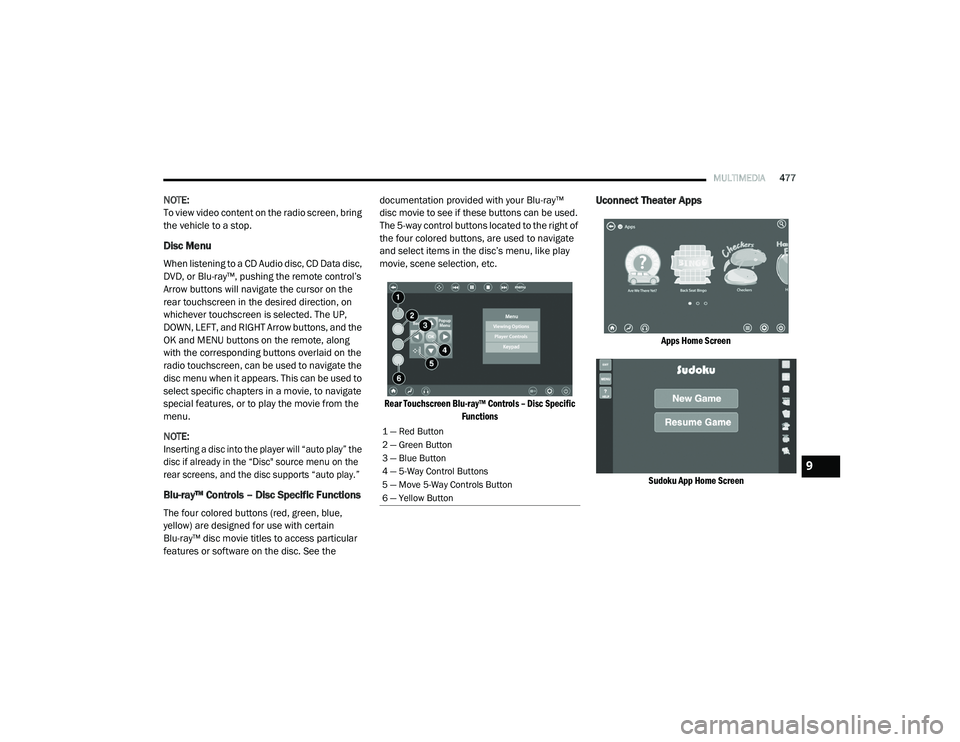
Blu-ray™ Controls – Disc Specific Functions
The four colored buttons (red, green, blue,
yellow) are designed for use with certain
Blu-ray™ disc movie titles to access particular
features or software on the disc. See the documentation provided with your Blu-ray™
disc movie to see if these buttons can be used.
The 5-way control buttons located to the right of
the four colored buttons, are used to navigate
and select items in the disc’s menu, like play
movie, scene selection, etc.
Rear Touchscreen Blu-ray™ Controls – Disc Specific Functions
Uconnect Theater Apps
Apps Home Screen
Sudoku App Home Screen
1 — Red Button
2 — Green Button
3 — Blue Button
4 — 5-Way Control Buttons
5 — Move 5-Way Controls Button
6 — Yellow Button
9
20_RU_OM_EN_US_t.book Page 477
Page 481 of 516
MULTIMEDIA479
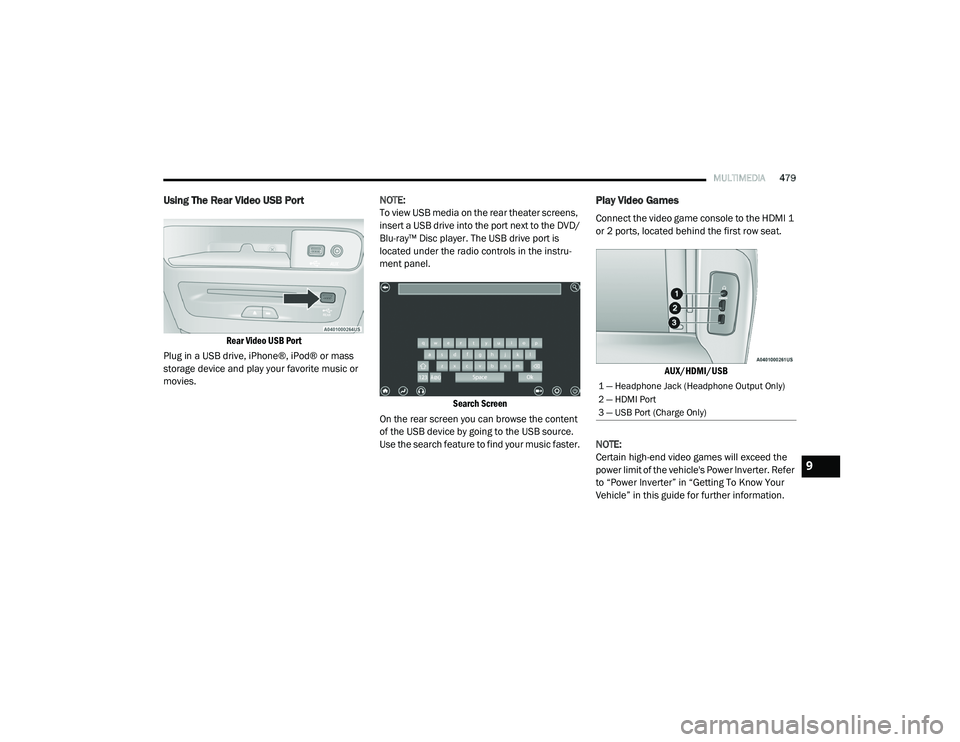
Using The Rear Video USB Port
Rear Video USB Port
Plug in a USB drive, iPhone®, iPod® or mass
storage device and play your favorite music or
movies. NOTE:
To view USB media on the rear theater screens,
insert a USB drive into the port next to the DVD/
Blu-ray™ Disc player. The USB drive port is
located under the radio controls in the instru
-
ment panel.
Search Screen
On the rear screen you can browse the content
of the USB device by going to the USB source.
Use the search feature to find your music faster.
Play Video Games
Connect the video game console to the HDMI 1
or 2 ports, located behind the first row seat.
AUX/HDMI/USB
NOTE:
Certain high-end video games will exceed the
power limit of the vehicle's Power Inverter. Refer
to “Power Inverter” in “Getting To Know Your
Vehicle” in this guide for further information.
1 — Headphone Jack (Headphone Output Only)
2 — HDMI Port
3 — USB Port (Charge Only)
9
20_RU_OM_EN_US_t.book Page 479
Page 482 of 516
480MULTIMEDIA
Headphones Operation
The headphones receive two separate channels
of audio using an infrared transmitter from the
video screens.
If no audio is heard after increasing the volume
control, there are a number of things that can
be done to troubleshoot the issue:
Verify that the screen is turned on.
Check to see that the channel is not muted.
Make sure that the headphones are on.
Verify that the headphone channel selector
button is on the desired channel. This button
switches between the audio of screen 1 and
screen 2.
Install two new AAA type batteries in the
headphones.
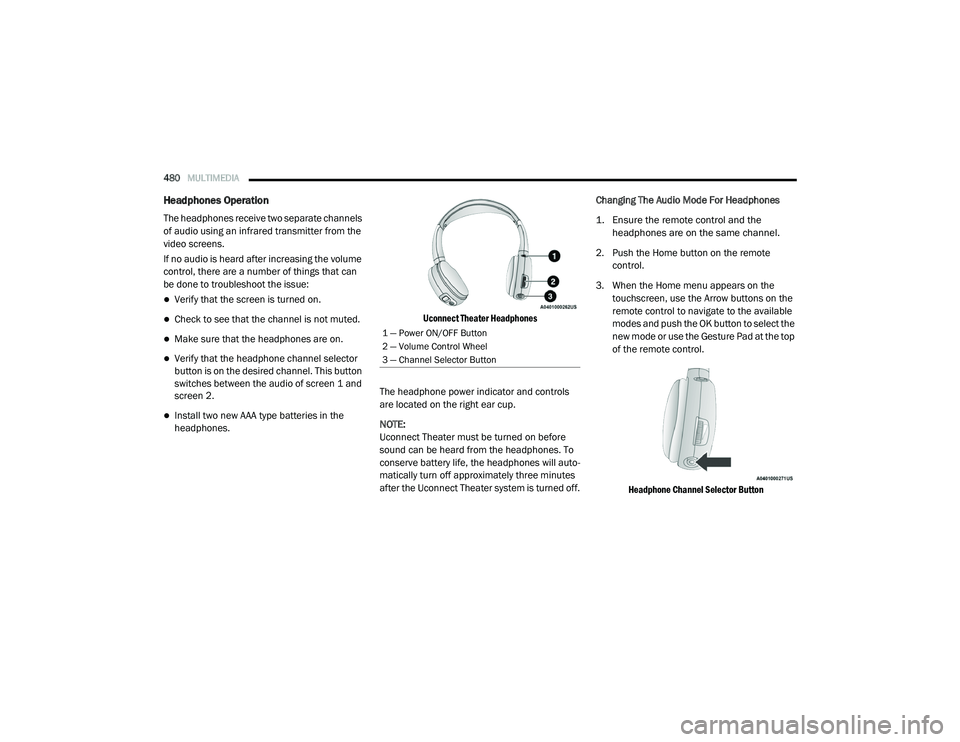
Uconnect Theater Headphones
The headphone power indicator and controls
are located on the right ear cup.
NOTE:
Uconnect Theater must be turned on before
sound can be heard from the headphones. To
conserve battery life, the headphones will auto -
matically turn off approximately three minutes
after the Uconnect Theater system is turned off. Changing The Audio Mode For Headphones
1. Ensure the remote control and the
headphones are on the same channel.
2. Push the Home button on the remote control.
3. When the Home menu appears on the touchscreen, use the Arrow buttons on the
remote control to navigate to the available
modes and push the OK button to select the
new mode or use the Gesture Pad at the top
of the remote control.
Headphone Channel Selector Button
1 — Power ON/OFF Button
2 — Volume Control Wheel
3 — Channel Selector Button
20_RU_OM_EN_US_t.book Page 480
Page 484 of 516
482MULTIMEDIA
Listening To Audio With The Screen Closed
To listen to only audio portion of the channel
with the screen closed:
Set the audio to the desired source and
channel.
Close the video screen.
When the screen is reopened, the video
screen will automatically turn back on and
show the appropriate display menu or media. If the screen is closed and there is no audio
heard, verify that the headphones are turned on
(the ON indicator is illuminated) and the
headphone selector switch is on the desired
channel. If the headphones are turned on, push
the remote control’s power button to turn audio
on. If audio is still not heard, check that fully
charged batteries are installed in the
headphones.
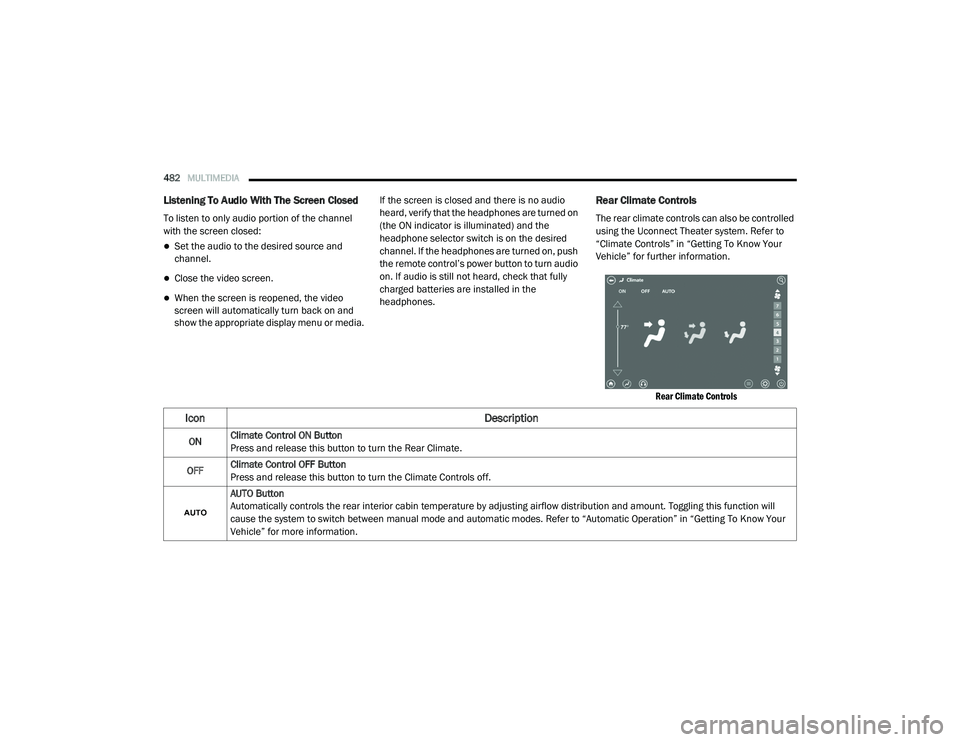
Rear Climate Controls
The rear climate controls can also be controlled
using the Uconnect Theater system. Refer to
“Climate Controls” in “Getting To Know Your
Vehicle” for further information.
Rear Climate Controls
Icon Description
ONClimate Control ON Button
Press and release this button to turn the Rear Climate.
OFF Climate Control OFF Button
Press and release this button to turn the Climate Controls off.
AUTO Button
Automatically controls the rear interior cabin temperature by adjusting airflow distribution and amount. Toggling this function will
cause the system to switch between manual mode and automatic modes. Refer to “Automatic Operation” in “Getting To Know Your
Vehicle” for more information.
20_RU_OM_EN_US_t.book Page 482
Page 486 of 516
484MULTIMEDIA
Accessibility — If Equipped
Accessibility is a feature of the DVD/Blu-ray™/USB
Video system that announces a function prior to
performing the action. Refer to “Uconnect
Settings” in this chapter for further information.
Wireless Streaming — If Equipped
Your Uconnect Theater system may be
equipped with Wireless Streaming functionality
that allows you to project your smartphone or
tablet onto your rear Uconnect Theater
touchscreens. This Source Card will allow you to
wirelessly link your compatible Android™
devices to your Uconnect Theater system and
stream your device onto the touchscreens.
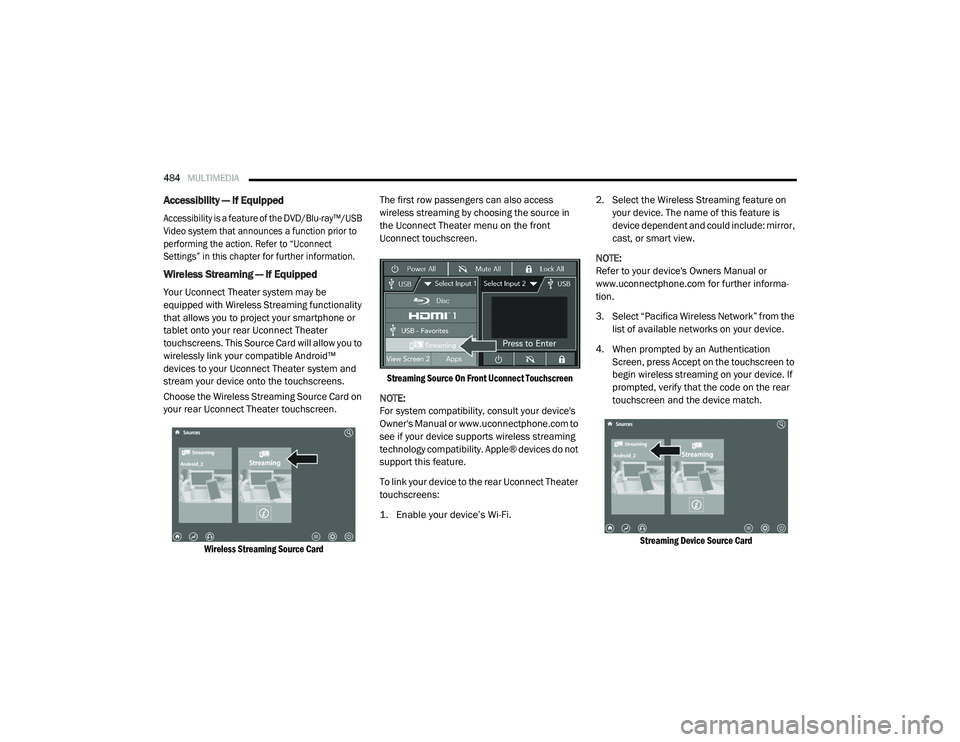
Choose the Wireless Streaming Source Card on
your rear Uconnect Theater touchscreen.
Wireless Streaming Source Card
The first row passengers can also access
wireless streaming by choosing the source in
the Uconnect Theater menu on the front
Uconnect touchscreen.
Streaming Source On Front Uconnect Touchscreen
NOTE:
For system compatibility, consult your device's
Owner's Manual or www.uconnectphone.com to
see if your device supports wireless streaming
technology compatibility. Apple® devices do not
support this feature.
To link your device to the rear Uconnect Theater
touchscreens:
1. Enable your device’s Wi-Fi.
2. Select the Wireless Streaming feature on
your device. The name of this feature is
device dependent and could include: mirror,
cast, or smart view.
NOTE:
Refer to your device's Owners Manual or
www.uconnectphone.com for further informa -
tion.
3. Select “Pacifica Wireless Network” from the list of available networks on your device.
4. When prompted by an Authentication Screen, press Accept on the touchscreen to
begin wireless streaming on your device. If
prompted, verify that the code on the rear
touchscreen and the device match.
Streaming Device Source Card
20_RU_OM_EN_US_t.book Page 484
Page 487 of 516
MULTIMEDIA485
Your phone will be added as an additional
Source Card on the Uconnect Theater
touchscreens.
NOTE:
The Authentication Screen will appear on both
rear touchscreens. The touchscreen screen on
which Accept is selected will be the primary
controller for the wireless streaming session.
NOTE:
Some devices will allow you to control your
device through the Uconnect Theater rear
touchscreens. They will react to your selec -
tions from the touchscreen and be repre -
sented on your device as well. When
supported, the Uconnect Theater task bar will
appear at the top and bottom of the
Uconnect Theater touchscreen, framing your
streaming device.
Devices that do not support this feature will
not respond to Uconnect Theater touch -
screen but can still be controlled using the
streaming device.
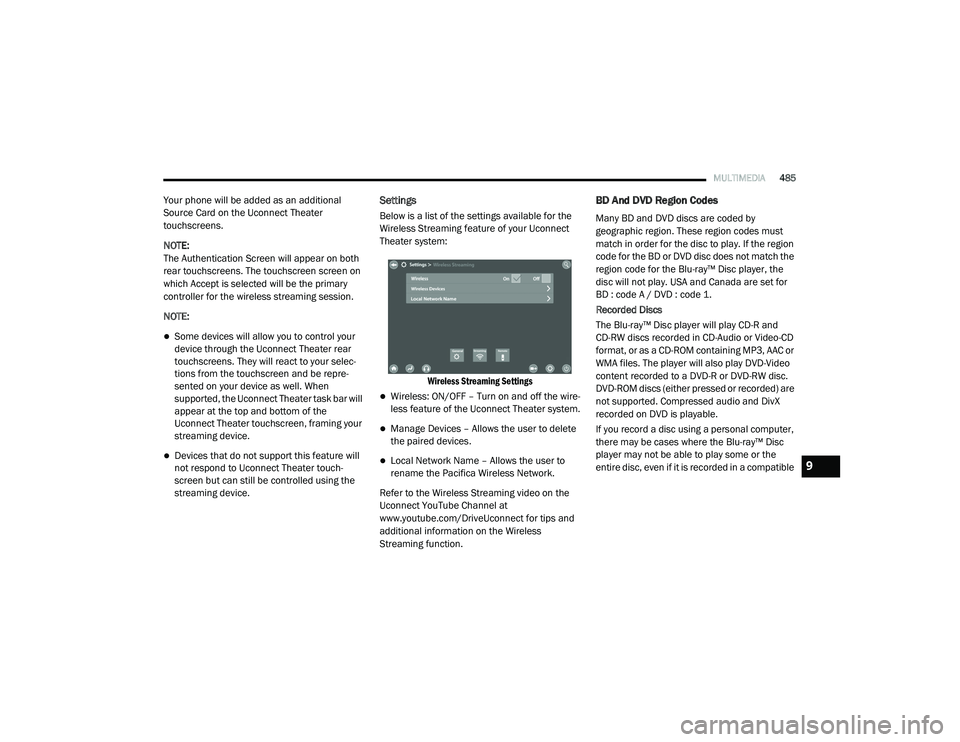
Settings
Below is a list of the settings available for the
Wireless Streaming feature of your Uconnect
Theater system:
Wireless Streaming Settings
Wireless: ON/OFF – Turn on and off the wire -
less feature of the Uconnect Theater system.
Manage Devices – Allows the user to delete
the paired devices.
Local Network Name – Allows the user to
rename the Pacifica Wireless Network.
Refer to the Wireless Streaming video on the
Uconnect YouTube Channel at
www.youtube.com/DriveUconnect for tips and
additional information on the Wireless
Streaming function.
BD And DVD Region Codes
Many BD and DVD discs are coded by
geographic region. These region codes must
match in order for the disc to play. If the region
code for the BD or DVD disc does not match the
region code for the Blu-ray™ Disc player, the
disc will not play. USA and Canada are set for
BD : code A / DVD : code 1.
Recorded Discs
The Blu-ray™ Disc player will play CD-R and
CD-RW discs recorded in CD-Audio or Video-CD
format, or as a CD-ROM containing MP3, AAC or
WMA files. The player will also play DVD-Video
content recorded to a DVD-R or DVD-RW disc.
DVD-ROM discs (either pressed or recorded) are
not supported. Compressed audio and DivX
recorded on DVD is playable.
If you record a disc using a personal computer,
there may be cases where the Blu-ray™ Disc
player may not be able to play some or the
entire disc, even if it is recorded in a compatible
9
20_RU_OM_EN_US_t.book Page 485
Page 513 of 516
511
Tire Stowage
.................................................. 330Tires................................... 218, 374, 379, 383Aging (Life Of Tires)................................... 377Air Pressure............................................... 374Chains....................................................... 382Changing......................................... 320, 366Compact Spare......................................... 379General Information........................ 374, 379High Speed................................................ 375Inflation Pressure...................................... 375Jacking................................... 320, 322, 366Life Of Tires............................................... 377Load Capacity............................................ 371Pressure Monitoring System (TPMS)............................... 131, 146, 167Quality Grading.......................................... 383Radial........................................................ 376Replacement............................................. 377Rotation.................................................... 382Safety.............................................. 366, 374Sizes.......................................................... 367Snow Tires................................................. 379Spare Tires............................. 320, 379, 380Spinning.................................................... 376Trailer Towing............................................ 295Tread Wear Indicators............................... 377Wheel Nut Torque..................................... 388To Open Hood.................................................. 97Tongue Weight/Trailer Weight....................... 294
Towing.......................................................... 289Disabled Vehicle....................................... 342Guide........................................................ 291Recreational............................................. 298Weight...................................................... 291Towing Behind A Motorhome........................ 298Traction......................................................... 299Traction Control............................................ 158Trailer Sway Control (TSC)............................. 158Trailer Towing............................................... 289Cooling System Tips................................. 297Hitches..................................................... 291Minimum Requirements........................... 294Tips........................................................... 297Trailer And Tongue Weight........................ 294Wiring....................................................... 296Trailer Towing Guide..................................... 291Trailer Weight................................................ 291TransaxleAutomatic................................................. 228Operation................................................. 228Transmission................................................ 230Automatic........................................ 230, 365Maintenance............................................ 365Transporting Pets.......................................... 215Tread Wear Indicators.................................. 377Turn Signals.................................. 63, 149, 309
U
UconnectAdvanced Phone Connectivity
................... 465Phone Call Features................................. 462Theater..................................................... 469Things You Should Know About Your Uconnect Phone................................... 465Uconnect Settings.......................................21Uconnect 4 With 7-Inch Display.................... 398Uconnect 4C/4C Nav With 8.4-Inch Display.. 415Uconnect Phone................ 456, 457, 459, 460Answer Or Ignore An Incoming Call — Call Currently In Progress..................... 464Answer Or Ignore An Incoming Call — No Call Currently In Progress................ 464Bluetooth Communication Link................ 466Call By Saying A Phonebook Name........... 463Call Continuation...................................... 465Call Controls............................................. 463Call Termination....................................... 465Cancel Command..................................... 457Connect Or Disconnect Link Between The Uconnect Phone And Mobile
Phone
................................................... 465Connecting To A Particular Mobile Phone Or Audio Device After Pairing................ 460
11
20_RU_OM_EN_US_t.book Page 511