audio CHRYSLER PACIFICA 2020 User Guide
[x] Cancel search | Manufacturer: CHRYSLER, Model Year: 2020, Model line: PACIFICA, Model: CHRYSLER PACIFICA 2020Pages: 516, PDF Size: 28.69 MB
Page 259 of 516
STARTING AND OPERATING257
The vehicle is close to the obstacle when the warning display shows one flashing arc and sounds a continuous tone. The following chart shows the
warning alert operation when the system is detecting an obstacle:
NOTE:
ParkSense will reduce the volume of the radio, if
on, when the system is sounding an audio tone.
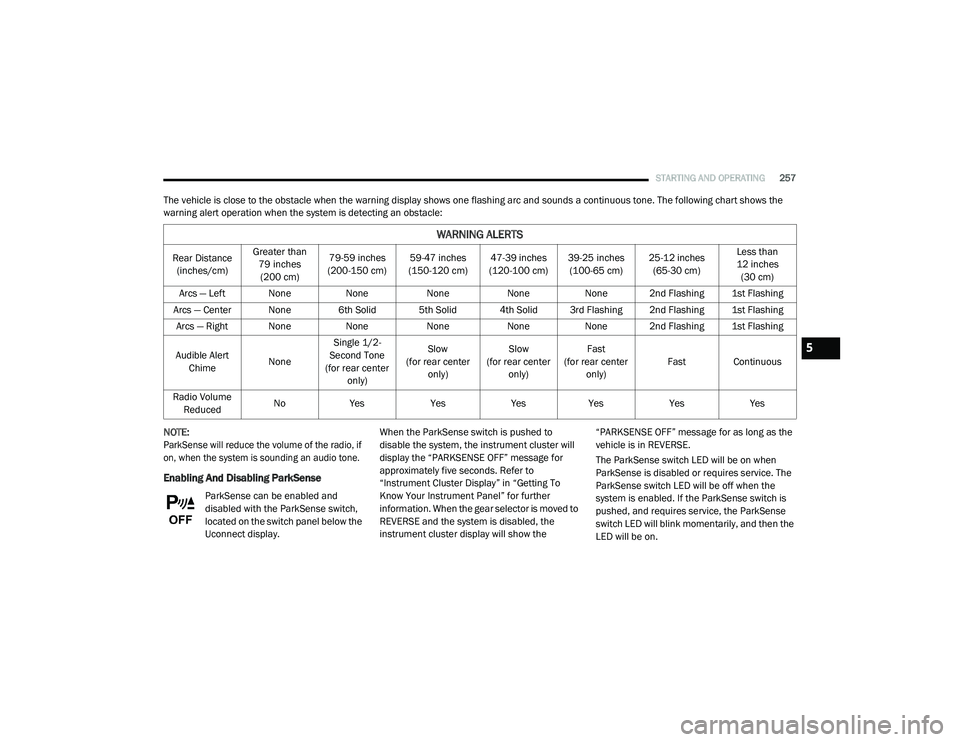
Enabling And Disabling ParkSense
ParkSense can be enabled and
disabled with the ParkSense switch,
located on the switch panel below the
Uconnect display. When the ParkSense switch is pushed to
disable the system, the instrument cluster will
display the “PARKSENSE OFF” message for
approximately five seconds. Refer to
“Instrument Cluster Display” in “Getting To
Know Your Instrument Panel” for further
information. When the gear selector is moved to
REVERSE and the system is disabled, the
instrument cluster display will show the “PARKSENSE OFF” message for as long as the
vehicle is in REVERSE.
The ParkSense switch LED will be on when
ParkSense is disabled or requires service. The
ParkSense switch LED will be off when the
system is enabled. If the ParkSense switch is
pushed, and requires service, the ParkSense
switch LED will blink momentarily, and then the
LED will be on.
WARNING ALERTS
Rear Distance
(inches/cm) Greater than
79 inches (200 cm) 79-59 inches
(200-150 cm) 59-47 inches
(150-120 cm) 47-39 inches
(120-100 cm) 39-25 inches
(100-65 cm) 25-12 inches
(65-30 cm) Less than
12 inches (30 cm)
Arcs — Left None NoneNoneNoneNone 2nd Flashing 1st Flashing
Arcs — Center None 6th Solid 5th Solid 4th Solid 3rd Flashing 2nd Flashing 1st Flashing Arcs — Right None NoneNoneNoneNone 2nd Flashing 1st Flashing
Audible Alert Chime NoneSingle 1/2-
Second Tone
(for rear center only) Slow
(for rear center only) Slow
(for rear center only) Fast
(for rear center only) Fast Continuous
Radio Volume Reduced No
Yes YesYesYes YesYes
5
20_RU_OM_EN_US_t.book Page 257
Page 266 of 516
264STARTING AND OPERATING
NOTE:
ParkSense will reduce the volume of the radio,
if on, when the system is sounding an audio
tone.
Front Park Assist
When the vehicle is in DRIVE the ParkSense
Warning screen will be displayed when an
obstacle is detected.
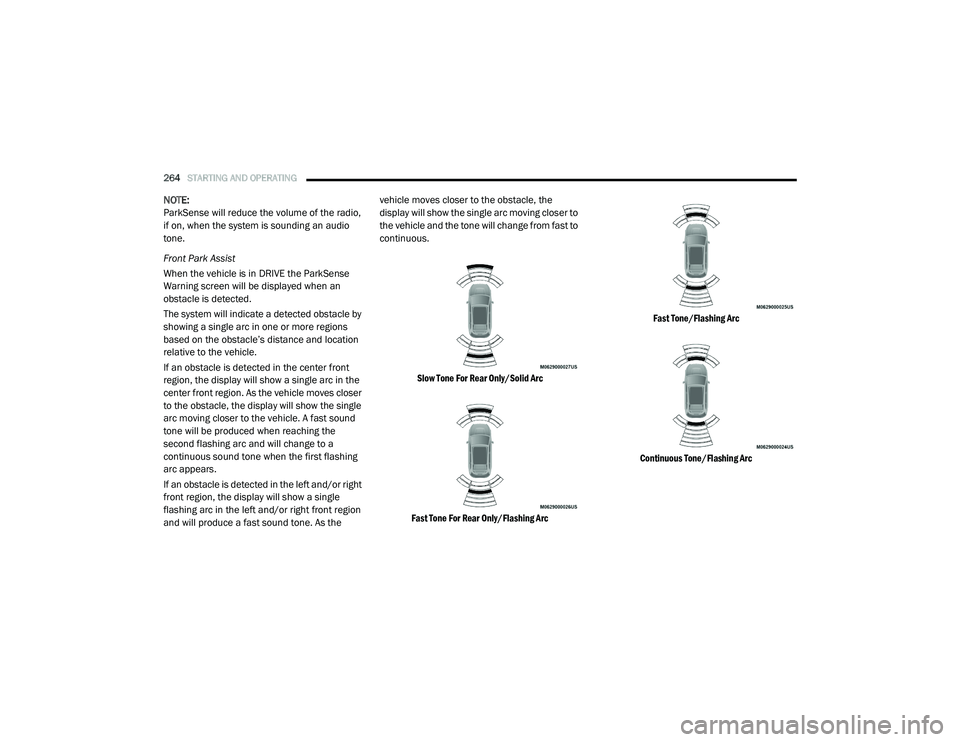
The system will indicate a detected obstacle by
showing a single arc in one or more regions
based on the obstacle’s distance and location
relative to the vehicle.
If an obstacle is detected in the center front
region, the display will show a single arc in the
center front region. As the vehicle moves closer
to the obstacle, the display will show the single
arc moving closer to the vehicle. A fast sound
tone will be produced when reaching the
second flashing arc and will change to a
continuous sound tone when the first flashing
arc appears.
If an obstacle is detected in the left and/or right
front region, the display will show a single
flashing arc in the left and/or right front region
and will produce a fast sound tone. As the vehicle moves closer to the obstacle, the
display will show the single arc moving closer to
the vehicle and the tone will change from fast to
continuous.
Slow Tone For Rear Only/Solid Arc
Fast Tone For Rear Only/Flashing Arc Fast Tone/Flashing Arc
Continuous Tone/Flashing Arc
20_RU_OM_EN_US_t.book Page 264
Page 267 of 516
STARTING AND OPERATING265
The vehicle is close to the obstacle when the warning display shows one flashing arc and sounds a continuous tone. The following chart shows the
warning alert operation when the system is detecting an obstacle:
NOTE:
ParkSense will reduce the volume of the radio,
if on, when the system is sounding an audio
tone.
Front Park Assist Audible Alerts
ParkSense will turn off the Front Park Assist
audible alert (chime) after approximately three
seconds when an obstacle has been detected, the
vehicle is stationary, and brake pedal is applied.
Adjustable Chime Volume Settings
Front and Rear chime volume settings can be
selected from the Customer-Programmable
Features section of the Uconnect System, refer
to “Uconnect Settings” in “Multimedia” for
further information.
If the Uconnect System is equipped, chime
volume settings will not be accessible from the
instrument cluster display.
The chime volume settings include LOW,
MEDIUM, and HIGH. The factory default volume
setting is MEDIUM.
ParkSense will retain its last known
configuration state through ignition cycles.
WARNING ALERTS
Front Distance
(inches/cm) Greater than
47 inches (120 cm) 47-39 inches
(120-100 cm) 39-25 inches (100-65 cm) 25-12 inches
(65-30 cm) Less than
12 inches (30 cm)
Arcs — Left NoneNone None2nd Flashing 1st Flashing
Arcs — Center None 4th Solid3rd Flashing 2nd Flashing 1st Flashing
Arcs — Right NoneNone None2nd Flashing 1st Flashing
Audible Alert Chime None
None None FastContinuous
Radio Volume Reduced No
No NoYesYes
5
20_RU_OM_EN_US_t.book Page 265
Page 285 of 516
STARTING AND OPERATING283
PARKVIEW REAR BACK UP CAMERA
The ParkView Rear Back Up Camera allows you
to see an on-screen image of the rear
surroundings of your vehicle whenever the gear
selector is put into REVERSE. The image will be
displayed on the touchscreen display along with
a caution note “Check Entire Surroundings”
across the top of the screen. After five seconds,
this note will disappear. The ParkView Rear
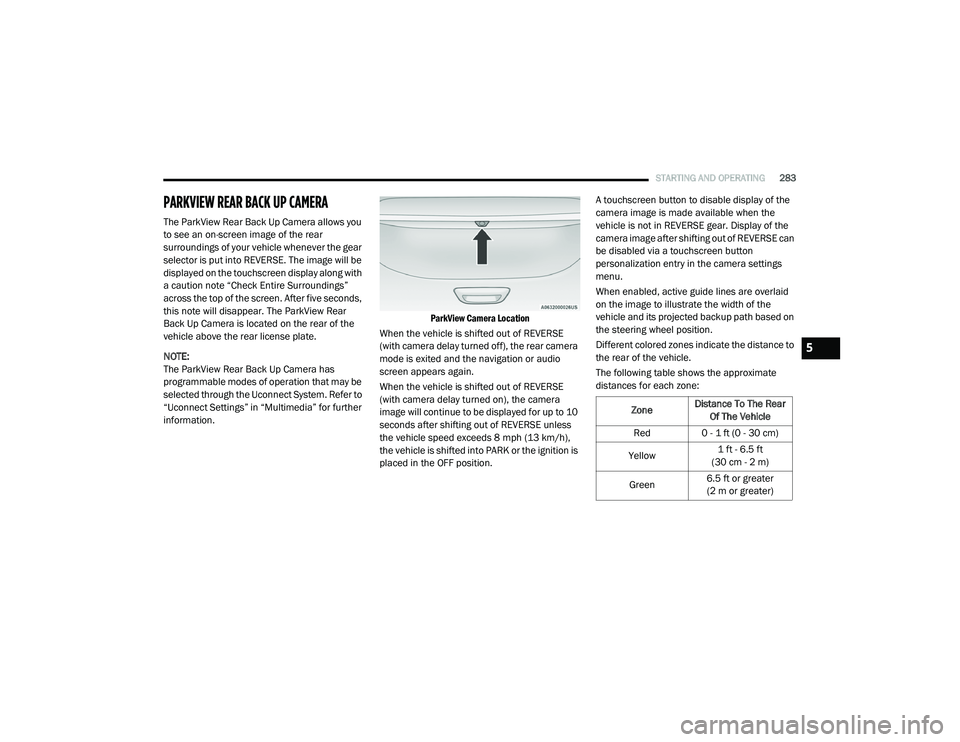
Back Up Camera is located on the rear of the
vehicle above the rear license plate.
NOTE:
The ParkView Rear Back Up Camera has
programmable modes of operation that may be
selected through the Uconnect System. Refer to
“Uconnect Settings” in “Multimedia” for further
information.
ParkView Camera Location
When the vehicle is shifted out of REVERSE
(with camera delay turned off), the rear camera
mode is exited and the navigation or audio
screen appears again.
When the vehicle is shifted out of REVERSE
(with camera delay turned on), the camera
image will continue to be displayed for up to 10
seconds after shifting out of REVERSE unless
the vehicle speed exceeds 8 mph (13 km/h),
the vehicle is shifted into PARK or the ignition is
placed in the OFF position. A touchscreen button to disable display of the
camera image is made available when the
vehicle is not in REVERSE gear. Display of the
camera image after shifting out of REVERSE can
be disabled via a touchscreen button
personalization entry in the camera settings
menu.
When enabled, active guide lines are overlaid
on the image to illustrate the width of the
vehicle and its projected backup path based on
the steering wheel position.
Different colored zones indicate the distance to
the rear of the vehicle.
The following table shows the approximate
distances for each zone:
Zone
Distance To The Rear
Of The Vehicle
Red 0 - 1 ft (0 - 30 cm)
Yellow 1 ft - 6.5 ft
(30 cm - 2 m)
Green 6.5 ft or greater
(2 m or greater)
5
20_RU_OM_EN_US_t.book Page 283
Page 304 of 516
302IN CASE OF EMERGENCY
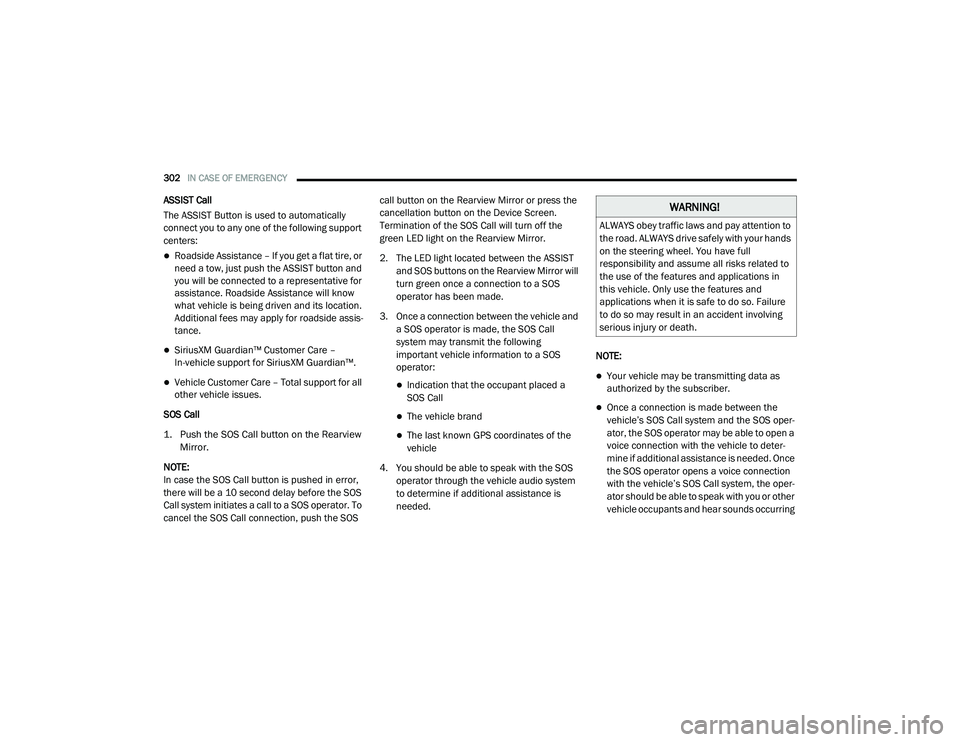
ASSIST Call
The ASSIST Button is used to automatically
connect you to any one of the following support
centers:
Roadside Assistance – If you get a flat tire, or
need a tow, just push the ASSIST button and
you will be connected to a representative for
assistance. Roadside Assistance will know
what vehicle is being driven and its location.
Additional fees may apply for roadside assis -
tance.
SiriusXM Guardian™ Customer Care –
In-vehicle support for SiriusXM Guardian™.
Vehicle Customer Care – Total support for all
other vehicle issues.
SOS Call
1. Push the SOS Call button on the Rearview Mirror.
NOTE:
In case the SOS Call button is pushed in error,
there will be a 10 second delay before the SOS
Call system initiates a call to a SOS operator. To
cancel the SOS Call connection, push the SOS call button on the Rearview Mirror or press the
cancellation button on the Device Screen.
Termination of the SOS Call will turn off the
green LED light on the Rearview Mirror.
2. The LED light located between the ASSIST
and SOS buttons on the Rearview Mirror will
turn green once a connection to a SOS
operator has been made.
3. Once a connection between the vehicle and a SOS operator is made, the SOS Call
system may transmit the following
important vehicle information to a SOS
operator: Indication that the occupant placed a
SOS Call
The vehicle brand
The last known GPS coordinates of the
vehicle
4. You should be able to speak with the SOS operator through the vehicle audio system
to determine if additional assistance is
needed. NOTE:
Your vehicle may be transmitting data as
authorized by the subscriber.
Once a connection is made between the
vehicle’s SOS Call system and the SOS oper
-
ator, the SOS operator may be able to open a
voice connection with the vehicle to deter -
mine if additional assistance is needed. Once
the SOS operator opens a voice connection
with the vehicle’s SOS Call system, the oper -
ator should be able to speak with you or other
vehicle occupants and hear sounds occurring
WARNING!
ALWAYS obey traffic laws and pay attention to
the road. ALWAYS drive safely with your hands
on the steering wheel. You have full
responsibility and assume all risks related to
the use of the features and applications in
this vehicle. Only use the features and
applications when it is safe to do so. Failure
to do so may result in an accident involving
serious injury or death.
20_RU_OM_EN_US_t.book Page 302
Page 305 of 516
IN CASE OF EMERGENCY303
(Continued)
in the vehicle. The vehicle’s SOS Call system
will attempt to remain connected with the
SOS operator until the SOS operator termi -
nates the connection.
5. The SOS operator may attempt to contact appropriate emergency responders and
provide them with important vehicle
information and GPS coordinates. SOS Call System Limitations
Vehicles sold in Mexico
DO NOT have SOS Call
system capabilities.
SOS or other emergency line operators in
Mexico may not answer or respond to SOS
system calls.
If the SOS Call system detects a malfunction,
any of the following may occur at the time the
malfunction is detected, and at the beginning of
each ignition cycle:
The Rearview Mirror light located between
the ASSIST and SOS buttons will continuously
be illuminated red.
The Device Screen will display the following
message “Vehicle device requires service.
Please contact your dealer.”
An In-Vehicle Audio message will state
“Vehicle device requires service. Please
contact your dealer.”
WARNING!
If anyone in the vehicle could be in danger
(e.g., fire or smoke is visible, dangerous
road conditions or location), do not wait for
voice contact from an Emergency Services
Agent. All occupants should exit the vehicle
immediately and move to a safe location.
Never place anything on or near the
vehicle’s operable network and GPS
antennas. You could prevent operable
network and GPS signal reception, which
can prevent your vehicle from placing an
emergency call. An operable network and
GPS signal reception is required for the SOS
Call system to function properly.
The SOS Call system is embedded into the
vehicle’s electrical system. Do not add
aftermarket electrical equipment to the
vehicle’s electrical system. This may
prevent your vehicle from sending a signal
to initiate an emergency call. To avoid inter -
ference that can cause the SOS Call system
to fail, never add aftermarket equipment
(e.g., two-way mobile radio, CB radio, data
recorder, etc.) to your vehicle’s electrical
system or modify the antennas on your
vehicle. IF YOUR VEHICLE LOSES BATTERY
POWER FOR ANY REASON (INCLUDING
DURING OR AFTER AN ACCIDENT), THE
UCONNECT FEATURES, APPS AND
SERVICES, AMONG OTHERS, WILL NOT
OPERATE.
Modifications to any part of the SOS Call
system could cause the air bag system to
fail when you need it. You could be injured
if the air bag system is not there to help
protect you.
WARNING! (Continued)
6
20_RU_OM_EN_US_t.book Page 303
Page 414 of 516
412MULTIMEDIA
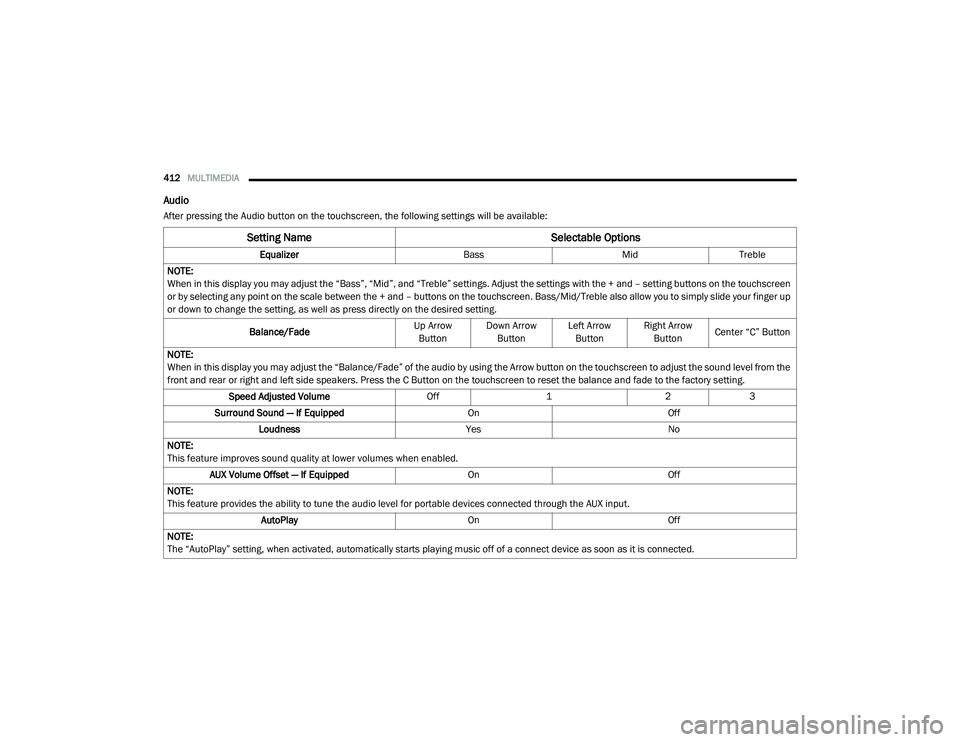
Audio
After pressing the Audio button on the touchscreen, the following settings will be available:
Setting Name Selectable Options
EqualizerBassMidTreble
NOTE:
When in this display you may adjust the “Bass”, “Mid”, and “Treble” settings. Adjust the settings with the + and – setting buttons on the touchscreen
or by selecting any point on the scale between the + and – buttons on the touchscreen. Bass/Mid/Treble also allow you to simply slide your finger up
or down to change the setting, as well as press directly on the desired setting.
Balance/Fade Up Arrow
Button Down Arrow
Button Left Arrow
Button Right Arrow
Button Center “C” Button
NOTE:
When in this display you may adjust the “Balance/Fade” of the audio by using the Arrow button on the touchscreen to adjust the sound level from the
front and rear or right and left side speakers. Press the C Button on the touchscreen to reset the balance and fade to the factory setting. Speed Adjusted Volume Off123
Surround Sound — If Equipped OnOff
Loudness YesNo
NOTE:
This feature improves sound quality at lower volumes when enabled. AUX Volume Offset — If Equipped OnOff
NOTE:
This feature provides the ability to tune the audio level for portable devices connected through the AUX input. AutoPlay OnOff
NOTE:
The “AutoPlay” setting, when activated, automatically starts playing music off of a connect device as soon as it is connected.
20_RU_OM_EN_US_t.book Page 412
Page 415 of 516
MULTIMEDIA413
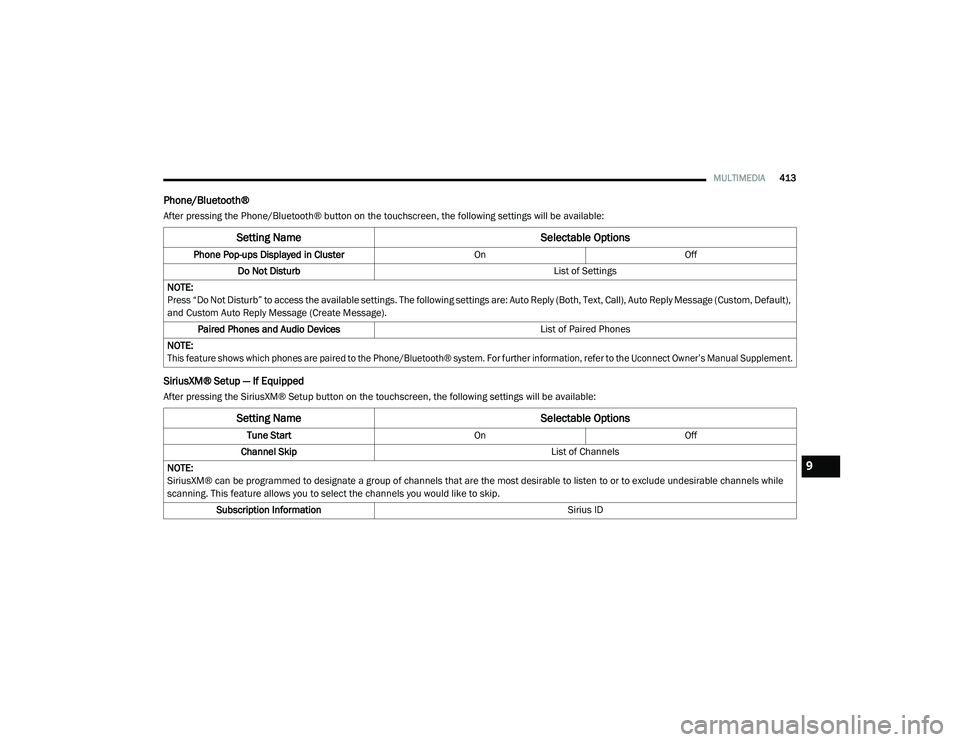
Phone/Bluetooth®
After pressing the Phone/Bluetooth® button on the touchscreen, the following settings will be available:
SiriusXM® Setup — If Equipped
After pressing the SiriusXM® Setup button on the touchscreen, the following settings will be available:
Setting Name Selectable Options
Phone Pop-ups Displayed in Cluster OnOff
Do Not Disturb List of Settings
NOTE:
Press “Do Not Disturb” to access the available settings. The following settings are: Auto Reply (Both, Text, Call), Auto Reply Message (Custom, Default),
and Custom Auto Reply Message (Create Message). Paired Phones and Audio Devices List of Paired Phones
NOTE:
This feature shows which phones are paired to the Phone/Bluetooth® system. For further information, refer to the Uconnect Owner’s Manual Supplement.
Setting Name Selectable Options
Tune StartOnOff
Channel Skip List of Channels
NOTE:
SiriusXM® can be programmed to designate a group of channels that are the most desirable to listen to or to exclude undesirable channels while
scanning. This feature allows you to select the channels you would like to skip. Subscription Information Sirius ID
9
20_RU_OM_EN_US_t.book Page 413
Page 433 of 516
MULTIMEDIA431
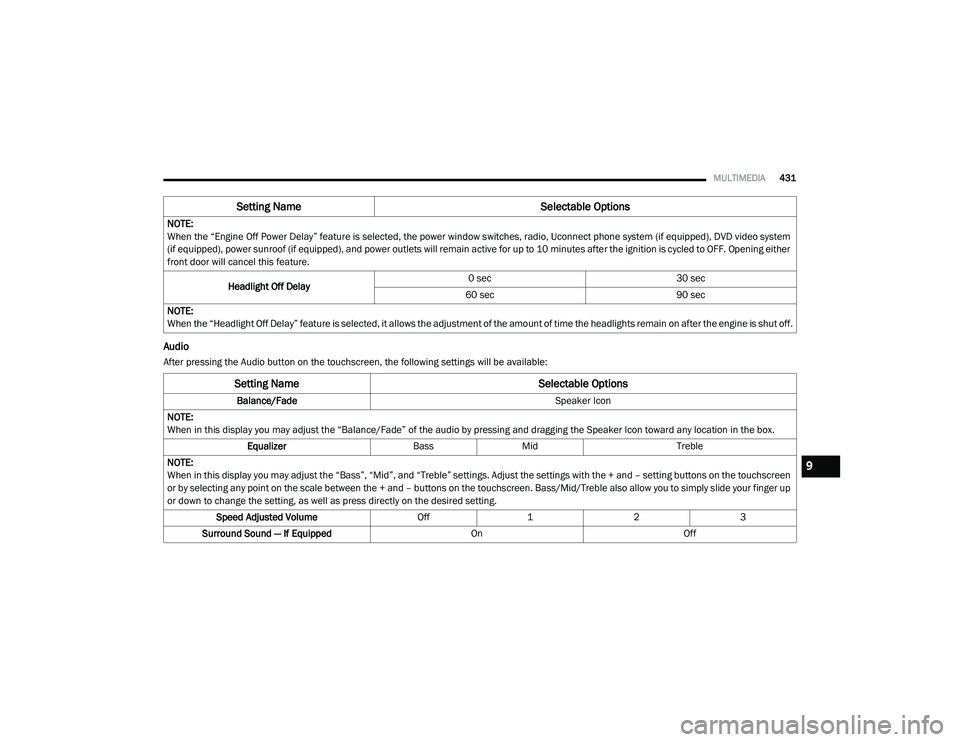
Audio
After pressing the Audio button on the touchscreen, the following settings will be available:NOTE:
When the “Engine Off Power Delay” feature is selected, the power window switches, radio, Uconnect phone system (if equipped), DVD video system
(if equipped), power sunroof (if equipped), and power outlets will remain active for up to 10 minutes after the ignition is cycled to OFF. Opening either
front door will cancel this feature.
Headlight Off Delay 0 sec
30 sec
60 sec 90 sec
NOTE:
When the “Headlight Off Delay” feature is selected, it allows the adjustment of the amount of time the headlights remain on after the engine is shut off.
Setting Name Selectable Options
Setting NameSelectable Options
Balance/Fade Speaker Icon
NOTE:
When in this display you may adjust the “Balance/Fade” of the audio by pressing and dragging the Speaker Icon toward any location in the box. Equalizer BassMid Treble
NOTE:
When in this display you may adjust the “Bass”, “Mid”, and “Treble” settings. Adjust the settings with the + and – setting buttons on the touchscreen
or by selecting any point on the scale between the + and – buttons on the touchscreen. Bass/Mid/Treble also allow you to simply slide your finger up
or down to change the setting, as well as press directly on the desired setting. Speed Adjusted Volume Off123
Surround Sound — If Equipped OnOff
9
20_RU_OM_EN_US_t.book Page 431
Page 434 of 516
432MULTIMEDIA
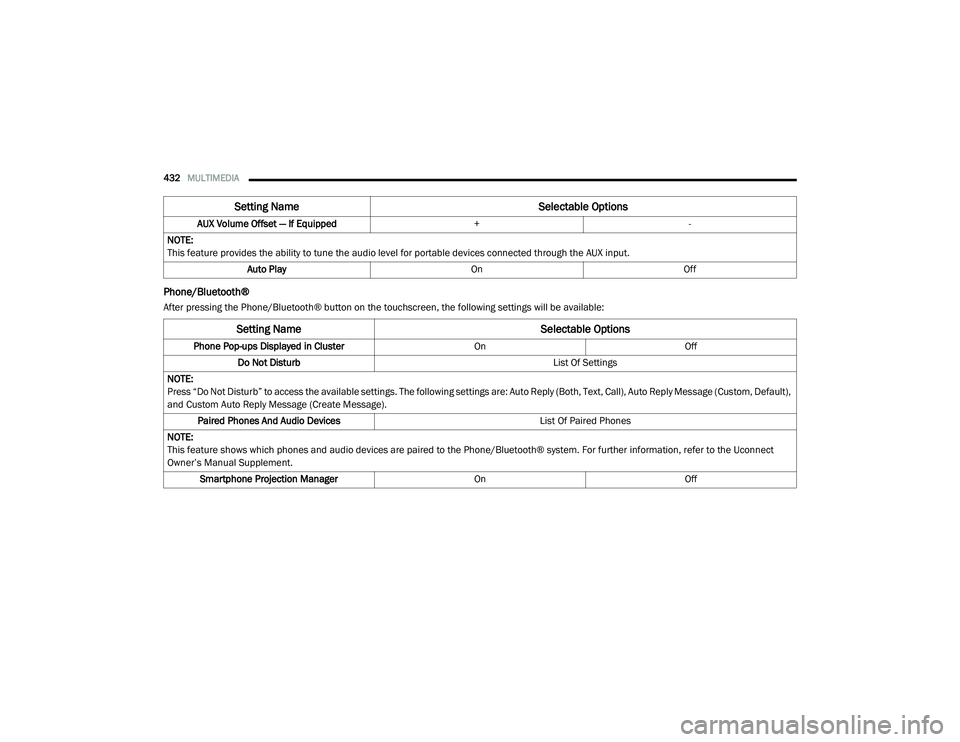
Phone/Bluetooth®
After pressing the Phone/Bluetooth® button on the touchscreen, the following settings will be available:AUX Volume Offset — If Equipped
+-
NOTE:
This feature provides the ability to tune the audio level for portable devices connected through the AUX input. Auto Play OnOff
Setting Name Selectable Options
Setting NameSelectable Options
Phone Pop-ups Displayed in Cluster OnOff
Do Not Disturb List Of Settings
NOTE:
Press “Do Not Disturb” to access the available settings. The following settings are: Auto Reply (Both, Text, Call), Auto Reply Message (Custom, Default),
and Custom Auto Reply Message (Create Message). Paired Phones And Audio Devices List Of Paired Phones
NOTE:
This feature shows which phones and audio devices are paired to the Phone/Bluetooth® system. For further information, refer to the Uconnect
Owner’s Manual Supplement. Smartphone Projection Manager OnOff
20_RU_OM_EN_US_t.book Page 432