AUX CHRYSLER PACIFICA 2020 Owner's Manual
[x] Cancel search | Manufacturer: CHRYSLER, Model Year: 2020, Model line: PACIFICA, Model: CHRYSLER PACIFICA 2020Pages: 516, PDF Size: 28.69 MB
Page 450 of 516
448MULTIMEDIA
AUX Mode
Overview
AUX (Auxiliary Mode) is entered by inserting an
AUX device using a cable with a 3.5 mm audio
jack into the AUX port or by pressing the AUX
button on the left side of the display.
Inserting Auxiliary Device
Gently insert the Auxiliary device cable into the
AUX Port. If you insert an Auxiliary device with
the ignition and the radio on, the unit will switch
to AUX mode and begin to play when you insert
the device cable.
Controlling The Auxiliary Device
The control of the auxiliary device (e.g.,
selecting playlists, play, fast forward, etc.)
cannot be provided by the radio; use the device
controls instead. Adjust the volume with the
Volume/Mute rotary knob, or with the volume of
the attached device.
NOTE:
The radio unit is acting as the amplifier for audio
output from the Auxiliary device. Therefore, if the volume control on the Auxiliary device is set
too low, there will be insufficient audio signal for
the radio unit to play the music on the device.
Media Mode
Press the Media button on the touchscreen to
select the desired audio source: AUX.
Audio
Refer to Radio Mode for adjusting the audio
settings.
BLUETOOTH® MODE
Overview
Bluetooth® Streaming Audio (BTSA) or
Bluetooth® Mode is entered by pairing a
Bluetooth® device, containing music, to the
Uconnect System.
Before proceeding, the Bluetooth® device must
be paired to the Uconnect Phone to
communicate with the Uconnect System.
NOTE:
See the pairing procedure in the Uconnect
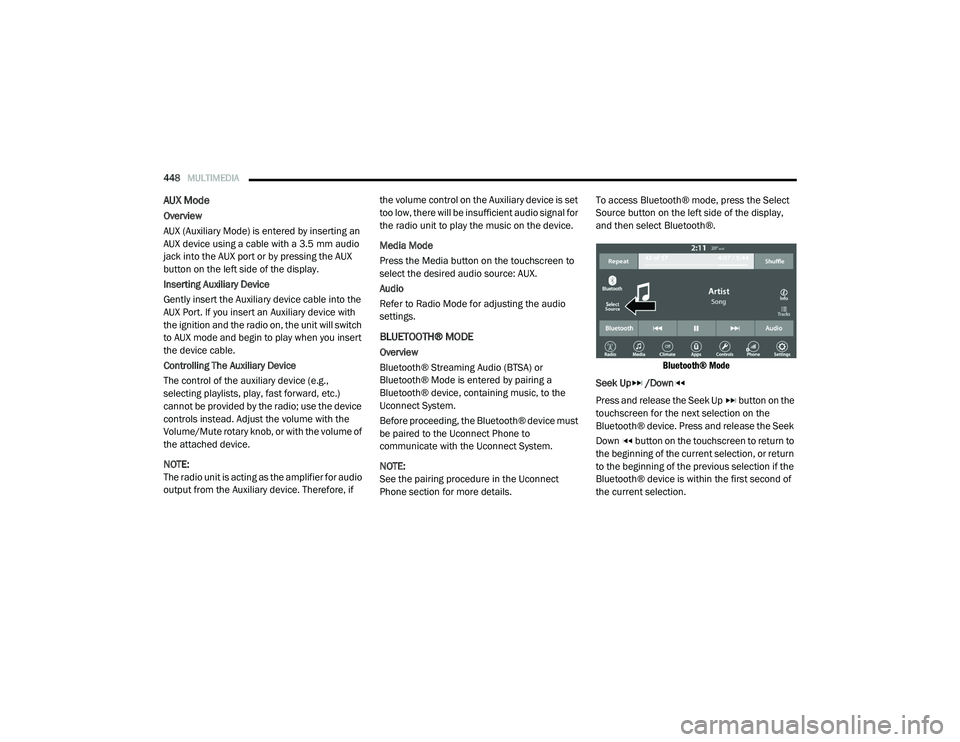
Phone section for more details.To access Bluetooth® mode, press the Select
Source button on the left side of the display,
and then select Bluetooth®.
Bluetooth® Mode
Seek Up /Down
Press and release the Seek Up button on the
touchscreen for the next selection on the
Bluetooth® device. Press and release the Seek
Down button on the touchscreen to return to
the beginning of the current selection, or return
to the beginning of the previous selection if the
Bluetooth® device is within the first second of
the current selection.
20_RU_OM_EN_US_t.book Page 448
Page 469 of 516
MULTIMEDIA467
STEERING WHEEL AUDIO CONTROLS — IF
EQUIPPED
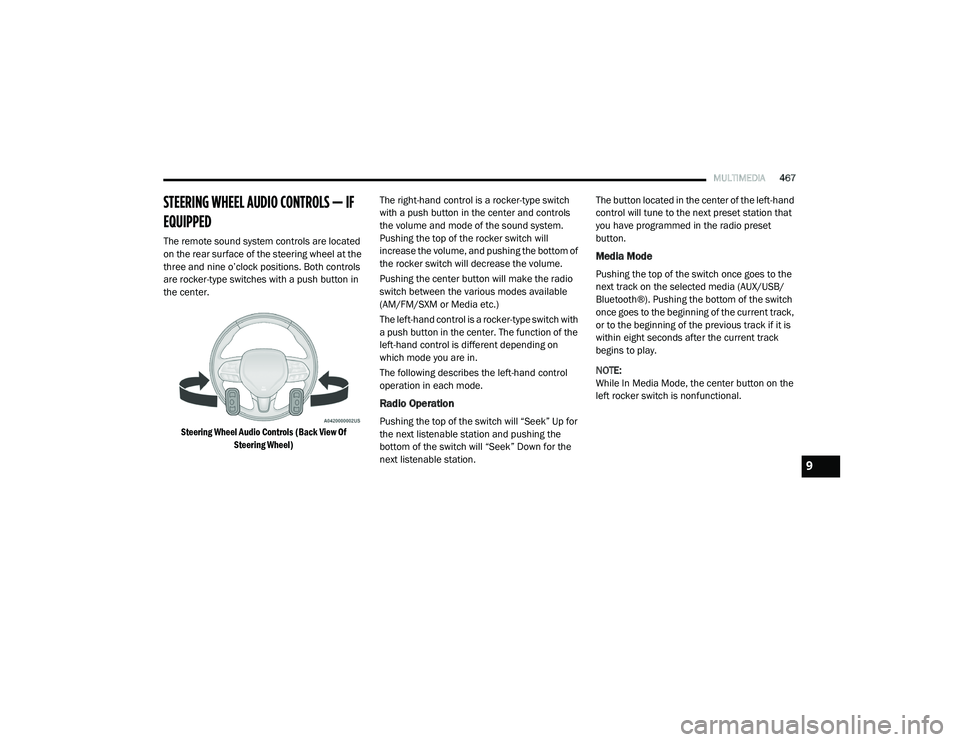
The remote sound system controls are located
on the rear surface of the steering wheel at the
three and nine o’clock positions. Both controls
are rocker-type switches with a push button in
the center.
Steering Wheel Audio Controls (Back View Of Steering Wheel)
The right-hand control is a rocker-type switch
with a push button in the center and controls
the volume and mode of the sound system.
Pushing the top of the rocker switch will
increase the volume, and pushing the bottom of
the rocker switch will decrease the volume.
Pushing the center button will make the radio
switch between the various modes available
(AM/FM/SXM or Media etc.)
The left-hand control is a rocker-type switch with
a push button in the center. The function of the
left-hand control is different depending on
which mode you are in.
The following describes the left-hand control
operation in each mode.
Radio Operation
Pushing the top of the switch will “Seek” Up for
the next listenable station and pushing the
bottom of the switch will “Seek” Down for the
next listenable station. The button located in the center of the left-hand
control will tune to the next preset station that
you have programmed in the radio preset
button.
Media Mode
Pushing the top of the switch once goes to the
next track on the selected media (AUX/USB/
Bluetooth®). Pushing the bottom of the switch
once goes to the beginning of the current track,
or to the beginning of the previous track if it is
within eight seconds after the current track
begins to play.
NOTE:
While In Media Mode, the center button on the
left rocker switch is nonfunctional.
9
20_RU_OM_EN_US_t.book Page 467
Page 470 of 516
468MULTIMEDIA
AUX/USB/MP3 CONTROL
There are numerous USB ports located
throughout the vehicle. This feature allows an
external USB device to be plugged into the USB
port.
Plugging in a smartphone device to a USB Port
may activate Android Auto™ or Apple CarPlay®
features, if equipped. For further information,
refer to “Android Auto™” or “Apple CarPlay®” in
the Owner’s Manual Supplement.
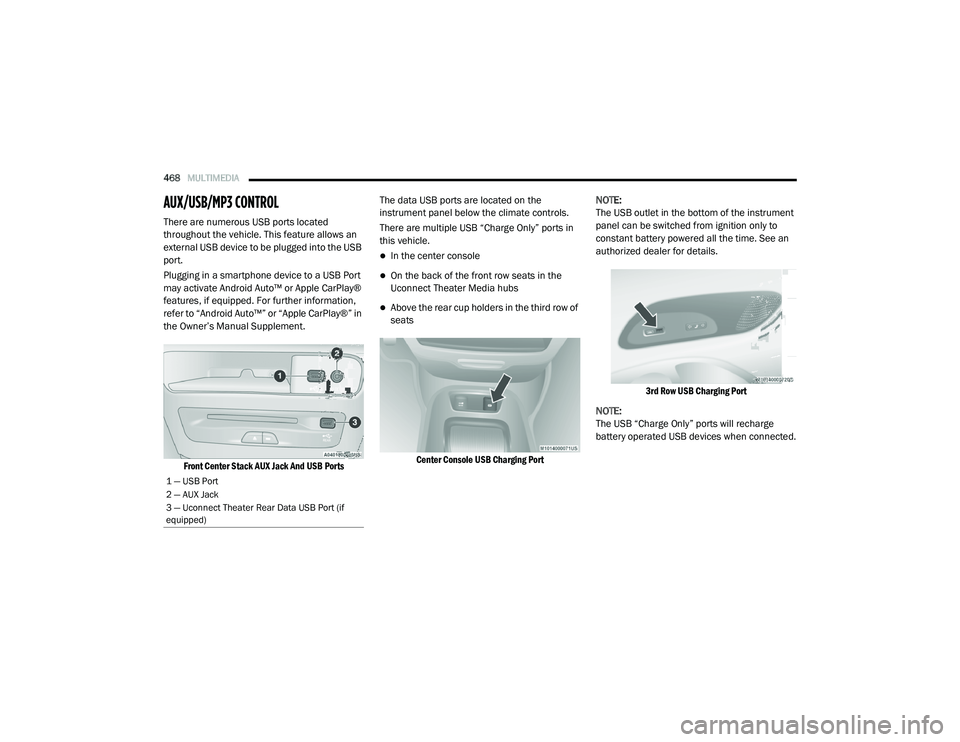
Front Center Stack AUX Jack And USB Ports
The data USB ports are located on the
instrument panel below the climate controls.
There are multiple USB “Charge Only” ports in
this vehicle.
In the center console
On the back of the front row seats in the
Uconnect Theater Media hubs
Above the rear cup holders in the third row of
seats
Center Console USB Charging Port
NOTE:
The USB outlet in the bottom of the instrument
panel can be switched from ignition only to
constant battery powered all the time. See an
authorized dealer for details.
3rd Row USB Charging Port
NOTE:
The USB “Charge Only” ports will recharge
battery operated USB devices when connected.
1 — USB Port
2 — AUX Jack
3 — Uconnect Theater Rear Data USB Port (if
equipped)
20_RU_OM_EN_US_t.book Page 468
Page 477 of 516
MULTIMEDIA475
General Information
The following regulatory statement applies to all
Radio Frequency (RF) devices equipped in this
vehicle:
This device complies with Part 15 of the FCC
Rules and with Innovation, Science and
Economic Development Canada license-exempt
RSS standard(s). Operation is subject to the
following two conditions:
1. This device may not cause harmful
interference, and
2. This device must accept any interference received, including interference that may
cause undesired operation.
Brand: Delphi
Model: FCA REMOTE
Le présent appareil est conforme aux CNR
d`Innovation, Science and Economic
Development applicables aux appareils radio
exempts de licence. L'exploitation est autorisée
aux deux conditions suivantes:
1. l'appareil ne doit pas produire de
brouillage, et
2. l'utilisateur de l'appareil doit accepter tout brouillage radioélectrique subi, même si le
brouillage est susceptible d'en compro -
mettre le fonctionnement.
Marque: Delphi
Modèle: FCA REMOTE
La operación de este equipo está sujeta a las
siguientes dos condiciones:
1. es posible que este equipo o dispositivo no cause interferencia perjudicial y
2. este equipo o dispositivo debe aceptar cualquier interferencia, incluyendo la que
pueda causar su operación no deseada.
Marca: Delphi
Modelo: FCA REMOTE
NOTE:
Changes or modifications not expressly
approved by the party responsible for compli -
ance could void the user’s authority to operate
the equipment.
Play A DVD/Blu-ray™ Or USB Media File
From Uconnect System
1. Insert a Blu-ray™ Disc or DVD disc into the disc player with the label facing up, or
insert a USB drive into rear Video USB port.
NOTE:
The DVD/Blu-ray™ Disc player and Video USB
port are both located under the radio controls in
the instrument panel.
2. Press the Uconnect Theater button on the radio touchscreen.
Refer to “Accessing The System From The
Uconnect System” in this section for further
information.
3. Select Disc or USB from the source controls (i.e. select the desired source from the
“Select Input 1” or “Select Input 2” menu
for the respective screen).
9
20_RU_OM_EN_US_t.book Page 475
Page 481 of 516
MULTIMEDIA479
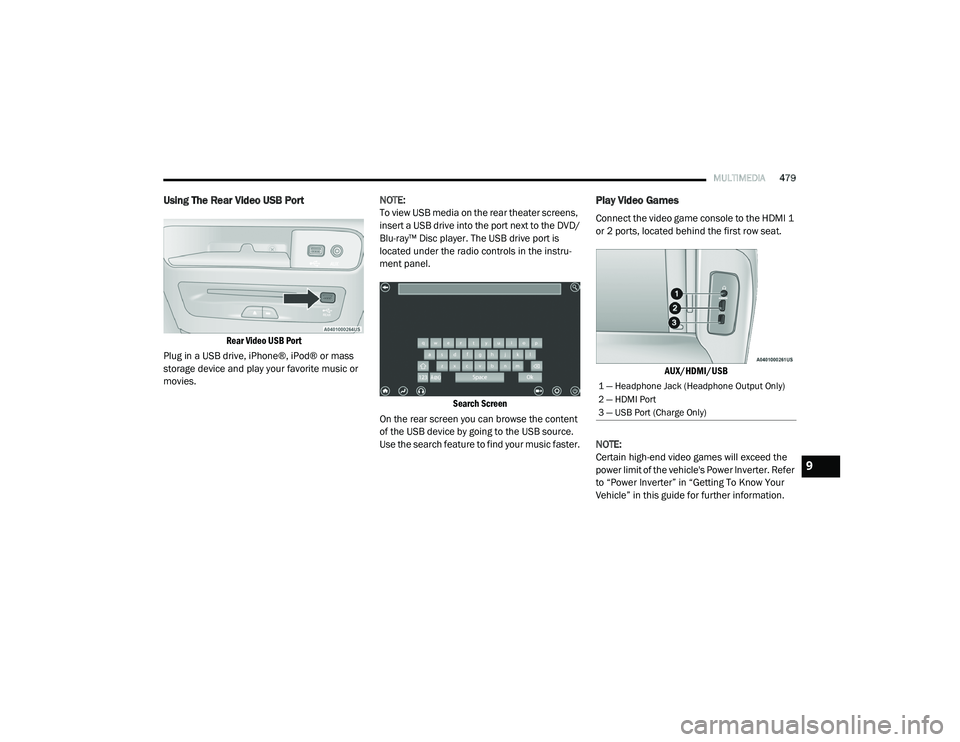
Using The Rear Video USB Port
Rear Video USB Port
Plug in a USB drive, iPhone®, iPod® or mass
storage device and play your favorite music or
movies. NOTE:
To view USB media on the rear theater screens,
insert a USB drive into the port next to the DVD/
Blu-ray™ Disc player. The USB drive port is
located under the radio controls in the instru
-
ment panel.
Search Screen
On the rear screen you can browse the content
of the USB device by going to the USB source.
Use the search feature to find your music faster.
Play Video Games
Connect the video game console to the HDMI 1
or 2 ports, located behind the first row seat.
AUX/HDMI/USB
NOTE:
Certain high-end video games will exceed the
power limit of the vehicle's Power Inverter. Refer
to “Power Inverter” in “Getting To Know Your
Vehicle” in this guide for further information.
1 — Headphone Jack (Headphone Output Only)
2 — HDMI Port
3 — USB Port (Charge Only)
9
20_RU_OM_EN_US_t.book Page 479
Page 491 of 516
MULTIMEDIA489
Cinavia
"Cinavia Notice This product uses Cinavia
technology to limit the use of unauthorized
copies of some commercially-produced film and
videos and their soundtracks. When a
prohibited use of an unauthorized copy is
detected, a message will be displayed and
playback or copying will be interrupted. More
information about Cinavia technology is
provided at the Cinavia Online Consumer
Information Center at http://www.cinavia.com/
. To request additional information about
Cinavia by mail, send a postcard with your
mailing address to: Cinavia Consumer
Information Center, P.O. Box 86851, San Diego,
CA, 92138, USA.” “This product incorporates
proprietary technology under license from
Verance Corporation and is protected by US
Patent 7,369,677 and other US and worldwide
patents issued and pending as well as copyright
and trade secret protection for certain aspects
of such technology. Cinavia is a trademark of
Verance Corporation. Copyright 2004-2012
Verance Corporation. All rights reserved by
Verance. Reverse engineering or disassembly is
prohibited.
General Information
The following regulatory statement applies to all
Radio Frequency (RF) devices equipped in this
vehicle:
This device complies with Part 15 of the FCC
Rules and with Innovation, Science and
Economic Development Canada license-exempt
RSS standard(s). Operation is subject to the
following two conditions:
1. This device may not cause harmful
interference, and
2. This device must accept any interference received, including interference that may
cause undesired operation.
Le présent appareil est conforme aux CNR
d`Innovation, Science and Economic
Development applicables aux appareils radio exempts de licence. L'exploitation est autorisée
aux deux conditions suivantes:
1. l'appareil ne doit pas produire de
brouillage, et
2. l'utilisateur de l'appareil doit accepter tout brouillage radioélectrique subi, même si le
brouillage est susceptible d'en compro -
mettre le fonctionnement.
La operación de este equipo está sujeta a las
siguientes dos condiciones:
1. es posible que este equipo o dispositivo no cause interferencia perjudicial y
2. este equipo o dispositivo debe aceptar cualquier interferencia, incluyendo la que
pueda causar su operación no deseada.
NOTE:
Changes or modifications not expressly
approved by the party responsible for compli -
ance could void the user’s authority to operate
the equipment.
WARNING!
Use of controls or adjustments or
performance of procedures other than those
specified herein may result in hazardous
radiation exposure.
9
20_RU_OM_EN_US_t.book Page 489
Page 492 of 516
490MULTIMEDIA
FCC/IC Regulatory Notices
Modification Statement
Any changes or modifications not expressly
approved by the party responsible for
compliance could void the user's authority to
operate this equipment.
Interference Statement
This device complies with Part 15 of the FCC
Rules and with Innovation, Science and
Economic Development Canada license-exempt
RSS standard(s). Operation is subject to the
following two conditions:
1. This device may not cause harmful
interference, and
2. This device must accept any interference received, including interference that may
cause undesired operation.
Le présent appareil est conforme aux CNR
d`Innovation, Science and Economic
Development applicables aux appareils radio
exempts de licence. L'exploitation est autorisée
aux deux conditions suivantes:
1. l'appareil ne doit pas produire de
brouillage, et
2. l'utilisateur de l'appareil doit accepter tout brouillage radioélectrique subi, même si le
brouillage est susceptible d'en compro -
mettre le fonctionnement.
La operación de este equipo está sujeta a las
siguientes dos condiciones:
1. es posible que este equipo o dispositivo no cause interferencia perjudicial y
2. este equipo o dispositivo debe aceptar cualquier interferencia, incluyendo la que
pueda causar su operación no deseada. Wireless Notice
This device complies with FCC/IC radiation
exposure limits set forth for an uncontrolled
environment and meets the FCC radio
frequency (RF) Exposure Guidelines and
RSS-102 of the IC radio frequency (RF)
Exposure rules. This transmitter must not be
co-located or operating in conjunction with any
other antenna or transmitter.
FCC Class B Digital Device Notice
This equipment has been tested and found to
comply with the limits for a Class B digital
device, pursuant to part 15 of the FCC Rules.
These limits are designed to provide reasonable
protection against harmful interference in a
residential installation. This equipment
generates, uses and can radiate radio
frequency energy and, if not installed and used
in accordance with the instructions, may cause
harmful interference to radio communications.
However, there is no guarantee that
interference will not occur in a particular
installation. If this equipment does cause
20_RU_OM_EN_US_t.book Page 490
Page 494 of 516
492MULTIMEDIA
This device complies with Part 15 of the FCC
Rules and with Innovation, Science and
Economic Development Canada license-exempt
RSS standard(s). Operation is subject to the
following two conditions:
1. This device may not cause harmful
interference, and
2. This device must accept any interference received, including interference that may
cause undesired operation.
Le présent appareil est conforme aux CNR
d`Innovation, Science and Economic
Development applicables aux appareils radio
exempts de licence. L'exploitation est autorisée
aux deux conditions suivantes:
1. l'appareil ne doit pas produire de brouillage, et
2. l'utilisateur de l'appareil doit accepter tout brouillage radioélectrique subi, même si le
brouillage est susceptible d'en compro -
mettre le fonctionnement. La operación de este equipo está sujeta a las
siguientes dos condiciones:
1. es posible que este equipo o dispositivo no
cause interferencia perjudicial y
2. este equipo o dispositivo debe aceptar cualquier interferencia, incluyendo la que
pueda causar su operación no deseada.
NOTE:
Changes or modifications not expressly
approved by the party responsible for compli -
ance could void the user’s authority to operate
the equipment.
NOTE:
This equipment has been tested and found to
comply with the limits for a Class B digital
device, pursuant to Part 15 of the FCC Rules.
These limits are designed to provide reason -
able protection against harmful interference
in a residential installation. This equipment
generates, uses and can radiate radio frequency energy and, if not installed and
used in accordance with the instructions,
may cause harmful interference to radio
communications. However, there is no guar
-
antee that interference will not occur in a
particular installation.
If this equipment does cause harmful inter -
ference to radio or television reception,
which can be determined by turning the
equipment off and on, the user is encour -
aged to try to correct the interference by one
or more of the following measures:
a. Increase the separation between the equipment and receiver.
b. Consult an authorized dealer or an expe -
rienced radio technician for help.
20_RU_OM_EN_US_t.book Page 492
Page 496 of 516
494MULTIMEDIA
Each time you give a Voice Command, you
must first push either the Voice Recognition
(VR) or Phone button, wait until after the
beep, then say your Voice Command.
You can interrupt the help message or
system prompts by pushing the VR or Phone
button and saying a Voice Command from
the current category.
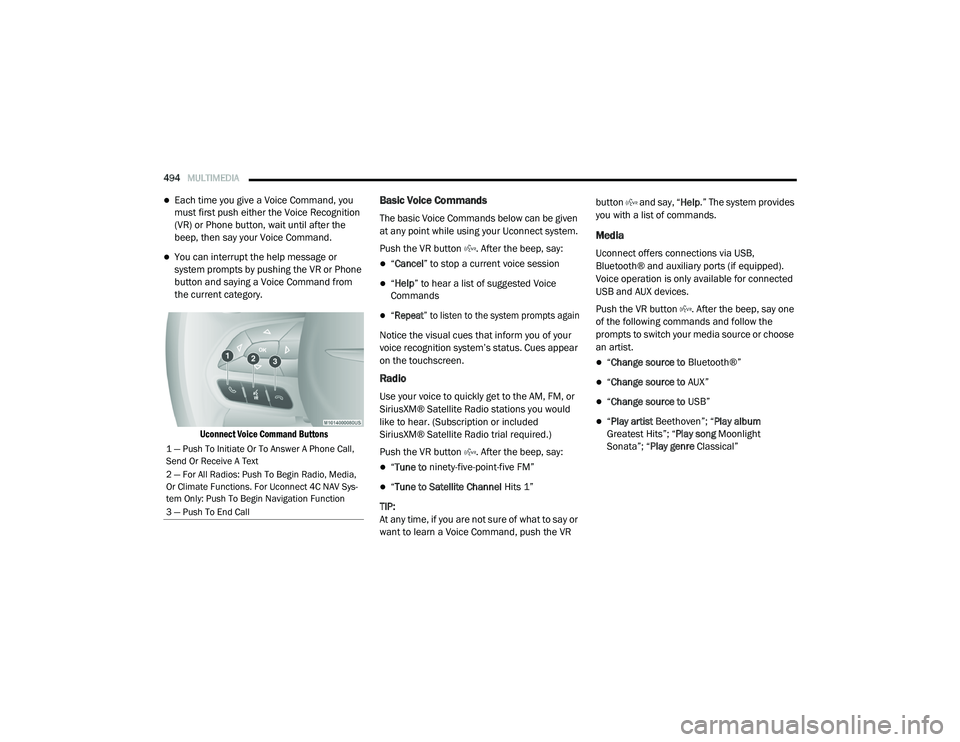
Uconnect Voice Command Buttons
Basic Voice Commands
The basic Voice Commands below can be given
at any point while using your Uconnect system.
Push the VR button . After the beep, say:
“Cancel ” to stop a current voice session
“Help ” to hear a list of suggested Voice
Commands
“Repeat ” to listen to the system prompts again
Notice the visual cues that inform you of your
voice recognition system’s status. Cues appear
on the touchscreen.
Radio
Use your voice to quickly get to the AM, FM, or
SiriusXM® Satellite Radio stations you would
like to hear. (Subscription or included
SiriusXM® Satellite Radio trial required.)
Push the VR button . After the beep, say:
“ Tune to ninety-five-point-five FM”
“Tune to Satellite Channel Hits 1”
TIP:
At any time, if you are not sure of what to say or
want to learn a Voice Command, push the VR button and say, “
Help.” The system provides
you with a list of commands.
Media
Uconnect offers connections via USB,
Bluetooth® and auxiliary ports (if equipped).
Voice operation is only available for connected
USB and AUX devices.
Push the VR button . After the beep, say one
of the following commands and follow the
prompts to switch your media source or choose
an artist.
“ Change source to Bluetooth®”
“Change source to AUX”
“Change source to USB”
“Play artist Beethoven”; “ Play album
Greatest Hits”; “ Play song Moonlight
Sonata”; “ Play genre Classical”
1 — Push To Initiate Or To Answer A Phone Call,
Send Or Receive A Text
2 — For All Radios: Push To Begin Radio, Media,
Or Climate Functions. For Uconnect 4C NAV Sys-
tem Only: Push To Begin Navigation Function
3 — Push To End Call
20_RU_OM_EN_US_t.book Page 494
Page 500 of 516
498MULTIMEDIA
NOTE:
Requires compatible iPhone®. See dealer for
phone compatibility. Data plan rates apply.
Vehicle user interface is a product of Apple®.
Apple CarPlay® is a trademark of Apple® Inc.
iPhone® is a trademark of Apple® Inc., regis -
tered in the US and other countries. Apple®
terms of use and privacy statements apply.
General Information
The following regulatory statement applies to all
Radio Frequency (RF) devices equipped in this
vehicle:
This device complies with Part 15 of the FCC
Rules and with Innovation, Science and
Economic Development Canada license-exempt
RSS standard(s). Operation is subject to the
following two conditions:
1. This device may not cause harmful interference, and
2. This device must accept any interference received, including interference that may
cause undesired operation. Le présent appareil est conforme aux CNR
d`Innovation, Science and Economic
Development applicables aux appareils radio
exempts de licence. L'exploitation est autorisée
aux deux conditions suivantes:
1. l'appareil ne doit pas produire de
brouillage, et
2. l'utilisateur de l'appareil doit accepter tout brouillage radioélectrique subi, même si le
brouillage est susceptible d'en compro -
mettre le fonctionnement.
La operación de este equipo está sujeta a las
siguientes dos condiciones:
1. es posible que este equipo o dispositivo no cause interferencia perjudicial y
2. este equipo o dispositivo debe aceptar cualquier interferencia, incluyendo la que
pueda causar su operación no deseada.
NOTE:
Changes or modifications not expressly
approved by the party responsible for compli -
ance could void the user’s authority to operate
the equipment. Additional Information
© 202 1 FCA US LLC. All rights reserved.
Mopar and Uconnect are registered
trademarks and Mopar Owner Connect is a
trademark of FCA US LLC. Android™ is a
trademark of Google Inc. SiriusXM® and all
related marks and logos are trademarks of
SiriusXM® Radio Inc.
Uconnect System Support:US residents visit www.DriveUconnect.com or
call: 1-877-855-8400 (24 hours a day 7 days
a week)
Canadian residents visit www.DriveUcon -
nect.ca or call: 1-800-465-2001 (English) or
1-800-387-9983 (French)
SiriusXM Guardian™ services support:
US residents visitwww.driveuconnect.com/
sirius-xm-guardian or call: 1-844-796-4827
Canadian residents visitwww.siriusxm.ca/
guardian-v1/ or call: 1-877-324-9091
20_RU_OM_EN_US_t.book Page 498