remote control CHRYSLER PACIFICA 2021 User Guide
[x] Cancel search | Manufacturer: CHRYSLER, Model Year: 2021, Model line: PACIFICA, Model: CHRYSLER PACIFICA 2021Pages: 401, PDF Size: 26.88 MB
Page 71 of 401

GETTING TO KNOW YOUR VEHICLE69
Mist
Push the lever upward to the MIST position and
release for a single wiping cycle.
NOTE:The Mist feature does not activate the washer
pump; therefore, no washer fluid will be sprayed on
the windshield. The wash function must be used in
order to spray the windshield with washer fluid.
For information on wiper care and replacement,
see Ú page 337.
RAIN SENSING WIPERS — IF EQUIPPED
This feature senses rain or snowfall on the
windshield and automatically activates the wipers.
Rotate the end of the windshield wiper lever to one
of the four detent positions to activate this feature.
The sensitivity of the system is adjustable from the
windshield wiper lever. Wiper sensitivity position
1 is the least sensitive, and wiper sensitivity
position 4 is the most sensitive.
NOTE:
The Rain Sensing feature will not operate when
the wiper switch is in the low or high position.
The Rain Sensing feature may not function prop -
erly when ice or dried saltwater is present on the
windshield.
Use of Rain-X or products containing wax or sili-
cone may reduce rain sensor performance.
The Rain Sensing feature can be turned on and
off through the Uconnect system Ú page 189.
The Rain Sensing system has protective features
for the wiper blades and arms. It will not operate
under the following conditions:
Low Temperature Wipe Inhibit — The Rain
Sensing feature will not operate when the igni -
tion is first placed in the ON position, when the
vehicle is stationary and the outside tempera -
ture is below 32°F (0°C), unless the wiper
control on the windshield wiper lever is moved,
the vehicle speed becomes greater than 3 mph
(5 km/h) or the outside temperature rises
above freezing.
Neutral Wipe Inhibit — The Rain Sensing
feature will not operate when the ignition is ON,
when the transmission gear selector is in the
NEUTRAL position and the vehicle speed is less
than 3 mph (5 km/h), unless the wiper control
on the windshield wiper lever is moved, the
vehicle speed is greater than 3 mph (5 km/h) or the gear selector is moved out of the NEUTRAL
position.
Remote Start Mode Inhibit — On vehicles
equipped with the Remote Start system, Rain
Sensing wipers are not operational when the
vehicle is in the Remote Start mode. Once the
operator is in the vehicle and has placed the
ignition switch in the ON/RUN position, rain
sensing wiper operation can resume, if it has
been selected, and no other inhibit conditions
(mentioned previously) exist.
REAR WIPER AND WASHER
Rear Window Wiper Operation
Rotate the windshield wiper lever center ring
upwards to operate one of two modes for the rear
window wiper:
First detent — intermittent mode.
Second detent — continuous mode.
Rear Window Washer Operation
Pushing the windshield wiper lever forward
activates the rear window washer. If the lever is
pushed while on the intermittent setting, the
wipers will turn on and operate for several wipe
cycles after the lever is released, and then resume
the intermittent interval previously selected. If the
lever is pushed while the wipers are in the off
position, the wipers will operate several wipe
cycles, then turn off.
2
21_RUP_OM_EN_USC_t.book Page 69
Page 216 of 401
214MULTIMEDIA
UCONNECT THEATER — UCONNECT 5/5 NAV
WITH 10.1-INCH DISPLAY (IF EQUIPPED)
UCONNECT THEATER OVERVIEW
Your Uconnect Theater is designed to give your
family years of enjoyment.
There are multiple ways to interact with your
Uconnect Theater system:
Play your favorite CDs, DVDs, or Blu-ray™ Discs
Plug and play a variety of standard video games
or devices into the HDMI port
Listen to audio over the wireless headphones
Plug and play a variety of devices into the Video
USB port
Plug in standard headphones to listen to audio
Project your mobile phone or tablet screen onto
the rear Uconnect Theater touchscreens
Please review this Owner's Manual to become
familiar with its features and operation.
GETTING STARTED
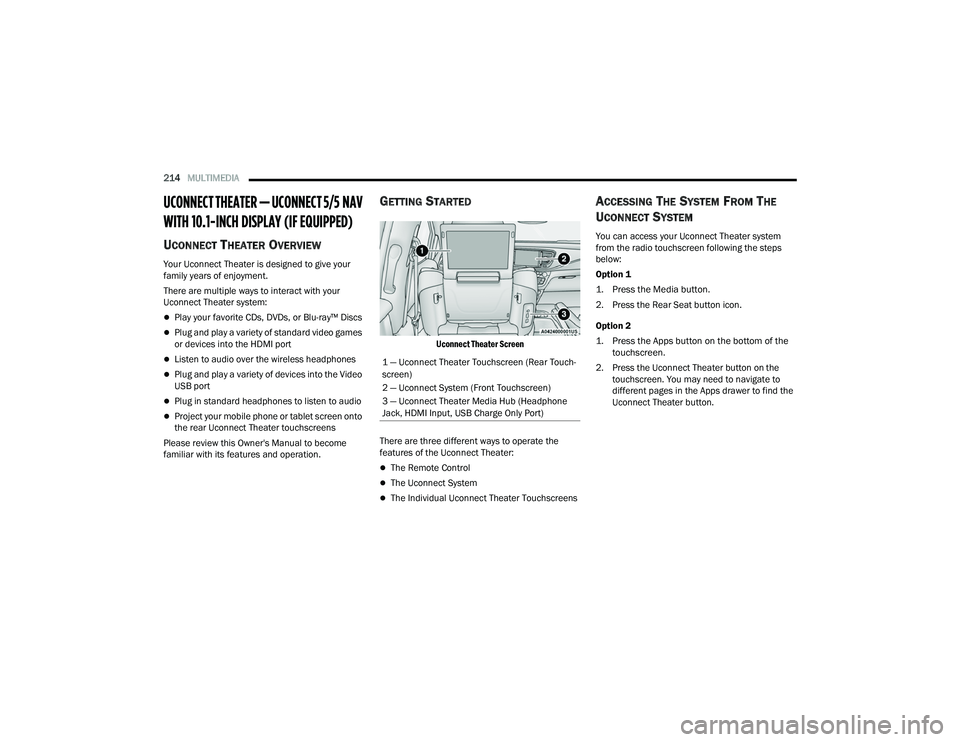
Uconnect Theater Screen
There are three different ways to operate the
features of the Uconnect Theater:
The Remote Control
The Uconnect System
The Individual Uconnect Theater Touchscreens
ACCESSING THE SYSTEM FROM THE
U
CONNECT SYSTEM
You can access your Uconnect Theater system
from the radio touchscreen following the steps
below:
Option 1
1. Press the Media button.
2. Press the Rear Seat button icon.
Option 2
1. Press the Apps button on the bottom of the
touchscreen.
2. Press the Uconnect Theater button on the touchscreen. You may need to navigate to
different pages in the Apps drawer to find the
Uconnect Theater button.
1 — Uconnect Theater Touchscreen (Rear Touch
-
screen)
2 — Uconnect System (Front Touchscreen)
3 — Uconnect Theater Media Hub (Headphone
Jack, HDMI Input, USB Charge Only Port)
21_RUP_OM_EN_USC_t.book Page 214
Page 217 of 401
MULTIMEDIA215
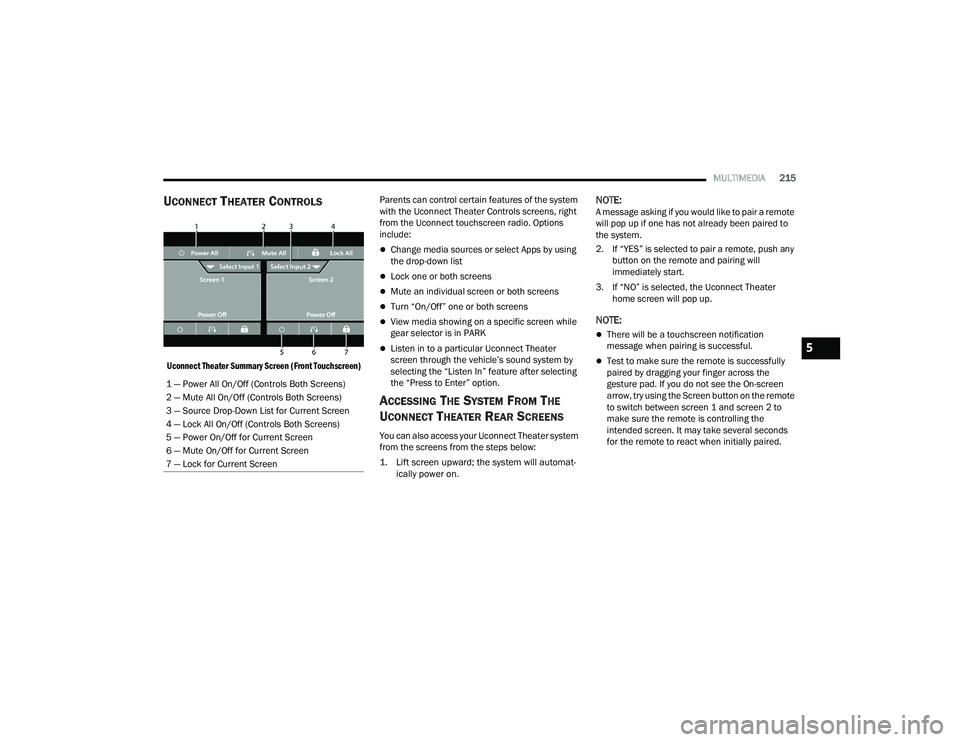
UCONNECT THEATER CONTROLS
Uconnect Theater Summary Screen (Front Touchscreen)
Parents can control certain features of the system
with the Uconnect Theater Controls screens, right
from the Uconnect touchscreen radio. Options
include:
Change media sources or select Apps by using
the drop-down list
Lock one or both screens
Mute an individual screen or both screens
Turn “On/Off” one or both screens
View media showing on a specific screen while
gear selector is in PARK
Listen in to a particular Uconnect Theater
screen through the vehicle’s sound system by
selecting the “Listen In” feature after selecting
the “Press to Enter” option.
ACCESSING THE SYSTEM FROM THE
U
CONNECT THEATER REAR SCREENS
You can also access your Uconnect Theater system
from the screens from the steps below:
1. Lift screen upward; the system will automat-
ically power on.
NOTE:A message asking if you would like to pair a remote
will pop up if one has not already been paired to
the system.
2. If “YES” is selected to pair a remote, push any button on the remote and pairing will
immediately start.
3. If “NO” is selected, the Uconnect Theater home screen will pop up.
NOTE:
There will be a touchscreen notification
message when pairing is successful.
Test to make sure the remote is successfully
paired by dragging your finger across the
gesture pad. If you do not see the On-screen
arrow, try using the Screen button on the remote
to switch between screen 1 and screen 2 to
make sure the remote is controlling the
intended screen. It may take several seconds
for the remote to react when initially paired.
1 — Power All On/Off (Controls Both Screens)
2 — Mute All On/Off (Controls Both Screens)
3 — Source Drop-Down List for Current Screen
4 — Lock All On/Off (Controls Both Screens)
5 — Power On/Off for Current Screen
6 — Mute On/Off for Current Screen
7 — Lock for Current Screen
5
21_RUP_OM_EN_USC_t.book Page 215
Page 218 of 401
216MULTIMEDIA
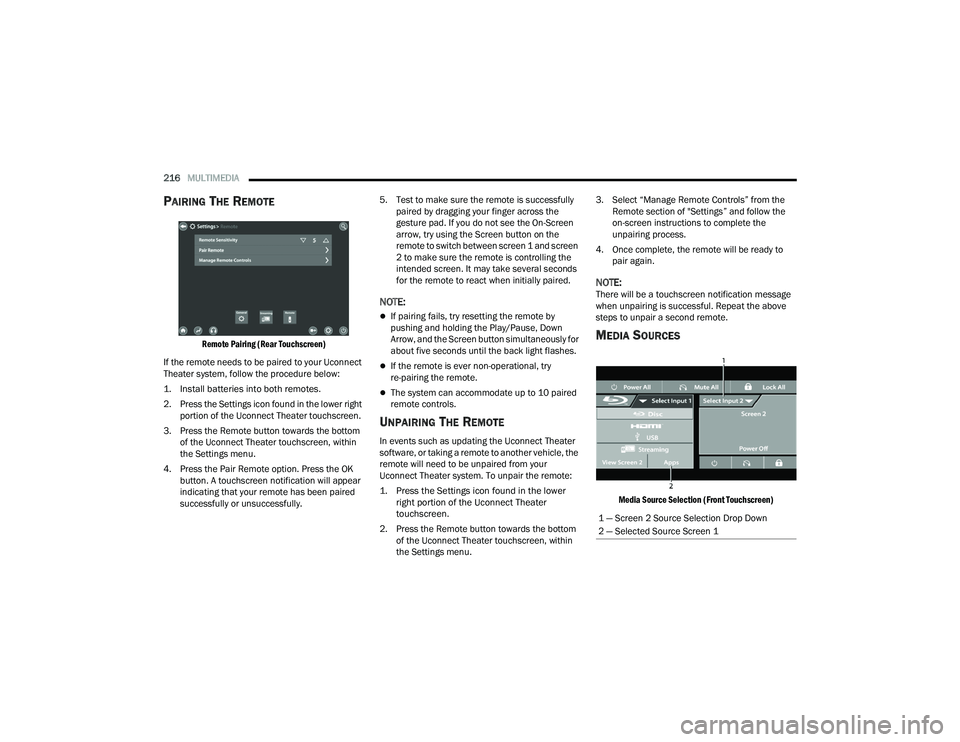
PAIRING THE REMOTE
Remote Pairing (Rear Touchscreen)
If the remote needs to be paired to your Uconnect
Theater system, follow the procedure below:
1. Install batteries into both remotes.
2. Press the Settings icon found in the lower right portion of the Uconnect Theater touchscreen.
3. Press the Remote button towards the bottom of the Uconnect Theater touchscreen, within
the Settings menu.
4. Press the Pair Remote option. Press the OK button. A touchscreen notification will appear
indicating that your remote has been paired
successfully or unsuccessfully. 5. Test to make sure the remote is successfully
paired by dragging your finger across the
gesture pad. If you do not see the On-Screen
arrow, try using the Screen button on the
remote to switch between screen 1 and screen
2 to make sure the remote is controlling the
intended screen. It may take several seconds
for the remote to react when initially paired.
NOTE:
If pairing fails, try resetting the remote by
pushing and holding the Play/Pause, Down
Arrow, and the Screen button simultaneously for
about five seconds until the back light flashes.
If the remote is ever non-operational, try
re-pairing the remote.
The system can accommodate up to 10 paired
remote controls.
UNPAIRING THE REMOTE
In events such as updating the Uconnect Theater
software, or taking a remote to another vehicle, the
remote will need to be unpaired from your
Uconnect Theater system. To unpair the remote:
1. Press the Settings icon found in the lower right portion of the Uconnect Theater
touchscreen.
2. Press the Remote button towards the bottom of the Uconnect Theater touchscreen, within
the Settings menu. 3. Select “Manage Remote Controls” from the
Remote section of "Settings” and follow the
on-screen instructions to complete the
unpairing process.
4. Once complete, the remote will be ready to pair again.
NOTE:There will be a touchscreen notification message
when unpairing is successful. Repeat the above
steps to unpair a second remote.
MEDIA SOURCES
Media Source Selection (Front Touchscreen)
1 — Screen 2 Source Selection Drop Down
2 — Selected Source Screen 1
21_RUP_OM_EN_USC_t.book Page 216
Page 219 of 401
MULTIMEDIA217
Users can select content for each screen from the
front radio touchscreen by choosing desired
content from the “Select Input” drop-down menu.
Options include “Blu-ray™ Disc”, “HDMI”, “USB”,
“Apps”, and “Viewing the other rear screen”.
NOTE:Use the “View Screen” function to pull content
from one screen to the other with a single press of
a button. Doing this however will disable and gray
out certain player controls on the screen viewing
the other screen's content.
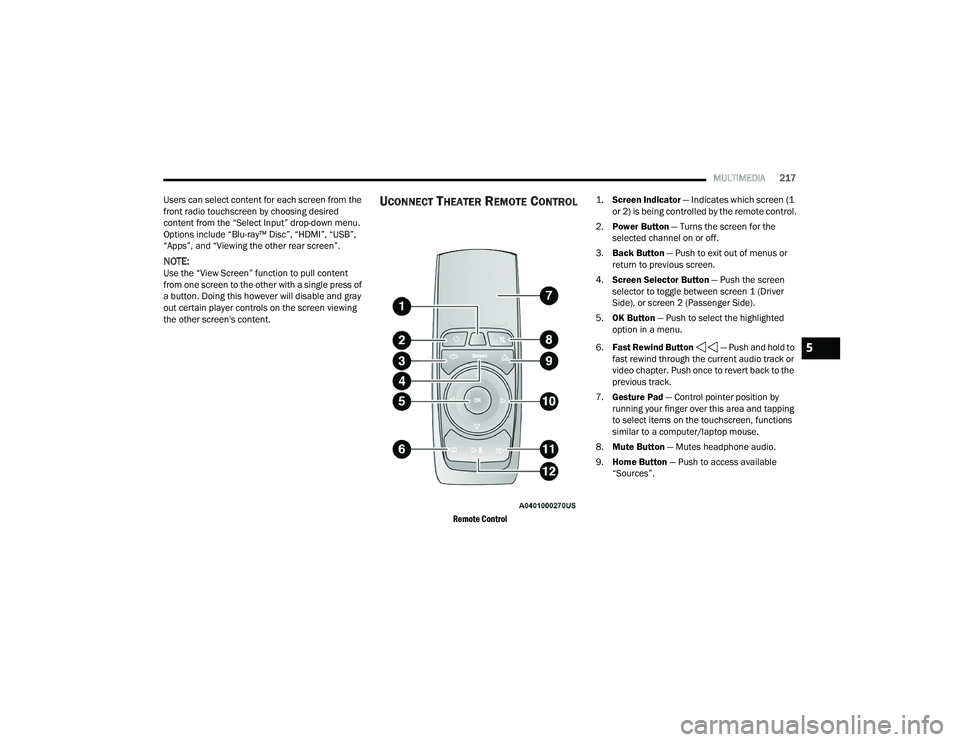
UCONNECT THEATER REMOTE CONTROL
Remote Control
1.
Screen Indicator
— Indicates which screen (1
or 2) is being controlled by the remote control.
2. Power Button — Turns the screen for the
selected channel on or off.
3. Back Button — Push to exit out of menus or
return to previous screen.
4. Screen Selector Button — Push the screen
selector to toggle between screen 1 (Driver
Side), or screen 2 (Passenger Side).
5. OK Button — Push to select the highlighted
option in a menu.
6. Fast Rewind Button — Push and hold to
fast rewind through the current audio track or
video chapter. Push once to revert back to the
previous track.
7. Gesture Pad — Control pointer position by
running your finger over this area and tapping
to select items on the touchscreen, functions
similar to a computer/laptop mouse.
8. Mute Button — Mutes headphone audio.
9. Home Button — Push to access available
“Sources”.
5
21_RUP_OM_EN_USC_t.book Page 217
Page 220 of 401
218MULTIMEDIA
10. Arrow Buttons — Push the Arrow
buttons to highlight an item or scroll through
menus.
11. Fast Forward Button — Push and hold
to fast forward through the current audio track
or video chapter. Push once to skip to the next
track.
12. Play/Pause Button — Begin/resume or pause
disc play.
Replacing The Remote Control Batteries
Each remote control requires two AAA batteries for
operation.
To replace the batteries:
1. Locate the battery compartment on the back of the remote, then slide the battery cover
downward.
2. Remove the old batteries and follow battery recycling procedures for your area.
3. Install new batteries, making sure to orient them according to the polarity diagram shown
inside the battery compartment.
4. Replace the battery compartment cover.
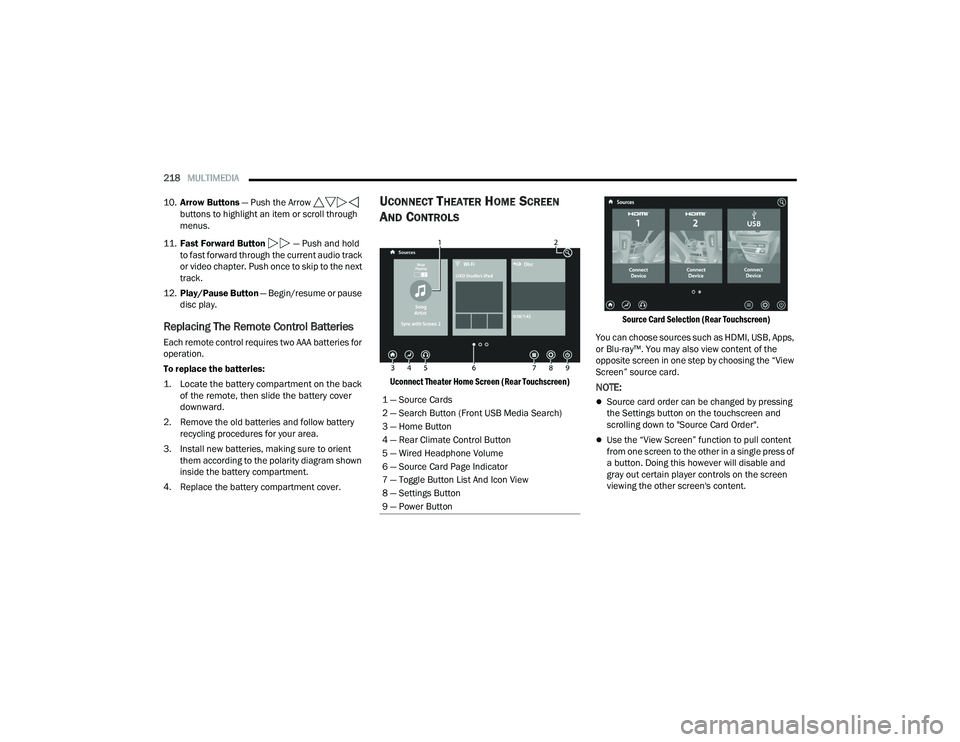
UCONNECT THEATER HOME SCREEN
A
ND CONTROLS
Uconnect Theater Home Screen (Rear Touchscreen) Source Card Selection (Rear Touchscreen)
You can choose sources such as HDMI, USB, Apps,
or Blu-ray™. You may also view content of the
opposite screen in one step by choosing the “View
Screen” source card.NOTE:
Source card order can be changed by pressing
the Settings button on the touchscreen and
scrolling down to "Source Card Order".
Use the “View Screen” function to pull content
from one screen to the other in a single press of
a button. Doing this however will disable and
gray out certain player controls on the screen
viewing the other screen's content.
1 — Source Cards
2 — Search Button (Front USB Media Search)
3 — Home Button
4 — Rear Climate Control Button
5 — Wired Headphone Volume
6 — Source Card Page Indicator
7 — Toggle Button List And Icon View
8 — Settings Button
9 — Power Button
21_RUP_OM_EN_USC_t.book Page 218
Page 221 of 401
MULTIMEDIA219
General Settings
To change source card order, select “Source Card
Reorder”, then press and hold source card on the
touchscreen, and drag and drop in desired order.
You can also adjust settings such as:
Brightness
Media port lighting on and off
Clock on and off
NOTE:System information can also be displayed under
General Settings.
Remote Settings
Under this setting, you can access the following:
Manage Remotes (this allows you to unpair
remotes)
Pair Remote
Remote sensitivity (this adjusts the speed and
sensitivity of cursor on screen when using
gesture pad) Ú page 387.
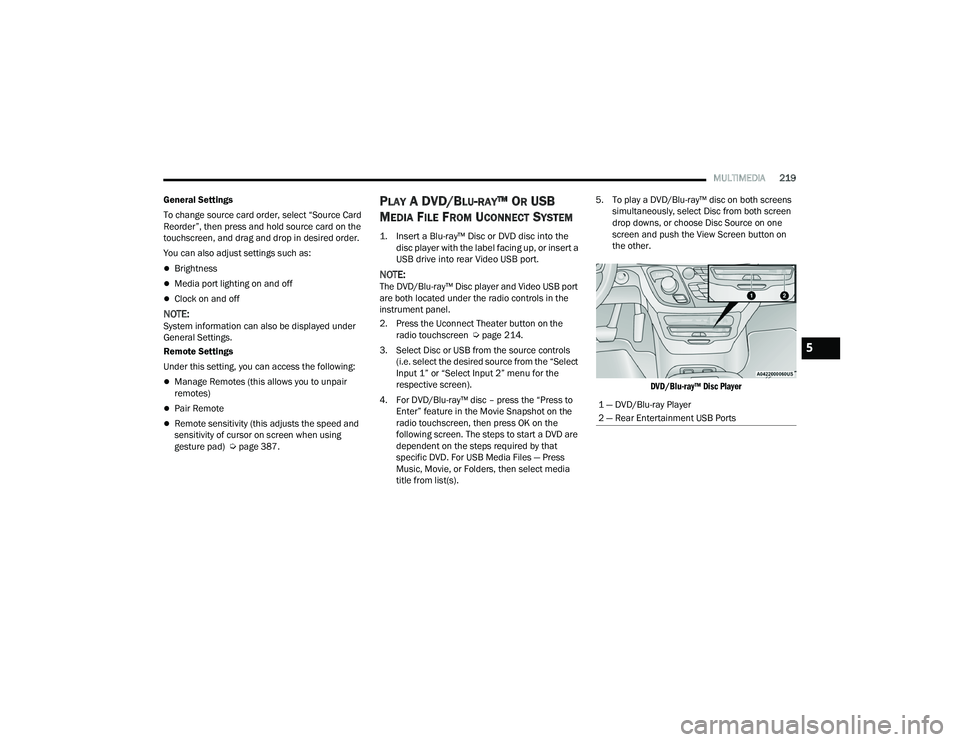
PLAY A DVD/BLU-RAY™ OR USB
M
EDIA FILE FROM UCONNECT SYSTEM
1. Insert a Blu-ray™ Disc or DVD disc into the
disc player with the label facing up, or insert a
USB drive into rear Video USB port.
NOTE:The DVD/Blu-ray™ Disc player and Video USB port
are both located under the radio controls in the
instrument panel.
2. Press the Uconnect Theater button on the radio touchscreen Ú page 214.
3. Select Disc or USB from the source controls (i.e. select the desired source from the “Select
Input 1” or “Select Input 2” menu for the
respective screen).
4. For DVD/Blu-ray™ disc – press the “Press to Enter” feature in the Movie Snapshot on the
radio touchscreen, then press OK on the
following screen. The steps to start a DVD are
dependent on the steps required by that
specific DVD. For USB Media Files — Press
Music, Movie, or Folders, then select media
title from list(s). 5. To play a DVD/Blu-ray™ disc on both screens
simultaneously, select Disc from both screen
drop downs, or choose Disc Source on one
screen and push the View Screen button on
the other.
DVD/Blu-ray™ Disc Player
1 — DVD/Blu-ray Player
2 — Rear Entertainment USB Ports
5
21_RUP_OM_EN_USC_t.book Page 219
Page 222 of 401
220MULTIMEDIA
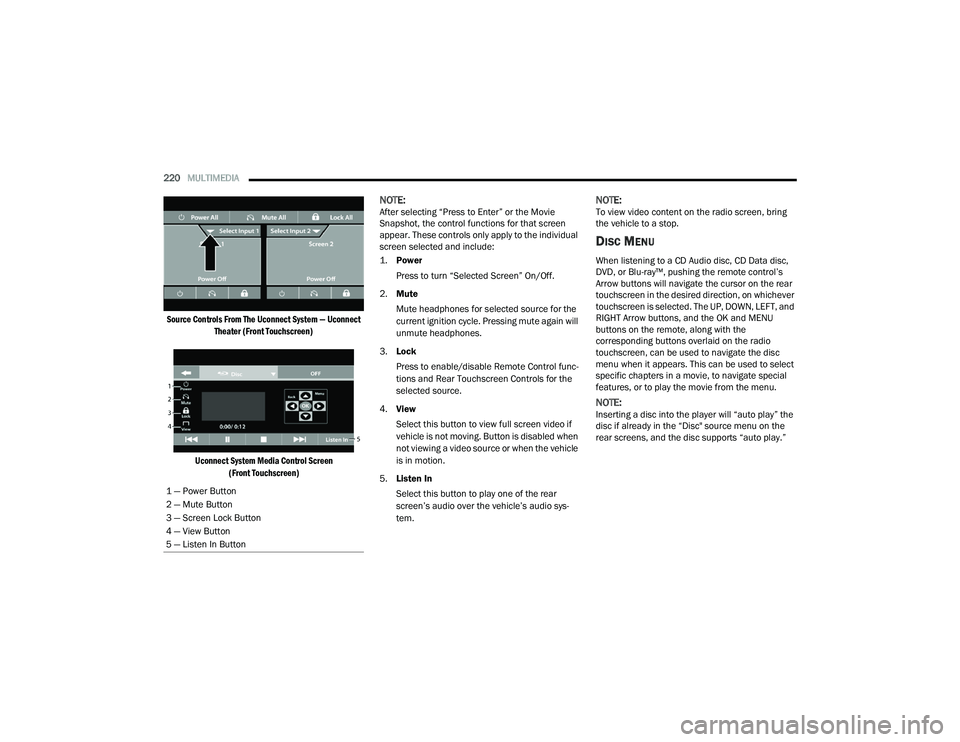
Source Controls From The Uconnect System — Uconnect Theater (Front Touchscreen)
Uconnect System Media Control Screen (Front Touchscreen)
NOTE:After selecting “Press to Enter” or the Movie
Snapshot, the control functions for that screen
appear. These controls only apply to the individual
screen selected and include:
1.
Power
Press to turn “Selected Screen” On/Off.
2. Mute
Mute headphones for selected source for the
current ignition cycle. Pressing mute again will
unmute headphones.
3. Lock
Press to enable/disable Remote Control func -
tions and Rear Touchscreen Controls for the
selected source.
4. View
Select this button to view full screen video if
vehicle is not moving. Button is disabled when
not viewing a video source or when the vehicle
is in motion.
5. Listen In
Select this button to play one of the rear
screen’s audio over the vehicle’s audio sys -
tem.NOTE:To view video content on the radio screen, bring
the vehicle to a stop.
DISC MENU
When listening to a CD Audio disc, CD Data disc,
DVD, or Blu-ray™, pushing the remote control’s
Arrow buttons will navigate the cursor on the rear
touchscreen in the desired direction, on whichever
touchscreen is selected. The UP, DOWN, LEFT, and
RIGHT Arrow buttons, and the OK and MENU
buttons on the remote, along with the
corresponding buttons overlaid on the radio
touchscreen, can be used to navigate the disc
menu when it appears. This can be used to select
specific chapters in a movie, to navigate special
features, or to play the movie from the menu.
NOTE:Inserting a disc into the player will “auto play” the
disc if already in the “Disc" source menu on the
rear screens, and the disc supports “auto play.”
1 — Power Button
2 — Mute Button
3 — Screen Lock Button
4 — View Button
5 — Listen In Button
21_RUP_OM_EN_USC_t.book Page 220
Page 226 of 401
224MULTIMEDIA
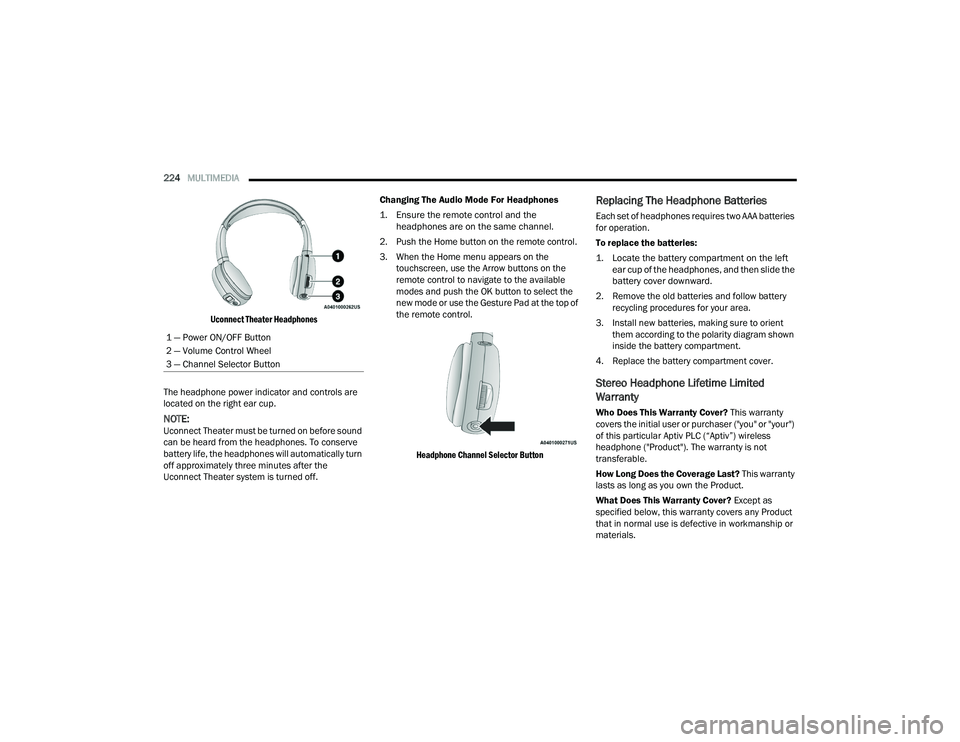
Uconnect Theater Headphones
The headphone power indicator and controls are
located on the right ear cup.
NOTE:Uconnect Theater must be turned on before sound
can be heard from the headphones. To conserve
battery life, the headphones will automatically turn
off approximately three minutes after the
Uconnect Theater system is turned off. Changing The Audio Mode For Headphones
1. Ensure the remote control and the
headphones are on the same channel.
2. Push the Home button on the remote control.
3. When the Home menu appears on the touchscreen, use the Arrow buttons on the
remote control to navigate to the available
modes and push the OK button to select the
new mode or use the Gesture Pad at the top of
the remote control.
Headphone Channel Selector Button
Replacing The Headphone Batteries
Each set of headphones requires two AAA batteries
for operation.
To replace the batteries:
1. Locate the battery compartment on the left ear cup of the headphones, and then slide the
battery cover downward.
2. Remove the old batteries and follow battery recycling procedures for your area.
3. Install new batteries, making sure to orient them according to the polarity diagram shown
inside the battery compartment.
4. Replace the battery compartment cover.
Stereo Headphone Lifetime Limited
Warranty
Who Does This Warranty Cover? This warranty
covers the initial user or purchaser ("you" or "your")
of this particular Aptiv PLC (“Aptiv”) wireless
headphone ("Product"). The warranty is not
transferable.
How Long Does the Coverage Last? This warranty
lasts as long as you own the Product.
What Does This Warranty Cover? Except as
specified below, this warranty covers any Product
that in normal use is defective in workmanship or
materials.
1 — Power ON/OFF Button
2 — Volume Control Wheel
3 — Channel Selector Button
21_RUP_OM_EN_USC_t.book Page 224
Page 227 of 401
MULTIMEDIA225
What Does This Warranty Not Cover? This
warranty does not cover any damage or defect that
results from misuse, abuse or modification of the
Product other than by Aptiv. Foam earpieces,
which will wear over time through normal use, are
specifically not covered (replacement foam is
available for a nominal charge). APTIV IS NOT
LIABLE FOR ANY INJURIES OR DAMAGES TO
PERSONS OR PROPERTY RESULTING FROM THE
USE OF, OR ANY FAILURE OR DEFECT IN, THE
PRODUCT, NOR IS APTIV LIABLE FOR ANY
GENERAL, SPECIAL, DIRECT, INDIRECT,
INCIDENTAL, CONSEQUENTIAL, EXEMPLARY,
PUNITIVE OR OTHER DAMAGES OF ANY KIND OR
NATURE WHATSOEVER. Some states and
jurisdictions may not allow the exclusion or
limitation of incidental or consequential damages,
so the above limitation may not apply to you. This
warranty gives you specific legal rights. You may
also have other rights, which vary from jurisdiction
to jurisdiction.
What Will Aptiv Do? Aptiv, at its option, will repair
or replace any defective Product. Aptiv reserves
the right to replace any discontinued Product with
a comparable model. THIS WARRANTY IS THE
SOLE WARRANTY FOR THIS PRODUCT, SETS
FORTH YOUR EXCLUSIVE REMEDY REGARDING
DEFECTIVE PRODUCTS, AND IS IN LIEU OF ALL
OTHER WARRANTIES (EXPRESS OR IMPLIED), INCLUDING ANY WARRANTY FOR
MERCHANTABILITY OR FITNESS FOR A
PARTICULAR PURPOSE.
If you have any questions or comments regarding
your Aptiv wireless headphones, please email
[email protected] or phone: 888-293-3332.
DISPLAY SETTINGS
When watching a video source, pressing the
Settings icon on the touchscreen activates the
Settings menu. These settings control the
appearance of the video on the screen. The factory
default settings are already set for optimum
viewing, so there is no need to change these
settings under normal circumstances.
To change the settings, use one of the
touchscreens or remote. To reset all values back to
the original settings, select “Reset to Defaults”,
then select “YES.”
LISTENING TO AUDIO WITH THE SCREEN
C
LOSED
To listen to only the audio portion of the channel
with the screen closed:
Set the audio to the desired source and
channel.
Close the video screen.
When the screen is reopened, the video screen
will automatically turn back on and show the
appropriate display menu or media.
If the screen is closed and there is no audio heard,
verify that the headphones are turned on (the ON
indicator is illuminated) and the headphone
selector switch is on the desired channel. If the
headphones are turned on, push the remote
control’s power button to turn audio on. If audio is
still not heard, check that fully charged batteries
are installed in the headphones.
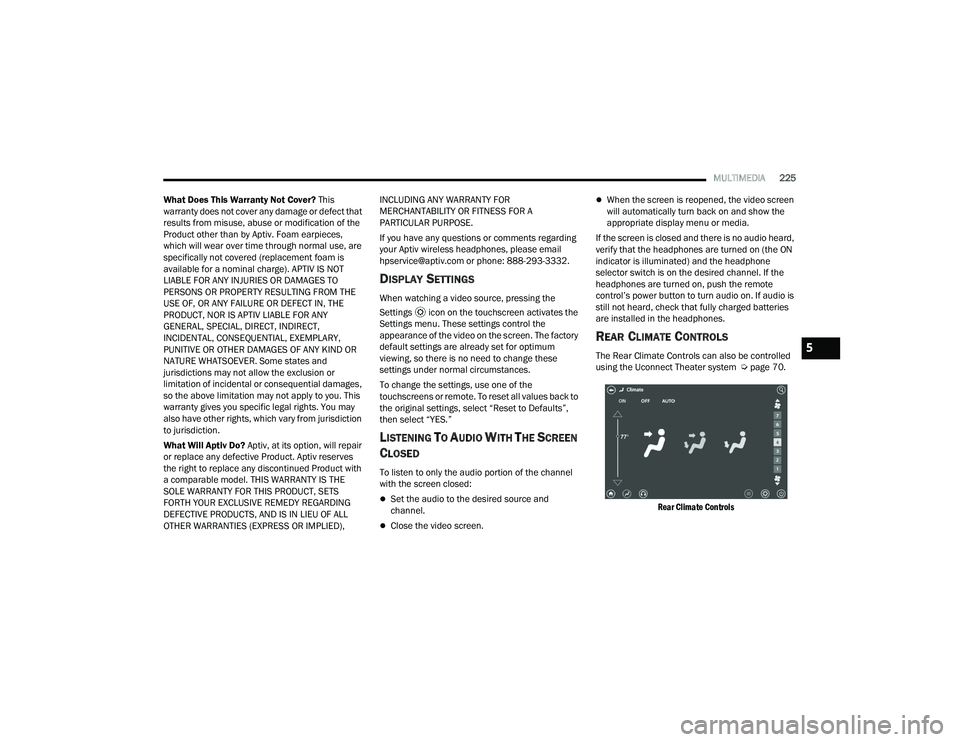
REAR CLIMATE CONTROLS
The Rear Climate Controls can also be controlled
using the Uconnect Theater system Ú page 70.
Rear Climate Controls
5
21_RUP_OM_EN_USC_t.book Page 225