Rear light CHRYSLER PACIFICA 2021 Owner's Manual
[x] Cancel search | Manufacturer: CHRYSLER, Model Year: 2021, Model line: PACIFICA, Model: CHRYSLER PACIFICA 2021Pages: 401, PDF Size: 26.88 MB
Page 178 of 401
176STARTING AND OPERATING
NOTE:In certain cold conditions, ice may prevent the fuel
filler door from opening. If this occurs, lightly push
on the fuel filler door around the perimeter to
break the ice build-up.
VEHICLE LOADING
CERTIFICATION LABEL
As required by National Highway Traffic Safety
Administration regulations, your vehicle has a
certification label affixed to the driver's side door or
pillar.
This label contains the month and year of
manufacture, Gross Vehicle Weight Rating
(GVWR), front and rear Gross Axle Weight Rating
(GAWR), and Vehicle Identification Number (VIN). A
Month-Day-Hour (MDH) number is included on this
label and indicates the Month, Day and Hour of
manufacture. The bar code that appears on the
bottom of the label is your VIN.
Gross Vehicle Weight Rating (GVWR)
The GVWR is the total permissible weight of your
vehicle including driver, passengers, vehicle,
options and cargo. The label also specifies
maximum capacities of front and rear GAWR. Total
load must be limited so GVWR and front and rear
GAWR are not exceeded.
Payload
The payload of a vehicle is defined as the allowable
load weight a truck can carry, including the weight
of the driver, all passengers, options and cargo.
Gross Axle Weight Rating (GAWR)
The GAWR is the maximum permissible load on the
front and rear axles. The load must be distributed
in the cargo area so that the GAWR of each axle is
not exceeded.
Each axle GAWR is determined by the components
in the system with the lowest load carrying capacity
(axle, springs, tires or wheels). Heavier axles or
suspension components sometimes specified by
purchasers for increased durability does not
necessarily increase the vehicle's GVWR.
Tire Size
The tire size on the Vehicle Certification Label
represents the actual tire size on your vehicle.
Replacement tires must be equal to the load
capacity of this tire size.
Rim Size
This is the rim size that is appropriate for the tire
size listed.
Inflation Pressure
This is the cold tire inflation pressure for your
vehicle for all loading conditions up to full GAWR.
Curb Weight
The curb weight of a vehicle is defined as the total
weight of the vehicle with all fluids, including
vehicle fuel, at full capacity conditions, and with no
occupants or cargo loaded into the vehicle. The
front and rear curb weight values are determined
by weighing your vehicle on a commercial scale
before any occupants or cargo are added.
21_RUP_OM_EN_USC_t.book Page 176
Page 195 of 401
MULTIMEDIA193
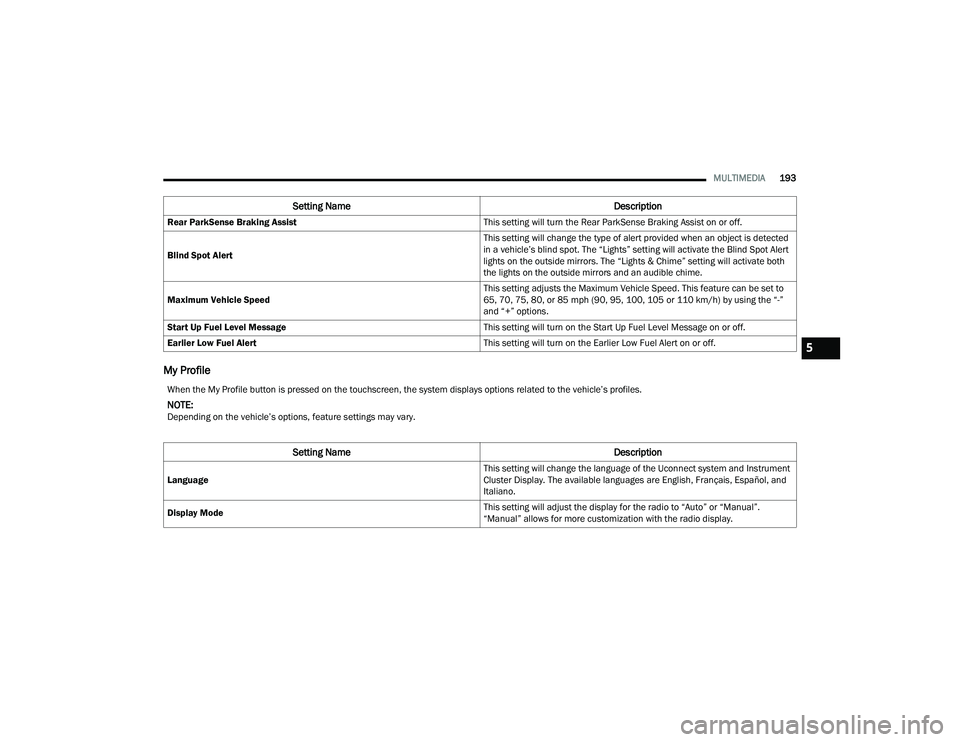
My Profile
Rear ParkSense Braking Assist This setting will turn the Rear ParkSense Braking Assist on or off.
Blind Spot Alert This setting will change the type of alert provided when an object is detected
in a vehicle’s blind spot. The “Lights” setting will activate the Blind Spot Alert
lights on the outside mirrors. The “Lights & Chime” setting will activate both
the lights on the outside mirrors and an audible chime.
Maximum Vehicle Speed This setting adjusts the Maximum Vehicle Speed. This feature can be set to
65, 70, 75, 80, or 85 mph (90, 95, 100, 105 or 110 km/h) by using the “-”
and “+” options.
Start Up Fuel Level Message This setting will turn on the Start Up Fuel Level Message on or off.
Earlier Low Fuel Alert This setting will turn on the Earlier Low Fuel Alert on or off.
Setting NameDescription
When the My Profile button is pressed on the touchscreen, the system displays options related to the vehicle’s profiles.
NOTE:Depending on the vehicle’s options, feature settings may vary.
Setting NameDescription
Language This setting will change the language of the Uconnect system and Instrument
Cluster Display. The available languages are English, Français, Español, and
Italiano.
Display Mode This setting will adjust the display for the radio to “Auto” or “Manual”.
“Manual” allows for more customization with the radio display.
5
21_RUP_OM_EN_USC_t.book Page 193
Page 199 of 401
MULTIMEDIA197
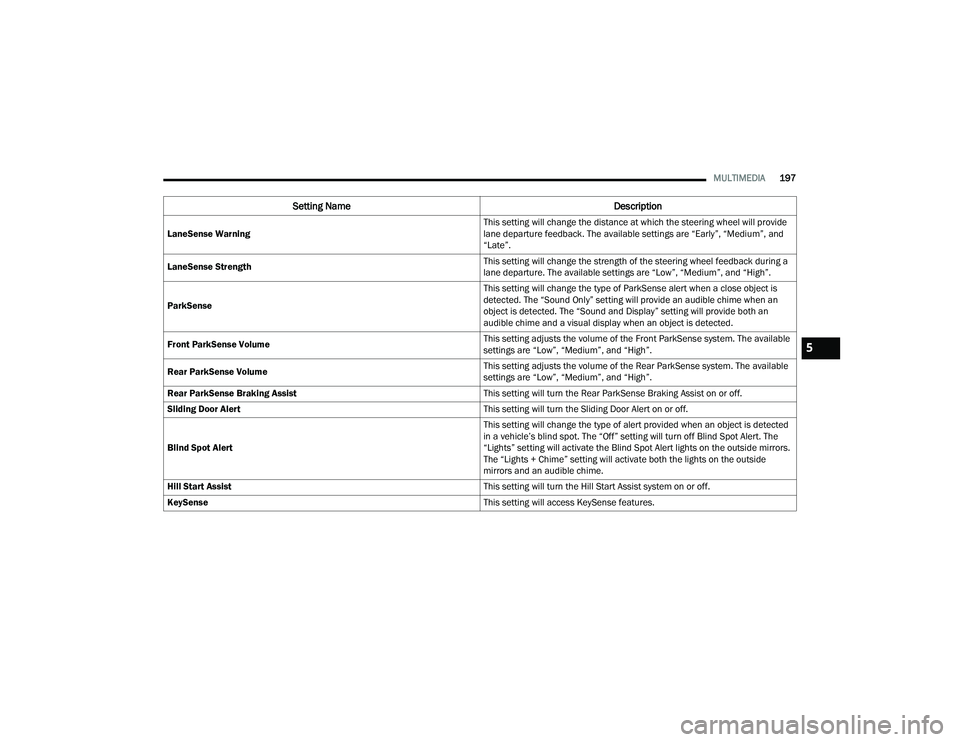
LaneSense Warning This setting will change the distance at which the steering wheel will provide
lane departure feedback. The available settings are “Early”, “Medium”, and
“Late”.
LaneSense Strength This setting will change the strength of the steering wheel feedback during a
lane departure. The available settings are “Low”, “Medium”, and “High”.
ParkSense This setting will change the type of ParkSense alert when a close object is
detected. The “Sound Only” setting will provide an audible chime when an
object is detected. The “Sound and Display” setting will provide both an
audible chime and a visual display when an object is detected.
Front ParkSense Volume This setting adjusts the volume of the Front ParkSense system. The available
settings are “Low”, “Medium”, and “High”.
Rear ParkSense Volume This setting adjusts the volume of the Rear ParkSense system. The available
settings are “Low”, “Medium”, and “High”.
Rear ParkSense Braking Assist This setting will turn the Rear ParkSense Braking Assist on or off.
Sliding Door Alert This setting will turn the Sliding Door Alert on or off.
Blind Spot Alert This setting will change the type of alert provided when an object is detected
in a vehicle’s blind spot. The “Off” setting will turn off Blind Spot Alert. The
“Lights” setting will activate the Blind Spot Alert lights on the outside mirrors.
The “Lights + Chime” setting will activate both the lights on the outside
mirrors and an audible chime.
Hill Start Assist This setting will turn the Hill Start Assist system on or off.
KeySense This setting will access KeySense features.
Setting NameDescription
5
21_RUP_OM_EN_USC_t.book Page 197
Page 218 of 401
216MULTIMEDIA
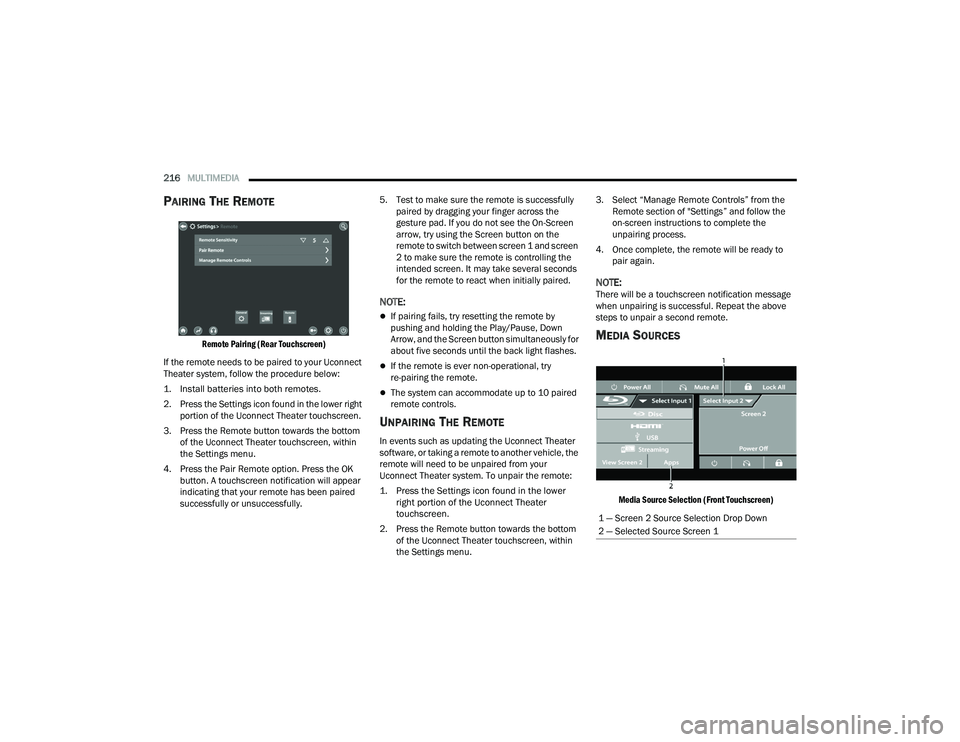
PAIRING THE REMOTE
Remote Pairing (Rear Touchscreen)
If the remote needs to be paired to your Uconnect
Theater system, follow the procedure below:
1. Install batteries into both remotes.
2. Press the Settings icon found in the lower right portion of the Uconnect Theater touchscreen.
3. Press the Remote button towards the bottom of the Uconnect Theater touchscreen, within
the Settings menu.
4. Press the Pair Remote option. Press the OK button. A touchscreen notification will appear
indicating that your remote has been paired
successfully or unsuccessfully. 5. Test to make sure the remote is successfully
paired by dragging your finger across the
gesture pad. If you do not see the On-Screen
arrow, try using the Screen button on the
remote to switch between screen 1 and screen
2 to make sure the remote is controlling the
intended screen. It may take several seconds
for the remote to react when initially paired.
NOTE:
If pairing fails, try resetting the remote by
pushing and holding the Play/Pause, Down
Arrow, and the Screen button simultaneously for
about five seconds until the back light flashes.
If the remote is ever non-operational, try
re-pairing the remote.
The system can accommodate up to 10 paired
remote controls.
UNPAIRING THE REMOTE
In events such as updating the Uconnect Theater
software, or taking a remote to another vehicle, the
remote will need to be unpaired from your
Uconnect Theater system. To unpair the remote:
1. Press the Settings icon found in the lower right portion of the Uconnect Theater
touchscreen.
2. Press the Remote button towards the bottom of the Uconnect Theater touchscreen, within
the Settings menu. 3. Select “Manage Remote Controls” from the
Remote section of "Settings” and follow the
on-screen instructions to complete the
unpairing process.
4. Once complete, the remote will be ready to pair again.
NOTE:There will be a touchscreen notification message
when unpairing is successful. Repeat the above
steps to unpair a second remote.
MEDIA SOURCES
Media Source Selection (Front Touchscreen)
1 — Screen 2 Source Selection Drop Down
2 — Selected Source Screen 1
21_RUP_OM_EN_USC_t.book Page 216
Page 219 of 401
MULTIMEDIA217
Users can select content for each screen from the
front radio touchscreen by choosing desired
content from the “Select Input” drop-down menu.
Options include “Blu-ray™ Disc”, “HDMI”, “USB”,
“Apps”, and “Viewing the other rear screen”.
NOTE:Use the “View Screen” function to pull content
from one screen to the other with a single press of
a button. Doing this however will disable and gray
out certain player controls on the screen viewing
the other screen's content.
UCONNECT THEATER REMOTE CONTROL
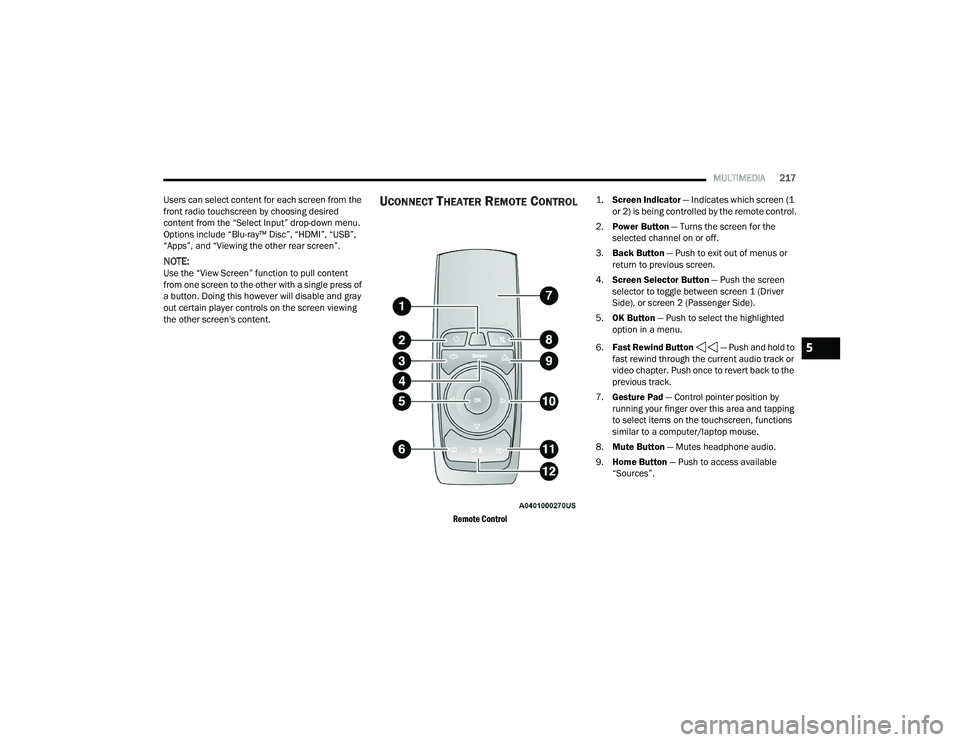
Remote Control
1.
Screen Indicator
— Indicates which screen (1
or 2) is being controlled by the remote control.
2. Power Button — Turns the screen for the
selected channel on or off.
3. Back Button — Push to exit out of menus or
return to previous screen.
4. Screen Selector Button — Push the screen
selector to toggle between screen 1 (Driver
Side), or screen 2 (Passenger Side).
5. OK Button — Push to select the highlighted
option in a menu.
6. Fast Rewind Button — Push and hold to
fast rewind through the current audio track or
video chapter. Push once to revert back to the
previous track.
7. Gesture Pad — Control pointer position by
running your finger over this area and tapping
to select items on the touchscreen, functions
similar to a computer/laptop mouse.
8. Mute Button — Mutes headphone audio.
9. Home Button — Push to access available
“Sources”.
5
21_RUP_OM_EN_USC_t.book Page 217
Page 220 of 401
218MULTIMEDIA
10. Arrow Buttons — Push the Arrow
buttons to highlight an item or scroll through
menus.
11. Fast Forward Button — Push and hold
to fast forward through the current audio track
or video chapter. Push once to skip to the next
track.
12. Play/Pause Button — Begin/resume or pause
disc play.
Replacing The Remote Control Batteries
Each remote control requires two AAA batteries for
operation.
To replace the batteries:
1. Locate the battery compartment on the back of the remote, then slide the battery cover
downward.
2. Remove the old batteries and follow battery recycling procedures for your area.
3. Install new batteries, making sure to orient them according to the polarity diagram shown
inside the battery compartment.
4. Replace the battery compartment cover.
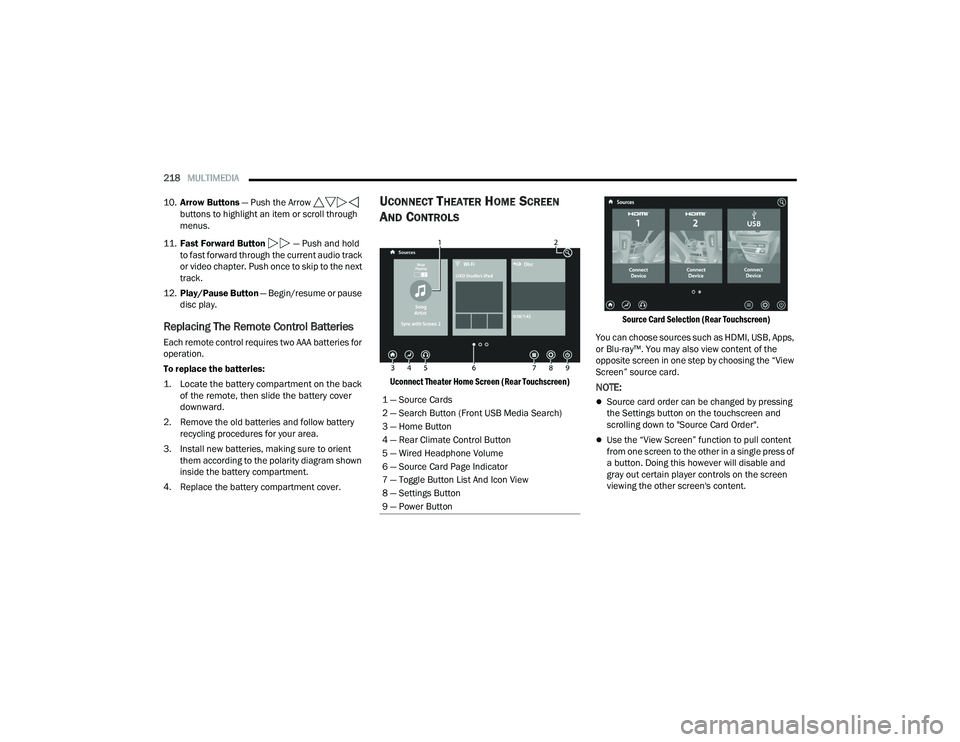
UCONNECT THEATER HOME SCREEN
A
ND CONTROLS
Uconnect Theater Home Screen (Rear Touchscreen) Source Card Selection (Rear Touchscreen)
You can choose sources such as HDMI, USB, Apps,
or Blu-ray™. You may also view content of the
opposite screen in one step by choosing the “View
Screen” source card.NOTE:
Source card order can be changed by pressing
the Settings button on the touchscreen and
scrolling down to "Source Card Order".
Use the “View Screen” function to pull content
from one screen to the other in a single press of
a button. Doing this however will disable and
gray out certain player controls on the screen
viewing the other screen's content.
1 — Source Cards
2 — Search Button (Front USB Media Search)
3 — Home Button
4 — Rear Climate Control Button
5 — Wired Headphone Volume
6 — Source Card Page Indicator
7 — Toggle Button List And Icon View
8 — Settings Button
9 — Power Button
21_RUP_OM_EN_USC_t.book Page 218
Page 221 of 401
MULTIMEDIA219
General Settings
To change source card order, select “Source Card
Reorder”, then press and hold source card on the
touchscreen, and drag and drop in desired order.
You can also adjust settings such as:
Brightness
Media port lighting on and off
Clock on and off
NOTE:System information can also be displayed under
General Settings.
Remote Settings
Under this setting, you can access the following:
Manage Remotes (this allows you to unpair
remotes)
Pair Remote
Remote sensitivity (this adjusts the speed and
sensitivity of cursor on screen when using
gesture pad) Ú page 387.
PLAY A DVD/BLU-RAY™ OR USB
M
EDIA FILE FROM UCONNECT SYSTEM
1. Insert a Blu-ray™ Disc or DVD disc into the
disc player with the label facing up, or insert a
USB drive into rear Video USB port.
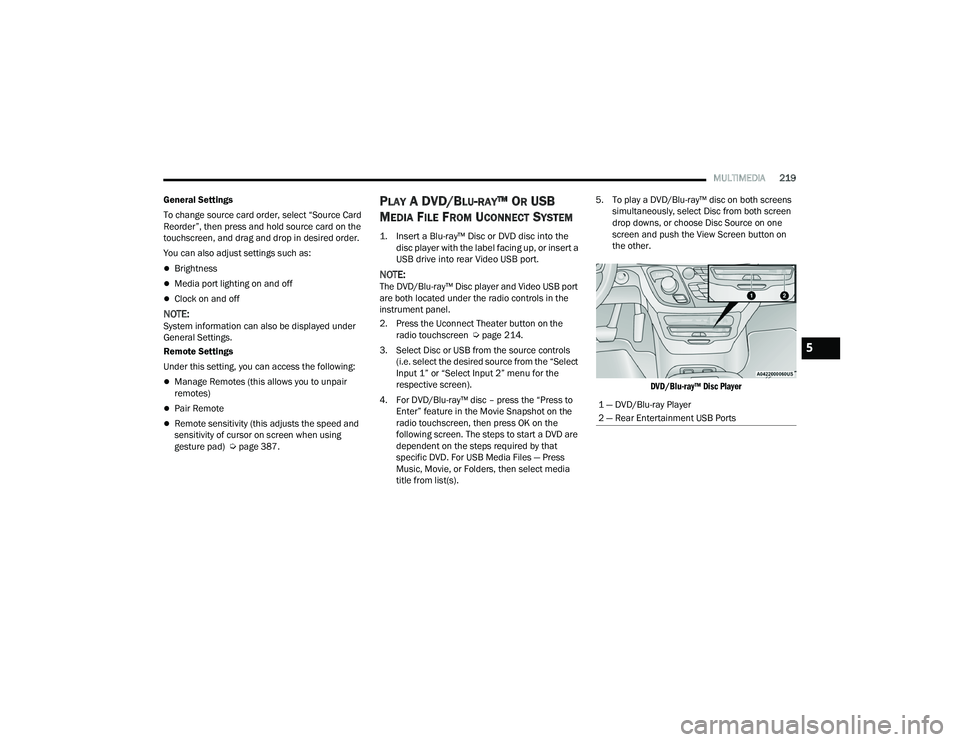
NOTE:The DVD/Blu-ray™ Disc player and Video USB port
are both located under the radio controls in the
instrument panel.
2. Press the Uconnect Theater button on the radio touchscreen Ú page 214.
3. Select Disc or USB from the source controls (i.e. select the desired source from the “Select
Input 1” or “Select Input 2” menu for the
respective screen).
4. For DVD/Blu-ray™ disc – press the “Press to Enter” feature in the Movie Snapshot on the
radio touchscreen, then press OK on the
following screen. The steps to start a DVD are
dependent on the steps required by that
specific DVD. For USB Media Files — Press
Music, Movie, or Folders, then select media
title from list(s). 5. To play a DVD/Blu-ray™ disc on both screens
simultaneously, select Disc from both screen
drop downs, or choose Disc Source on one
screen and push the View Screen button on
the other.
DVD/Blu-ray™ Disc Player
1 — DVD/Blu-ray Player
2 — Rear Entertainment USB Ports
5
21_RUP_OM_EN_USC_t.book Page 219
Page 242 of 401
240SAFETY
Trailer Sway Control (TSC)
TSC uses sensors in the vehicle to recognize an
excessively swaying trailer and will take the
appropriate actions to attempt to stop the sway.
Note that TSC cannot stop all trailers from swaying.
Always use caution when towing a trailer and follow
the trailer tongue weight recommendations
Úpage 177.
When TSC is functioning, the ESC Activation/
Malfunction Indicator Light will flash, the engine
power may be reduced and you may feel the
brakes being applied to individual wheels to
attempt to stop the trailer from swaying. TSC is
disabled when the ESC system is in the “Partial
Off” mode.AUXILIARY DRIVING SYSTEMS
BLIND SPOT MONITORING (BS M) —
I
F EQUIPPED
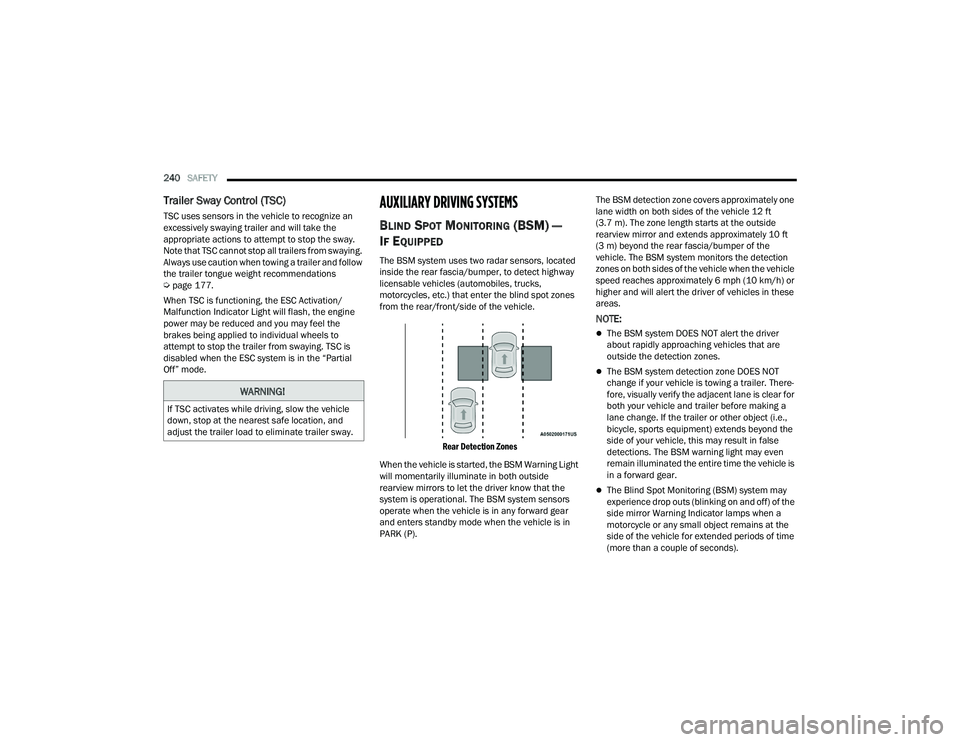
The BSM system uses two radar sensors, located
inside the rear fascia/bumper, to detect highway
licensable vehicles (automobiles, trucks,
motorcycles, etc.) that enter the blind spot zones
from the rear/front/side of the vehicle.
Rear Detection Zones
When the vehicle is started, the BSM Warning Light
will momentarily illuminate in both outside
rearview mirrors to let the driver know that the
system is operational. The BSM system sensors
operate when the vehicle is in any forward gear
and enters standby mode when the vehicle is in
PARK (P). The BSM detection zone covers approximately one
lane width on both sides of the vehicle 12 ft
(3.7 m). The zone length starts at the outside
rearview mirror and extends approximately 10 ft
(3 m) beyond the rear fascia/bumper of the
vehicle. The BSM system monitors the detection
zones on both sides of the vehicle when the vehicle
speed reaches approximately 6 mph (10 km/h) or
higher and will alert the driver of vehicles in these
areas.
NOTE:
The BSM system DOES NOT alert the driver
about rapidly approaching vehicles that are
outside the detection zones.
The BSM system detection zone DOES NOT
change if your vehicle is towing a trailer. There
-
fore, visually verify the adjacent lane is clear for
both your vehicle and trailer before making a
lane change. If the trailer or other object (i.e.,
bicycle, sports equipment) extends beyond the
side of your vehicle, this may result in false
detections. The BSM warning light may even
remain illuminated the entire time the vehicle is
in a forward gear.
The Blind Spot Monitoring (BSM) system may
experience drop outs (blinking on and off) of the
side mirror Warning Indicator lamps when a
motorcycle or any small object remains at the
side of the vehicle for extended periods of time
(more than a couple of seconds).
WARNING!
If TSC activates while driving, slow the vehicle
down, stop at the nearest safe location, and
adjust the trailer load to eliminate trailer sway.
21_RUP_OM_EN_USC_t.book Page 240
Page 243 of 401

SAFETY241
The area on the rear fascia/bumper where the
radar sensors are located must remain free of
snow, ice, and dirt/road contamination so that the
BSM system can function properly. Do not block
the area of the rear fascia/bumper where the
radar sensors are located with foreign objects
(bumper stickers, bicycle racks, etc.).
Sensor Location
If the system detects degraded performance due
to contamination or foreign objects, a message will
warn you of a blocked sensor and the warning
indicators in side view mirrors will be on. The
warning indicators will remain illuminated until
blockage clearing conditions are met. First clear
the fascia/bumper area around the sensors of the
blockage. After removing the blockage, cycle the
ignition from on to off and then back on again to
reset the system. If the blockage message is still present after
cycling the ignition and driving in traffic, check
again for a blockage.
The BSM system notifies the driver of objects in the
detection zones by illuminating the BSM warning
light located in the outside mirrors in addition to
sounding an audible (chime) alert and reducing the
radio volume Ú
page 243.
Warning Light Location
The BSM system monitors the detection zone from
three different entry points (side, rear, front) while
driving to see if an alert is necessary. The BSM
system will issue an alert during these types of
zone entries.
Entering From The Side
Vehicles that move into your adjacent lanes from
either side of the vehicle.
Side Monitoring
6
21_RUP_OM_EN_USC_t.book Page 241
Page 244 of 401
242SAFETY
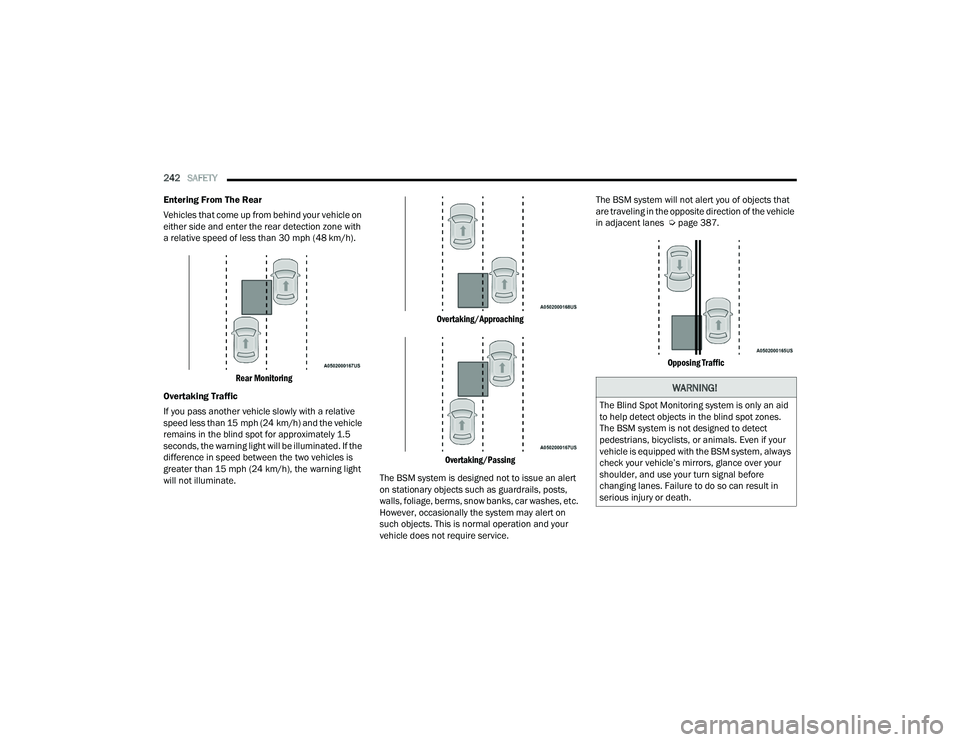
Entering From The Rear
Vehicles that come up from behind your vehicle on
either side and enter the rear detection zone with
a relative speed of less than 30 mph (48 km/h).
Rear Monitoring
Overtaking Traffic
If you pass another vehicle slowly with a relative
speed less than 15 mph (24 km/h) and the vehicle
remains in the blind spot for approximately 1.5
seconds, the warning light will be illuminated. If the
difference in speed between the two vehicles is
greater than 15 mph (24 km/h), the warning light
will not illuminate.
Overtaking/Approaching
Overtaking/Passing
The BSM system is designed not to issue an alert
on stationary objects such as guardrails, posts,
walls, foliage, berms, snow banks, car washes, etc.
However, occasionally the system may alert on
such objects. This is normal operation and your
vehicle does not require service. The BSM system will not alert you of objects that
are traveling in the opposite direction of the vehicle
in adjacent lanes Ú
page 387.
Opposing Traffic
WARNING!
The Blind Spot Monitoring system is only an aid
to help detect objects in the blind spot zones.
The BSM system is not designed to detect
pedestrians, bicyclists, or animals. Even if your
vehicle is equipped with the BSM system, always
check your vehicle’s mirrors, glance over your
shoulder, and use your turn signal before
changing lanes. Failure to do so can result in
serious injury or death.
21_RUP_OM_EN_USC_t.book Page 242