page 188 CHRYSLER PACIFICA 2022 Owner's Manual
[x] Cancel search | Manufacturer: CHRYSLER, Model Year: 2022, Model line: PACIFICA, Model: CHRYSLER PACIFICA 2022Pages: 384, PDF Size: 23.92 MB
Page 138 of 384
136STARTING AND OPERATING
While cruising, brief full-throttle acceleration within
the limits of local traffic laws contributes to a good
break-in. Wide-open throttle acceleration in low
gear can be detrimental and should be avoided.
The engine oil installed in the engine at the factory
is a high-quality energy conserving type lubricant.
Oil changes should be consistent with anticipated
climate conditions under which vehicle operations
will occur. For the recommended viscosity and
quality grades Ú page 315.
NOTE:A new engine may consume some oil during its first
few thousand miles (kilometers) of operation. This
should be considered a normal part of the break-in
and not interpreted as a problem.
PARKING BRAKE
ELECTRIC PARK BRAKE (EPB)
Your vehicle is equipped with an EPB that offers
simple operation, and some additional features
that make the parking brake more convenient and
useful.
The parking brake is primarily intended to prevent
the vehicle from rolling while parked. Before
leaving the vehicle, make sure that the parking
brake is applied. Also, be certain to leave the
transmission in PARK.
You can engage the parking brake in two ways;
Manually, by applying the EPB switch.
Automatically, by enabling the Auto Park Brake
feature in the customer programmable features
Úpage 188.
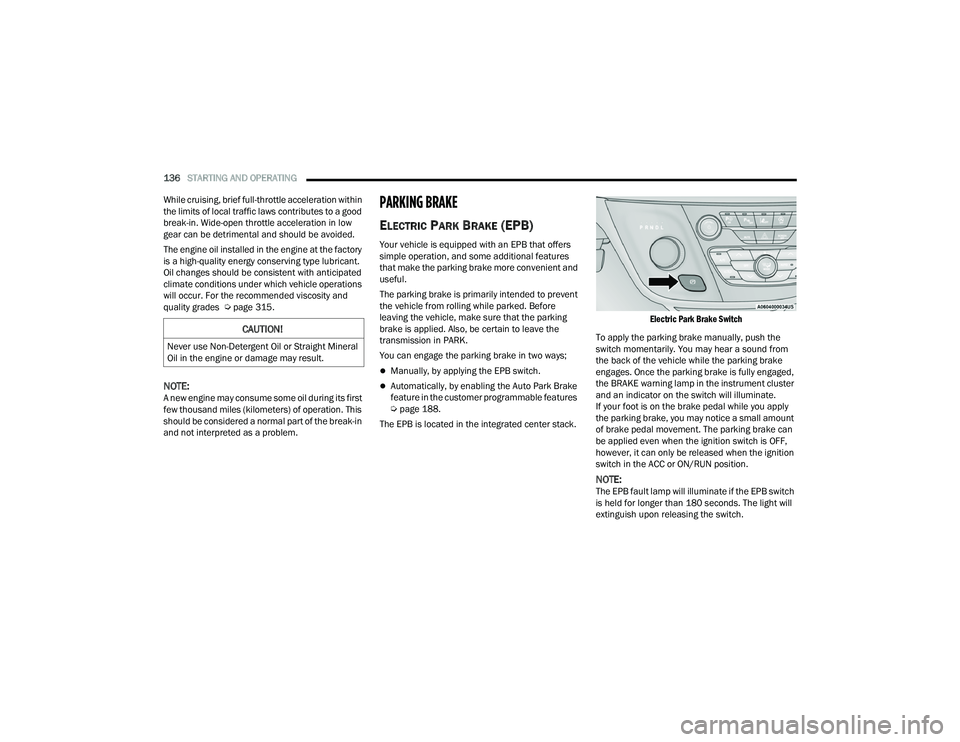
The EPB is located in the integrated center stack.
Electric Park Brake Switch
To apply the parking brake manually, push the
switch momentarily. You may hear a sound from
the back of the vehicle while the parking brake
engages. Once the parking brake is fully engaged,
the BRAKE warning lamp in the instrument cluster
and an indicator on the switch will illuminate.
If your foot is on the brake pedal while you apply
the parking brake, you may notice a small amount
of brake pedal movement. The parking brake can
be applied even when the ignition switch is OFF,
however, it can only be released when the ignition
switch in the ACC or ON/RUN position.
NOTE:The EPB fault lamp will illuminate if the EPB switch
is held for longer than 180 seconds. The light will
extinguish upon releasing the switch.
CAUTION!
Never use Non-Detergent Oil or Straight Mineral
Oil in the engine or damage may result.
22_RUP_OM_EN_USC_t.book Page 136
Page 140 of 384
138STARTING AND OPERATING
If exceptional circumstances should make it
necessary to engage the parking brake while the
vehicle is in motion, push on the EPB switch for as
long as engagement is desired. The BRAKE
warning lamp will illuminate, and a continuous
chime will sound. The rear stop lamps will also be
illuminated automatically while the vehicle
remains in motion.
To disengage the parking brake while the vehicle is
in motion, release the switch. If the vehicle is
brought to a complete stop using the parking
brake, when the vehicle reaches approximately
3 mph (4.8 km/h), the parking brake will remain
engaged.
In the unlikely event of a malfunction of the EPB
system, a yellow EPB fault lamp will illuminate. This
may be accompanied by the BRAKE warning lamp
flashing. In this case, urgent service of the EPB
system is required. Do not rely on the parking
brake to hold the vehicle stationary.
Auto Park Brake
The Electric Park Brake (EPB) can be programmed
to be applied automatically whenever the vehicle is
at a standstill and the automatic transmission is
placed in PARK. Auto Park Brake is enabled and
disabled by customer selection through the
customer programmable features Ú page 188.
SafeHold
SafeHold is a safety feature of the Electric Park
Brake (EPB) system that will engage the parking
brake automatically if the vehicle is left unsecured.
If the automatic transmission is not in PARK, the
seat belt is unbuckled, the driver door is open, the
vehicle is at a standstill, and there is no attempt to
press the brake pedal or accelerator pedal, the
parking brake will automatically engage to prevent
the vehicle from rolling.
SafeHold can be temporarily bypassed by pushing
the EPB while the driver door is open and brake
pedal is pressed. Once manually bypassed,
SafeHold will be enabled again once the vehicle
reaches 12 mph (20 km/h) or the ignition is cycled
to the OFF position and back to ON again.
Brake Service Mode
We recommend having your brakes serviced by an
authorized dealer. You should only make repairs
for which you have the knowledge and the right
equipment. You should only enter Brake Service
Mode during brake service.
When servicing your rear brakes, it may be
necessary for you or your technician to push the
rear piston into the rear caliper bore. With the
Electric Park Brake (EPB) system, this can only be
done after retracting the EPB actuator. Fortunately, actuator retraction can be done easily
by entering Brake Service in your vehicle
Ú
page 188. This menu-based system will guide
you through the steps necessary to retract the EPB
actuator in order to perform rear brake service.
Brake Service has requirements that must be met
in order to be activated:
The vehicle must be at a standstill.
The parking brake must be unapplied.
The transmission must be in PARK or NEUTRAL.
While in Brake Service, the EPB fault lamp will
flash continuously while the ignition switch is ON.
When brake service work is complete, the following
steps must be followed to reset the parking brake
system to normal operation:
Ensure the vehicle is at a standstill.
Press the brake pedal with moderate force.
Apply the EPB.
WARNING!
You can be badly injured working on or around a
motor vehicle. Do only that service work for
which you have the knowledge and the right
equipment. If you have any doubt about your
ability to perform a service job, take your vehicle
to a competent mechanic.
22_RUP_OM_EN_USC_t.book Page 138
Page 162 of 384
160STARTING AND OPERATING
NOTE:ParkSense will reduce the volume of the radio, if
on, when the system is sounding an audio tone.
Front Park Assist Audible Alerts
ParkSense will turn off the Front Park Assist
audible alert (chime) after approximately three
seconds when an obstacle has been detected, the
vehicle is stationary, and brake pedal is applied.
Adjustable Chime Volume Settings
Front and Rear chime volume settings can be
selected from the Uconnect system Ú page 188.
If the Uconnect system is equipped, chime volume
settings will not be accessible from the instrument
cluster display.
The chime volume settings include LOW, MEDIUM,
and HIGH.
ParkSense will retain its last known configuration
state through ignition cycles.
PARKSENSE WARNING DISPLAY
The ParkSense Warning screen will only be
displayed if “Sound and Display” is selected in the
Uconnect system Ú page 188.
The ParkSense Warning screen is located within
the instrument cluster display Ú page 113. It
provides visual warnings to indicate the distance
between the rear fascia/bumper and/or front
fascia/bumper and the detected obstacle.
ENABLING AND DISABLING PARKSENSE
ParkSense can be enabled and disabled
with the ParkSense switch located below
the Uconnect display.
When the ParkSense switch is pushed to disable
the system, the instrument cluster will display the
“PARKSENSE OFF” message for approximately
five seconds. When the gear selector is moved to
REVERSE and the system is disabled, the instrument
cluster display will show the “PARKSENSE OFF”
message for as long as the vehicle is in REVERSE.
The ParkSense switch LED will be on when
ParkSense is disabled or requires service. The
ParkSense switch LED will be off when the system
is enabled. If the ParkSense switch is pushed, and
requires service, the ParkSense switch LED will
blink momentarily, and then the LED will be on.
NOTE:When KeySense feature is present, the ParkSense
system will reject customer input to turn the
system off via the switch. The instrument cluster
display will show "KeySense in Use Selected
Feature Cannot be Disabled" message.
SERVICE THE PARKSENSE PARK ASSIST
S
YSTEM
During vehicle start up, when the ParkSense
system has detected a faulted condition, the
instrument cluster will actuate a single chime, once per ignition cycle, and it will display the
"PARKSENSE UNAVAILABLE WIPE REAR
SENSORS", "PARKSENSE UNAVAILABLE WIPE
FRONT SENSORS", or the "PARKSENSE
UNAVAILABLE SERVICE REQUIRED" message for
five seconds. When the gear selector is moved to
REVERSE and the system has detected a faulted
condition, the instrument cluster display will show
a "PARKSENSE UNAVAILABLE WIPE REAR
SENSORS", "PARKSENSE UNAVAILABLE WIPE
FRONT SENSORS" or "PARKSENSE UNAVAILABLE
SERVICE REQUIRED" pop-up message for five
seconds. After five seconds, a vehicle graphic will
be displayed with a "WIPE OFF" or “SERVICE”
overlay, depending on the location and fault type.
The system will continue to provide arc alerts for
the side that is functioning properly. These arc
alerts will interrupt the "PARKSENSE UNAVAILABLE
WIPE REAR SENSORS", "PARKSENSE
UNAVAILABLE WIPE FRONT SENSORS", or
"PARKSENSE UNAVAILABLE SERVICE REQUIRED"
messages if an object is detected within the five
second pop-up duration. The vehicle graphic will
remain displayed for as long as the vehicle is in
REVERSE.
If "PARKSENSE UNAVAILABLE WIPE REAR
SENSORS" or "PARKSENSE UNAVAILABLE WIPE
FRONT SENSORS" appears in the instrument
cluster display make sure the outer surface and
the underside of the rear fascia/bumper and/or
front fascia/bumper is clean and clear of snow,
22_RUP_OM_EN_USC_t.book Page 160
Page 170 of 384
168STARTING AND OPERATING
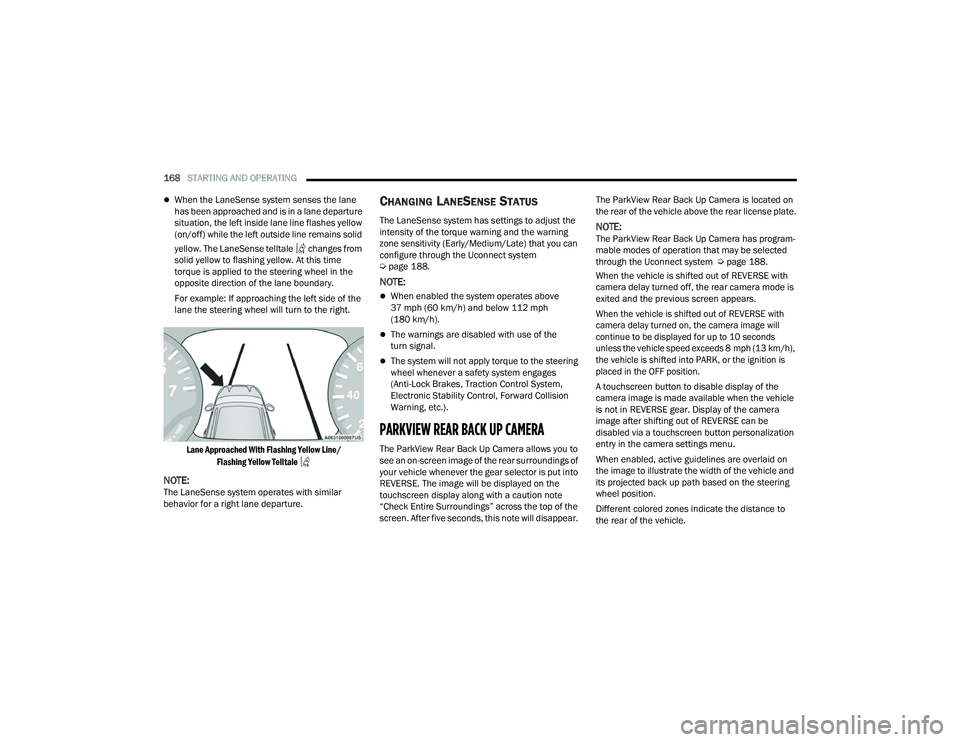
When the LaneSense system senses the lane
has been approached and is in a lane departure
situation, the left inside lane line flashes yellow
(on/off) while the left outside line remains solid
yellow. The LaneSense telltale changes from
solid yellow to flashing yellow. At this time
torque is applied to the steering wheel in the
opposite direction of the lane boundary.
For example: If approaching the left side of the
lane the steering wheel will turn to the right.
Lane Approached With Flashing Yellow Line/ Flashing Yellow Telltale
NOTE:The LaneSense system operates with similar
behavior for a right lane departure.
CHANGING LANESENSE STATUS
The LaneSense system has settings to adjust the
intensity of the torque warning and the warning
zone sensitivity (Early/Medium/Late) that you can
configure through the Uconnect system
Úpage 188.
NOTE:
When enabled the system operates above
37 mph (60 km/h) and below 112 mph
(180 km/h).
The warnings are disabled with use of the
turn signal.
The system will not apply torque to the steering
wheel whenever a safety system engages
(Anti-Lock Brakes, Traction Control System,
Electronic Stability Control, Forward Collision
Warning, etc.).
PARKVIEW REAR BACK UP CAMERA
The ParkView Rear Back Up Camera allows you to
see an on-screen image of the rear surroundings of
your vehicle whenever the gear selector is put into
REVERSE. The image will be displayed on the
touchscreen display along with a caution note
“Check Entire Surroundings” across the top of the
screen. After five seconds, this note will disappear. The ParkView Rear Back Up Camera is located on
the rear of the vehicle above the rear license plate.
NOTE:The ParkView Rear Back Up Camera has program
-
mable modes of operation that may be selected
through the Uconnect system Ú page 188.
When the vehicle is shifted out of REVERSE with
camera delay turned off, the rear camera mode is
exited and the previous screen appears.
When the vehicle is shifted out of REVERSE with
camera delay turned on, the camera image will
continue to be displayed for up to 10 seconds
unless the vehicle speed exceeds 8 mph (13 km/h),
the vehicle is shifted into PARK, or the ignition is
placed in the OFF position.
A touchscreen button to disable display of the
camera image is made available when the vehicle
is not in REVERSE gear. Display of the camera
image after shifting out of REVERSE can be
disabled via a touchscreen button personalization
entry in the camera settings menu.
When enabled, active guidelines are overlaid on
the image to illustrate the width of the vehicle and
its projected back up path based on the steering
wheel position.
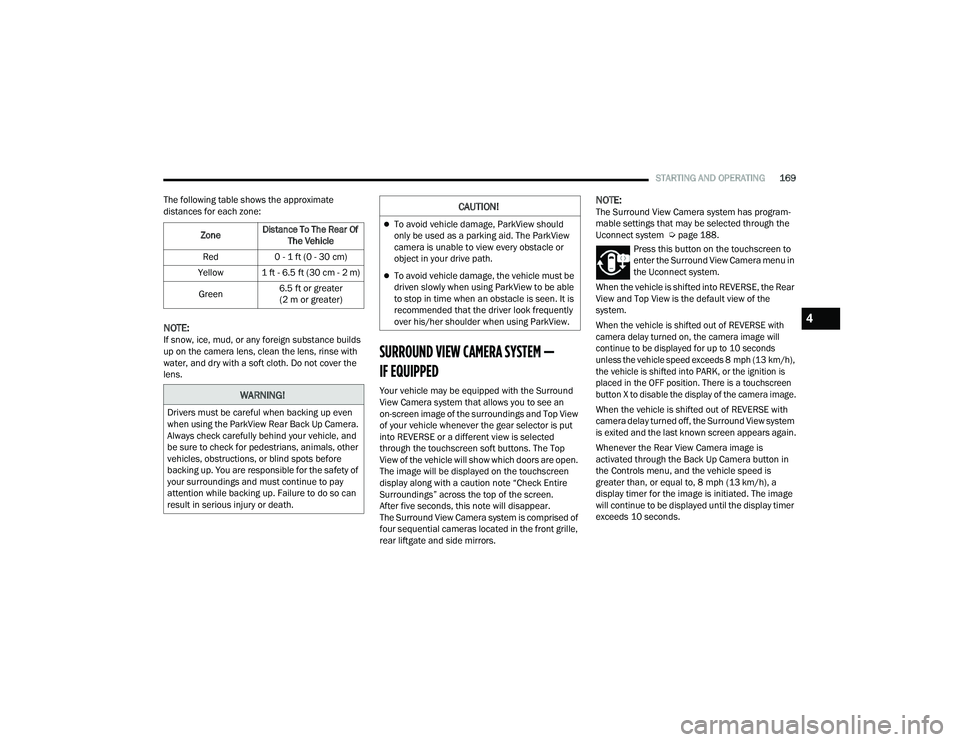
Different colored zones indicate the distance to
the rear of the vehicle.
22_RUP_OM_EN_USC_t.book Page 168
Page 171 of 384
STARTING AND OPERATING169
The following table shows the approximate
distances for each zone:
NOTE:If snow, ice, mud, or any foreign substance builds
up on the camera lens, clean the lens, rinse with
water, and dry with a soft cloth. Do not cover the
lens.
SURROUND VIEW CAMERA SYSTEM —
IF EQUIPPED
Your vehicle may be equipped with the Surround
View Camera system that allows you to see an
on-screen image of the surroundings and Top View
of your vehicle whenever the gear selector is put
into REVERSE or a different view is selected
through the touchscreen soft buttons. The Top
View of the vehicle will show which doors are open.
The image will be displayed on the touchscreen
display along with a caution note “Check Entire
Surroundings” across the top of the screen.
After five seconds, this note will disappear.
The Surround View Camera system is comprised of
four sequential cameras located in the front grille,
rear liftgate and side mirrors.
NOTE:The Surround View Camera system has program -
mable settings that may be selected through the
Uconnect system Ú page 188.
Press this button on the touchscreen to
enter the Surround View Camera menu in
the Uconnect system.
When the vehicle is shifted into REVERSE, the Rear
View and Top View is the default view of the
system.
When the vehicle is shifted out of REVERSE with
camera delay turned on, the camera image will
continue to be displayed for up to 10 seconds
unless the vehicle speed exceeds 8 mph (13 km/h),
the vehicle is shifted into PARK, or the ignition is
placed in the OFF position. There is a touchscreen
button X to disable the display of the camera image.
When the vehicle is shifted out of REVERSE with
camera delay turned off, the Surround View system
is exited and the last known screen appears again.
Whenever the Rear View Camera image is
activated through the Back Up Camera button in
the Controls menu, and the vehicle speed is
greater than, or equal to, 8 mph (13 km/h), a
display timer for the image is initiated. The image
will continue to be displayed until the display timer
exceeds 10 seconds.
Zone
Distance To The Rear Of
The Vehicle
Red 0 - 1 ft (0 - 30 cm)
Yellow 1 ft - 6.5 ft (30 cm - 2 m)
Green 6.5 ft or greater
(2 m or greater)
WARNING!
Drivers must be careful when backing up even
when using the ParkView Rear Back Up Camera.
Always check carefully behind your vehicle, and
be sure to check for pedestrians, animals, other
vehicles, obstructions, or blind spots before
backing up. You are responsible for the safety of
your surroundings and must continue to pay
attention while backing up. Failure to do so can
result in serious injury or death.
CAUTION!
To avoid vehicle damage, ParkView should
only be used as a parking aid. The ParkView
camera is unable to view every obstacle or
object in your drive path.
To avoid vehicle damage, the vehicle must be
driven slowly when using ParkView to be able
to stop in time when an obstacle is seen. It is
recommended that the driver look frequently
over his/her shoulder when using ParkView.
4
22_RUP_OM_EN_USC_t.book Page 169
Page 173 of 384
STARTING AND OPERATING171
Zoom View
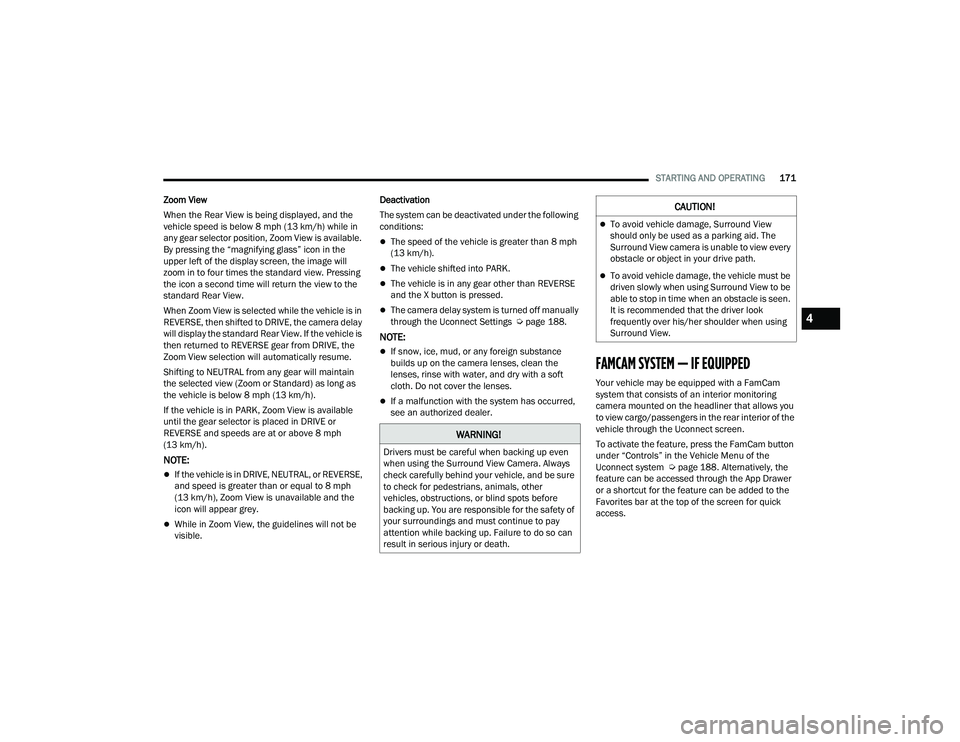
When the Rear View is being displayed, and the
vehicle speed is below 8 mph (13 km/h) while in
any gear selector position, Zoom View is available.
By pressing the “magnifying glass” icon in the
upper left of the display screen, the image will
zoom in to four times the standard view. Pressing
the icon a second time will return the view to the
standard Rear View.
When Zoom View is selected while the vehicle is in
REVERSE, then shifted to DRIVE, the camera delay
will display the standard Rear View. If the vehicle is
then returned to REVERSE gear from DRIVE, the
Zoom View selection will automatically resume.
Shifting to NEUTRAL from any gear will maintain
the selected view (Zoom or Standard) as long as
the vehicle is below 8 mph (13 km/h).
If the vehicle is in PARK, Zoom View is available
until the gear selector is placed in DRIVE or
REVERSE and speeds are at or above 8 mph
(13 km/h).
NOTE:
If the vehicle is in DRIVE, NEUTRAL, or REVERSE,
and speed is greater than or equal to 8 mph
(13 km/h), Zoom View is unavailable and the
icon will appear grey.
While in Zoom View, the guidelines will not be
visible. Deactivation
The system can be deactivated under the following
conditions:
The speed of the vehicle is greater than 8 mph
(13 km/h).
The vehicle shifted into PARK.
The vehicle is in any gear other than REVERSE
and the X button is pressed.
The camera delay system is turned off manually
through the Uconnect Settings Ú
page 188.
NOTE:
If snow, ice, mud, or any foreign substance
builds up on the camera lenses, clean the
lenses, rinse with water, and dry with a soft
cloth. Do not cover the lenses.
If a malfunction with the system has occurred,
see an authorized dealer.
FAMCAM SYSTEM — IF EQUIPPED
Your vehicle may be equipped with a FamCam
system that consists of an interior monitoring
camera mounted on the headliner that allows you
to view cargo/passengers in the rear interior of the
vehicle through the Uconnect screen.
To activate the feature, press the FamCam button
under “Controls” in the Vehicle Menu of the
Uconnect system Úpage 188. Alternatively, the
feature can be accessed through the App Drawer
or a shortcut for the feature can be added to the
Favorites bar at the top of the screen for quick
access.
WARNING!
Drivers must be careful when backing up even
when using the Surround View Camera. Always
check carefully behind your vehicle, and be sure
to check for pedestrians, animals, other
vehicles, obstructions, or blind spots before
backing up. You are responsible for the safety of
your surroundings and must continue to pay
attention while backing up. Failure to do so can
result in serious injury or death.
CAUTION!
To avoid vehicle damage, Surround View
should only be used as a parking aid. The
Surround View camera is unable to view every
obstacle or object in your drive path.
To avoid vehicle damage, the vehicle must be
driven slowly when using Surround View to be
able to stop in time when an obstacle is seen.
It is recommended that the driver look
frequently over his/her shoulder when using
Surround View.
4
22_RUP_OM_EN_USC_t.book Page 171
Page 186 of 384
184STARTING AND OPERATING
RECREATIONAL TOWING (BEHIND MOTORHOME)
TOWING THIS VEHICLE BEHIND ANOTHER VEHICLE
NOTE:
To avoid inadvertent Electric Park Brake (EPB) engagement, you must ensure that the Auto Park Brake feature is disabled before towing this vehicle
(if rear wheels are on the ground). The Auto Park Brake feature is enabled or disabled via the customer programmable features Ú page 188.
When towing your vehicle, always follow applicable state and provincial laws. Contact state and provincial Highway Safety offices for additional details.
If your vehicle is disabled and in need of commercial towing service, for further information Úpage 306.
DO NOT flat tow this vehicle. Damage to the drivetrain will result.
Towing Condition Wheel OFF The Ground FWD ModelsAWD Models
Flat Tow NONENOT ALLOWED NOT ALLOWED
Dolly Tow Front
OKNOT ALLOWED
Rear NOT ALLOWED NOT ALLOWED
On Trailer ALLOKOK
CAUTION!
DO NOT flat tow this vehicle. Damage to the drivetrain will result. If this vehicle requires towing, make sure the drive wheels are OFF the ground.
Ensure that the EPB is released, and remains released, while being towed.
Towing this vehicle in violation of the above requirements can cause severe transmission damage. Damage from improper towing is not covered under
the New Vehicle Limited Warranty.
22_RUP_OM_EN_USC_t.book Page 184
Page 190 of 384
188MULTIMEDIA
UCONNECT SETTINGS
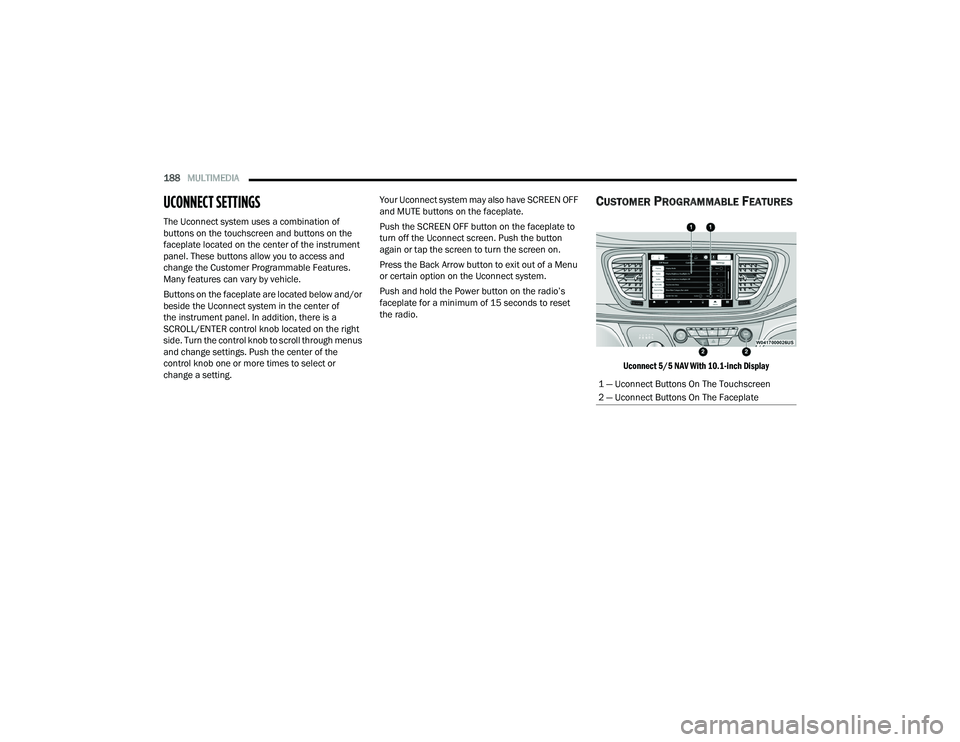
The Uconnect system uses a combination of
buttons on the touchscreen and buttons on the
faceplate located on the center of the instrument
panel. These buttons allow you to access and
change the Customer Programmable Features.
Many features can vary by vehicle.
Buttons on the faceplate are located below and/or
beside the Uconnect system in the center of
the instrument panel. In addition, there is a
SCROLL/ENTER control knob located on the right
side. Turn the control knob to scroll through menus
and change settings. Push the center of the
control knob one or more times to select or
change a setting. Your Uconnect system may also have SCREEN OFF
and MUTE buttons on the faceplate.
Push the SCREEN OFF button on the faceplate to
turn off the Uconnect screen. Push the button
again or tap the screen to turn the screen on.
Press the Back Arrow button to exit out of a Menu
or certain option on the Uconnect system.
Push and hold the Power button on the radio’s
faceplate for a minimum of 15 seconds to reset
the radio.
CUSTOMER PROGRAMMABLE FEATURES
Uconnect 5/5 NAV With 10.1-inch Display
1 — Uconnect Buttons On The Touchscreen
2 — Uconnect Buttons On The Faceplate
22_RUP_OM_EN_USC_t.book Page 188
Page 230 of 384
228SAFETY
Disabling And Enabling HSA
This feature can be turned on or turned off. To
change the current setting, proceed as follows:
Úpage 188.
Towing With HSA
HSA will also provide assistance to mitigate roll
back while towing a trailer.
Rain Brake Support (RBS)
RBS may improve braking performance in wet
conditions. It will periodically apply a small amount
of brake pressure to remove any water buildup on
the front brake rotors. It functions when the
windshield wipers are in LO or HI speed. When RBS
is active, there is no notification to the driver and
no driver interaction is required.
Ready Alert Braking (RAB)
RAB may reduce the time required to reach full
braking during emergency braking situations. It
anticipates when an emergency braking situation
may occur by monitoring how fast the throttle is
released by the driver. The Electronic Brake
Control (EBC) system will prepare the brake system
for a panic stop.
Rear Seat Reminder Alert (RSRA)
RSRA will consider the presence of an object in the
rear seat when a rear entry/exit door is opened at
the beginning of each key cycle. To activate, the
rear door must be open for more than one second
and the vehicle must be placed in the ON/RUN
position within 10 minutes. When the potential
presence of an object is determined and/or
otherwise inferred, a message will appear in the
instrument cluster display reminding driver to
check the rear seat(s) immediately after key off
accompanied by an alert upon exiting the vehicle.
Traction Control System (TCS)
The TCS monitors the amount of wheel spin of
each of the driven wheels. If wheel spin is
detected, the TCS may apply brake pressure to the
spinning wheel(s) and/or reduce vehicle power to
provide enhanced acceleration and stability. A
feature of the TCS, Brake Limited Differential (BLD)
functions similarly to a limited slip differential and
controls the wheel spin across a driven axle.
WARNING!
There may be situations where the Hill Start
Assist (HSA) will not activate and slight rolling
may occur, such as on minor hills or with a
loaded vehicle, or while pulling a trailer. HSA is
not a substitute for active driving involvement. It
is always the driver’s responsibility to be
attentive to distance to other vehicles, people,
and objects, and most importantly brake
operation to ensure safe operation of the vehicle
under all road conditions. Your complete
attention is always required while driving to
maintain safe control of your vehicle. Failure to
follow these warnings can result in a collision or
serious personal injury.
WARNING!
If you use a trailer brake controller with your
trailer, the trailer brakes may be activated and
deactivated with the brake switch. If so, there
may not be enough brake pressure to hold
both the vehicle and the trailer on a hill when
the brake pedal is released. In order to avoid
rolling down an incline while resuming accel -
eration, manually activate the trailer brake or
apply more vehicle brake pressure prior to
releasing the brake pedal.
HSA is not a parking brake. Always apply the
parking brake fully when exiting your vehicle.
Also, be certain to place the transmission in
PARK.
Failure to follow these warnings can result in a
collision or serious personal injury.
22_RUP_OM_EN_USC_t.book Page 228
Page 236 of 384
234SAFETY
It is unsafe to test the FCW system. To prevent
such misuse of the system, after four Active
Braking events within a key cycle, the Active
Braking portion of FCW will be deactivated until
the next key cycle.
The FCW system is intended for on-road use
only. If the vehicle is taken off-road, the FCW
system should be deactivated to prevent unnec -
essary warnings to the surroundings.
Turning FCW On Or Off
The Forward Collision menu setting is located in
the Uconnect settings.
NOTE:The default status of FCW is “on”, this allows the
system to warn you of a possible collision with the
vehicle in front of you.
Changing the FCW status to “off” deactivates the
system, so no warning or active braking will be
available in case of a possible collision.
NOTE:
The FCW system state is kept in memory from
one key cycle to the next. If the system is turned
off, it will remain off when the vehicle is
restarted.
FCW can work in conjunction with the KeySense
function of the vehicle (if equipped)
Ú page 115.
FCW Braking Status And Sensitivity
The FCW Sensitivity and Active Braking status are
programmable through the Uconnect system
Úpage 188.
The default sensitivity of FCW is the “Medium”
setting and the system status is “Warning &
Braking”. This allows the system to warn the driver
of a possible collision with the vehicle in front using
audible/visual warnings and it applies
autonomous braking.
By changing the FCW status setting to "Far", the
system provides possible collision warnings on
objects farther away. This results in earlier
warnings and provides the most reaction time to
avoid possible collisions.
NOTE:The “Far” setting may result in a greater number of
FCW possible collision warnings experienced.
By changing the FCW status setting to “Near”, the
system provides possible collision warnings on
objects closer to the vehicle. This results in later warnings and provides less
reaction time than the "Far" and "Medium"
settings, which allows for a more dynamic driving
experience.
NOTE:The “Near” setting may result in a lesser number of
FCW possible collision warnings experienced.
NOTE:
Changing the FCW status to “Only Warning”
prevents the system from providing limited
active braking, or additional brake support if the
driver is not braking adequately in the event of
a potential frontal collision, but maintains the
audible and visual warnings.
Changing the FCW status to “Off” prevents the
system from providing autonomous braking, or
additional brake support if the driver is not
braking adequately in the event of a potential
frontal collision.
The system will retain the last setting selected
by the driver after ignition shut down.
FCW may not react to irrelevant objects such as
overhead objects, ground reflections, objects
not in the path of the vehicle, stationary objects
that are far away, oncoming traffic, or leading
vehicles with the same or higher rates of speed.
FCW will be disabled like ACC, with the
unavailable screens.
WARNING!
Forward Collision Warning (FCW) is not intended
to avoid a collision on its own, nor can FCW
detect every type of potential collision. The driver
has the responsibility to avoid a collision by
controlling the vehicle via braking and steering.
Failure to follow this warning could lead to
serious injury or death.
22_RUP_OM_EN_USC_t.book Page 234