radio CHRYSLER PACIFICA 2022 Owner's Manual
[x] Cancel search | Manufacturer: CHRYSLER, Model Year: 2022, Model line: PACIFICA, Model: CHRYSLER PACIFICA 2022Pages: 384, PDF Size: 23.92 MB
Page 196 of 384
194MULTIMEDIA
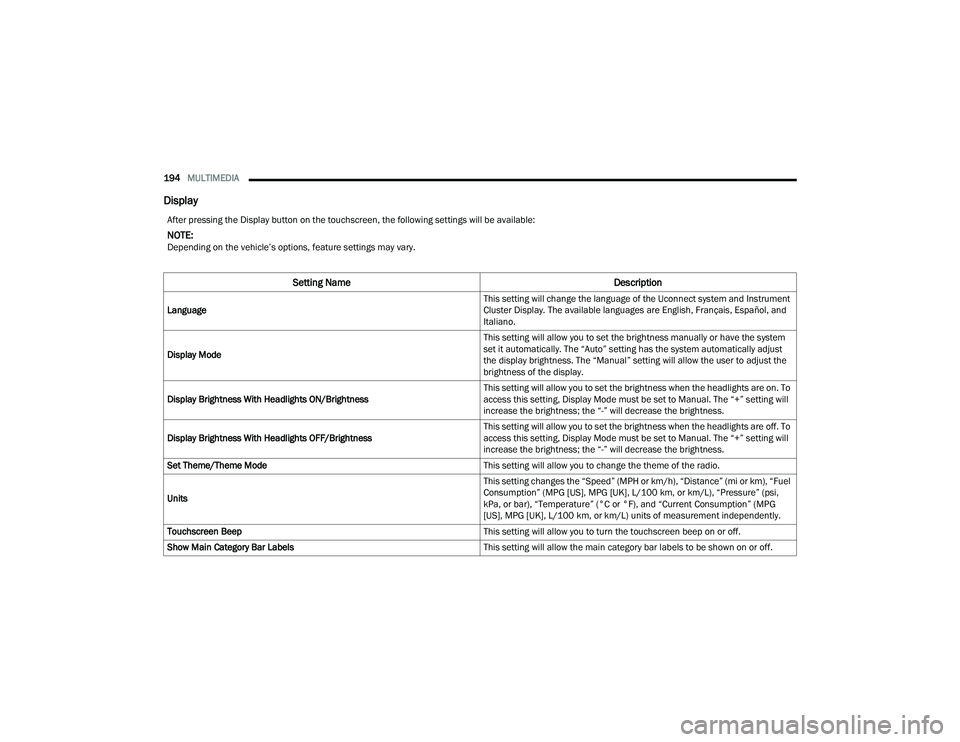
Display
After pressing the Display button on the touchscreen, the following settings will be available:
NOTE:Depending on the vehicle’s options, feature settings may vary.
Setting Name Description
Language This setting will change the language of the Uconnect system and Instrument
Cluster Display. The available languages are English, Français, Español, and
Italiano.
Display Mode This setting will allow you to set the brightness manually or have the system
set it automatically. The “Auto” setting has the system automatically adjust
the display brightness. The “Manual” setting will allow the user to adjust the
brightness of the display.
Display Brightness With Headlights ON/Brightness This setting will allow you to set the brightness when the headlights are on. To
access this setting, Display Mode must be set to Manual. The “+” setting will
increase the brightness; the “-” will decrease the brightness.
Display Brightness With Headlights OFF/Brightness This setting will allow you to set the brightness when the headlights are off. To
access this setting, Display Mode must be set to Manual. The “+” setting will
increase the brightness; the “-” will decrease the brightness.
Set Theme/Theme Mode This setting will allow you to change the theme of the radio.
Units This setting changes the “Speed” (MPH or km/h), “Distance” (mi or km), “Fuel
Consumption” (MPG [US], MPG [UK], L/100 km, or km/L), “Pressure” (psi,
kPa, or bar), “Temperature” (°C or °F), and “Current Consumption” (MPG
[US], MPG [UK], L/100 km, or km/L) units of measurement independently.
Touchscreen Beep This setting will allow you to turn the touchscreen beep on or off.
Show Main Category Bar Labels This setting will allow the main category bar labels to be shown on or off.
22_RUP_OM_EN_USC_t.book Page 194
Page 199 of 384
MULTIMEDIA197
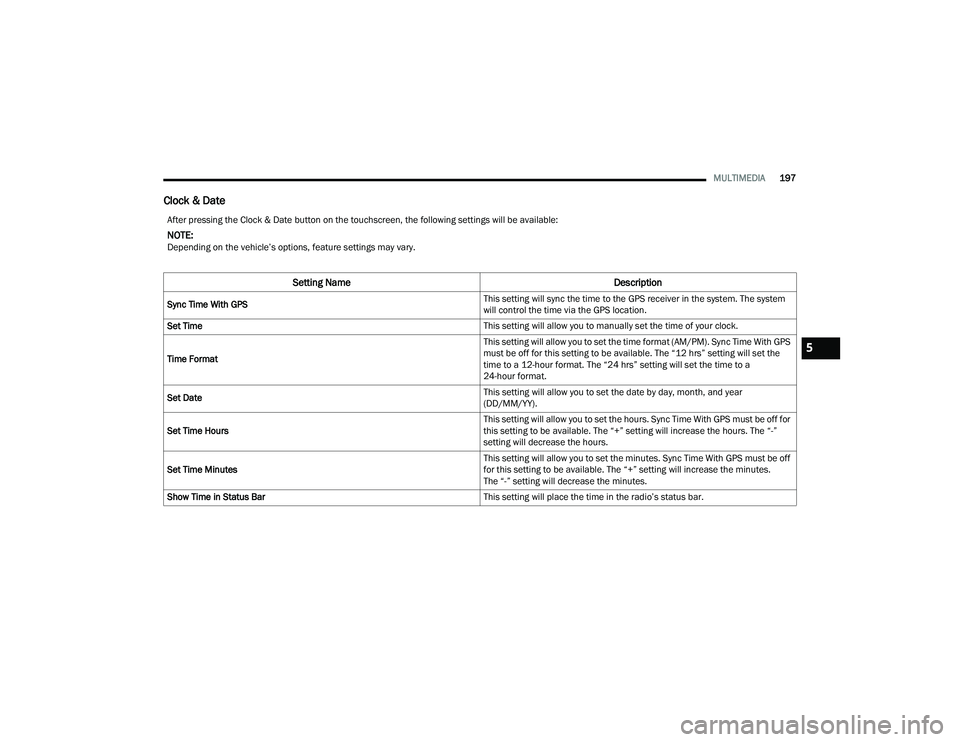
Clock & Date
After pressing the Clock & Date button on the touchscreen, the following settings will be available:
NOTE:Depending on the vehicle’s options, feature settings may vary.
Setting Name Description
Sync Time With GPS This setting will sync the time to the GPS receiver in the system. The system
will control the time via the GPS location.
Set Time This setting will allow you to manually set the time of your clock.
Time Format This setting will allow you to set the time format (AM/PM). Sync Time With GPS
must be off for this setting to be available. The “12 hrs” setting will set the
time to a 12-hour format. The “24 hrs” setting will set the time to a
24-hour format.
Set Date This setting will allow you to set the date by day, month, and year
(DD/MM/YY).
Set Time Hours This setting will allow you to set the hours. Sync Time With GPS must be off for
this setting to be available. The “+” setting will increase the hours. The “-”
setting will decrease the hours.
Set Time Minutes This setting will allow you to set the minutes. Sync Time With GPS must be off
for this setting to be available. The “+” setting will increase the minutes.
The “-” setting will decrease the minutes.
Show Time in Status Bar This setting will place the time in the radio’s status bar.
5
22_RUP_OM_EN_USC_t.book Page 197
Page 201 of 384
MULTIMEDIA199
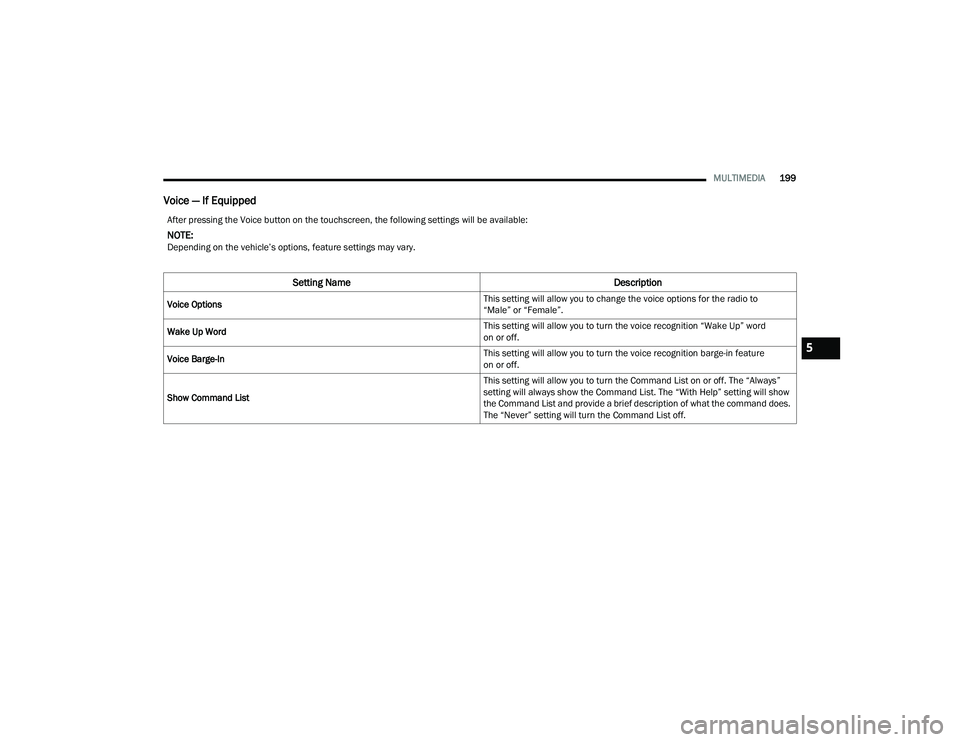
Voice — If Equipped
After pressing the Voice button on the touchscreen, the following settings will be available:
NOTE:Depending on the vehicle’s options, feature settings may vary.
Setting Name Description
Voice Options This setting will allow you to change the voice options for the radio to
“Male” or “Female”.
Wake Up Word This setting will allow you to turn the voice recognition “Wake Up” word
on or off.
Voice Barge-In This setting will allow you to turn the voice recognition barge-in feature
on or off.
Show Command List This setting will allow you to turn the Command List on or off. The “Always”
setting will always show the Command List. The “With Help” setting will show
the Command List and provide a brief description of what the command does.
The “Never” setting will turn the Command List off.
5
22_RUP_OM_EN_USC_t.book Page 199
Page 206 of 384
204MULTIMEDIA
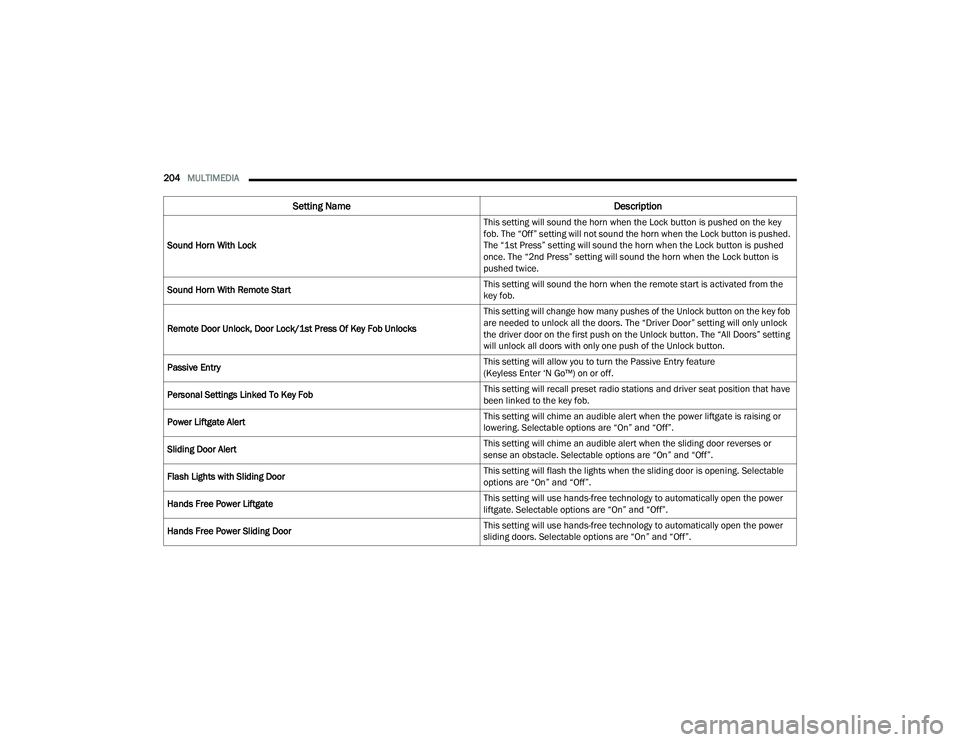
Sound Horn With Lock This setting will sound the horn when the Lock button is pushed on the key
fob. The “Off” setting will not sound the horn when the Lock button is pushed.
The “1st Press” setting will sound the horn when the Lock button is pushed
once. The “2nd Press” setting will sound the horn when the Lock button is
pushed twice.
Sound Horn With Remote Start This setting will sound the horn when the remote start is activated from the
key fob.
Remote Door Unlock, Door Lock/1st Press Of Key Fob Unlocks This setting will change how many pushes of the Unlock button on the key fob
are needed to unlock all the doors. The “Driver Door” setting will only unlock
the driver door on the first push on the Unlock button. The “All Doors” setting
will unlock all doors with only one push of the Unlock button.
Passive Entry This setting will allow you to turn the Passive Entry feature
(Keyless Enter ‘N Go™) on or off.
Personal Settings Linked To Key Fob This setting will recall preset radio stations and driver seat position that have
been linked to the key fob.
Power Liftgate Alert This setting will chime an audible alert when the power liftgate is raising or
lowering. Selectable options are “On” and “Off”.
Sliding Door Alert This setting will chime an audible alert when the sliding door reverses or
sense an obstacle. Selectable options are “On” and “Off”.
Flash Lights with Sliding Door This setting will flash the lights when the sliding door is opening. Selectable
options are “On” and “Off”.
Hands Free Power Liftgate This setting will use hands-free technology to automatically open the power
liftgate. Selectable options are “On” and “Off”.
Hands Free Power Sliding Door This setting will use hands-free technology to automatically open the power
sliding doors. Selectable options are “On” and “Off”.
Setting Name
Description
22_RUP_OM_EN_USC_t.book Page 204
Page 208 of 384
206MULTIMEDIA
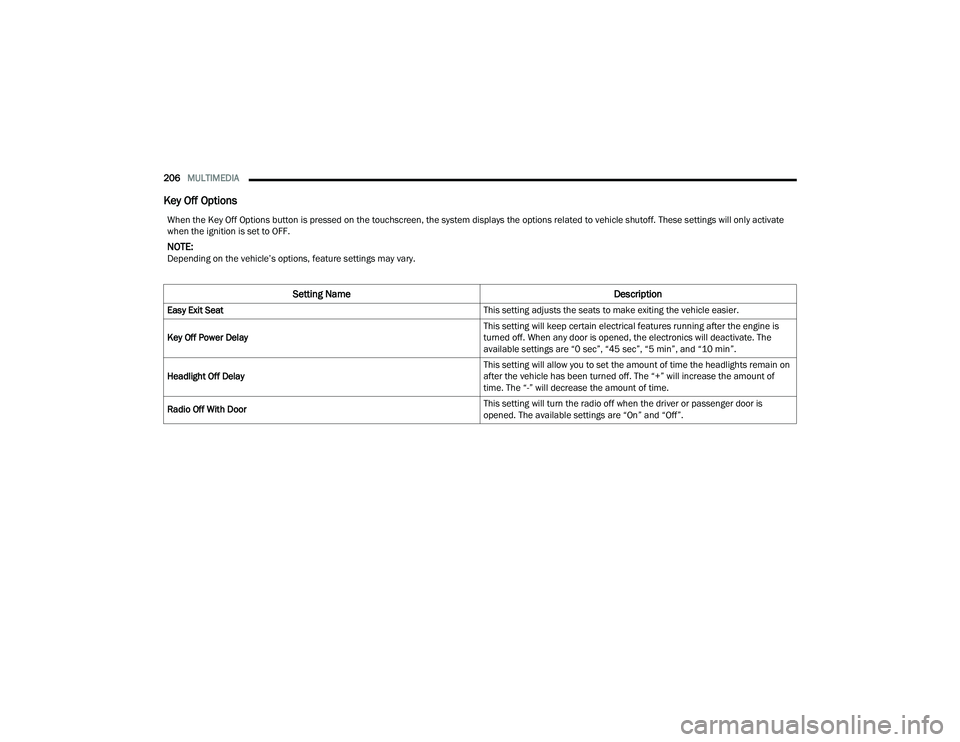
Key Off Options
When the Key Off Options button is pressed on the touchscreen, the system displays the options related to vehicle shutoff. These settings will only activate
when the ignition is set to OFF.
NOTE:Depending on the vehicle’s options, feature settings may vary.
Setting Name Description
Easy Exit Seat This setting adjusts the seats to make exiting the vehicle easier.
Key Off Power Delay This setting will keep certain electrical features running after the engine is
turned off. When any door is opened, the electronics will deactivate. The
available settings are “0 sec”, “45 sec”, “5 min”, and “10 min”.
Headlight Off Delay This setting will allow you to set the amount of time the headlights remain on
after the vehicle has been turned off. The “+” will increase the amount of
time. The “-” will decrease the amount of time.
Radio Off With Door This setting will turn the radio off when the driver or passenger door is
opened. The available settings are “On” and “Off”.
22_RUP_OM_EN_USC_t.book Page 206
Page 209 of 384
MULTIMEDIA207
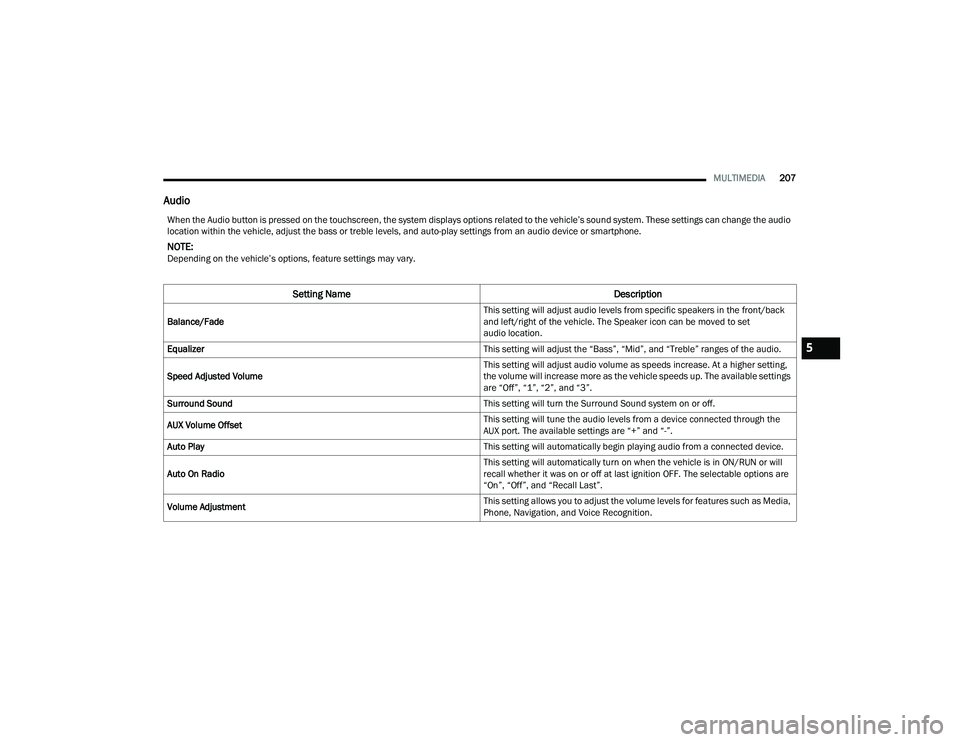
Audio
When the Audio button is pressed on the touchscreen, the system displays options related to the vehicle’s sound system. These settings can change the audio
location within the vehicle, adjust the bass or treble levels, and auto-play settings from an audio device or smartphone.
NOTE:Depending on the vehicle’s options, feature settings may vary.
Setting Name Description
Balance/Fade This setting will adjust audio levels from specific speakers in the front/back
and left/right of the vehicle. The Speaker icon can be moved to set
audio location.
Equalizer This setting will adjust the “Bass”, “Mid”, and “Treble” ranges of the audio.
Speed Adjusted Volume This setting will adjust audio volume as speeds increase. At a higher setting,
the volume will increase more as the vehicle speeds up. The available settings
are “Off”, “1”, “2”, and “3”.
Surround Sound This setting will turn the Surround Sound system on or off.
AUX Volume Offset This setting will tune the audio levels from a device connected through the
AUX port. The available settings are “+” and “-”.
Auto Play This setting will automatically begin playing audio from a connected device.
Auto On Radio This setting will automatically turn on when the vehicle is in ON/RUN or will
recall whether it was on or off at last ignition OFF. The selectable options are
“On”, “Off”, and “Recall Last”.
Volume Adjustment This setting allows you to adjust the volume levels for features such as Media,
Phone, Navigation, and Voice Recognition.
5
22_RUP_OM_EN_USC_t.book Page 207
Page 211 of 384
MULTIMEDIA209
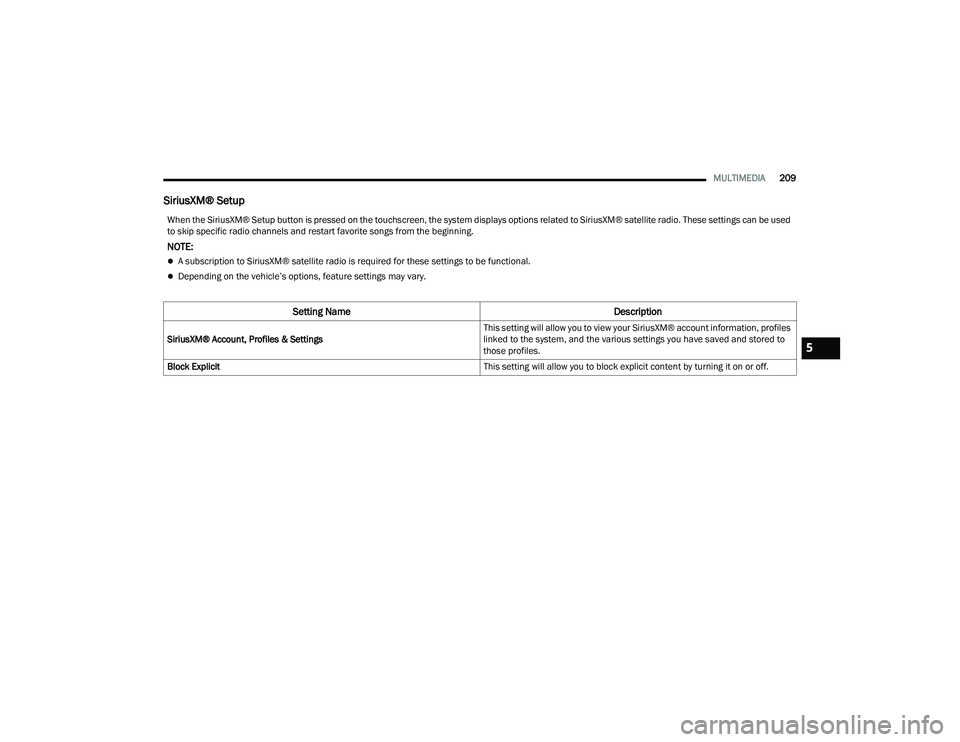
SiriusXM® Setup
When the SiriusXM® Setup button is pressed on the touchscreen, the system displays options related to SiriusXM® satellite radio. These settings can be used
to skip specific radio channels and restart favorite songs from the beginning.
NOTE:
A subscription to SiriusXM® satellite radio is required for these settings to be functional.
Depending on the vehicle’s options, feature settings may vary.
Setting Name Description
SiriusXM® Account, Profiles & Settings This setting will allow you to view your SiriusXM® account information, profiles
linked to the system, and the various settings you have saved and stored to
those profiles.
Block Explicit This setting will allow you to block explicit content by turning it on or off.5
22_RUP_OM_EN_USC_t.book Page 209
Page 213 of 384
MULTIMEDIA211
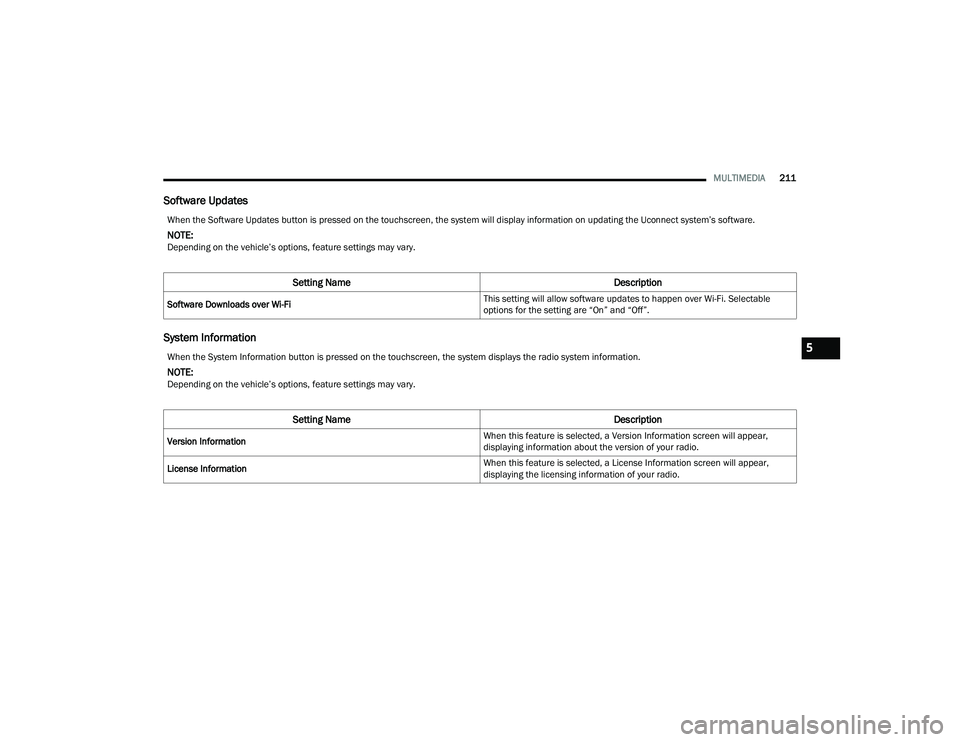
Software Updates
System Information
When the Software Updates button is pressed on the touchscreen, the system will display information on updating the Uconnect system’s software.
NOTE:Depending on the vehicle’s options, feature settings may vary.
Setting Name Description
Software Downloads over Wi-Fi This setting will allow software updates to happen over Wi-Fi. Selectable
options for the setting are “On” and “Off”.
When the System Information button is pressed on the touchscreen, the system displays the radio system information.
NOTE:Depending on the vehicle’s options, feature settings may vary.
Setting Name
Description
Version Information When this feature is selected, a Version Information screen will appear,
displaying information about the version of your radio.
License Information When this feature is selected, a License Information screen will appear,
displaying the licensing information of your radio.
5
22_RUP_OM_EN_USC_t.book Page 211
Page 214 of 384
212MULTIMEDIA
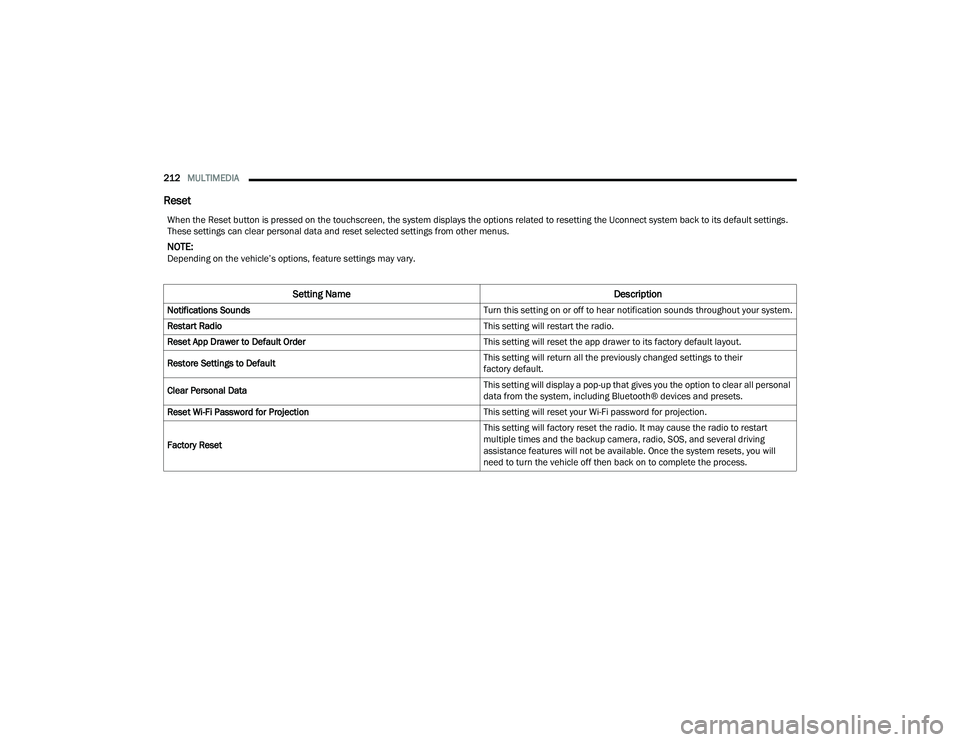
Reset
When the Reset button is pressed on the touchscreen, the system displays the options related to resetting the Uconnect system back to its default settings.
These settings can clear personal data and reset selected settings from other menus.
NOTE:Depending on the vehicle’s options, feature settings may vary.
Setting Name Description
Notifications Sounds Turn this setting on or off to hear notification sounds throughout your system.
Restart Radio This setting will restart the radio.
Reset App Drawer to Default Order This setting will reset the app drawer to its factory default layout.
Restore Settings to Default This setting will return all the previously changed settings to their
factory default.
Clear Personal Data This setting will display a pop-up that gives you the option to clear all personal
data from the system, including Bluetooth® devices and presets.
Reset Wi-Fi Password for Projection This setting will reset your Wi-Fi password for projection.
Factory Reset This setting will factory reset the radio. It may cause the radio to restart
multiple times and the backup camera, radio, SOS, and several driving
assistance features will not be available. Once the system resets, you will
need to turn the vehicle off then back on to complete the process.
22_RUP_OM_EN_USC_t.book Page 212
Page 215 of 384
MULTIMEDIA213
REAR SEAT ENTERTAINMENT WITH
AMAZON FIRE TV BUILT-IN — IF EQUIPPED
OVERVIEW
Rear Seat Entertainment with Fire TV built-in is
designed to give your family years of enjoyment.
Fire TV lets passengers enjoy a wide variety of
content from popular apps (subscriptions may be
required). Stream videos, play games, listen to
music, get information, and watch downloaded
programs all while on the road. In addition to
streaming and downloaded content, changing the
input in Fire TV also allows users to:
Play your favorite CDs, DVDs, or Blu-ray™ Discs
Mirror what’s on your phone or tablet to Fire TV
via Miracast capable devices (see support
here):
https://www.amazon.com/gp/help/
customer/display
Plug and play a variety of standard video games
or devices into the HDMI port
Listen to audio over wireless headphones
(not included, customer will have to provide
their own)
Plug and play a variety of devices into the
Video USB port
Plug in standard headphones to listen to audio
NOTE:Vehicle must be in an active and usable cellular
range and properly equipped with a Uconnect
5 NAV system and Rear Seat Entertainment with
Fire TV package. Streaming requires a Wi-Fi
connection and registered Amazon account to run
Fire TV in the vehicle. Streaming service subscrip -
tions are not included. Certain services are subject
to change or withdrawal at any time, may not be
available in all areas and languages, and may
require separate subscriptions.
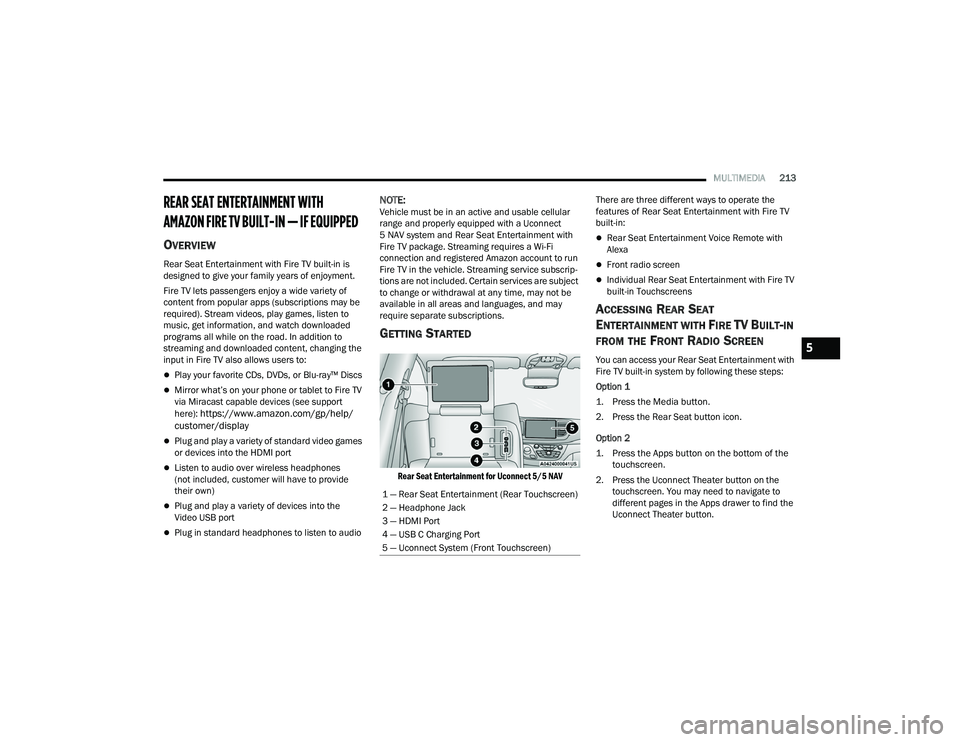
GETTING STARTED
Rear Seat Entertainment for Uconnect 5/5 NAV
There are three different ways to operate the
features of Rear Seat Entertainment with Fire TV
built-in:
Rear Seat Entertainment Voice Remote with
Alexa
Front radio screen
Individual Rear Seat Entertainment with Fire TV
built-in Touchscreens
ACCESSING REAR SEAT
E
NTERTAINMENT WITH FIRE TV BUILT-IN
FROM THE FRONT RADIO SCREEN
You can access your Rear Seat Entertainment with
Fire TV built-in system by following these steps:
Option 1
1. Press the Media button.
2. Press the Rear Seat button icon.
Option 2
1. Press the Apps button on the bottom of the
touchscreen.
2. Press the Uconnect Theater button on the touchscreen. You may need to navigate to
different pages in the Apps drawer to find the
Uconnect Theater button.
1 — Rear Seat Entertainment (Rear Touchscreen)
2 — Headphone Jack
3 — HDMI Port
4 — USB C Charging Port
5 — Uconnect System (Front Touchscreen)5
22_RUP_OM_EN_USC_t.book Page 213