set time CHRYSLER PACIFICA 2022 Workshop Manual
[x] Cancel search | Manufacturer: CHRYSLER, Model Year: 2022, Model line: PACIFICA, Model: CHRYSLER PACIFICA 2022Pages: 384, PDF Size: 23.92 MB
Page 208 of 384
206MULTIMEDIA
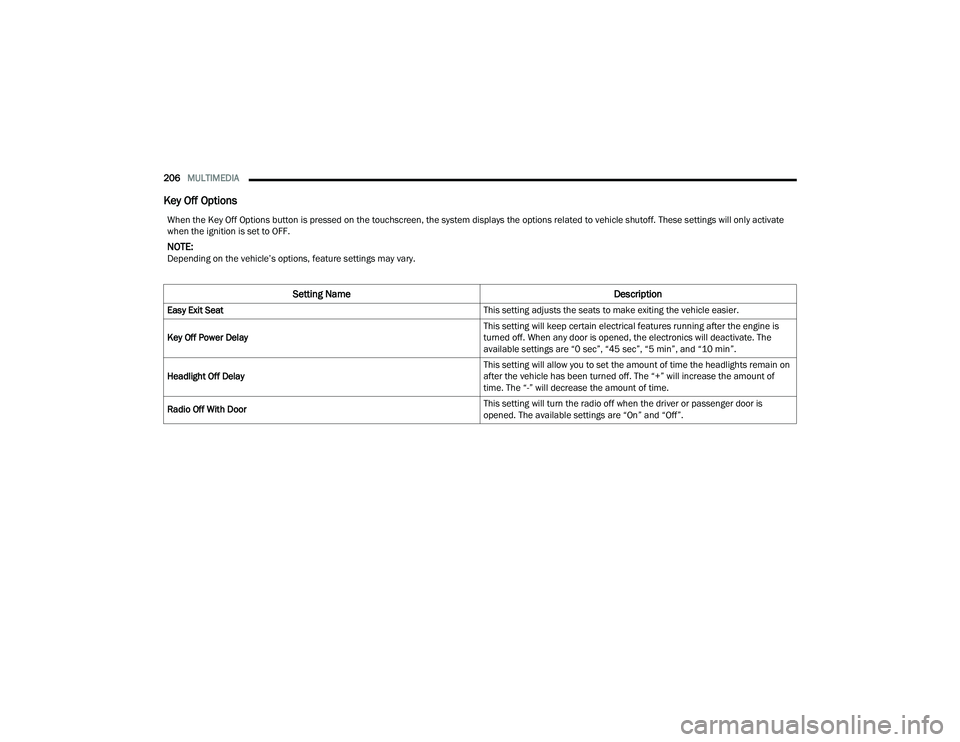
Key Off Options
When the Key Off Options button is pressed on the touchscreen, the system displays the options related to vehicle shutoff. These settings will only activate
when the ignition is set to OFF.
NOTE:Depending on the vehicle’s options, feature settings may vary.
Setting Name Description
Easy Exit Seat This setting adjusts the seats to make exiting the vehicle easier.
Key Off Power Delay This setting will keep certain electrical features running after the engine is
turned off. When any door is opened, the electronics will deactivate. The
available settings are “0 sec”, “45 sec”, “5 min”, and “10 min”.
Headlight Off Delay This setting will allow you to set the amount of time the headlights remain on
after the vehicle has been turned off. The “+” will increase the amount of
time. The “-” will decrease the amount of time.
Radio Off With Door This setting will turn the radio off when the driver or passenger door is
opened. The available settings are “On” and “Off”.
22_RUP_OM_EN_USC_t.book Page 206
Page 209 of 384
MULTIMEDIA207
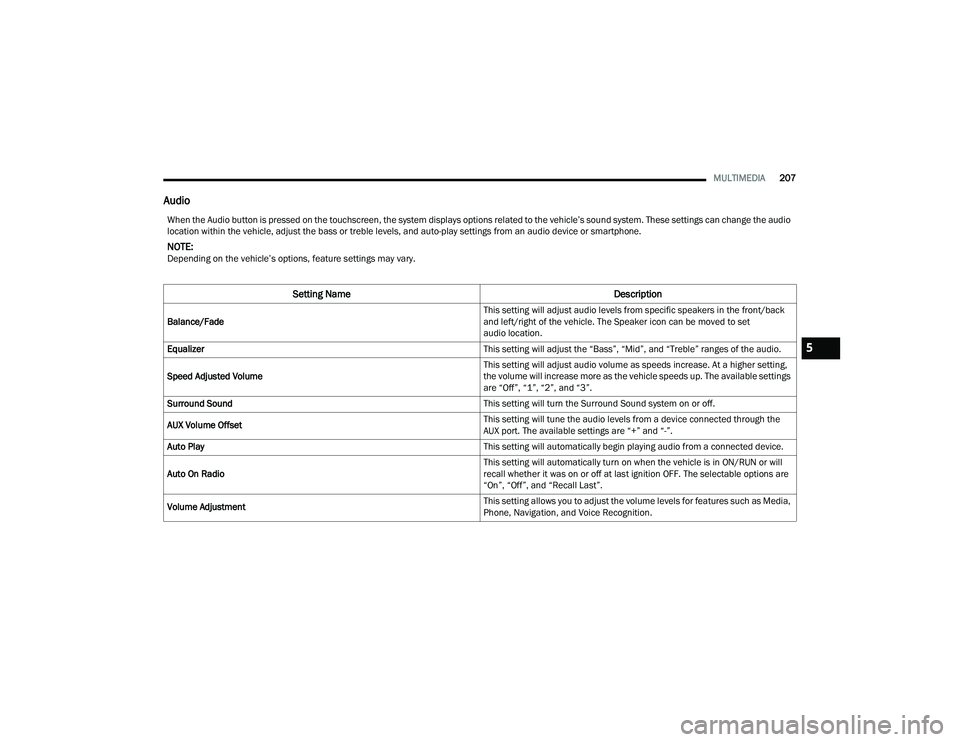
Audio
When the Audio button is pressed on the touchscreen, the system displays options related to the vehicle’s sound system. These settings can change the audio
location within the vehicle, adjust the bass or treble levels, and auto-play settings from an audio device or smartphone.
NOTE:Depending on the vehicle’s options, feature settings may vary.
Setting Name Description
Balance/Fade This setting will adjust audio levels from specific speakers in the front/back
and left/right of the vehicle. The Speaker icon can be moved to set
audio location.
Equalizer This setting will adjust the “Bass”, “Mid”, and “Treble” ranges of the audio.
Speed Adjusted Volume This setting will adjust audio volume as speeds increase. At a higher setting,
the volume will increase more as the vehicle speeds up. The available settings
are “Off”, “1”, “2”, and “3”.
Surround Sound This setting will turn the Surround Sound system on or off.
AUX Volume Offset This setting will tune the audio levels from a device connected through the
AUX port. The available settings are “+” and “-”.
Auto Play This setting will automatically begin playing audio from a connected device.
Auto On Radio This setting will automatically turn on when the vehicle is in ON/RUN or will
recall whether it was on or off at last ignition OFF. The selectable options are
“On”, “Off”, and “Recall Last”.
Volume Adjustment This setting allows you to adjust the volume levels for features such as Media,
Phone, Navigation, and Voice Recognition.
5
22_RUP_OM_EN_USC_t.book Page 207
Page 210 of 384
208MULTIMEDIA
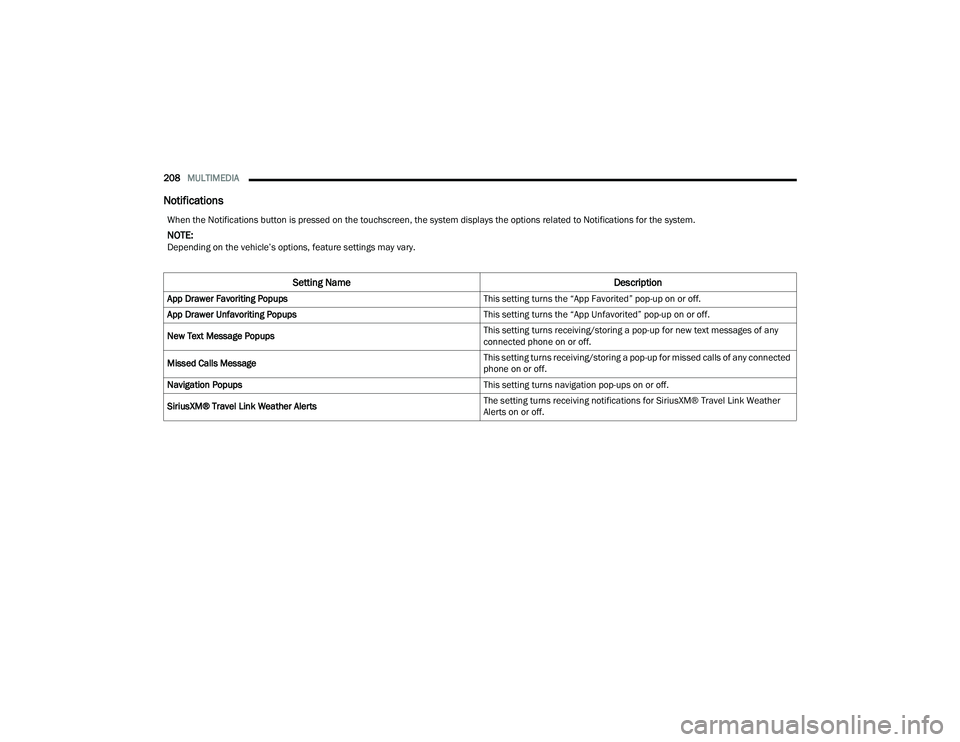
Notifications
When the Notifications button is pressed on the touchscreen, the system displays the options related to Notifications for the system.
NOTE:Depending on the vehicle’s options, feature settings may vary.
Setting Name Description
App Drawer Favoriting Popups This setting turns the “App Favorited” pop-up on or off.
App Drawer Unfavoriting Popups This setting turns the “App Unfavorited” pop-up on or off.
New Text Message Popups This setting turns receiving/storing a pop-up for new text messages of any
connected phone on or off.
Missed Calls Message This setting turns receiving/storing a pop-up for missed calls of any connected
phone on or off.
Navigation Popups This setting turns navigation pop-ups on or off.
SiriusXM® Travel Link Weather Alerts The setting turns receiving notifications for SiriusXM® Travel Link Weather
Alerts on or off.
22_RUP_OM_EN_USC_t.book Page 208
Page 211 of 384
MULTIMEDIA209
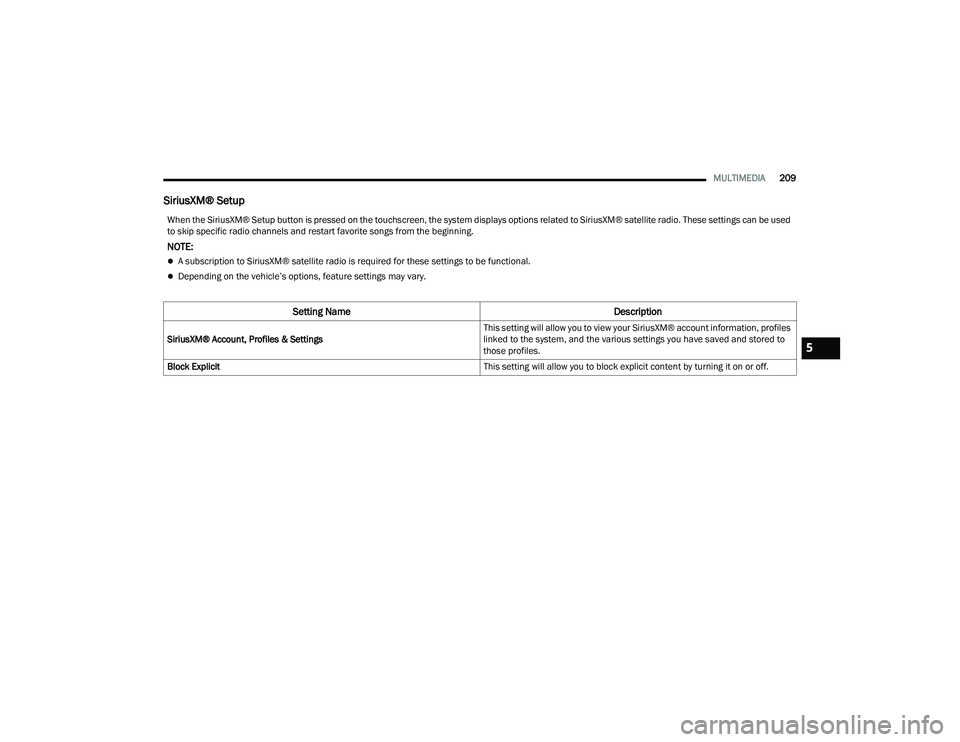
SiriusXM® Setup
When the SiriusXM® Setup button is pressed on the touchscreen, the system displays options related to SiriusXM® satellite radio. These settings can be used
to skip specific radio channels and restart favorite songs from the beginning.
NOTE:
A subscription to SiriusXM® satellite radio is required for these settings to be functional.
Depending on the vehicle’s options, feature settings may vary.
Setting Name Description
SiriusXM® Account, Profiles & Settings This setting will allow you to view your SiriusXM® account information, profiles
linked to the system, and the various settings you have saved and stored to
those profiles.
Block Explicit This setting will allow you to block explicit content by turning it on or off.5
22_RUP_OM_EN_USC_t.book Page 209
Page 212 of 384
210MULTIMEDIA
Accessibility — If Equipped
When pressing the Accessibility button on the touchscreen, the system will display options related to the vehicle’s theater system.
NOTE:Depending on the vehicle’s options, feature settings may vary.
Setting Name Description
Accessibility The Accessibility feature announces a function prior to performing the action
selected when using DVD/Blu-ray™ and USB Video functions, when it is
activated. For example, when activated, and the Play button is selected, the
system will announce “Play button selected”, and then once pressed again
the Play button will perform its action.
Video Button Readback This setting will turn the Video Button Readback feature on or off.
22_RUP_OM_EN_USC_t.book Page 210
Page 213 of 384
MULTIMEDIA211
Software Updates
System Information
When the Software Updates button is pressed on the touchscreen, the system will display information on updating the Uconnect system’s software.
NOTE:Depending on the vehicle’s options, feature settings may vary.
Setting Name Description
Software Downloads over Wi-Fi This setting will allow software updates to happen over Wi-Fi. Selectable
options for the setting are “On” and “Off”.
When the System Information button is pressed on the touchscreen, the system displays the radio system information.
NOTE:Depending on the vehicle’s options, feature settings may vary.
Setting Name
Description
Version Information When this feature is selected, a Version Information screen will appear,
displaying information about the version of your radio.
License Information When this feature is selected, a License Information screen will appear,
displaying the licensing information of your radio.
5
22_RUP_OM_EN_USC_t.book Page 211
Page 214 of 384
212MULTIMEDIA
Reset
When the Reset button is pressed on the touchscreen, the system displays the options related to resetting the Uconnect system back to its default settings.
These settings can clear personal data and reset selected settings from other menus.
NOTE:Depending on the vehicle’s options, feature settings may vary.
Setting Name Description
Notifications Sounds Turn this setting on or off to hear notification sounds throughout your system.
Restart Radio This setting will restart the radio.
Reset App Drawer to Default Order This setting will reset the app drawer to its factory default layout.
Restore Settings to Default This setting will return all the previously changed settings to their
factory default.
Clear Personal Data This setting will display a pop-up that gives you the option to clear all personal
data from the system, including Bluetooth® devices and presets.
Reset Wi-Fi Password for Projection This setting will reset your Wi-Fi password for projection.
Factory Reset This setting will factory reset the radio. It may cause the radio to restart
multiple times and the backup camera, radio, SOS, and several driving
assistance features will not be available. Once the system resets, you will
need to turn the vehicle off then back on to complete the process.
22_RUP_OM_EN_USC_t.book Page 212
Page 216 of 384
214MULTIMEDIA
ACCESSING REAR SEAT
E
NTERTAINMENT WITH FIRE TV BUILT-IN
FROM THE REAR SCREENS
You can access your Rear Seat Entertainment with
Fire TV built-in system from the rear screens by just
flipping the screens open. Flipping open the rear
screens will automatically turn the system on.
Pushing the Power button on the Rear Seat
Entertainment Voice Remote with Alexa.
NOTE:While accessing on the rear screens, the system
will launch with the integrated Fire TV.
FIRST TIME STARTING UP
(U
SING THE REAR SCREENS)
Boot-Up Screen
When turning on the system for the first time from
the rear screens, a boot-up screen will appear on
the system displaying the Fire TV logo.
During this boot up sequence, language options
will be available for the system.
Voice Remote with Alexa Pairing
After the boot-up sequence is complete, the
system will then give the option to pair a Voice
Remote with Alexa (two are included with the
system). Follow the on-screen instructions to pair the Voice
Remote with Alexa to the system.
NOTE:If the Voice Remote with Alexa pairing fails,
on-screen instructions will appear for trying to pair
again.
Connecting to a Network
During the start-up process, the system will need to
be connected to a network. Multiple network
sources can be options for the system, and one will
need to be selected for the system to function.
Some options for a network connection are:
Wi-Fi Hotspot using a capable smartphone
(if activated, it will show as a possible network
for the system on the screen).
Outside connection like a home Wi-Fi network.
In-vehicle Wi-Fi.
NOTE:When a network is connected to the system for the
first time, an over-the-air software update will take
place using the Wi-Fi connection. After this
first-time update, updates will only accrue when
one is available. It is recommended that you
connect your RSE/Amazon Fire OS to a Wi-Fi
Hotspot with unlimited data and a good signal
(such as a home Wi-Fi network) in order to check
for future Fire OS updates.
Account Sign-in
The next step will be the option to sign in to your
Amazon account.
There are two options to sign into the system:
I already have an Amazon account:
Sign in with
an already existing Amazon account
I am new to Amazon: Create a new Amazon
Account
If “I am new to Amazon” is selected, follow the
on-screen steps to set up an Amazon account with
the system.
Parental Controls
Another feature that will appear during this first
time set up is parental controls.
When the parental controls page appears, it will
give the options to “Enable Parental Controls” and
“No Parental Controls”. If “Enable Parental
Controls” is selected, follow the on-screen steps to
set up parental controls for the system.
REAR SEAT ENTERTAINMENT WITH FIRE
TV B
UILT-IN ALEXA
A feature with Rear Seat Entertainment with Fire
TV built-in that enhances your experience is Alexa.
It is simple to get started using this feature. Push
the Voice button at the top of the Voice Remote
with Alexa to activate Alexa and get started.
22_RUP_OM_EN_USC_t.book Page 214
Page 217 of 384
MULTIMEDIA215
LISTEN VIA VEHICLE SPEAKERS
A feature within Rear Seat Entertainment with Fire
TV built-in is the front radio Listen feature. On the
front radio Home screen for Fire TV, select the
Listen button in the top right corner on either card
for Screen 1 or 2. This will allow you to have either
rear screen play audio through all the speakers in
the vehicle.
QUICK MENU
Accessing the Quick Menu will give you more
options for Fire TV.
To access the Quick Menu, tap the screen, and it
will appear. The Quick Menu is also accessible by
pushing the Gear/Settings button on the Voice
Remote with Alexa.
Some options of the Quick Menu are:
Power — This will power the screen off.
On-Screen Remote — This will bring up the
on-screen remote to use with the system.
Back — This will let you go back a page.
Home — This will take you to the Home screen.
Gear/Settings — This will let you access
certain settings in the system. For more setting
options, select “Settings” within the on-screen
Gear/Settings menu.
Vehicle — This will bring up the Vehicle menu.
From here you can adjust rear climate controls
and the Are We There Yet? app.
PARENTAL CONTROLS (USING THE REAR
S
CREENS)
If parental controls were not set during the first
time start up of the system, they can be set by
following these steps:
1. Push the Gear/Settings button on the Voice
Remote with Alexa or tap the screen to access
“Settings” in the Quick Menu.
2. Select the Gear/Settings icon on the screen.
3. Select “Settings” on the screen.
4. While in Settings, select “Preferences”.
5. Select “Parental Controls”. From here you can turn Parental Controls on or off and set up a
PIN for the controls using the Voice Remote
with Alexa.
PAIRING THE VOICE REMOTE WITH
A
LEXA (USING THE REAR SCREENS)
If the Voice Remote with Alexa needs to be paired
again or a new remote is being paired, follow these
procedures:
1. Install batteries into the remote.
2. Tap the screen and select the Gear/Settings
icon on the screen.
3. Select “Settings” on the screen.
4. In Settings, select “Controllers & Bluetooth® Devices”.
5. From this menu, select “Add New Remote”.
6. Follow the on-screen steps for Voice Remote with Alexa pairing.
A long press on the Home button can also re-pair a
Voice Remote with Alexa that has become
disconnected.
NOTE:Your vehicle is included with two Voice Remotes
with Alexa. Each Voice Remote with Alexa can be
paired with each rear screen. Pairing one with
either rear screen will pair that Voice Remote with
Alexa with that screen.
5
22_RUP_OM_EN_USC_t.book Page 215
Page 219 of 384
MULTIMEDIA217
9. Prime Video — Push to launch the Prime Video
app.
10. Partner 1 — Push to launch to Partner 1 app.
11. Voice Button — Push to activate Alexa.
12. Menu — Push to access the Fire TV menu.
13. Seek Forward Button — Push and hold to
fast forward through the current audio track or
video chapter. Push once to skip to the next
track.
14. Play/Pause Button
‖ — Begin/resume or
pause disc play.
15. Channel +/- — Push the up or down arrow
button on the Channel button to browse
channels available in Fire TV.
16. Recent — Push to access recently viewed
content on Fire TV.
17. Gear/Settings — Push to bring up setting
options for Fire TV.
18. Partner 2 — Push to launch to Partner 2 app.
19. Vehicle — Push to activate the Vehicle menu.
Replacing The Voice Remote with Alexa
Batteries
Each Voice Remote with Alexa requires two AAA
batteries for operation.
To replace the batteries:
1. Locate the battery compartment on the back
of the Voice Remote with Alexa, then slide the
battery cover downward.
2. Remove the old batteries and follow battery recycling procedures for your area.
3. Install new batteries, making sure to orient them according to the polarity diagram shown
inside the battery compartment.
4. Slide the battery compartment cover back on.
REAR SEAT ENTERTAINMENT WITH FIRE
TV B
UILT-IN STREAMING (USING THE
F
RONT RADIO AND REAR SCREENS)
Access Using Launch Source
To access Rear Seat Entertainment with Fire TV
built-in from the front radio, press the Media tab
located on the bottom menu bar. Then select the
Rear Seat option located on the top menu bar.
Then select “Launch Source”, and then under
“Inputs” select “Fire TV Home”. Access Using Browse Media
Selecting “Browse Media” on the front radio
screen will give access to different media within
Rear Seat Entertainment with Fire TV built-in.
These options will be in the top menu of “Browse
Media”:
Fire TV
— Selecting Fire TV will give options to
view streaming options for categories and to
select apps. These options will be selectable on
the left slider menu in “Browse Media”. While in
“Browse Media” under Fire TV, it will display
recent activity under “Recent”. This will display
recent videos viewed from Fire TV and recent
downloads as well.
USB Video — Under “USB Videos”, videos will
appear that are options with a USB device
connected to Rear Seat Entertainment with Fire
TV built-in.
USB Music — Under “USB Music”, music will
appear that are options with a USB device
connected to Rear Seat Entertainment with
Fire TV built-in.
5
22_RUP_OM_EN_USC_t.book Page 217