Seat CHRYSLER PACIFICA 2022 Repair Manual
[x] Cancel search | Manufacturer: CHRYSLER, Model Year: 2022, Model line: PACIFICA, Model: CHRYSLER PACIFICA 2022Pages: 384, PDF Size: 23.92 MB
Page 155 of 384
STARTING AND OPERATING153
NOTE:The “BRAKE!” screen in the instrument cluster
display is a warning for the driver to take action
and does not necessarily mean that the Forward
Collision Warning system is applying the brakes
autonomously.
Overtake Aid
When driving with Adaptive Cruise Control (ACC)
engaged and following a vehicle, the system will
provide an additional acceleration up to the ACC
set speed to assist in passing the vehicle. This
additional acceleration is triggered when the driver
utilizes the left turn signal and will only be active
when passing on the left hand side.
ACC Operation At Stop
In the event that the ACC system brings your
vehicle to a standstill while following the vehicle in
front, your vehicle will resume motion, without the
need for any driver action, if the vehicle in front
starts moving within two seconds.
If the vehicle in front does not start moving within
two seconds of your vehicle coming to a standstill,
the driver will either have to push the RES (resume)
button, or apply the accelerator pedal to reengage
the ACC to the existing set speed.
NOTE:After the ACC system holds your vehicle at a stand -
still for approximately three consecutive minutes,
the parking brake will be activated, and the ACC
system will be canceled.
While the ACC system is holding your vehicle at a
standstill, if the driver seat belt is unbuckled or the
driver door is opened, the parking brake will be
activated, and the ACC system will be canceled.
Display Warnings And Maintenance
“WIPE FRONT RADAR SENSOR” WARNING
The “ACC/AEB Unavailable Wipe Front Radar
Sensor” warning will display and a chime will
sound when conditions temporarily limit system
performance. This most often occurs at times of poor visibility,
such as in snow or heavy rain. The ACC system may
also become temporarily blinded due to
obstructions, such as mud, dirt or ice. In these
cases, the instrument cluster display will show
“ACC/AEB Unavailable Wipe Front Radar Sensor”
and the system will deactivate.
The “ACC/AEB Unavailable Wipe Front Radar
Sensor” message can sometimes be displayed
while driving in highly reflective areas (i.e. ice and
snow, or tunnels with reflective tiles). The ACC
system will recover after the vehicle has left these
areas. Under rare conditions, when the radar is not
tracking any vehicles or objects in its path this
warning may temporarily occur.
NOTE:If the “ACC/AEB Unavailable Wipe Front Radar
Sensor” warning is active, Fixed Speed Cruise
Control is still available.
If weather conditions are not a factor, the driver
should examine the sensor. It may require cleaning
or removal of an obstruction. The sensor is located
in the center of the vehicle behind the lower grille.
WARNING!
When the ACC system is resumed, the driver
must ensure that there are no pedestrians,
vehicles or objects in the path of the vehicle.
Failure to follow these warnings can result in a
collision and death or serious personal injury.
4
22_RUP_OM_EN_USC_t.book Page 153
Page 174 of 384

172STARTING AND OPERATING
The display will show the entire vehicle cabin view
on the left side of the display, and a zoomed-in
view of a selected seat on the right side of the
display.
FamCam Display (7 Passenger Vehicle Shown)
To change the seat shown in the zoomed-in view,
press a different seat location on the left side of
the display. The zoomed-in view will then show the
new seat location. By default, the second row
driver’s side seat will be displayed in the zoomed-in
view.
The display will appear in color in well-lit conditions
and will appear black and white in low-light
conditions. If the driver shifts into REVERSE or presses the X
on the screen, the view will close. Otherwise, the
FamCam view will remain on the display.
NOTE:When FamCam is turned off, the selected seat in
the zoomed-in view on the right side of the display
will be retained. The next time the feature is acti
-
vated, the same seat will be shown in the
zoomed-in view.
REFUELING THE VEHICLE
There is no fuel filler cap. Two flapper doors inside
the pipe seal the system.
1. Put the vehicle in PARK and switch the
ignition OFF.
2. Push the center-rear edge of the fuel filler door (3 o'clock position) and release to open.
Fuel Filler Door
3. Insert the fuel nozzle fully into the filler pipe; the nozzle opens and holds both flapper doors
while refueling.
4. When the fuel nozzle “clicks” or shuts off, the fuel tank is full.
5. Keep the nozzle in the filler for five seconds after the nozzle clicks to allow fuel to drain
from the nozzle.
WARNING!
Never have any smoking materials lit in or
near the vehicle when the fuel door is open or
the tank is being filled.
Never add fuel when the engine is running.
This is in violation of most state and federal
fire regulations and may cause the Malfunc -
tion Indicator Light to turn on.
A fire may result if fuel is pumped into a
portable container that is inside of a vehicle.
You could be burned. Always place fuel
containers on the ground while filling.
CAUTION!
To avoid fuel spillage and overfilling, do not “top
off” the fuel tank after filling.
22_RUP_OM_EN_USC_t.book Page 172
Page 195 of 384
MULTIMEDIA193
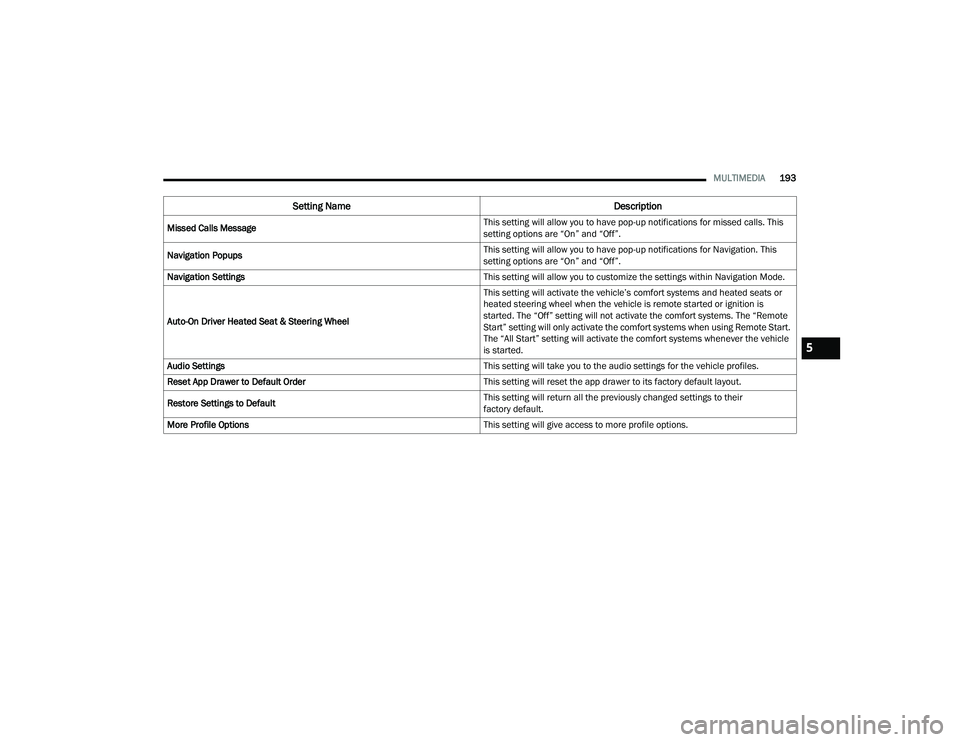
Missed Calls Message This setting will allow you to have pop-up notifications for missed calls. This
setting options are “On” and “Off”.
Navigation Popups This setting will allow you to have pop-up notifications for Navigation. This
setting options are “On” and “Off”.
Navigation Settings This setting will allow you to customize the settings within Navigation Mode.
Auto-On Driver Heated Seat & Steering Wheel This setting will activate the vehicle’s comfort systems and heated seats or
heated steering wheel when the vehicle is remote started or ignition is
started. The “Off” setting will not activate the comfort systems. The “Remote
Start” setting will only activate the comfort systems when using Remote Start.
The “All Start” setting will activate the comfort systems whenever the vehicle
is started.
Audio Settings This setting will take you to the audio settings for the vehicle profiles.
Reset App Drawer to Default Order This setting will reset the app drawer to its factory default layout.
Restore Settings to Default This setting will return all the previously changed settings to their
factory default.
More Profile Options This setting will give access to more profile options.
Setting NameDescription
5
22_RUP_OM_EN_USC_t.book Page 193
Page 206 of 384
204MULTIMEDIA
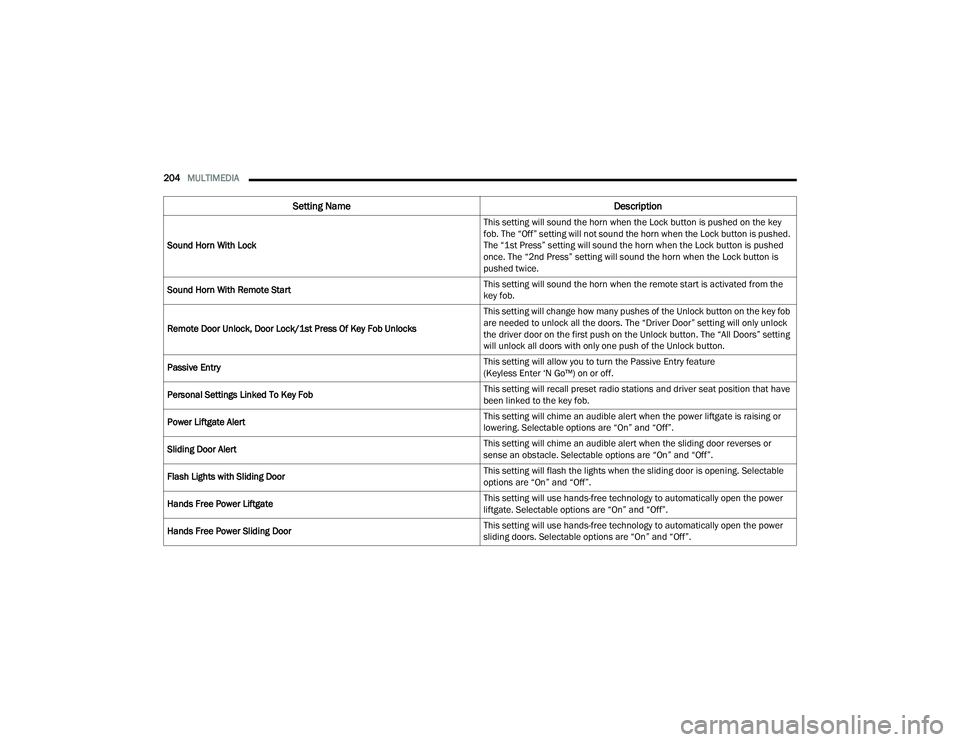
Sound Horn With Lock This setting will sound the horn when the Lock button is pushed on the key
fob. The “Off” setting will not sound the horn when the Lock button is pushed.
The “1st Press” setting will sound the horn when the Lock button is pushed
once. The “2nd Press” setting will sound the horn when the Lock button is
pushed twice.
Sound Horn With Remote Start This setting will sound the horn when the remote start is activated from the
key fob.
Remote Door Unlock, Door Lock/1st Press Of Key Fob Unlocks This setting will change how many pushes of the Unlock button on the key fob
are needed to unlock all the doors. The “Driver Door” setting will only unlock
the driver door on the first push on the Unlock button. The “All Doors” setting
will unlock all doors with only one push of the Unlock button.
Passive Entry This setting will allow you to turn the Passive Entry feature
(Keyless Enter ‘N Go™) on or off.
Personal Settings Linked To Key Fob This setting will recall preset radio stations and driver seat position that have
been linked to the key fob.
Power Liftgate Alert This setting will chime an audible alert when the power liftgate is raising or
lowering. Selectable options are “On” and “Off”.
Sliding Door Alert This setting will chime an audible alert when the sliding door reverses or
sense an obstacle. Selectable options are “On” and “Off”.
Flash Lights with Sliding Door This setting will flash the lights when the sliding door is opening. Selectable
options are “On” and “Off”.
Hands Free Power Liftgate This setting will use hands-free technology to automatically open the power
liftgate. Selectable options are “On” and “Off”.
Hands Free Power Sliding Door This setting will use hands-free technology to automatically open the power
sliding doors. Selectable options are “On” and “Off”.
Setting Name
Description
22_RUP_OM_EN_USC_t.book Page 204
Page 207 of 384
MULTIMEDIA205
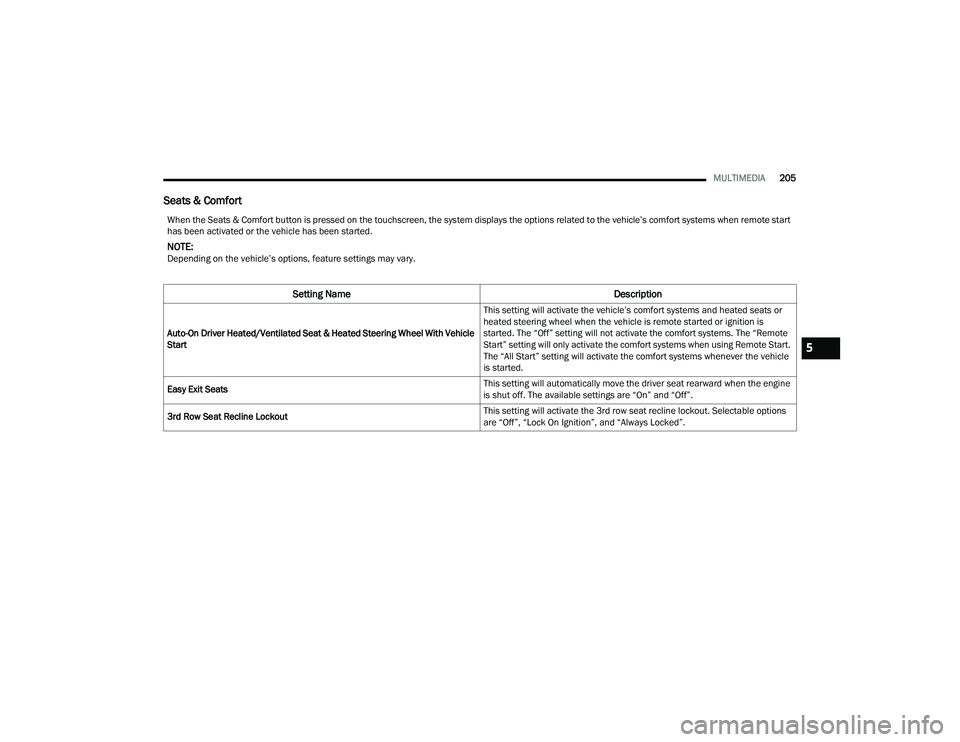
Seats & Comfort
When the Seats & Comfort button is pressed on the touchscreen, the system displays the options related to the vehicle’s comfort systems when remote start
has been activated or the vehicle has been started.
NOTE:Depending on the vehicle’s options, feature settings may vary.
Setting Name Description
Auto-On Driver Heated/Ventilated Seat & Heated Steering Wheel With Vehicle
Start This setting will activate the vehicle’s comfort systems and heated seats or
heated steering wheel when the vehicle is remote started or ignition is
started. The “Off” setting will not activate the comfort systems. The “Remote
Start” setting will only activate the comfort systems when using Remote Start.
The “All Start” setting will activate the comfort systems whenever the vehicle
is started.
Easy Exit Seats This setting will automatically move the driver seat rearward when the engine
is shut off. The available settings are “On” and “Off”.
3rd Row Seat Recline Lockout This setting will activate the 3rd row seat recline lockout. Selectable options
are “Off”, “Lock On Ignition”, and “Always Locked”.
5
22_RUP_OM_EN_USC_t.book Page 205
Page 208 of 384
206MULTIMEDIA
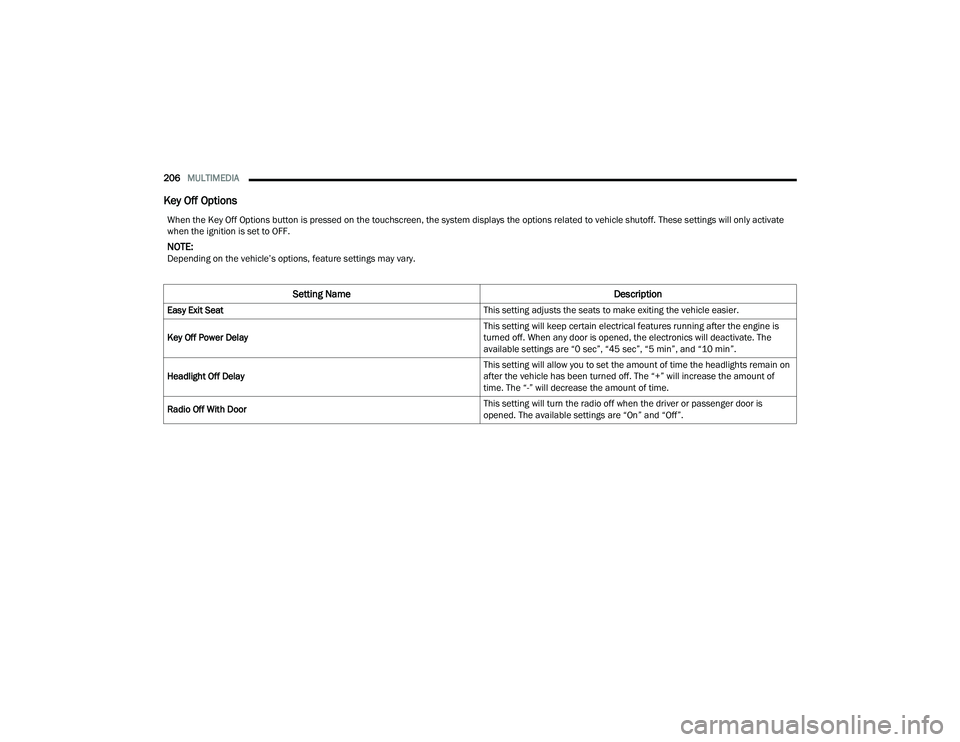
Key Off Options
When the Key Off Options button is pressed on the touchscreen, the system displays the options related to vehicle shutoff. These settings will only activate
when the ignition is set to OFF.
NOTE:Depending on the vehicle’s options, feature settings may vary.
Setting Name Description
Easy Exit Seat This setting adjusts the seats to make exiting the vehicle easier.
Key Off Power Delay This setting will keep certain electrical features running after the engine is
turned off. When any door is opened, the electronics will deactivate. The
available settings are “0 sec”, “45 sec”, “5 min”, and “10 min”.
Headlight Off Delay This setting will allow you to set the amount of time the headlights remain on
after the vehicle has been turned off. The “+” will increase the amount of
time. The “-” will decrease the amount of time.
Radio Off With Door This setting will turn the radio off when the driver or passenger door is
opened. The available settings are “On” and “Off”.
22_RUP_OM_EN_USC_t.book Page 206
Page 215 of 384
MULTIMEDIA213
REAR SEAT ENTERTAINMENT WITH
AMAZON FIRE TV BUILT-IN — IF EQUIPPED
OVERVIEW
Rear Seat Entertainment with Fire TV built-in is
designed to give your family years of enjoyment.
Fire TV lets passengers enjoy a wide variety of
content from popular apps (subscriptions may be
required). Stream videos, play games, listen to
music, get information, and watch downloaded
programs all while on the road. In addition to
streaming and downloaded content, changing the
input in Fire TV also allows users to:
Play your favorite CDs, DVDs, or Blu-ray™ Discs
Mirror what’s on your phone or tablet to Fire TV
via Miracast capable devices (see support
here):
https://www.amazon.com/gp/help/
customer/display
Plug and play a variety of standard video games
or devices into the HDMI port
Listen to audio over wireless headphones
(not included, customer will have to provide
their own)
Plug and play a variety of devices into the
Video USB port
Plug in standard headphones to listen to audio
NOTE:Vehicle must be in an active and usable cellular
range and properly equipped with a Uconnect
5 NAV system and Rear Seat Entertainment with
Fire TV package. Streaming requires a Wi-Fi
connection and registered Amazon account to run
Fire TV in the vehicle. Streaming service subscrip -
tions are not included. Certain services are subject
to change or withdrawal at any time, may not be
available in all areas and languages, and may
require separate subscriptions.
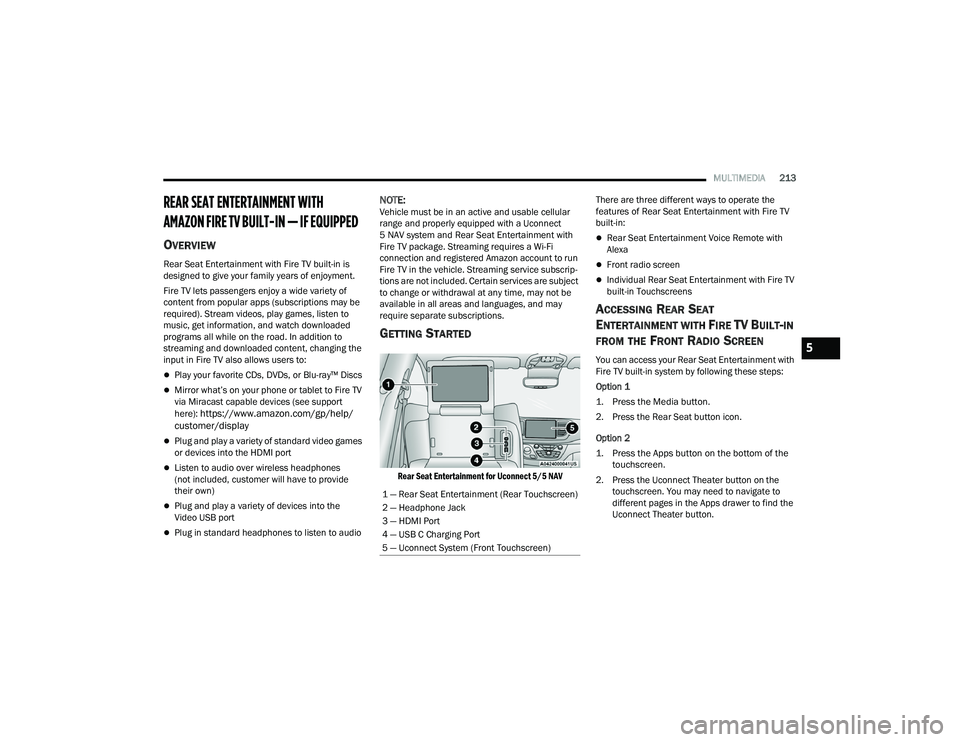
GETTING STARTED
Rear Seat Entertainment for Uconnect 5/5 NAV
There are three different ways to operate the
features of Rear Seat Entertainment with Fire TV
built-in:
Rear Seat Entertainment Voice Remote with
Alexa
Front radio screen
Individual Rear Seat Entertainment with Fire TV
built-in Touchscreens
ACCESSING REAR SEAT
E
NTERTAINMENT WITH FIRE TV BUILT-IN
FROM THE FRONT RADIO SCREEN
You can access your Rear Seat Entertainment with
Fire TV built-in system by following these steps:
Option 1
1. Press the Media button.
2. Press the Rear Seat button icon.
Option 2
1. Press the Apps button on the bottom of the
touchscreen.
2. Press the Uconnect Theater button on the touchscreen. You may need to navigate to
different pages in the Apps drawer to find the
Uconnect Theater button.
1 — Rear Seat Entertainment (Rear Touchscreen)
2 — Headphone Jack
3 — HDMI Port
4 — USB C Charging Port
5 — Uconnect System (Front Touchscreen)5
22_RUP_OM_EN_USC_t.book Page 213
Page 216 of 384
214MULTIMEDIA
ACCESSING REAR SEAT
E
NTERTAINMENT WITH FIRE TV BUILT-IN
FROM THE REAR SCREENS
You can access your Rear Seat Entertainment with
Fire TV built-in system from the rear screens by just
flipping the screens open. Flipping open the rear
screens will automatically turn the system on.
Pushing the Power button on the Rear Seat
Entertainment Voice Remote with Alexa.
NOTE:While accessing on the rear screens, the system
will launch with the integrated Fire TV.
FIRST TIME STARTING UP
(U
SING THE REAR SCREENS)
Boot-Up Screen
When turning on the system for the first time from
the rear screens, a boot-up screen will appear on
the system displaying the Fire TV logo.
During this boot up sequence, language options
will be available for the system.
Voice Remote with Alexa Pairing
After the boot-up sequence is complete, the
system will then give the option to pair a Voice
Remote with Alexa (two are included with the
system). Follow the on-screen instructions to pair the Voice
Remote with Alexa to the system.
NOTE:If the Voice Remote with Alexa pairing fails,
on-screen instructions will appear for trying to pair
again.
Connecting to a Network
During the start-up process, the system will need to
be connected to a network. Multiple network
sources can be options for the system, and one will
need to be selected for the system to function.
Some options for a network connection are:
Wi-Fi Hotspot using a capable smartphone
(if activated, it will show as a possible network
for the system on the screen).
Outside connection like a home Wi-Fi network.
In-vehicle Wi-Fi.
NOTE:When a network is connected to the system for the
first time, an over-the-air software update will take
place using the Wi-Fi connection. After this
first-time update, updates will only accrue when
one is available. It is recommended that you
connect your RSE/Amazon Fire OS to a Wi-Fi
Hotspot with unlimited data and a good signal
(such as a home Wi-Fi network) in order to check
for future Fire OS updates.
Account Sign-in
The next step will be the option to sign in to your
Amazon account.
There are two options to sign into the system:
I already have an Amazon account:
Sign in with
an already existing Amazon account
I am new to Amazon: Create a new Amazon
Account
If “I am new to Amazon” is selected, follow the
on-screen steps to set up an Amazon account with
the system.
Parental Controls
Another feature that will appear during this first
time set up is parental controls.
When the parental controls page appears, it will
give the options to “Enable Parental Controls” and
“No Parental Controls”. If “Enable Parental
Controls” is selected, follow the on-screen steps to
set up parental controls for the system.
REAR SEAT ENTERTAINMENT WITH FIRE
TV B
UILT-IN ALEXA
A feature with Rear Seat Entertainment with Fire
TV built-in that enhances your experience is Alexa.
It is simple to get started using this feature. Push
the Voice button at the top of the Voice Remote
with Alexa to activate Alexa and get started.
22_RUP_OM_EN_USC_t.book Page 214
Page 217 of 384
MULTIMEDIA215
LISTEN VIA VEHICLE SPEAKERS
A feature within Rear Seat Entertainment with Fire
TV built-in is the front radio Listen feature. On the
front radio Home screen for Fire TV, select the
Listen button in the top right corner on either card
for Screen 1 or 2. This will allow you to have either
rear screen play audio through all the speakers in
the vehicle.
QUICK MENU
Accessing the Quick Menu will give you more
options for Fire TV.
To access the Quick Menu, tap the screen, and it
will appear. The Quick Menu is also accessible by
pushing the Gear/Settings button on the Voice
Remote with Alexa.
Some options of the Quick Menu are:
Power — This will power the screen off.
On-Screen Remote — This will bring up the
on-screen remote to use with the system.
Back — This will let you go back a page.
Home — This will take you to the Home screen.
Gear/Settings — This will let you access
certain settings in the system. For more setting
options, select “Settings” within the on-screen
Gear/Settings menu.
Vehicle — This will bring up the Vehicle menu.
From here you can adjust rear climate controls
and the Are We There Yet? app.
PARENTAL CONTROLS (USING THE REAR
S
CREENS)
If parental controls were not set during the first
time start up of the system, they can be set by
following these steps:
1. Push the Gear/Settings button on the Voice
Remote with Alexa or tap the screen to access
“Settings” in the Quick Menu.
2. Select the Gear/Settings icon on the screen.
3. Select “Settings” on the screen.
4. While in Settings, select “Preferences”.
5. Select “Parental Controls”. From here you can turn Parental Controls on or off and set up a
PIN for the controls using the Voice Remote
with Alexa.
PAIRING THE VOICE REMOTE WITH
A
LEXA (USING THE REAR SCREENS)
If the Voice Remote with Alexa needs to be paired
again or a new remote is being paired, follow these
procedures:
1. Install batteries into the remote.
2. Tap the screen and select the Gear/Settings
icon on the screen.
3. Select “Settings” on the screen.
4. In Settings, select “Controllers & Bluetooth® Devices”.
5. From this menu, select “Add New Remote”.
6. Follow the on-screen steps for Voice Remote with Alexa pairing.
A long press on the Home button can also re-pair a
Voice Remote with Alexa that has become
disconnected.
NOTE:Your vehicle is included with two Voice Remotes
with Alexa. Each Voice Remote with Alexa can be
paired with each rear screen. Pairing one with
either rear screen will pair that Voice Remote with
Alexa with that screen.
5
22_RUP_OM_EN_USC_t.book Page 215
Page 218 of 384
216MULTIMEDIA
MEDIA SOURCES INPUT (USING THE
F
RONT RADIO AND REAR SCREENS)
Front Radio Screen
Inputs available within Launch Source under
“Inputs” are “Fire TV”, “HDMI”, “Blu-ray™”, “DVD’,
and “USB”.
Rear Screens
To select inputs on the rear screen, scroll down on
the Fire TV Home screen and select your desired
input under “Inputs”.
Inputs can also be selected from the Brand tab in
the top menu. While in this tab, scroll down to
“Inputs” for selection.
NOTE:The Brand tab naming in the top menu will depend
on the naming of the vehicle’s brand.
REAR SEAT ENTERTAINMENT WITH FIRE
TV B
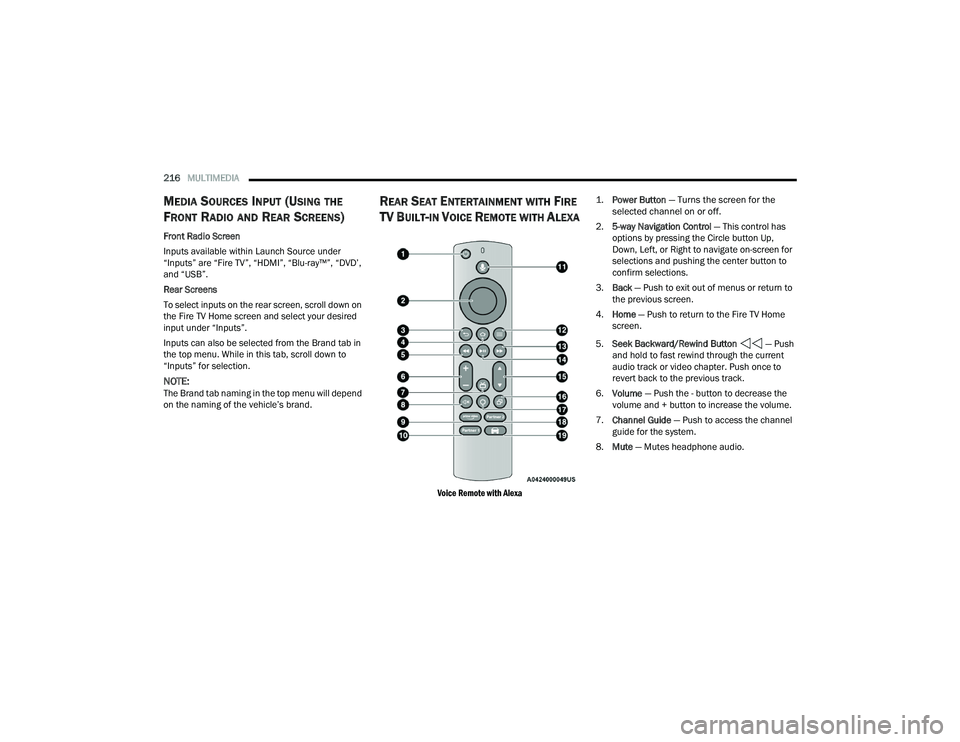
UILT-IN VOICE REMOTE WITH ALEXA
Voice Remote with Alexa
1.
Power Button
— Turns the screen for the
selected channel on or off.
2. 5-way Navigation Control — This control has
options by pressing the Circle button Up,
Down, Left, or Right to navigate on-screen for
selections and pushing the center button to
confirm selections.
3. Back — Push to exit out of menus or return to
the previous screen.
4. Home — Push to return to the Fire TV Home
screen.
5. Seek Backward/Rewind Button — Push
and hold to fast rewind through the current
audio track or video chapter. Push once to
revert back to the previous track.
6. Volume — Push the - button to decrease the
volume and + button to increase the volume.
7. Channel Guide — Push to access the channel
guide for the system.
8. Mute — Mutes headphone audio.
22_RUP_OM_EN_USC_t.book Page 216