Low f CHRYSLER PACIFICA 2023 Owners Manual
[x] Cancel search | Manufacturer: CHRYSLER, Model Year: 2023, Model line: PACIFICA, Model: CHRYSLER PACIFICA 2023Pages: 328, PDF Size: 16.37 MB
Page 166 of 328
164MULTIMEDIA
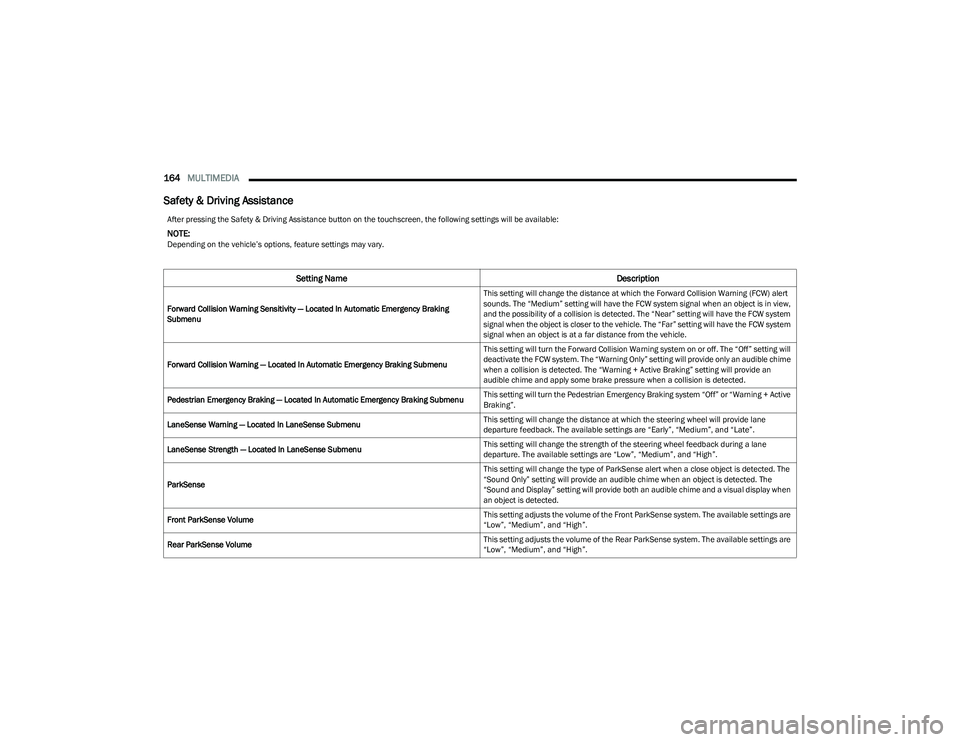
Safety & Driving Assistance
After pressing the Safety & Driving Assistance button on the touchscreen, the following settings will be available:
NOTE:Depending on the vehicle’s options, feature settings may vary.
Setting Name Description
Forward Collision Warning Sensitivity — Located In Automatic Emergency Braking
Submenu This setting will change the distance at which the Forward Collision Warning (FCW) alert
sounds. The “Medium” setting will have the FCW system signal when an object is in view,
and the possibility of a collision is detected. The “Near” setting will have the FCW system
signal when the object is closer to the vehicle. The “Far” setting will have the FCW system
signal when an object is at a far distance from the vehicle.
Forward Collision Warning — Located In Automatic Emergency Braking Submenu This setting will turn the Forward Collision Warning system on or off. The “Off” setting will
deactivate the FCW system. The “Warning Only” setting will provide only an audible chime
when a collision is detected. The “Warning + Active Braking” setting will provide an
audible chime and apply some brake pressure when a collision is detected.
Pedestrian Emergency Braking — Located In Automatic Emergency Braking Submenu This setting will turn the Pedestrian Emergency Braking system “Off” or “Warning + Active
Braking”.
LaneSense Warning — Located In LaneSense Submenu This setting will change the distance at which the steering wheel will provide lane
departure feedback. The available settings are “Early”, “Medium”, and “Late”.
LaneSense Strength — Located In LaneSense Submenu This setting will change the strength of the steering wheel feedback during a lane
departure. The available settings are “Low”, “Medium”, and “High”.
ParkSense This setting will change the type of ParkSense alert when a close object is detected. The
“Sound Only” setting will provide an audible chime when an object is detected. The
“Sound and Display” setting will provide both an audible chime and a visual display when
an object is detected.
Front ParkSense Volume This setting adjusts the volume of the Front ParkSense system. The available settings are
“Low”, “Medium”, and “High”.
Rear ParkSense Volume This setting adjusts the volume of the Rear ParkSense system. The available settings are
“Low”, “Medium”, and “High”.
23_RUP_OM_EN_USC_t.book Page 164
Page 167 of 328
MULTIMEDIA165
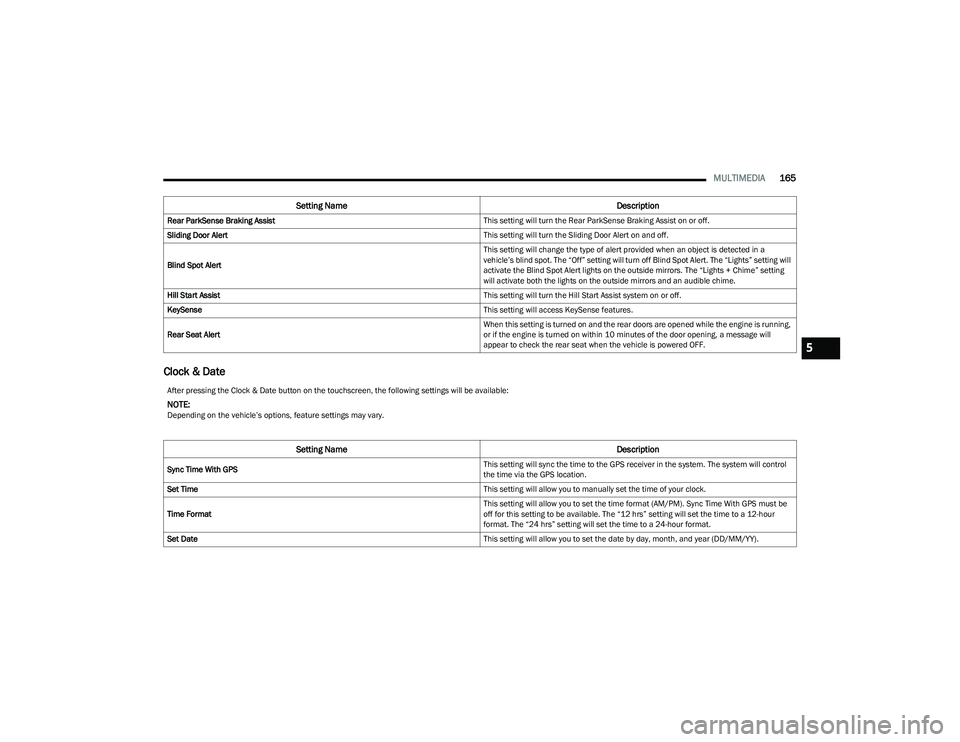
Clock & Date
Rear ParkSense Braking Assist This setting will turn the Rear ParkSense Braking Assist on or off.
Sliding Door Alert This setting will turn the Sliding Door Alert on and off.
Blind Spot Alert This setting will change the type of alert provided when an object is detected in a
vehicle’s blind spot. The “Off” setting will turn off Blind Spot Alert. The “Lights” setting will
activate the Blind Spot Alert lights on the outside mirrors. The “Lights + Chime” setting
will activate both the lights on the outside mirrors and an audible chime.
Hill Start Assist This setting will turn the Hill Start Assist system on or off.
KeySense This setting will access KeySense features.
Rear Seat Alert When this setting is turned on and the rear doors are opened while the engine is running,
or if the engine is turned on within 10 minutes of the door opening, a message will
appear to check the rear seat when the vehicle is powered OFF.
Setting Name
Description
After pressing the Clock & Date button on the touchscreen, the following settings will be available:
NOTE:Depending on the vehicle’s options, feature settings may vary.
Setting NameDescription
Sync Time With GPS This setting will sync the time to the GPS receiver in the system. The system will control
the time via the GPS location.
Set Time This setting will allow you to manually set the time of your clock.
Time Format This setting will allow you to set the time format (AM/PM). Sync Time With GPS must be
off for this setting to be available. The “12 hrs” setting will set the time to a 12-hour
format. The “24 hrs” setting will set the time to a 24-hour format.
Set Date This setting will allow you to set the date by day, month, and year (DD/MM/YY).
5
23_RUP_OM_EN_USC_t.book Page 165
Page 168 of 328
166MULTIMEDIA
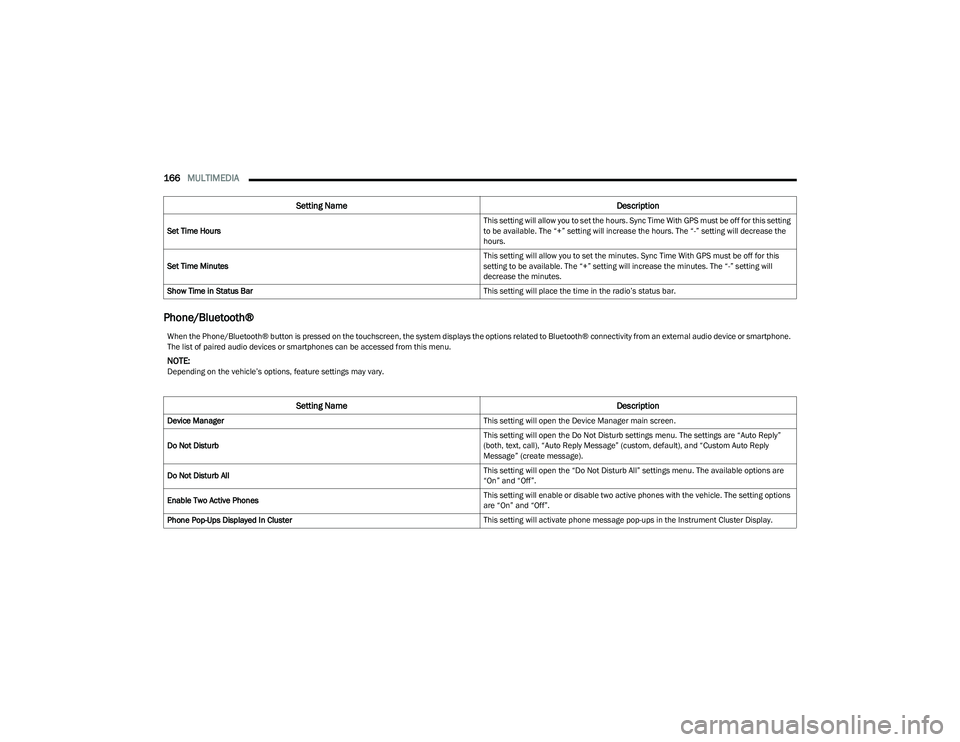
Phone/Bluetooth®
Set Time Hours This setting will allow you to set the hours. Sync Time With GPS must be off for this setting
to be available. The “+” setting will increase the hours. The “-” setting will decrease the
hours.
Set Time Minutes This setting will allow you to set the minutes. Sync Time With GPS must be off for this
setting to be available. The “+” setting will increase the minutes. The “-” setting will
decrease the minutes.
Show Time in Status Bar This setting will place the time in the radio’s status bar.
Setting NameDescription
When the Phone/Bluetooth® button is pressed on the touchscreen, the system displays the options related to Bluetooth® connectivity from an external audio device or smartphone.
The list of paired audio devices or smartphones can be accessed from this menu.
NOTE:Depending on the vehicle’s options, feature settings may vary.
Setting NameDescription
Device Manager This setting will open the Device Manager main screen.
Do Not Disturb This setting will open the Do Not Disturb settings menu. The settings are “Auto Reply”
(both, text, call), “Auto Reply Message” (custom, default), and “Custom Auto Reply
Message” (create message).
Do Not Disturb All This setting will open the “Do Not Disturb All” settings menu. The available options are
“On” and “Off”.
Enable Two Active Phones This setting will enable or disable two active phones with the vehicle. The setting options
are “On” and “Off”.
Phone Pop-Ups Displayed In Cluster This setting will activate phone message pop-ups in the Instrument Cluster Display.
23_RUP_OM_EN_USC_t.book Page 166
Page 169 of 328
MULTIMEDIA167
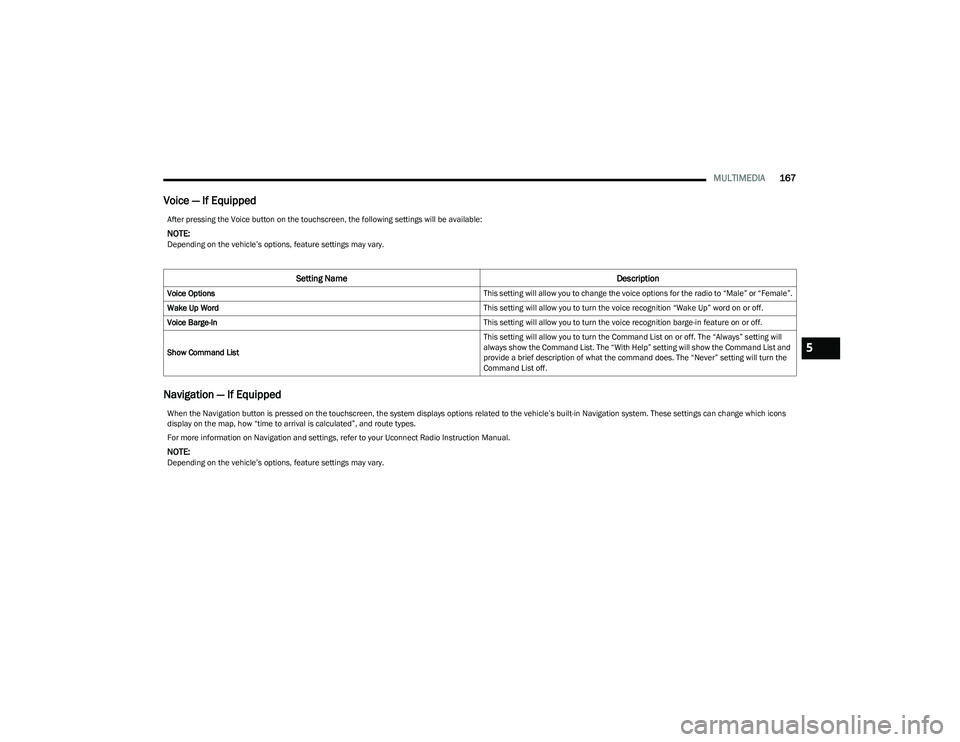
Voice — If Equipped
Navigation — If Equipped
After pressing the Voice button on the touchscreen, the following settings will be available:
NOTE:Depending on the vehicle’s options, feature settings may vary.
Setting Name Description
Voice Options This setting will allow you to change the voice options for the radio to “Male” or “Female”.
Wake Up Word This setting will allow you to turn the voice recognition “Wake Up” word on or off.
Voice Barge-In This setting will allow you to turn the voice recognition barge-in feature on or off.
Show Command List This setting will allow you to turn the Command List on or off. The “Always” setting will
always show the Command List. The “With Help” setting will show the Command List and
provide a brief description of what the command does. The “Never” setting will turn the
Command List off.
When the Navigation button is pressed on the touchscreen, the system displays options related to the vehicle’s built-in Navigation system. These settings can change which icons
display on the map, how “time to arrival is calculated”, and route types.
For more information on Navigation and settings, refer to your Uconnect Radio Instruction Manual.
NOTE:Depending on the vehicle’s options, feature settings may vary.
5
23_RUP_OM_EN_USC_t.book Page 167
Page 171 of 328
MULTIMEDIA169
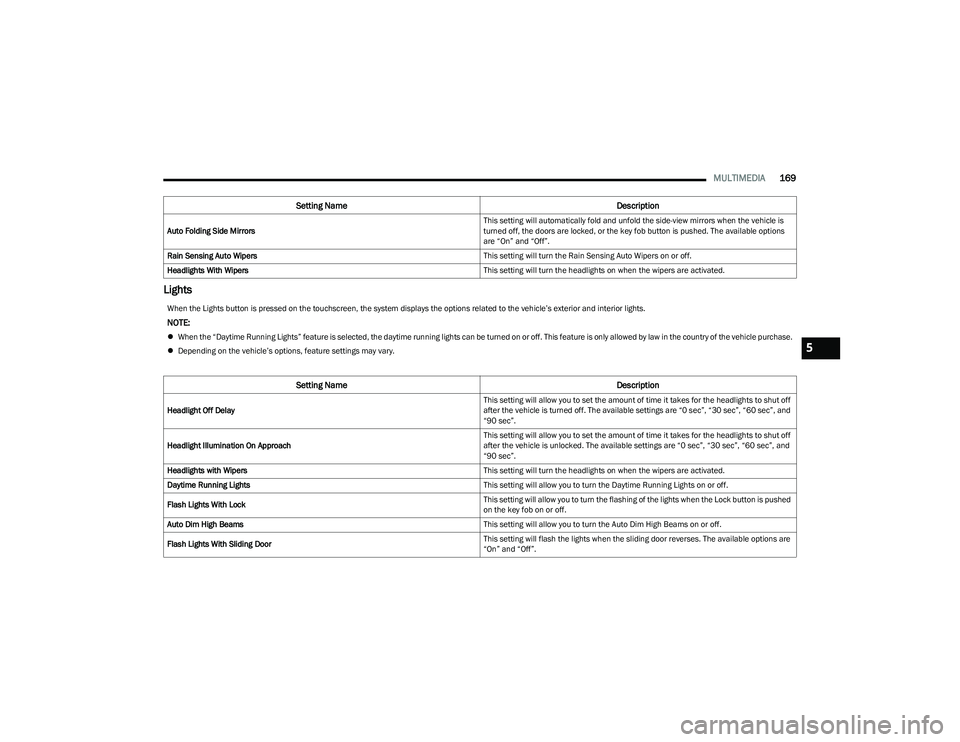
Lights
Auto Folding Side Mirrors This setting will automatically fold and unfold the side-view mirrors when the vehicle is
turned off, the doors are locked, or the key fob button is pushed. The available options
are “On” and “Off”.
Rain Sensing Auto Wipers This setting will turn the Rain Sensing Auto Wipers on or off.
Headlights With Wipers This setting will turn the headlights on when the wipers are activated.
Setting NameDescription
When the Lights button is pressed on the touchscreen, the system displays the options related to the vehicle’s exterior and interior lights.
NOTE:
When the “Daytime Running Lights” feature is selected, the daytime running lights can be turned on or off. This feature is only allowed by law in the country of the vehicle purchase.
Depending on the vehicle’s options, feature settings may vary.
Setting Name Description
Headlight Off Delay This setting will allow you to set the amount of time it takes for the headlights to shut off
after the vehicle is turned off. The available settings are “0 sec”, “30 sec”, “60 sec”, and
“90 sec”.
Headlight Illumination On Approach This setting will allow you to set the amount of time it takes for the headlights to shut off
after the vehicle is unlocked. The available settings are “0 sec”, “30 sec”, “60 sec”, and
“90 sec”.
Headlights with Wipers This setting will turn the headlights on when the wipers are activated.
Daytime Running Lights This setting will allow you to turn the Daytime Running Lights on or off.
Flash Lights With Lock This setting will allow you to turn the flashing of the lights when the Lock button is pushed
on the key fob on or off.
Auto Dim High Beams This setting will allow you to turn the Auto Dim High Beams on or off.
Flash Lights With Sliding Door This setting will flash the lights when the sliding door reverses. The available options are
“On” and “Off”.
5
23_RUP_OM_EN_USC_t.book Page 169
Page 172 of 328
170MULTIMEDIA
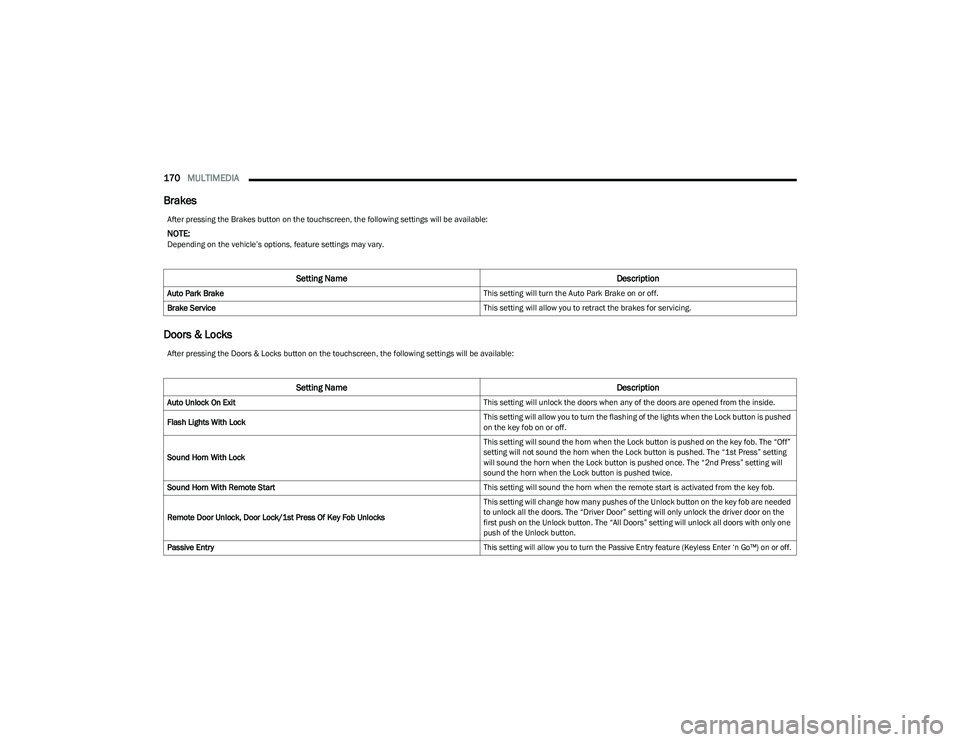
Brakes
Doors & Locks
After pressing the Brakes button on the touchscreen, the following settings will be available:
NOTE:Depending on the vehicle’s options, feature settings may vary.
Setting Name Description
Auto Park Brake This setting will turn the Auto Park Brake on or off.
Brake Service This setting will allow you to retract the brakes for servicing.
After pressing the Doors & Locks button on the touchscreen, the following settings will be available:
Setting NameDescription
Auto Unlock On Exit This setting will unlock the doors when any of the doors are opened from the inside.
Flash Lights With Lock This setting will allow you to turn the flashing of the lights when the Lock button is pushed
on the key fob on or off.
Sound Horn With Lock This setting will sound the horn when the Lock button is pushed on the key fob. The “Off”
setting will not sound the horn when the Lock button is pushed. The “1st Press” setting
will sound the horn when the Lock button is pushed once. The “2nd Press” setting will
sound the horn when the Lock button is pushed twice.
Sound Horn With Remote Start This setting will sound the horn when the remote start is activated from the key fob.
Remote Door Unlock, Door Lock/1st Press Of Key Fob Unlocks This setting will change how many pushes of the Unlock button on the key fob are needed
to unlock all the doors. The “Driver Door” setting will only unlock the driver door on the
first push on the Unlock button. The “All Doors” setting will unlock all doors with only one
push of the Unlock button.
Passive Entry
This setting will allow you to turn the Passive Entry feature (Keyless Enter ‘n Go™) on or off.
23_RUP_OM_EN_USC_t.book Page 170
Page 173 of 328
MULTIMEDIA171
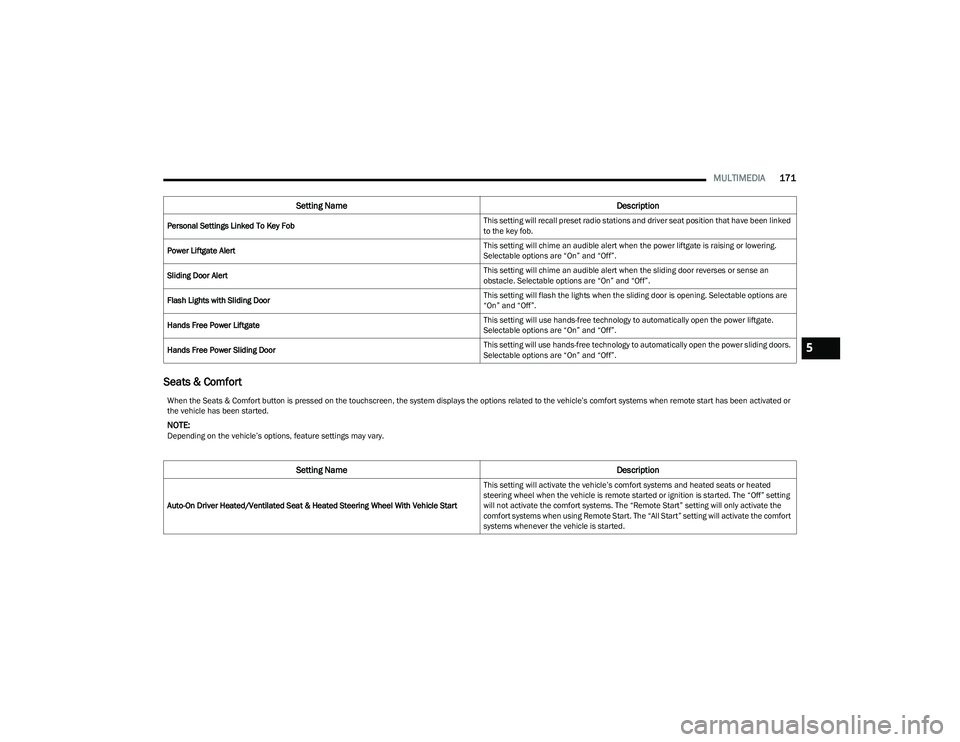
Seats & Comfort
Personal Settings Linked To Key Fob This setting will recall preset radio stations and driver seat position that have been linked
to the key fob.
Power Liftgate Alert This setting will chime an audible alert when the power liftgate is raising or lowering.
Selectable options are “On” and “Off”.
Sliding Door Alert This setting will chime an audible alert when the sliding door reverses or sense an
obstacle. Selectable options are “On” and “Off”.
Flash Lights with Sliding Door This setting will flash the lights when the sliding door is opening. Selectable options are
“On” and “Off”.
Hands Free Power Liftgate This setting will use hands-free technology to automatically open the power liftgate.
Selectable options are “On” and “Off”.
Hands Free Power Sliding Door This setting will use hands-free technology to automatically open the power sliding doors.
Selectable options are “On” and “Off”.
Setting Name
Description
When the Seats & Comfort button is pressed on the touchscreen, the system displays the options related to the vehicle’s comfort systems when remote start has been activated or
the vehicle has been started.
NOTE:Depending on the vehicle’s options, feature settings may vary.
Setting NameDescription
Auto-On Driver Heated/Ventilated Seat & Heated Steering Wheel With Vehicle Start This setting will activate the vehicle’s comfort systems and heated seats or heated
steering wheel when the vehicle is remote started or ignition is started. The “Off” setting
will not activate the comfort systems. The “Remote Start” setting will only activate the
comfort systems when using Remote Start. The “All Start” setting will activate the comfort
systems whenever the vehicle is started.
5
23_RUP_OM_EN_USC_t.book Page 171
Page 174 of 328
172MULTIMEDIA
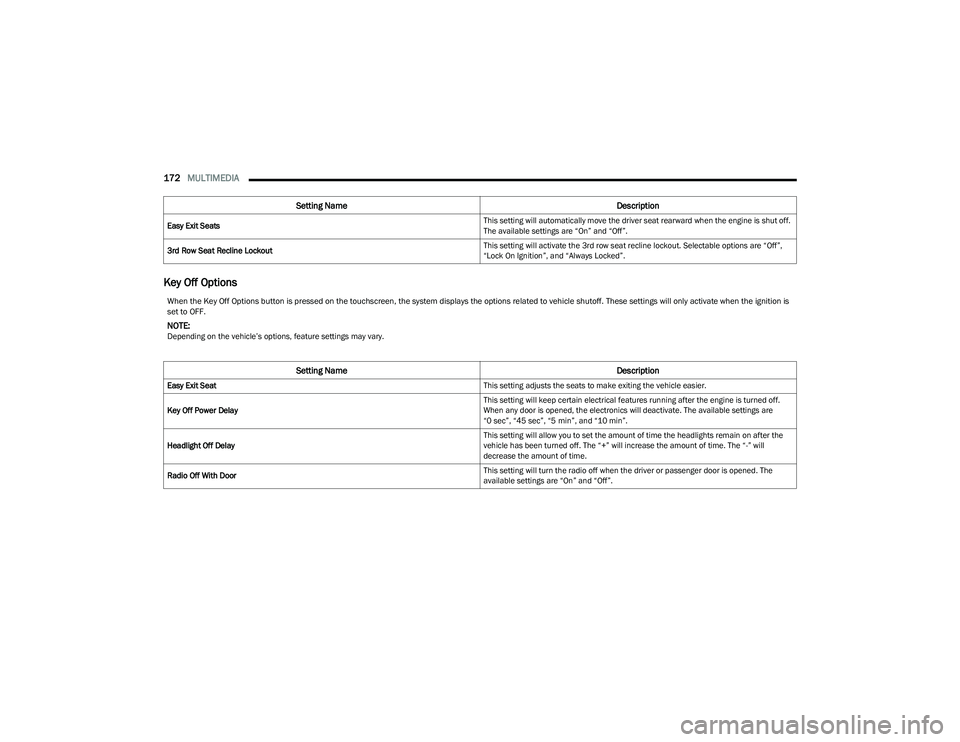
Key Off Options
Easy Exit Seats This setting will automatically move the driver seat rearward when the engine is shut off.
The available settings are “On” and “Off”.
3rd Row Seat Recline Lockout This setting will activate the 3rd row seat recline lockout. Selectable options are “Off”,
“Lock On Ignition”, and “Always Locked”.
Setting Name
Description
When the Key Off Options button is pressed on the touchscreen, the system displays the options related to vehicle shutoff. These settings will only activate when the ignition is
set to OFF.
NOTE:Depending on the vehicle’s options, feature settings may vary.
Setting NameDescription
Easy Exit Seat This setting adjusts the seats to make exiting the vehicle easier.
Key Off Power Delay This setting will keep certain electrical features running after the engine is turned off.
When any door is opened, the electronics will deactivate. The available settings are
“0 sec”, “45 sec”, “5 min”, and “10 min”.
Headlight Off Delay This setting will allow you to set the amount of time the headlights remain on after the
vehicle has been turned off. The “+” will increase the amount of time. The “-” will
decrease the amount of time.
Radio Off With Door This setting will turn the radio off when the driver or passenger door is opened. The
available settings are “On” and “Off”.
23_RUP_OM_EN_USC_t.book Page 172
Page 175 of 328
MULTIMEDIA173
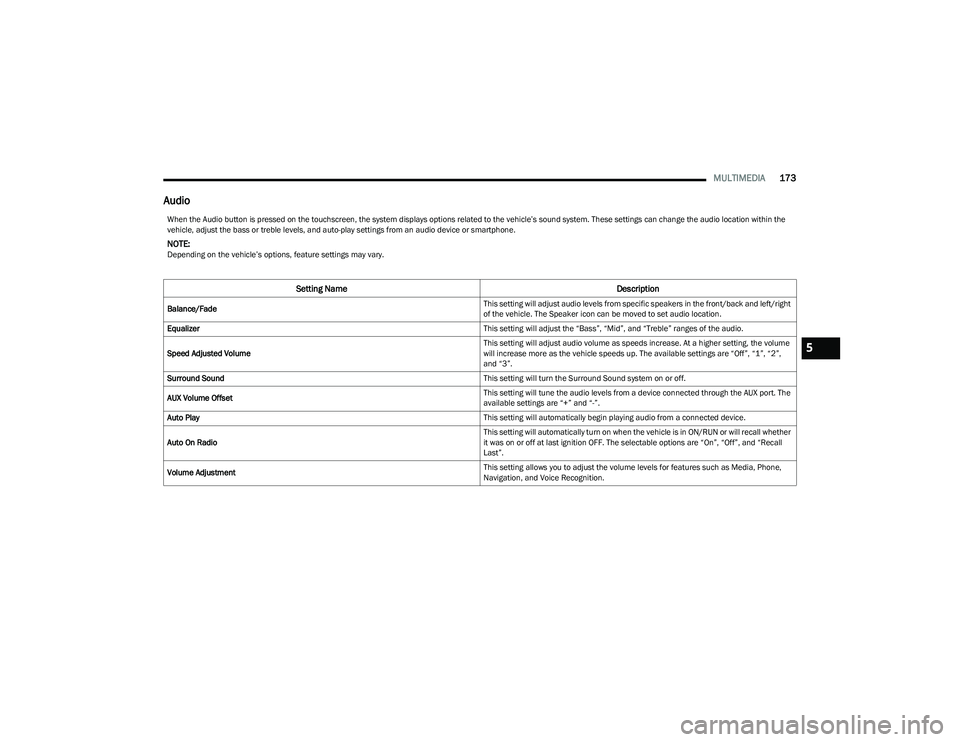
Audio
When the Audio button is pressed on the touchscreen, the system displays options related to the vehicle’s sound system. These settings can change the audio location within the
vehicle, adjust the bass or treble levels, and auto-play settings from an audio device or smartphone.
NOTE:Depending on the vehicle’s options, feature settings may vary.
Setting Name Description
Balance/Fade This setting will adjust audio levels from specific speakers in the front/back and left/right
of the vehicle. The Speaker icon can be moved to set audio location.
Equalizer This setting will adjust the “Bass”, “Mid”, and “Treble” ranges of the audio.
Speed Adjusted Volume This setting will adjust audio volume as speeds increase. At a higher setting, the volume
will increase more as the vehicle speeds up. The available settings are “Off”, “1”, “2”,
and “3”.
Surround Sound This setting will turn the Surround Sound system on or off.
AUX Volume Offset This setting will tune the audio levels from a device connected through the AUX port. The
available settings are “+” and “-”.
Auto Play This setting will automatically begin playing audio from a connected device.
Auto On Radio This setting will automatically turn on when the vehicle is in ON/RUN or will recall whether
it was on or off at last ignition OFF. The selectable options are “On”, “Off”, and “Recall
Last”.
Volume Adjustment This setting allows you to adjust the volume levels for features such as Media, Phone,
Navigation, and Voice Recognition.
5
23_RUP_OM_EN_USC_t.book Page 173
Page 176 of 328
174MULTIMEDIA
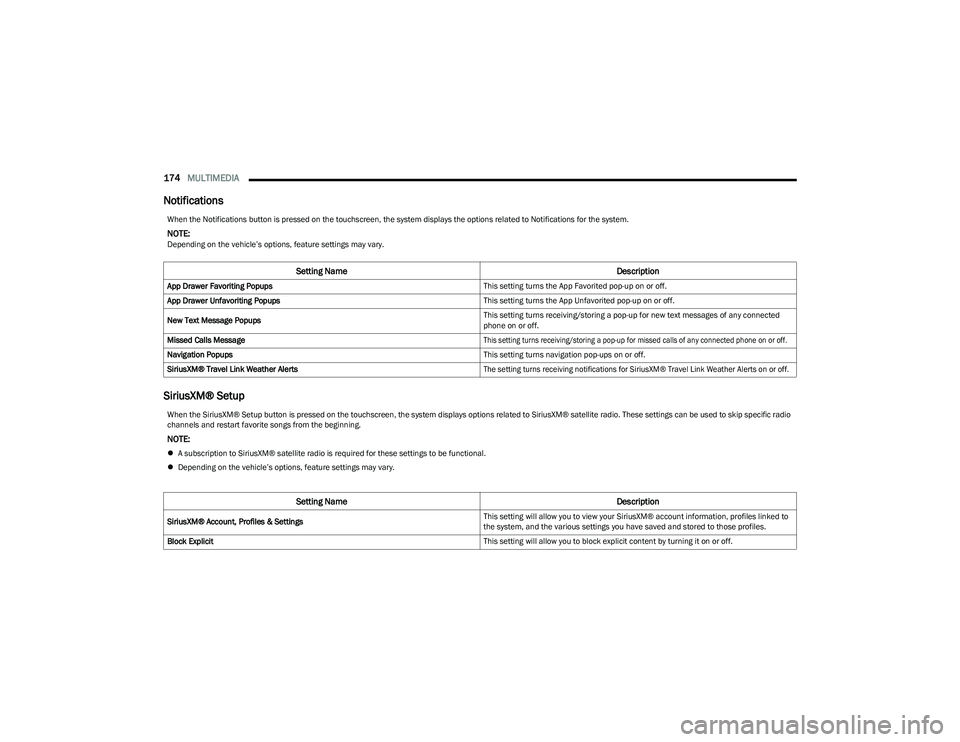
Notifications
SiriusXM® Setup
When the Notifications button is pressed on the touchscreen, the system displays the options related to Notifications for the system.
NOTE:Depending on the vehicle’s options, feature settings may vary.
Setting Name Description
App Drawer Favoriting Popups This setting turns the App Favorited pop-up on or off.
App Drawer Unfavoriting Popups This setting turns the App Unfavorited pop-up on or off.
New Text Message Popups This setting turns receiving/storing a pop-up for new text messages of any connected
phone on or off.
Missed Calls Message
This setting turns receiving/storing a pop-up for missed calls of any connected phone on or off.
Navigation Popups This setting turns navigation pop-ups on or off.
SiriusXM® Travel Link Weather Alerts
The setting turns receiving notifications for SiriusXM® Travel Link Weather Alerts on or off.
When the SiriusXM® Setup button is pressed on the touchscreen, the system displays options related to SiriusXM® satellite radio. These settings can be used to skip specific radio
channels and restart favorite songs from the beginning.
NOTE:
A subscription to SiriusXM® satellite radio is required for these settings to be functional.
Depending on the vehicle’s options, feature settings may vary.
Setting Name Description
SiriusXM® Account, Profiles & Settings This setting will allow you to view your SiriusXM® account information, profiles linked to
the system, and the various settings you have saved and stored to those profiles.
Block Explicit This setting will allow you to block explicit content by turning it on or off.
23_RUP_OM_EN_USC_t.book Page 174