USB CHRYSLER PACIFICA HYBRID 2018 Owner's Manual
[x] Cancel search | Manufacturer: CHRYSLER, Model Year: 2018, Model line: PACIFICA HYBRID, Model: CHRYSLER PACIFICA HYBRID 2018Pages: 614, PDF Size: 7.08 MB
Page 555 of 614
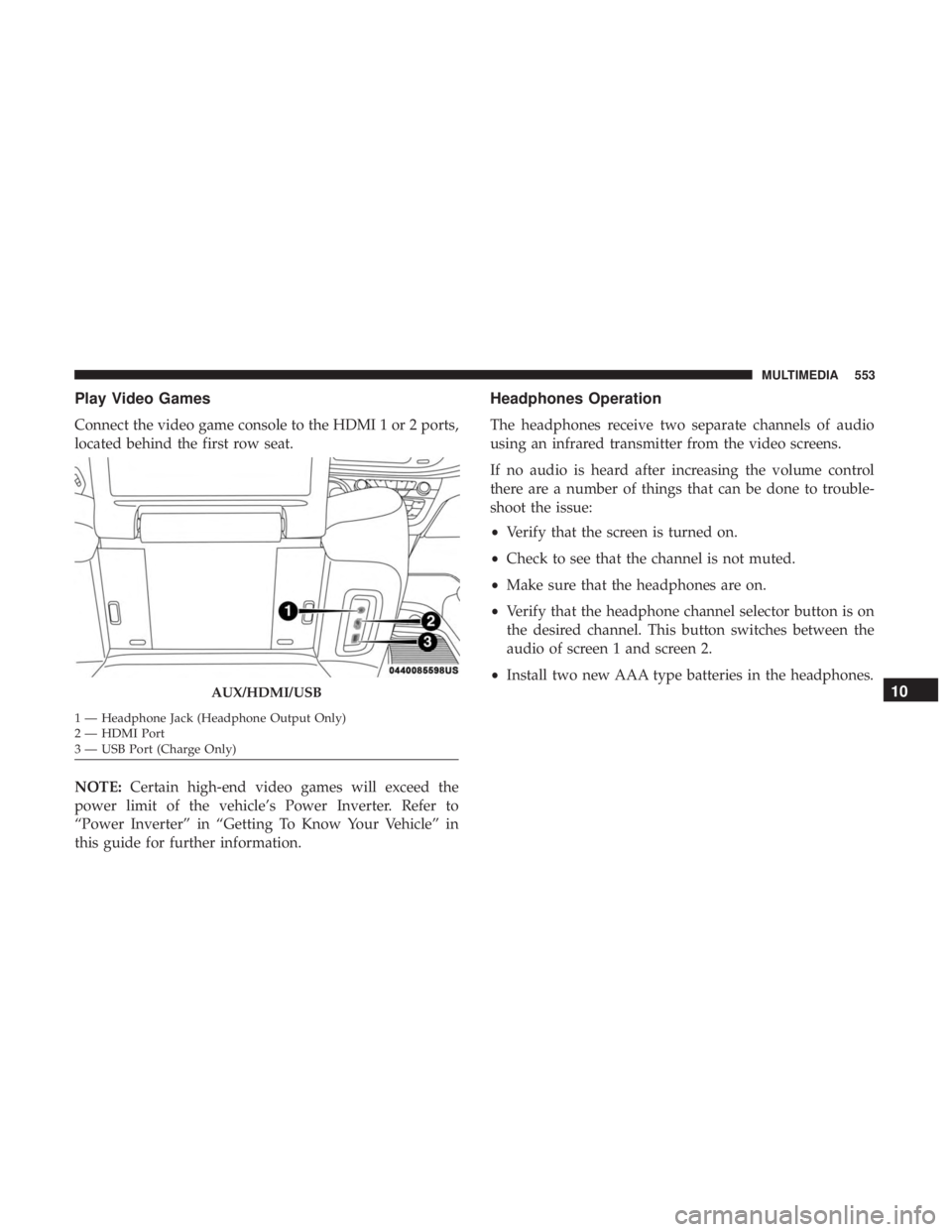
Play Video Games
Connect the video game console to the HDMI 1 or 2 ports,
located behind the first row seat.
NOTE:Certain high-end video games will exceed the
power limit of the vehicle’s Power Inverter. Refer to
“Power Inverter” in “Getting To Know Your Vehicle” in
this guide for further information.
Headphones Operation
The headphones receive two separate channels of audio
using an infrared transmitter from the video screens.
If no audio is heard after increasing the volume control
there are a number of things that can be done to trouble-
shoot the issue:
• Verify that the screen is turned on.
• Check to see that the channel is not muted.
• Make sure that the headphones are on.
• Verify that the headphone channel selector button is on
the desired channel. This button switches between the
audio of screen 1 and screen 2.
• Install two new AAA type batteries in the headphones.
AUX/HDMI/USB
1 — Headphone Jack (Headphone Output Only)
2 — HDMI Port
3 — USB Port (Charge Only)
10
MULTIMEDIA 553
Page 561 of 614
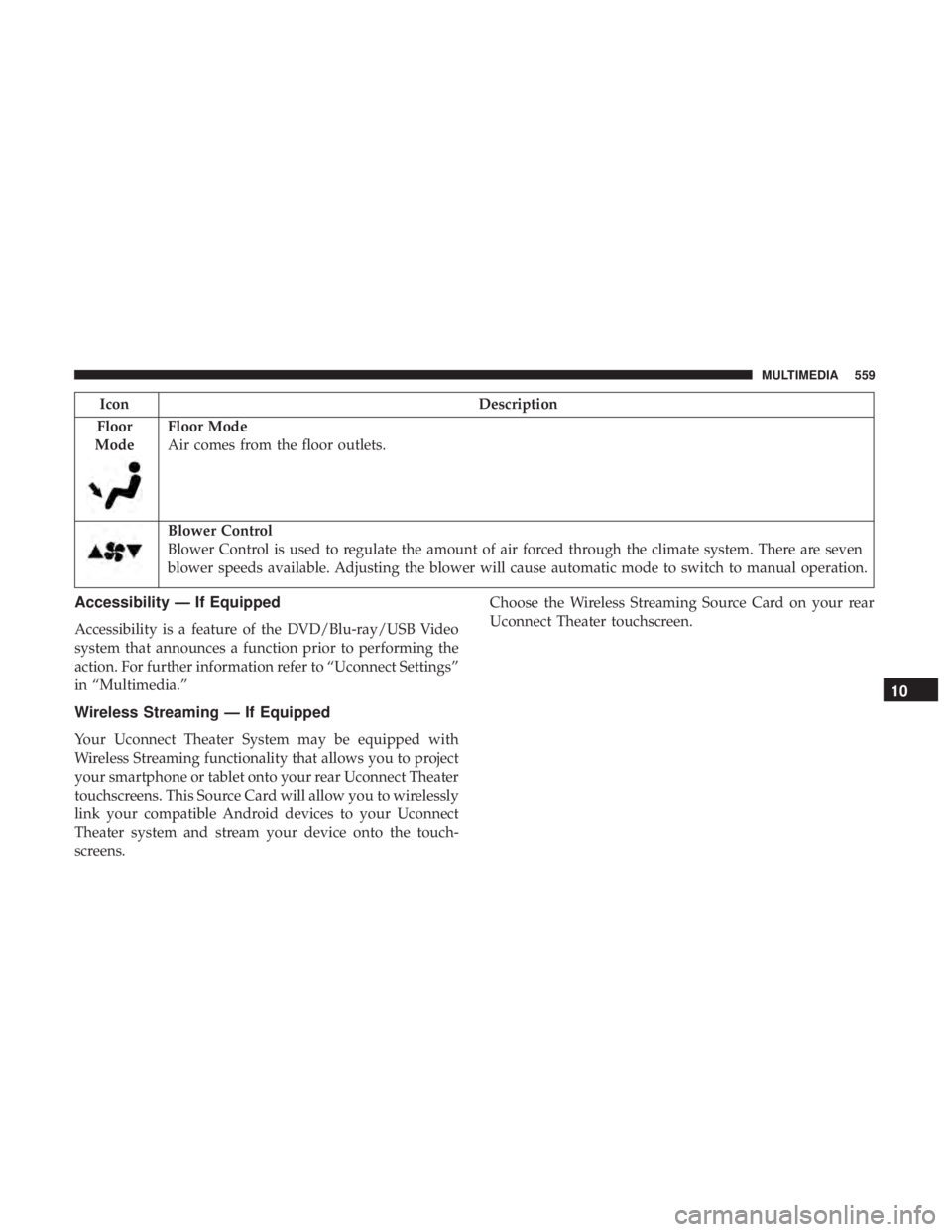
IconDescription
Floor
Mode
Floor Mode
Air comes from the floor outlets.
Blower Control
Blower Control is used to regulate the amount of air forced through the climate system. There are seven
blower speeds available. Adjusting the blower will cause automatic mode to switch to manual operation.
Accessibility — If Equipped
Accessibility is a feature of the DVD/Blu-ray/USB Video
system that announces a function prior to performing the
action. For further information refer to “Uconnect Settings”
in “Multimedia.”
Wireless Streaming — If Equipped
Your Uconnect Theater System may be equipped with
Wireless Streaming functionality that allows you to project
your smartphone or tablet onto your rear Uconnect Theater
touchscreens. This Source Card will allow you to wirelessly
link your compatible Android devices to your Uconnect
Theater system and stream your device onto the touch-
screens. Choose the Wireless Streaming Source Card on your rear
Uconnect Theater touchscreen.
10
MULTIMEDIA 559
Page 575 of 614
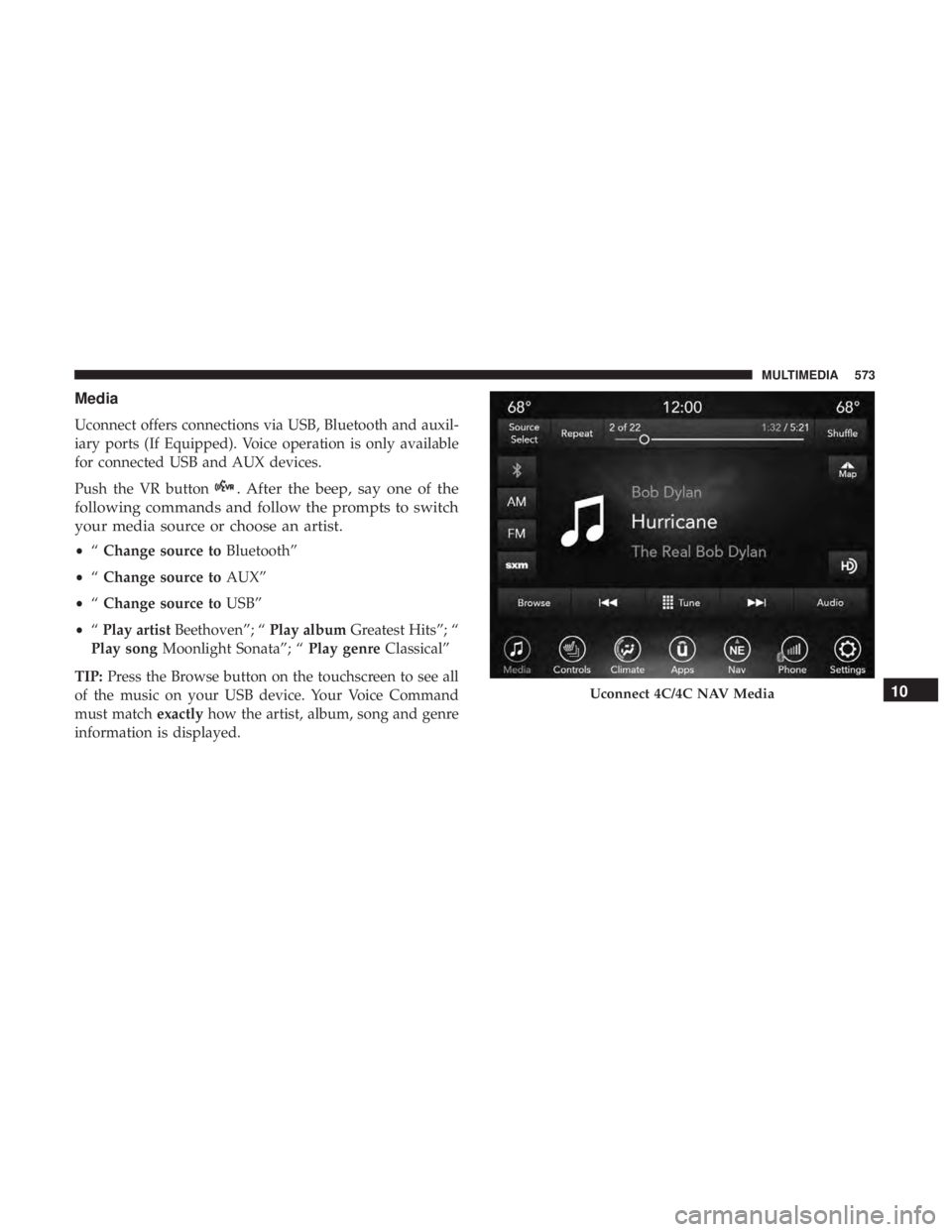
Media
Uconnect offers connections via USB, Bluetooth and auxil-
iary ports (If Equipped). Voice operation is only available
for connected USB and AUX devices.
Push the VR button
. After the beep, say one of the
following commands and follow the prompts to switch
your media source or choose an artist.
• “Change source to Bluetooth”
• “Change source to AUX”
• “Change source to USB”
• “Play artist Beethoven”; “ Play albumGreatest Hits”; “
Play song Moonlight Sonata”; “ Play genreClassical”
TIP: Press the Browse button on the touchscreen to see all
of the music on your USB device. Your Voice Command
must match exactlyhow the artist, album, song and genre
information is displayed.
Uconnect 4C/4C NAV Media10
MULTIMEDIA 573
Page 584 of 614
Do Not Disturb
With Do Not Disturb, you can disable notifications from
incoming calls and texts, allowing you to keep your eyes
on the road and hands on the wheel. For your convenience,
there is a counter display to keep track of your missed calls
and text messages while you were using Do Not Disturb.
Do Not Disturb can automatically reply with a text mes-
sage, a call or both, when declining an incoming call and
send it to voicemail.
Automatic reply messages can be:
•“I am driving right now, I will get back to you shortly.”
• Create a custom auto reply message up to 160 characters.
NOTE: Only the first 25 characters can be seen on the
touchscreen while typing a custom message.
While in Do Not Disturb, Conference Call can be selected
so you can still place a second call without being inter-
rupted by incoming calls. NOTE:
•
Reply with text message is not compatible with iPhones.
• Auto reply with text message is only available on
phones that support Bluetooth MAP.
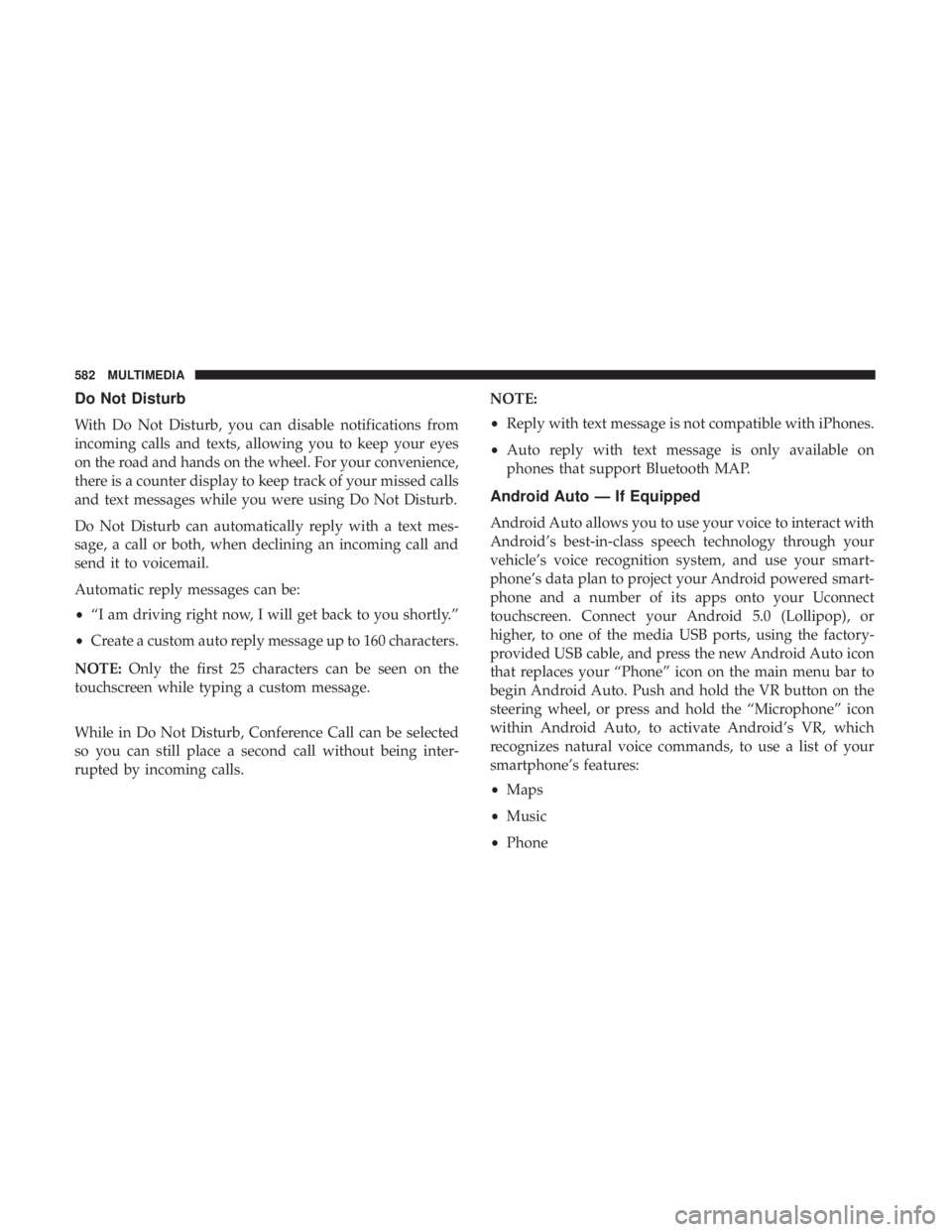
Android Auto — If Equipped
Android Auto allows you to use your voice to interact with
Android’s best-in-class speech technology through your
vehicle’s voice recognition system, and use your smart-
phone’s data plan to project your Android powered smart-
phone and a number of its apps onto your Uconnect
touchscreen. Connect your Android 5.0 (Lollipop), or
higher, to one of the media USB ports, using the factory-
provided USB cable, and press the new Android Auto icon
that replaces your “Phone” icon on the main menu bar to
begin Android Auto. Push and hold the VR button on the
steering wheel, or press and hold the “Microphone” icon
within Android Auto, to activate Android’s VR, which
recognizes natural voice commands, to use a list of your
smartphone’s features:
• Maps
• Music
• Phone
582 MULTIMEDIA
Page 585 of 614
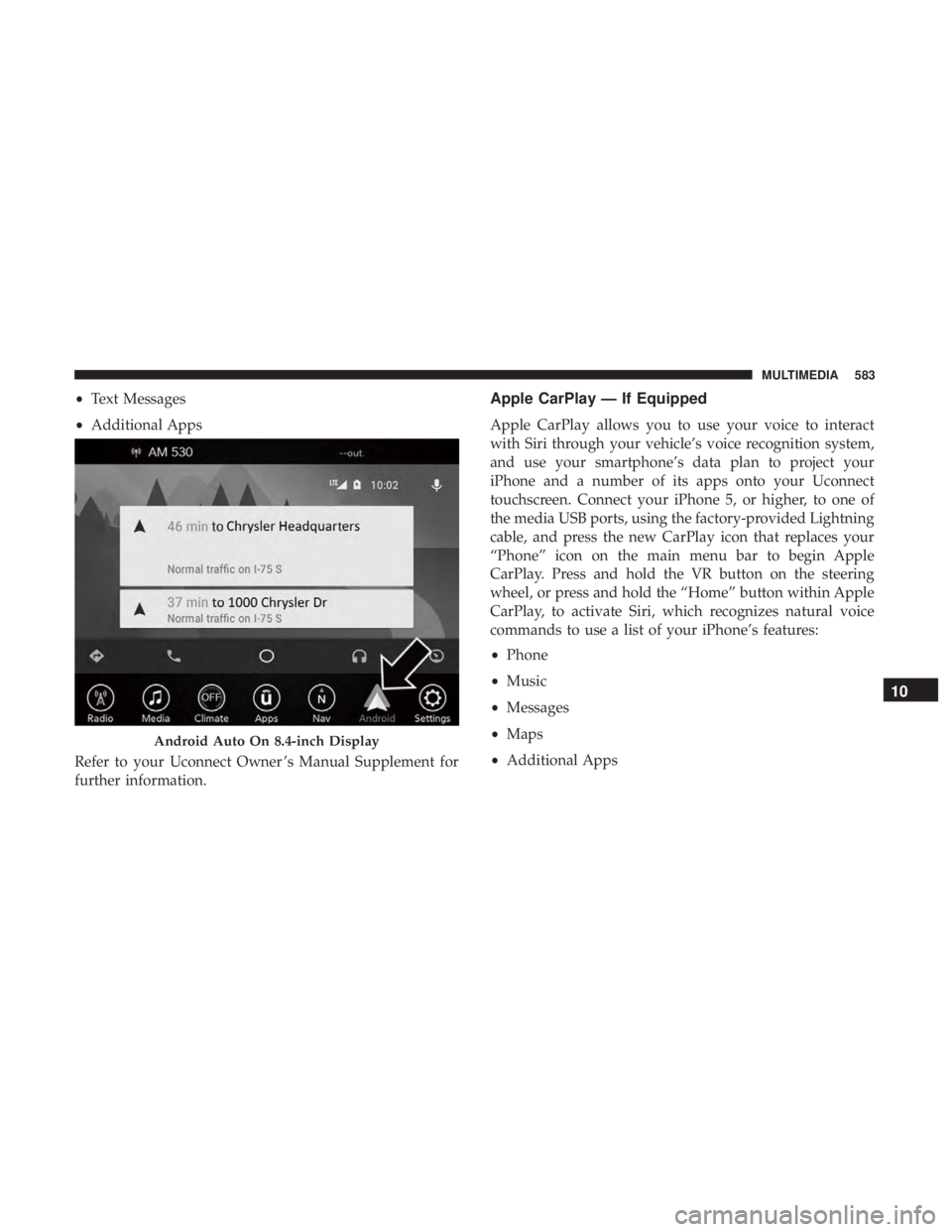
•Text Messages
• Additional Apps
Refer to your Uconnect Owner ’s Manual Supplement for
further information.Apple CarPlay — If Equipped
Apple CarPlay allows you to use your voice to interact
with Siri through your vehicle’s voice recognition system,
and use your smartphone’s data plan to project your
iPhone and a number of its apps onto your Uconnect
touchscreen. Connect your iPhone 5, or higher, to one of
the media USB ports, using the factory-provided Lightning
cable, and press the new CarPlay icon that replaces your
“Phone” icon on the main menu bar to begin Apple
CarPlay. Press and hold the VR button on the steering
wheel, or press and hold the “Home” button within Apple
CarPlay, to activate Siri, which recognizes natural voice
commands to use a list of your iPhone’s features:
• Phone
• Music
• Messages
• Maps
• Additional Apps
Android Auto On 8.4-inch Display
10
MULTIMEDIA 583
Page 601 of 614
Glass Cleaning........................... .490
GVWR ................................. .370
Hazard Driving Through Flowing, Rising, Or Shallow
Standing Water ......................... .375
Hazard Warning Flasher ..................... .378
Headlights Bulb Replacement ....................... .386
Cleaning .............................. .486
Delay ..................................93
High Beam/Low Beam Select Switch ...........93
Lights On Reminder .....................93, 96
Passing ............................. .93, 95
Replacing ............................. .386
Switch .................................93
Time Delay .......................... .93, 96
Washers ................................96
Head Restraints ............................83
Heated Mirrors ......................... .89, 92
High Beam/Low Beam Select (Dimmer) Switch . . .93, 94
Hill Start Assist ........................... .195
HomeLink (Garage Door Opener) ...............134
Hood Prop .............................. .126
Hood Release ............................ .126Hook, Coat
.............................. .144
Inside Rearview Mirror ....................89, 378
Instrument Cluster ..................... .159, 182
Instrument Cluster Display Information Display ...................... .160
Instrument Panel Lens Cleaning ................489
Interior And Instrument Lights ..................98
Interior Appearance Care .....................488
Interior Lights ..............................98
Intermittent Wipers (Delay Wipers) ..............101
Introduction ................................4
Inverter, Power ........................... .147
iPod/USB/MP3 Control ..................... .535
Jack Operation ........................ .400, 461
Jump Starting ............................ .418
KeyFob..................................38 Arm The Alarm ..........................54
Disarm The Alarm ........................54
Pr
ogramming Additional Key Fobs .............53
Remote Battery Replacement .................42
Key Fob Battery Service (Remote Keyless Entry) .....42
12
INDEX 599