USB port CHRYSLER PACIFICA HYBRID 2019 User Guide
[x] Cancel search | Manufacturer: CHRYSLER, Model Year: 2019, Model line: PACIFICA HYBRID, Model: CHRYSLER PACIFICA HYBRID 2019Pages: 620, PDF Size: 4.92 MB
Page 557 of 620
General Information
The following regulatory statement applies to all Radio
Frequency (RF) devices equipped in this vehicle:
This device complies with Part 15 of the FCC Rules and
with Industry Canada license-exempt RSS standard(s).
Operation is subject to the following two conditions:
1. This device may not cause harmful interference, and
2. This device must accept any interference received, in-cluding interference that may cause undesired opera-
tion.
NOTE: Changes or modifications not expressly approved
by the party responsible for compliance could void the
user ’s authority to operate the equipment.
Play A DVD/Blu-ray Or USB Media File From
Uconnect System
1. Insert a Blu-ray disc or DVD disc into the disc player with the label facing up, or insert a USB drive into rear
Video USB port.
NOTE: The DVD/Blu-ray Disc player and Video USB port
are both located under the radio controls in the instrument
panel. 2. Press the “Uconnect Theater” button on the radio touch-
screen.
Refer to “Accessing The System From The Uconnect Sys-
tem” in this section for further information.
3. Select Disc or USB from the source controls (i.e. select the desired source from the “Select Input 1” or “Select
Input 2” menu for the respective screen).
4. For DVD/Blu-ray disc – press the “Press to Enter” feature in the Movie Snapshot on the radio touchscreen,
then press “OK” on the following screen. The steps to
start a DVD are dependent on the steps required by that
specific DVD. For USB Media Files - Press Music, Movie,
or Folders, then select media title from list(s).
5. To play a DVD/Blu-ray disc on both screens simultane- ously, select “Disc” from both screen drop downs, or
choose “Disc Source” on one screen and push the “View
Screen” button on the other.
10
MULTIMEDIA 555
Page 558 of 620
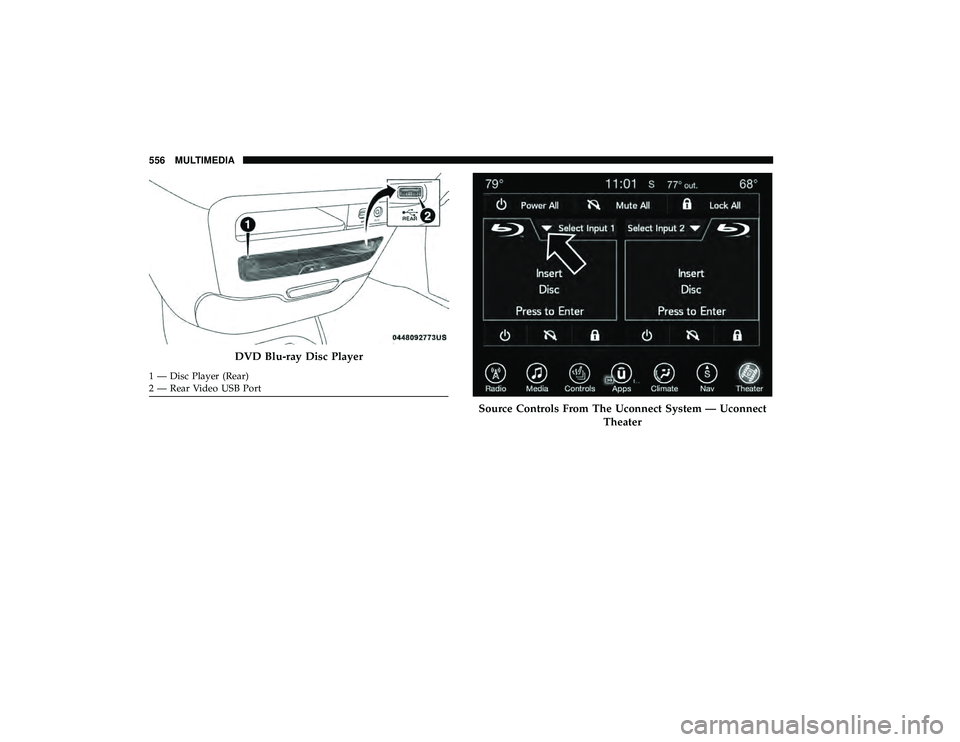
DVD Blu-ray Disc Player
1 — Disc Player (Rear)
2 — Rear Video USB Port
Source Controls From The Uconnect System — UconnectTheater
556 MULTIMEDIA
Page 562 of 620
NOTE:To exit a game, press “Exit Button” then “Back
Arrow,” or “Home Button” on the touchscreen.
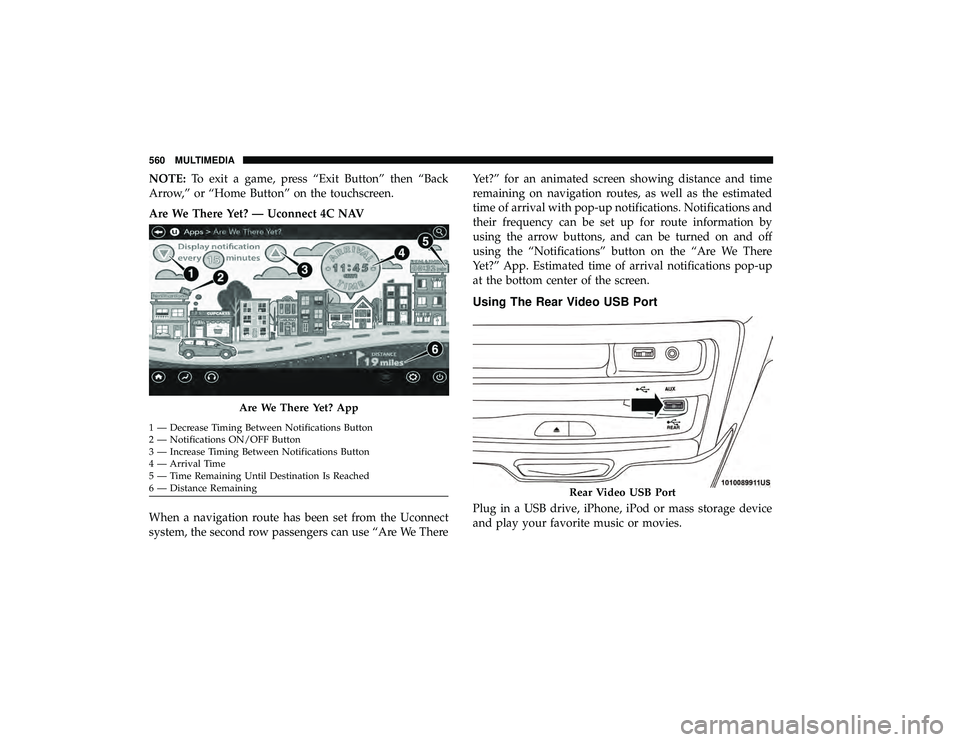
Are We There Yet? — Uconnect 4C NAV
When a navigation route has been set from the Uconnect
system, the second row passengers can use “Are We There Yet?” for an animated screen showing distance and time
remaining on navigation routes, as well as the estimated
time of arrival with pop-up notifications. Notifications and
their frequency can be set up for route information by
using the arrow buttons, and can be turned on and off
using the “Notifications” button on the “Are We There
Yet?” App. Estimated time of arrival notifications pop-up
at the bottom center of the screen.
Using The Rear Video USB Port
Plug in a USB drive, iPhone, iPod or mass storage device
and play your favorite music or movies.
Are We There Yet? App
1 — Decrease Timing Between Notifications Button
2 — Notifications ON/OFF Button
3 — Increase Timing Between Notifications Button
4 — Arrival Time
5 — Time Remaining Until Destination Is Reached
6 — Distance Remaining
Rear Video USB Port
560 MULTIMEDIA
Page 563 of 620
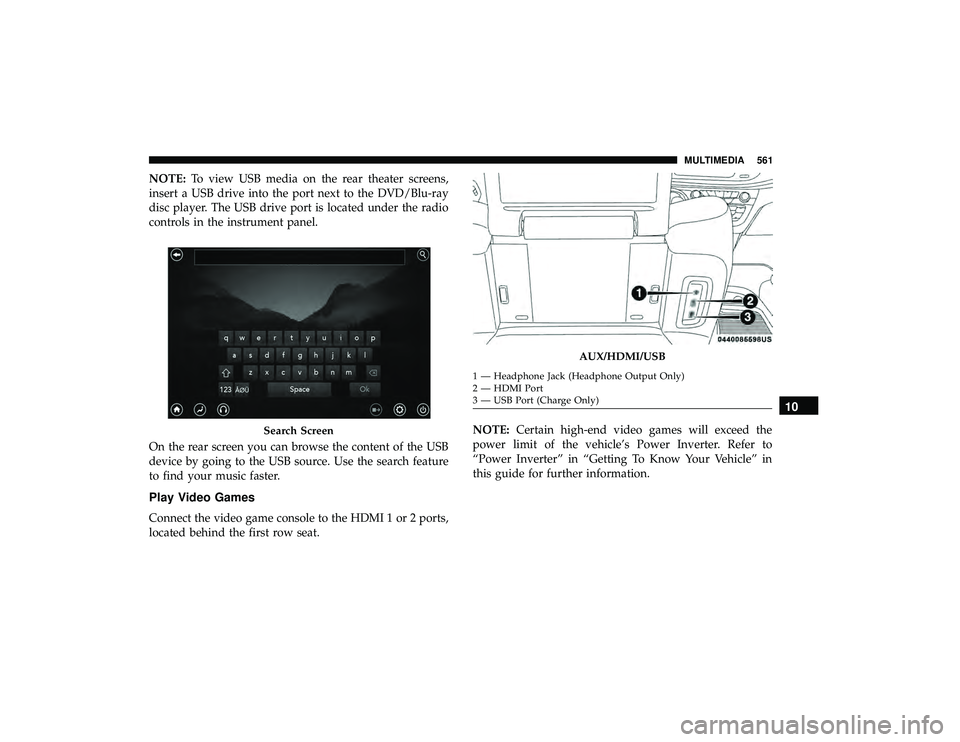
NOTE:To view USB media on the rear theater screens,
insert a USB drive into the port next to the DVD/Blu-ray
disc player. The USB drive port is located under the radio
controls in the instrument panel.
On the rear screen you can browse the content of the USB
device by going to the USB source. Use the search feature
to find your music faster.
Play Video Games
Connect the video game console to the HDMI 1 or 2 ports,
located behind the first row seat. NOTE:
Certain high-end video games will exceed the
power limit of the vehicle’s Power Inverter. Refer to
“Power Inverter” in “Getting To Know Your Vehicle” in
this guide for further information.
Search Screen
AUX/HDMI/USB
1 — Headphone Jack (Headphone Output Only)
2 — HDMI Port
3 — USB Port (Charge Only)
10
MULTIMEDIA 561
Page 584 of 620
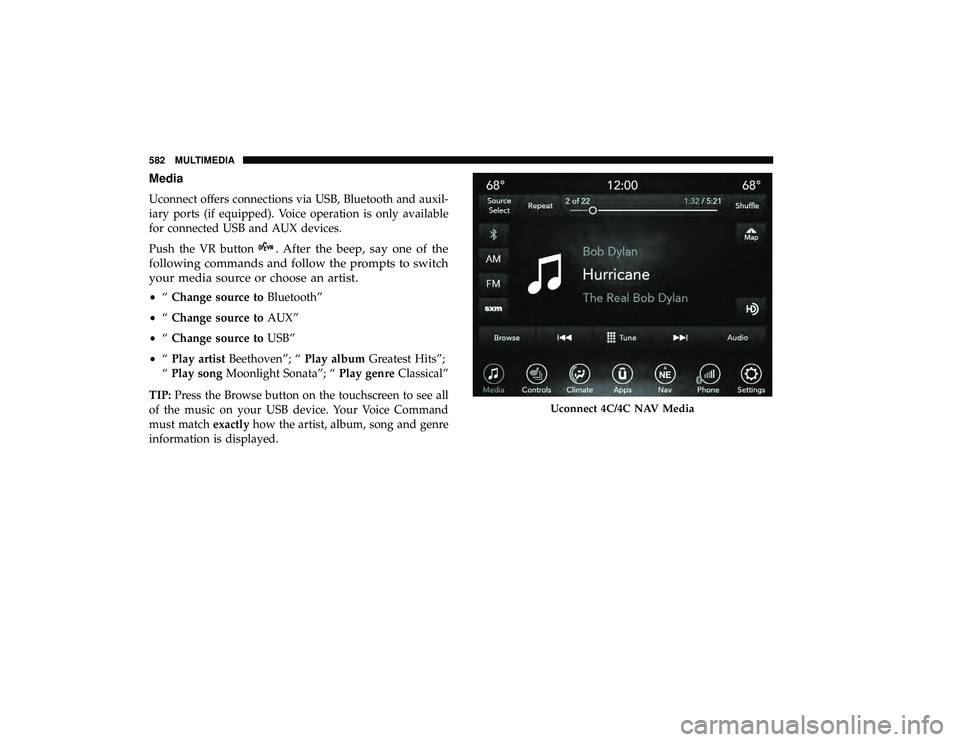
Media
Uconnect offers connections via USB, Bluetooth and auxil-
iary ports (if equipped). Voice operation is only available
for connected USB and AUX devices.
Push the VR button
. After the beep, say one of the
following commands and follow the prompts to switch
your media source or choose an artist.
• “Change source to Bluetooth”
• “Change source to AUX”
• “Change source to USB”
• “Play artist Beethoven”; “ Play albumGreatest Hits”;
“ Play song Moonlight Sonata”; “ Play genreClassical”
TIP: Press the Browse button on the touchscreen to see all
of the music on your USB device. Your Voice Command
must match exactlyhow the artist, album, song and genre
information is displayed.
Uconnect 4C/4C NAV Media
582 MULTIMEDIA
Page 593 of 620
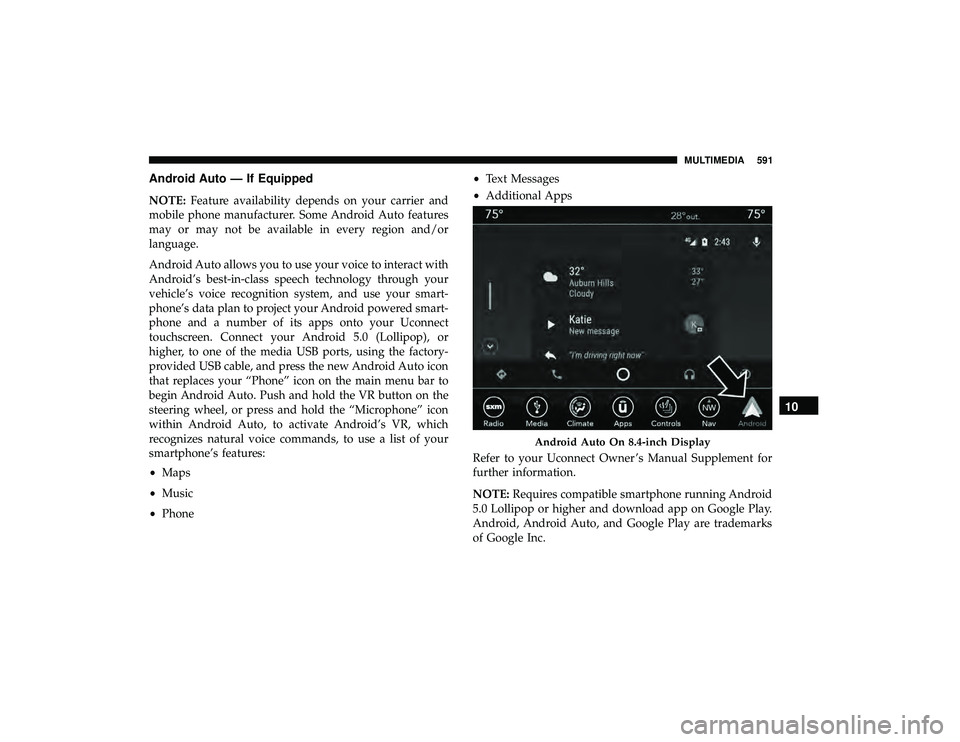
Android Auto — If Equipped
NOTE:Feature availability depends on your carrier and
mobile phone manufacturer. Some Android Auto features
may or may not be available in every region and/or
language.
Android Auto allows you to use your voice to interact with
Android’s best-in-class speech technology through your
vehicle’s voice recognition system, and use your smart-
phone’s data plan to project your Android powered smart-
phone and a number of its apps onto your Uconnect
touchscreen. Connect your Android 5.0 (Lollipop), or
higher, to one of the media USB ports, using the factory-
provided USB cable, and press the new Android Auto icon
that replaces your “Phone” icon on the main menu bar to
begin Android Auto. Push and hold the VR button on the
steering wheel, or press and hold the “Microphone” icon
within Android Auto, to activate Android’s VR, which
recognizes natural voice commands, to use a list of your
smartphone’s features:
• Maps
• Music
• Phone •
Text Messages
• Additional Apps
Refer to your Uconnect Owner ’s Manual Supplement for
further information.
NOTE: Requires compatible smartphone running Android
5.0 Lollipop or higher and download app on Google Play.
Android, Android Auto, and Google Play are trademarks
of Google Inc.
Android Auto On 8.4-inch Display
10
MULTIMEDIA 591
Page 594 of 620
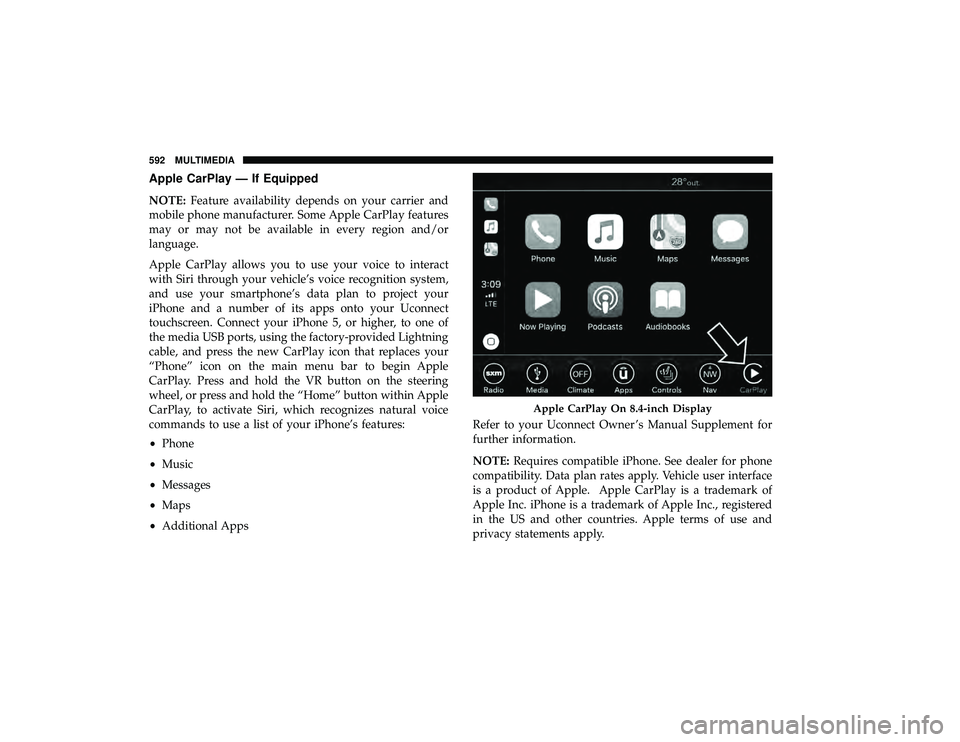
Apple CarPlay — If Equipped
NOTE:Feature availability depends on your carrier and
mobile phone manufacturer. Some Apple CarPlay features
may or may not be available in every region and/or
language.
Apple CarPlay allows you to use your voice to interact
with Siri through your vehicle’s voice recognition system,
and use your smartphone’s data plan to project your
iPhone and a number of its apps onto your Uconnect
touchscreen. Connect your iPhone 5, or higher, to one of
the media USB ports, using the factory-provided Lightning
cable, and press the new CarPlay icon that replaces your
“Phone” icon on the main menu bar to begin Apple
CarPlay. Press and hold the VR button on the steering
wheel, or press and hold the “Home” button within Apple
CarPlay, to activate Siri, which recognizes natural voice
commands to use a list of your iPhone’s features:
• Phone
• Music
• Messages
• Maps
• Additional Apps Refer to your Uconnect Owner ’s Manual Supplement for
further information.
NOTE:
Requires compatible iPhone. See dealer for phone
compatibility. Data plan rates apply. Vehicle user interface
is a product of Apple. Apple CarPlay is a trademark of
Apple Inc. iPhone is a trademark of Apple Inc., registered
in the US and other countries. Apple terms of use and
privacy statements apply.
Apple CarPlay On 8.4-inch Display
592 MULTIMEDIA
Page 616 of 620
Spinning.............................. .484
Tread Wear Indicators .................... .484
Wheel Nut Torque ....................... .503
Tire Safety Information ...................... .472
Tire Service Kit ........................... .419
To Open Hood ........................... .131
Towing ................................. .386
Disabled Vehicle ........................ .438
Recreational ........................... .386
Towing Behind A Motorhome ..................386
Traction ................................ .388
Traction Control .......................... .195
Trailer Towing ............................ .386
Transaxle Automatic ............................ .297
Operation ............................. .297
Transmission Automatic ............................ .470
Maintenance ........................... .470
Transporting Pets ......................... .277
Tread Wear Indicators ...................... .484
Turn Signals ....................... .99, 188, 400
Uconnect Theater ............................... .545Uconnect Settings
..................... .51, 517
Uconnect 4C/4C Nav With 8.4-Inch Display ........518
Uconnect Settings Customer Programmable Features ..........51, 517
Umbrella Holder .......................... .148
Uniform Tire Quality Grades ..................493
Universal Garage Door Opener (HomeLink) ........139
Universal Transmitter ....................... .139
Unleaded Gasoline ........................ .504
Untwisting Procedure, Seat Belt ................225
USB................................... .544
Vanity Mirrors .............................98
Vehicle Identification Number (VIN) .............502
Vehicle Loading ....................... .384,
478
Vehicle Modifications/Alterations .................5
Vehicle Storage ........................... .122
Ventilated Seats .............................86
Viscosity, Engine Oil ....................... .451
Voice Command .......................... .578
Voice Recognition System (VR) .................578
Warning Lights (Instrument Cluster Descriptions) . . . .184
Warnings And Cautions .......................5
Warranty Information ...................... .599
614 INDEX