heater CHRYSLER PACIFICA HYBRID 2019 Owner's Manual
[x] Cancel search | Manufacturer: CHRYSLER, Model Year: 2019, Model line: PACIFICA HYBRID, Model: CHRYSLER PACIFICA HYBRID 2019Pages: 620, PDF Size: 4.92 MB
Page 563 of 620
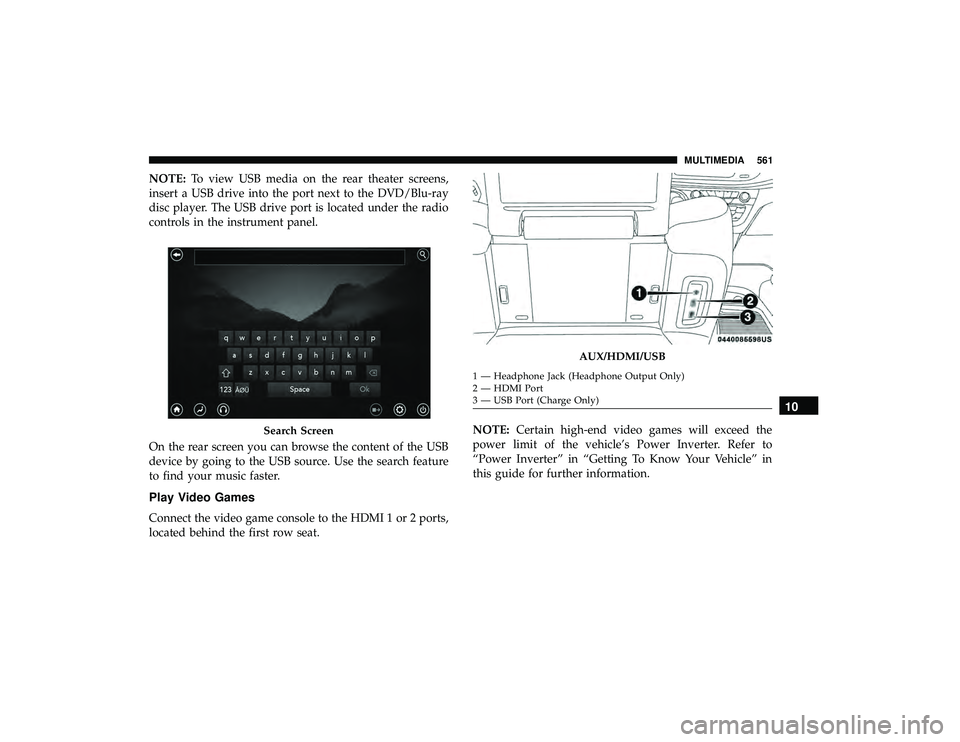
NOTE:To view USB media on the rear theater screens,
insert a USB drive into the port next to the DVD/Blu-ray
disc player. The USB drive port is located under the radio
controls in the instrument panel.
On the rear screen you can browse the content of the USB
device by going to the USB source. Use the search feature
to find your music faster.
Play Video Games
Connect the video game console to the HDMI 1 or 2 ports,
located behind the first row seat. NOTE:
Certain high-end video games will exceed the
power limit of the vehicle’s Power Inverter. Refer to
“Power Inverter” in “Getting To Know Your Vehicle” in
this guide for further information.
Search Screen
AUX/HDMI/USB
1 — Headphone Jack (Headphone Output Only)
2 — HDMI Port
3 — USB Port (Charge Only)
10
MULTIMEDIA 561
Page 564 of 620
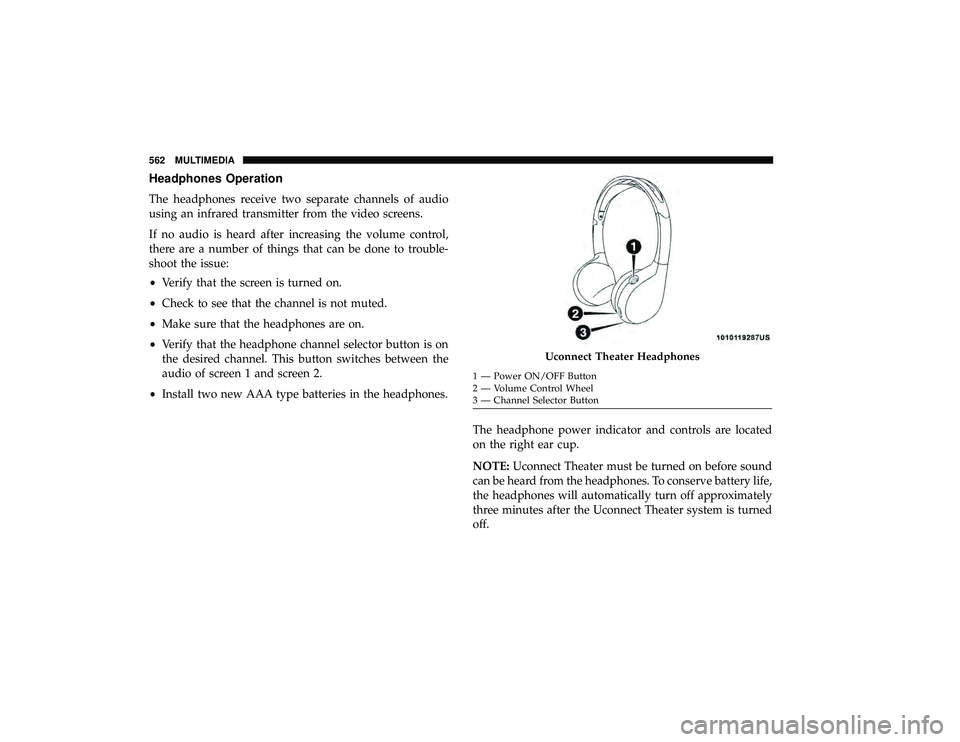
Headphones Operation
The headphones receive two separate channels of audio
using an infrared transmitter from the video screens.
If no audio is heard after increasing the volume control,
there are a number of things that can be done to trouble-
shoot the issue:
•Verify that the screen is turned on.
• Check to see that the channel is not muted.
• Make sure that the headphones are on.
• Verify that the headphone channel selector button is on
the desired channel. This button switches between the
audio of screen 1 and screen 2.
• Install two new AAA type batteries in the headphones.
The headphone power indicator and controls are located
on the right ear cup.
NOTE:Uconnect Theater must be turned on before sound
can be heard from the headphones. To conserve battery life,
the headphones will automatically turn off approximately
three minutes after the Uconnect Theater system is turned
off.
Uconnect Theater Headphones
1 — Power ON/OFF Button
2 — Volume Control Wheel
3 — Channel Selector Button
562 MULTIMEDIA
Page 567 of 620
Display Settings
When watching a video source, pressing “Settings”
icon on the touchscreen activates the Settings menu.
These settings control the appearance of the video on
the screen. The factory default settings are already set
for optimum viewing, so there is no need to change
these settings under normal circumstances.
To change the settings, use one of the touchscreens or
remote. To reset all values back to the original settings,
select “Reset to Defaults”, then select “YES.”
Listening To Audio With The Screen Closed
To listen to only audio portion of the channel with the
screen closed:
• Set the audio to the desired source and channel.
• Close the video screen.
• When the screen is reopened, the video screen will
automatically turn back on and show the appropriate
display menu or media.
If the screen is closed and there is no audio heard, verify
that the headphones are turned on (the ON indicator is
illuminated) and the headphone selector switch is on the
desired channel. If the headphones are turned on, push the remote control’s power button to turn audio on. If audio is
still not heard, check that fully charged batteries are
installed in the headphones.
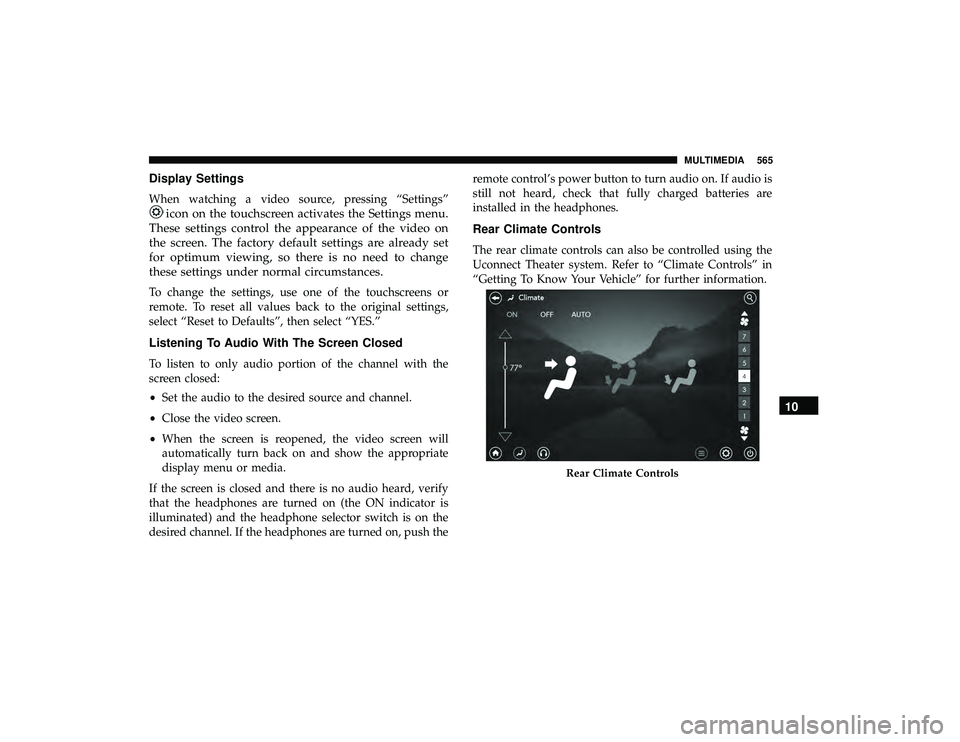
Rear Climate Controls
The rear climate controls can also be controlled using the
Uconnect Theater system. Refer to “Climate Controls” in
“Getting To Know Your Vehicle” for further information.
Rear Climate Controls
10
MULTIMEDIA 565
Page 570 of 620
Accessibility — If Equipped
Accessibility is a feature of the DVD/Blu-ray/USB Video
system that announces a function prior to performing the
action. For further information refer to “Uconnect Settings”
in “Multimedia.”
Wireless Streaming — If Equipped
Your Uconnect Theater System may be equipped with Wire-
less Streaming functionality that allows you to project your
smartphone or tablet onto your rear Uconnect Theater touch-
screens. This Source Card will allow you to wirelessly link
your compatible Android devices to your Uconnect Theater
system and stream your device onto the touchscreens.
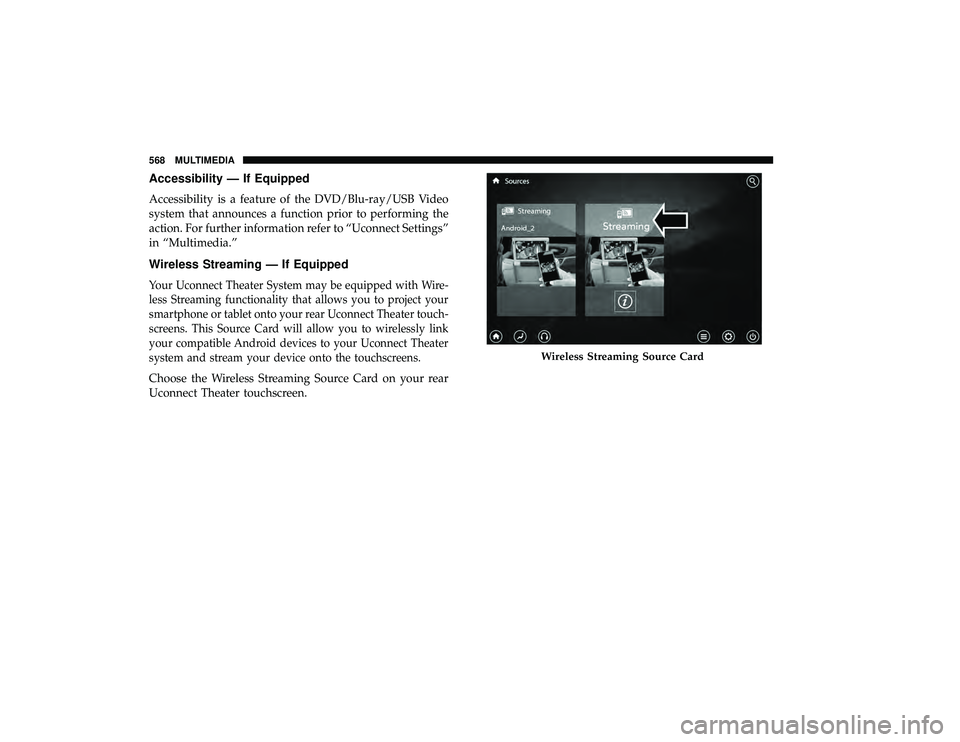
Choose the Wireless Streaming Source Card on your rear
Uconnect Theater touchscreen.
Wireless Streaming Source Card
568 MULTIMEDIA
Page 571 of 620
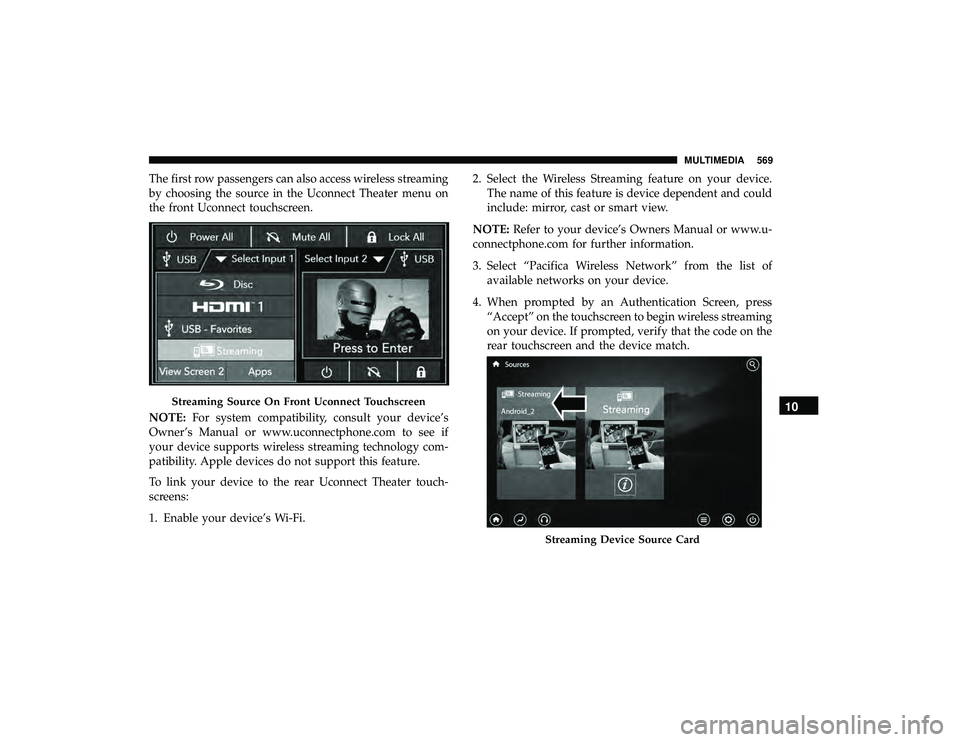
The first row passengers can also access wireless streaming
by choosing the source in the Uconnect Theater menu on
the front Uconnect touchscreen.
NOTE:For system compatibility, consult your device’s
Owner’s Manual or www.uconnectphone.com to see if
your device supports wireless streaming technology com-
patibility. Apple devices do not support this feature.
To link your device to the rear Uconnect Theater touch-
screens:
1. Enable your device’s Wi-Fi. 2. Select the Wireless Streaming feature on your device.
The name of this feature is device dependent and could
include: mirror, cast or smart view.
NOTE: Refer to your device’s Owners Manual or www.u-
connectphone.com for further information.
3. Select “Pacifica Wireless Network” from the list of available networks on your device.
4. When prompted by an Authentication Screen, press “Accept” on the touchscreen to begin wireless streaming
on your device. If prompted, verify that the code on the
rear touchscreen and the device match.
Streaming Source On Front Uconnect Touchscreen
Streaming Device Source Card
10
MULTIMEDIA 569
Page 572 of 620
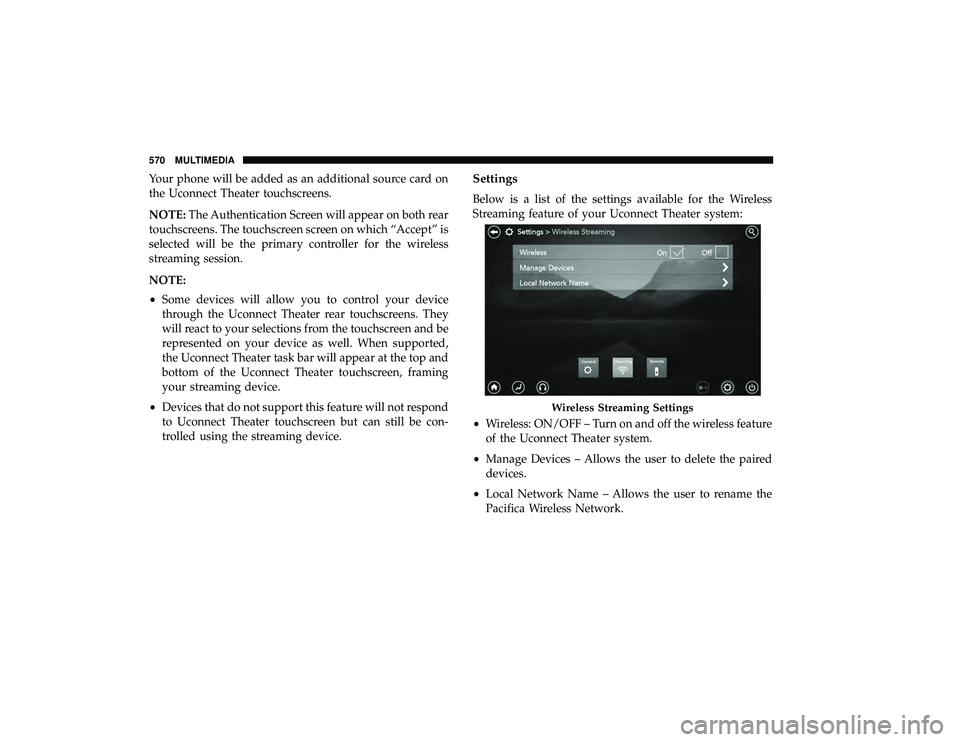
Your phone will be added as an additional source card on
the Uconnect Theater touchscreens.
NOTE:The Authentication Screen will appear on both rear
touchscreens. The touchscreen screen on which “Accept” is
selected will be the primary controller for the wireless
streaming session.
NOTE:
• Some devices will allow you to control your device
through the Uconnect Theater rear touchscreens. They
will react to your selections from the touchscreen and be
represented on your device as well. When supported,
the Uconnect Theater task bar will appear at the top and
bottom of the Uconnect Theater touchscreen, framing
your streaming device.
• Devices that do not support this feature will not respond
to Uconnect Theater touchscreen but can still be con-
trolled using the streaming device.Settings
Below is a list of the settings available for the Wireless
Streaming feature of your Uconnect Theater system:
• Wireless: ON/OFF – Turn on and off the wireless feature
of the Uconnect Theater system.
• Manage Devices – Allows the user to delete the paired
devices.
• Local Network Name – Allows the user to rename the
Pacifica Wireless Network.
Wireless Streaming Settings
570 MULTIMEDIA
Page 616 of 620
Spinning.............................. .484
Tread Wear Indicators .................... .484
Wheel Nut Torque ....................... .503
Tire Safety Information ...................... .472
Tire Service Kit ........................... .419
To Open Hood ........................... .131
Towing ................................. .386
Disabled Vehicle ........................ .438
Recreational ........................... .386
Towing Behind A Motorhome ..................386
Traction ................................ .388
Traction Control .......................... .195
Trailer Towing ............................ .386
Transaxle Automatic ............................ .297
Operation ............................. .297
Transmission Automatic ............................ .470
Maintenance ........................... .470
Transporting Pets ......................... .277
Tread Wear Indicators ...................... .484
Turn Signals ....................... .99, 188, 400
Uconnect Theater ............................... .545Uconnect Settings
..................... .51, 517
Uconnect 4C/4C Nav With 8.4-Inch Display ........518
Uconnect Settings Customer Programmable Features ..........51, 517
Umbrella Holder .......................... .148
Uniform Tire Quality Grades ..................493
Universal Garage Door Opener (HomeLink) ........139
Universal Transmitter ....................... .139
Unleaded Gasoline ........................ .504
Untwisting Procedure, Seat Belt ................225
USB................................... .544
Vanity Mirrors .............................98
Vehicle Identification Number (VIN) .............502
Vehicle Loading ....................... .384,
478
Vehicle Modifications/Alterations .................5
Vehicle Storage ........................... .122
Ventilated Seats .............................86
Viscosity, Engine Oil ....................... .451
Voice Command .......................... .578
Voice Recognition System (VR) .................578
Warning Lights (Instrument Cluster Descriptions) . . . .184
Warnings And Cautions .......................5
Warranty Information ...................... .599
614 INDEX