Prog CHRYSLER PACIFICA HYBRID 2020 Owner's Manual
[x] Cancel search | Manufacturer: CHRYSLER, Model Year: 2020, Model line: PACIFICA HYBRID, Model: CHRYSLER PACIFICA HYBRID 2020Pages: 516, PDF Size: 28.69 MB
Page 101 of 516
GETTING TO KNOW YOUR VEHICLE99
LIFTGATE
Opening
To Unlock/Enter The Liftgate
The liftgate may be released in several ways:
Overhead console liftgate button
Key fob
Outside handle
Push the liftgate button on the key fob twice
within five seconds to release the liftgate.
The key fob and the overhead console button
will release the liftgate when the liftgate is
locked. The outside handle requires the liftgate
to be unlocked. If the vehicle is equipped with
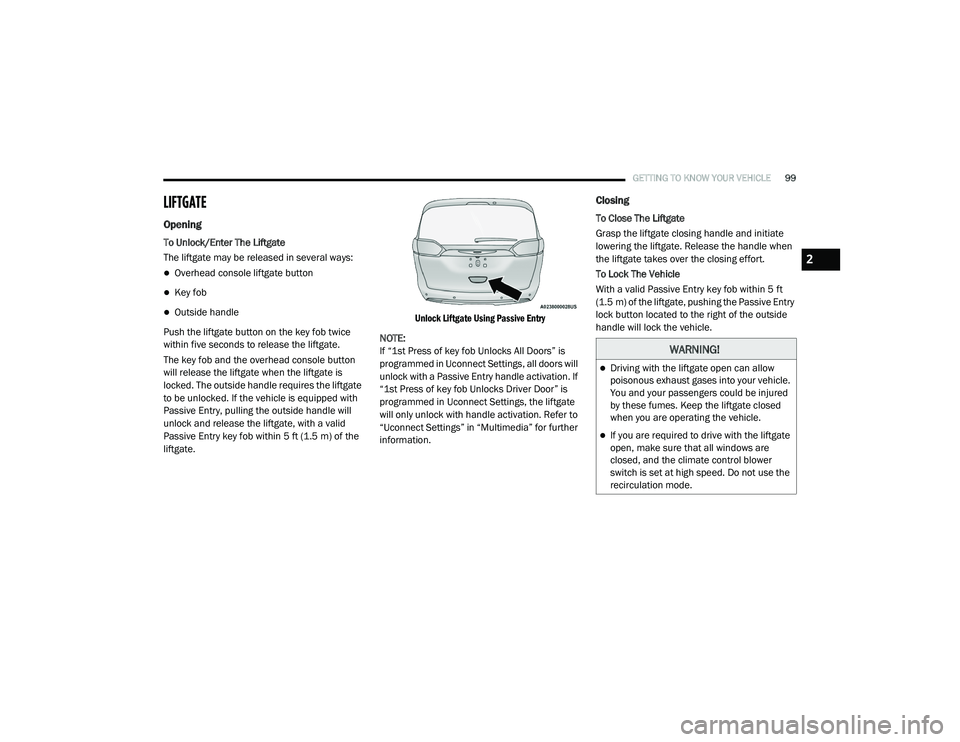
Passive Entry, pulling the outside handle will
unlock and release the liftgate, with a valid
Passive Entry key fob within 5 ft (1.5 m) of the
liftgate.
Unlock Liftgate Using Passive Entry
NOTE:
If “1st Press of key fob Unlocks All Doors” is
programmed in Uconnect Settings, all doors will
unlock with a Passive Entry handle activation. If
“1st Press of key fob Unlocks Driver Door” is
programmed in Uconnect Settings, the liftgate
will only unlock with handle activation. Refer to
“Uconnect Settings” in “Multimedia” for further
information.
Closing
To Close The Liftgate
Grasp the liftgate closing handle and initiate
lowering the liftgate. Release the handle when
the liftgate takes over the closing effort.
To Lock The Vehicle
With a valid Passive Entry key fob within 5 ft
(1.5 m) of the liftgate, pushing the Passive Entry
lock button located to the right of the outside
handle will lock the vehicle.
WARNING!
Driving with the liftgate open can allow
poisonous exhaust gases into your vehicle.
You and your passengers could be injured
by these fumes. Keep the liftgate closed
when you are operating the vehicle.
If you are required to drive with the liftgate
open, make sure that all windows are
closed, and the climate control blower
switch is set at high speed. Do not use the
recirculation mode.
2
20_RU_OM_EN_US_t.book Page 99
Page 102 of 516
100GETTING TO KNOW YOUR VEHICLE
Power Liftgate — If Equipped
The power liftgate may be opened or closed in
several ways:
Overhead console liftgate button
Key fob
Outside handle (opens liftgate only)
Button just inside the liftgate on the upper
left trim (when liftgate is open)
Hands-Free Liftgate (if equipped) — opens lift -
gate only
Using the above ways:
When the liftgate is fully closed, the liftgate
will open
When the liftgate is fully open, the liftgate will
close
When the liftgate is moving, the liftgate will
reverse Push the Power Liftgate button on the overhead
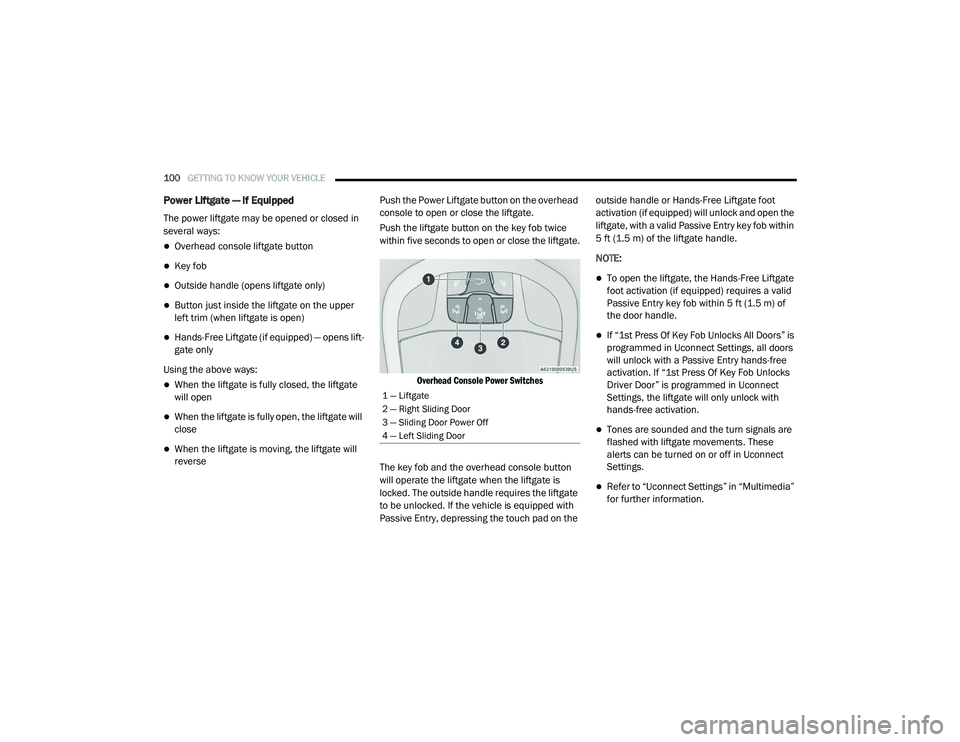
console to open or close the liftgate.
Push the liftgate button on the key fob twice
within five seconds to open or close the liftgate.
Overhead Console Power Switches
The key fob and the overhead console button
will operate the liftgate when the liftgate is
locked. The outside handle requires the liftgate
to be unlocked. If the vehicle is equipped with
Passive Entry, depressing the touch pad on the outside handle or Hands-Free Liftgate foot
activation (if equipped) will unlock and open the
liftgate, with a valid Passive Entry key fob within
5 ft (1.5 m) of the liftgate handle.
NOTE:
To open the liftgate, the Hands-Free Liftgate
foot activation (if equipped) requires a valid
Passive Entry key fob within 5 ft (1.5 m) of
the door handle.
If “1st Press Of Key Fob Unlocks All Doors” is
programmed in Uconnect Settings, all doors
will unlock with a Passive Entry hands-free
activation. If “1st Press Of Key Fob Unlocks
Driver Door” is programmed in Uconnect
Settings, the liftgate will only unlock with
hands-free activation.
Tones are sounded and the turn signals are
flashed with liftgate movements. These
alerts can be turned on or off in Uconnect
Settings.
Refer to “Uconnect Settings” in “Multimedia”
for further information.
1 — Liftgate
2 — Right Sliding Door
3 — Sliding Door Power Off
4 — Left Sliding Door
20_RU_OM_EN_US_t.book Page 100
Page 111 of 516
GETTING TO KNOW YOUR VEHICLE109
GARAGE DOOR OPENER — IF EQUIPPED
HomeLink® replaces up to three hand-held
transmitters that operate devices such as
garage door openers, motorized gates, lighting
or home security systems. The HomeLink® unit
is powered by your vehicle’s 12 Volt battery.
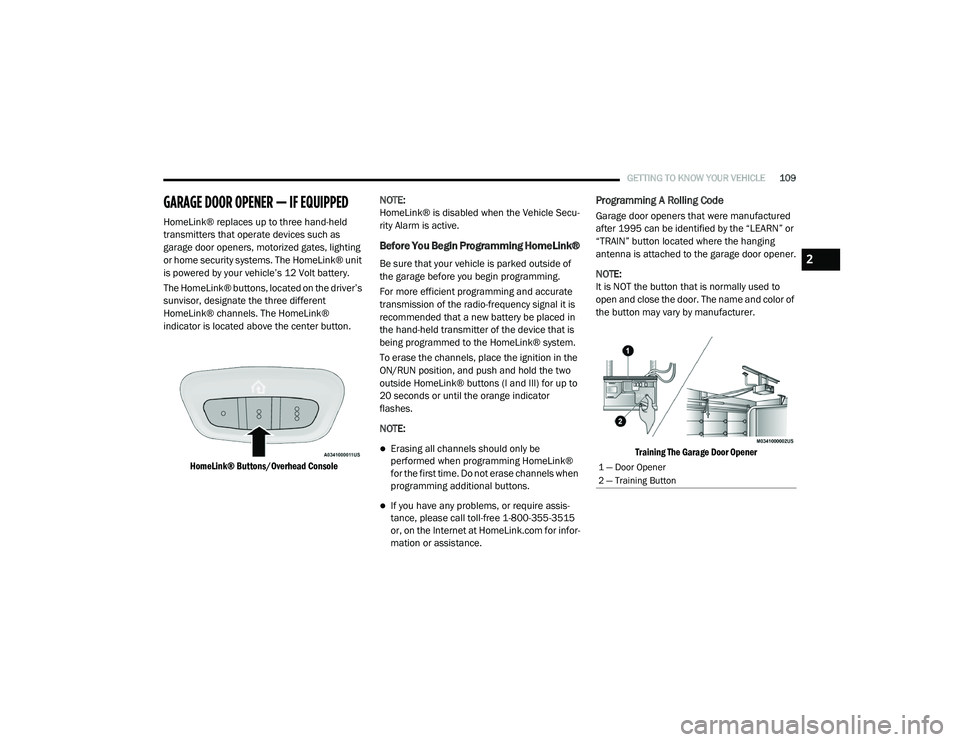
The HomeLink® buttons, located on the driver’s
sunvisor, designate the three different
HomeLink® channels. The HomeLink®
indicator is located above the center button.
HomeLink® Buttons/Overhead Console
NOTE:
HomeLink® is disabled when the Vehicle Secu
-
rity Alarm is active.
Before You Begin Programming HomeLink®
Be sure that your vehicle is parked outside of
the garage before you begin programming.
For more efficient programming and accurate
transmission of the radio-frequency signal it is
recommended that a new battery be placed in
the hand-held transmitter of the device that is
being programmed to the HomeLink® system.
To erase the channels, place the ignition in the
ON/RUN position, and push and hold the two
outside HomeLink® buttons (I and III) for up to
20 seconds or until the orange indicator
flashes.
NOTE:
Erasing all channels should only be
performed when programming HomeLink®
for the first time. Do not erase channels when
programming additional buttons.
If you have any problems, or require assis -
tance, please call toll-free 1-800-355-3515
or, on the Internet at HomeLink.com for infor -
mation or assistance.
Programming A Rolling Code
Garage door openers that were manufactured
after 1995 can be identified by the “LEARN” or
“TRAIN” button located where the hanging
antenna is attached to the garage door opener.
NOTE:
It is NOT the button that is normally used to
open and close the door. The name and color of
the button may vary by manufacturer.
Training The Garage Door Opener
1 — Door Opener
2 — Training Button
2
20_RU_OM_EN_US_t.book Page 109
Page 112 of 516
110GETTING TO KNOW YOUR VEHICLE
To program these kinds of garage door openers,
proceed as follows:
1. Place the ignition in the ON/RUN position.
2. Place the hand-held transmitter 1 to
3 inches (3 to 8 cm) away from the
HomeLink® button you wish to program
while keeping the HomeLink® indicator
light in view.
3. Push and hold the HomeLink® button you want to program while you push and hold
the hand-held transmitter button.
4. Continue to hold both buttons and observe the indicator light. The HomeLink®
indicator will flash slowly and then rapidly
after HomeLink® has received the
frequency signal from the hand-held
transmitter. Release both buttons after the
indicator light changes from slow to rapid.
5. On the garage door opener (in the garage), locate the “LEARN” or “TRAINING” button.
This can usually be found where the
hanging antenna wire is attached to the
garage door opener/device motor. Firmly
push and release the “LEARN” or “TRAINING” button. On some garage door
openers/devices there may be a light that
blinks when the garage door opener/device
is in the LEARN/TRAIN mode.
NOTE:
You have 30 seconds in which to initiate the
next step after the LEARN button has been
pushed.
6. Return to the vehicle and push the programmed HomeLink® button twice
(holding the button for two seconds each
time). If the garage door opener/device
activates, programming is complete.
NOTE:
If the garage door opener/device does not acti -
vate, push the button a third time (for two
seconds) to complete the training. To program
the remaining two HomeLink® buttons, repeat
each step for each remaining button. DO NOT
erase the channels. Reprogramming A Single HomeLink® Button
(Rolling Code)
To reprogram a channel that has been
previously trained, follow these steps:
1. Place the ignition in the ON/RUN position.
2. Push and hold the desired HomeLink®
button until the indicator light begins to
flash after 20 seconds. Do not release the
button.
3. Without releasing the button proceed with “Programming A Rolling Code” step 2 and
follow all remaining steps.
Programming A Non-Rolling Code
For programming garage door openers
manufactured before 1995.
1. Place the ignition in the ON/RUN position.
2. Place the hand-held transmitter 1 to 3 inches (3 to 8 cm) away from the
HomeLink® button you wish to program
while keeping the HomeLink® indicator
light in view.
20_RU_OM_EN_US_t.book Page 110
Page 113 of 516
GETTING TO KNOW YOUR VEHICLE111
3. Press and hold the HomeLink® button you
want to program while you press and hold
the hand-held transmitter button.
4. Continue to hold both buttons and observe the indicator light. The HomeLink®
indicator will flash slowly and then rapidly
after HomeLink® has received the
frequency signal from the hand-held
transmitter. Release both buttons after the
indicator light changes from slow to rapid.
5. Press and hold the programmed HomeLink® button and observe the
indicator light.
If the indicator light stays on constantly,
programming is complete and the garage
door/device should activate when the
HomeLink® button is pressed.
To program the two remaining Home -
Link® buttons, repeat each step for each
remaining button. DO NOT erase the
channels. Reprogramming A Single HomeLink® Button
(Non-Rolling Code)
To reprogram a channel that has been
previously trained, follow these steps:
1. Place the ignition in the ON/RUN position.
2. Press and hold the desired HomeLink®
button until the indicator light begins to flash
after 20 seconds. Do not release the button.
3. Without releasing the button, proceed with “Programming A Non-Rolling Code” step 2
and follow all remaining steps.
Canadian/Gate Operator Programming
For programming transmitters in Canada/
United States that require the transmitter
signals to “time-out” after several seconds of
transmission.
Canadian radio frequency laws require
transmitter signals to time-out (or quit) after
several seconds of transmission – which may
not be long enough for HomeLink® to pick up
the signal during programming. Similar to this
Canadian law, some U.S. gate operators are
designed to time-out in the same manner. It may be helpful to unplug the device during the
cycling process to prevent possible overheating
of the garage door or gate motor.
1. Place the ignition in the ON/RUN position.
2. Place the hand-held transmitter 1 to
3 inches (3 to 8 cm) away from the
HomeLink® button you wish to program
while keeping the HomeLink® indicator
light in view.
3. Continue to press and hold the HomeLink® button, while you press and release
(“cycle”) your hand-held transmitter every
two seconds until HomeLink® has
successfully accepted the frequency signal.
The indicator light will flash slowly and then
rapidly when fully trained.
4. Watch for the HomeLink® indicator to change flash rates. When it changes, it is
programmed. It may take up to 30 seconds
or longer in rare cases. The garage door
may open and close while you are
programming.
5. Press and hold the programmed HomeLink® button and observe the
indicator light.
2
20_RU_OM_EN_US_t.book Page 111
Page 114 of 516
112GETTING TO KNOW YOUR VEHICLE
(Continued)
NOTE:
If the indicator light stays on constantly,
programming is complete and the garage
door/device should activate when the
HomeLink® button is pressed.
To program the two remaining Home-
Link® buttons, repeat each step for each
remaining button. DO NOT erase the
channels.
If you unplugged the garage door opener/
device for programming, plug it back in at this
time.
Reprogramming A Single HomeLink® Button
(Canadian/Gate Operator)
To reprogram a channel that has been
previously trained, follow these steps:
1. Place the ignition in the ON/RUN position.
2. Press and hold the desired HomeLink® button until the indicator light begins to
flash after 20 seconds. Do not release the
button.
3. Without releasing the button, proceed with “Canadian/Gate Operator Programming”
step 2 and follow all remaining steps.
Using HomeLink®
To operate, push and release the programmed
HomeLink® button. Activation will now occur for
the programmed device (i.e. garage door
opener, gate operator, security system, entry
door lock, home/office lighting, etc.). The
hand-held transmitter of the device may also be
used at any time.
Security
It is advised to erase all channels before you sell
or turn in your vehicle.
To do this, push and hold the two outside
buttons for 20 seconds until the orange
indicator flashes. Note that all channels will be
erased. Individual channels cannot be erased.
The HomeLink Universal Transceiver is disabled
when the Vehicle Security Alarm is active.
Troubleshooting Tips
If you are having trouble programming
HomeLink®, here are some of the most
common solutions:
Replace the battery in the garage door
opener hand-held transmitter.
Push the LEARN button on the garage door
opener to complete the training for a Rolling
Code.
Did you unplug the device for programming
and remember to plug it back in?
If you have any problems, or require assistance,
please call toll-free 1-800-355-3515 or, on the
Internet at HomeLink.com for information or
assistance.
WARNING!
Vehicle exhaust contains carbon monoxide,
a dangerous gas. Do not run your vehicle in
the garage while programming the trans -
ceiver. Exhaust gas can cause serious
injury or death.
20_RU_OM_EN_US_t.book Page 112
Page 115 of 516
GETTING TO KNOW YOUR VEHICLE113
General Information
The following regulatory statement applies to all
Radio Frequency (RF) devices equipped in this
vehicle:
This device complies with Part 15 of the FCC
Rules and with Innovation, Science and
Economic Development Canada license-exempt
RSS standard(s). Operation is subject to the
following two conditions:
1. This device may not cause harmful
interference, and
2. This device must accept any interference received, including interference that may
cause undesired operation.
Le présent appareil est conforme aux CNR
d`Innovation, Science and Economic
Development applicables aux appareils radio
exempts de licence. L'exploitation est autorisée
aux deux conditions suivantes:
1. l'appareil ne doit pas produire de brouillage, et
2. l'utilisateur de l'appareil doit accepter tout brouillage radioélectrique subi, même si le
brouillage est susceptible d'en compro -
mettre le fonctionnement.
La operación de este equipo está sujeta a las
siguientes dos condiciones:
1. es posible que este equipo o dispositivo no cause interferencia perjudicial y
2. este equipo o dispositivo debe aceptar cualquier interferencia, incluyendo la que
pueda causar su operación no deseada. NOTE:
Changes or modifications not expressly
approved by the party responsible for compli
-
ance could void the user’s authority to operate
the equipment.
INTERNAL EQUIPMENT
Storage
Glove Compartment
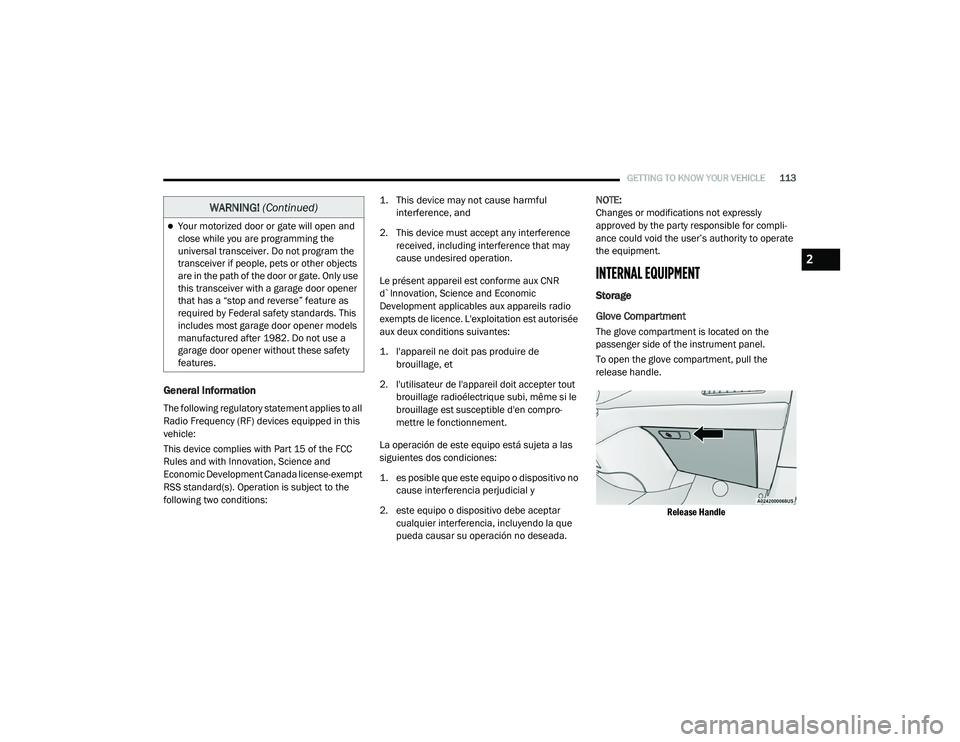
The glove compartment is located on the
passenger side of the instrument panel.
To open the glove compartment, pull the
release handle.
Release Handle
Your motorized door or gate will open and
close while you are programming the
universal transceiver. Do not program the
transceiver if people, pets or other objects
are in the path of the door or gate. Only use
this transceiver with a garage door opener
that has a “stop and reverse” feature as
required by Federal safety standards. This
includes most garage door opener models
manufactured after 1982. Do not use a
garage door opener without these safety
features.
WARNING! (Continued)
2
20_RU_OM_EN_US_t.book Page 113
Page 141 of 516
GETTING TO KNOW YOUR INSTRUMENT PANEL139
Loss of the battery charge may indicate one or
more of the following conditions:
The charging system cannot deliver enough
electrical power to the vehicle system
because the electrical loads are larger than
the capability of charging system. The
charging system is still functioning properly.
Turning on all possible vehicle electrical
loads (e.g. HVAC to max settings, exterior and
interior lights, overloaded power outlets +12
Volts, 150W, USB ports) during certain
driving conditions (city driving, towing,
frequent stopping).
Installing options like additional lights,
upfitter electrical accessories, audio
systems, alarms and similar devices.
Unusual driving cycles (short trips separated
by long parking periods).
The vehicle was parked for an extended
period of time (weeks, months).
The battery was recently replaced and was
not charged completely.
The battery was discharged by an electrical
load left on when the vehicle was parked.
The battery was used for an extended period
with the engine not running to supply radio,
lights, chargers, +12 Volt portable appli-
ances like vacuum cleaners, game consoles
and similar devices.
What to do when an electrical load reduction
action message is present (“Battery Saver On”
or “Battery Saver Mode”)
During a trip:
Reduce power to unnecessary loads if
possible:
Turn off redundant lights (interior or exte -
rior)
Check what may be plugged in to power
outlets +12 Volts, 150W, USB ports
Check HVAC settings (blower, tempera -
ture)
Check the audio settings (volume) After a trip:
Check if any aftermarket equipment was
installed (additional lights, upfitter electrical
accessories, audio systems, alarms) and
review specifications if any (load and Ignition
Off Draw currents).
Evaluate the latest driving cycles (distance,
driving time and parking time).
The vehicle should have service performed if
the message is still present during consecu
-
tive trips and the evaluation of the vehicle
and driving pattern did not help to identify the
cause.
Instrument Cluster Display Programmable
Features Screen Setup
Push the up or down arrow button to scroll
through the Menu Items until the Screen Setup
displays in the instrument cluster display. Push
the OK button to enter Screen Setup. The
Screen Setup feature allows you to change what
information is displayed in the instrument
cluster display as well as the location that
information is displayed.
3
20_RU_OM_EN_US_t.book Page 139
Page 153 of 516

GETTING TO KNOW YOUR INSTRUMENT PANEL151
EMISSIONS INSPECTION AND
MAINTENANCE PROGRAMS
In some localities, it may be a legal requirement
to pass an inspection of your vehicle's
emissions control system. Failure to pass could
prevent vehicle registration.
For states that require an Inspection
and Maintenance (I/M), this check
verifies the “Malfunction Indicator
Light (MIL)” is functioning and is not
on when the engine is running, and that the
OBD II system is ready for testing.
Normally, the OBD II system will be ready. The
OBD II system may not be ready if your vehicle
was recently serviced, recently had a depleted
battery or a battery replacement. If the OBD II
system should be determined not ready for the
I/M test, your vehicle may fail the test.
Your vehicle has a simple ignition actuated test,
which you can use prior to going to the test
station. To check if your vehicle's OBD II system
is ready, you must do the following:
1. Cycle the ignition switch to the ON position,
but do not crank or start the engine.
NOTE:
If you crank or start the engine, you will have to
start this test over.
2. As soon as you cycle the ignition switch to the ON position, you will see the
“Malfunction Indicator Light (MIL)” symbol
come on as part of a normal bulb check.
3. Approximately 15 seconds later, one of two things will happen:
The MIL will flash for about 10 seconds and
then return to being fully illuminated until you
turn OFF the ignition or start the engine. This
means that your vehicle's OBD II system is
not ready and you should not proceed to the
I/M station.
The MIL will not flash at all and will remain
fully illuminated until you place the ignition in
the off position or start the engine. This
means that your vehicle's OBD II system is
ready and you can proceed to the I/M station. If your OBD II system is not ready,
you should
see an authorized dealer or repair facility. If your
vehicle was recently serviced or had a battery
failure or replacement, you may need to do
nothing more than drive your vehicle as you
normally would in order for your OBD II system
to update. A recheck with the above test routine
may then indicate that the system is now ready.
Regardless of whether your vehicle's OBD II
system is ready or not, if the MIL is illuminated
during normal vehicle operation you should
have your vehicle serviced before going to the
I/M station. The I/M station can fail your vehicle
because the MIL is on with the engine running.
3
20_RU_OM_EN_US_t.book Page 151
Page 166 of 516
164SAFETY
La operación de este equipo está sujeta a las
siguientes dos condiciones:
1. es posible que este equipo o dispositivo no
cause interferencia perjudicial y
2. este equipo o dispositivo debe aceptar cualquier interferencia, incluyendo la que
pueda causar su operación no deseada.
NOTE:
Changes or modifications not expressly
approved by the party responsible for compli -
ance could void the user’s authority to operate
the equipment.
Forward Collision Warning (FCW) With
Mitigation — If Equipped
The Forward Collision Warning (FCW) system
with Mitigation provides the driver with audible
warnings, visual warnings (within the
instrument cluster display), and may apply a
brake jerk to warn the driver when it detects a
potential frontal collision. The warnings and
limited braking are intended to provide the
driver with enough time to react, avoid or
mitigate the potential collision. NOTE:
FCW monitors the information from the forward
looking sensors as well as the Electronic Brake
Controller (EBC), to calculate the probability of a
forward collision. When the system determines
that a forward collision is probable, the driver
will be provided with audible and visual warn-
ings and may provide a brake jerk warning.
If the driver does not take action based upon
these progressive warnings, then the system
will provide a limited level of active braking to
help slow the vehicle and mitigate the potential
forward collision. If the driver reacts to the warn
-
ings by braking and the system determines that
the driver intends to avoid the collision by
braking but has not applied sufficient brake
force, the system will compensate and provide
additional brake force as required.
If a FCW with Mitigation event begins at a speed
below 26 mph (42 km/h), the system may
provide the maximum braking possible to miti -
gate the potential forward collision. If the
Forward Collision Warning with Mitigation event stops the vehicle completely, the system will
hold the vehicle at standstill for two seconds
and then release the brakes.
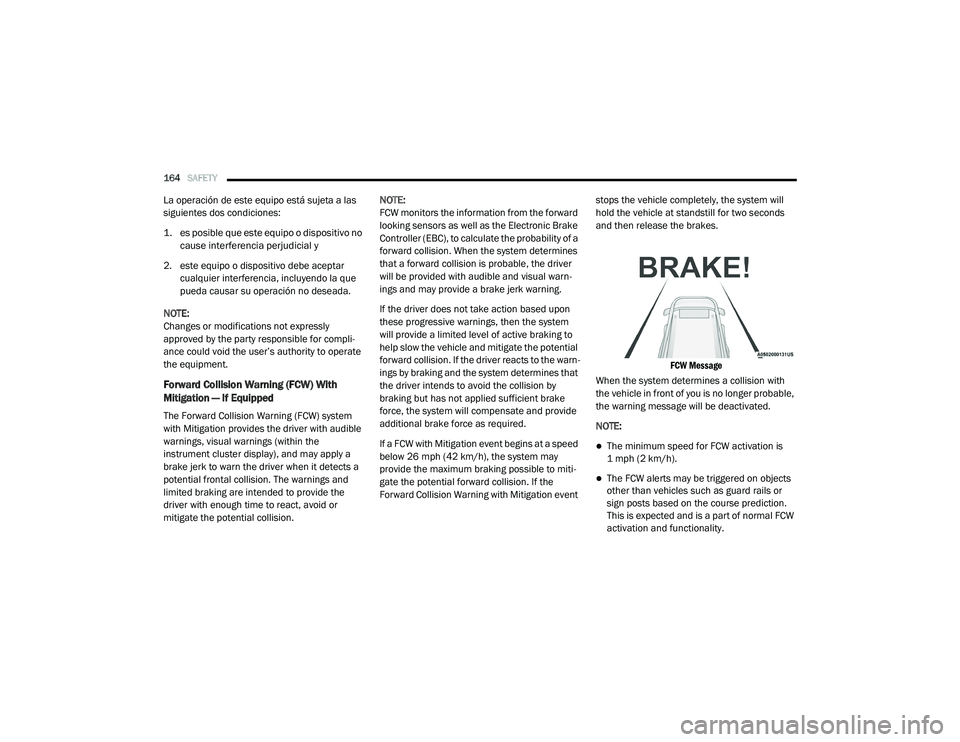
FCW Message
When the system determines a collision with
the vehicle in front of you is no longer probable,
the warning message will be deactivated.
NOTE:
The minimum speed for FCW activation is
1 mph (2 km/h).
The FCW alerts may be triggered on objects
other than vehicles such as guard rails or
sign posts based on the course prediction.
This is expected and is a part of normal FCW
activation and functionality.
20_RU_OM_EN_US_t.book Page 164