page 65 CHRYSLER PACIFICA HYBRID 2020 Owners Manual
[x] Cancel search | Manufacturer: CHRYSLER, Model Year: 2020, Model line: PACIFICA HYBRID, Model: CHRYSLER PACIFICA HYBRID 2020Pages: 516, PDF Size: 28.69 MB
Page 483 of 516
MULTIMEDIA481
Replacing The Headphone Batteries
Each set of headphones requires two AAA
batteries for operation.
To replace the batteries:
1. Locate the battery compartment on the left
ear cup of the headphones, and then slide
the battery cover downward.
2. Remove the old batteries and follow battery recycling procedures for your area.
3. Install new batteries, making sure to orient them according to the polarity diagram
shown inside the battery compartment.
4. Replace the battery compartment cover.
Stereo Headphone Lifetime Limited
Warranty
Who Does This Warranty Cover? This warranty
covers the initial user or purchaser ("you" or
"your") of this particular Aptiv PLC (“Aptiv”)
wireless headphone ("Product"). The warranty is
not transferable.
How Long Does the Coverage Last? This
warranty lasts as long as you own the Product. What Does This Warranty Cover?
Except as
specified below, this warranty covers any
Product that in normal use is defective in
workmanship or materials.
What Does This Warranty Not Cover? This
warranty does not cover any damage or defect
that results from misuse, abuse or modification
of the Product other than by Aptiv. Foam
earpieces, which will wear over time through
normal use, are specifically not covered
(replacement foam is available for a nominal
charge). APTIV IS NOT LIABLE FOR ANY
INJURIES OR DAMAGES TO PERSONS OR
PROPERTY RESULTING FROM THE USE OF, OR
ANY FAILURE OR DEFECT IN, THE PRODUCT,
NOR IS APTIV LIABLE FOR ANY GENERAL,
SPECIAL, DIRECT, INDIRECT, INCIDENTAL,
CONSEQUENTIAL, EXEMPLARY, PUNITIVE OR
OTHER DAMAGES OF ANY KIND OR NATURE
WHATSOEVER. Some states and jurisdictions
may not allow the exclusion or limitation of
incidental or consequential damages, so the
above limitation may not apply to you. This
warranty gives you specific legal rights. You may
also have other rights, which vary from
jurisdiction to jurisdiction. What Will Aptiv Do?
Aptiv, at its option, will
repair or replace any defective Product. Aptiv
reserves the right to replace any discontinued
Product with a comparable model. THIS
WARRANTY IS THE SOLE WARRANTY FOR THIS
PRODUCT, SETS FORTH YOUR EXCLUSIVE
REMEDY REGARDING DEFECTIVE PRODUCTS,
AND IS IN LIEU OF ALL OTHER WARRANTIES
(EXPRESS OR IMPLIED), INCLUDING ANY
WARRANTY FOR MERCHANTABILITY OR
FITNESS FOR A PARTICULAR PURPOSE.
If you have any questions or comments
regarding your Aptiv wireless headphones,
please email [email protected] or phone:
888-293-3332
Display Settings
When watching a video source, pressing the
Settings icon on the touchscreen activates
the Settings menu. These settings control the
appearance of the video on the screen. The
factory default settings are already set for
optimum viewing, so there is no need to change
these settings under normal circumstances.
To change the settings, use one of the
touchscreens or remote. To reset all values
back to the original settings, select “Reset to
Defaults”, then select “YES.”
9
20_RU_OM_EN_US_t.book Page 481
Page 484 of 516
482MULTIMEDIA
Listening To Audio With The Screen Closed
To listen to only audio portion of the channel
with the screen closed:
Set the audio to the desired source and
channel.
Close the video screen.
When the screen is reopened, the video
screen will automatically turn back on and
show the appropriate display menu or media. If the screen is closed and there is no audio
heard, verify that the headphones are turned on
(the ON indicator is illuminated) and the
headphone selector switch is on the desired
channel. If the headphones are turned on, push
the remote control’s power button to turn audio
on. If audio is still not heard, check that fully
charged batteries are installed in the
headphones.
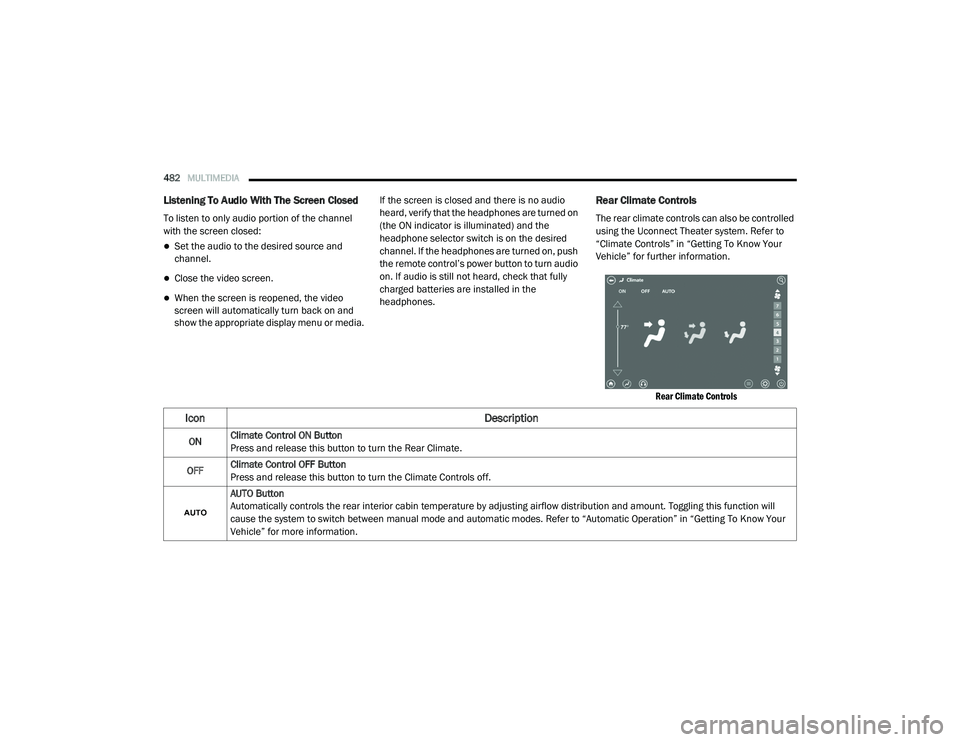
Rear Climate Controls
The rear climate controls can also be controlled
using the Uconnect Theater system. Refer to
“Climate Controls” in “Getting To Know Your
Vehicle” for further information.
Rear Climate Controls
Icon Description
ONClimate Control ON Button
Press and release this button to turn the Rear Climate.
OFF Climate Control OFF Button
Press and release this button to turn the Climate Controls off.
AUTO Button
Automatically controls the rear interior cabin temperature by adjusting airflow distribution and amount. Toggling this function will
cause the system to switch between manual mode and automatic modes. Refer to “Automatic Operation” in “Getting To Know Your
Vehicle” for more information.
20_RU_OM_EN_US_t.book Page 482
Page 485 of 516
MULTIMEDIA483
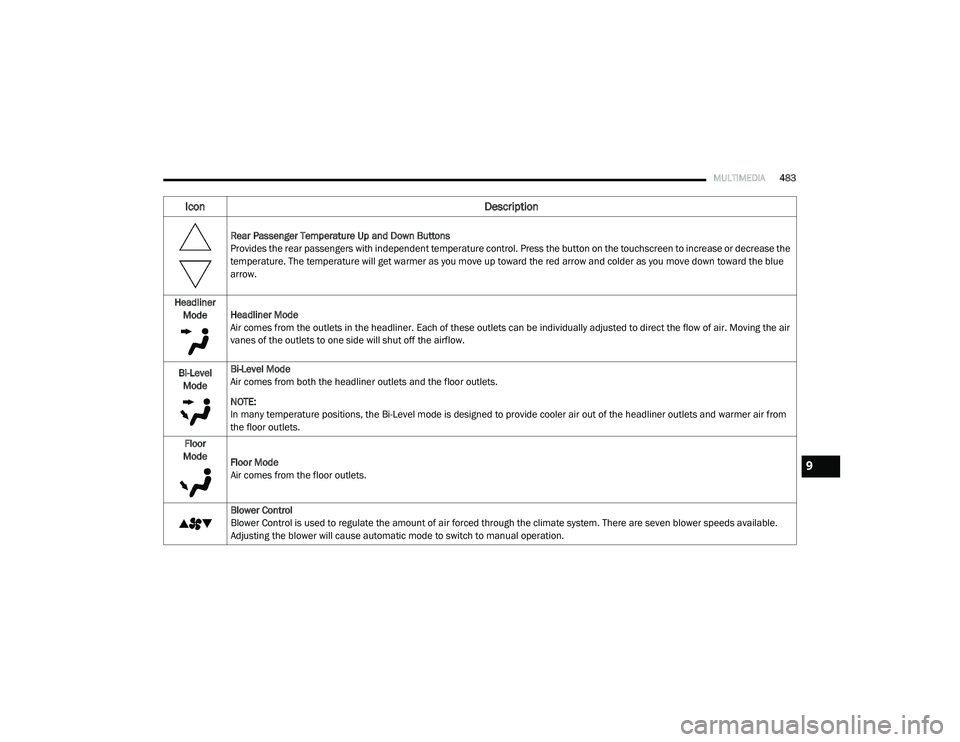
Rear Passenger Temperature Up and Down Buttons
Provides the rear passengers with independent temperature control. Press the button on the touchscreen to increase or decrease the
temperature. The temperature will get warmer as you move up toward the red arrow and colder as you move down toward the blue
arrow.
Headliner Mode Headliner Mode
Air comes from the outlets in the headliner. Each of these outlets can be individually adjusted to direct the flow of air. Moving the air
vanes of the outlets to one side will shut off the airflow.
Bi-Level Mode Bi-Level Mode
Air comes from both the headliner outlets and the floor outlets.
NOTE:
In many temperature positions, the Bi-Level mode is designed to provide cooler air out of the headliner outlets and warmer air from
the floor outlets.
Floor
Mode Floor Mode
Air comes from the floor outlets.
Blower Control
Blower Control is used to regulate the amount of air forced through the climate system. There are seven blower speeds available.
Adjusting the blower will cause automatic mode to switch to manual operation.
Icon Description
9
20_RU_OM_EN_US_t.book Page 483
Page 486 of 516
484MULTIMEDIA
Accessibility — If Equipped
Accessibility is a feature of the DVD/Blu-ray™/USB
Video system that announces a function prior to
performing the action. Refer to “Uconnect
Settings” in this chapter for further information.
Wireless Streaming — If Equipped
Your Uconnect Theater system may be
equipped with Wireless Streaming functionality
that allows you to project your smartphone or
tablet onto your rear Uconnect Theater
touchscreens. This Source Card will allow you to
wirelessly link your compatible Android™
devices to your Uconnect Theater system and
stream your device onto the touchscreens.
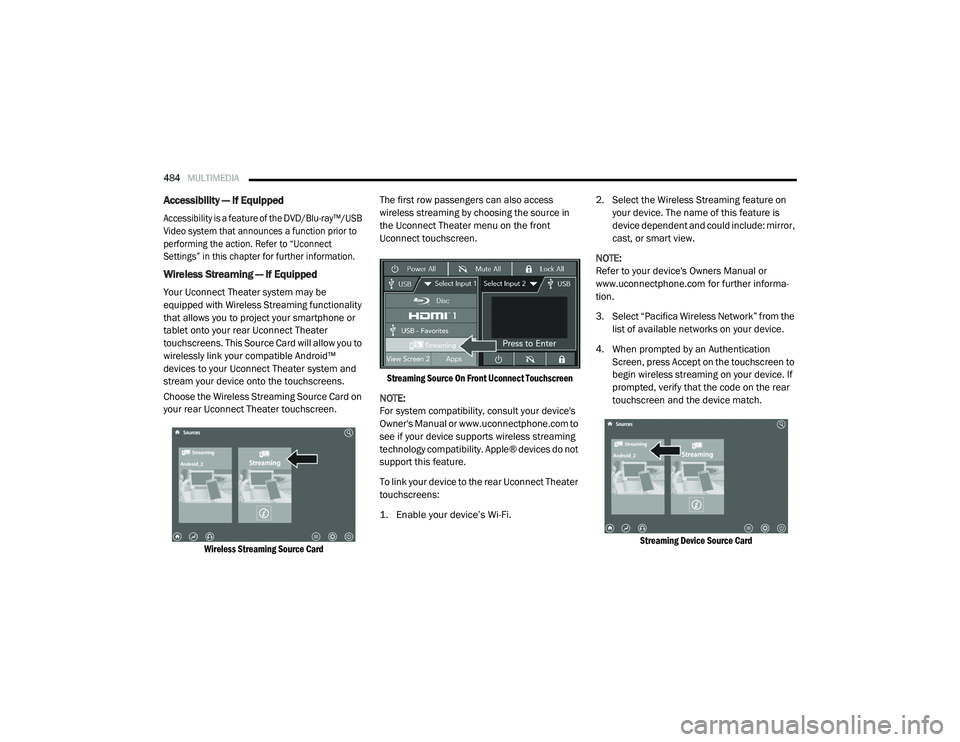
Choose the Wireless Streaming Source Card on
your rear Uconnect Theater touchscreen.
Wireless Streaming Source Card
The first row passengers can also access
wireless streaming by choosing the source in
the Uconnect Theater menu on the front
Uconnect touchscreen.
Streaming Source On Front Uconnect Touchscreen
NOTE:
For system compatibility, consult your device's
Owner's Manual or www.uconnectphone.com to
see if your device supports wireless streaming
technology compatibility. Apple® devices do not
support this feature.
To link your device to the rear Uconnect Theater
touchscreens:
1. Enable your device’s Wi-Fi.
2. Select the Wireless Streaming feature on
your device. The name of this feature is
device dependent and could include: mirror,
cast, or smart view.
NOTE:
Refer to your device's Owners Manual or
www.uconnectphone.com for further informa -
tion.
3. Select “Pacifica Wireless Network” from the list of available networks on your device.
4. When prompted by an Authentication Screen, press Accept on the touchscreen to
begin wireless streaming on your device. If
prompted, verify that the code on the rear
touchscreen and the device match.
Streaming Device Source Card
20_RU_OM_EN_US_t.book Page 484
Page 487 of 516
MULTIMEDIA485
Your phone will be added as an additional
Source Card on the Uconnect Theater
touchscreens.
NOTE:
The Authentication Screen will appear on both
rear touchscreens. The touchscreen screen on
which Accept is selected will be the primary
controller for the wireless streaming session.
NOTE:
Some devices will allow you to control your
device through the Uconnect Theater rear
touchscreens. They will react to your selec -
tions from the touchscreen and be repre -
sented on your device as well. When
supported, the Uconnect Theater task bar will
appear at the top and bottom of the
Uconnect Theater touchscreen, framing your
streaming device.
Devices that do not support this feature will
not respond to Uconnect Theater touch -
screen but can still be controlled using the
streaming device.
Settings
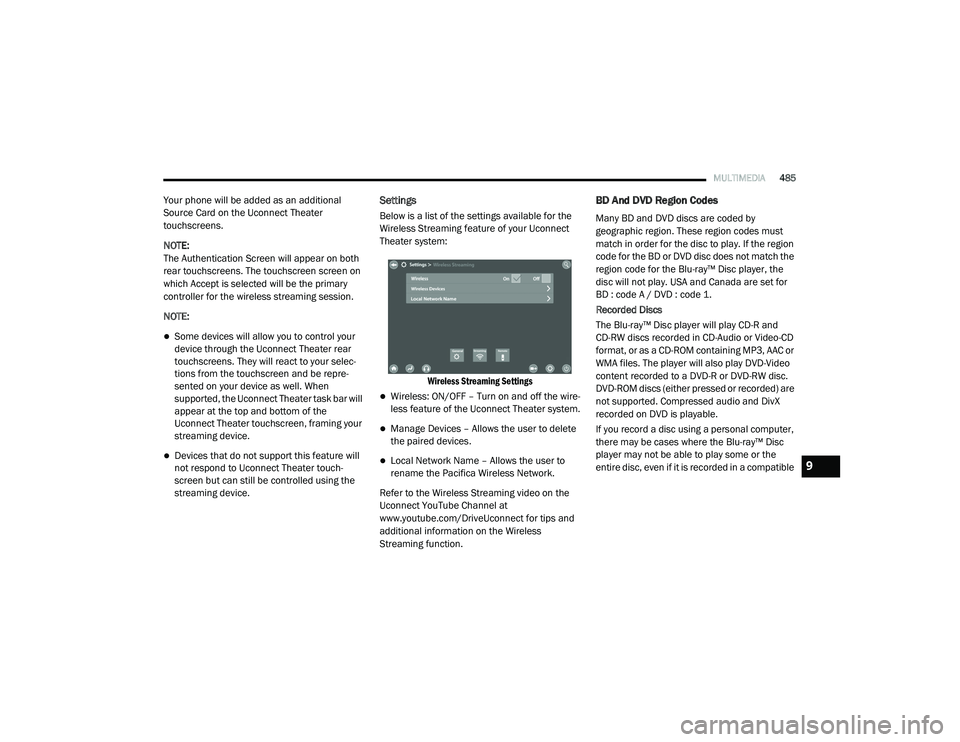
Below is a list of the settings available for the
Wireless Streaming feature of your Uconnect
Theater system:
Wireless Streaming Settings
Wireless: ON/OFF – Turn on and off the wire -
less feature of the Uconnect Theater system.
Manage Devices – Allows the user to delete
the paired devices.
Local Network Name – Allows the user to
rename the Pacifica Wireless Network.
Refer to the Wireless Streaming video on the
Uconnect YouTube Channel at
www.youtube.com/DriveUconnect for tips and
additional information on the Wireless
Streaming function.
BD And DVD Region Codes
Many BD and DVD discs are coded by
geographic region. These region codes must
match in order for the disc to play. If the region
code for the BD or DVD disc does not match the
region code for the Blu-ray™ Disc player, the
disc will not play. USA and Canada are set for
BD : code A / DVD : code 1.
Recorded Discs
The Blu-ray™ Disc player will play CD-R and
CD-RW discs recorded in CD-Audio or Video-CD
format, or as a CD-ROM containing MP3, AAC or
WMA files. The player will also play DVD-Video
content recorded to a DVD-R or DVD-RW disc.
DVD-ROM discs (either pressed or recorded) are
not supported. Compressed audio and DivX
recorded on DVD is playable.
If you record a disc using a personal computer,
there may be cases where the Blu-ray™ Disc
player may not be able to play some or the
entire disc, even if it is recorded in a compatible
9
20_RU_OM_EN_US_t.book Page 485
Page 488 of 516
486MULTIMEDIA
format and is playable on other players. To help
avoid playback problems, use the following
guidelines when recording discs.
Open sessions are ignored. Only sessions
that are closed are playable.
For multi-session CDs that contain only
multiple CD-Audio sessions, the player will
renumber the tracks so each track number is
unique.
For CD Data (or CD-ROM) discs, always use
the ISO-9660 (Level 1 or Level 2), Joliet, or
Romeo format. Other formats (such as HFS,
or others) are not supported.
The player recognizes a maximum of 2000
files and 255 folders (includes the ROOT
folder) per CD-R and CD-RW disc.
Mixed media recordable DVD formats will
only play the Video_TS portion of the disc.
If you are still having trouble writing a disc that
is playable in the Blu-ray™ Disc player, check
with the disc recording software publisher for
more information about burning playable discs. The recommended method for labeling
recordable discs (CD-R, CD-RW, and DVD-R) is
with a permanent marker. Do not use adhesive
labels as they may separate from the disc,
become stuck, and cause permanent damage
to the DVD player.
Compressed Audio Files (MP3, WMA and AAC)
The Blu-ray™ Disc player is capable of playing
MP3 (MPEG-1 Audio Layer 3), WMA (Windows
Media Audio) files and AAC (Advanced Audio
Coding) from a CD Data disc (usually a CD-R or
CD-RW) or DVD Data disc (usually a DVD-R or
DVD-RW).
The Blu-ray™ Disc player always uses the file
extension to determine the audio format, so
MP3 files must always end with the extension
“.mp3” or “.MP3” and WMA files must always
end with the extension “.wma” or “.WMA”
and AAC files must always end with the exten
-
sion and “.aac” or “.AAC” or “m4a”. To
prevent incorrect playback, do not use these
extensions for any other types of files.
For MP3 files, ID3v1, ID3v2 tag data (such as
artist name, track title, album, etc.) are
supported.
Any file that is copy protected (such as those
downloaded from many online music stores)
will not play. The Blu-ray™ player will auto -
matically skip the file and begin playing the
next available file.
Other compression formats such as MP3 Pro,
Ogg Vorbis, and ATRAC3 will not play. The
Blu-ray™ player will automatically skip the file
and begin playing the next available file.
If you are creating your own files, the recom -
mended fixed bit rate for MP3 files is
between 32 and 320Kbps and the recom -
mended fixed bit rate for WMA files is
between 16 and 192Kbps. Variable bit rates
are also supported. For both formats, the
recommended sample rate is either 44.1kHz
or 48kHz.
To change the current file, use the remote
control “Seek Forward” or “Seek Back”
buttons to return to the start of the current or
previous file.
20_RU_OM_EN_US_t.book Page 486
Page 489 of 516
MULTIMEDIA487
AAC (MPEG-4 AAC, Low Complexity Profile)
support.
AAC HE v1 (AAC High Efficiency v1 aka. AAC/
MPEG4v2 AAC+) support.
HE-AAC v1, v2 support.
Disc Errors
If the Blu-ray™ Disc player is unable to read the
disc, a "Disc Error" message is displayed on the
rear screen and Radio displays. A dirty,
damaged, or incompatible disc format are all
potential causes for a "Disc Error" message.
If a disc has a damaged track which results in
audible or visible errors that persists for two
seconds, the Blu-ray™ Disc player will attempt
to continue playing the disc by skipping forward
one to three seconds at a time. If the end of the
disc is reached, the Blu-ray™ Disc player will
return to the beginning of the disc and attempt
to play the start of the first track. The Blu-ray™ Disc player may shut down during
extremely hot conditions, such as when the
vehicle’s interior temperature is above 140°F
(60.0°C). When this occurs, the player will
display "High Temp" and will shut off the Rear
Seat displays until a safe temperature is
reached. This shutdown is necessary to protect
the optics of the Blu-ray™ Disc player.
Product Agreement
Open Source Software
The software built into this product, are
composed of multiple software components,
and there are the copyrights of our company or
third parties in each software component. Also,
in this product, the following open source
software has been installed.
The licensed software for our company is based
on GNU GENERAL PUBLIC LICENSE V2.0 ("GPL").
The licensed software for our company is
based on GNU LESSER GENERAL PUBLIC
LICENSE V2.1 ("LGPL").
The software which has the copyrights of a
third party and is distributed as free software.Please refer the contract details which are
disclosed in the following websites, for
example, concerning these above software.
http://www.gnu.org/licenses/old-licenses/
gpl-2.0-standalone.html, http://www.gnu.org/
licenses/lgpl-2.1-standalone.html.
You have the right of acquisition, modification,
and distribution of the source code of the GPL/
LGPL software. These are distributed in the
hope that it will be useful by itself. However,
including the absence of an implied warranty on
the "suitability for a particular purpose" or
"merchantability", the warranty of any kind will
not be made. You may download Source Code
from the indicating URL by the pressed button
of “Open Source Software” on the Setup Menu.
Also, please refrain from contact about the
contents of the source code of open source. The
source code of the software in which there are
the copyrights of our company or third parties, is
not subject to distribution.
9
20_RU_OM_EN_US_t.book Page 487
Page 490 of 516
488MULTIMEDIA
Dolby
Manufactured under license from Dolby
Laboratories. Dolby and the double-D symbol
are trademarks of Dolby Laboratories.
DTS
For DTS patents, see http://dts.com/patents.
Manufactured under license from DTS
Licensing Limited. DTS, the Symbol, DTS and
the Symbol together are registered trademarks,
and DTS 2.0 Channel is a trademark of DTS, Inc.
© DTS, Inc. All Rights Reserved.
DVD
"The DVD logo” is a trademark of DVD Format/Logo
Licensing Corporation." or " DVD logo is a trademark
of DVD Format/Logo Licensing Corporation
registered in the US, Japan and other countries."
BDA
“Blu-ray™ Disc, Blu-ray™, BD-Live, BONUSVIEW,
AVCREC and the logos are trademarks of the
Blu-ray™ Disc Association.”
AVCHD
"AVCHD" and the "AVCHD" logo are trademarks
of Panasonic Corporation and Sony®
Corporation.
BD-J
Java is a registered trademark of Oracle and/or
its affiliates.
MPEG
THIS PRODUCT IS LICENSED UNDER THE AVC
PATENT PORTFOLIO LICENSE FOR THE
PERSONAL AND NON-COMMERCIAL USE OF A
CONSUMER TO (i) ENCODE VIDEO IN COMPLIANCE WITH THE AVC STANDARD ("AVC
VIDEO") AND/OR (ii) DECODE AVC VIDEO THAT
WAS ENCODED BY A CONSUMER ENGAGED IN A
PERSONAL AND NON-COMMERCIAL ACTIVITY
AND/OR WAS OBTAINED FROM A VIDEO
PROVIDER LICENSED TO PROVIDE AVC VIDEO.
NO LICENSE IS GRANTED OR SHALL BE IMPLIED
FOR ANY OTHER USE. ADDITIONAL
INFORMATION MAY BE OBTAINED FROM MPEG
LA, L.L.C. SEE WWW.MPEGLA.COM .
DivX
This DivX Certified® device can play DivX®
Home Theater video files up to 576p (including
.avi, .divx). Download free software at
www.divx.com to create, play and cast digital
videos.
kernel 2.6.16.29
FreeType 2 2.2.1 gcc sh4eb 3.4.5 glibc 2.3.5 boot_loader sh-ipl +g 1.00
libgcc_s-3.4.5 bash-3.0-31busybox 1.00MAKE DEV 1.1.0 module-init-tools 3.1.0
libtermcap 2.0.8 mtd-utils 20050619 initscripts 8.11.1-1 libstdc+ +3.4.5-10 libiconv 1.11
coreutils 6.9 dosfstools 2.10-3 directfb 1.0.0-rc1 kxml 1.21 binutils-sh4eb 2.16.91.0.2
v2lin 0.1 ----
20_RU_OM_EN_US_t.book Page 488
Page 491 of 516
MULTIMEDIA489
Cinavia
"Cinavia Notice This product uses Cinavia
technology to limit the use of unauthorized
copies of some commercially-produced film and
videos and their soundtracks. When a
prohibited use of an unauthorized copy is
detected, a message will be displayed and
playback or copying will be interrupted. More
information about Cinavia technology is
provided at the Cinavia Online Consumer
Information Center at http://www.cinavia.com/
. To request additional information about
Cinavia by mail, send a postcard with your
mailing address to: Cinavia Consumer
Information Center, P.O. Box 86851, San Diego,
CA, 92138, USA.” “This product incorporates
proprietary technology under license from
Verance Corporation and is protected by US
Patent 7,369,677 and other US and worldwide
patents issued and pending as well as copyright
and trade secret protection for certain aspects
of such technology. Cinavia is a trademark of
Verance Corporation. Copyright 2004-2012
Verance Corporation. All rights reserved by
Verance. Reverse engineering or disassembly is
prohibited.
General Information
The following regulatory statement applies to all
Radio Frequency (RF) devices equipped in this
vehicle:
This device complies with Part 15 of the FCC
Rules and with Innovation, Science and
Economic Development Canada license-exempt
RSS standard(s). Operation is subject to the
following two conditions:
1. This device may not cause harmful
interference, and
2. This device must accept any interference received, including interference that may
cause undesired operation.
Le présent appareil est conforme aux CNR
d`Innovation, Science and Economic
Development applicables aux appareils radio exempts de licence. L'exploitation est autorisée
aux deux conditions suivantes:
1. l'appareil ne doit pas produire de
brouillage, et
2. l'utilisateur de l'appareil doit accepter tout brouillage radioélectrique subi, même si le
brouillage est susceptible d'en compro -
mettre le fonctionnement.
La operación de este equipo está sujeta a las
siguientes dos condiciones:
1. es posible que este equipo o dispositivo no cause interferencia perjudicial y
2. este equipo o dispositivo debe aceptar cualquier interferencia, incluyendo la que
pueda causar su operación no deseada.
NOTE:
Changes or modifications not expressly
approved by the party responsible for compli -
ance could void the user’s authority to operate
the equipment.
WARNING!
Use of controls or adjustments or
performance of procedures other than those
specified herein may result in hazardous
radiation exposure.
9
20_RU_OM_EN_US_t.book Page 489
Page 492 of 516
490MULTIMEDIA
FCC/IC Regulatory Notices
Modification Statement
Any changes or modifications not expressly
approved by the party responsible for
compliance could void the user's authority to
operate this equipment.
Interference Statement
This device complies with Part 15 of the FCC
Rules and with Innovation, Science and
Economic Development Canada license-exempt
RSS standard(s). Operation is subject to the
following two conditions:
1. This device may not cause harmful
interference, and
2. This device must accept any interference received, including interference that may
cause undesired operation.
Le présent appareil est conforme aux CNR
d`Innovation, Science and Economic
Development applicables aux appareils radio
exempts de licence. L'exploitation est autorisée
aux deux conditions suivantes:
1. l'appareil ne doit pas produire de
brouillage, et
2. l'utilisateur de l'appareil doit accepter tout brouillage radioélectrique subi, même si le
brouillage est susceptible d'en compro -
mettre le fonctionnement.
La operación de este equipo está sujeta a las
siguientes dos condiciones:
1. es posible que este equipo o dispositivo no cause interferencia perjudicial y
2. este equipo o dispositivo debe aceptar cualquier interferencia, incluyendo la que
pueda causar su operación no deseada. Wireless Notice
This device complies with FCC/IC radiation
exposure limits set forth for an uncontrolled
environment and meets the FCC radio
frequency (RF) Exposure Guidelines and
RSS-102 of the IC radio frequency (RF)
Exposure rules. This transmitter must not be
co-located or operating in conjunction with any
other antenna or transmitter.
FCC Class B Digital Device Notice
This equipment has been tested and found to
comply with the limits for a Class B digital
device, pursuant to part 15 of the FCC Rules.
These limits are designed to provide reasonable
protection against harmful interference in a
residential installation. This equipment
generates, uses and can radiate radio
frequency energy and, if not installed and used
in accordance with the instructions, may cause
harmful interference to radio communications.
However, there is no guarantee that
interference will not occur in a particular
installation. If this equipment does cause
20_RU_OM_EN_US_t.book Page 490