Dvd CHRYSLER PACIFICA HYBRID 2022 Owners Manual
[x] Cancel search | Manufacturer: CHRYSLER, Model Year: 2022, Model line: PACIFICA HYBRID, Model: CHRYSLER PACIFICA HYBRID 2022Pages: 384, PDF Size: 23.92 MB
Page 8 of 384
6
Accessing Rear Seat Entertainment
with Fire TV Built-in from the
Rear Screens ................................................. 214
First Time Starting Up
(Using the Rear Screens) .............................. 214 Rear Seat Entertainment with Fire TV
Built-in Alexa .................................................. 214
Listen Via Vehicle Speakers ......................... 215Quick Menu.................................................... 215
Parental Controls
(Using the Rear Screens) .............................. 215Pairing The Voice Remote with Alexa
(Using the Rear Screens) .............................. 215Media Sources Input (Using the Front
Radio and Rear Screens) .............................. 216Rear Seat Entertainment with Fire TV
Built-in Voice Remote with Alexa .................. 216
Rear Seat Entertainment with Fire TV
Built-in Streaming (Using the Front
Radio and Rear Screens) .............................. 217Play A Blu-ray™ or DVD — If Equipped ......... 218Fire TV Apps/Games
(Using the Rear Screens) .............................. 219 Using The Video USB Port ............................. 219
Play Video Games ......................................... 219
Headphones Operation................................. 220
Rear Climate Controls ................................... 220
Legal & Compliance ...................................... 222
RADIO OPERATION AND MOBILE
PHONES ............................................................... 222
Regulatory And Safety Information .............. 222
SAFETY
SAFETY FEATURES .............................................. 223 Anti-Lock Brake System (ABS) ..................... 223
Electronic Brake Control (EBC) System ...... 224
AUXILIARY DRIVING SYSTEMS.......................... 229
Blind Spot Monitoring (BSM) —
If Equipped..................................................... 229Forward Collision Warning (FCW) With
Mitigation — If Equipped ............................... 233
Tire Pressure Monitoring System
(TPMS)............................................................ 236
OCCUPANT RESTRAINT SYSTEMS ................... 239
Occupant Restraint Systems Features ....... 239
Important Safety Precautions ...................... 239Seat Belt Systems ........................................ 240Supplemental Restraint Systems (SRS) ...... 250Child Restraints ............................................ 262 SAFETY TIPS ........................................................ 278
Transporting Passengers.............................. 278
Transporting Pets ......................................... 279
Connected Vehicles ...................................... 279
Safety Checks You Should Make Inside
The Vehicle ................................................... 279
Periodic Safety Checks You Should
Make Outside The Vehicle ............................ 280
Exhaust Gas................................................... 281
Carbon Monoxide Warnings ....................... 281IN CASE OF EMERGENCY
HAZARD WARNING FLASHERS ......................... 282
ASSIST AND SOS MIRROR — IF EQUIPPED...... 282
JACKING AND TIRE CHANGING —
IF EQUIPPED ......................................................... 286 Preparations For Jacking ............................. 286Jack And Spare Tire Location ....................... 287
Equipment Removal ..................................... 287Jacking Instructions ..................................... 288Road Tire Installation .................................... 292
Portable Air Compressor — If Equipped ....... 293
Return Inflatable Spare Tire ........................ 294
TIRE SERVICE KIT — IF EQUIPPED ..................... 294
22_RUP_OM_EN_USC_t.book Page 6
Page 212 of 384
210MULTIMEDIA
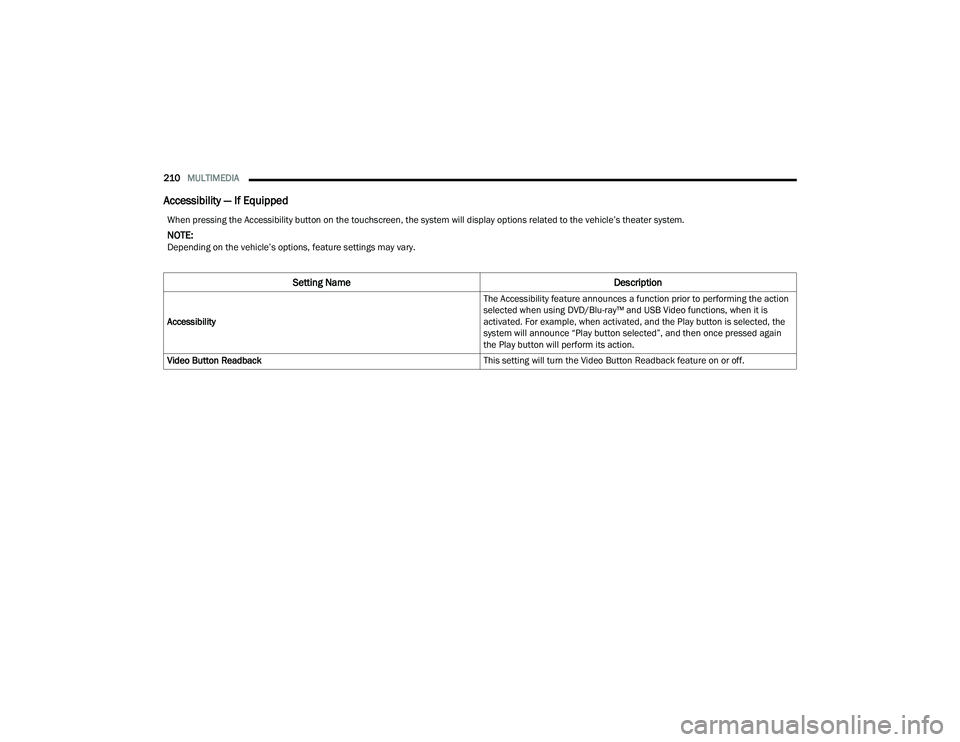
Accessibility — If Equipped
When pressing the Accessibility button on the touchscreen, the system will display options related to the vehicle’s theater system.
NOTE:Depending on the vehicle’s options, feature settings may vary.
Setting Name Description
Accessibility The Accessibility feature announces a function prior to performing the action
selected when using DVD/Blu-ray™ and USB Video functions, when it is
activated. For example, when activated, and the Play button is selected, the
system will announce “Play button selected”, and then once pressed again
the Play button will perform its action.
Video Button Readback This setting will turn the Video Button Readback feature on or off.
22_RUP_OM_EN_USC_t.book Page 210
Page 215 of 384
MULTIMEDIA213
REAR SEAT ENTERTAINMENT WITH
AMAZON FIRE TV BUILT-IN — IF EQUIPPED
OVERVIEW
Rear Seat Entertainment with Fire TV built-in is
designed to give your family years of enjoyment.
Fire TV lets passengers enjoy a wide variety of
content from popular apps (subscriptions may be
required). Stream videos, play games, listen to
music, get information, and watch downloaded
programs all while on the road. In addition to
streaming and downloaded content, changing the
input in Fire TV also allows users to:
Play your favorite CDs, DVDs, or Blu-ray™ Discs
Mirror what’s on your phone or tablet to Fire TV
via Miracast capable devices (see support
here):
https://www.amazon.com/gp/help/
customer/display
Plug and play a variety of standard video games
or devices into the HDMI port
Listen to audio over wireless headphones
(not included, customer will have to provide
their own)
Plug and play a variety of devices into the
Video USB port
Plug in standard headphones to listen to audio
NOTE:Vehicle must be in an active and usable cellular
range and properly equipped with a Uconnect
5 NAV system and Rear Seat Entertainment with
Fire TV package. Streaming requires a Wi-Fi
connection and registered Amazon account to run
Fire TV in the vehicle. Streaming service subscrip -
tions are not included. Certain services are subject
to change or withdrawal at any time, may not be
available in all areas and languages, and may
require separate subscriptions.
GETTING STARTED
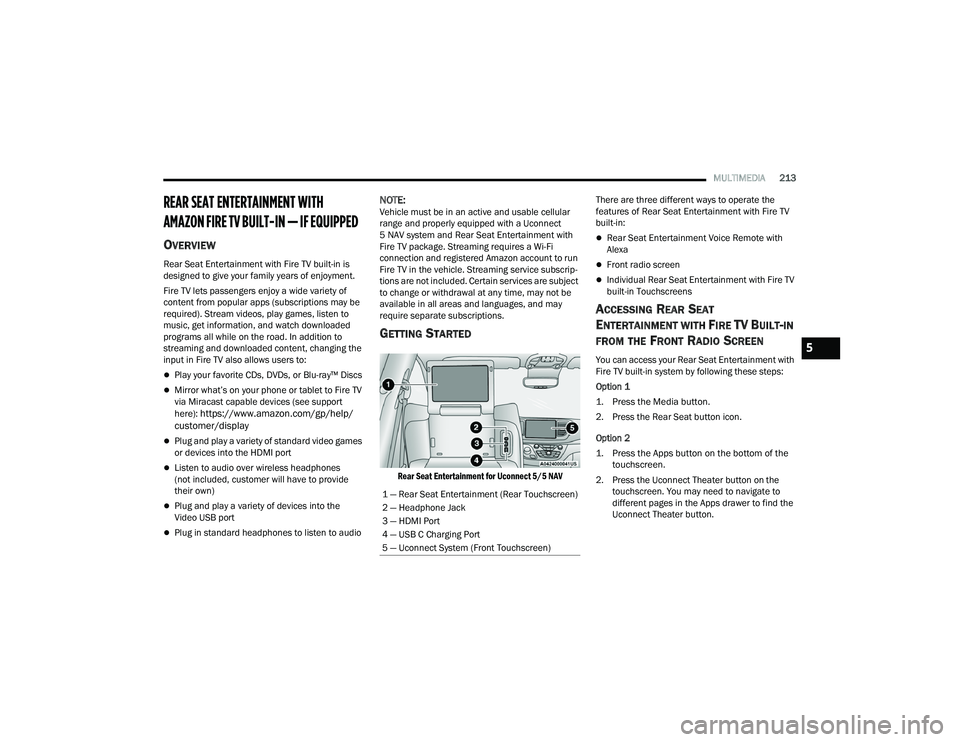
Rear Seat Entertainment for Uconnect 5/5 NAV
There are three different ways to operate the
features of Rear Seat Entertainment with Fire TV
built-in:
Rear Seat Entertainment Voice Remote with
Alexa
Front radio screen
Individual Rear Seat Entertainment with Fire TV
built-in Touchscreens
ACCESSING REAR SEAT
E
NTERTAINMENT WITH FIRE TV BUILT-IN
FROM THE FRONT RADIO SCREEN
You can access your Rear Seat Entertainment with
Fire TV built-in system by following these steps:
Option 1
1. Press the Media button.
2. Press the Rear Seat button icon.
Option 2
1. Press the Apps button on the bottom of the
touchscreen.
2. Press the Uconnect Theater button on the touchscreen. You may need to navigate to
different pages in the Apps drawer to find the
Uconnect Theater button.
1 — Rear Seat Entertainment (Rear Touchscreen)
2 — Headphone Jack
3 — HDMI Port
4 — USB C Charging Port
5 — Uconnect System (Front Touchscreen)5
22_RUP_OM_EN_USC_t.book Page 213
Page 218 of 384
216MULTIMEDIA
MEDIA SOURCES INPUT (USING THE
F
RONT RADIO AND REAR SCREENS)
Front Radio Screen
Inputs available within Launch Source under
“Inputs” are “Fire TV”, “HDMI”, “Blu-ray™”, “DVD’,
and “USB”.
Rear Screens
To select inputs on the rear screen, scroll down on
the Fire TV Home screen and select your desired
input under “Inputs”.
Inputs can also be selected from the Brand tab in
the top menu. While in this tab, scroll down to
“Inputs” for selection.
NOTE:The Brand tab naming in the top menu will depend
on the naming of the vehicle’s brand.
REAR SEAT ENTERTAINMENT WITH FIRE
TV B
UILT-IN VOICE REMOTE WITH ALEXA
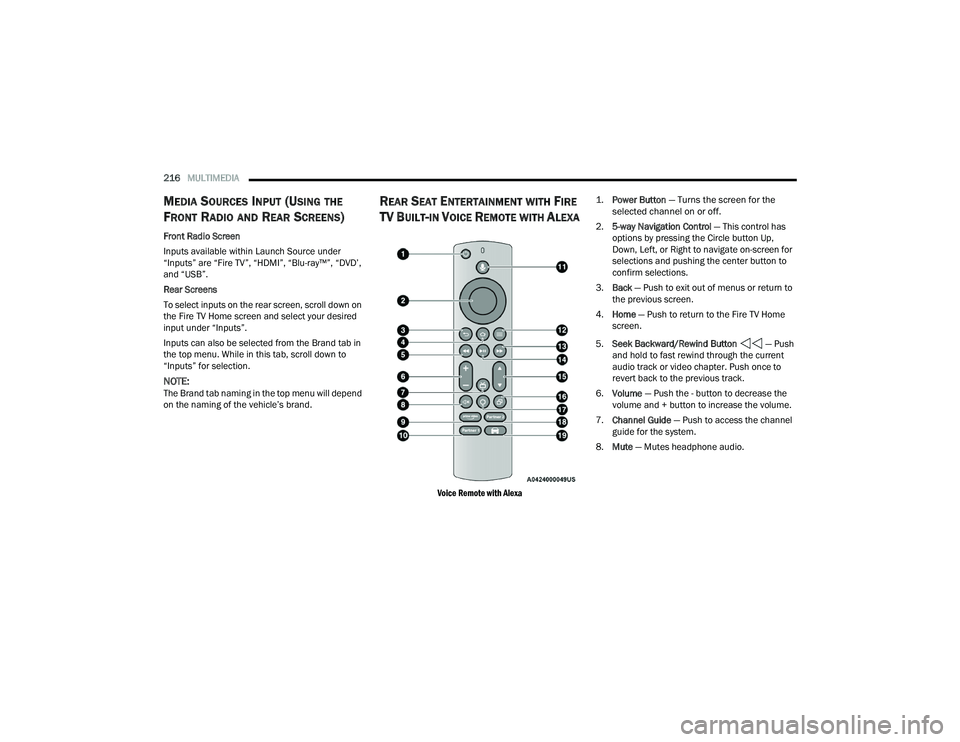
Voice Remote with Alexa
1.
Power Button
— Turns the screen for the
selected channel on or off.
2. 5-way Navigation Control — This control has
options by pressing the Circle button Up,
Down, Left, or Right to navigate on-screen for
selections and pushing the center button to
confirm selections.
3. Back — Push to exit out of menus or return to
the previous screen.
4. Home — Push to return to the Fire TV Home
screen.
5. Seek Backward/Rewind Button — Push
and hold to fast rewind through the current
audio track or video chapter. Push once to
revert back to the previous track.
6. Volume — Push the - button to decrease the
volume and + button to increase the volume.
7. Channel Guide — Push to access the channel
guide for the system.
8. Mute — Mutes headphone audio.
22_RUP_OM_EN_USC_t.book Page 216
Page 220 of 384
218MULTIMEDIA
Access Using the Voice Remote with Alexa and
Rear Screens
Rear passengers will be able to access Rear Seat
Entertainment with Fire TV built-in streaming by
pressing the “Prime Video”, “Partner 1”, or
“Partner 2” button on the Voice Remote with Alexa.
Selecting one of those buttons on the Voice
Remote with Alexa will take you to the home page
for that respective streaming service. Turning on
either of the rear screens will launch Fire TV.
By default, the rear screens will always launch
in Fire TV.
Fire TV
Fire TV is your source for online streaming with
Rear Seat Entertainment with Fire TV built-in.
NOTE:4G Wi-Fi Hot Spot needs to be activated on the
vehicle for streaming to be accessible. This can be
set up when Rear Seat Entertainment with Fire TV
built-in is turned on for the first time from the rear
screens. A mobile device can also be used as the
Wi-Fi Hot Spot for the vehicle. A data source needs
to be either an in-vehicle Wi-Fi plan or through a 4G
or 5G device.
To access Fire TV on the front screen, select
“Launch Source”, then “Fire TV Home” under the
Inputs selection. The top menu bar for Fire TV will have the options
for “Home”, “Library”, “Brand”, “Live”, and “Apps”.
Below the top menu bar will be streaming options
linked to your Prime account like “Prime Video”.
The front radio screen offers some options:
Power — This will turn Fire TV on or off.
Screen 1 and Screen 2 Toggle
— This toggles
between the Rear Screens (for use with front
radio screen only).
Collapse — While viewing on the front radio
screen, this will collapse the screen to dash -
board view.
Source Drawer — This will open the “Source
Drawer” and the source logo will be displayed
on the icon.
Browse Media — This will open the “Browse
Media” pop-up.
Back — This will let you go back the previous
page.
Fire TV Home — This will take you back to the
Fire TV home page.
Menu — This will open the Fire TV menu.
Remote icon — This will display the on-screen
remote.
NOTE:Front screen viewing and watching can only be
done when the vehicle is in PARK.
The rear screens will always launch with Fire TV.
PLAY A BLU-RAY™ OR DVD —
I
F EQUIPPED
Playing a Blu-ray™ or DVD from the Front Radio
Screen
1. Insert a Blu-ray™ disc or DVD disc into the
disc player with the label facing up.
NOTE:The DVD/Blu-ray™ Disc player is located under the
radio controls in the instrument panel.
2. Press the Media button on the bottom menu bar. Then press the Rear Entertainment tab on
the top menu bar. Then select “Launch
Source” on the radio touchscreen.
3. Select the Blu-ray™ or DVD under inputs in the Launch Source menu
22_RUP_OM_EN_USC_t.book Page 218
Page 221 of 384
MULTIMEDIA219
4. To play a Blu-ray™ or DVD disc on both screens simultaneously, select “Launch Source” and
then under Inputs, select “View Screen 1 or 2”.
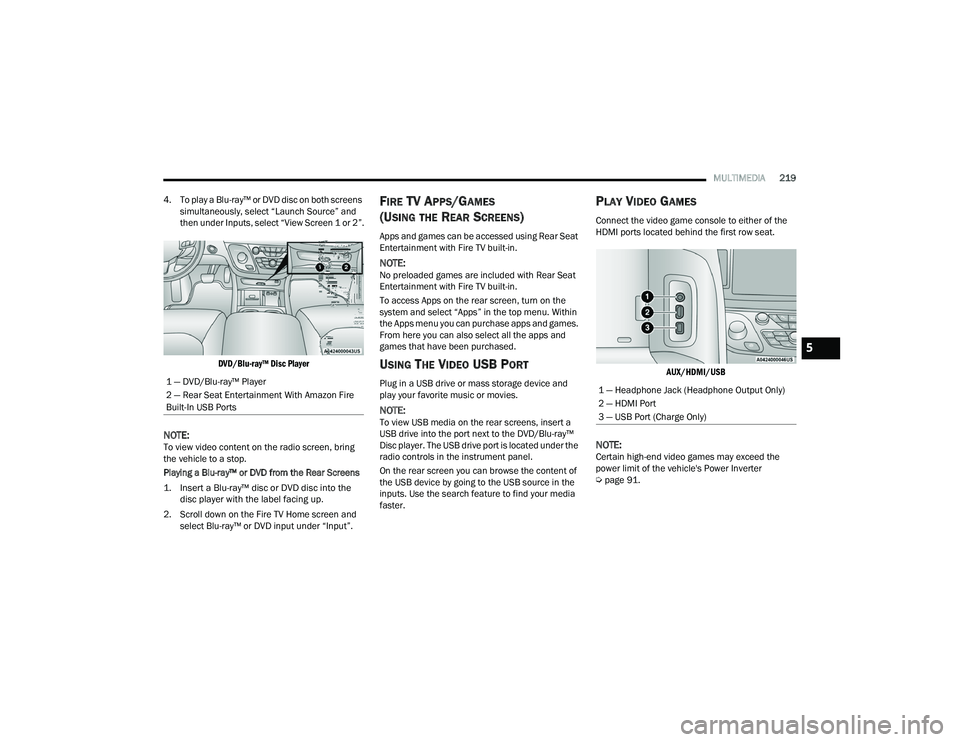
DVD/Blu-ray™ Disc Player
NOTE:To view video content on the radio screen, bring
the vehicle to a stop.
Playing a Blu-ray™ or DVD from the Rear Screens
1. Insert a Blu-ray™ disc or DVD disc into the disc player with the label facing up.
2. Scroll down on the Fire TV Home screen and select Blu-ray™ or DVD input under “Input”.
FIRE TV APPS/GAMES
(U
SING THE REAR SCREENS)
Apps and games can be accessed using Rear Seat
Entertainment with Fire TV built-in.
NOTE:No preloaded games are included with Rear Seat
Entertainment with Fire TV built-in.
To access Apps on the rear screen, turn on the
system and select “Apps” in the top menu. Within
the Apps menu you can purchase apps and games.
From here you can also select all the apps and
games that have been purchased.
USING THE VIDEO USB PORT
Plug in a USB drive or mass storage device and
play your favorite music or movies.
NOTE:To view USB media on the rear screens, insert a
USB drive into the port next to the DVD/Blu-ray™
Disc player. The USB drive port is located under the
radio controls in the instrument panel.
On the rear screen you can browse the content of
the USB device by going to the USB source in the
inputs. Use the search feature to find your media
faster.
PLAY VIDEO GAMES
Connect the video game console to either of the
HDMI ports located behind the first row seat.
AUX/HDMI/USB
NOTE:Certain high-end video games may exceed the
power limit of the vehicle's Power Inverter
Úpage 91.
1 — DVD/Blu-ray™ Player
2 — Rear Seat Entertainment With Amazon Fire
Built-In USB Ports
1 — Headphone Jack (Headphone Output Only)
2 — HDMI Port
3 — USB Port (Charge Only)
5
22_RUP_OM_EN_USC_t.book Page 219
Page 333 of 384
SERVICING AND MAINTENANCE331
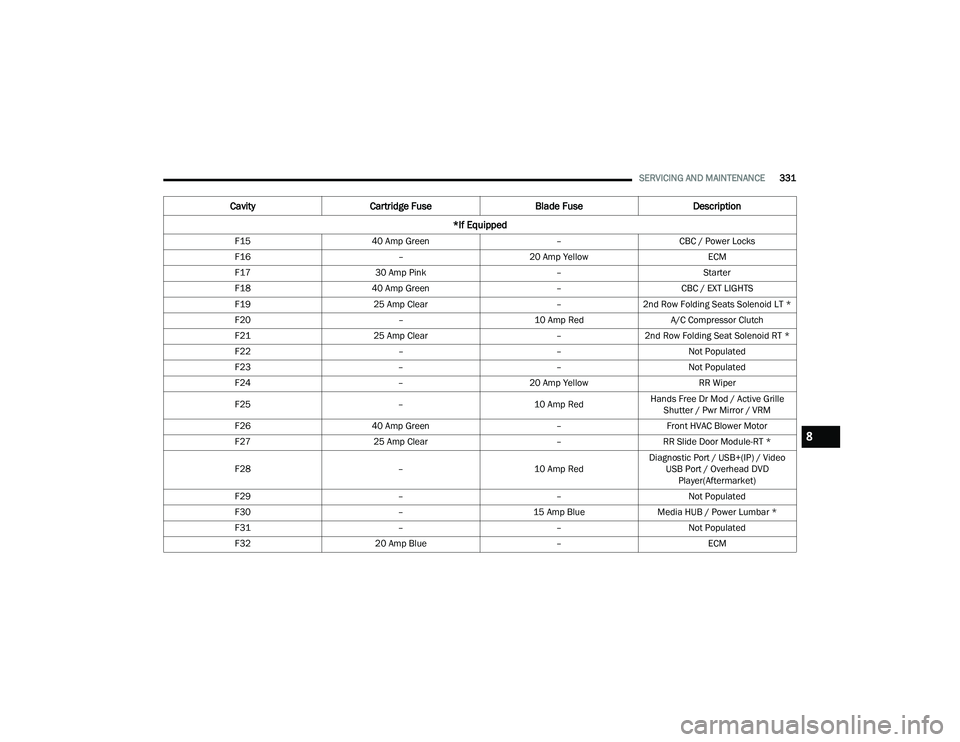
F15 40 Amp Green –CBC / Power Locks
F16 –20 Amp Yellow ECM
F17 30 Amp Pink –Starter
F18 40 Amp Green –CBC / EXT LIGHTS
F19 25 Amp Clear –2nd Row Folding Seats Solenoid LT *
F20 –10 Amp Red A/C Compressor Clutch
F21 25 Amp Clear –2nd Row Folding Seat Solenoid RT *
F22 ––Not Populated
F23 ––Not Populated
F24 –20 Amp Yellow RR Wiper
F25 –10 Amp RedHands Free Dr Mod / Active Grille
Shutter / Pwr Mirror / VRM
F26 40 Amp Green –Front HVAC Blower Motor
F27 25 Amp Clear –RR Slide Door Module-RT *
F28 –10 Amp RedDiagnostic Port / USB+(IP) / Video
USB Port / Overhead DVD Player(Aftermarket)
F29 ––Not Populated
F30 –15 Amp BlueMedia HUB / Power Lumbar *
F31 ––Not Populated
F32 20 Amp Blue –ECM
CavityCartridge Fuse Blade FuseDescription
*If Equipped
8
22_RUP_OM_EN_USC_t.book Page 331
Page 335 of 384
SERVICING AND MAINTENANCE333
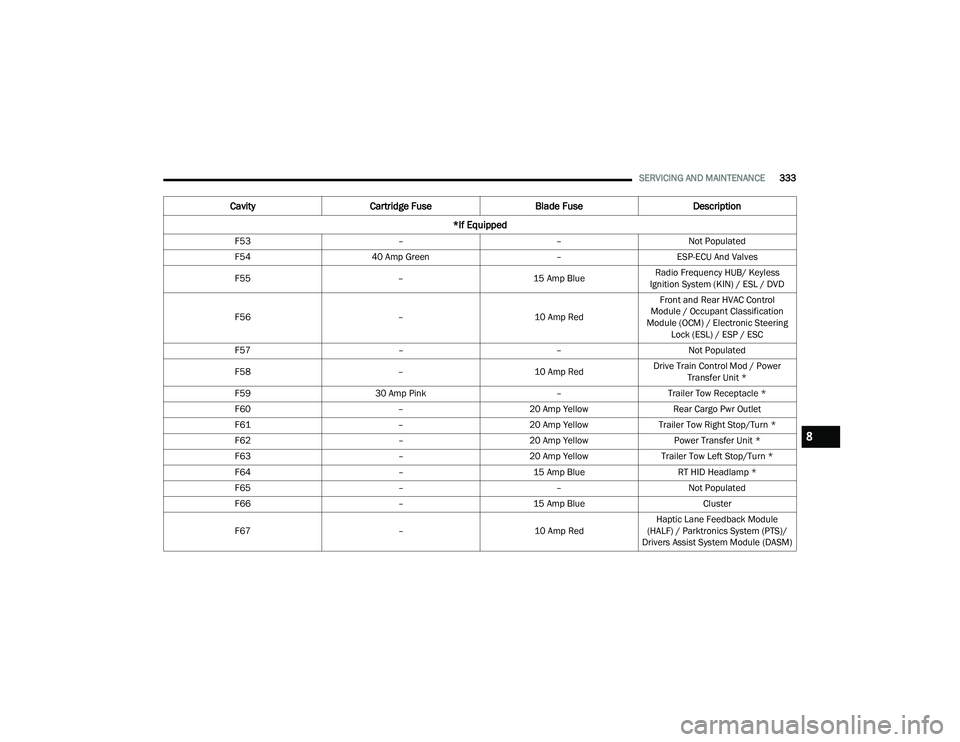
F53 ––Not Populated
F54 40 Amp Green –ESP-ECU And Valves
F55 –15 Amp BlueRadio Frequency HUB/ Keyless
Ignition System (KIN) / ESL / DVD
F56 –10 Amp RedFront and Rear HVAC Control
Module / Occupant Classification
Module (OCM) / Electronic Steering Lock (ESL) / ESP / ESC
F57 ––Not Populated
F58 –10 Amp RedDrive Train Control Mod / Power
Transfer Unit *
F59 30 Amp Pink –Trailer Tow Receptacle *
F60 –20 Amp Yellow Rear Cargo Pwr Outlet
F61 –20 Amp YellowTrailer Tow Right Stop/Turn *
F62 –20 Amp Yellow Power Transfer Unit *
F63 –20 Amp Yellow Trailer Tow Left Stop/Turn *
F64 –15 Amp Blue RT HID Headlamp *
F65 ––Not Populated
F66 –15 Amp Blue Cluster
F67 –10 Amp RedHaptic Lane Feedback Module
(HALF) / Parktronics System (PTS)/
Drivers Assist System Module (DASM)
Cavity Cartridge Fuse Blade FuseDescription
*If Equipped
8
22_RUP_OM_EN_USC_t.book Page 333
Page 336 of 384

334SERVICING AND MAINTENANCE
F68 ––Not Populated
F69 ––Not Populated
F70 ––Not Populated
F71 –20 Amp Yellow Horn
F72 –10 Amp Red Heated Mirror *
F73 30 Amp Pink –Rear Defroster
F74 20 Amp Blue –Trailer Tow Backup Lights*
F75 –5 Amp TanOverhead Console / RR Center Stack
F76 –20 Amp Yellow Uconnect / Center Display /
Telematics
F77 –10 Amp RedRR Entertainment / Media HUB /
USB(S) / Rain Sensor / Sunroof / RR View Mirror/ Overhead DVD Player / INT Monitoring Camera / Wireless Charging Pad
F78 –15 Amp BlueTCM (ZF) / E-Shifter / Cluster
F79 –10 Amp RedICS / HVAC / SCCM/ EPB SW
F80 ––Not Populated
F81 ––Not Populated
F82 ––Not Populated
CavityCartridge Fuse Blade FuseDescription
*If Equipped
22_RUP_OM_EN_USC_t.book Page 334