audio CHRYSLER TOWN AND COUNTRY 2012 5.G Owner's Manual
[x] Cancel search | Manufacturer: CHRYSLER, Model Year: 2012, Model line: TOWN AND COUNTRY, Model: CHRYSLER TOWN AND COUNTRY 2012 5.GPages: 132, PDF Size: 3.41 MB
Page 63 of 132

• The functions of the portable device are controlled using the device buttons. The volumemay be controlled using the radio or portable device.
Hard Disk Drive (HDD) Operation
• The Hard Disk Drive (HDD) mode gives you access to the audio files on the internalhard disk drive. It functions similar to a CD player, with the exception that the internal
HDD can hold more tracks.
• It is also possible to import display pictures to the internal hard disk drive. The pictures can be displayed on the right half of the radio screen.
• Before using the HDD mode, you will need to copy songs and pictures to the internal hard drive. Songs and pictures can be added to the hard drive by using a CD or USB
device (e.g. thumb drive or memory stick).
NOTE:WMA/MP3 Files and Selective Songs from a CD can also be added to the HDD.
See the Media Center 730N User's Manual for more information.
Copying Music From CD
• Press the “OPEN/CLOSE” hard-key.
• Insert a disc, then press the “MENU” hard-key.
• Touch the “MY FILES” soft-key, thenselect “MY MUSIC.”
• Touch the “Add Music Files to HDD” soft-key, then touch the “From Disc”
soft-key in the next screen to start the
process.
NOTE:
• You might need to select the folder or titledepending on the CD, then press “Done” to
start the copy process.
• The copy progress is shown in the lower left corner of the screen.
Copying Music From USB
• The USB port on the radio face plate allows you to copy files to your hard drive. Toaccess, lift up on the cover.
• Insert a USB device (e.g. thumb drive or memory stick), then select “MY FILES”.
ELECTRONICS
59
Page 70 of 132

Display SAT Favorites List
• Touch the “Search/Browse” soft-key and select “Favorites” from the SAT Browse screen.• Touch the desired favorites soft-key toswitch the SAT tuner to the corresponding
channel.
• You may use the “LIST” soft-key to toggle between:
• Favorite Songs.
• Favorite Artists.
• Currently playing favorites.
Replay
• While you are in SAT mode, you can replay 44 minutes of the current Sirius
XM™ channel (when the channel is
changed, this audio buffer is erased).
Press the REPLAY button to listen to the
stored audio.
• You can touch the on-screen controls to pause and rewind audio playback, touch the SCAN button to preview each of the tracks stored in the buffer, or select a track from the
list.
• The time displayed below the bar indicates how much time is present between the current buffer play position and the live broadcast.
Replay Option Option Description
Play/Pause Touch to Pause content playback. Touch Pause/Play again to resume playback.
Rewind/RW Rewinds the channel content in steps of 5 seconds. Touch and hold to rewind continuously, then release to begin playing content at that point.
Fast Forward/FW Forwards the content, and works similarly to Rewind/RW. However, Fast Forward/FW can only be used when content has been previously rewound.
Replay Time Displays the amount of time in the upper center of the screen by which your content lags the Live channel.
Live Resumes playback of Live content at any time while replaying rewound content.
ELECTRONICS
66
Page 72 of 132
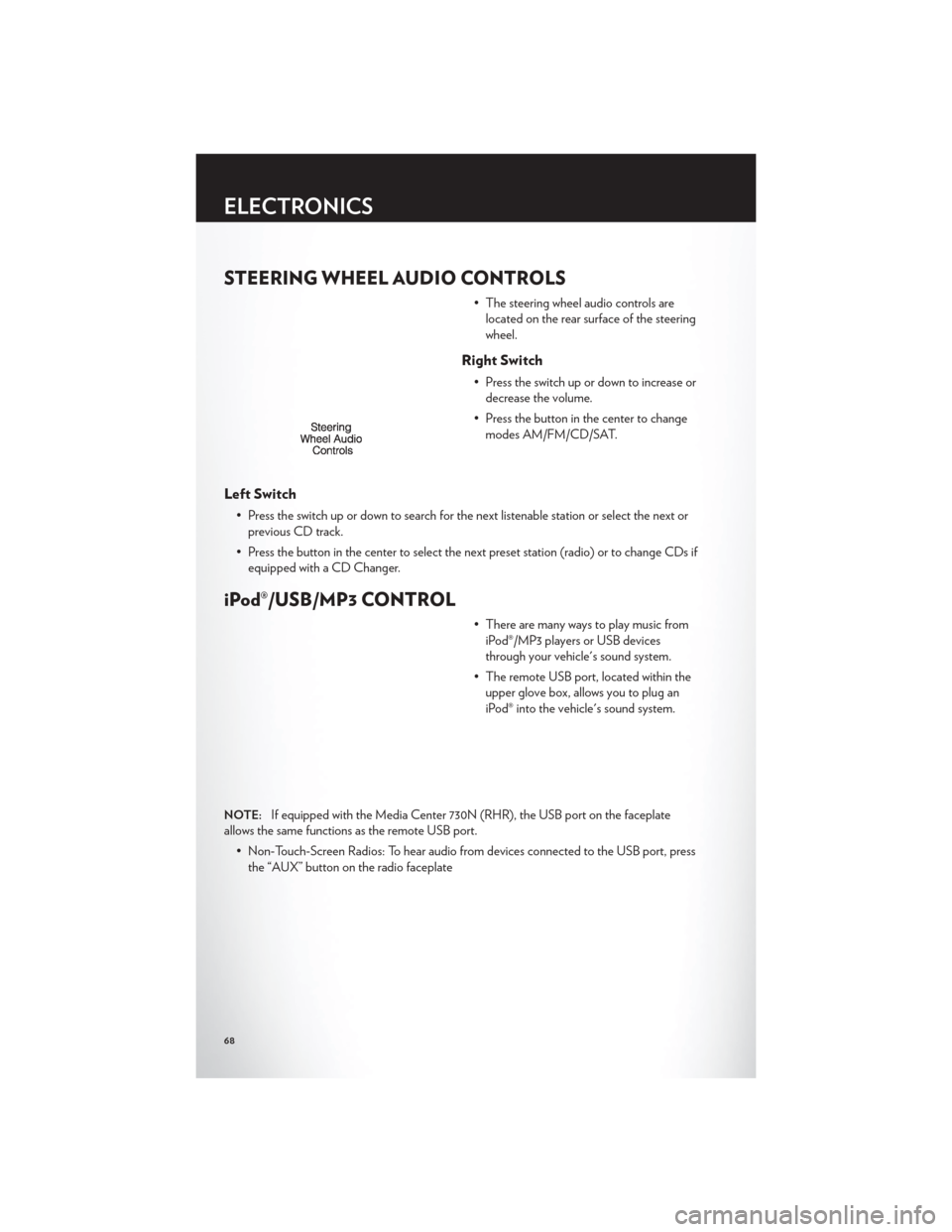
STEERING WHEEL AUDIO CONTROLS
• The steering wheel audio controls arelocated on the rear surface of the steering
wheel.
Right Switch
• Press the switch up or down to increase ordecrease the volume.
• Press the button in the center to change modes AM/FM/CD/SAT.
Left Switch
• Press the switch up or down to search for the next listenable station or select the next orprevious CD track.
• Press the button in the center to select the next preset station (radio) or to change CDs if equipped with a CD Changer.
iPod®/USB/MP3 CONTROL
• There are many ways to play music fromiPod®/MP3 players or USB devices
through your vehicle's sound system.
• The remote USB port, located within the upper glove box, allows you to plug an
iPod® into the vehicle's sound system.
NOTE:If equipped with the Media Center 730N (RHR), the USB port on the faceplate
allows the same functions as the remote USB port.
• Non-Touch-Screen Radios: To hear audio from devices connected to the USB port, pressthe “AUX” button on the radio faceplate
ELECTRONICS
68
Page 73 of 132
• Touch-Screen Radios: To hear audio from devices connected to the USB port, press the“MEDIA” hard-key, then touch the “AUX” or “iPod®” soft-key.
• When connected to this feature:• The iPod® can be controlled using the radio buttons to Play, Browse, and List
the iPod® or external devices contents.
• The iPod® battery charges when plugged into the USB port (if supported by the
specific audio device).
• Compatible iPod® devices may also be controllable using voice commands. Refer to the Owner's Manual on the DVD for details.
NOTE:
• The USB port supports certain Mini, Classic, Nano, Touch, and iPhone® devices. The USBport also supports playing music from compatible external USB Mass Storage Class
memory devices. For supported audio file formats, refer to the USB Port section in the
Owner's Manual on the DVD. Refer to www.UconnectPhone.com website for a list of tested
iPod®s. Some iPod® software versions may not fully support the USB port features. Please
visit Apple’s website for iPod® software updates.
WARNING!
Do not plug in or remove the iPod® or external device while driving. Failure to follow this
warning could result in a collision.
Uconnect™ Phone
• To determine if your vehicle is equipped with Uconnect™ Phone, press the “Uconnect™Phone” button
. If your vehicle has this feature, after a couple seconds you will hear a
voice prompt. If not, you will see a message on the radio “Uconnect phone not available”.
• The Uconnect™ Phone is a voice-activated, hands-free, in-vehicle communications system with Voice Command Capability (see Voice Command section).
NOTE:To access the tutorial, press the “Uconnect™ Phone” button. After the BEEP, say
“tutorial”. Press any hard-key/button or touch the display (Touch-Screen radio) to cancel the
tutorial.
• The Uconnect™ Phone allows you to dial a phone number with your mobile phone usingsimple voice commands.
• Refer to your vehicle Owner's Manual on the DVD for further details.
NOTE:The Uconnect™ Phone requires a mobile phone equipped with the Bluetooth®
Hands-Free Profile, Version 1.0 or higher. For Uconnect™ customer support, call
1–877–855–8400 or visit www.UconnectPhone.com.
ELECTRONICS
69
Page 75 of 132
• Only the phonebook of the currently connected mobile phone is accessible.
• Only the mobile phone’s phonebook is downloaded. SIM card phonebook is not part ofthe Mobile phonebook.
• This downloaded phonebook cannot be edited or deleted on the Uconnect™ Phone. These can only be edited on the mobile phone. The changes are transferred and updated
to Uconnect™ Phone on the next phone connection.
Phonebook Edit
• Press the “Phone” button.
• (After the BEEP), say “phonebook”.
• (After the BEEP), say “new entry” or “list names” or “delete”.
• Follow the prompts.
Making A Phone Call
• Press the “Phone” button.
• (After the BEEP), say “dial” (or “call” a name).
• (After the BEEP), say number (or name).
Receiving A Call – Accept (And End)
• When an incoming call rings/is announced on Uconnect™, press the Phone button.
• To end a call, press the Phone button
.
Mute (Or Unmute) Microphone During Call
• During a call, press the “Voice Command” button.
• (After the BEEP), say “mute” (or “mute off ”).
Transfer Ongoing Call Between Handset And Vehicle
• During a call, press the “Voice Command” button.
• (After the BEEP), say “transfer call”.
Changing The Volume
• Start a dialogue by pressing the “Phone” button, then adjust the volume during a
normal call.
• Use the radio ON/OFF VOLUME rotary knob to adjust the volume to a comfortable level while the Uconnect™ system is speaking. Please note the volume setting for
Uconnect™ is different than the audio system.
ELECTRONICS
71
Page 78 of 132
Bluetooth® STREAMING AUDIO
• If equipped with Uconnect™ VoiceCommand, your Bluetooth-equipped
iPod® devices, cell phones or other media
players, may also be able to stream music
to your vehicle's speakers. Your connected
device must be Bluetooth-compatible,
and paired with your Media Center radio
(see Uconnect™ Phone for pairing
instructions). Non-Touch-Screen Radios:
Press the “AUX” button on the radio faceplate until "BT" or “Audio Streaming” is
displayed on the radio screen. Touch-Screen-Radios: Press the “RADIO/MEDIA” or
“MEDIA” hard-key and then touch the “AUX” soft-key tab.
VIDEO ENTERTAINMENT SYSTEM (VES)™
System Operation
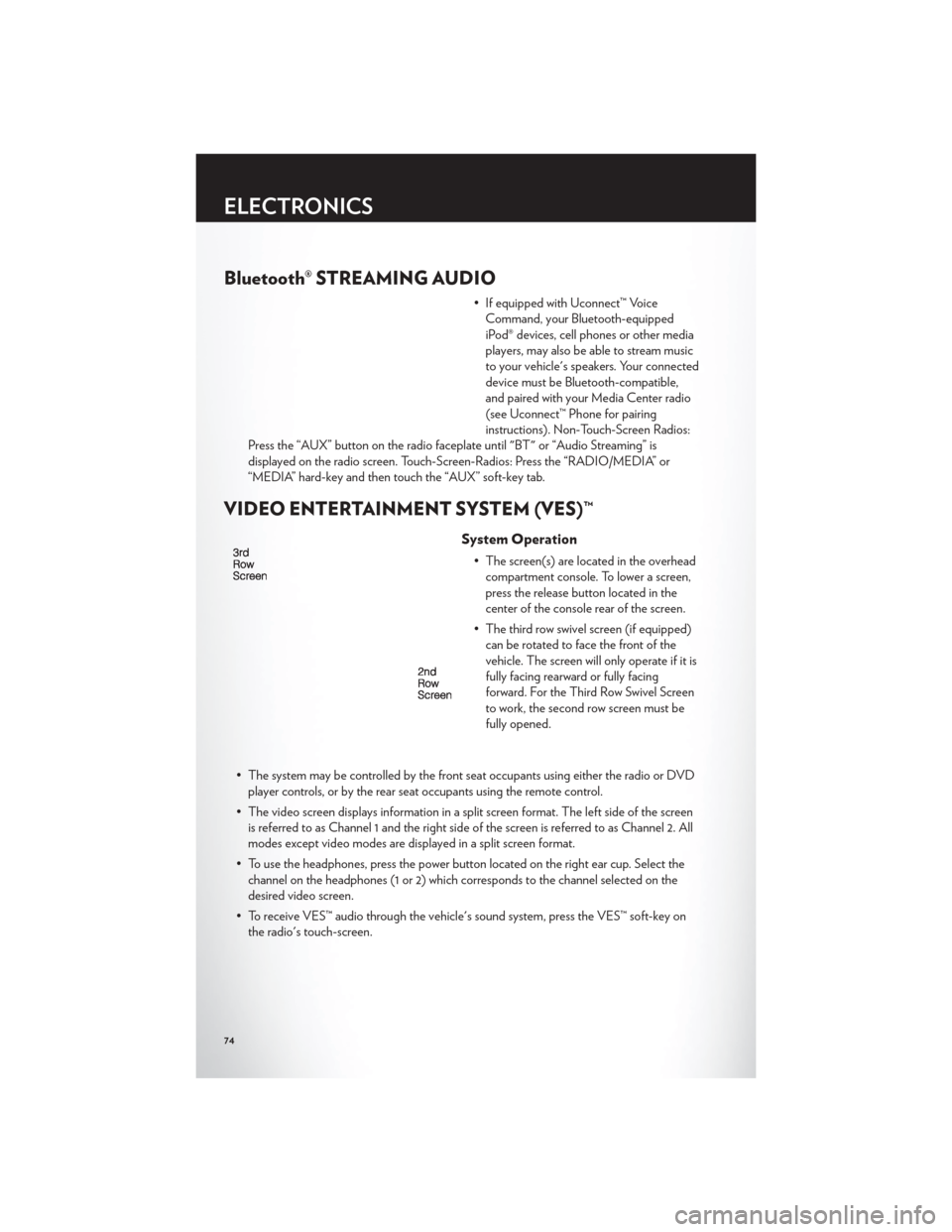
• The screen(s) are located in the overhead compartment console. To lower a screen,
press the release button located in the
center of the console rear of the screen.
• The third row swivel screen (if equipped) can be rotated to face the front of the
vehicle. The screen will only operate if it is
fully facing rearward or fully facing
forward. For the Third Row Swivel Screen
to work, the second row screen must be
fully opened.
• The system may be controlled by the front seat occupants using either the radio or DVD player controls, or by the rear seat occupants using the remote control.
• The video screen displays information in a split screen format. The left side of the screen is referred to as Channel 1 and the right side of the screen is referred to as Channel 2. All
modes except video modes are displayed in a split screen format.
• To use the headphones, press the power button located on the right ear cup. Select the channel on the headphones (1 or 2) which corresponds to the channel selected on the
desired video screen.
• To receive VES™ audio through the vehicle's sound system, press the VES™ soft-key on the radio's touch-screen.
ELECTRONICS
74
Page 79 of 132

Operation Of The Touch-Screen Radio/DVD Player
• To view a DVD press the OPEN/CLOSE hard-key on the touch-screen radio and insertthe disc or insert the disc into the optional DVD player. Playback will begin automatically
after the DVD is recognized by the disc drive. If playback does not begin automatically
when the disc is inserted into the DVD player press the PLAY button. If playback does
not begin automatically after the disc is inserted into the touch-screen radio follow these
steps:
• Press the MENU hard-key, then touch the Rear VES™ soft-key. If a chapter list appears on the right side of the screen, touch the HIDE LIST soft-key to display the Rear VES™
control screen.
• Touch the 1 soft key to select an audio channel, then touch the DISC soft-key in the MEDIA column.
Operation Of The Remote Control
• The remote control operates similarly to any DVD remote you may have used before andallows the rear seat passengers to change stations, tracks, discs and audio/video modes.
• The remote control is designed to control either channel by using the selector switch located on the right side of the remote.
• Connect the video game or other external media devises to the AUX jacks following the color coding for the VES™ jacks.
• Pressing the power button will turn the VES™ system ON/OFF.
• Pressing the mode button causes the MODE SELECTION menu to appear on the VES™ screen. Use the remote control arrow buttons to scroll through the available modes,
and then press ENTER to select the desired mode.
Auxiliary Audio/Video Input Jacks
• The AUX jacks are located on the drivers side rear trim panel behind the sliding door.
• Connect the video game or other external media devises to the AUX jacks following thecolor coding for the VES™ jacks.
• Using either the touch-screen radio or remote control, select AUX from the REAR VES™ CONTROL or the MODE SELECTION screen.
• Refer to the Uconnect™ Multimedia – Video Entertainment System (VES)™ section in the vehicle Owner's Manual on the DVD for further details.
ELECTRONICS
75
Page 119 of 132

Cavity Cartridge Fuse Mini-FuseDescription
M10 15 Amp Blue Ignition Off Draw — Vehicle
Entertainment System (IOD-VES),
Satellite Digital Audio Receiver
(SDARS), DVD, Hands-Free Module
(HFM), Universal Garage Door
Opener (UGDO), Vanity Lamp
(VANITY LP), Streaming Video
Module
M11 10 Amp Red (Ignition Off Draw) IOD-HVAC/
ATC
M12 30 Amp Green Amplifier (AMP)/Radio
M13 20 Amp Yellow Ignition Off Draw— Cabin
Compartment Node (IOD-CCN),
SIREN, Clock Module (CLK MOD),
Multi-Function Control Switch
(MULTIFCTN SW)/ITM
M14 20 Amp Yellow Trailer Tow – If Equipped
M15 20 Amp Yellow Rear View Mirror (RR VW MIR),
Cabin Compartment Node (CCN),
Multi-Function Control Switch
(MULTIFTCN SW), Tire Pressure
Monitor (TPM), Glow Plug Module
(GLW PLG MOD) — Export Diesel
Only, Assy-Shifter (Hall Effect),
Acoustic Noise Cancellation (ANC)
M16 10 Amp Red Occupant Restraint Controller/
Occupant Classification Module
(ORC/OCM)
M17 15 Amp Blue Left Tail/License/Park Lamp
(LT-TAIL/LIC/PRK LMP), Running
Lamps
M18 15 Amp Blue Right Tail/Park/Run Lamp
(RT-TAIL/PRK/RUN LMP)
M19 25 Amp Natural Auto Shut Down (ASD #1 and #2)
M20 15 Amp Blue Cabin Compartment Node Interior
Light (CCN INT LIGHT), Switch
Bank (SW BANK), Steering Control
Module (SCM), Switch Steering
Wheel
M21 20 Amp Yellow Auto Shut Down (ASD #3)
M22 10 Amp Red Right Horn (RT HORN (HI/LOW)
M23 10 Amp Red Left Horn (LT HORN (HI/LOW)
M24 25 Amp Natural Rear Wiper (REAR WIPER)
M25 20 Amp Yellow Fuel Pump (FUEL PUMP), Diesel Lift
Pump (DSL LIFT PUMP) — Export
Only
MAINTAINING YOUR VEHICLE
115
Page 126 of 132
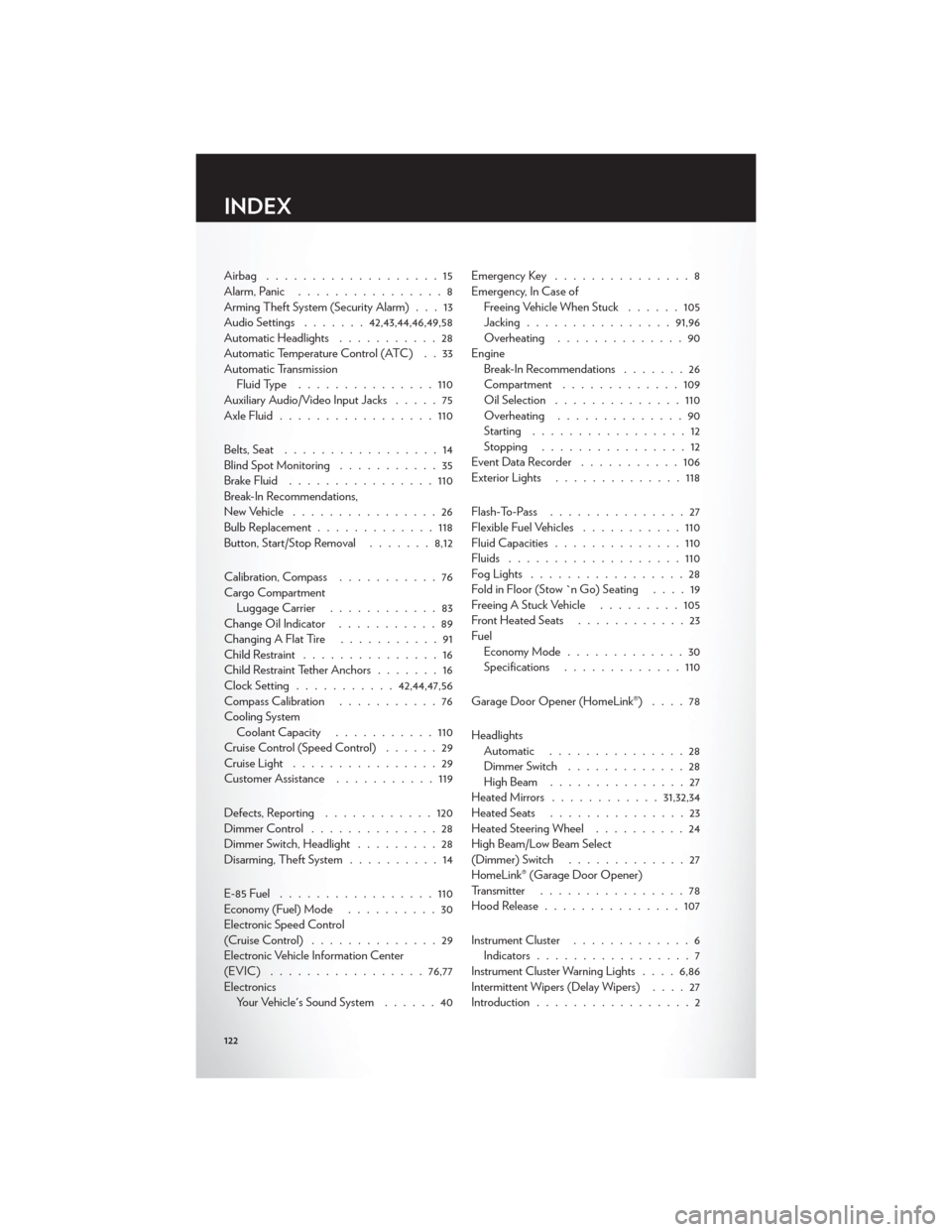
Airbag ...................15
Alarm, Panic................8
Arming Theft System (Security Alarm) . . . 13
Audio Settings .......42,43,44,46,49,58
Automatic Headlights ...........28
Automatic Temperature Control (ATC) . . 33
Automatic Transmission Fluid Type ...............110
Auxiliary Audio/Video Input Jacks .....75
Axle Fluid .................110
Belts, Seat .................14
Blind Spot Monitoring ...........35
Brake Fluid ................110
Break-In Recommendations,
New Vehicle ................26
Bulb Replacement .............118
Button, Start/Stop Removal .......8,12
Calibration, Compass ...........76
Cargo Compartment Luggage Carrier ............83
Change Oil Indicator ...........89
Changing A Flat Tire ...........91
Child Restraint ...............16
Child Restraint Tether Anchors .......16
Clock Setting ........... 42,44,47,56
Compass Calibration ...........76
Cooling System Coolant Capacity ...........110
Cruise Control (Speed Control) ......29
Cruise Light ................29
Customer Assistance ...........119
Defects, Reporting ............120
Dimmer Control ..............28
Dimmer Switch, Headlight .........28
Disarming, Theft System ..........14
E-85Fuel .................110
Economy (Fuel) Mode ..........30
Electronic Speed Control
(Cruise Control) ..............29
Electronic Vehicle Information Center
(EVIC) ................. 76,77
Electronics Your Vehicle's Sound System ......40Emergency Key
...............8
Emergency, In Case of Freeing Vehicle When Stuck ......105
Jacking ................ 91,96
Overheating ..............90
Engine Break-In Recommendations .......26
Compartment .............109
Oil Selection ..............110
Overheating ..............90
Starting .................12
Stopping ................12
Event Data Recorder ...........106
Exterior Lights ..............118
Flash-To-Pass ...............27
Flexible
Fuel Vehicles ...........110
Fluid Capacities ..............110
Fluids ...................110
Fog Lights .................28
Fold in Floor (Stow `n Go) Seating ....19
Freeing A Stuck Vehicle .........105
Front Heated Seats ............23
Fuel EconomyMode.............30
Specifications .............110
Garage Door Opener (HomeLink®) ....78
Headlights Automatic ...............28
Dimmer Switch .............28
HighBeam ...............27
Heated Mirrors ............ 31,32,34
Heated Seats ...............23
Heated Steering Wheel ..........24
High Beam/Low Beam Select
(Dimmer) Switch .............27
HomeLink® (Garage Door Opener)
Transmitter ................78
Hood Release ...............107
Instrument Cluster .............6
Indicators .................7
Instrument Cluster Warning Lights ....6,86
Intermittent Wipers (Delay Wipers) ....27
Introduction .................2
INDEX
122
Page 127 of 132
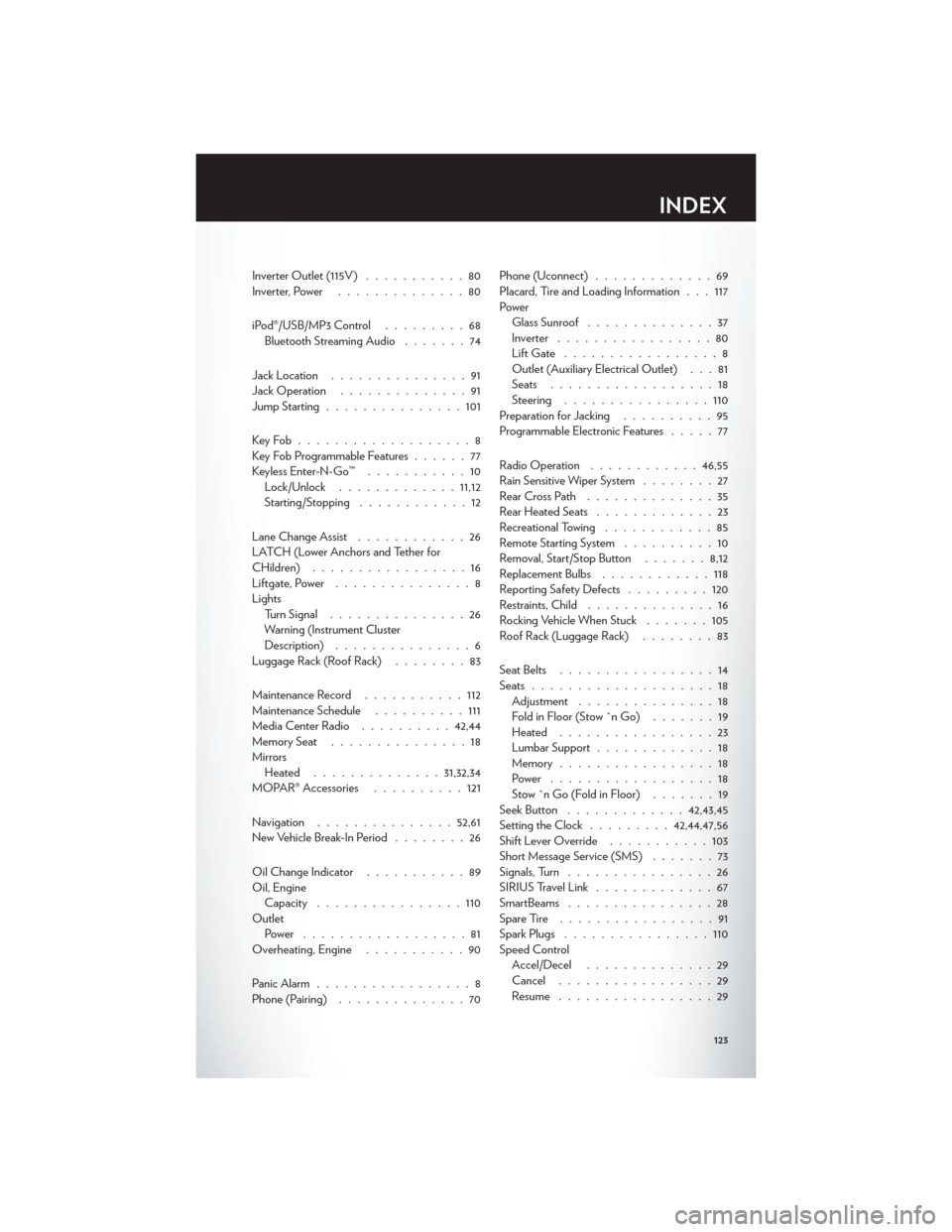
Inverter Outlet (115V)...........80
Inverter, Power ..............80
iPod®/USB/MP3 Control .........68
Bluetooth Streaming Audio .......74
Jack Location ...............91
Jack Operation ..............91
Jump Starting ...............101
KeyFob...................8
Key Fob Programmable Features ......77
Keyless Enter-N-Go™ ...........10
Lock/Unlock ............. 11,12
Starting/Stopping ............12
Lane Change Assist ............26
LATCH (Lower Anchors and Tether for
CHildren) .................16
Liftgate, Power ...............8
Lights TurnSignal ...............26
Warning (Instrument Cluster
Description) ...............6
Luggage Rack (Roof Rack) ........83
Maintenance Record ...........112
Maintenance Schedule ..........111
Media Center Radio ..........42,44
Memory Seat ...............18
Mirrors Heated .............. 31,32,34
MOPAR® Accessories ..........121
Navigation ............... 52,61
New Vehicle Break-In Period ........26
Oil Change Indicator ...........89
Oil, Engine Capacity ................110
Outlet Power ..................81
Overheating, Engine ...........90
Panic Alarm .................8
Phone (Pairing) ..............70 Phone (Uconnect)
.............69
Placard, Tire and Loading Information . . . 117
Power Glass Sunroof ..............37
Inverter .................80
LiftGate .................8
Outlet (Auxiliary Electrical Outlet) . . . 81
Seats ..................18
Steering ................110
Preparation for Jacking ..........95
Programmable Electronic Features .....77
Radio Operation ............ 46,55
Rain Sensitive Wiper System ........27
RearCrossPath ..............35
Rear Heated Seats .............23
Recreational Towing ............85
Remote Starting System ..........10
Removal, Start/Stop Button .......8,12
Replacement Bulbs ............118
Reporting Safety Defects .........120
Restraints, Child ..............16
Rocking Vehicle When Stuck .......
105
Roof Rack (Luggage Rack) ........83
Seat Belts .................14
Seats ....................18
Adjustment ...............18
Fold in Floor (Stow `n Go) .......19
Heated .................23
Lumbar Support .............18
Memory.................18
Power ..................18
Stow `n Go (Fold in Floor) .......19
Seek Button ............. 42,43,45
Setting the Clock .........42,44,47,56
Shift Lever Override ...........103
Short Message Service (SMS) .......73
Signals, Turn ................26
SIRIUSTravelLink .............67
SmartBeams ................28
SpareTire .................91
Spark Plugs ................110
Speed Control Accel/Decel ..............29
Cancel .................29
Resume .................29
INDEX
123