ECO mode CHRYSLER TOWN AND COUNTRY 2014 5.G Owner's Manual
[x] Cancel search | Manufacturer: CHRYSLER, Model Year: 2014, Model line: TOWN AND COUNTRY, Model: CHRYSLER TOWN AND COUNTRY 2014 5.GPages: 148, PDF Size: 4.26 MB
Page 51 of 148
Equalizer, Balance And Fade
1. Press the TUNE/SCROLL control knob and “BASS” will display.
2. Rotate the TUNE/SCROLL control knob to select the desired setting.
3. Continue pressing the TUNE/SCROLL control knob to display and set “MID RANGE,”“TREBLE,” “BALANCE” and “FADE.”
Radio Operation
Seek Up/Down Buttons
• Press to seek through radio stations in AM, FM, or SAT bands.
• Hold either button to bypass stations without stopping.
Store Radio Presets
• Press the SET/RND or SET (depending on the radio) button once and SET 1 will show in thedisplay. Then select a preset button (1–6).
• A second station may be added to each push button. Press the SET/RND or SET (depending on the radio) button twice and SET 2 will show in the display. Then select a preset button (1–6).
Music Type
NOTE:
The Music Type function only operates when in FM mode.
• Press the MUSIC TYPE button to activate this mode. Press the MUSIC TYPE button again or turn the TUNE/SCROLL control knob to select the desired music type (Adult Hits,
Country, Jazz, Oldies, Rock, etc.).
• When a music type is chosen and the Music type is displayed, press either SEEK button and the radio will only search for stations with the selected music type.
SETUP Button
• Pressing the SETUP button allows you to select between items that are available in that particular mode.
• Turn the TUNE/SCROLL control knob to scroll through the entries. Push the AUDIO/ SELECT button to select an entry and make changes.
ELECTRONICS
49
Page 56 of 148
CD/DVD Disc Operation
• Press the “MEDIA” hard-key to display the media source tabs at the top of the screen. Selectthe source by touching the “HDD,” “DISC,” or “AUX” media source soft-key tab.
NOTE:
Your Touchscreen Radio will usually automatically switch to the appropriate mode when some-
thing is first connected or inserted into the system.
Insert A CD/DVD Disc
• To insert a disc, press the “LOAD” hard-key.
• With the printed side upwards, insert the disc into the disc slot of the radio. The radio pulls the disc in automatically and closes the flip screen. The radio selects the appropriate mode after
the disc is recognized, and starts playing the first track. The display shows “Reading...” during
this process.
Seek Up/Seek Down
• Press the “Seek Up” or “Seek Down” soft-keys to seek through tracks in Disc Mode. Hold either Seek to bypass tracks without stopping.
ELECTRONICS
54
Page 65 of 148
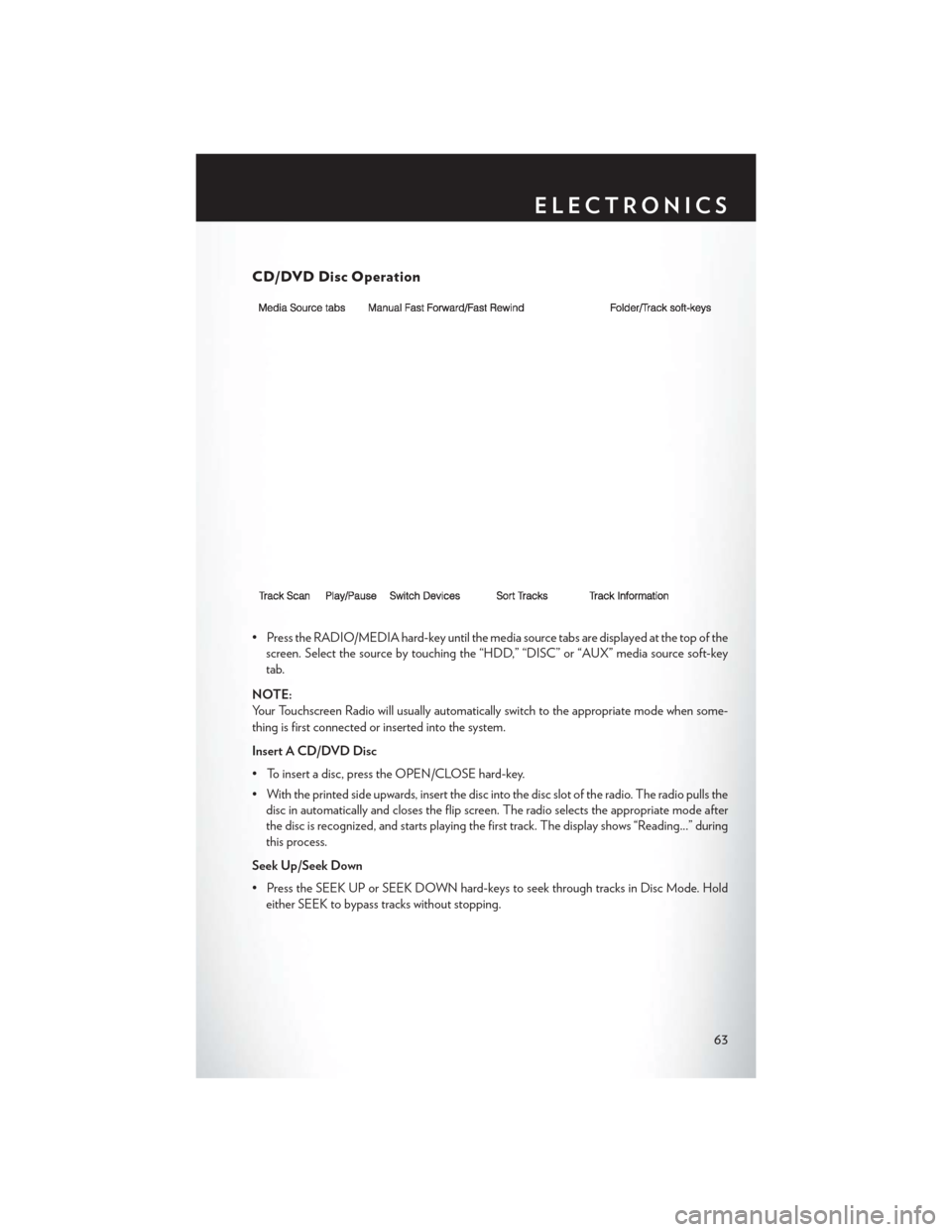
CD/DVD Disc Operation
• Press the RADIO/MEDIA hard-key until the media source tabs are displayed at the top of thescreen. Select the source by touching the “HDD,” “DISC” or “AUX” media source soft-key
tab.
NOTE:
Your Touchscreen Radio will usually automatically switch to the appropriate mode when some-
thing is first connected or inserted into the system.
Insert A CD/DVD Disc
• To insert a disc, press the OPEN/CLOSE hard-key.
• With the printed side upwards, insert the disc into the disc slot of the radio. The radio pulls the disc in automatically and closes the flip screen. The radio selects the appropriate mode after
the disc is recognized, and starts playing the first track. The display shows “Reading...” during
this process.
Seek Up/Seek Down
• Press the SEEK UP or SEEK DOWN hard-keys to seek through tracks in Disc Mode. Hold either SEEK to bypass tracks without stopping.
ELECTRONICS
63
Page 74 of 148
• You will see a favorite star indicator in the upper right side of the screen below the “SAT”soft-key and a pop up will alert you that a favorite song or artist is currently playing on one of
the SiriusXM satellite radio channels.
NOTE:
Refer to your Uconnect® 730N or 430/430N
Supplement Manual for more information.
Display SAT Favorites List
•
Touch the “Search/Browse” soft-key and select
“Favorites” from the SAT Browse screen.
•Touch the desired favorites soft-key to switch
the SAT tuner to the corresponding channel.
• You may use the “LIST” soft-key to toggle between:
• Favorite Songs
• Favorite Artists
• Currently playing favorites
Replay
• While you are in SAT mode, you can replay 44 minutes of the current SiriusXM channel
(when the channel is changed, this audio
buffer is erased). Press the REPLAY button
to listen to the stored audio.
• You can touch the on-screen controls to pause and rewind audio playback, touch the
SCAN button to preview each of the tracks
stored in the buffer, or select a track from the
list.
•
The time displayed below the bar indicates
how much time is present between the current
buffer play position and the live broadcast.
Replay Option Option Description
Play/Pause Touch to pause content playback. Touch Pause/Play again to resume playback.
Rewind/RW Rewinds the channel content in steps of five seconds. Touch and hold to rewind continuously, then release to begin playing content at that point.
Fast Forward/FW Forwards the content, and works similarly to Rewind/RW. However, Fast Forward/FW can only be used when content has been previously rewound.
Replay Time Displays the amount of time in the upper center of the screen by which your content lags the live channel.
Live Resumes playback of live content at any time while replaying rewound content.
ELECTRONICS
72
Page 81 of 148
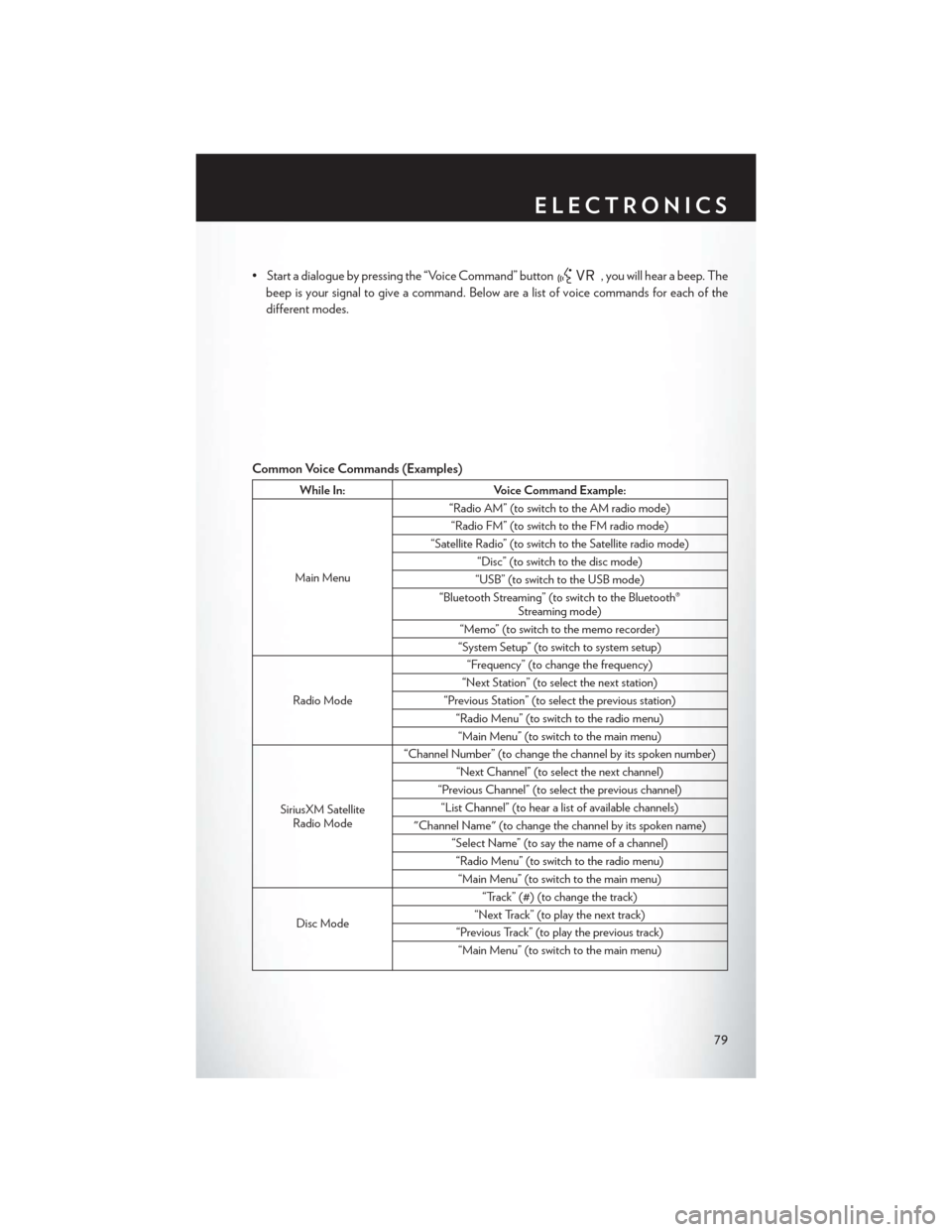
• Start a dialogue by pressing the “Voice Command” button, you will hear a beep. The
beep is your signal to give a command. Below are a list of voice commands for each of the
different modes.
Common Voice Commands (Examples)
While In: Voice Command Example:
Main Menu “Radio AM” (to switch to the AM radio mode)
“Radio FM” (to switch to the FM radio mode)
“Satellite Radio” (to switch to the Satellite radio mode) “Disc” (to switch to the disc mode)
“USB” (to switch to the USB mode)
“Bluetooth Streaming” (to switch to the Bluetooth® Streaming mode)
“Memo” (to switch to the memo recorder)
“System Setup” (to switch to system setup)
Radio Mode “Frequency” (to change the frequency)
“Next Station” (to select the next station)
“Previous Station” (to select the previous station) “Radio Menu” (to switch to the radio menu)“Main Menu” (to switch to the main menu)
SiriusXM Satellite Radio Mode “Channel Number” (to change the channel by its spoken number)
“Next Channel” (to select the next channel)
“Previous Channel” (to select the previous channel) “List Channel” (to hear a list of available channels)
"Channel Name" (to change the channel by its spoken name) “Select Name” (to say the name of a channel)“Radio Menu” (to switch to the radio menu)“Main Menu” (to switch to the main menu)
Disc Mode “Track” (#) (to change the track)
“Next Track” (to play the next track)
“Previous Track” (to play the previous track) “Main Menu” (to switch to the main menu)
ELECTRONICS
79
Page 82 of 148
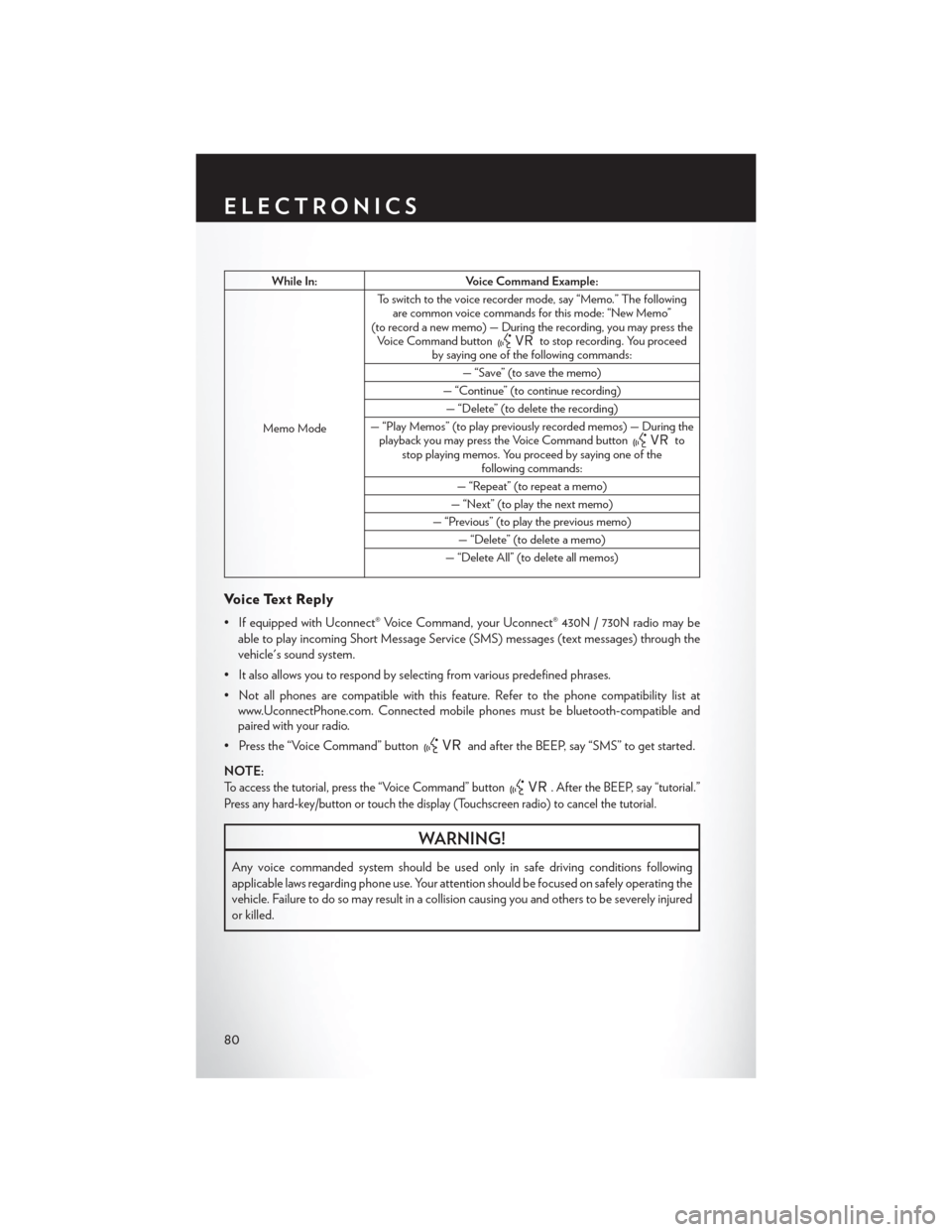
While In:Voice Command Example:
Memo Mode To switch to the voice recorder mode, say “Memo.” The following
are common voice commands for this mode: “New Memo”
(to record a new memo) — During the recording, you may press the Voice Command button
to stop recording. You proceed
by saying one of the following commands:
— “Save” (to save the memo)
— “Continue” (to continue recording) — “Delete” (to delete the recording)
— “Play Memos” (to play previously recorded memos) — During the playback you may press the Voice Command button
to
stop playing memos. You proceed by saying one of the following commands:
— “Repeat” (to repeat a memo)
— “Next” (to play the next memo)
— “Previous” (to play the previous memo) — “Delete” (to delete a memo)
— “Delete All” (to delete all memos)
Voice Text Reply
• If equipped with Uconnect® Voice Command, your Uconnect® 430N / 730N radio may be able to play incoming Short Message Service (SMS) messages (text messages) through the
vehicle's sound system.
• It also allows you to respond by selecting from various predefined phrases.
• Not all phones are compatible with this feature. Refer to the phone compatibility list at www.UconnectPhone.com. Connected mobile phones must be bluetooth-compatible and
paired with your radio.
• Press the “Voice Command” button
and after the BEEP, say “SMS” to get started.
NOTE:
To access the tutorial, press the “Voice Command” button. After the BEEP, say “tutorial.”
Press any hard-key/button or touch the display (Touchscreen radio) to cancel the tutorial.
WARNING!
Any voice commanded system should be used only in safe driving conditions following
applicable laws regarding phone use. Your attention should be focused on safely operating the
vehicle. Failure to do so may result in a collision causing you and others to be severely injured
or killed.
ELECTRONICS
80
Page 83 of 148
Bluetooth® STREAMING AUDIO
•If equipped with Uconnect® Voice Command,
your Bluetooth®-equipped iPod® devices, cell
phones or other media players, may also be
able to stream music to your vehicles speakers.
Your connected device must be Bluetooth®-
compatible, and paired with your radio (see
www.UconnectPhone.com for pairing instruc-
tions).
•Non-Touchscreen Radios:Press the “AUX”
button on the radio faceplate until "BT" or “Audio Streaming” is displayed on the radio screen.
• Touchscreen-Radios: Press the “RADIO/MEDIA” or “MEDIA” hard-key and then touch the
“AUX” soft-key tab.
VIDEO ENTERTAINMENT SYSTEM (VES™)
System Operation
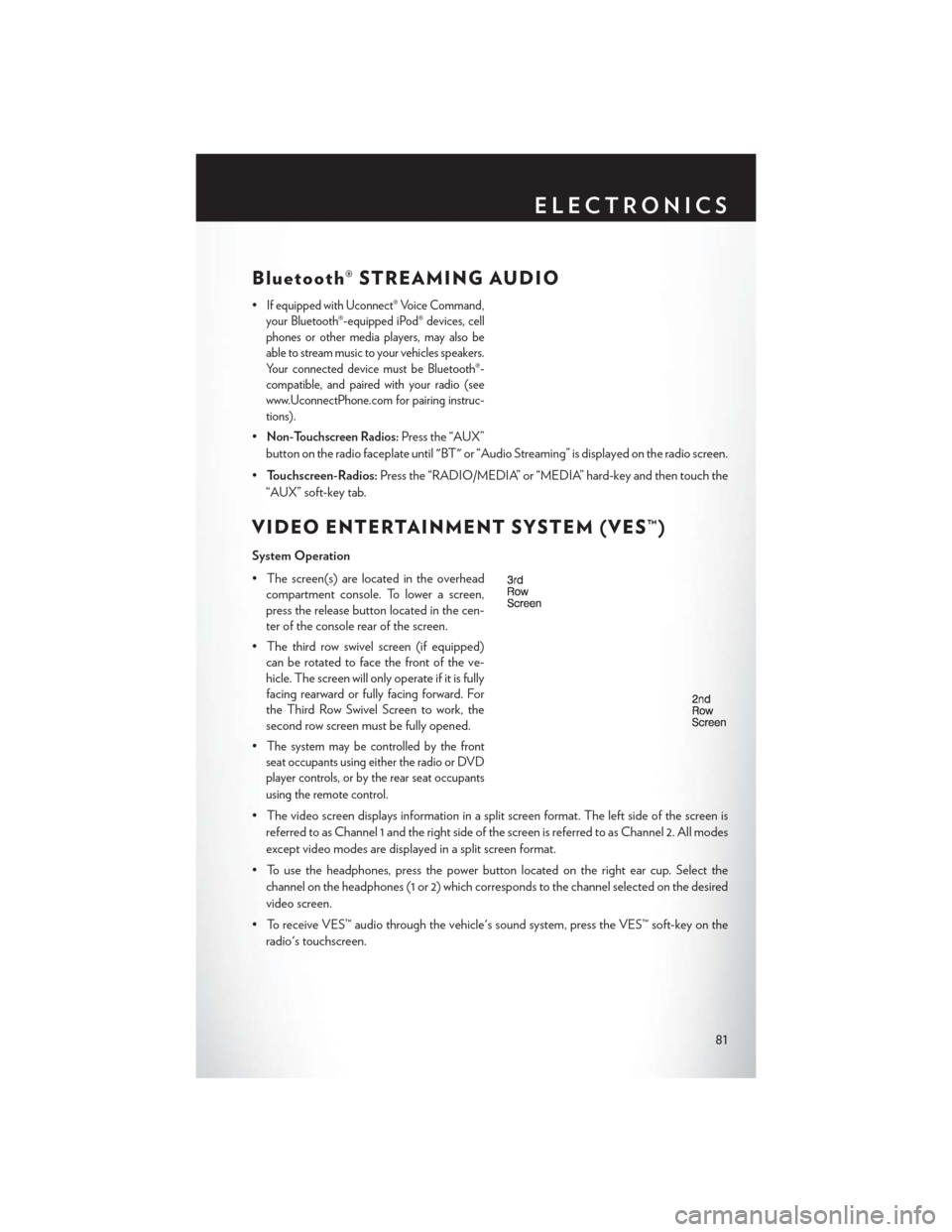
• The screen(s) are located in the overhead compartment console. To lower a screen,
press the release button located in the cen-
ter of the console rear of the screen.
• The third row swivel screen (if equipped) can be rotated to face the front of the ve-
hicle. The screen will only operate if it is fully
facing rearward or fully facing forward. For
the Third Row Swivel Screen to work, the
second row screen must be fully opened.
•
The system may be controlled by the front
seat occupants using either the radio or DVD
player controls, or by the rear seat occupants
using the remote control.
• The video screen displays information in a split screen format. The left side of the screen is
referred to as Channel 1 and the right side of the screen is referred to as Channel 2. All modes
except video modes are displayed in a split screen format.
• To use the headphones, press the power button located on the right ear cup. Select the channel on the headphones (1 or 2) which corresponds to the channel selected on the desired
video screen.
• To receive VES™ audio through the vehicle's sound system, press the VES™ soft-key on the radio's touchscreen.
ELECTRONICS
81
Page 84 of 148
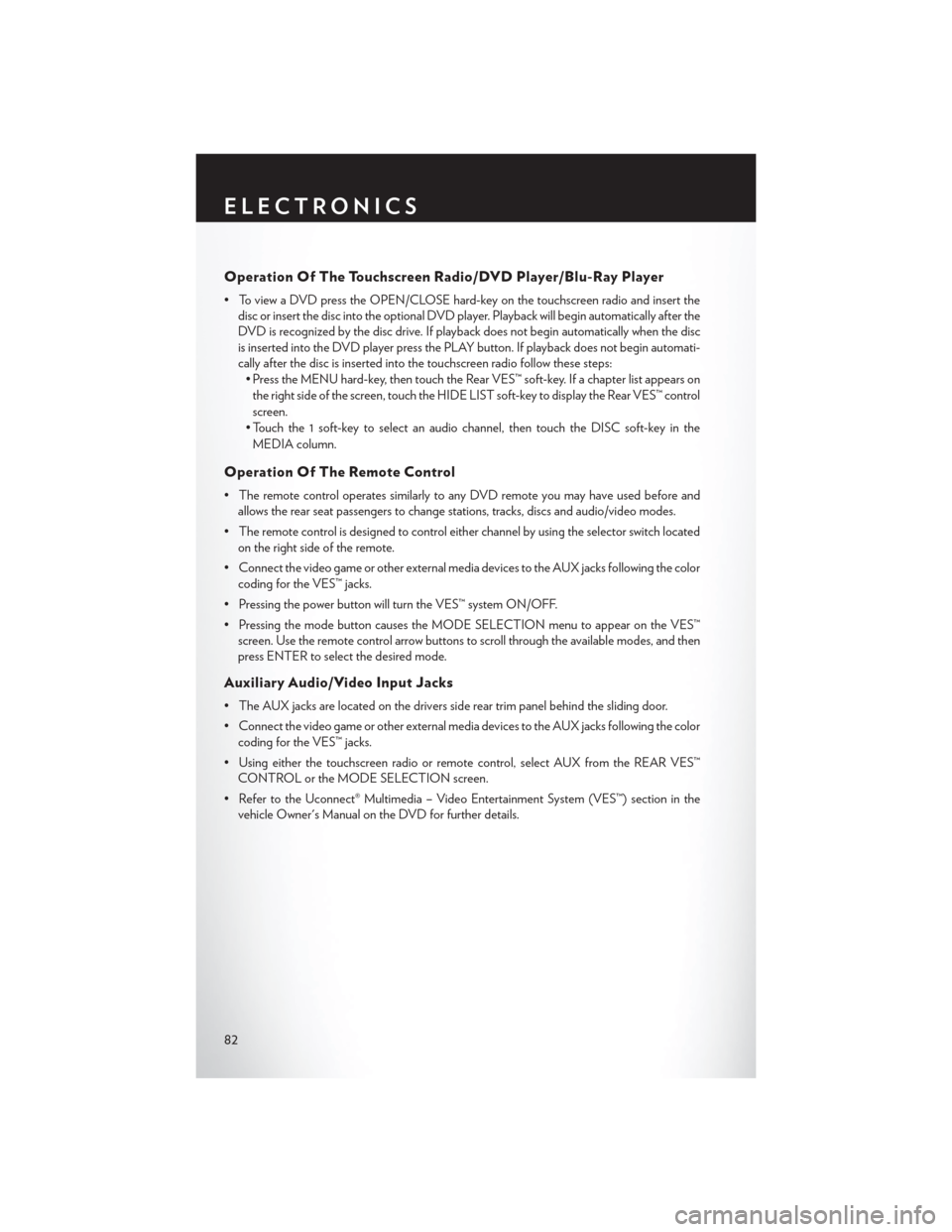
Operation Of The Touchscreen Radio/DVD Player/Blu-Ray Player
• To view a DVD press the OPEN/CLOSE hard-key on the touchscreen radio and insert thedisc or insert the disc into the optional DVD player. Playback will begin automatically after the
DVD is recognized by the disc drive. If playback does not begin automatically when the disc
is inserted into the DVD player press the PLAY button. If playback does not begin automati-
cally after the disc is inserted into the touchscreen radio follow these steps:• Press the MENU hard-key, then touch the Rear VES™ soft-key. If a chapter list appears on
the right side of the screen, touch the HIDE LIST soft-key to display the Rear VES™ control
screen.
• Touch the 1 soft-key to select an audio channel, then touch the DISC soft-key in the MEDIA column.
Operation Of The Remote Control
• The remote control operates similarly to any DVD remote you may have used before and allows the rear seat passengers to change stations, tracks, discs and audio/video modes.
• The remote control is designed to control either channel by using the selector switch located on the right side of the remote.
• Connect the video game or other external media devices to the AUX jacks following the color coding for the VES™ jacks.
• Pressing the power button will turn the VES™ system ON/OFF.
• Pressing the mode button causes the MODE SELECTION menu to appear on the VES™ screen. Use the remote control arrow buttons to scroll through the available modes, and then
press ENTER to select the desired mode.
Auxiliary Audio/Video Input Jacks
• The AUX jacks are located on the drivers side rear trim panel behind the sliding door.
• Connect the video game or other external media devices to the AUX jacks following the colorcoding for the VES™ jacks.
• Using either the touchscreen radio or remote control, select AUX from the REAR VES™ CONTROL or the MODE SELECTION screen.
• Refer to the Uconnect® Multimedia – Video Entertainment System (VES™) section in the vehicle Owner's Manual on the DVD for further details.
ELECTRONICS
82
Page 99 of 148

TIREFIT Kit Components And Operation
Using The Mode Select Knob And
Hoses
Your TIREFIT kit is equipped with the follow-
ing symbols to indicate the air or sealant mode.
Selecting Air Mode
Turn the Mode Select Knob (5) to this position
for air pump operation only. Use the Black Air
Pump Hose (7) when selecting this mode.
Selecting Sealant Mode
Turn the Mode Select Knob (5) to this position
to inject the TIREFIT Sealant and to inflate the
tire. Use the Sealant Hose (clear hose) (6)
when selecting this mode.
Using The Power Button
Push and release the Power Button (4) once
to turn On the TIREFIT kit. Push and release
the Power Button (4) again to turn Off the
TIREFIT kit.
Using The Deflation Button
Press the Deflation Button (2) to reduce the air
pressure in the tire if it becomes over-inflated.
TIREFIT Usage Precautions
• Replace the TIREFIT Sealant Bottle (1) and Sealant Hose (6) prior to the expiration date (printed on the bottle label) to assure optimum operation of the system. Refer to “Sealing a
Tire with TIREFIT” section (F) “Sealant Bottle and Hose Replacement.”
• The Sealant Bottle (1) and Sealant Hose (6) are a one tire application use. After each use, always replace these components immediately at an authorized dealer.
• When the TIREFIT sealant is in a liquid form, clean water, and a damp cloth will remove the material from the vehicle or tire and wheel components. Once the sealant dries, it can easily be
peeled off and properly discarded.
• For optimum performance, make sure the valve stem on the wheel is free of debris before connecting the TIREFIT kit.
• You can use the TIREFIT air pump to inflate bicycle tires. The kit also comes with two needles, located in the Accessory Storage Compartment (on the bottom of the air pump) for inflating
sport balls, rafts, or similar inflatable items. However, use only the Air Pump Hose (7) and make
sure the Mode Select Knob (5) is in the Air Mode when inflating such items to avoid injecting
sealant into them. The TIREFIT Sealant is only intended to seal punctures less than 1/4”
(6 mm) diameter in the tread of your vehicle.
• Do not lift or carry the TIREFIT kit by the hoses.
TIREFIT Components
1 — Sealant Bottle
2 — Deflation Button
3 — Pressure Gauge
4 — Power Button
5 — Mode Select Knob
6 — Sealant Hose (Clear)
7 — Air Pump Hose (Black)
8 — Power Plug (located on bottom side of
TIREFIT Kit)
WHAT TO DO IN EMERGENCIES
97
Page 100 of 148
Sealing A Tire With TIREFIT
(A) Whenever You Stop To Use TIREFIT:
1. Pull over to a safe location and turn on the vehicle’s Hazard Warning flashers.
2. Verify that the valve stem (on the wheel with the deflated tire) is in a position that is near to theground. This will allow the TIREFIT Hoses (6) and (7) to reach the valve stem and keep the
TIREFIT kit flat on the ground. This will provide the best positioning of the kit when injecting
the sealant into the deflated tire and running the air pump. Move the vehicle as necessary to
place the valve stem in this position before proceeding.
3. Place the transmission in PARK (auto transmission) or in Gear (manual transmission) and cycle the ignition to the OFF position.
4. Set the parking brake.
(B) Setting Up To Use TIREFIT:
1. Turn the Mode Select Knob (5) to the Sealant Mode position.
2. Uncoil the Sealant Hose (6) and then remove the cap from the fitting at the end of the hose.
3. Place the TIREFIT kit flat on the ground next to the deflated tire.
4. Remove the cap from the valve stem and then screw the fitting at the end of the Sealant Hose (6) onto the valve stem.
5. Uncoil the Power Plug (8) and insert the plug into the vehicle’s 12 Volt power outlet.
6. Do not remove foreign objects (e.g., screws or nails) from the tire.
(C) Injecting TIREFIT Sealant Into The Deflated Tire:
Always start the engine before turning ON the TIREFIT kit.
NOTE:
Manual transmission vehicles must have the p arking brake engaged and the shift lever in
NEUTRAL.
After pressing the Power Button (4), the sealant (white fluid) will flow from the Sealant Bottle (1)
through the Sealant Hose (6) and into the tire.
NOTE:
Sealant may leak out through the puncture in the tire.
If the sealant (white fluid) does not flow within0–10seconds through the Sealant Hose (6):
1. Press the Power Button (4) to turn Off the TIREFIT kit. Disconnect the Sealant Hose (6) from the valve stem. Make sure the valve stem is free of debris. Reconnect the Sealant Hose (6) to
the valve stem. Check that the Mode Select Knob (5) is in the Sealant Mode position and not
Air Mode. Press the Power Button (4) to turn On the TIREFIT kit.
2. Connect the Power Plug (8) to a different 12 Volt power outlet in your vehicle or another vehicle, if available. Make sure the engine is running before turning ON the TIREFIT kit.
3. The Sealant Bottle (1) may be empty due to previous use. Call for assistance.
WHAT TO DO IN EMERGENCIES
98