AUX CHRYSLER TOWN AND COUNTRY 2015 5.G User Guide
[x] Cancel search | Manufacturer: CHRYSLER, Model Year: 2015, Model line: TOWN AND COUNTRY, Model: CHRYSLER TOWN AND COUNTRY 2015 5.GPages: 164, PDF Size: 22.47 MB
Page 60 of 164
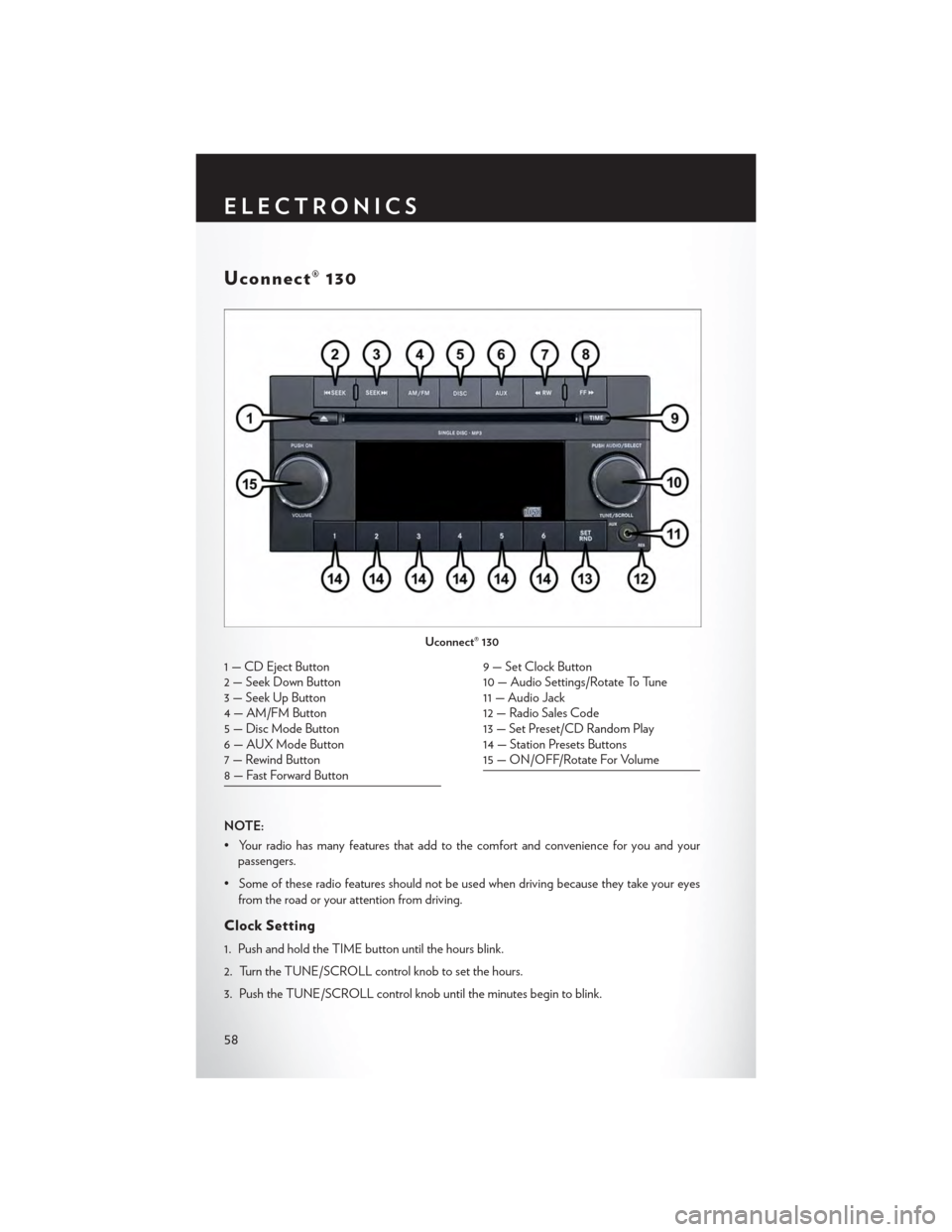
Uconnect® 130
NOTE:
•Yourradiohasmanyfeaturesthataddtothecomfortandconvenienceforyouandyourpassengers.
•Someoftheseradiofeaturesshouldnotbeusedwhendrivingbecausetheytakeyoureyes
from the road or your attention from driving.
Clock Setting
1. Push and hold the TIME button until the hours blink.
2. Turn the TUNE/SCROLL control knob to set the hours.
3. Push the TUNE/SCROLL control knob until the minutes begin to blink.
Uconnect® 130
1 — CD Eject Button2 — Seek Down Button3 — Seek Up Button4 — AM/FM Button5—DiscModeButton6—AUXModeButton7 — Rewind Button8 — Fast Forward Button
9 — Set Clock Button10 — Audio Settings/Rotate To Tune11 — Audio Jack12 — Radio Sales Code13 — Set Preset/CD Random Play14 — Station Presets Buttons15 — ON/OFF/Rotate For Volume
ELECTRONICS
58
Page 61 of 164
4. Turn the TUNE/SCROLL control knob to set the minutes.
5. Push the TUNE/SCROLL control knob to save the changes.
6. Push any button/knob or wait five seconds to exit.
Equalizer, Balance And Fade
1. Push the TUNE/SCROLL control knob and “BASS” will display.
2. Rotate the TUNE/SCROLL control knob to select the desired setting.
3. Continue pushing the TUNE/SCROLL control knob to display and set “MID RANGE,”
“TREBLE,” “BALANCE” and “FADE.”
Radio Operation
Seek Up/Down Buttons
•PushtoseekthroughradiostationsinAMorFMbands.
•Holdeitherbuttontobypassstationswithoutstopping.
Store Radio Presets
• Push the SET/RND or SET (depending on the radio) button once and SET 1 will show in the
display. Then select a preset button (1–6).
• A second station may be added to each push button. Push the SET/RND or SET (depending
on the radio) button twice and SET 2 will show in the display. Then select a preset button (1–6).
CD/DISC Operation
Seek Up/Down Buttons
• Push to seek through CD tracks.
•Holdeitherbuttontobypasstrackswithoutstopping.
SET/RND Or RND (Depending On Radio) Button (Random Play)
•PushthisbuttonwhiletheCDisplayingtoactivateRandomPlay.
•ThisfeatureplaystheselectionsontheCDinrandomordertoprovideaninterestingchange
of pace.
Audio Jack Operation
The AUX/Audio Jack provides a means to connect a portable audio device, such as an MP3
player or an iPod®, to the vehicle’s sound system. This requires the use of a 3.5 mm stereo audio
patch cable.
•Pushing the AUX button will change the mode to auxiliary device if the Audio Jack is connected,
allowing the music from your portable device to play through the vehicle's speakers.
The functions of the portable device are controlled using the device buttons, not the buttons on
the radio. However, the volume may be controlled using the radio or portable device.
ELECTRONICS
59
Page 64 of 164
SiriusXM Satellite Radio
SiriusXM services require subscriptions, sold separately after the 12-month trial included with the
new vehicle purchase.If you decide to continue your service at the end of your trial subscrip-
tion, the plan you choose will automatically renew and bill at then-current rates until you call
SiriusXM at 1-866-635-2349 to cancel.See SiriusXM Customer Agreement for complete
terms at www.siriusxm.com. All fees and programming subject to change. Our satellite service is
available only to those at least 18 and older in the 48 contiguous USA and D.C. Our Sirius satellite
service is also available in PR (with coverage limitations). Our Internet radio service is available
throughout our satellite service area and in AK and HI. ©2014 Sirius XM Radio Inc. Sirius, XM
and all related marks and logos are trademarks of Sirius XM Radio Inc.
SiriusXM Satellite Radio gives you over 130 channels, including 100% commercial-free music
from nearly every genre, plus all your favorite sports, news, talk and entertainment channels – all
with crystal clear, coast-to-coast coverage, all in one place and all at your fingertips.
•ToaccessSiriusXMSatelliteRadio,pushtheSATbuttononthefaceplate.
CD/DISC Operation
Seek Up/Down Buttons
• Push to seek through CD tracks.
•Holdeitherbuttontobypasstrackswithoutstopping.
SET/RND or RND (Depending On Radio) Button (Random Play)
•PushthisbuttonwhiletheCDisplayingtoactivateRandomPlay.
•ThisfeatureplaystheselectionsontheCDinrandomordertoprovideaninterestingchange
of pace.
LIST Button
• Push the LIST button to bring up a list of all folders on the CD. Scroll up or down the list by
turning the TUNE/SCROLL control knob.
• To select a folder from the list, push the TUNE/SCROLL control knob and the radio will begin
playing the files contained in that folder.
Audio Jack Operation
The AUX/Audio Jack provides a means to connect a portable audio device, such as an MP3
player or an iPod®, to the vehicle’s sound system. This requires the use of a 3.5 mm stereo audio
patch cable.
•Pushing the AUX button will change the mode to auxiliary device if the Audio Jack is connected,
allowing the music from your portable device to play through the vehicle's speakers.
The functions of the portable device are controlled using the device buttons, not the buttons on
the radio. However, the volume may be controlled using the radio or portable device.
ELECTRONICS
62
Page 66 of 164
Clock Setting
1. Turn the radio on, then press the screen where the time is displayed.
2. Press the “User Clock” button on the touchscreen or the time display (Navigation radio only).
3.To adjust the hours, press either the “Hour Forward” or “Hour Backward” button on the touch-
screen.
4. To adjust the minutes, press either the “Minute Forward” or “Minute Backward” button on the
touchscreen.
5. To save the new time setting, press the screen where the word “Save” is displayed.
Menu
•PushtheMENUbuttononthefaceplatetoaccesstheSystemSetupmenuandtheMyFiles
menu.
•PushtheMENUbuttononthefaceplateinanactivemode(SAT,CD,AUX,etc.)tochange
mode specific settings.
Equalizer, Balance And Fade
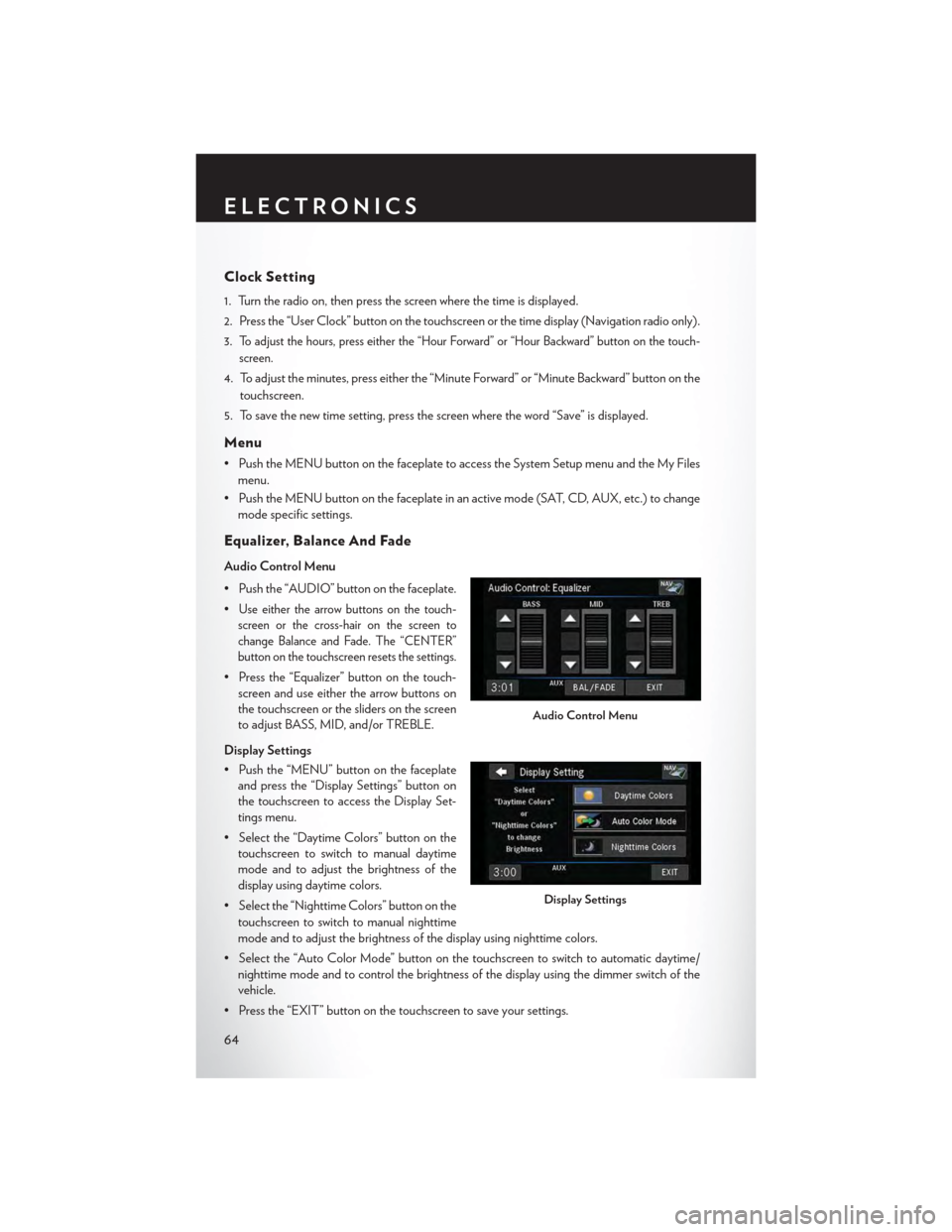
Audio Control Menu
• Push the “AUDIO” button on the faceplate.
•Use either the arrow buttons on the touch-
screen or the cross-hair on the screen to
change Balance and Fade. The “CENTER”
button on the touchscreen resets the settings.
• Press the “Equalizer” button on the touch-
screen and use either the arrow buttons on
the touchscreen or the sliders on the screen
to adjust BASS, MID, and/or TREBLE.
Display Settings
• Push the “MENU” button on the faceplate
and press the “Display Settings” button on
the touchscreen to access the Display Set-
tings menu.
• Select the “Daytime Colors” button on the
touchscreen to switch to manual daytime
mode and to adjust the brightness of the
display using daytime colors.
• Select the “Nighttime Colors” button on the
touchscreen to switch to manual nighttime
mode and to adjust the brightness of the display using nighttime colors.
•Selectthe“AutoColorMode”buttononthetouchscreentoswitchtoautomaticdaytime/
nighttime mode and to control the brightness of the display using the dimmer switch of the
vehicle.
•Pressthe“EXIT”buttononthetouchscreentosaveyoursettings.
Audio Control Menu
Display Settings
ELECTRONICS
64
Page 68 of 164
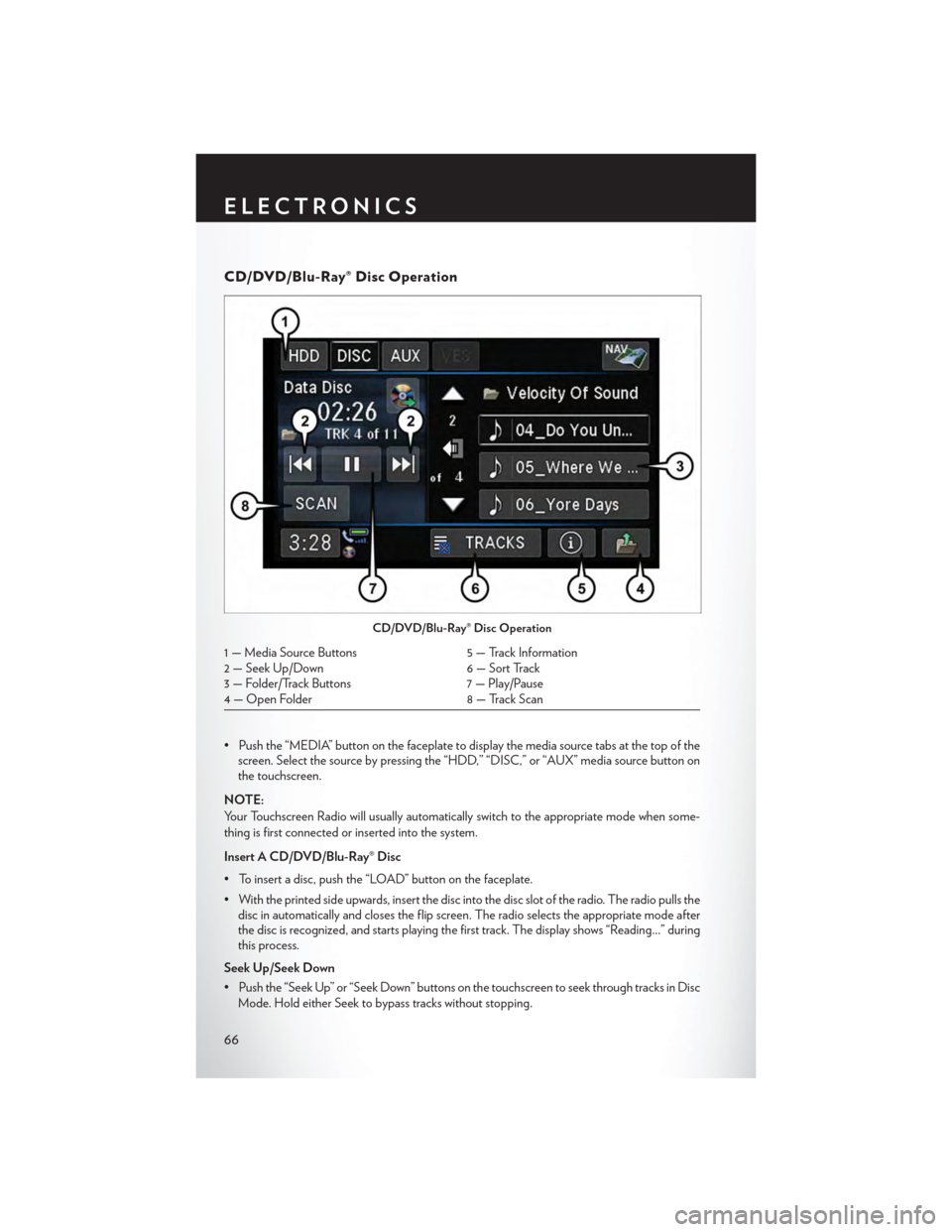
CD/DVD/Blu-Ray® Disc Operation
• Push the “MEDIA” button on the faceplate to display the media source tabs at the top of thescreen. Select the source by pressing the “HDD,” “DISC,” or “AUX” media source button onthe touchscreen.
NOTE:
Yo u r To u c h s c r e e n R a d i o w i l l u s u a l l y a u t o m a t i c a l l y s w i t c h t o t h e a p p r o p r i a t e m o d e w h e n s o m e -
thing is first connected or inserted into the system.
Insert A CD/DVD/Blu-Ray® Disc
• To insert a disc, push the “LOAD” button on the faceplate.
• With the printed side upwards, insert the disc into the disc slot of the radio. The radio pulls thedisc in automatically and closes the flip screen. The radio selects the appropriate mode afterthe disc is recognized, and starts playing the first track. The display shows “Reading...” duringthis process.
Seek Up/Seek Down
• Push the “Seek Up” or “Seek Down” buttons on the touchscreen to seek through tracks in Disc
Mode. Hold either Seek to bypass tracks without stopping.
CD/DVD/Blu-Ray® Disc Operation
1 — Media Source Buttons5 — Track Information2 — Seek Up/Down6 — Sort Track3 — Folder/Track Buttons7 — Play/Pause4 — Open Folder8 — Track Scan
ELECTRONICS
66
Page 69 of 164
Audio Jack Operation
The AUX/Audio Jack provides a means to connect a portable audio device, such as an MP3
player or an iPod®, to the vehicle’s sound system. This requires the use of a 3.5 mm stereo audio
patch cable.
• Push the MEDIA button on the faceplate then the “AUX” button on the touchscreen tochange the mode to auxiliary device if the Audio Jack is connected, allowing the music fromyour portable device to play through the vehicle's speakers.
NOTE:
The functions of the portable device are controlled using the device itself, not the buttons on the
radio. However, the volume may be controlled using the radio or portable device.
Hard Disk Drive (HDD) Operation
•TheHardDiskDrive(HDD)modegivesyouaccesstotheaudiofilesontheinternalharddisk
drive. It functions similar to a CD player, with the exception that the internal HDD can hold
more tracks.
•Itisalsopossibletoimportdisplaypicturestotheinternalharddiskdrive.Thepicturescanbe
displayed on the right half of the radio screen.
• Before using the HDD mode, you will need to copy songs and pictures to the internal
hard drive. Songs and pictures can be added to the hard drive by using a CD or USB device
(e.g. thumb drive or memory stick).
NOTE:
• HDD supports only .jpg/JPEG formats for photos.
•WMA/MP3FilesandSelectiveSongsfromaCDcanalsobeaddedtotheHDD.Seethe
Uconnect® 430/430N Supplement Manual for more information.
Copying Music From CD
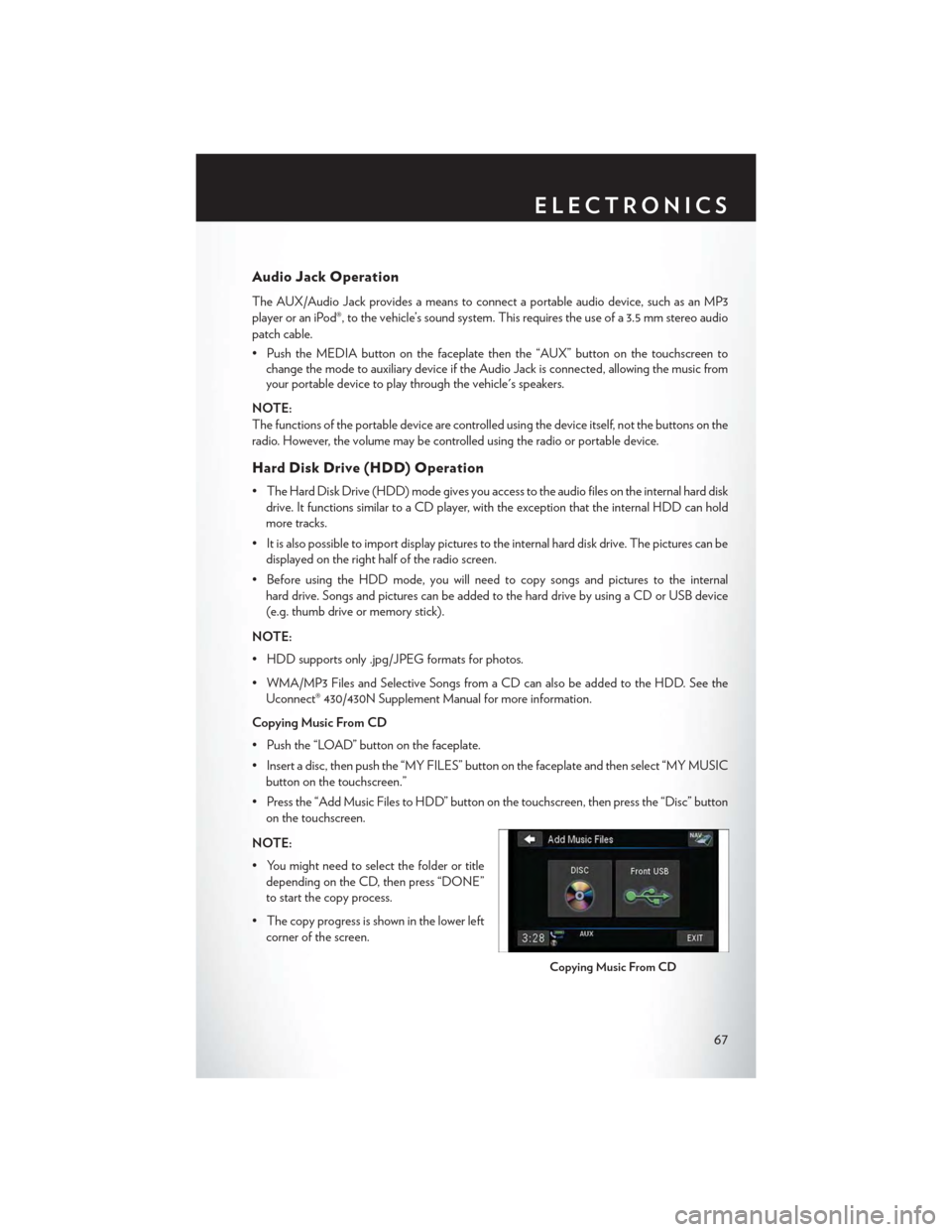
• Push the “LOAD” button on the faceplate.
• Insert a disc, then push the “MY FILES” button on the faceplate and then select “MY MUSIC
button on the touchscreen.”
•Pressthe“AddMusicFilestoHDD”buttononthetouchscreen,thenpressthe“Disc”button
on the touchscreen.
NOTE:
• You might need to select the folder or title
depending on the CD, then press “DONE”
to start the copy process.
• The copy progress is shown in the lower left
corner of the screen.
Copying Music From CD
ELECTRONICS
67
Page 81 of 164
iPod®/USB/MP3 CONTROL
•TherearemanywaystoplaymusicfromiPod®/MP3playersorUSBdevicesthroughyour
vehicles sound system.
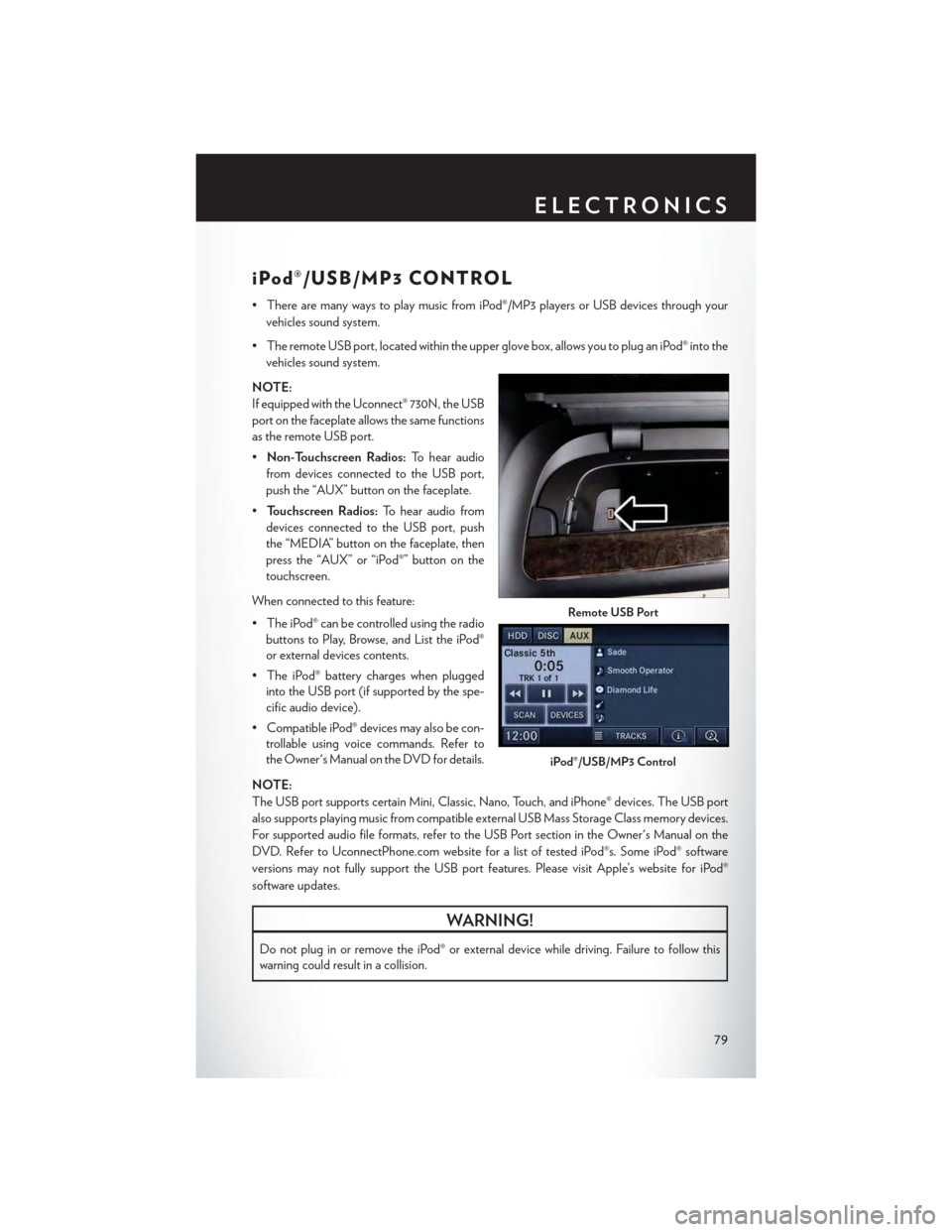
•TheremoteUSBport,locatedwithintheupperglovebox,allowsyoutopluganiPod®intothe
vehicles sound system.
NOTE:
If equipped with the Uconnect® 730N, the USB
port on the faceplate allows the same functions
as the remote USB port.
•Non-Touchscreen Radios:To hear audio
from devices connected to the USB port,
push the “AUX” button on the faceplate.
•To u c h s c r e e n R a d i o s :To hear audio from
devices connected to the USB port, push
the “MEDIA” button on the faceplate, then
press the “AUX” or “iPod®” button on the
touchscreen.
When connected to this feature:
• The iPod® can be controlled using the radio
buttons to Play, Browse, and List the iPod®
or external devices contents.
•TheiPod®batterychargeswhenplugged
into the USB port (if supported by the spe-
cific audio device).
•CompatibleiPod®devicesmayalsobecon-
trollable using voice commands. Refer to
the Owner's Manual on the DVD for details.
NOTE:
The USB port supports certain Mini, Classic, Nano, Touch, and iPhone® devices. The USB port
also supports playing music from compatible external USB Mass Storage Class memory devices.
For supported audio file formats, refer to the USB Port section in the Owner's Manual on the
DVD. Refer to UconnectPhone.com website for a list of tested iPod®s. Some iPod® software
versions may not fully support the USB port features. Please visit Apple’s website for iPod®
software updates.
WARNING!
Do not plug in or remove the iPod® or external device while driving. Failure to follow this
warning could result in a collision.
Remote USB Port
iPod®/USB/MP3 Control
ELECTRONICS
79
Page 87 of 164
Bluetooth® STREAMING AUDIO
If equipped with Uconnect® Voice Command, your Bluetooth®-equipped iPod® devices,
cell phones or other media players, may also be able to stream music to your vehicles speakers.
Yo u r c o n n e c t e d d e v i c e m u s t b e B l u e t o o t h ® - c o m p a t i b l e , a n d p a i r e d w i t h y o u r r a d i o ( s e e
UconnectPhone.com for pairing instructions).
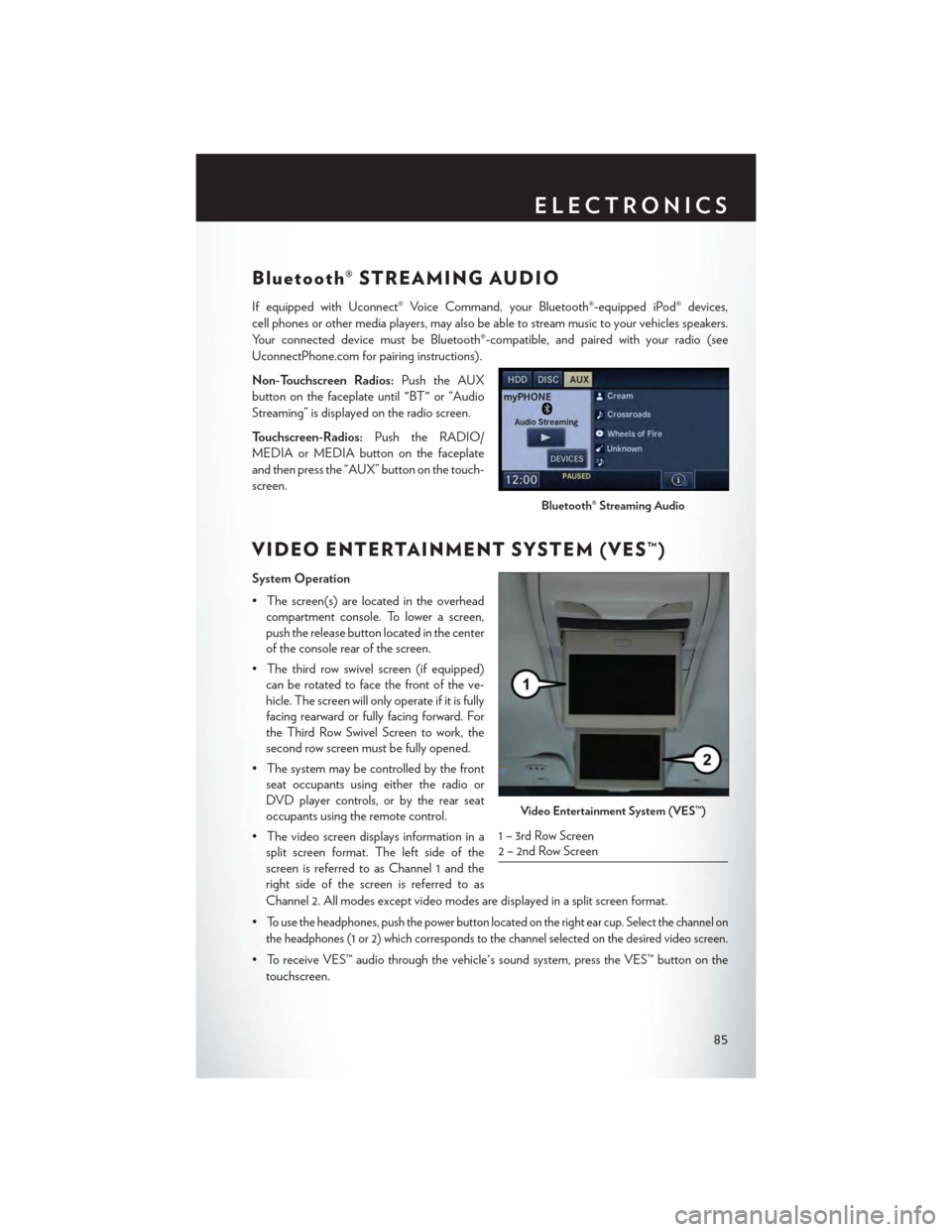
Non-Touchscreen Radios:Push the AUX
button on the faceplate until "BT" or “Audio
Streaming” is displayed on the radio screen.
To u c h s c r e e n - R a d i o s :Push the RADIO/
MEDIA or MEDIA button on the faceplate
and then press the “AUX” button on the touch-
screen.
VIDEO ENTERTAINMENT SYSTEM (VES™)
System Operation
•Thescreen(s)arelocatedintheoverhead
compartment console. To lower a screen,
push the release button located in the center
of the console rear of the screen.
•Thethirdrowswivelscreen(ifequipped)
can be rotated to face the front of the ve-
hicle. The screen will only operate if it is fully
facing rearward or fully facing forward. For
the Third Row Swivel Screen to work, the
second row screen must be fully opened.
•Thesystemmaybecontrolledbythefront
seat occupants using either the radio or
DVD player controls, or by the rear seat
occupants using the remote control.
•Thevideoscreendisplaysinformationina
split screen format. The left side of the
screen is referred to as Channel 1 and the
right side of the screen is referred to as
Channel 2. All modes except video modes are displayed in a split screen format.
•To use the headphones, push the power button located on the right ear cup. Select the channel on
the headphones (1 or 2) which corresponds to the channel selected on the desired video screen.
•ToreceiveVES™audiothroughthevehicle'ssoundsystem,presstheVES™buttononthe
touchscreen.
Bluetooth® Streaming Audio
Video Entertainment System (VES™)
1 – 3rd Row Screen2 – 2nd Row Screen
ELECTRONICS
85
Page 88 of 164
Operation Of The Touchscreen Radio/DVD Player/Blu-Ray Player
• To view a DVD push the OPEN/CLOSE button on the faceplate and insert the disc or insert
the disc into the optional DVD player. Playback will begin automatically after the DVD is
recognized by the disc drive. If playback does not begin automatically when the disc is inserted
into the DVD player push the PLAY button. If playback does not begin automatically after the
disc is inserted into the touchscreen radio follow these steps:
• Push the MENU button on the faceplate, then press the Rear VES™ button on the
touchscreen. If a chapter list appears on the right side of the screen, press the “HIDE LIST”
button on the touchscreen to display the Rear VES™ control screen.
• Touch the “1” button on the touchscreen to select an audio channel, then press the DISC
button on the touchscreen in the MEDIA column.
Operation Of The Remote Control
The remote control operates similarly to any DVD remote you may have used before and allows
the rear seat passengers to change stations, tracks, discs and audio/video modes.
The remote control is designed to control either channel by using the selector switch located on
the right side of the remote.
Connect the video game or other external media devices to the AUX jacks following the color
coding for the VES™ jacks.
•PushingthepowerbuttonwillturntheVES™systemON/OFF.
• Pushing the mode button causes the MODE SELECTION menu to appear on the VES™
screen. Use the remote control arrow buttons to scroll through the available modes, and then
push ENTER to select the desired mode.
Auxiliary Audio/Video Input Jacks
The AUX jacks are located on the drivers side rear trim panel behind the sliding door.
Connect the video game or other external media devices to the AUX jacks following the color
coding for the VES™ jacks.
Using either the touchscreen radio or remote control, select AUX from the REAR VES™
CONTROL or the MODE SELECTION screen.
Refer to the Uconnect® Multimedia – Video Entertainment System (VES™) section in the vehicle
Owner's Manual on the DVD for further details.
ELECTRONICS
86
Page 153 of 164
Adding Engine Coolant (Antifreeze) . . .132Adding Washer Fluid...........132Air BagAdvanced Front Air Bag........18Advance Front Air Bag........18Air Bags . . . . . . . . . . . . . . . .18Air Bag Warning Light.........18Driver Knee Air Bag . . . . . . . . . .19Front Air Bag . . . . . . . . . . . . .18Passenger Knee Air Bag........19Rollover . . . . . . . . . . . . . . . .18Side Impacts..............18Air bag Light . . . . . . . . . . . . . . .98Air bag, Side . . . . . . . . . . . . . . . .18Air Cleaner, Engine(Engine Air Cleaner Filter).......132Air Conditioner Maintenance.......132Air Conditioning Refrigerant.......132Air Conditioning System.........132AlarmVehicle Security Alarm.........16Alarm (Security Alarm)........16, 102Antifreeze (Engine Coolant).....130, 132Disposal...............132Anti-Lock Warning Light.........98Appearance Care.............132Arming System (Security Alarm)......16Assistance Towing.............98Audio Jack . . . . . . . . . . . ..59, 62, 67Audio Settings.............59, 61Audio Systems (Radio)..........58Automatic Headlights...........40Automatic High Beams..........40Automatic Temperature Control (ATC). . .48Automatic TransmissionFluid Type...............131Auxiliary Audio/Video Input Jacks.....86
Back-Up Camera . . . . . . . . . . . . . .51Battery..................132Blind Spot Monitoring...........51Body Mechanism Lubrication.......132Brake Fluid................131Brakes . . . . . . . . . . . . . . . . . ..132Brake System...............132Master Cylinder............132Warning Light............100
Break-In Recommendations,New Vehicle..............37Bulbs, Light................145
Calibration, Compass...........87Capacities, Fluid.............130Caps, FillerOil (Engine).............132Cargo CompartmentLuggage Carrier............95Car Washes................132CD (Compact Disc) Player......59, 62Change Oil Indicator...........102Changing A Flat Tire...........110Charging System Light..........98Child Restraint...............21Child RestraintsLower Anchors And TethersFor Children..............21CleaningWheels..............132, 144Windshield Wiper Blades.......132Clock . . . . . . . . . . . . . . . . . . .78Clock Setting............58, 61, 64Cluster Warning/Indicator LightsAnti-Lock Brake (ABS) Light.....98Brake Warning Light.........100Charging System Light........98Electronic Speed Control ONIndicator...............102Electronic Speed Control SETIndicator...............102Electronic Throttle Control (ETC)Indicator Light.............98Front Fog Light Indicator.......102High Beam Indicator.........102Malfunction Indicator Light (MIL) . . .101Oil Pressure Warning Light......98Ti re Pre s s u re M o n i t o r i n g S y s t e m(TPMS) Light.............99Turn Signal Indicator.........102Vehicle Security Light.........102Clutch . . . . . . . . . . . . . . . . ..132Clutch Fluid................132Compact Spare Tire . . . . . . . . . . .142Compass Calibration............87
INDEX
151