Touch screen CITROEN BERLINGO 2023 User Guide
[x] Cancel search | Manufacturer: CITROEN, Model Year: 2023, Model line: BERLINGO, Model: CITROEN BERLINGO 2023Pages: 324, PDF Size: 9.41 MB
Page 31 of 324
29
Instruments
1– Air conditioning system controls (depending
on version).
For safety reasons, always stop the
vehicle before performing operations
that require sustained attention.
Some functions are not accessible while
driving.
Recommendations
Do not use pointed objects on the touch screen.
Do not touch the touch screen with wet hands.
Use a soft, clean cloth to clean the touch screen.
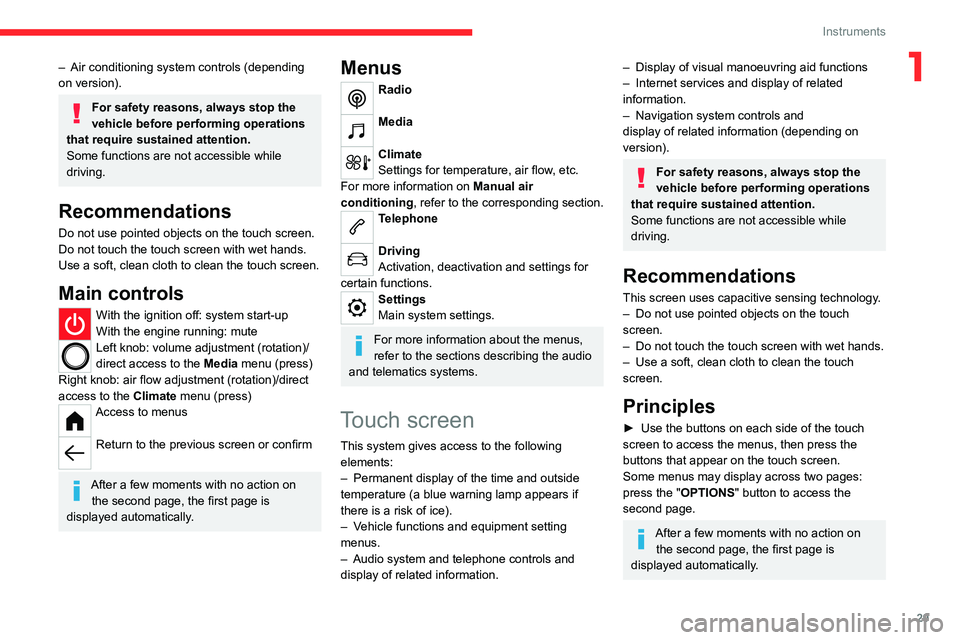
Main controls
With the ignition off: system start-up
With the engine running: mute
Left knob: volume adjustment (rotation)/
direct access to the Media menu (press)
Right knob: air flow adjustment (rotation)/direct
access to the Climate menu (press)
Access to menus
Return to the previous screen or confirm
After a few moments with no action on
the second page, the first page is
displayed automatically.
Menus
Radio
Media
Climate
Settings for temperature, air flow, etc.
For more information on Manual air
conditioning , refer to the corresponding section.
Telephone
Driving
Activation, deactivation and settings for
certain functions.
Settings
Main system settings.
For more information about the menus,
refer to the sections describing the audio
and telematics systems.
Touch screen
This system gives access to the following elements:
–
Permanent display of the time and outside
temperature (a blue warning lamp appears if
there is a risk of ice).
–
V
ehicle functions and equipment setting
menus.
–
Audio system and telephone controls and
display of related information.
– Display of visual manoeuvring aid functions
– Internet services and display of related
information.
–
Navigation system controls and
display
of related information (depending on
version).
For safety reasons, always stop the
vehicle before performing operations
that require sustained attention.
Some functions are not accessible while
driving.
Recommendations
This screen uses capacitive sensing technology.
– Do not use pointed objects on the touch
screen.
–
Do not touch the touch screen with wet hands.
–
Use a soft, clean cloth to clean the touch
screen.
Principles
► Use the buttons on each side of the touch
screen to access the menus, then press the
buttons that appear on the touch screen.
Some menus may display across two pages:
press the "OPTIONS" button to access the
second page.
After a few moments with no action on the second page, the first page is
displayed automatically.
Page 32 of 324
30
Instruments
To deactivate/activate a function, select "OFF"
or "ON".
Configuring a function
Access to additional information on the function
Confirm
Return to the previous page or confirm
Menus
Press the touch screen with three fingers
to show all of the menu buttons.
For more information about the menus,
refer to the sections describing the audio
and telematics systems.
Radio/Media
Navigation (Depending on equipment)
Driving or Vehicle (Depending on
equipment)
Activation, deactivation and settings for certain
functions.
The functions are organised in 2 tabs: " Driving
functions" and "Vehicle settings".
Telephone
Applications Display of available connected services.
Energy (with CITROËN Connect Nav)
Access the specific Electric functions
(energy flow, consumption statistics, deferred
charge) organised in the corresponding 3 tabs.
or
Settings
Main settings for the audio system and
touch
screen.
Audio system on/off Volume adjustment/mute
Upper bar
Certain information is displayed permanently in
the upper bar of the touch screen:
–
T
ime and outside temperature (a blue warning
lamp appears if there is a risk of ice).
–
Reminder of information from the
RadioMedia
and Telephone menus and
navigation instructions (depending on
equipment).
–
Notifications.
– Access to the Settings.
Energy menu
This menu is only available with CITROËN
Connect Nav .
Depending on version, this is accessible either:
– directly, by pressing the button near the
touch screen.
– via the Applications menu.
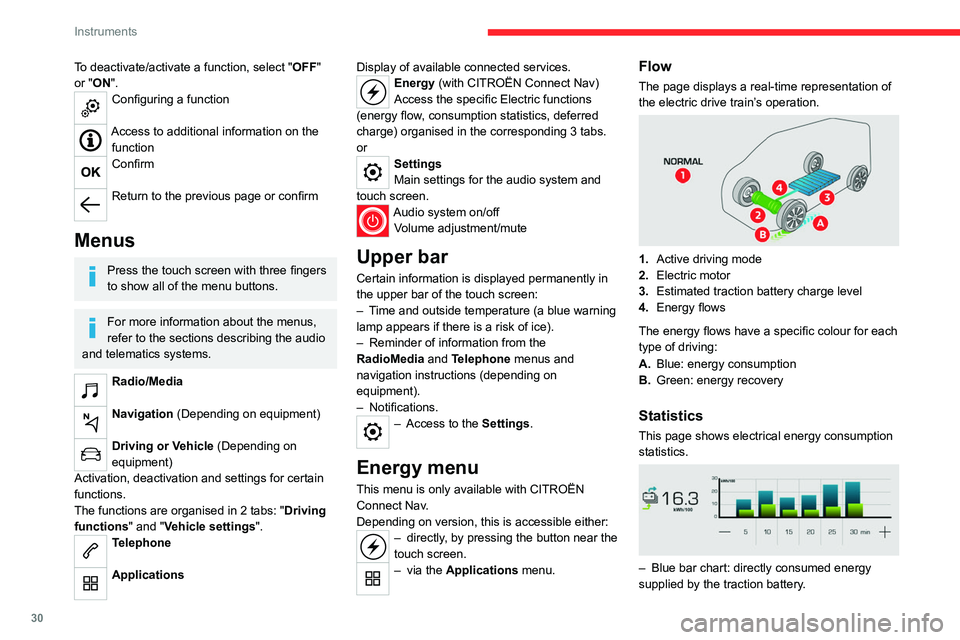
Flow
The page displays a real-time representation of
the electric drive train’s operation.
1.Active driving mode
2. Electric motor
3. Estimated traction battery charge level
4. Energy flows
The energy flows have a specific colour for each
type of driving:
A. Blue: energy consumption
B. Green: energy recovery
Statistics
This page shows electrical energy consumption
statistics.
– Blue bar chart: directly consumed energy
supplied by the traction battery .
Page 33 of 324
31
Instruments
1– Green bar chart: energy recovered during
deceleration and braking, used to recharge the
battery
.
The average result for the current trip is stated in
kWh/100
km.
►
Y
ou can change the displayed time scale by
pressing the
-
or + buttons.
A current trip is any trip of more than 20 minutes without switching off the ignition.
Charging
This page allows you to programme deferred
charging.
For more information on Charging the traction
battery (Electric) , refer to the corresponding
section.
Setting the date and time
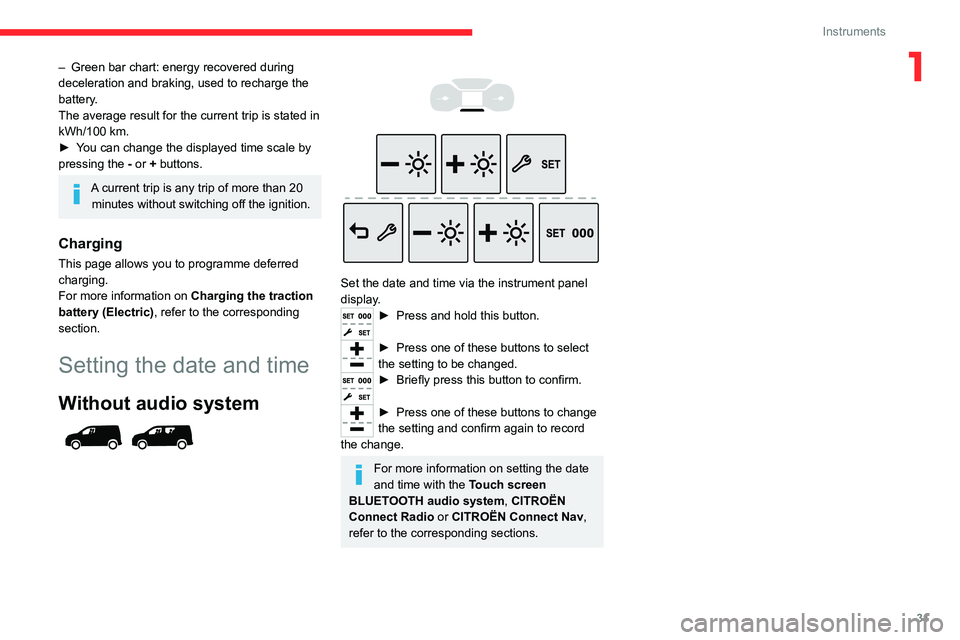
Without audio system
Set the date and time via the instrument panel
display.
► Press and hold this button.
► Press one of these buttons to select
the setting to be changed.
► Briefly press this button to confirm.
► Press one of these buttons to change
the setting and confirm again to record
the change.
For more information on setting the date
and time with the Touch screen
BLUETOOTH audio system, CITROËN
Connect Radio or CITROËN Connect Nav,
refer to the corresponding sections.
Page 63 of 324

61
Ease of use and comfort
3In the event of sharp deceleration,
objects placed in the central storage
compartment of the roof may be transformed
into projectiles.
Rear storage compartment
This compartment is accessible from the rear
seats and from the vehicle's boot.
It has a capacity of 60 litres and the
maximum
permitted load is
10 kg.
► To open it from the rear seats, slide the rear
storage compartment shutters.
► To open it from the vehicle’s boot, place your
thumb on the boot recess then pull the handle.
Open the rear storage compartment with
care, to prevent any objects stored inside
from falling out.
Light ambience
The light ambience settings are changed via
the
Driving/Vehicle touch screen menu.
Blind
Opening/Closing
► Press and hold the button; the blind opens/
closes, stopping when the button is released.
If the blind becomes trapped while
moving, reverse its movement. To do
this, press the relevant control.
When pressing the button to open/close the
blind, the driver must ensure that nothing and
no one might interfere with its movement.
The driver must ensure that passengers use
the blind correctly.
Pay particular attention to children when
operating the blind.
12 V accessory socket(s)
► Plug in a 12 V accessory (with a maximum
rated power of 120 W) using a suitable adapter.
Observe the maximum power rating to
avoid damaging the accessory.
The connection of an electrical device not approved by CITROËN, such as a
USB charger, may adversely affect the
operation of vehicle electrical systems,
causing faults such as poor radio reception or
interference with displays in the screens.
Page 64 of 324
62
Ease of use and comfort
USB socket(s)
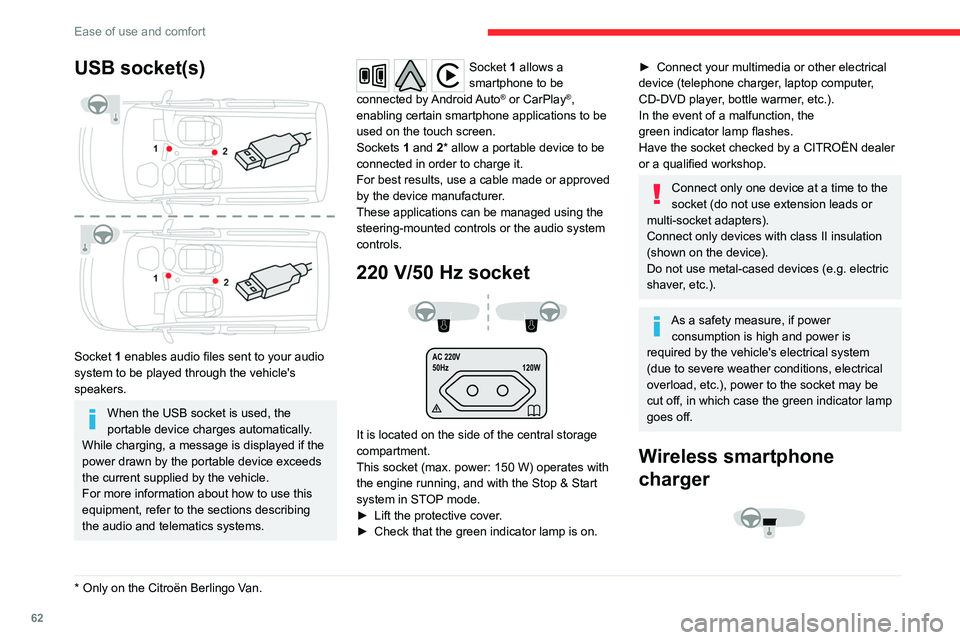
Socket 1 enables audio files sent to your audio
system to be played through the vehicle's
speakers.
When the USB socket is used, the
portable device charges automatically.
While charging, a message is displayed if the
power drawn by the portable device exceeds
the current supplied by the vehicle.
For more information about how to use this
equipment, refer to the sections describing
the audio and telematics systems.
* Only on the Citroën Berlingo V an.
Socket 1 allows a
smartphone to be
connected
by Android Auto
® or CarPlay®,
enabling certain smartphone applications to be
used on the touch screen.
Sockets 1 and 2* allow a portable device to be
connected in order to charge it.
For best results, use a cable made or approved
by the device manufacturer.
These applications can be managed using the
steering-mounted controls or the audio system
controls.
220 V/50 Hz socket
AC 220V
50Hz 120W
It is located on the side of the central storage
compartment.
This socket (max. power: 150
W) operates with
the engine running, and with the Stop & Start
system in STOP mode.
►
Lift the protective cover
.
►
Check that the green indicator lamp is on.
► Connect your multimedia or other electrical
device (telephone charger , laptop computer,
CD-DVD player, bottle warmer, etc.).
In the event of a malfunction, the
green
indicator lamp flashes.
Have the socket checked by a CITROËN dealer
or a qualified workshop.
Connect only one device at a time to the
socket (do not use extension leads or
multi-socket adapters).
Connect only devices with class II insulation
(shown on the device).
Do not use metal-cased devices (e.g. electric
shaver, etc.).
As a safety measure, if power consumption is high and power is
required by the vehicle's electrical system
(due to severe weather conditions, electrical
overload, etc.), power to the socket may be
cut off, in which case the green indicator lamp
goes off.
Wireless smartphone
charger
Page 83 of 324

81
Ease of use and comfort
3workshop which is not equipped with an
exhaust gas extraction system.
Do not park the vehicle on a flammable
surface (dry grass, dead leaves, paper, etc.)
- Risk of fire!
Glazed surfaces such as the rear screen
or windscreen can become very hot in
places.
Never put objects on these surfaces; never
touch these surfaces - Risk of burns!
Do not throw remote control batteries
away, as they contain metals that are
harmful to the environment. Take them to an
approved disposal point.
Temperature conditioning (Electric)
This function allows you to programme the
temperature in the passenger compartment to
reach a pre-defined, non-modifiable temperature
(approx. 21°C) before you enter the vehicle, on
the days and at the times of your choice.
This function is available when the vehicle is
connected or not connected.
Programming
Programming can be carried out from a
smartphone using the MyCitroën App
application.
For more information on Remote functions,
refer to the corresponding section.
With CITROËN Connect Nav system
In the Applications menu:
Press " Car Apps" to display the applications
home page.
Select Temperature conditioning .
►
Press
+ to add a programme.
►
Select the time of entry into the vehicle and
the desired days. Press
OK.
►
Press
ON to activate this programme.
The temperature pre-conditioning sequence
begins approximately 45 minutes before the
programmed time when the vehicle is connected
(20 minutes when it is not connected) and is
maintained for 10 minutes after.
You can set multiple programmes. Each one is saved in the system.
To optimise the driving range, we recommend
starting a programme while the vehicle is
connected.
The fan noise that occurs during temperature pre-conditioning is perfectly
normal.
Operating conditions
– The function is only activated when the
ignition is switched off and the
vehicle
locked.
–
When the vehicle is not connected, the
function is only activated if the battery charge
level is greater than 50%.
–
When the vehicle is not connected and a
recurring programme is active (e.g. from Monday
to Friday), if two temperature pre-conditioning
sequences are run without the vehicle being
used, the programme will be deactivated.
Courtesy lamp
Automatic switching on/off
The front courtesy lamp comes on when the key
is removed from the ignition switch.
All courtesy lamps come on when the vehicle is
unlocked, when one of the corresponding doors
is opened and when locating the vehicle using
the remote control.
They fade to off after the ignition is switched on
and when the vehicle is locked.
Take care not to allow objects to come into contact with the courtesy lamp.
Page 88 of 324

86
Lighting and visibility
You can activate/deactivate this function and adjust the guide-me-
home lighting duration in the Driving/Vehicle
touch screen menu.
Manual
► With the ignition off, pull the lighting control
stalk toward you ("headlamp flash") to activate/
deactivate the function.
Manual guide-me-home lighting goes off
automatically after a period of time.
Welcome lighting
With the "Automatic headlamp illumination"
function activated, in poor light, the sidelamps
and dipped beam headlamps come on
automatically when the vehicle is unlocked.
Activation, deactivation and the duration of the exterior welcome
lighting are set in the Driving/Vehicle touch
screen menu.
Automatic lighting systems - General
recommendations
The automatic lighting systems use a detection
camera, located at the top of the windscreen.
Operating limits
The system may be disrupted or not work
correctly:
–
When visibility conditions are poor
(e.g.
snowfall, heavy rain).
–
If the windscreen is dirty
, misted-up or
masked (e.g.
sticker) in front of the camera.
–
If the vehicle is facing highly reflective signs
or safety barrier reflectors.
The system is not able to detect:
–
Road users that do not have their own
lighting, such as pedestrians.
–
V
ehicles with hidden lighting (e.g. travelling
behind a safety barrier on the motorway).
–
V
ehicles at the top or bottom of a steep
slope, on winding roads, on crossroads.
Maintenance
Clean the windscreen regularly,
particularly the area in front of the camera.
The internal surface of the windscreen can
also become misted around the camera.
In humid and cold weather, demist the
windscreen regularly.
Do not allow snow to accumulate on the
bonnet or roof of the vehicle as this could
obstruct the camera.
Automatic headlamp dipping
For more information, refer to the
General recommendations for
automatic lighting systems.
With the ring of the lighting control stalk
in the
"AUTO" position and the function activated on
the touch screen, this system automatically
switches between dipped and main beam
headlamps, according to lighting and traffic
conditions, using a camera located at the top of
the windscreen.
Page 89 of 324

87
Lighting and visibility
4This system is a driving aid.The driver remains responsible for
the vehicle's lighting, its correct use in the
prevailing light, visibility and traffic conditions,
and for compliance with driving and vehicle
regulations.
The system becomes operational when the vehicle exceeds 16 mph (25 km/h).
When the speed falls below 9 mph (15 km/h),
the function is no longer operational.
Activation/Deactivation
The settings are changed via the Driving/Vehicle touch screen
menu.
When deactivated, the lighting system changes
to "automatic illumination of headlamps" mode.
The state of the system is stored when the
ignition is switched off.
Operation
If the ambient light level is very low and traffic
conditions permit:
– The main beam headla mps
come on automatically. These
indicator lamps light up on the instrument panel.
If the ambient light level is sufficient and/or the
traffic conditions do not allow the main beam
headlamps to be lit:
– The dipped beam head lamps
remain lit. These indicator lamps
light up on the instrument panel.
The function is deactivated if the foglamps
are switched on or if the system detects poor
visibility conditions (e.g.
fog, heavy rain,
snowfall).
When the foglamps are switched off or when the
visibility conditions become favourable again, the
function is automatically reactivated.
This indicator lamp goes out when the function is deactivated.
Pause
If the situation requires a change of headlamp
beam, the driver can take over at any time.
► A "headlamp flash" pauses the
function and the lighting system switches
to "automatic illumination of lamps" mode:
–
If the "AUT
O" and "Dipped beam" indicator
lamps were on, the system changes to main
beam.
–
If the "AUT
O" and "Main beam"
indicator
lamps were on, the system changes to
dipped beam.
►
T
o reactivate the function, once again switch
the headlamps manually between dipped and
main beam.
The system may be disrupted or not work correctly:
–
When visibility conditions are poor
(snowfall, heavy rain, etc.).
– If the windscreen in front of the camera is
dirty , misted or obscured (for example, by a
sticker).
–
If the vehicle is facing highly reflective
signs.
When the system detects thick fog, it
temporarily deactivates the function.
The system is not able to detect:
–
Road users that do not have their own
lighting, such as pedestrians.
–
V
ehicles whose lighting is obscured (for
example, vehicles driving behind a safety
barrier on a motorway).
–
V
ehicles at the top or bottom of a steep
slope, on winding roads, on crossroads.
Clean the windscreen regularly,
particularly the area in front of the
camera.
The internal surface of the windscreen can
also become misted around the camera.
In humid and cold weather, demist the
windscreen regularly.
Do not allow snow to accumulate on the
bonnet or roof of the vehicle as this could
obstruct the detection camera.
Page 91 of 324

89
Lighting and visibility
4To avoid damaging the wiper blades, do not operate the screenwash if the
screenwash reservoir is empty.
Only operate the screenwash if there is no
risk of the fluid freezing on the windscreen
and hindering visibility. During the winter
period, use "very cold climate" rated products.
Never top up with water.
Low screenwash fluid level
When the low level of the reservoir is
reached, this warning lamp lights up on
the instrument panel, accompanied by an
audible signal and a message.
It comes on when the ignition is switched on,
or every time the stalk is operated, until the
reservoir is refilled.
Refill the screenwash reservoir (or have it
refilled) the next time you stop.
Rear wiper
► Turn the ring to align the desired symbol with
the marking.
Off
Intermittent wiping
Screenwash-wipe
Reverse gear
When reverse gear is engaged, the rear wiper
will come into operation automatically if the front
windscreen wipers are operating.
Activation/Deactivation
The settings are changed via the Driving/Vehicle touch screen
menu.
This function is activated by default.
In the event of accumulation of snow or
hard frost or if a bicycle carrier is fitted to
a towing device, deactivate the automatic rear
wiper via the touch screen's
Driving/ V
ehicle
menu.
Special position of the
windscreen wipers
This maintenance position is used while cleaning
or replacing the wiper blades. It can also be
useful, in wintry weather (ice, snow), to release
the wiper blades from the windscreen.
To maintain the effectiveness of the flat wiper blades, it is advisable to:
–
handle them with care.
– clean them regularly using soapy water .
– avoid using them to hold cardboard on the
windscreen.
–
replace them at the first signs of wear
.
Before removing a windscreen wiper blade
Operating the wiper control stalk immediately
after switching off the ignition will place the wiper
blades in a vertical position.
►
Proceed with the desired operation or the
replacement of the wiper blades.
After refitting a windscreen wiper blade
► To return the wiper blades to their initial
position after the operation, switch on the ignition
and operate the wiper control stalk.
Page 92 of 324

90
Lighting and visibility
Changing a wiper blade
Removing/Refitting at the front
► Carry out these wiper blade replacement
operations from the driver's side.
►
Starting with the wiper blade farthest from
you, hold each arm by the rigid section and raise
it as far as possible.
Take care not to hold the arms at the jet locations.
Do not touch the wiper blades - risk of
irreparable deformation.
Do not release them while moving them. Risk
of damaging the windscreen!
►
Clean the windscreen using screenwash
fluid.
Do not apply "Rain X" type water-
repellent products. ►
Unclip the worn wiper blade closest to you
and remove it.
►
Install the new wiper blade and clip it to the
arm.
►
Repeat the procedure for the other wiper
blade.
►
Starting with the wiper blade closest to you,
once again hold each arm by the rigid section,
then guide it carefully onto the windscreen.
Removing/refitting at the rear
► Hold the arm by the rigid section and raise it
as far as possible.
►
Clean the rear screen using screenwash
fluid.
►
Unclip the worn wiper blade and remove it.
►
Install the new wiper blade and clip it to the
arm.
►
Once again hold the arm by the rigid section,
then guide it carefully onto the rear screen.
Automatic windscreen wipers
In AUTO mode, the windscreen wipers operate
automatically and adapt to the intensity of the
rainfall.
Detection is via a rain/brightness sensor, located
at the top centre of the windscreen behind the
rear view mirror.
Do not cover the rain/sunshine sensor.
When using an automatic car wash,
switch off the automatic wipers and the
ignition.
In winter, wait until the windscreen is
completely clear of ice before activating the
automatic wipers.
Switching on
► Give a short downwards push to the control
stalk.
A
wiping cycle confirms that the instruction has
been accepted.
This indicator lamp lights up on the instrument panel, accompanied by
a message.
Depending on version, this indicator
lamp
appears on the display or on the instrument
panel, accompanied by a message.
Switching off
► Give the control stalk another brief push
downwards or set the control stalk to another
position ( Int
, 1 or 2).