ignition CITROEN BERLINGO VAN 2018 Owners Manual
[x] Cancel search | Manufacturer: CITROEN, Model Year: 2018, Model line: BERLINGO VAN, Model: CITROEN BERLINGO VAN 2018Pages: 324, PDF Size: 9.41 MB
Page 254 of 324
252
CITROËN Connect Radio
The balance/distribution (or spatialisation with the Arkamys© system) uses audio
processing to adjust the sound quality
according to the number of passengers in the
vehicle.
Onboard audio: Arkamys Sound Staging©
optimises the sound distribution inside
the passenger compartment.
DAB (Digital Audio
Broadcasting) radio
Terrestrial Digital Radio
Digital radio provides higher quality sound.
The various "multiplexes/ensembles" offer a
choice of radio stations organised in alphabetical
order.
Press Radio Media to display the main
page.
Press the "OPTIONS " button to access the
secondary page.
Press "Band" to select "DAB band".
Press in the shaded area to confirm.
FM-DAB Follow-up
"DAB" does not cover 100% of the territory.
When the digital radio signal is poor, the
"FM-DAB Follow-up" enables you to continue
listening to the same station by automatically
switching to the corresponding "FM" analogue
station (if there is one).
Press Radio Media to display the main
page.
Press the "OPTIONS " button to go to the
secondary page.
Activate/deactivate "FM-DAB Follow-up ".
Press in the shaded area to confirm.
If "FM-DAB Follow-up" is activated, there
may be a time offset of a few seconds
when the system switches to "FM" analogue
radio, and in some cases a change in volume.
When the digital signal quality is restored, the
system automatically changes back to "DAB".
To minimise this time lag, storing radio
stations in the "DAB" band is recommended.
If the "DAB" station being listened to is
not available on "FM", or if "FM-DAB
Follow-up" is not activated, the sound will cut
out when the digital signal becomes too weak.
Media
USB port
Insert the USB memory stick into the USB
port or connect the USB device to the
USB port using a suitable cable (not supplied).
To protect the system, do not use a USB hub.
The system builds playlists (in temporary
memory); this operation can take from a
few seconds to several minutes at the first
connection.
Reduce the number of non-music files and the
number of folders to reduce the waiting time.
Playlists are updated whenever the ignition
is switched off or a USB memory stick is
connected. The audio system memorises these
lists, which will subsequently load faster if they
have not been changed.
Auxiliary (AUX) jack socket
Depending on equipmentConnect a portable device (MP3 player,
etc.) to the auxiliary jack socket using an
audio cable (not supplied).
This source is only available if "Auxiliary input"
has been selected in the audio settings.
First adjust the volume on the portable device
(to a high level). Then adjust the volume of the
audio system.
Controls are managed via the portable device.
Page 256 of 324
254
CITROËN Connect Radio
CarPlay® technology, the CarPlay® function
must first be activated on the smartphone.
Unlock the smartphone for the communication
process between the smartphone and the
system to work.
As principles and standards are constantly
changing, we recommend keeping the
smartphone's operating system up-to-
date, together with the date and time on
the smartphone and the system.
CarPlay® smartphone
connection
Depending on country.
On connecting the USB cable, the
CarPlay® function deactivates the
system's Bluetooth® mode.
The "CarPlay " function requires the use of
a compatible smartphone and compatible
applications.
Connect the USB cable. The smartphone
charges when connected by the USB
cable.
From the system, press Telephone to
display the CarPlay® interface.
Or
If the smartphone has already connected
by Bluetooth®.
Connect the USB cable. The smartphone
charges when connected by the USB
cable.
From the system, press "Telephone" to
display the main page.
Press the "PHONE" button to go to the
secondary page.
Press "CarPlay" to display the CarPlay®
interface.
When the USB cable is disconnected
and the ignition is switched off then back
on, the system will not automatically switch to
Radio Media mode; the source must be
changed manually.
The CarPlay® navigation can be accessed
at any time by pressing the system's
Navigation button.
Android Auto smartphone connection
Depending on country.
On the smartphone, download the
Android Auto application.
The "Android Auto" function requires the
use of a compatible smartphone and
applications.
Telephone not connected by
Bluetooth®
Connect a USB cable. The smartphone
charges when connected by a USB cable.
From the system, press "Telephone" to
display the main page.
Press "Android Auto" to start the
application in the system.
Depending on the smartphone, it may be
necessary to activate the "Android Auto"
function.
During the procedure, several screen
pages relating to certain features are
displayed.
Accept to start and complete the connection.
When connecting a smartphone to the
system, we recommend enabling
Bluetooth
® on the smartphone.
Telephone connected by Bluetooth®
From the system, press "Telephone" to
display the main page.
Press the "PHONE" button to display the
secondary page.
Press "Android Auto" to start the
application in the system.
Access to the different audio sources remains
available in the margin of the Android Auto
display, using the touch buttons located in the
upper bar.
Access to the menus for the system is possible
at any time using the dedicated buttons.
Page 257 of 324
255
CITROËN Connect Radio
11There may be a pause before applications become available,
depending on the quality of the network.
Pairing a Bluetooth®
telephone
The services available depend on the
network, the SIM card and the
compatibility of the Bluetooth devices used.
Consult the telephone user guide and the
service provider to check which services are
available.
The Bluetooth function must be activated and the telephone configured as "Visible
to all” (in the telphone settings).
To complete the pairing, whichever procedure is
used (from the telephone or from the system),
ensure that the code is the same in the system
and in the telephone.
If the pairing procedure fails, we
recommend deactivating and then
reactivating the Bluetooth function on the
telephone.
Procedure from the telephone
Select the name of the system in the list
of detected devices.
In the system, accept the connection request
from the telephone.
Procedure from the system
Press Telephone to display the main
page.
Press "Bluetooth search".
The list of detected telephones is
displayed.
Select the name of the chosen telephone
in the list.
Connection sharing
The system offers to connect the telephone with
3 profiles:
–
"Telephone" (hands-free kit, telephone only),
–
“Streaming" (streaming: wireless playing of
audio files on the telephone),
–
"Mobile internet data ".
Select one or more profiles.
Press "OK" to confirm.
Depending on the type of telephone, you may by
prompted to accept the transfer of contacts and
messages.
The ability of the system to connect just one profile depends on the telephone.
All three profiles may connect by default.
The profiles compatible with the system are: HFP, OPP, PBAP, A2DP, AVRCP,
MAP and PAN.
Visit the Brand's website for more information
(compatibility, additional help, etc.).
Automatic reconnection
On returning to the vehicle, if the last telephone
connected is present again, it is automatically
recognised and within about 30 seconds
after switching on the ignition, the pairing is
established automatically (Bluetooth activated).
To modify the connection profile:
Press Telephone to display the main
page.
Press the "PHONE" button to access the
secondary page.
Press "Bluetooth connection" to
display the list of paired devices.
Press the "Details" button for a paired
device.
Select one or more profiles.
Press "OK" to confirm.
Managing paired telephones
This function lets you connect or disconnect a
device or delete a pairing.
Press Telephone to display the main
page.
Page 262 of 324
260
CITROËN Connect Nav
CITROËN Connect Nav
GPS navigation -
Applications - Multimedia
audio system - Bluetooth
®
telephone
The functions and settings described
vary according to the vehicle version and
configuration, as well as the country of sale.
For safety reasons and because they
require sustained attention by the driver,
the following operations must be carried out
with the vehicle stationary and the ignition
on:
–
Pairing the smartphone with the system via
Bluetooth.
–
Using the smartphone.
–
Connecting to the CarPlay® or Android
Auto applications (certain applications stop
displaying when the vehicle is moving).
–
W
atching a video (the video stops when the
vehicle starts to move again).
–
Changing the system settings and
configuration.
AM and DAB radio are not available on Hybrid vehicles.
The system is protected so that it only operates in the vehicle.
The message Energy economy mode is
displayed when the system is about to go into
standby.
System and map updates can be
downloaded from the Brand's website.
The update procedure is also available there.
The system’s Open Source Software (OSS) source codes are available at the
following addresses:
https://www.groupe-psa.com/fr/oss/
https://www.groupe-psa.com/en/oss/
First steps
With the engine running, a press mutes
the sound.
With the ignition off, a press turns the system on.
Increase or decrease the volume using
the wheel or the "plus" or "minus" buttons
(depending on the equipment).
Use the menu buttons on either side of or below
the touch screen for access to the menus, then
press the virtual buttons in the touch screen.
Depending on the model, use the "Source" or
"Menu" buttons to access the rolling menus, then
press the virtual buttons in the touch screen.
Display the rolling menus at any time by pressing
the screen briefly with three fingers.
All of the touch areas of the screen are white.
Press the back arrow to go back a level.
Press "OK" to confirm.
The touch screen is of the "capacitive" type.
To clean the screen, use a soft, non-abrasive
cloth (e.g. spectacles cloth) with no additional
product.
Do not use sharp objects on the screen.
Do not touch the screen with wet hands.
Certain information is displayed permanently
in the side bars or in the upper bar of the touch
screen (depending on equipment):
–
Air conditioning status information (depending
on version), and direct access to the
corresponding menu.
–
Go directly to the audio source selection
option, to view the list of radio stations (or list of
titles depending on the source).
–
Go to the "Notifications" of messages, emails,
map updates and, depending on the services,
the navigation notifications.
–
Go to the settings for the touch screen and the
digital instrument panel.
Audio source selection (depending on
equipment):
–
FM/DAB/AM radio stations (depending on
equipment).
–
T
elephone connected via Bluetooth and
Bluetooth multimedia broadcast (streaming).
–
USB memory stick.
Page 274 of 324
272
CITROËN Connect Nav
From the system, press "Applications" to
display the main page.
Press "Connectivity" to access the "CarPlay
®”
function.
Press "CarPlay" to display the CarPlay®
interface.
When the USB cable is disconnected
and the ignition is switched off then back
on, the system will not automatically switch to
Radio Media mode; the source must be
changed manually.
Android Auto smartphone connection
Depending on country.
Install the "Android Auto" application on
the smartphone via "Google Play".
The "Android Auto" function requires the use
of a compatible smartphone and compatible
applications.
Connect the USB cable. The smartphone
charges when connected by the USB
cable.
From the system, press "Applications " to
display the main page.
Press "Connectivity" to access the "Android
Auto” function.
Press "Android Auto" to start the
application in the system.
During the procedure, several screen
pages relating to certain features are
displayed.
Accept to start and complete the connection.
Access to the different audio sources remains
available in the margin of the Android Auto
display, using the touch buttons located in the
upper bar.
Access to the menus for the system is possible
at any time using the dedicated buttons.
In Android Auto mode, the function that
displays rolling menus by briefly pressing
the screen with three fingers is disabled.
There may be a pause before applications become available,
depending on the quality of the network.
Car Apps
Press Applications to display the main
page.
Press "Car Apps" to display the applications
home page.
Internet Browser
Press Applications to display the main
page.
Press "Connectivity" to access the "Connected
Apps” function.
Press "Connected Apps" to display the browser
home page.
Select the country of residence.
Press "OK" to save and start the browser.
Connection to the internet is via one of
the network connections provided by the
vehicle or the user.
Bluetooth connection®
The services available depend on the network, the SIM card and the
compatibility of the Bluetooth devices used.
Consult the smartphone user guide and the
service provider to check which services are
available.
The Bluetooth function must be activated and the smartphone configured as
"Visible to all".
To complete the pairing, whichever procedure is
used (from the smartphone or from the system),
ensure that the code is the same in the system
and in the smartphone.
If the pairing procedure fails, we
recommend deactivating and then
reactivating the Bluetooth function on the
smartphone.
Page 277 of 324
275
CITROËN Connect Nav
12TA message can be heard. Normal play of the
previously playing media resumes at the end of
the message.
Select "Announcements".
Activate/deactivate "Traffic announcement".
Press "OK" to confirm.
DAB (Digital Audio
Broadcasting) radio
Terrestrial Digital Radio
Digital radio provides higher quality sound.
The various "multiplexes/ensembles" offer a
choice of radio stations organised in alphabetical
order.
Press Radio Media to display the main
page.
Press “Band …" at the top right of the screen to
display the " DAB" waveband.
FM-DAB tracking
"DAB" does not cover 100% of the territory.
When the digital radio signal is poor,
“FM-DAB
auto tracking" enables you to continue
listening to the same station by automatically
switching to the corresponding FM analogue
station (if there is one).
Press Radio Media to display the main
page.
Press the "OPTIONS " button to go to the
secondary page.
Select "Radio settings".
Select "General".
Activate/deactivate "FM-DAB Follow-up ".
Activate/deactivate "Station follow".
Press "OK".
If "FM-DAB auto tracking" is activated,
there may be a time lag of a few seconds
when the system switches to "FM" analogue
radio, and in some cases a change in volume.
When the digital signal quality is restored, the
system automatically changes back to "DAB".
To minimise this time lag, storing radio
stations in the "DAB" band is recommended.
If the "DAB" station being listened to is
not available on "FM" (" FM-DAB" greyed
out), or "FM-DAB auto tracking" is not
activated, the sound will cut out when the
digital signal becomes too weak.
Media
USB port
Insert the USB memory stick into the USB
port or connect the USB device to the
USB port using a suitable cable (not supplied).
To protect the system, do not use a USB hub.
The system builds playlists (in temporary
memory); this operation can take from a
few seconds to several minutes at the first
connection.
Reduce the number of non-music files and the
number of folders to reduce the waiting time.
Playlists are updated whenever the ignition
is switched off or a USB memory stick is
connected. The audio system memorises these
lists, which will subsequently load faster if they
have not been changed.
Auxiliary socket (AUX)
Depending on equipmentConnect a portable device (MP3 player,
etc.) to the auxiliary jack socket using an
audio cable (not supplied).
This source is only available if "Auxiliary input"
has been selected in the audio settings.
First adjust the volume on the portable device
(to a high level). Then adjust the volume of the
audio system.
Controls are managed via the portable device.
Page 279 of 324
277
CITROËN Connect Nav
12Telephone
Pairing a Bluetooth®
telephone
The services available depend on the
network, the SIM card and the
compatibility of the Bluetooth devices used.
Consult the telephone user guide and the
service provider to check which services are
available.
The Bluetooth function must be activated and the telephone configured as "Visible
to all” (in the telphone settings).
To complete the pairing, whichever procedure is
used (from the telephone or from the system),
ensure that the code is the same in the system
and in the telephone.
If the pairing procedure fails, we
recommend deactivating and then
reactivating the Bluetooth function on the
telephone.
Procedure from the telephone
Select the system name in the list of
detected devices.
In the system, accept the connection request
from the telephone.
Procedure from the system
Press Telephone to display the main
page.
Press "Bluetooth search".
Or
Select "Search".
The list of detected telephones is
displayed.
Select the name of the chosen telephone
in the list.
Connection sharing
The system offers to connect the telephone with
3 profiles:
–
"Telephone" (hands-free kit, telephone only),
–
“Streaming" (streaming: wireless playing of
audio files on the telephone),
–
"Mobile internet data ".
The "Mobile internet data " profile must
be activated for connected navigation,
after first activating smartphone connection
sharing.
Select one or more profiles.
Press "OK" to confirm.
Depending on the type of telephone, you may by
prompted to accept the transfer of contacts and
messages.
The ability of the system to connect just one profile depends on the telephone.
All three profiles may connect by default.
The profiles compatible with the system are: HFP, OPP, PBAP, A2DP, AVRCP,
MAP and PAN.
Visit the Brand's website for more information
(compatibility, additional help, etc.).
Automatic reconnection
On returning to the vehicle, if the last telephone
connected is present again, it is automatically
recognised and within about 30 seconds
after switching on the ignition, the pairing is
established automatically (Bluetooth activated).
To modify the connection profile:
Press Telephone to display the main
page.
Press the "OPTIONS " button to access the
secondary page.
Select "Bluetooth connection" to display
the list of paired devices.
Press the "Details" button.
Select one or more profiles.
Press "OK" to confirm.
Page 293 of 324
291
Alphabetical index
Horn 95
I
Ignition 121–122, 278
Ignition on
122
Immobiliser, electronic
119
Indicator lamps, operation
83
Indicators, direction
84
Inflating tyres
197, 236
Inflating tyres and accessories
(using the kit)
204–205
Infrared camera
139
Instrument panel
10, 10–12, 10–13, 140
Instrument panel, LCD
10
Instrument panel, matrix
10
Instrument panels
10
Internet browser
269, 272
ISOFIX
11 4
J
Jack 206, 275
Jump starting
215
K
Key 32–35, 37–39
Key, electronic
32, 122
Keyless Entry and Starting 32–37, 120–121
Key not recognised
122
Key with remote control
37
Kit, hands-free
242–243, 255, 277
Kit, puncture repair
203
Kit, temporary puncture repair
202–205
L
Labels 6, 58
Labels, identification
236
Lamps, front
210
Lamps, parking
84
Lamps, rear
213
Lane departure warning active
155
LEDs - Light-emitting diodes
85, 210–211
Level, AdBlue®
195
Level, brake fluid
194
Level, Diesel additive
195–196
Level, engine coolant
194
Level, engine oil
193
Level, headlamp wash
89
Levels and checks
193–195
Level, screenwash fluid
89, 195
Light-emitting diodes - LEDs
85, 210–211
Lighting
83
Lighting, exterior
83, 86
Lighting, guide-me home
85–86
Lighting, welcome
85–86
Loading
67, 191
Load reduction mode
188
Load restraint 66
Locating your vehicle
33
Locking
32–33, 37
Locking from the inside
41–42
Long load support bar
45
Low fuel level
174–175
Lumbar
51
M
Mains socket (domestic network) 179
Maintenance (advice)
177, 200
Maintenance, routine
140, 195
Manoeuvring aids (recommendations)
139
Markings, identification
236
Mat
60, 140
Memorising a speed
152
Menu
254
Menu, main
30
Menus (audio)
238–239, 249–250, 261–262
Menu short cuts
30
Messages
279
Messages, quick
279
Mirror, child surveillance
54
Mirror, rear view
54
Mirrors, door
53–54, 78, 158
Misfuel prevention
175–176
Mobile application
31, 81, 186
Motor, electric
121, 193, 236
Mountings, ISOFIX
11 2
Page 294 of 324
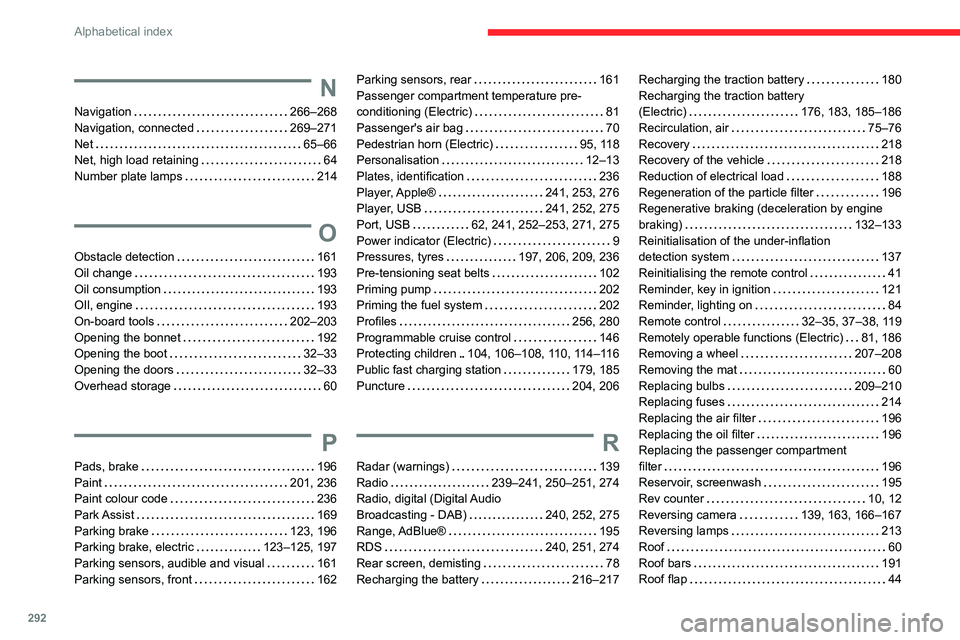
292
Alphabetical index
N
Navigation 266–268
Navigation, connected
269–271
Net
65–66
Net, high load retaining
64
Number plate lamps
214
O
Obstacle detection 161
Oil change
193
Oil consumption
193
OIl, engine
193
On-board tools
202–203
Opening the bonnet
192
Opening the boot
32–33
Opening the doors
32–33
Overhead storage
60
P
Pads, brake 196
Paint
201, 236
Paint colour code
236
Park Assist
169
Parking brake
123, 196
Parking brake, electric
123–125, 197
Parking sensors, audible and visual
161
Parking sensors, front
162
Parking sensors, rear 161
Passenger compartment temperature pre-
conditioning (Electric)
81
Passenger's air bag
70
Pedestrian horn (Electric)
95, 118
Personalisation
12–13
Plates, identification
236
Player, Apple®
241, 253, 276
Player, USB
241, 252, 275
Port, USB
62, 241, 252–253, 271, 275
Power indicator (Electric)
9
Pressures, tyres
197, 206, 209, 236
Pre-tensioning seat belts
102
Priming pump
202
Priming the fuel system
202
Profiles
256, 280
Programmable cruise control
146
Protecting children
104, 106–108, 110, 114–116
Public fast charging station
179, 185
Puncture
204, 206
R
Radar (warnings) 139
Radio
239–241, 250–251, 274
Radio, digital (Digital Audio
Broadcasting - DAB)
240, 252, 275
Range, AdBlue®
195
RDS
240, 251, 274
Rear screen, demisting
78
Recharging the battery
216–217
Recharging the traction battery 180
Recharging the traction battery
(Electric)
176, 183, 185–186
Recirculation, air
75–76
Recovery
218
Recovery of the vehicle
218
Reduction of electrical load
188
Regeneration of the particle filter
196
Regenerative braking (deceleration by engine
braking)
132–133
Reinitialisation of the under-inflation
detection system
137
Reinitialising the remote control
41
Reminder, key in ignition
121
Reminder, lighting on
84
Remote control
32–35, 37–38, 119
Remotely operable functions (Electric)
81, 186
Removing a wheel
207–208
Removing the mat
60
Replacing bulbs
209–210
Replacing fuses
214
Replacing the air filter
196
Replacing the oil filter
196
Replacing the passenger compartment
filter
196
Reservoir, screenwash
195
Rev counter
10, 12
Reversing camera
139, 163, 166–167
Reversing lamps
213
Roof
60
Roof bars
191
Roof flap
44