mirror Citroen C1 2014 1.G User Guide
[x] Cancel search | Manufacturer: CITROEN, Model Year: 2014, Model line: C1, Model: Citroen C1 2014 1.GPages: 256, PDF Size: 5.63 MB
Page 184 of 256
01
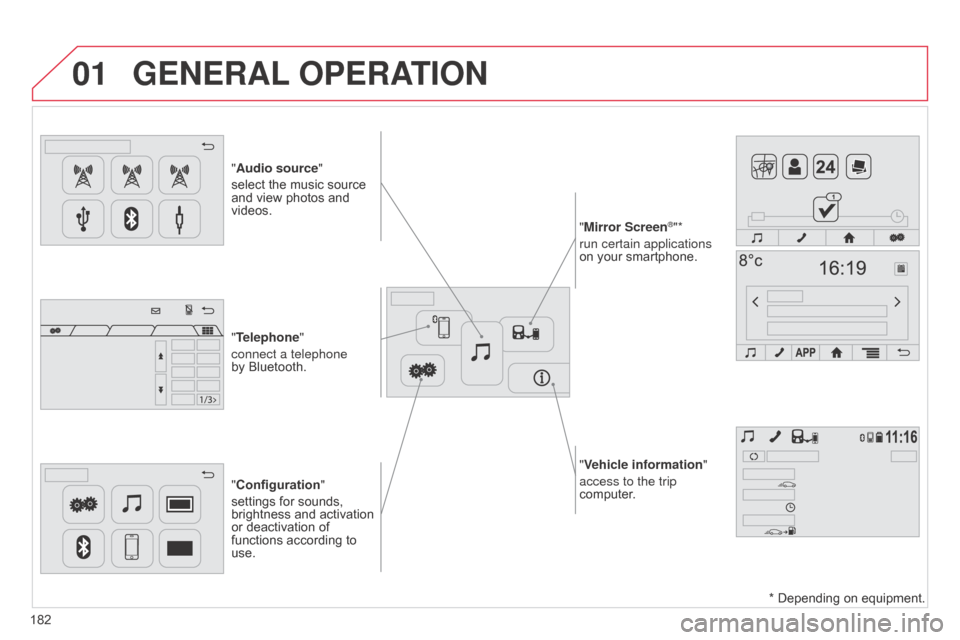
"Vehicle information"
access to the trip
computer.
"Audio source"
select the music source
and view photos and
videos.
"Configuration
"
settings for sounds,
brightness and activation
or deactivation of
functions according to
use. "Mirror Screen
®"*
run certain applications
on your smartphone.
"Telephone"
connect a telephone
by Bluetooth.
GENERAL OPERATION
182 * Depending on equipment.
Page 186 of 256
02
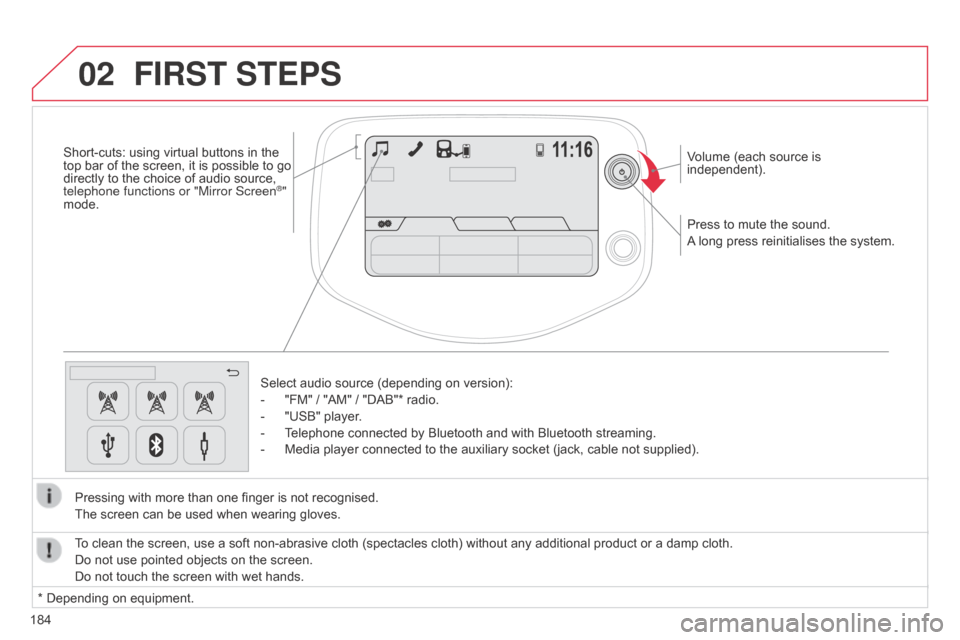
184Press to mute the sound.
A long press reinitialises the system. Volume (each source is
independent).
Select audio source (depending on version):
-
"FM" / "AM" / "DAB"* radio.
-
"USB" player
.
-
T
elephone connected by Bluetooth and with Bluetooth streaming.
-
Media player connected to the auxiliary socket (jack, cable not supplied).
Pressing with more than one finger is not recognised.
The screen can be used when wearing gloves.
FIRST STEPS
* Depending on equipment. To clean the screen, use a soft non-abrasive cloth (spectacles cloth) without any additional product or a damp cloth.
Do not use pointed objects on the screen.
Do not touch the screen with wet hands.
Short-cuts: using virtual buttons in the
top bar of the screen, it is possible to go
directly to the choice of audio source,
telephone functions or "Mirror Screen
®"
mode.
Page 209 of 256
06
207
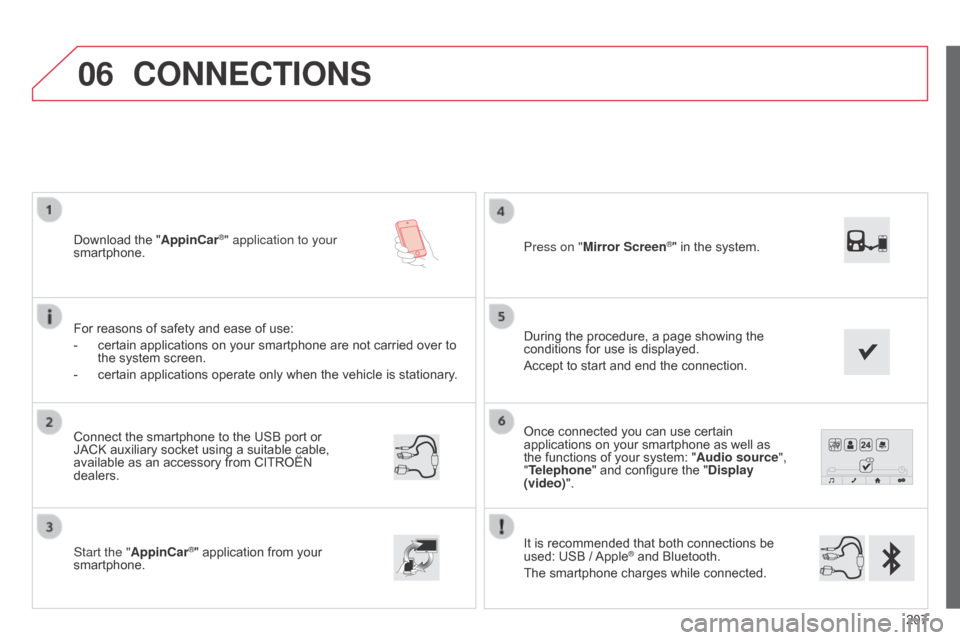
Once connected you can use certain
applications on your smartphone as well as
the functions of your system: "Audio source",
"Telephone" and configure the "Display
(video)".
It is recommended that both connections be
used: USB / Apple
® and Bluetooth.
The smartphone charges while connected.
Connect the smartphone to the USB
port or
JACK auxiliary socket using a suitable cable,
available as an accessory from CITROËN
dealers.
Start the "AppinCar®" application from your
smartphone. During the procedure, a page showing the
conditions for use is displayed.
Accept to start and end the connection. Press on "Mirror Screen
®" in the system.
Download the "
AppinCar®" application to your
smartphone.
For reasons of safety and ease of use:
-
certain applications on your smartphone are not carried over to
the system screen.
-
certain applications operate only when the vehicle is stationary .
CONNECTIONS
Page 210 of 256
06
208Level 1
Level 2Level 3
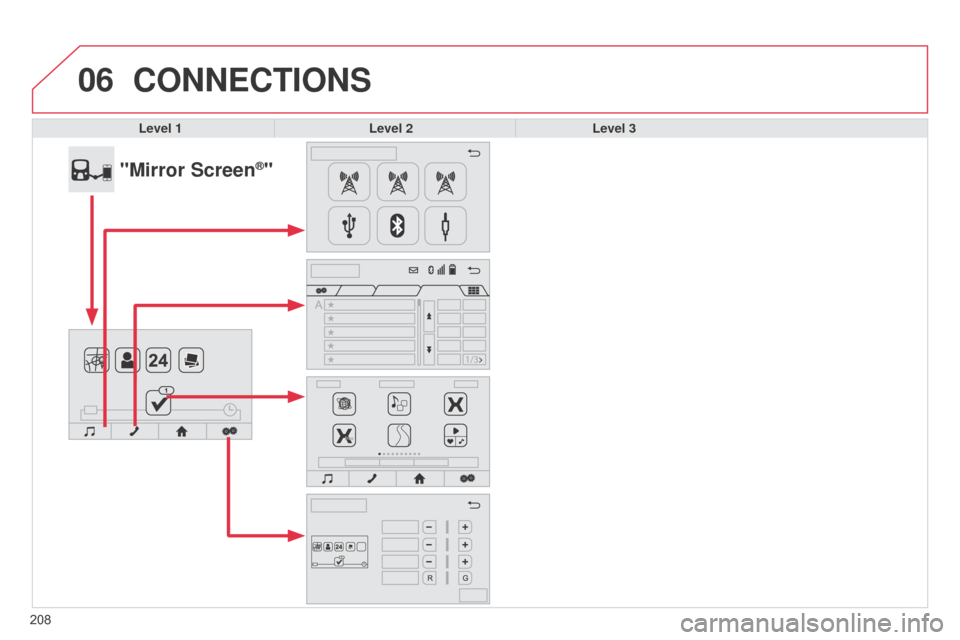
"Mirror Screen®"
CONNECTIONS
Page 211 of 256
209
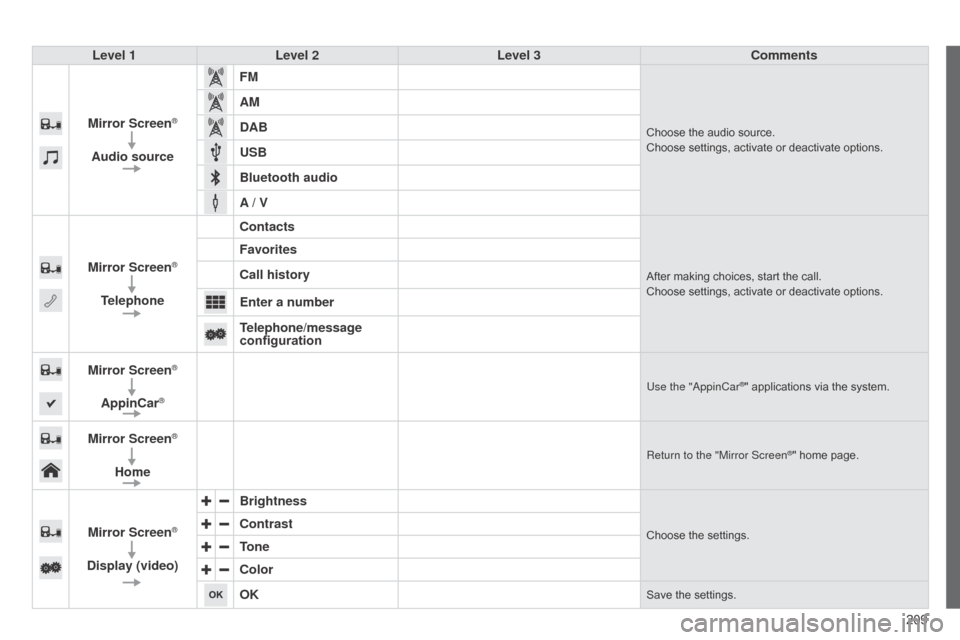
Level 1
Level 2 Level 3 Comments
Mirror Screen
®
Audio source FM
Choose the audio source.
Choose settings, activate or deactivate options.
AM
DAB
USB
Bluetooth audio
A / V
Mirror Screen
®
Telephone Contacts
After making choices, start the call.
Choose settings, activate or deactivate options.
Favorites
Call history
Enter a number
Telephone/message
configuration
Mirror Screen
®
AppinCar®Use the "appinCar®" applications via the system.
Mirror Screen®
Home
Return to the "Mirror Screen®" home page.
Mirror Screen®
Display (video) Brightness
Choose the settings.Contrast
Tone
Color
OK
Save the settings.
Page 212 of 256
06
210
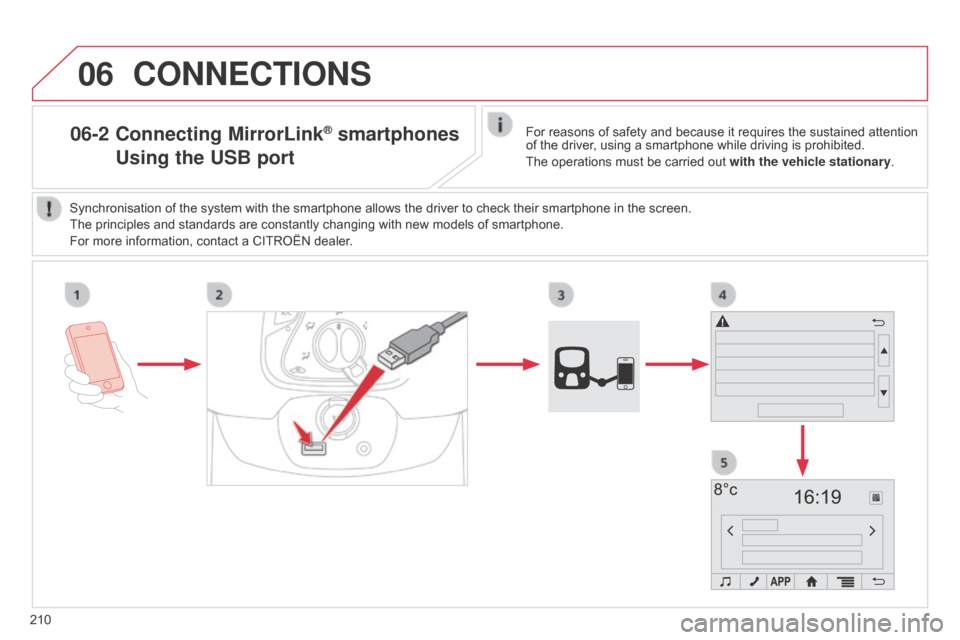
06-2 Connecting MirrorLink® smartphones
Using
the USB portFor reasons of safety and because it requires the sustained attention
of the driver, using a smartphone while driving is prohibited.
The operations must be carried out with the vehicle stationary.
Synchronisation of the system with the smartphone allows the driver to check their smartphone in the screen.
The principles and standards are constantly changing with new models of smartphone.
For more information, contact a CITROËN dealer.
CONNECTIONS
Page 213 of 256
06
2 11
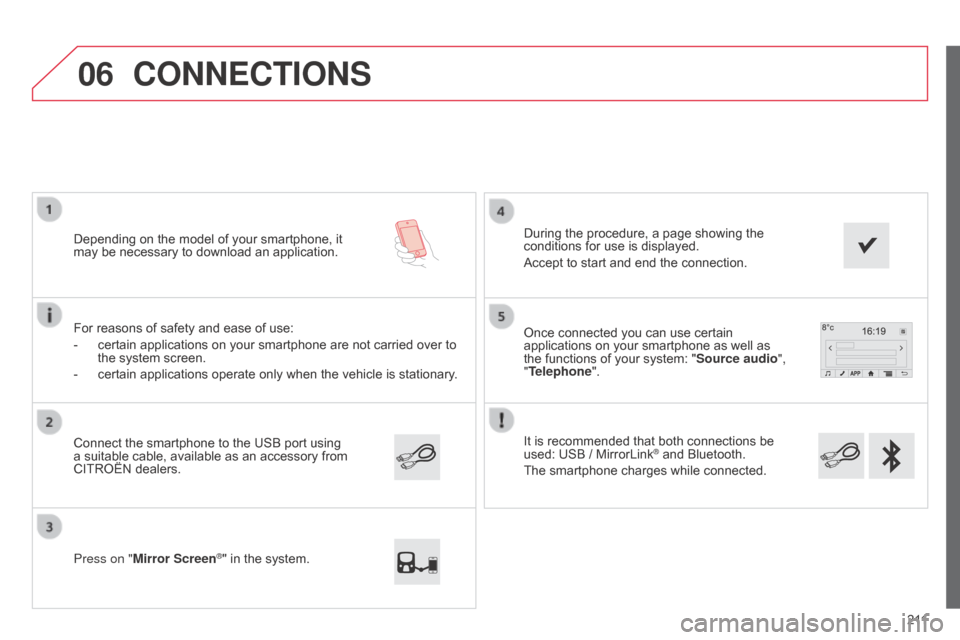
It is recommended that both connections be
used: USB / MirrorLink
® and Bluetooth.
The smartphone charges while connected. Once connected you can use certain
applications on your smartphone as well as
the functions of your system: "Source audio ",
"Telephone".
Connect the smartphone to the USB port using
a suitable cable, available as an accessory from
CITROËN dealers. Depending on the model of your smartphone, it
may be necessary to download an application.
Press on "Mirror Screen
®" in the system. During the procedure, a page showing the
conditions for use is displayed.
Accept to start and end the connection.
For reasons of safety and ease of use:
-
certain applications on your smartphone are not carried over to
the system screen.
-
certain applications operate only when the vehicle is stationary
.
CONNECTIONS
Page 214 of 256
06
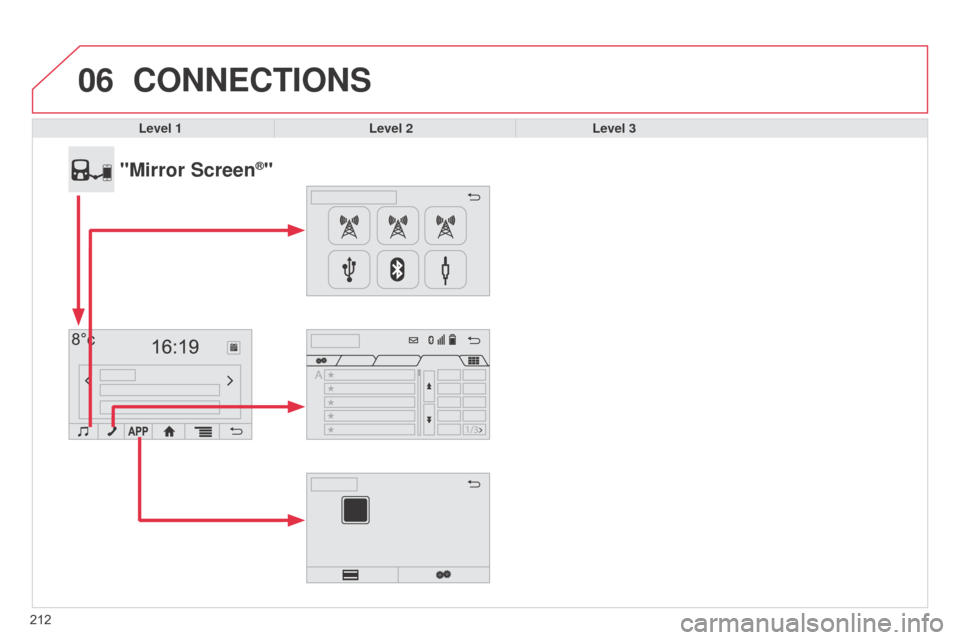
212Level 1
Level 2Level 3
"Mirror Screen®"
CONNECTIONS
Page 215 of 256
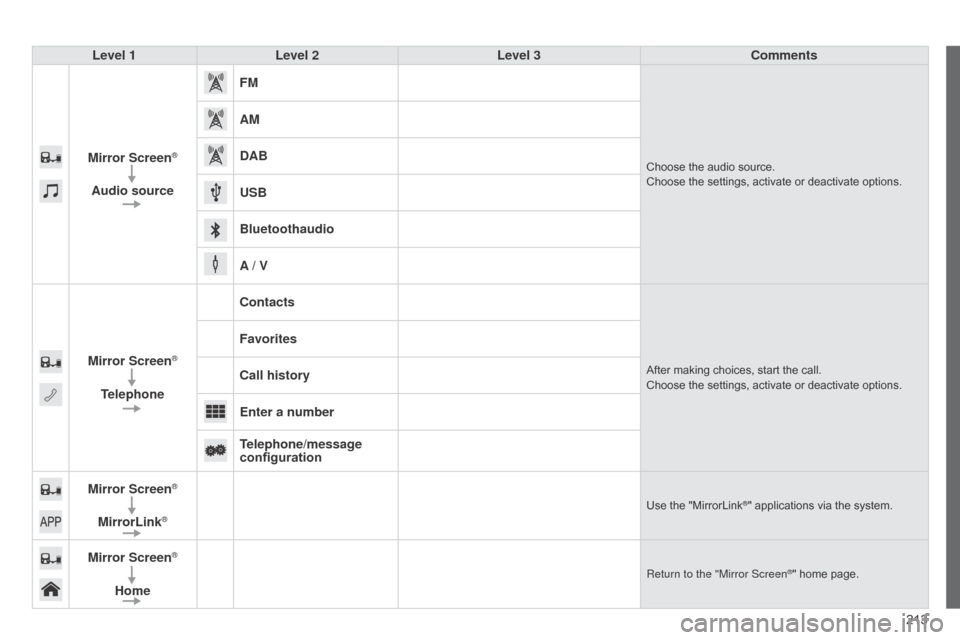
213
Level 1
Level 2 Level 3 Comments
Mirror Screen
®
Audio source FM
Choose the audio source.
Choose the settings, activate or deactivate options.
AM
DAB
USB
Bluetoothaudio
A / V
Mirror Screen
®
Telephone Contacts
After making choices, start the call.
Choose the settings, activate or deactivate options.
Favorites
Call history
Enter a number
Telephone/message
configuration
Mirror Screen
®
MirrorLink®Use the "MirrorLink®" applications via the system.
Mirror Screen®
Home
Return to the "Mirror Screen®" home page.
Page 239 of 256
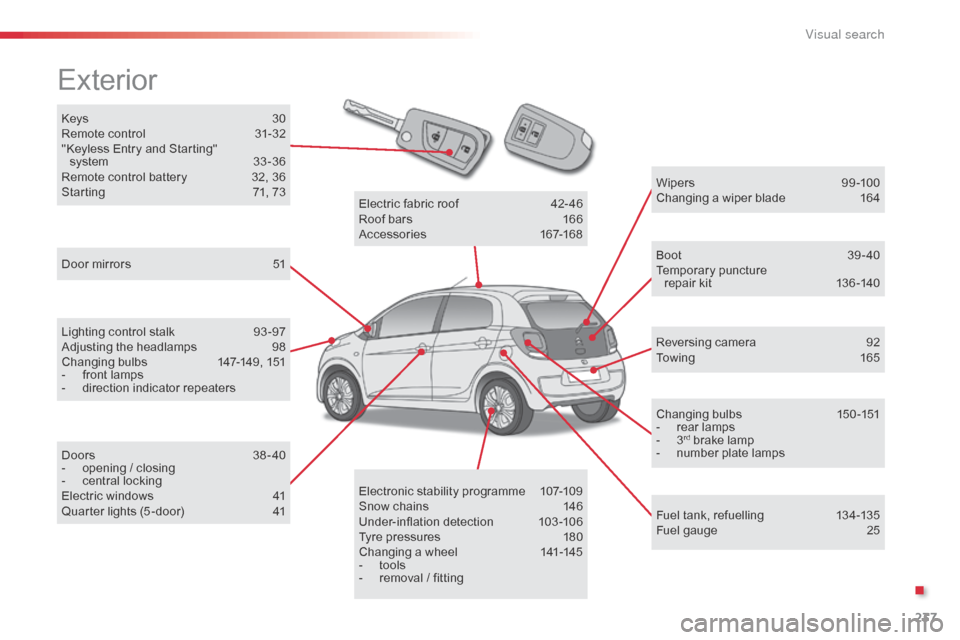
237
Keys 30
Remote control 3 1-32
"Keyless Entry and Starting" system
3
3 -36
Remote control battery
3
2, 36
Starting
7
1, 73
Exterior
Door mirrors 5 1
Lighting control stalk
9
3 -97
Adjusting the headlamps
9
8
Changing bulbs
1
47-149, 151
-
f
ront lamps
-
d
irection indicator repeaters
Doors
3
8-40
-
o
pening / closing
-
c
entral locking
Electric windows
4
1
Quarter lights (5 -door)
4
1 W ip e r s
9
9 -10 0
Changing a wiper blade
1
64
Boot 3 9-40
Temporary puncture
repair kit
1
36 -140
Reversing camera
9
2
To w i n g
1
6 5
Changing bulbs
1
50-151
-
r
ear lamps
-
3rd brake lamp
-
n
umber plate lamps
Fuel tank, refuelling
1
34-135
Fuel gauge
2
5
Electronic stability programme
1
07-109
Snow chains
1
46
Under-inflation detection
1
03-106
Tyre pressures
1
80
Changing a wheel
1
41-145
-
t
ools
-
r
emoval / fitting
Electric fabric roof
4
2-46
Roof bars
1
66
Accessories
1
67-168
B4_en_Chap13_recherche-visuelle_ed01-2014
.
Visual search