USB Citroen C1 2015 1.G User Guide
[x] Cancel search | Manufacturer: CITROEN, Model Year: 2015, Model line: C1, Model: Citroen C1 2015 1.GPages: 271, PDF Size: 7.18 MB
Page 215 of 271
213
C1_en_Chap12a_Autoradio_Toyota_tactile-1_ed01-2015
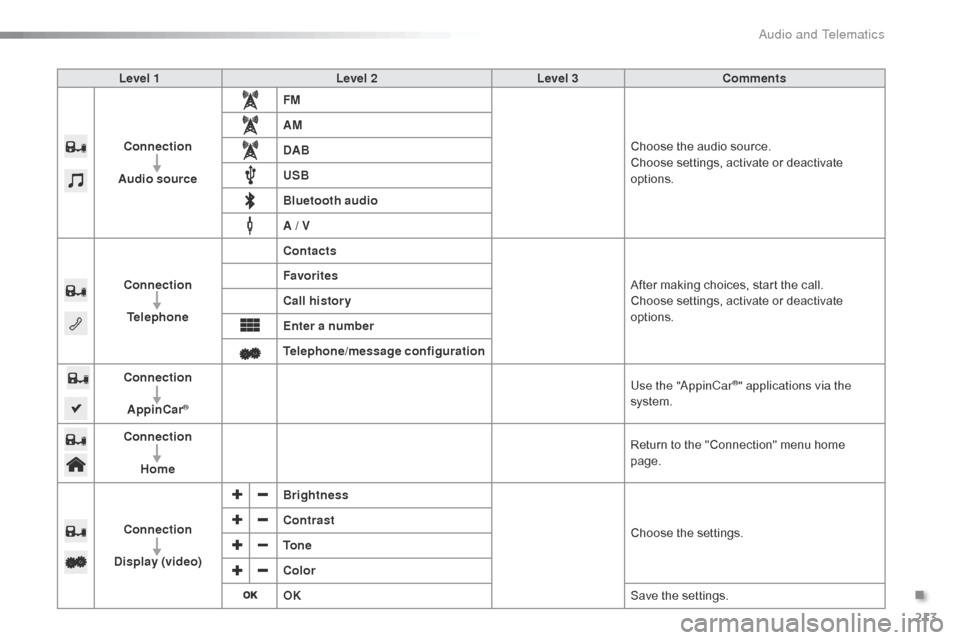
Level 1Level 2Level 3Comments
Connection
Audio source FM
Choose the audio source.
Choose settings, activate or deactivate
options.
AM
DAB
USB
Bluetooth audio
A / V
Connection Telephone Contacts
After making choices, start the call.
Choose settings, activate or deactivate
options.
Favorites
Call history
Enter a number
Telephone/message configuration
Connection
AppinCar
®
Use the "AppinCar®" applications via the
system.
Connection Home Return to the "Connection" menu home
page.
Connection
Display (video) Brightness
Choose the settings.
Contrast
To n e
Color
OK
Save the settings.
.
Audio and Telematics
Page 216 of 271
214
C1_en_Chap12a_Autoradio_Toyota_tactile-1_ed01-2015
Mirror Screen® - MirrorLink® connections
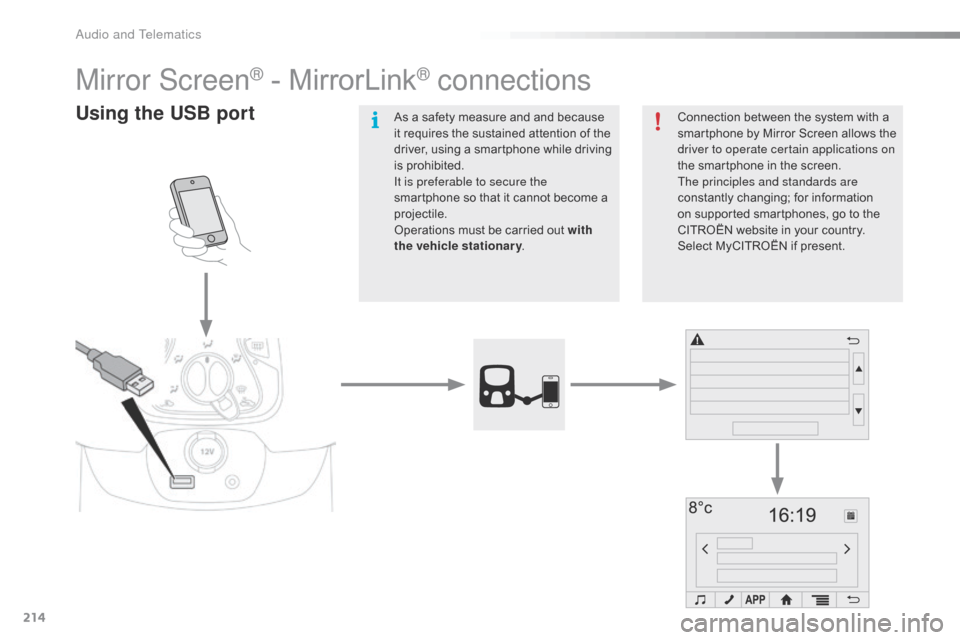
Using the USB portConnection between the system with a
smartphone by Mirror Screen allows the
driver to operate certain applications on
the smartphone in the screen.
The principles and standards are
constantly changing; for information
on supported smartphones, go to the
CITROËN website in your country.
Select MyCITROËN if present.
As a safety measure and and because
it requires the sustained attention of the
driver, using a smartphone while driving
is prohibited.
It is preferable to secure the
smartphone so that it cannot become a
projectile.
Operations must be carried out with
the
vehicle stationary .
Audio and Telematics
Page 217 of 271
215
C1_en_Chap12a_Autoradio_Toyota_tactile-1_ed01-2015
Depending on the model of your
smartphone, the manufacturer
may require you to first download a
dedicated application.
The download of the application
must be done with the vehicle
stationary. During the procedure, a page
showing the terms and conditions for
use is displayed.
Accept to start and end the
connection.
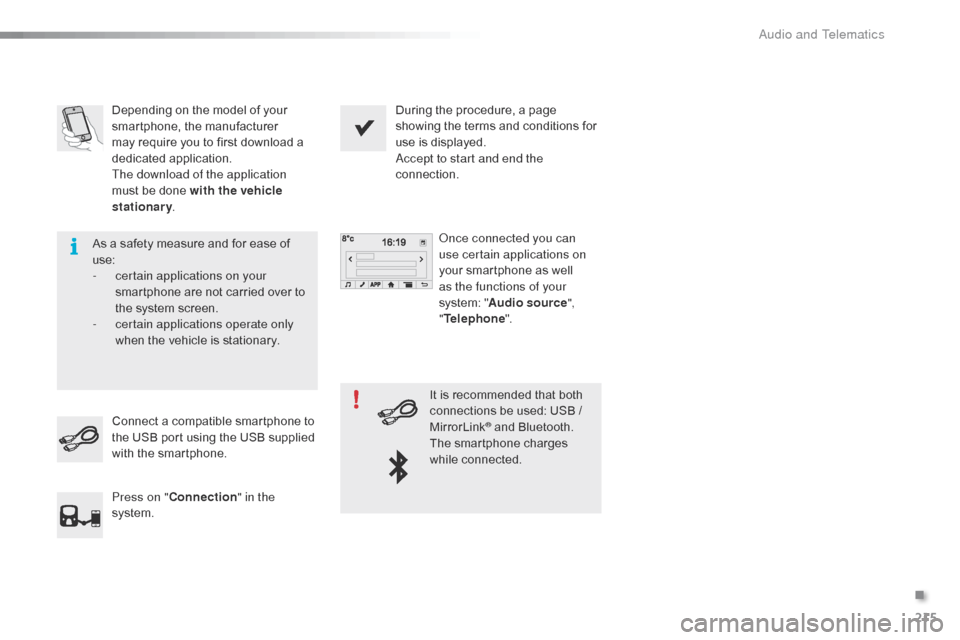
Once connected you can
use certain applications on
your smartphone as well
as the functions of your
system: " Audio source ",
" Telephone ".
Connect a compatible smartphone to
the USB port using the USB supplied
with the smartphone.
Press on " Connection " in the
system. It is recommended that both
connections be used: USB /
MirrorLink
® and Bluetooth.
The smartphone charges
while connected.
As a safety measure and for ease of
use:
-
c
ertain applications on your
smartphone are not carried over to
the system screen.
-
c
ertain applications operate only
when the vehicle is stationary.
.
Audio and Telematics
Page 219 of 271
217
C1_en_Chap12a_Autoradio_Toyota_tactile-1_ed01-2015
Level 1Level 2Level 3Comments
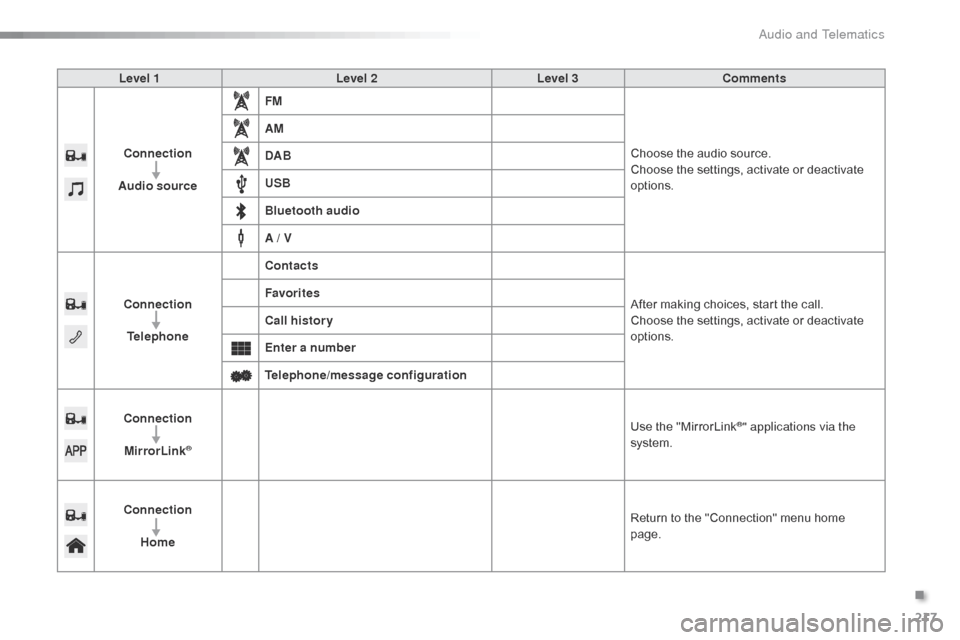
Connection
Audio source FM
Choose the audio source.
Choose the settings, activate or deactivate
options.
AM
DAB
USB
Bluetooth audio
A / V
Connection Telephone Contacts
After making choices, start the call.
Choose the settings, activate or deactivate
options.
Favorites
Call history
Enter a number
Telephone/message configuration
Connection MirrorLink
®
Use the "MirrorLink®" applications via the
system.
Connection Home Return to the "Connection" menu home
page.
.
Audio and Telematics
Page 221 of 271
219
C1_en_Chap12a_Autoradio_Toyota_tactile-1_ed01-2015
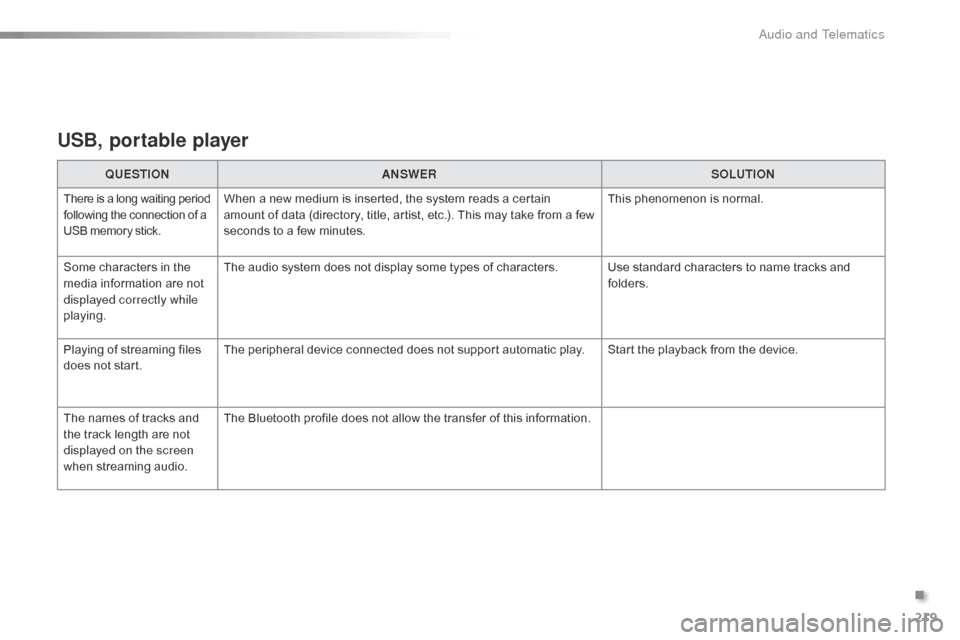
USB, portable player
QUESTIONANSWER SOLUTION
There is a long waiting period
following the connection of a
USB memory stick.When a new medium is inserted, the system reads a certain
amount of data (directory, title, artist, etc.). This may take from a few
seconds to a few minutes. This phenomenon is normal.
Some characters in the
media information are not
displayed correctly while
playing. The audio system does not display some types of characters. Use standard characters to name tracks and
folders.
Playing of streaming files
does not start. The peripheral device connected does not support automatic play. Start the playback from the device.
The names of tracks and
the track length are not
displayed on the screen
when streaming audio. The Bluetooth profile does not allow the transfer of this information.
.
Audio and Telematics
Page 223 of 271
221
C1_en_Chap12a_Autoradio_Toyota_tactile-1_ed01-2015
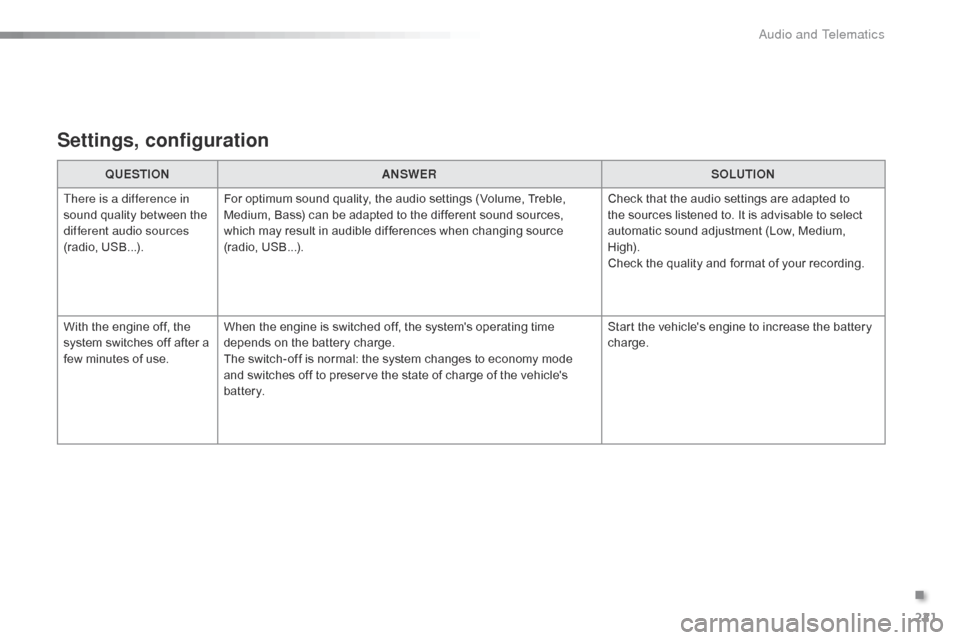
Settings, configuration
QUESTIONANSWER SOLUTION
There is a difference in
sound quality between the
different audio sources
(radio, USB...). For optimum sound quality, the audio settings (Volume, Treble,
Medium, Bass) can be adapted to the different sound sources,
which may result in audible differences when changing source
(radio, USB...). Check that the audio settings are adapted to
the sources listened to. It is advisable to select
automatic sound adjustment (Low, Medium,
High).
Check the quality and format of your recording.
With the engine off, the
system switches off after a
few minutes of use. When the engine is switched off, the system's operating time
depends on the battery charge.
The switch-off is normal: the system changes to economy mode
and switches off to preserve the state of charge of the vehicle's
battery. Start the vehicle's engine to increase the battery
charge.
.
Audio and Telematics
Page 235 of 271
233
C1_en_Chap12b_Autoradio_Toyota-2_ed01-2015
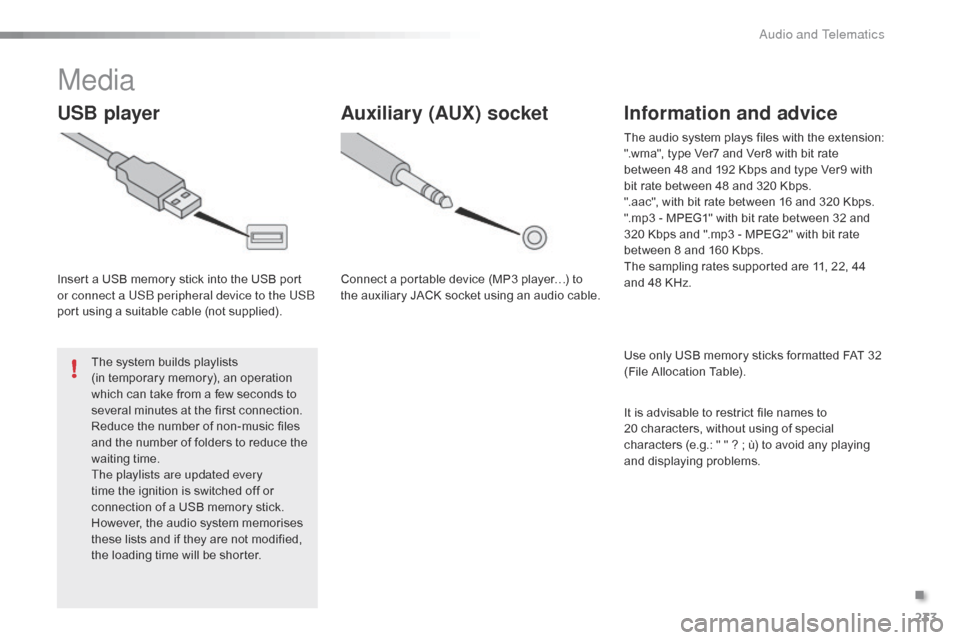
Media
USB player
Insert a USB memory stick into the USB port
or connect a USB peripheral device to the USB
port using a suitable cable (not supplied).The system builds playlists
(in temporary memory), an operation
which can take from a few seconds to
several minutes at the first connection.
Reduce the number of non-music files
and the number of folders to reduce the
waiting time.
The playlists are updated every
time the ignition is switched off or
connection of a USB memory stick.
However, the audio system memorises
these lists and if they are not modified,
the loading time will be shorter.
Auxiliary (AUX) socket
Connect a portable device (MP3 player…) to
the auxiliary JACK socket using an audio cable.
Information and advice
Use only USB memory sticks formatted FAT 32
(File Allocation Table). The audio system plays files with the extension:
".wma", type Ver7 and Ver8 with bit rate
between 48 and 192 Kbps and type Ver9 with
bit rate between 48 and 320 Kbps.
".aac", with bit rate between 16 and 320 Kbps.
".mp3 - MPEG1" with bit rate between 32 and
320 Kbps and ".mp3 - MPEG2" with bit rate
between 8 and 160 Kbps.
The sampling rates supported are 11, 22, 44
and 48 KHz.
It is advisable to restrict file names to
20
characters, without using of special
characters (e.g.: " " ? ; ù) to avoid any playing
and displaying problems.
.
Audio and Telematics
Page 236 of 271

234
C1_en_Chap12b_Autoradio_Toyota-2_ed01-2015
Audio streamingConnecting Apple® players
Streaming allows audio files on your telephone
to be played via the vehicle's speakers.
You can also view, activate or deactivate
system settings related to the Bluetooth
function.Select "Bluetooth", then "
Pairing".
Press on " MENU" to display the list.
Turn the knob to select "Bluetooth",
press to display the list.
Once connected for streaming, the
telephone is considered as a media
source.
If play does not start automatically, it
may be necessary to start audio play
from the telephone. Connect the Apple
® player to the USB port
using a suitable cable (not supplied).
Play starts automatically.
Control is via the audio system.
The classifications available are those of the
portable device connected (artists / albums
/
genres / tracks / playlists / audio books
/
podcasts).
The default classification used is by artist. To
modify the classification used, return to the
first level of the menu then select the desired
classification (playlists for example) and
confirm to go down through the menu to the
desired track.
The version of software in the audio system
may not be compatible with the generation of
your Apple
® player.
Connect the telephone : see the "
Telephone"
section.
The system accepts USB mass storage
devices or Apple
® players via the USB ports.
The adaptor cable is not supplied.
Control of the peripheral device is with the
audio system controls.
Other peripherals, not recognised on
connection, must be connected to the auxiliary
socket using a Jack cable (not supplied).
The system can alternatively read files via the
Bluetooth
® system and the USB port.
It is recommended that the USB cable
for the portable device is used.
Audio and Telematics
Page 242 of 271

240
C1_en_Chap12b_Autoradio_Toyota-2_ed01-2015
USB, portable player
QUESTIONANSWER SOLUTION
There is a long waiting period
following the connection of a
USB memory stick.When a new medium is inserted, the system reads a certain
amount of data (directory, title, artist, etc.). This may take from a few
seconds to a few minutes. This phenomenon is normal.
Some characters in the
media information are not
displayed correctly while
playing. The audio system does not display some types of characters. Use standard characters to name tracks and
folders.
Playing of streaming files
does not start. The peripheral device connected does not support automatic play. Start the playback from the device.
The names of tracks and
the track length are not
displayed on the screen
when streaming audio. The Bluetooth profile does not allow the transfer of this information.
Audio and Telematics
Page 244 of 271
242
C1_en_Chap12b_Autoradio_Toyota-2_ed01-2015
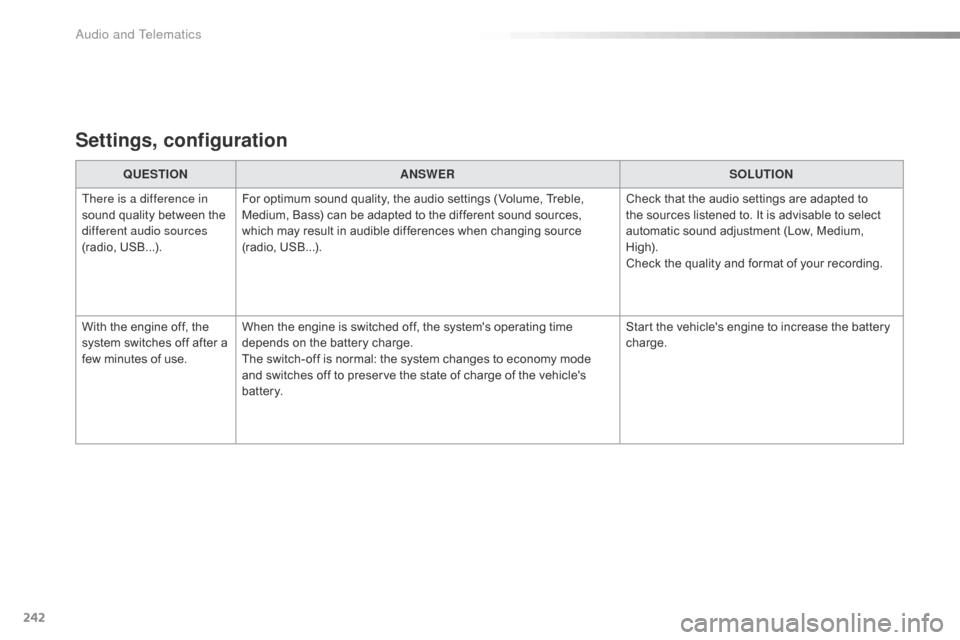
Settings, configuration
QUESTIONANSWER SOLUTION
There is a difference in
sound quality between the
different audio sources
(radio, USB...). For optimum sound quality, the audio settings (Volume, Treble,
Medium, Bass) can be adapted to the different sound sources,
which may result in audible differences when changing source
(radio, USB...). Check that the audio settings are adapted to
the sources listened to. It is advisable to select
automatic sound adjustment (Low, Medium,
High).
Check the quality and format of your recording.
With the engine off, the
system switches off after a
few minutes of use. When the engine is switched off, the system's operating time
depends on the battery charge.
The switch-off is normal: the system changes to economy mode
and switches off to preserve the state of charge of the vehicle's
battery. Start the vehicle's engine to increase the battery
charge.
Audio and Telematics