bluetooth Citroen C1 2015 1.G User Guide
[x] Cancel search | Manufacturer: CITROEN, Model Year: 2015, Model line: C1, Model: Citroen C1 2015 1.GPages: 271, PDF Size: 7.18 MB
Page 213 of 271
211
C1_en_Chap12a_Autoradio_Toyota_tactile-1_ed01-2015
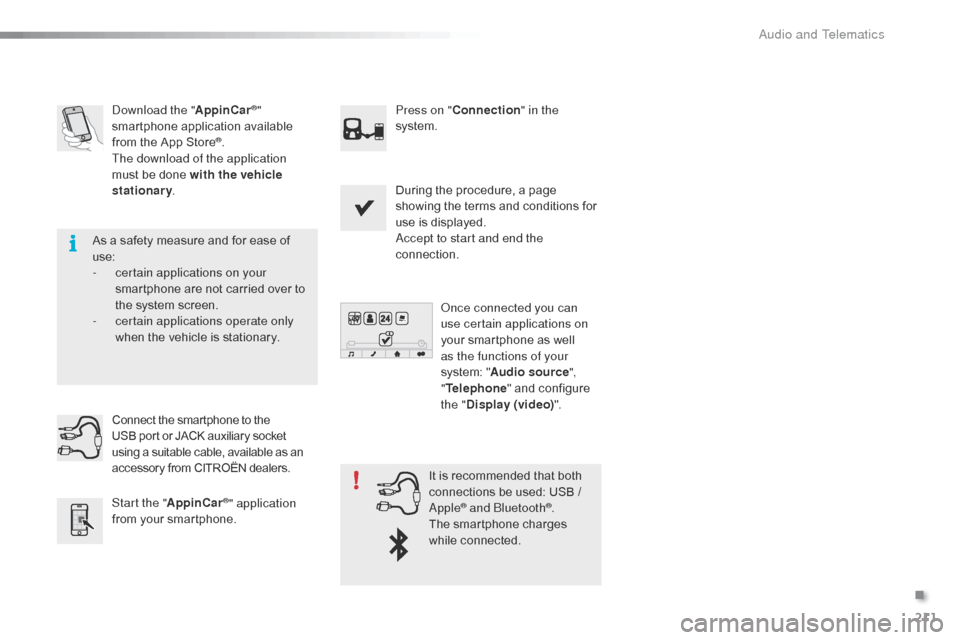
Download the "AppinCar®"
smartphone application available
from the App Store
®.
The download of the application
must be done with the vehicle
stationary . Press on "
Connection " in the
system.
During the procedure, a page
showing the terms and conditions for
use is displayed.
Accept to start and end the
connection.
Once connected you can
use certain applications on
your smartphone as well
as the functions of your
system: " Audio source ",
" Telephone " and configure
the " Display (video) ".
Connect the smartphone to the
USB
port or JACK auxiliary socket
using a suitable cable, available as an
accessory from CITROËN dealers.
Start the " AppinCar
®" application
from your smartphone. It is recommended that both
connections be used: USB /
Apple® and Bluetooth®.
The smartphone charges
while connected.
As a safety measure and for ease of
use:
-
c
ertain applications on your
smartphone are not carried over to
the system screen.
-
c
ertain applications operate only
when the vehicle is stationary.
.
Audio and Telematics
Page 215 of 271
213
C1_en_Chap12a_Autoradio_Toyota_tactile-1_ed01-2015
Level 1Level 2Level 3Comments
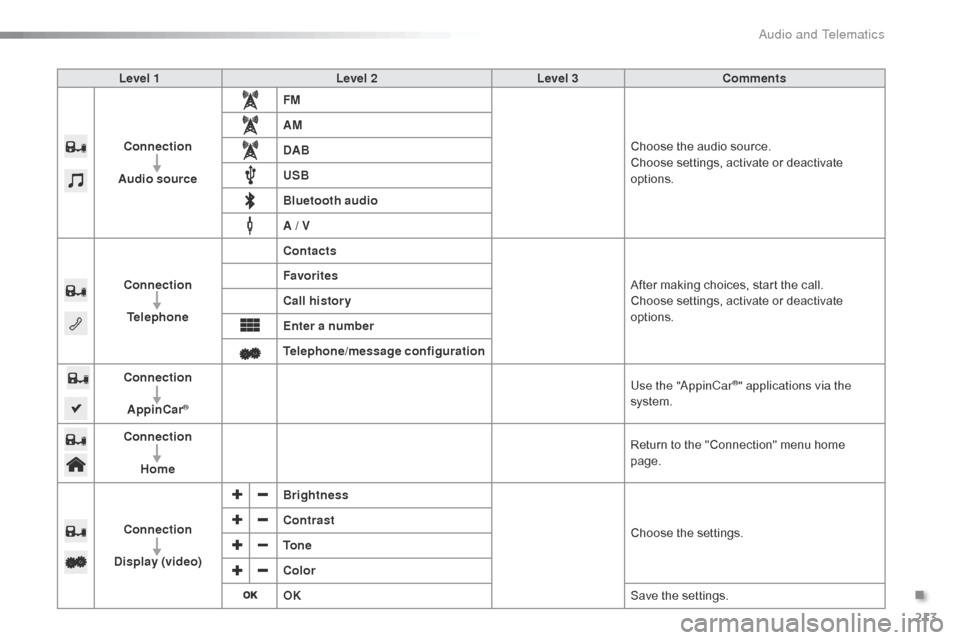
Connection
Audio source FM
Choose the audio source.
Choose settings, activate or deactivate
options.
AM
DAB
USB
Bluetooth audio
A / V
Connection Telephone Contacts
After making choices, start the call.
Choose settings, activate or deactivate
options.
Favorites
Call history
Enter a number
Telephone/message configuration
Connection
AppinCar
®
Use the "AppinCar®" applications via the
system.
Connection Home Return to the "Connection" menu home
page.
Connection
Display (video) Brightness
Choose the settings.
Contrast
To n e
Color
OK
Save the settings.
.
Audio and Telematics
Page 217 of 271
215
C1_en_Chap12a_Autoradio_Toyota_tactile-1_ed01-2015
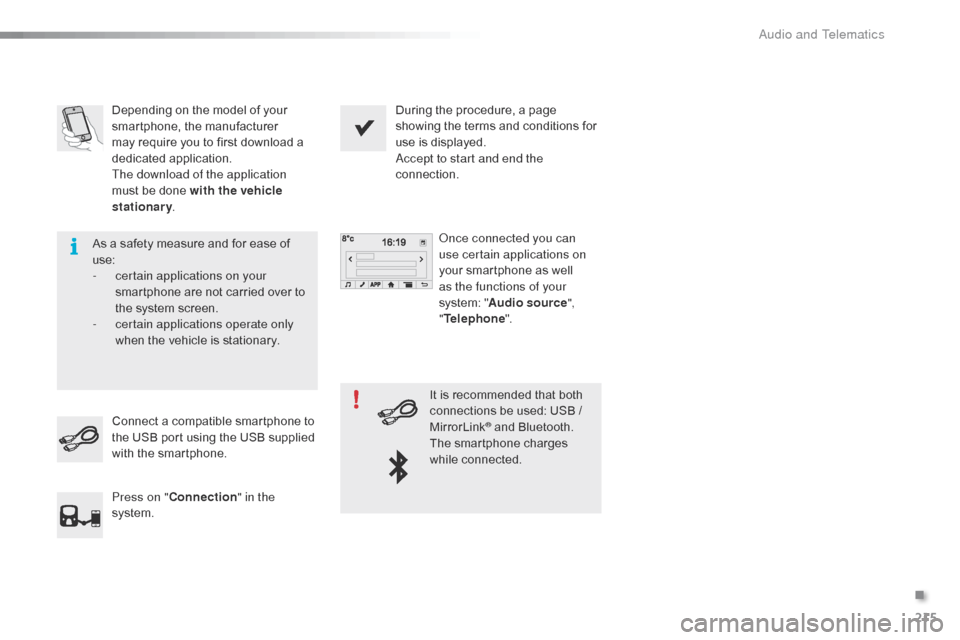
Depending on the model of your
smartphone, the manufacturer
may require you to first download a
dedicated application.
The download of the application
must be done with the vehicle
stationary. During the procedure, a page
showing the terms and conditions for
use is displayed.
Accept to start and end the
connection.
Once connected you can
use certain applications on
your smartphone as well
as the functions of your
system: " Audio source ",
" Telephone ".
Connect a compatible smartphone to
the USB port using the USB supplied
with the smartphone.
Press on " Connection " in the
system. It is recommended that both
connections be used: USB /
MirrorLink
® and Bluetooth.
The smartphone charges
while connected.
As a safety measure and for ease of
use:
-
c
ertain applications on your
smartphone are not carried over to
the system screen.
-
c
ertain applications operate only
when the vehicle is stationary.
.
Audio and Telematics
Page 219 of 271
217
C1_en_Chap12a_Autoradio_Toyota_tactile-1_ed01-2015
Level 1Level 2Level 3Comments
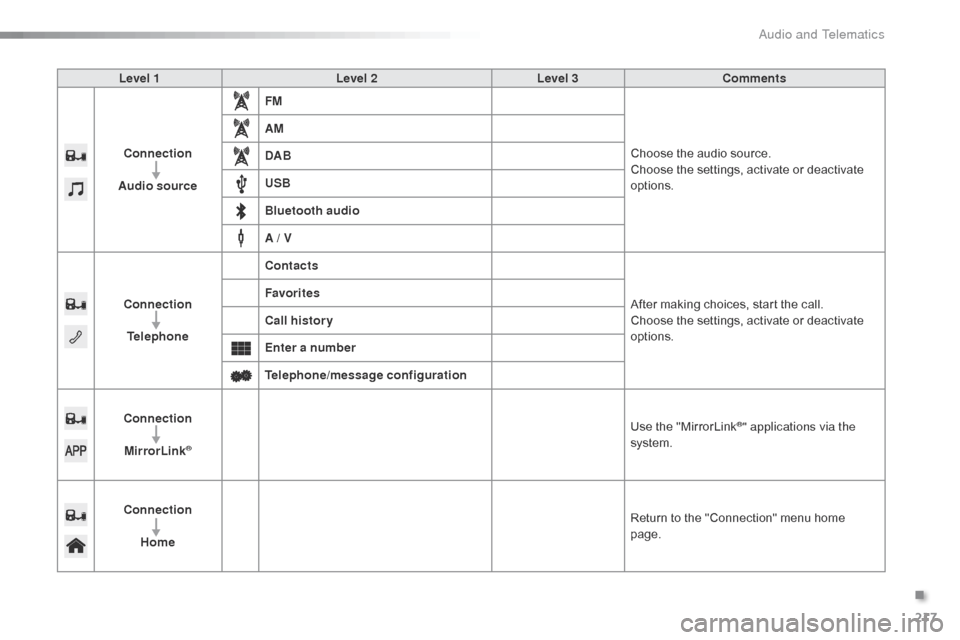
Connection
Audio source FM
Choose the audio source.
Choose the settings, activate or deactivate
options.
AM
DAB
USB
Bluetooth audio
A / V
Connection Telephone Contacts
After making choices, start the call.
Choose the settings, activate or deactivate
options.
Favorites
Call history
Enter a number
Telephone/message configuration
Connection MirrorLink
®
Use the "MirrorLink®" applications via the
system.
Connection Home Return to the "Connection" menu home
page.
.
Audio and Telematics
Page 220 of 271

218
C1_en_Chap12a_Autoradio_Toyota_tactile-1_ed01-2015
Frequently asked questions
The following table groups together the answers to the most frequently asked questions concerning your audio system.
Telephone, Bluetooth®
QUESTIONANSWER SOLUTION
I cannot connect my
Bluetooth telephone. The telephone's Bluetooth function may be switched off or the
telephone may not be visible. -
C
heck that your telephone's Bluetooth
function is switched on.
-
C
heck in the telephone settings that it is
"visible to all".
The Bluetooth telephone is not compatible with the system. You can check the compatibility of your
telephone at www.citroen.co.uk (services).
The volume of the
telephone connected
in Bluetooth mode is
inaudible. The volume depends both on the system and on the telephone. Increase the volume of the audio system, to
maximum if required, and increase the volume of
the telephone if necessary.
The ambient noise level has an influence on the quality of
telephone communication. Reduce the ambient noise level (close the
windows, reduce the booster fan speed, slow
down, ...).
Contacts are not shown in
alphabetical order. Some telephones offer display options. Depending on the settings
chosen, contacts can be transferred in a specific order. Modify the display setting in the telephone
di r e c to r y.
The system does
not receive SMS text
messages. The Bluetooth mode on your telephone does not permit sending
SMS text messages to the system.
Audio and Telematics
Page 221 of 271
219
C1_en_Chap12a_Autoradio_Toyota_tactile-1_ed01-2015
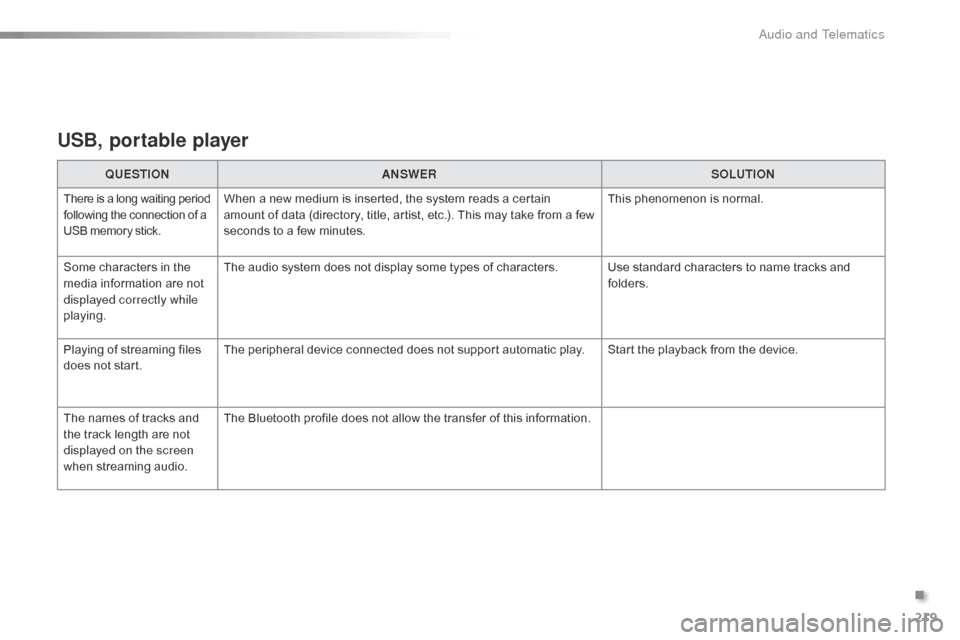
USB, portable player
QUESTIONANSWER SOLUTION
There is a long waiting period
following the connection of a
USB memory stick.When a new medium is inserted, the system reads a certain
amount of data (directory, title, artist, etc.). This may take from a few
seconds to a few minutes. This phenomenon is normal.
Some characters in the
media information are not
displayed correctly while
playing. The audio system does not display some types of characters. Use standard characters to name tracks and
folders.
Playing of streaming files
does not start. The peripheral device connected does not support automatic play. Start the playback from the device.
The names of tracks and
the track length are not
displayed on the screen
when streaming audio. The Bluetooth profile does not allow the transfer of this information.
.
Audio and Telematics
Page 225 of 271
223
C1_en_Chap12b_Autoradio_Toyota-2_ed01-2015
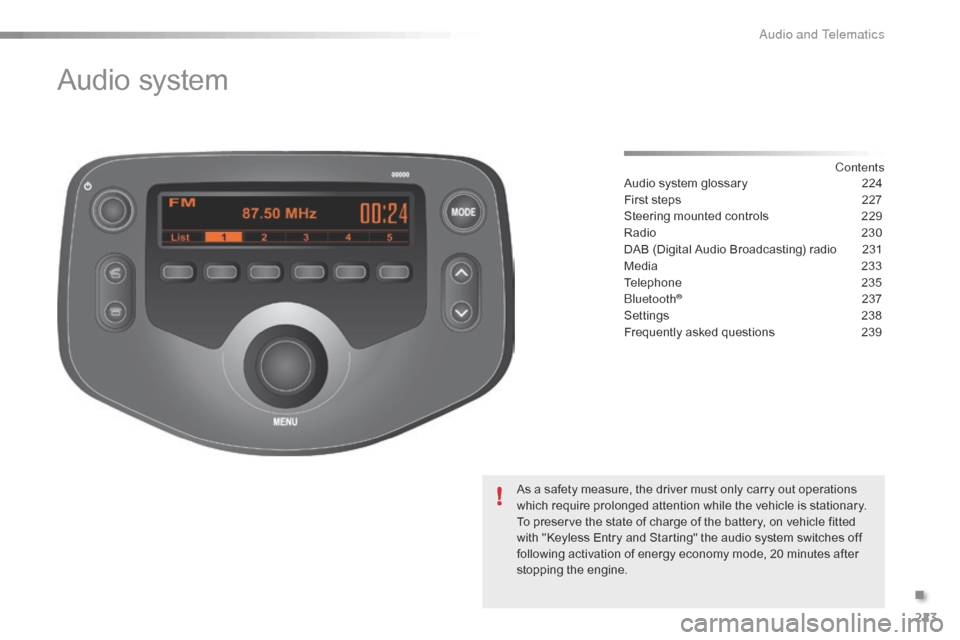
Audio system
Contents
Audio system glossary
2 24
First steps
2
27
Steering mounted controls
2
29
Radio
2
30
DAB (Digital Audio Broadcasting) radio
2
31
Media
23
3
Telephone
2
35
Bluetooth
® 237
Settings
2
38
Frequently asked questions
2
39
As a safety measure, the driver must only carry out operations
which require prolonged attention while the vehicle is stationary.
To preserve the state of charge of the battery, on vehicle fitted
with "Keyless Entry and Starting" the audio system switches off
following activation of energy economy mode, 20 minutes after
stopping the engine.
.
Audio and Telematics
Page 226 of 271
224
C1_en_Chap12b_Autoradio_Toyota-2_ed01-2015
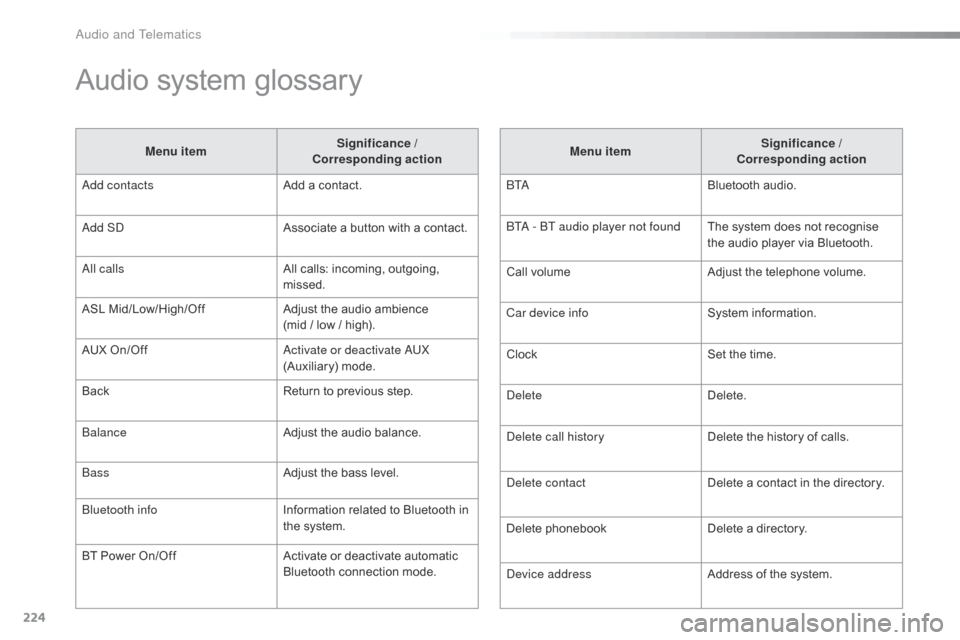
Audio system glossary
Menu itemSignificance /
Corresponding action
Add contacts Add a contact.
Add SD Associate a button with a contact.
All calls All calls: incoming, outgoing,
missed.
ASL Mid/Low/High/Off Adjust the audio ambience
(mid / low / high).
AUX On/Off Activate or deactivate AUX
(Auxiliary) mode.
Back Return to previous step.
Balance Adjust the audio balance.
Bass Adjust the bass level.
Bluetooth info Information related to Bluetooth in
the system.
BT Power On/Off Activate or deactivate automatic
Bluetooth connection mode. Menu item
Significance /
Corresponding action
B TA Bluetooth audio.
BTA - BT audio player not found The system does not recognise
the audio player via Bluetooth.
Call volume Adjust the telephone volume.
Car device info System information.
Clock Set the time.
Delete Delete.
Delete call history Delete the history of calls.
Delete contact Delete a contact in the directory.
Delete phonebook Delete a directory.
Device address Address of the system.
Audio and Telematics
Page 227 of 271

225
C1_en_Chap12b_Autoradio_Toyota-2_ed01-2015
Menu itemSignificance /
Corresponding action
Incoming calls Incoming calls.
List Audio Display the list of registered audio
devices.
List Phone Display the list of registered
telephones.
Missed calls Missed calls.
No entry No data available.
No history No history available.
No connected Not connected.
Outgoing calls Outgoing calls.
Overwrite all Replace all.
Pairing Connect a device by Bluetooth.
Menu item
Significance /
Corresponding action
Device name Name of the system.
DAB Digital radio.
Dial by number Enter a telephone number.
Disconnect Disconnect your telephone.
Display Setting Activate or deactivate automatic
display of connections.
Enter new passkey Enter a new password.
FM AF On/Off Activate or deactivate FM AF
mode.
FM List Display the list of FM stations.
FM TA On/Off Activate or deactivate FM TA
mode - alert messages.
HF Sound Setting High frequency sound setting.
.
Audio and Telematics
Page 229 of 271

227
C1_en_Chap12b_Autoradio_Toyota-2_ed01-2015
First steps
On/Off.
Volume (each source is
independent).
Accept an incoming call.AM radio buttons 1 to 6: select a
preset radio station.
FM buttons 1 to 5: select a preset
radio station.
FM list: display the radio stations
received.
Press and hold: preset a radio
station.
Back: abandon current operation, up
on level in the menu.Display menu and set options.
Rotate: scroll through a list or change
radio station.
Press: confirm the option displayed in
the screen.
Reject an incoming call.
End call. Select AM, FM and DAB*
wavebands.
Select the BTA (Bluetooth Audio) and
AUX (auxiliary) source.
Select:
-
t
he next radio frequency up
automatically.
-
t
he next line in a list or a menu.
- t he next media folder.
Select:
-
t
he next radio frequency down
automatically.
-
t
he previous line in a list or a
menu.
-
t
he previous media folder.
* Depending on equipment.
Audio system with Bluetooth®
.
Audio and Telematics