Start Citroen C1 2015 1.G Manual PDF
[x] Cancel search | Manufacturer: CITROEN, Model Year: 2015, Model line: C1, Model: Citroen C1 2015 1.GPages: 271, PDF Size: 7.18 MB
Page 253 of 271
251
Starting using another battery ......................16 4
Steering mounted controls, audio
...............
....................................186, 229
Steering wheel adjustment
.............................50
S
topping the vehicle
.....................6
9, 70, 72, 75
Stop & Start
................................. 2
7, 81, 83, 163
Storage
................
...................................... 61, 62
Sun visor
................................................... 6
1, 62
U
Under floor storage .........................................67
U nder-inflation (detection) ............................ 10
2
Unlocking
..............................
.................... 31, 33
USB
........
....................................... 196, 197, 233
Vanity mirror
.................................................... 62
V
entilation
..............................
............. 51, 53, 54
V
Warning lamps ...........................................14 -24
Weights ............... .......................................... 180
Wheel, changing
...............................
............143
Wheel traction control (TRC)
.... 1
6, 23, 105 -107
Window controls
............................................. 40
W
iper control stalk
.......................................... 99
W
ipers
............................................................. 99
W
Tables of fuses ..............................................15 4
Telephone .............................................2 02, 235
Temperature adjustment
...........................5
3, 56
Temporary puncture
repair kit
...............
................................. 67, 138
Three flashes function (direction indicators)
................................... 10
1
Third brake lamp
........................................... 15
3
Time
...............
................................................. 28
To o l s
................
.............................................. 143
Touch screen ......................................... 183, 18 4
Touch screen tablet ( M e nu s)
...............................
........................187
Towing eye
...................................................... 67
T
raffic information (TA)
.................................2
31
TRC (traction control)
............... 1
6, 23, 105 -107
Trip computer
............................................2
6, 27
Trip distance recorder
..............................
..........................25
Tyre pressures
..............................
........ 142, 182
Ty r e s
..............................................................
.... 8
Tyre under-inflation detection
...............
................. 18, 102-104, 142
T
.
Alphabetical index
Page 269 of 271
Audio and Telematics
10
c1-108-post-it-web_en_chap12a_complementnav_toyota_tactile-1_ed01-2015
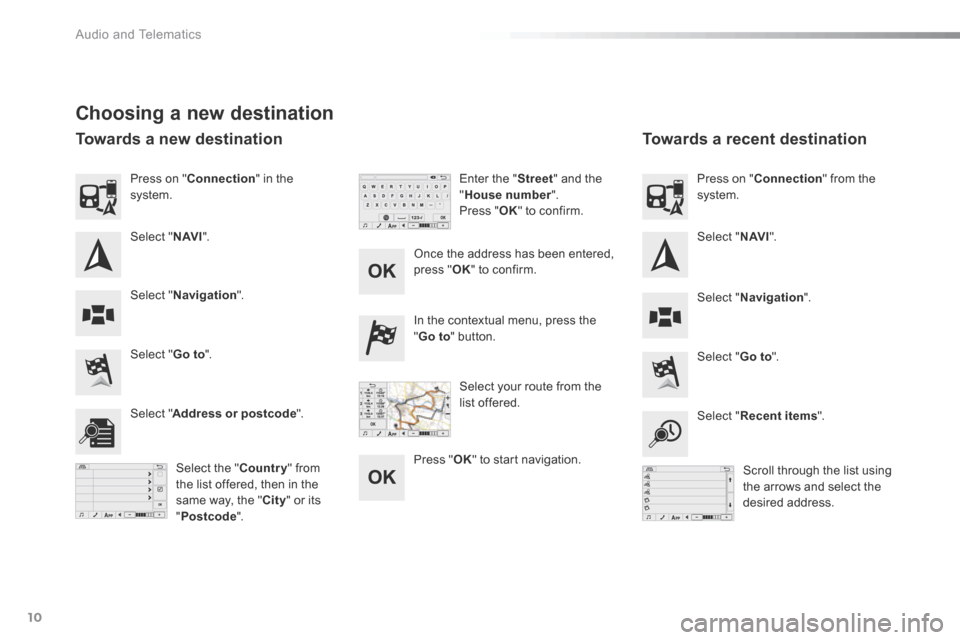
Choosing a new destination
Select " Go to ". Select " Go to ".
In the contextual menu, press the " Go to " button.
Select " Address or postcode ". Select " Recent items ".
Select the "Country" from the list offered, then in the same way, the " City " or its " Postcode ".
Scroll through the list using the arrows and select the desired address.
Once the address has been entered, press " OK " to confirm.
Press " OK " to start navigation.
Enter the " Street " and the " House number ". Press " OK " to confirm.
Select your route from the list offered.
Press on " Connection " in the system.
Select " N AV I ". Select " N AV I ".
Press on " Connection " from the system.
Select " Navigation ". Select " Navigation ".
Towards a new destination Towards a recent destination
Page 271 of 271
9876543210SN
NE4400923212132EW
Audio and Telematics
12
c1-108-post-it-web_en_chap12a_complementnav_toyota_tactile-1_ed01-2015
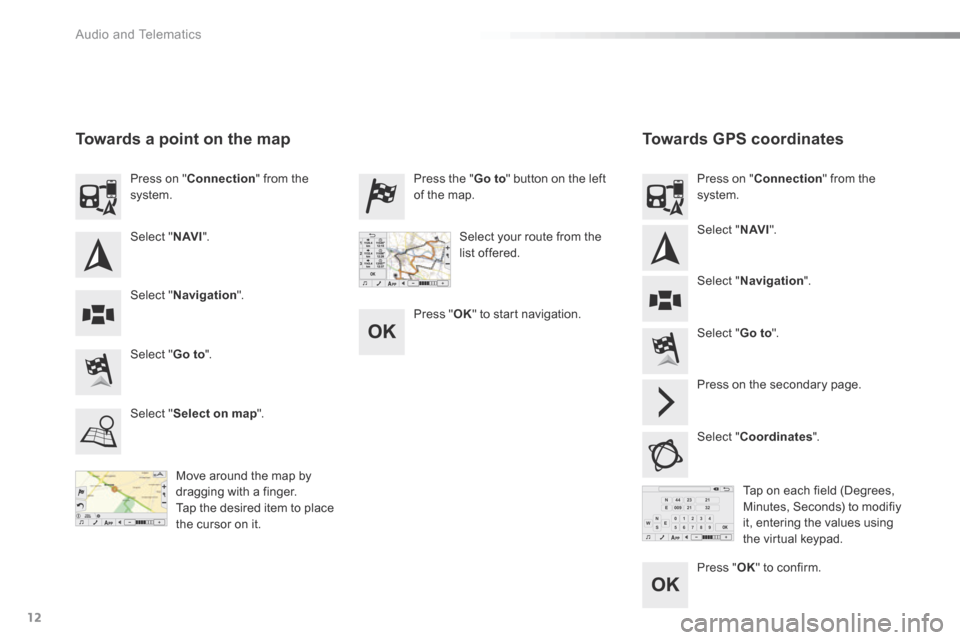
Towards GPS coordinates Towards a point on the map
Move around the map by dragging with a finger. Tap the desired item to place the cursor on it.
Tap on each field (Degrees, Minutes, Seconds) to modifiy it, entering the values using the virtual keypad.
Select " Go to ".
Select " Go to ".
Press the " Go to " button on the left of the map.
Press on the secondary page.
Select " Coordinates ".
Select " Select on map ".
Press on " Connection " from the system. Press on " Connection " from the system.
Select " Navigation ". Select " Navigation ".
Select " N AV I ". Select " N AV I ". Select your route from the list offered.
Press " OK " to start navigation.
Press " OK " to confirm.