radio controls Citroen C1 2015 1.G Owner's Manual
[x] Cancel search | Manufacturer: CITROEN, Model Year: 2015, Model line: C1, Model: Citroen C1 2015 1.GPages: 271, PDF Size: 7.18 MB
Page 185 of 271
183
C1_en_Chap12a_Autoradio_Toyota_tactile-1_ed01-2015
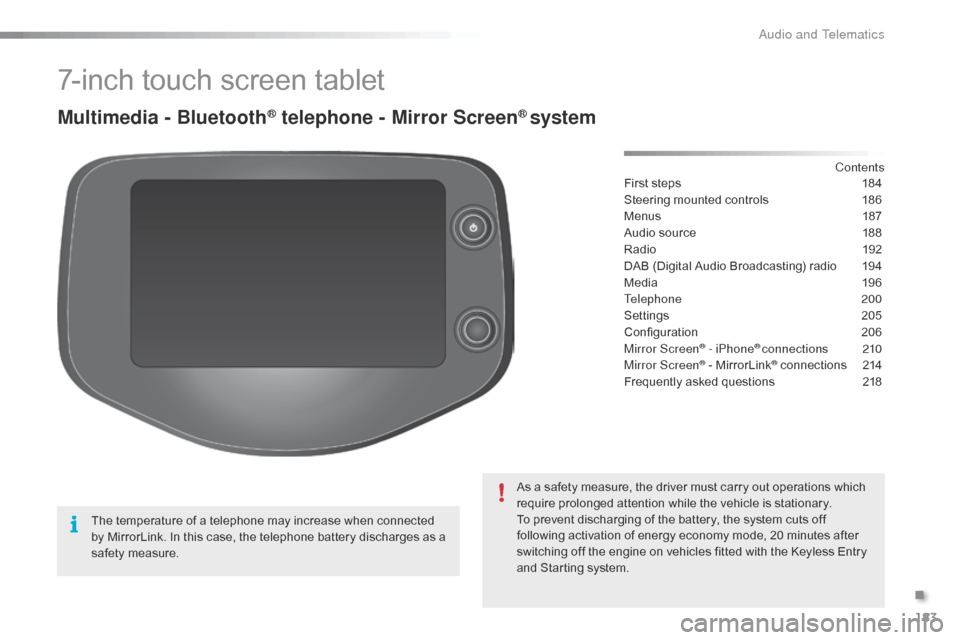
7-inch touch screen tablet
Multimedia - Bluetooth® telephone - Mirror Screen® system
First steps 184
Steering mounted controls
1
86
Menus
1
87
Audio source
1
88
Radio
19
2
DAB (Digital Audio Broadcasting) radio
1
94
Media
19
6
Telephone
200
Settings
2
05
Configuration
20
6
Mirror Screen
® - iPhone® connections 210
Mirror Screen® - MirrorLink® connections 2 14
Frequently asked questions
2
18
As a safety measure, the driver must carry out operations which
require prolonged attention while the vehicle is stationary.
To prevent discharging of the battery, the system cuts off
following activation of energy economy mode, 20 minutes after
switching off the engine on vehicles fitted with the Keyless Entry
and Starting system. Contents
The temperature of a telephone may increase when connected
by MirrorLink. In this case, the telephone battery discharges as a
safety measure.
.
Audio and Telematics
Page 188 of 271
186
C1_en_Chap12a_Autoradio_Toyota_tactile-1_ed01-2015
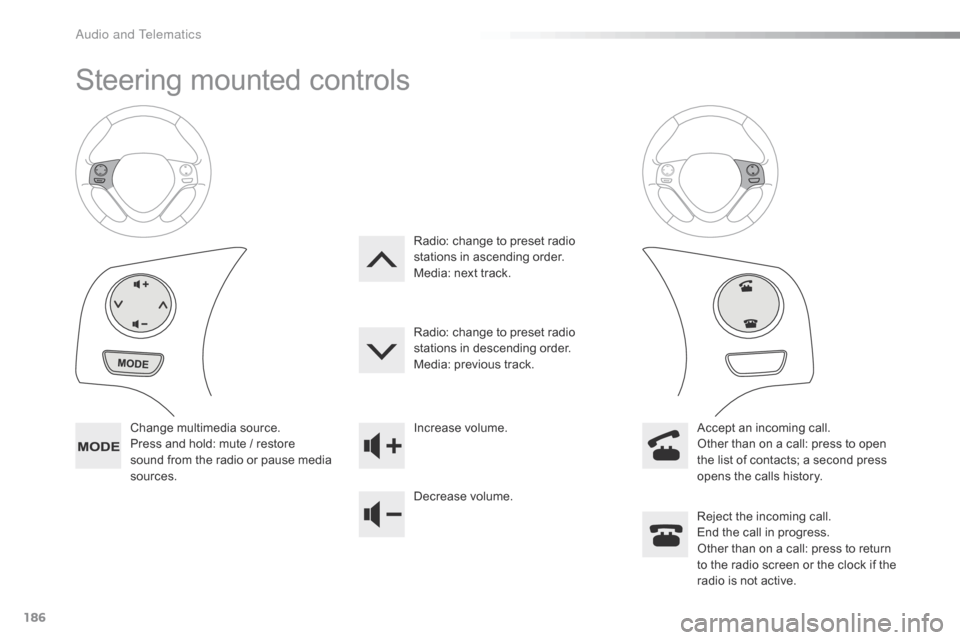
Steering mounted controls
Change multimedia source.
Press and hold: mute / restore
sound from the radio or pause media
sources.Increase volume.
Decrease volume.
Reject the incoming call.
End the call in progress.
Other than on a call: press to return
to the radio screen or the clock if the
radio is not active.
Radio: change to preset radio
stations in ascending order.
Media: next track.
Radio: change to preset radio
stations in descending order.
Media: previous track.
Accept an incoming call.
Other than on a call: press to open
the list of contacts; a second press
opens the calls history.
Audio and Telematics
Page 199 of 271
197
C1_en_Chap12a_Autoradio_Toyota_tactile-1_ed01-2015
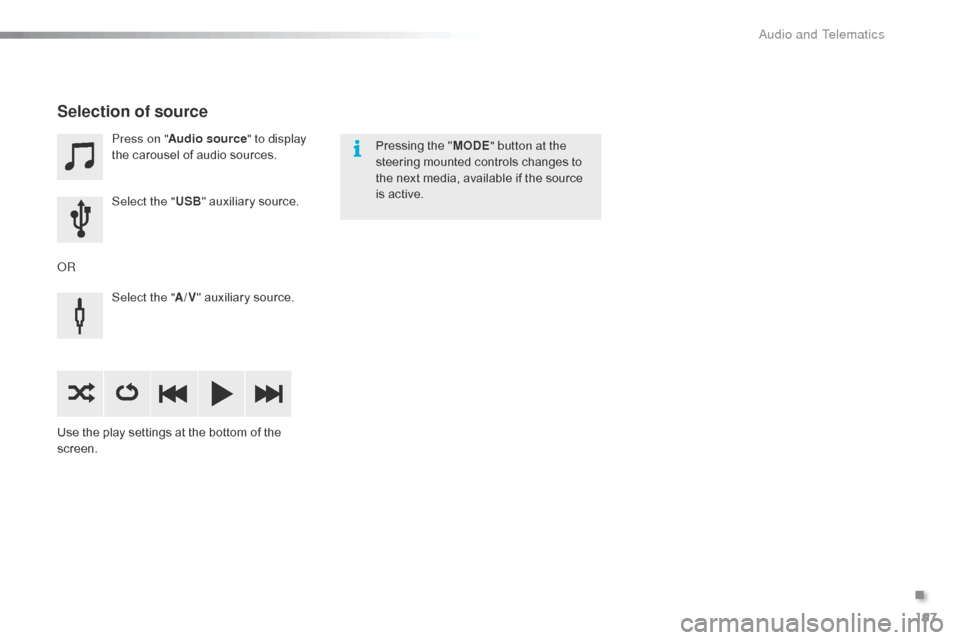
Press on "Audio source " to display
the carousel of audio sources.
Select the " USB" auxiliary source.
Select the " A/V" auxiliary source.
Use the play settings at the bottom of the
screen.
Selection of source
OR Pressing the "
MODE" button at the
steering mounted controls changes to
the next media, available if the source
is active.
.
Audio and Telematics
Page 200 of 271
198
C1_en_Chap12a_Autoradio_Toyota_tactile-1_ed01-2015
Information and advice
The system accepts USB mass storage
devices or Apple® players via the
USB ports. The adaptor cable is not
supplied.
Control of the peripheral device is with
the audio system controls.
Other peripherals, not recognised on
connection, must be connected to the
auxiliary socket using a Jack cable (not
supplied).
It is advisable to restrict file names to
20
characters, without using of special
characters (e.g.: " " ? ; ù) to avoid any playing
and displaying problems. Use only USB memory sticks formatted FAT32
(File Allocation Table). The audio system plays files with the extension:
".wma", type Ver7 and Ver8 with bit rate
between 48 and 192 Kbps and type Ver9 with
bit rate between 48 and 320 Kbps.
".aac", with bit rate between 16 and 320 Kbps.
".mp3 - MPEG1" with bit rate between 32 and
320 Kbps and ".mp3 - MPEG2" with bit rate
between 8 and 160 Kbps.
The sampling rates supported are 11, 22, 44
and 48 KHz.
The system can alternatively read files
via the Bluetooth
® system and the USB
port.
It is recommended that the USB cable
for the portable device is used.
Audio and Telematics
Page 201 of 271
199
C1_en_Chap12a_Autoradio_Toyota_tactile-1_ed01-2015
Audio streaming
Once connected for streaming, the
telephone is considered as a media
source.
It is recommended that "Repeat" mode
be activated in the Bluetooth device. Streaming allows audio files on your
telephone to be played via the vehicle's
speakers.
Connect the telephone: see the " Telephone"
section, then " Bluetooth".
Choose either " Connect all" or " Connect as
audio player " profile.
If play does not start automatically, it may
be necessary to start audio play from the
telephone.
Control is from the peripheral device or by
using the audio system controls.
Connecting Apple® players
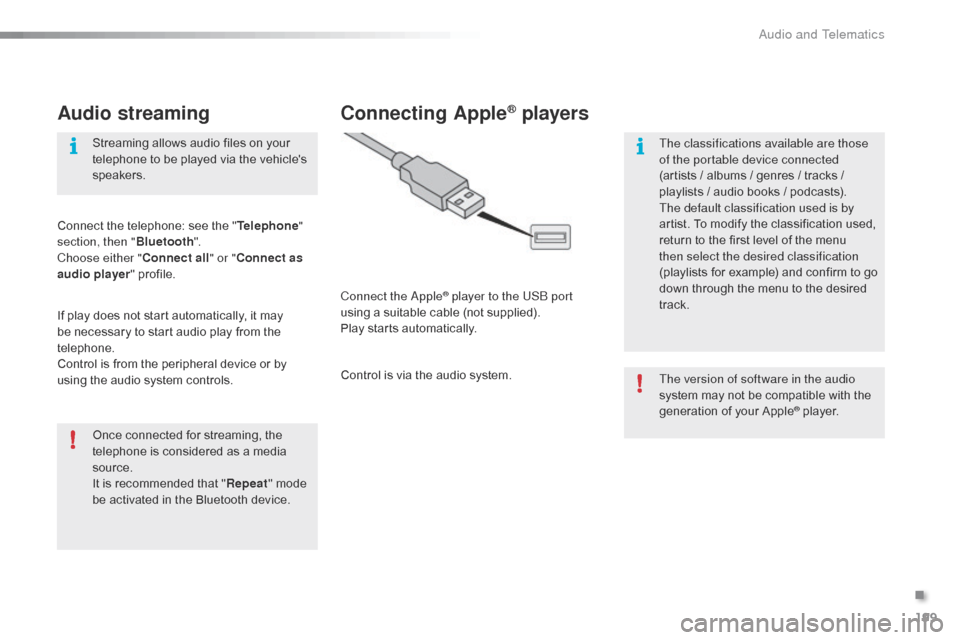
Connect the Apple® player to the USB port
using a suitable cable (not supplied).
Play starts automatically.
Control is via the audio system. The version of software in the audio
system may not be compatible with the
generation of your Apple
® player.
The classifications available are those
of the portable device connected
(artists / albums / genres / tracks /
playlists / audio books
/ podcasts).
The default classification used is by
artist. To modify the classification used,
return to the first level of the menu
then select the desired classification
(playlists for example) and confirm to go
down through the menu to the desired
track.
.
Audio and Telematics
Page 206 of 271

204
C1_en_Chap12a_Autoradio_Toyota_tactile-1_ed01-2015
Make a short press on this steering
mounted button to accept an
incoming call.
Press on this steering mounted
button to reject a call or to end a call.Press "Telephone ".
Press the keypad tab.
Enter the phone number using the
keypad then press the telephone
button to start the call.
Receiving a call
An incoming call is announced by a ring and a
superimposed display in the screen.
Making a call
Use of the telephone is not
recommended while driving. We
recommended that you park safely
or make use of the steering mounted
controls.
Calling a new numberPress on " Telephone ".
Press this steering mounted button to
open the list of contacts.
OR
Select the " Contacts" tab.
Select the desired contact
from the list offered to start
the call.
Calling a contact
Audio and Telematics
Page 225 of 271
223
C1_en_Chap12b_Autoradio_Toyota-2_ed01-2015
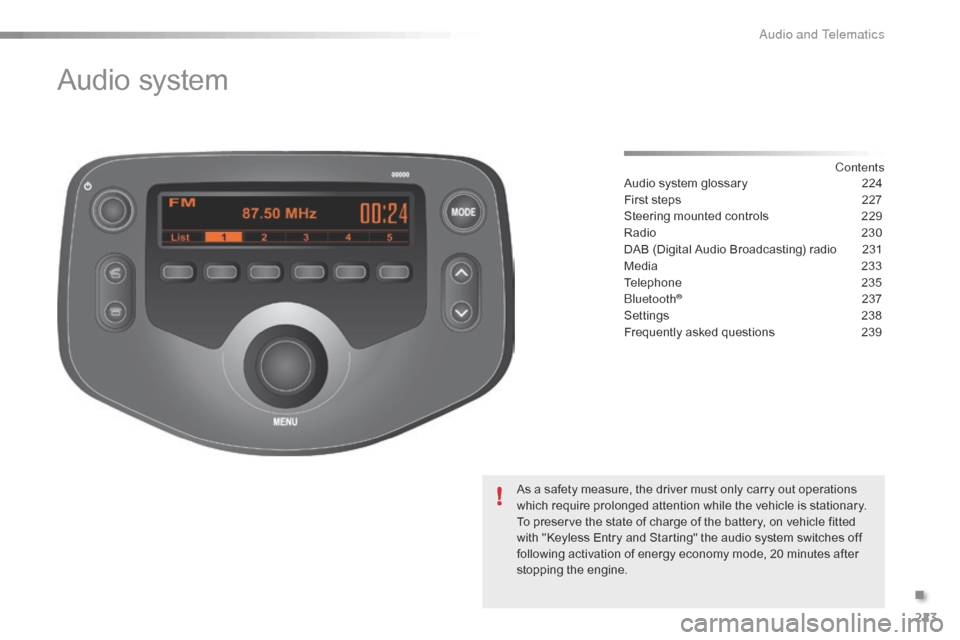
Audio system
Contents
Audio system glossary
2 24
First steps
2
27
Steering mounted controls
2
29
Radio
2
30
DAB (Digital Audio Broadcasting) radio
2
31
Media
23
3
Telephone
2
35
Bluetooth
® 237
Settings
2
38
Frequently asked questions
2
39
As a safety measure, the driver must only carry out operations
which require prolonged attention while the vehicle is stationary.
To preserve the state of charge of the battery, on vehicle fitted
with "Keyless Entry and Starting" the audio system switches off
following activation of energy economy mode, 20 minutes after
stopping the engine.
.
Audio and Telematics
Page 231 of 271

229
C1_en_Chap12b_Autoradio_Toyota-2_ed01-2015
Steering mounted controls
Select AM and FM wavebands
and BTA (Bluetooth Audio) and
AUX (Auxiliary) sources.
Press and hold: Mute / restore
sound from the radio or pause media
sources. Increase volume.
Decrease volume.
Reject the incoming call.
End the call in progress.
Radio: change to preset radio
stations in ascending order.
Media: next track.
Radio: change to preset radio
stations in descending order.
Media: previous track.
Accept an incoming call.
.
Audio and Telematics
Page 236 of 271

234
C1_en_Chap12b_Autoradio_Toyota-2_ed01-2015
Audio streamingConnecting Apple® players
Streaming allows audio files on your telephone
to be played via the vehicle's speakers.
You can also view, activate or deactivate
system settings related to the Bluetooth
function.Select "Bluetooth", then "
Pairing".
Press on " MENU" to display the list.
Turn the knob to select "Bluetooth",
press to display the list.
Once connected for streaming, the
telephone is considered as a media
source.
If play does not start automatically, it
may be necessary to start audio play
from the telephone. Connect the Apple
® player to the USB port
using a suitable cable (not supplied).
Play starts automatically.
Control is via the audio system.
The classifications available are those of the
portable device connected (artists / albums
/
genres / tracks / playlists / audio books
/
podcasts).
The default classification used is by artist. To
modify the classification used, return to the
first level of the menu then select the desired
classification (playlists for example) and
confirm to go down through the menu to the
desired track.
The version of software in the audio system
may not be compatible with the generation of
your Apple
® player.
Connect the telephone : see the "
Telephone"
section.
The system accepts USB mass storage
devices or Apple
® players via the USB ports.
The adaptor cable is not supplied.
Control of the peripheral device is with the
audio system controls.
Other peripherals, not recognised on
connection, must be connected to the auxiliary
socket using a Jack cable (not supplied).
The system can alternatively read files via the
Bluetooth
® system and the USB port.
It is recommended that the USB cable
for the portable device is used.
Audio and Telematics