radio Citroen C1 2016 1.G User Guide
[x] Cancel search | Manufacturer: CITROEN, Model Year: 2016, Model line: C1, Model: Citroen C1 2016 1.GPages: 269, PDF Size: 7.63 MB
Page 194 of 269

192
C1_en_Chap10a_ Autoradio-Toyota-tactile-1_ed01-2016
Level 1Level 2Level 3
Audio and Telematics
Page 195 of 269
193
C1_en_Chap10a_ Autoradio-Toyota-tactile-1_ed01-2016
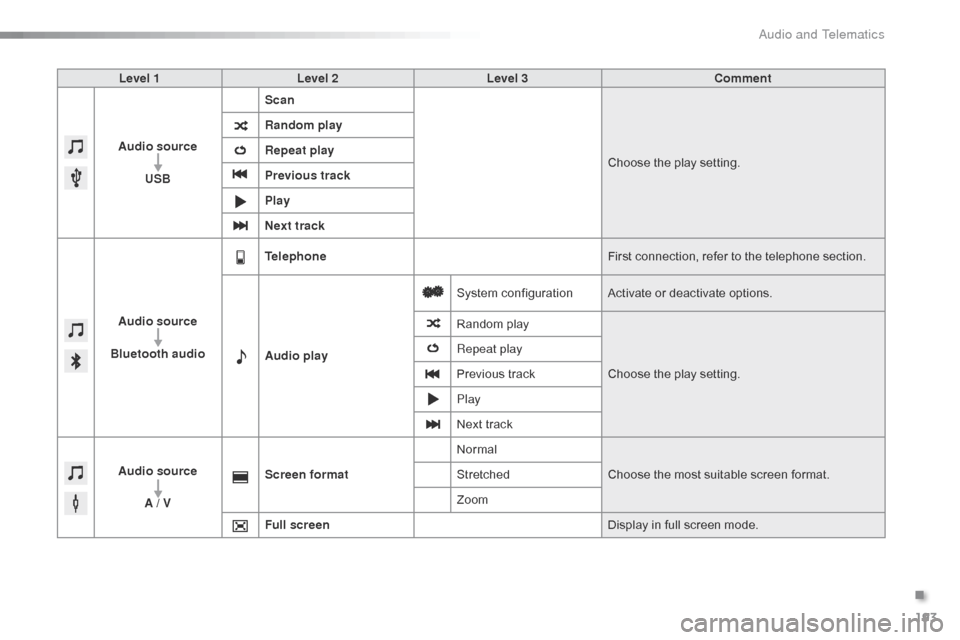
Level 1Level 2 Level 3 Comment
Audio source USB Scan
Choose
the play setting.
Random play
Repeat play
Previous track
Play
Next track
Audio source
Bluetooth audio Telephone
First
connection, refer to the telephone section.
Audio play System
c
onfigurationActivate
or deactivate options.
Random
p
layChoose
the play setting.
Repeat play
Previous
track
Play
Next
track
Audio source A / V Screen format
Normal
Choose
the most suitable screen format.
Stretched
Zoom
Full screen Display
in full screen mode.
.
Audio and Telematics
Page 196 of 269

194
C1_en_Chap10a_ Autoradio-Toyota-tactile-1_ed01-2016
Radio
* Depending on equipment.
Selecting a station
Press on "Audio source " to display t
he carousel of sound sources.
Select " FM".
Select the " Station" tab then select
a
radio station from the stations
r
eceived. Select the "
Manual" tab to search for
a
station.
Select " FM radio configuration "
then " Update the list of stations " to
refresh
the list.
If
necessary, select change of source
b
y pressing on the "Audio source "
shortcut in the upper bar of the
carousel.
Select " AM" or " DAB" *. Press on "
Audio source " to display t
he carousel of sound sources.
Select " FM".
Press the step by step buttons to
search
for frequencies up or down.
Press
the automatic buttons to
s
earch for frequencies up or down.
Turn
the button at bottom right of the
s
creen to search for frequencies up
o
r down.
OR OR
The
exterior environment (hills,
b
uildings, tunnel, car park, below
g
round...) may prevent reception, even
i
n RDS alternative frequencies mode.
T
his phenomenon is normal in the
p
ropagation of radio waves and is in no
w
ay indicative of a fault with the audio
s
ystem.
Changing a radio frequency
Audio and Telematics
Page 197 of 269
195
C1_en_Chap10a_ Autoradio-Toyota-tactile-1_ed01-2016
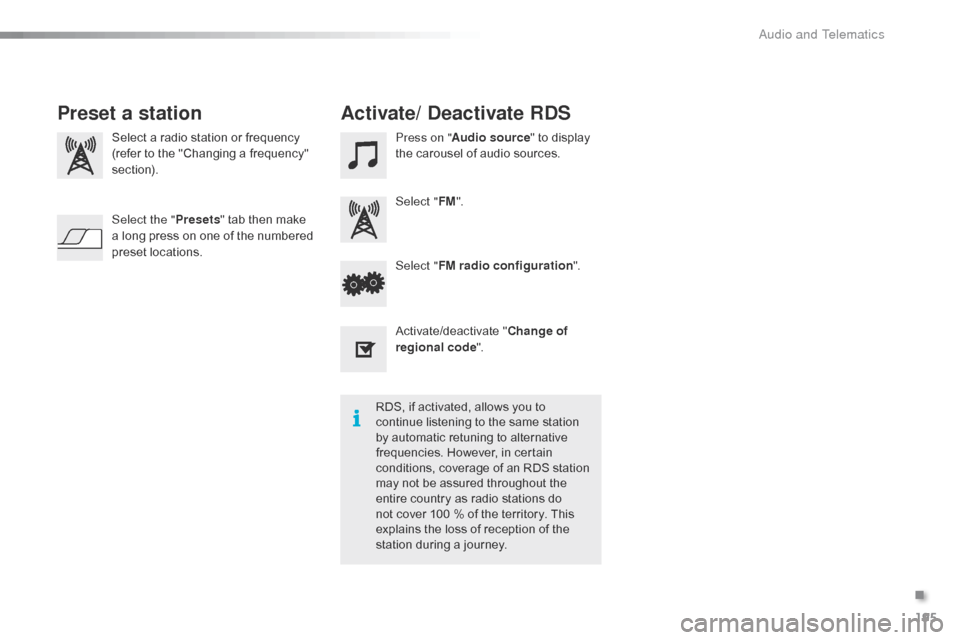
Select a radio station or frequency
( refer to the "Changing a frequency"
s
ection). Press on "
Audio source " to display t
he carousel of audio sources.
Select " FM".
Select " FM radio configuration ".
Activate/deactivate
" C
hange of
regional code ".
Select the "
Presets"
tab then make
a
long press on one of the numbered
p
reset
l
ocations.
Preset a station Activate/ Deactivate RDS
RDS, if activated, allows you to c
ontinue listening to the same station
b
y automatic retuning to alternative
f
requencies. However, in certain
c
onditions, coverage of an RDS station
m
ay not be assured throughout the
e
ntire country as radio stations do
n
ot cover 100 % of the territory. This
e
xplains the loss of reception of the
s
tation during a journey.
.
Audio and Telematics
Page 198 of 269
196
C1_en_Chap10a_ Autoradio-Toyota-tactile-1_ed01-2016
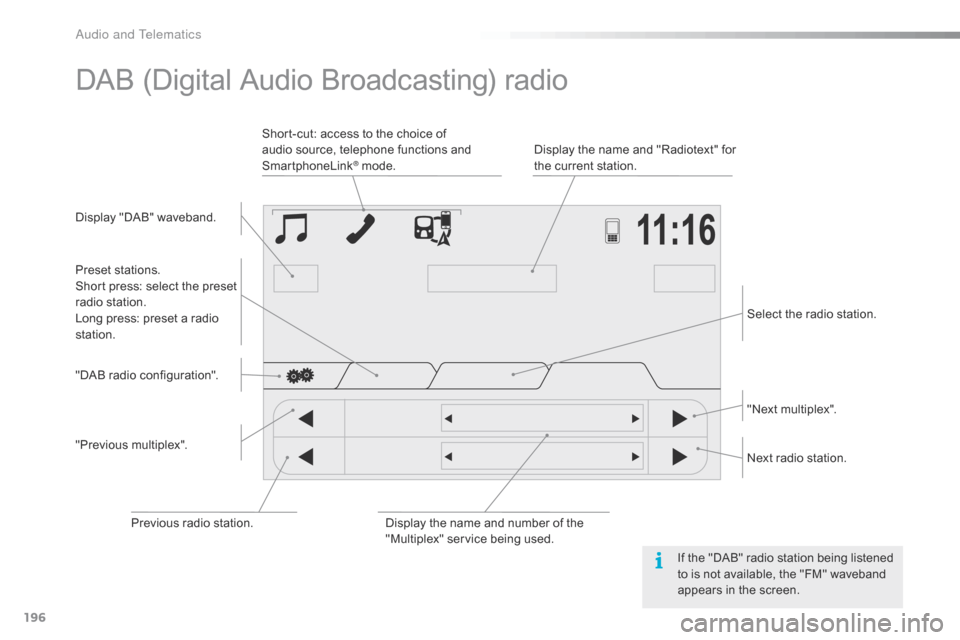
DAB (Digital Audio Broadcasting) radio
Display "DAB" waveband.D isplay the name and "Radiotext" for
t
he current station.
Short-cut: access to the choice of
a
udio source, telephone functions and
S
martphoneLink
® mode.
S elect the radio station.
Preset
s
tations.
Short
press:
select
the
preset
r
adio
s
tation.
Long
press:
preset
a
radio
s
tation. "Next
m
ultiplex".
Next
radio station.
Display
the name and number of the
"
Multiplex" service being used.
"Previous
m
ultiplex".
"DAB
radio
configuration".
Previous
radio
station. If
the "DAB" radio station being listened
t
o is not available, the "FM" waveband
a
ppears in the screen.
Audio and Telematics
Page 199 of 269

197
C1_en_Chap10a_ Autoradio-Toyota-tactile-1_ed01-2016
Press on "Audio source " to display t
he carousel of sound sources. Press "
Audio source " to display the
c
arousel of audio sources.
Select " DAB". Select "
DAB".
Select " DAB radio configuration ".
Activate " L-band". Select "
DAB radio configuration ".
Activate " Alternative DAB
frequency ".
Select the "
Station" tab then select a
station from those received.
Select the " Manual" tab to search for
a station.
Digital radio provides higher quality
r
eception and also the display of
a
dditional
in
formation
(
album
ar
twork...)
o
n
the radio station being listened to.
S
elect "DAB" in the carousel of audio
s
ources.
The range of multiplexes available is
d
isplayed in alphabetical order.
Digital radio does not cover 100% of the
t
e r r i to r y.
When
the digital signal is weak, the
"A
lternative DAB frequency" option
makes
it possible to continue listening
t
o the same station, by automatically
s
witching to the corresponding "FM"
s
tation (if there is one).If
the "DAB" station being listened to
i
s not available, or if "L-band" is not
activated,
the sound will cut out while
t
he digital signal is too weak.
If "
Alternative DAB frequency "
tracking
is activated, there is a
d
ifference of a few seconds when the
s
ystem switches to the "FM" analogue
r
adio station with sometimes a variation
i
n volume.
When
the digital signal is restored, the
s
ystem automatically changes back
t
o "DAB".
DAB / FM station tracking
Digital radio
.
Audio and Telematics
Page 200 of 269
198
C1_en_Chap10a_ Autoradio-Toyota-tactile-1_ed01-2016
Media
USB player
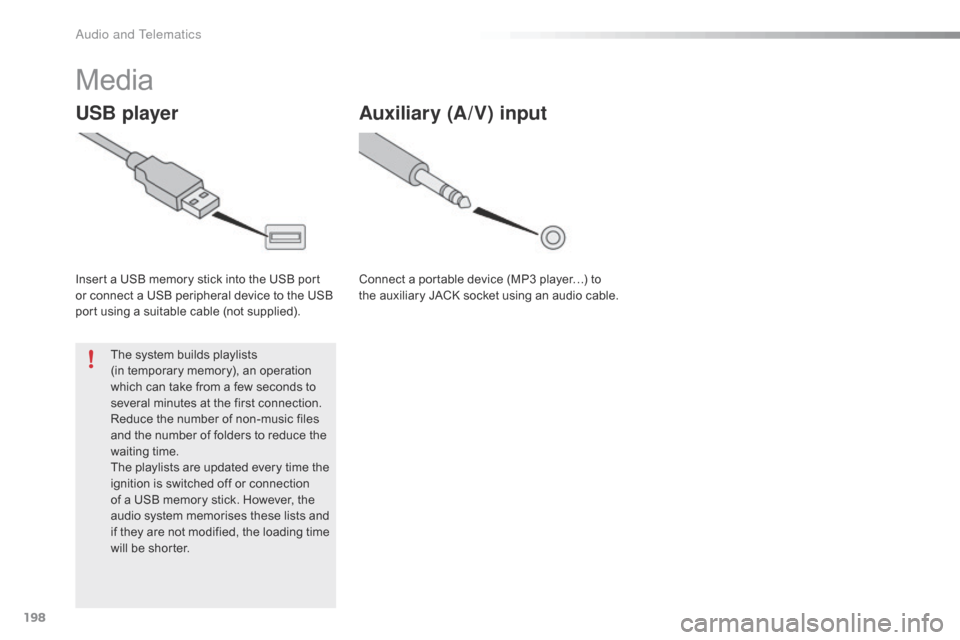
Insert a USB memory stick into the USB port or connect a USB peripheral device to the USB
p
ort using a suitable cable (not supplied).
The
system builds playlists
(in
temporary memory), an operation
w
hich can take from a few seconds to
s
everal minutes at the first connection.
Reduce
the number of non-music files
a
nd the number of folders to reduce the
w
aiting
t
ime.
The
playlists are updated every time the
i
gnition is switched off or connection
o
f a USB memory stick. However, the
a
udio system memorises these lists and
i
f they are not modified, the loading time
w
ill be shorter.
Auxiliary (A/V) input
Connect a portable device (MP3 player…) to the auxiliary JACK socket using an audio cable.
Audio and Telematics
Page 201 of 269
199
C1_en_Chap10a_ Autoradio-Toyota-tactile-1_ed01-2016
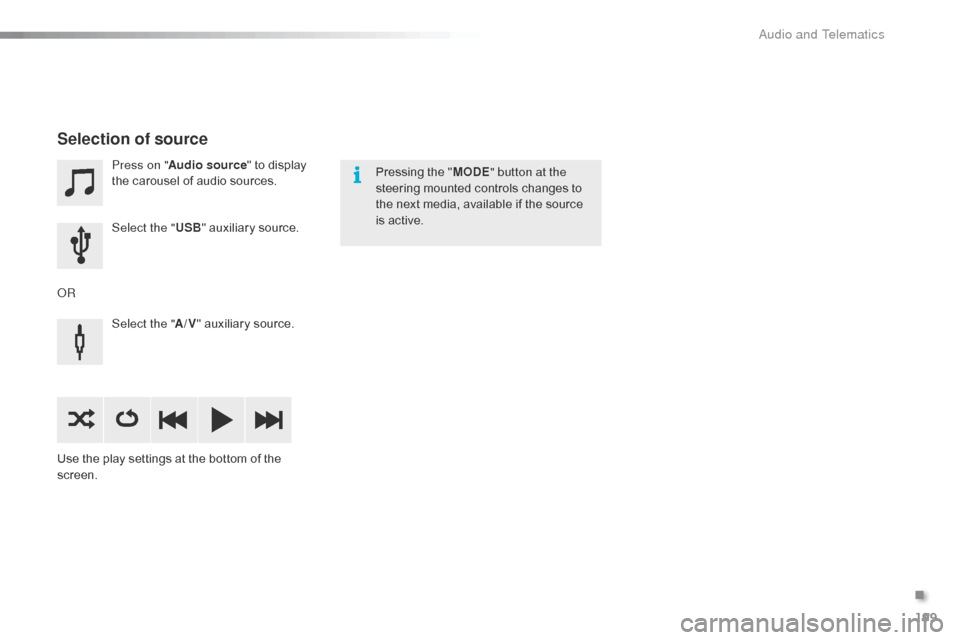
Press on "Audio source " to display t
he carousel of audio sources.
Select the " USB"
auxiliary source.
Select the " A/V"
auxiliary source.
Use
the
play settings at the bottom of the
sc
reen.
Selection of source
OR Pressing the "
MODE " button at the
steering mounted controls changes to
t
he next media, available if the source
i
s active.
.
Audio and Telematics
Page 202 of 269
200
C1_en_Chap10a_ Autoradio-Toyota-tactile-1_ed01-2016
Information and advice
The system accepts USB mass storage devices o r A pple® players via the
USB
ports.
The
adaptor cable is not
sup
plied.
Control
of
the
peripheral device is with
t
he
audio
system
controls.
Other
peripherals, not recognised on
c
onnection,
must
be connected to the
a
uxiliary
socket
using a Jack cable
(
not supplied).
It
is
advisable
to
restrict
file
names
to
2
0 characters,
without
using
of
special
c
haracters
(e.g.:
"
"
?
;
ù)
to
avoid
any
playing
a
nd
d
isplaying
pro
blems.
Use
only
USB
memory
sticks
formatted
FAT32
(
File
Allocation
Table).
The
audio
system
plays
files
with
the
extension:
".wma",
type
Ver7
and
Ver8
with
bit
rate
b
etween
48
and
192
Kbps
and
type
Ver9
with
b
it
rate
between
48
and
320
Kbps.
".aac",
with
bit
rate
between
16
and
320
Kbps.
".mp3
-
MPEG1"
with
bit
rate
between
32
and
3
20
Kbps
and
".mp3
-
MPEG2"
with
bit
rate
b
etween
8
and
160
Kbps.
The
sampling
rates
supported
are
11,
22,
44
a
nd
48
KHz. The
system
can
alternatively read files
v
ia the Bluetooth
® system and the USB po
rt.
It
is
recommended that the USB cable
f
or
the
portable
device is used.
Audio and Telematics
Page 203 of 269
201
C1_en_Chap10a_ Autoradio-Toyota-tactile-1_ed01-2016
Audio streaming
Once connected for streaming, the telephone is considered as a media
s
ource.
It
is recommended that "Repeat "
mode
b
e activated in the Bluetooth device.
Streaming
allows audio files on your
t
elephone to be played via the vehicle's
s
peakers.
Connect the telephone: see the "
Telephone "
section, then " Bluetooth".
Choose either " Connect all" or " Connect as
audio player "
pro
file.
If
play
does not start automatically, it may
b
e
necessary to start audio play from the
t
elephone.
Control is from the peripheral device or by
u
sing
the audio system controls.
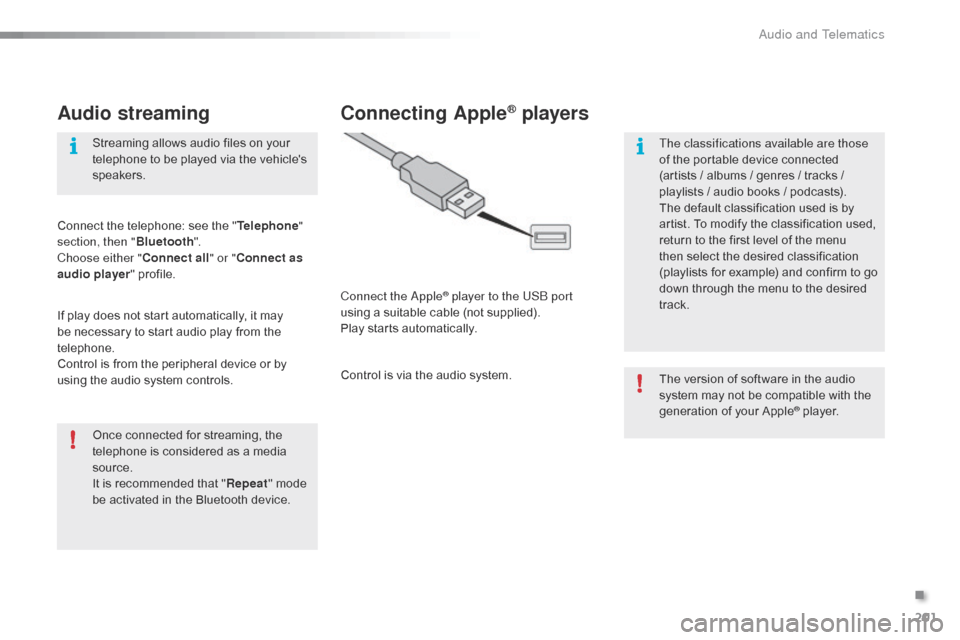
Connecting Apple® players
Connect the Apple® player to the USB port
using
a
suitable
cable (not supplied).
Play
starts
automatically.
Control
is
via
the
audio system. The
version of software in the audio
s
ystem may not be compatible with the
g
eneration of your Apple
® player.
T
he classifications available are those
of
the
portable
device
connected
(
artists
/
albums
/
genres
/ tracks /
p
laylists
/
a
udio
books /
podcasts).
The
default
classification
used is by
a
rtist.
To
modify
the
classification used,
r
eturn
to
the
first
level
of
the menu
t
hen
select
the
desired
classification
(
playlists
for
example)
and confirm to go
d
own
through
the
menu
to the desired
t
rack.
.
Audio and Telematics