page 67 CITROEN C1 2017 Owners Manual
[x] Cancel search | Manufacturer: CITROEN, Model Year: 2017, Model line: C1, Model: CITROEN C1 2017Pages: 269, PDF Size: 7.63 MB
Page 30 of 269
28
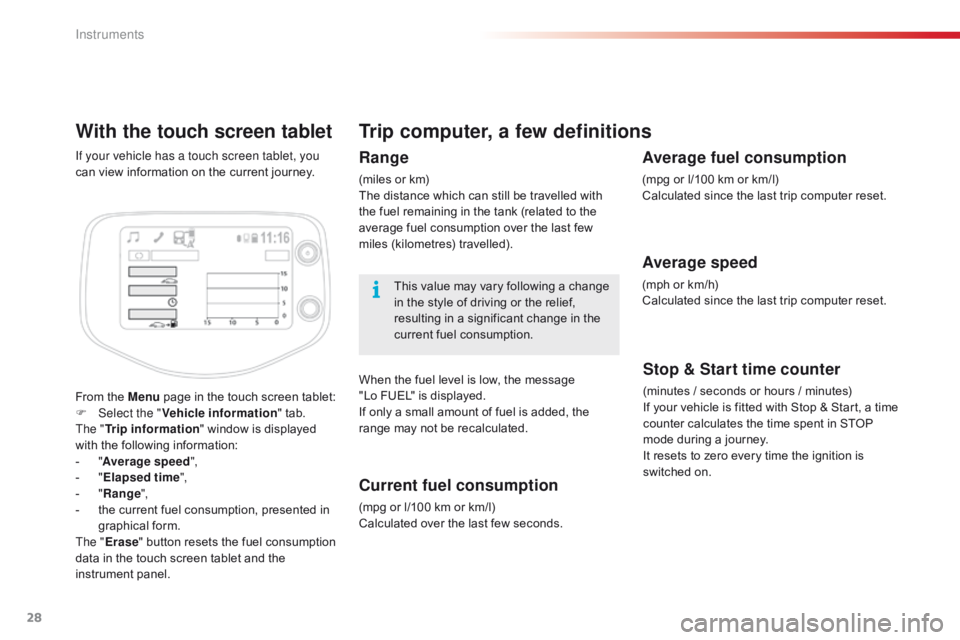
With the touch screen tablet
From the Menu page in the touch screen tablet:
F Sel ect the " Vehicle information "
tab.
The " Trip information "
window is displayed
w
ith the following information:
-
"A
verage speed ",
-
" E
lapsed time ",
-
" R
ange",
-
t
he current fuel consumption, presented in
g
raphical
fo
rm.
The " Erase "
button resets the fuel consumption
d
ata in the touch screen tablet and the
in
strument
pan
el.
If your vehicle has a touch screen tablet, you
can
view information on the current journey.
Trip computer, a few definitions
Range
(miles or km)
T he distance which can still be travelled with
t
he fuel remaining in the tank (related to the
a
verage fuel consumption over the last few
m
iles
(
kilometres)
t
ravelled).
This
value may vary following a change
i
n the style of driving or the relief,
r
esulting in a significant change in the
c
urrent fuel consumption.
When
the fuel level is low, the message
"
Lo FUEL" is displayed.
If
only a small amount of fuel is added, the
r
ange may not be recalculated.
Current fuel consumption
(mpg or l/100 km or km/l)
C alculated over the last few seconds.
Stop & Start time counter
(minutes / seconds or hours / minutes)
I f your vehicle is fitted with Stop & Start, a time
c
ounter calculates the time spent in STOP
m
ode during a journey.
It
resets to zero every time the ignition is
s
witched on.
Average fuel consumption
(mpg or l/100 km or km/l)
C alculated since the last trip computer reset.
Average speed
(mph or km/h)
C alculated since the last trip computer reset.
Instruments
Page 150 of 269
148
C1_en_Chap07_info-pratiques_ed01-2016
Checking levels
Take care when working under the bonnet, as certain areas of the engine
m
ay be extremely hot (risk of burns) and
t
he cooling fan could start at any time
(
even with the ignition off).
Engine oil level
The check of the oil level is carried out with the dipstick, located under
t
he bonnet. For the position of the
d
ipstick, refer to the under-bonnet
v
iew on a previous page.
Checking with dipstick
Check all of these levels regularly, in line with the manufacturer's service schedule. Top them up if necessary, unless other wise indicated.
I f a level drops significantly, have the corresponding system checked by a CITROËN dealer or a qualified workshop.
To
ensure the accuracy of the reading,
y
our vehicle must be on a level
s
ur face, with the engine off for at least
3
0 minutes.
It
is normal to top up the oil level between
t
wo services (or oil changes). CITROËN
r
ecommends that you check the level, and top
u
p if necessary, every 3 000 miles (5 000 km). If
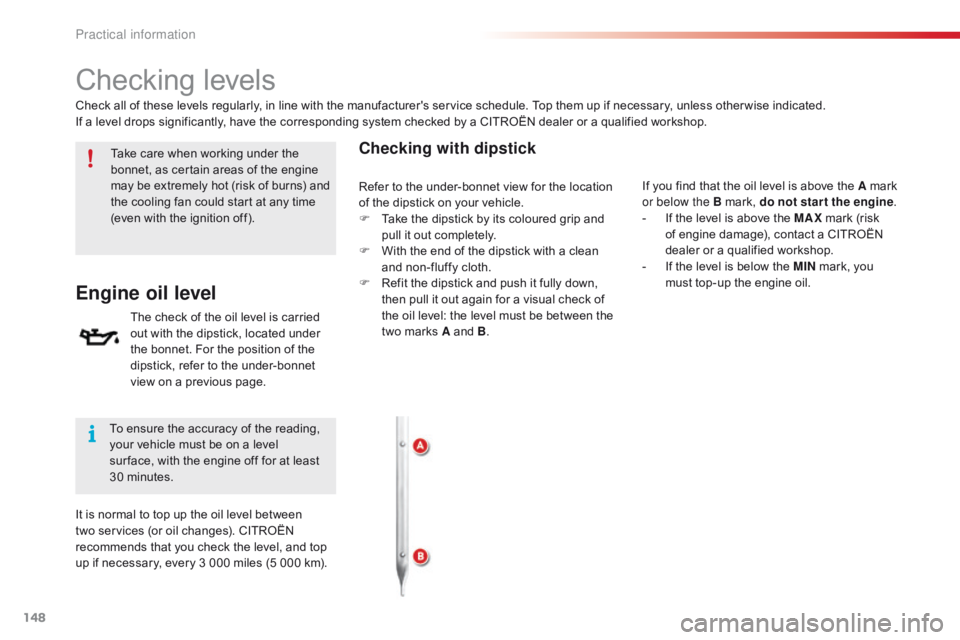
you find that the oil level is above the A mark
o
r below the B mark, do not star t the engine.
-
I
f the level is above the MAX
mark (risk
o
f engine damage), contact a CITROËN
d
ealer or a qualified workshop.
-
I
f the level is below the MIN
mark, you
m
ust top-up the engine oil.
Refer
to the under-bonnet view for the location
o
f the dipstick on your vehicle.
F
T
ake the dipstick by its coloured grip and
p
ull it out completely.
F
W
ith the end of the dipstick with a clean
a
nd non-fluffy cloth.
F
R
efit the dipstick and push it fully down,
t
hen pull it out again for a visual check of
t
he oil level: the level must be between the
t
wo marks A and B.
Practical information
Page 207 of 269
205
C1_en_Chap10a_ Autoradio-Toyota-tactile-1_ed01-2016
The services available depend on the network, the SIM card and the
c
ompatibility of the Bluetooth telephone
u
sed. Check the telephone manual and
w
ith your network provider for details of
t
he services available to you.
The
profiles compatible with the system
a
re: HFP, OPP, PBAP, A2DP, AVRCP,
M
A P. This function allows the connection or
disconnection
of a peripheral device as
w
ell as the deletion of a pairing.
Automatic reconnection
When the ignition is switched on, the last telephone connected when the ignition was
s
witched off reconnects automatically, if this
c
onnection made had been activated during the
p
airing procedure (see previous pages).
Connection
is confirmed by the display of a
m
essage and the name of the telephone.
Managing paired
telephones
Press "Telephone ".
Select " Telephone/message
configuration ".
Select " Connect telephone " to
display
the list of paired devices.
Select " Remove "
then select the device in the
l
ist
and
confirm.
.
Audio and Telematics
Page 215 of 269
213
C1_en_Chap10a_ Autoradio-Toyota-tactile-1_ed01-2016
Download the "A ppinCar®"
smartphone a
pplication a
vailable f
rom
the
App
Store
®.
The
download
of
the application
m
ust
be
done
with the vehicle
stationary .
Press on "Connection " in the
system.
During
the procedure, a page
s
howing the terms and conditions for
u
se is displayed.
Accept
to start and end the
c
onnection.
Press on "
Smartphone ".
Once
connected you can
u
se certain applications on
your
smartphone as well
a
s the functions of your
system:
"Audio source ",
" Telephone "
and configure
t
he "Display (video) ".
Connect
the smartphone to the
U
SB port or JACK auxiliary socket
u
sing a suitable cable, available as an a
ccessory from CITROËN dealers.
Start the " AppinCar
®" application
from
your
smartphone. It
is recommended that both
c
onnections be used: USB /
A
pple
® and Bluetooth®.
The
smartphone
charges
w
hile
c
onnected.
As
a
safety
measure
and
for
ease
of
u
se:
-
c
ertain
applications
on
your
s
martphone
are
not
carried
over
to
t
he
system
screen.
-
c
ertain
applications
operate
only
w
hen
the
vehicle
is
stationary.
.
Audio and Telematics
Page 219 of 269
217
C1_en_Chap10a_ Autoradio-Toyota-tactile-1_ed01-2016
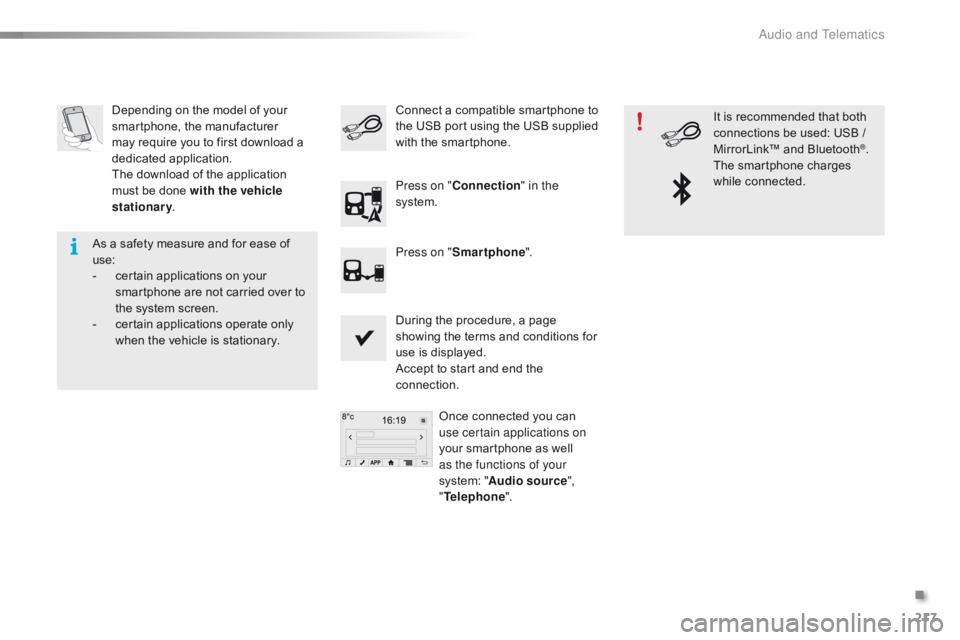
Depending on the model of your smartphone, the manufacturer
m
ay require you to first download a
d
edicated
a
pplication.
The
download of the application
m
ust be done with the vehicle
stationary .
During
the procedure, a page
s
howing the terms and conditions for
u
se is displayed.
Accept
to start and end the
c
onnection.Once
connected you can
u
se certain applications on
your
smartphone as well
a
s the functions of your
system:
"Audio source ",
" Telephone ".
Connect
a compatible smartphone to t
he USB port using the USB supplied
w
ith the smartphone.
Press on " Connection " in the
system.
Press on " Smartphone ". It
is recommended that both
c
onnections be used: USB /
M
irrorLink™ and Bluetooth
®.
The
smartphone
charges
w
hile
c
onnected.
As
a
safety
measure
and
for
ease
of
u
se:
-
c
ertain
applications
on
your
s
martphone
are
not
carried
over
to
t
he
system
screen.
-
c
ertain
applications
operate
only
w
hen
the
vehicle
is
stationary.
.
Audio and Telematics
Page 221 of 269
219
C1_en_Chap10a_ Autoradio-Toyota-tactile-1_ed01-2016
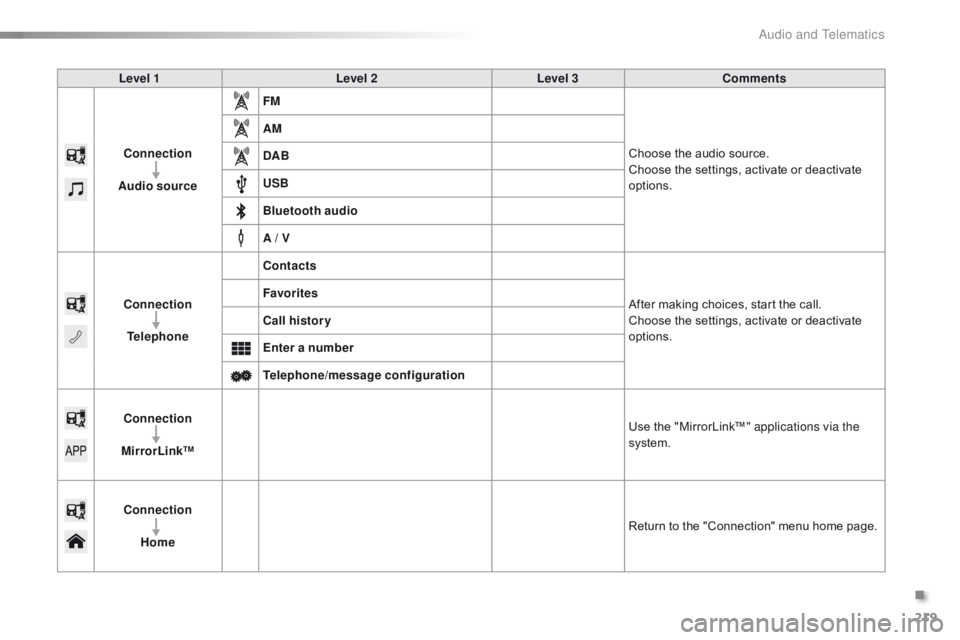
Level 1Level 2Level 3Comments
Connection
Audio source FM
Choose
the audio source.
Choose
the settings, activate or deactivate
op
tions.
AM
DAB
USB
Bluetooth audio
A / V
Connection Telephone Contacts
After
making choices, start the call.
Choose
the settings, activate or deactivate
op
tions.
Favorites
Call history
Enter a number
Telephone/message configuration
Connection
MirrorLink™ Use
the "MirrorLink™" applications via the
system.
Connection Home Return
to the "Connection" menu home page.
.
Audio and Telematics
Page 223 of 269
221
C1_en_Chap10a_ Autoradio-Toyota-tactile-1_ed01-2016
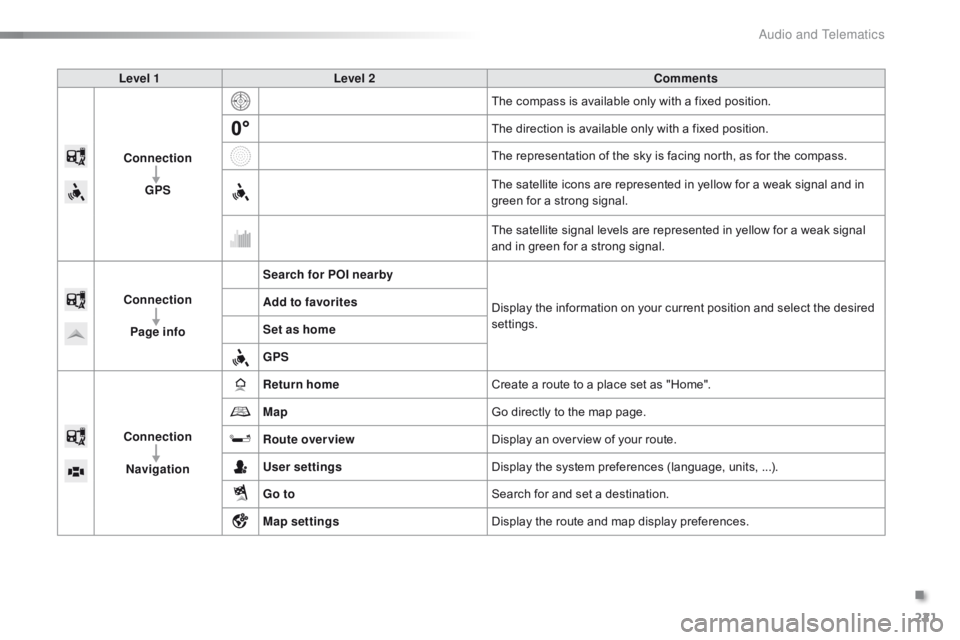
Level 1Level 2 Comments
Connection GPS The
compass is available only with a fixed position.
The
direction is available only with a fixed position.
The
representation of the sky is facing north, as for the compass.
The
satellite icons are represented in yellow for a weak signal and in
g
reen for a strong signal.
The
satellite signal levels are represented in yellow for a weak signal
a
nd in green for a strong signal.
Connection Page info Search for POI nearby
Display
the information on your current position and select the desired
se
ttings.
Add to favorites
Set as home
GPS
Connection Navigation Return home
Create
a route to a place set as "Home".
Map Go
directly to the map page.
Route overview Display
an overview of your route.
User settings Display
the system preferences (language, units, ...).
Go to Search
for and set a destination.
Map settings Display
the route and map display preferences.
.
Audio and Telematics
Page 232 of 269
9876543210SN
NE4400923212132EW
230
C1_en_Chap10a_ Autoradio-Toyota-tactile-1_ed01-2016
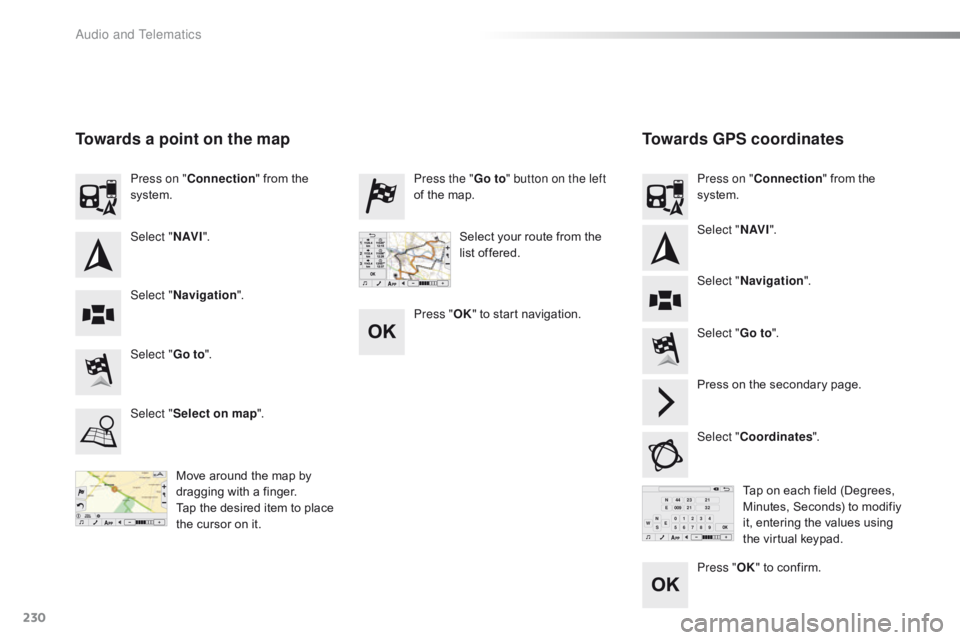
Towards GPS coordinates
Towards a point on the map
Move around the map by d
ragging with a finger.
Tap
the desired item to place
t
he cursor on it. Tap
on each field (Degrees,
M
inutes, Seconds) to modifiy
i
t, entering the values using
t
he virtual keypad.
Select "
Go to".
Select " Go to". Press the "
Go to" button on the left
of the map.
Press on the secondary page.
Select " Coordinates ".
Select "
Select on map ". Press on "
Connection " from the
s
ystem.
Press on "
Connection " from the
s
ystem.
Select "Navigation ".
Select " Navigation ".
Select "
N AV I". Select "
N AV I".
Select your route from the
l
ist offered.
Press " OK" to start navigation.
Press "OK"
to confirm.
Audio and Telematics