radio settings CITROEN C1 2019 Owners Manual
[x] Cancel search | Manufacturer: CITROEN, Model Year: 2019, Model line: C1, Model: CITROEN C1 2019Pages: 269, PDF Size: 7.63 MB
Page 191 of 269
189
C1_en_Chap10a_ Autoradio-Toyota-tactile-1_ed01-2016
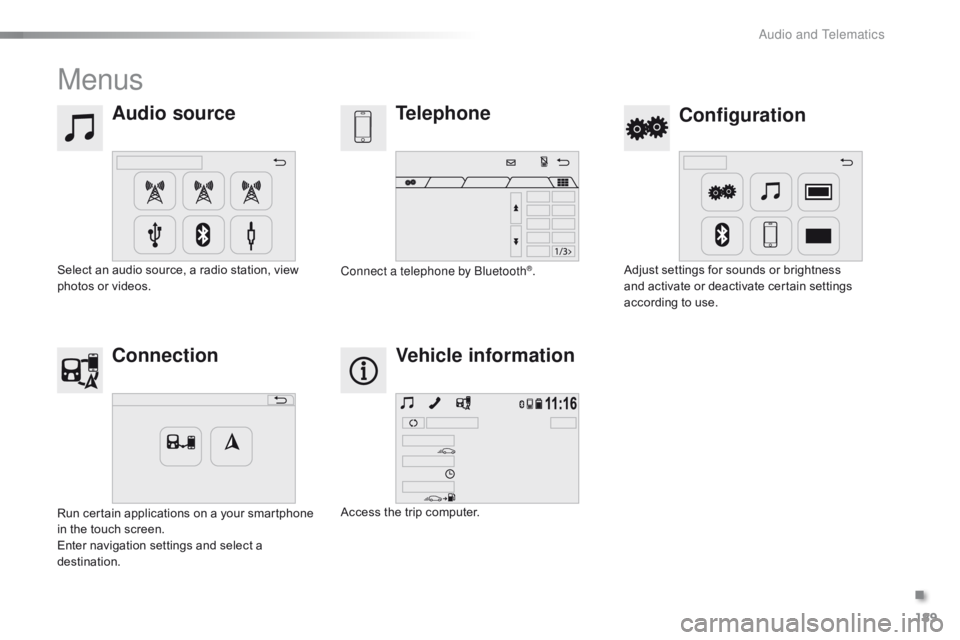
Menus
Audio sourceConfiguration
Telephone
Connection Vehicle information
Select an audio source, a radio station, view p
hotos or videos. Adjust
settings for sounds or brightness a
nd activate or deactivate certain settings
a
ccording to use.
Connect a telephone by Bluetooth®.
Run
certain
applications
on
a
your
smartphone
i
n
the
touch
screen.
Enter
navigation
settings
and
select
a
d
estination. Access
the
trip
computer.
.
Audio and Telematics
Page 201 of 269
199
C1_en_Chap10a_ Autoradio-Toyota-tactile-1_ed01-2016
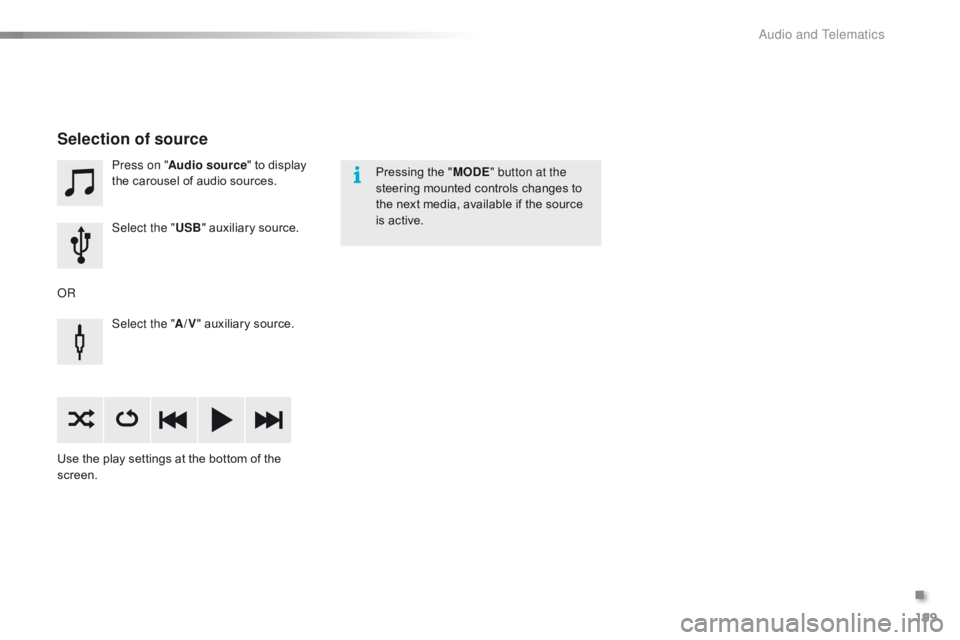
Press on "Audio source " to display t
he carousel of audio sources.
Select the " USB"
auxiliary source.
Select the " A/V"
auxiliary source.
Use
the
play settings at the bottom of the
sc
reen.
Selection of source
OR Pressing the "
MODE " button at the
steering mounted controls changes to
t
he next media, available if the source
i
s active.
.
Audio and Telematics
Page 205 of 269
203
C1_en_Chap10a_ Autoradio-Toyota-tactile-1_ed01-2016
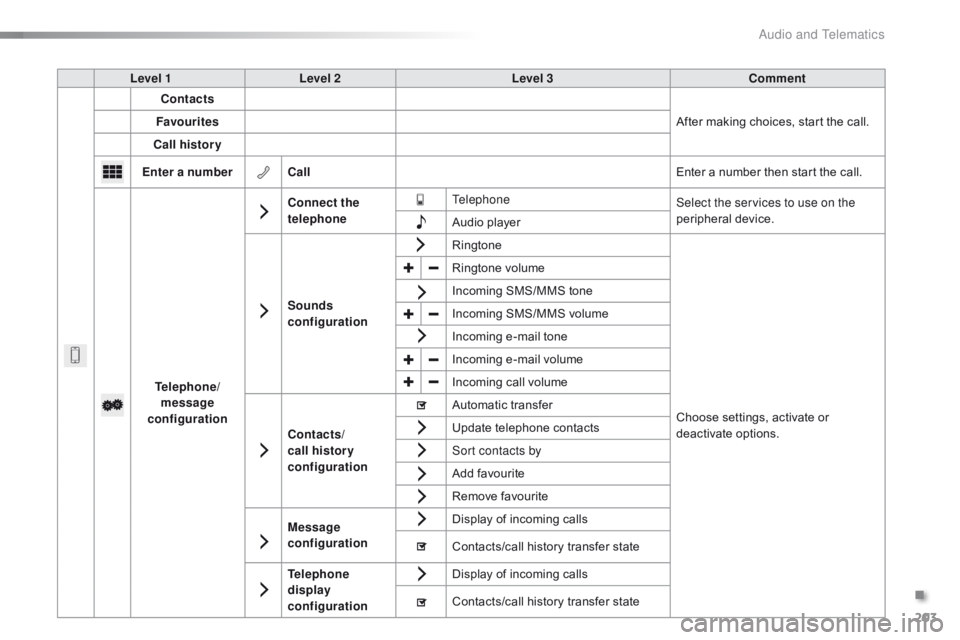
Level 1Level 2 Level 3 Comment
Contacts
After
making choices, start the call.
Favourites
Call history
Enter a number Call Enter
a number then start the call.
Telephone/ message
configuration Connect the
telephone
Telephone
Select the services to use on the
peripheral
d
evice.
Audio
player
Sounds
configuration Ringtone
Choose
settings, activate or
d
eactivate
o
ptions.
Ringtone
volume
Incoming
SMS/MMS tone
Incoming
SMS/MMS volume
Incoming
e-mail tone
Incoming
e-mail volume
Incoming
call volume
Contacts/
call histor y
configuration Automatic
transfer
Update
telephone contacts
Sort contacts by
Add
favourite
Remove
favourite
Message
configuration Display
of incoming calls
Contacts/call
history transfer state
Telephone
display
configuration Display
of incoming calls
Contacts/call
history transfer state
.
Audio and Telematics
Page 206 of 269
204
C1_en_Chap10a_ Autoradio-Toyota-tactile-1_ed01-2016
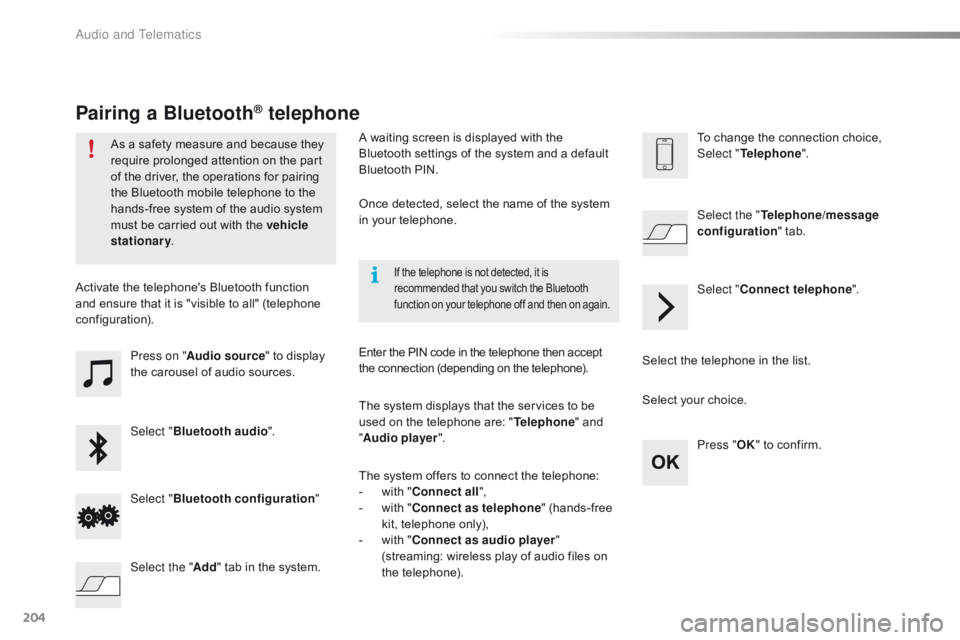
Press on "Audio source " to display t
he carousel of audio sources.
Select " Bluetooth audio ".
Select " Bluetooth configuration "
Activate
the telephone's Bluetooth function
a
nd
ensure that it is "visible to all" (telephone
c
onfiguration).
Select the telephone in the list.
Select "
Connect telephone ".
Select the "
Telephone/message
configuration " tab.
Select your choice.
Select the " Add"
tab in the system. Press "
OK"
to confirm.
If the telephone is not detected, it is recommended that you switch the Bluetooth f
unction on your telephone off and then on again.
As a safety measure and because they require prolonged attention on the part
o
f the driver, the operations for pairing
t
he Bluetooth mobile telephone to the
h
ands-free system of the audio system
m
ust be carried out with the vehicle
stationary .
Pairing a Bluetooth® telephone
A waiting screen is displayed with the B
luetooth settings of the system and a default
B
luetooth PIN.
Once
detected, select the name of the system
i
n your telephone.
The
system displays that the services to be
u
sed on the telephone are: "Telephone "
and
"A
udio player ".
The
system offers to connect the telephone:
-
w
ith "Connect all",
-
w
ith "Connect as telephone "
(hands-free
k
it, telephone only),
-
w
ith "Connect as audio player "
(streaming:
wireless play of audio files on
t
he
t
elephone).
Enter
the PIN code in the telephone then accept
t
he connection (depending on the telephone).To
change the connection choice, Sel
ect "Telephone ".
Audio and Telematics
Page 211 of 269
209
C1_en_Chap10a_ Autoradio-Toyota-tactile-1_ed01-2016
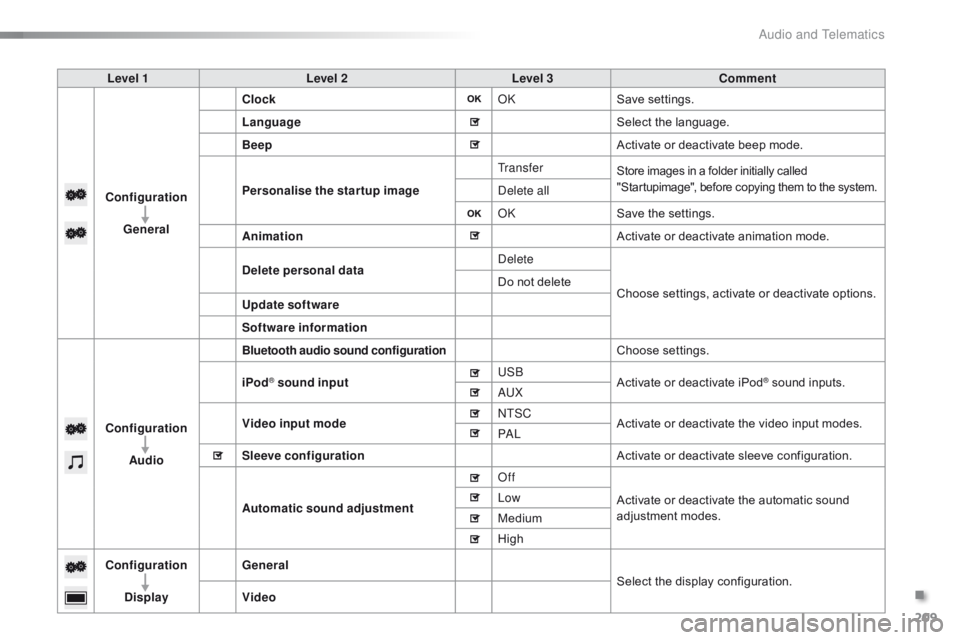
Level 1Level 2 Level 3 Comment
Configuration General Clock
OKSave
se
ttings.
Language Select
the language.
Beep Activate
or deactivate beep mode.
Personalise the star tup image Tr a n s f e r
Store images in a folder initially called "
Startupimage", before copying them to the system.
Delete all
OKSave
the settings.
Animation Activate
or deactivate animation mode.
Delete personal data Delete
Choose
settings, activate or deactivate options.
Do
not delete
Update software
Software information
Configuration Audio
Bluetooth audio sound configurationChoose settings.
iPod
® sound input USB
Activate or deactivate iPod® sound inputs.
AU
X
Video input mode NTSC
Activate
or
deactivate
the
video input modes.
PA L
Sleeve configuration Activate
or
deactivate
sleeve configuration.
Automatic sound adjustment Off
Activate
or
deactivate
the
automatic sound
a
djustment
modes.
Low
Medium
High
Configuration
Display General
Select
the
display
configuration.
Video
.
Audio and Telematics
Page 217 of 269
215
C1_en_Chap10a_ Autoradio-Toyota-tactile-1_ed01-2016
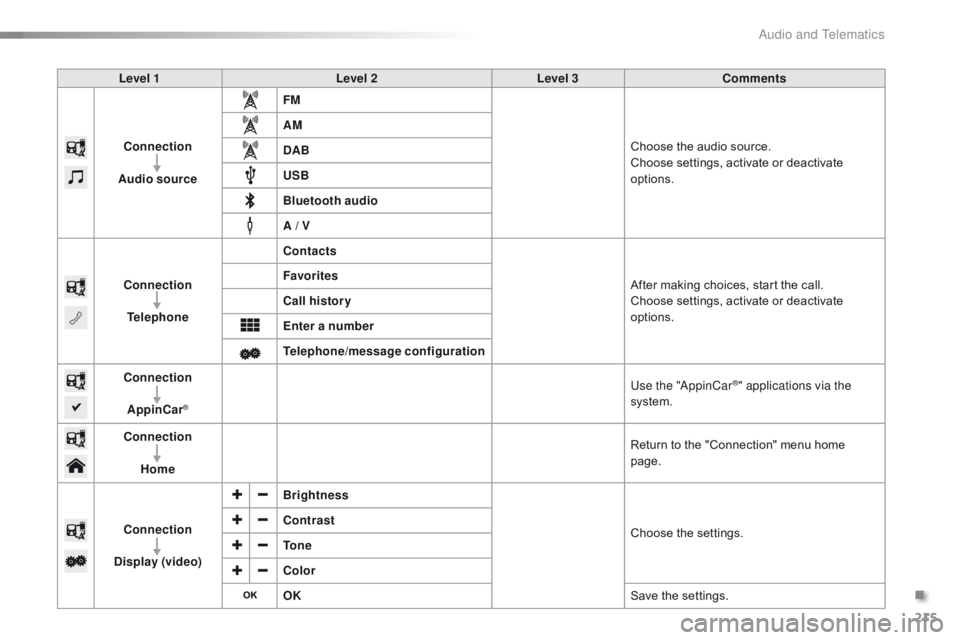
Level 1Level 2Level 3Comments
Connection
Audio source FM
Choose
the audio source.
Choose
settings, activate or deactivate
op
tions.
AM
DAB
USB
Bluetooth audio
A / V
Connection Telephone Contacts
After
making choices, start the call.
Choose
settings, activate or deactivate
op
tions.
Favorites
Call history
Enter a number
Telephone/message configuration
Connection
AppinCar
®
Use the "AppinCar®" applications via the
system.
Connection Home Return
to
the
"Connection" menu home
pag
e.
Connection
Display (video) Brightness
Choose
t
he
se
ttings.
Contrast
To n e
Color
OK
Save
the
settings.
.
Audio and Telematics
Page 221 of 269
219
C1_en_Chap10a_ Autoradio-Toyota-tactile-1_ed01-2016
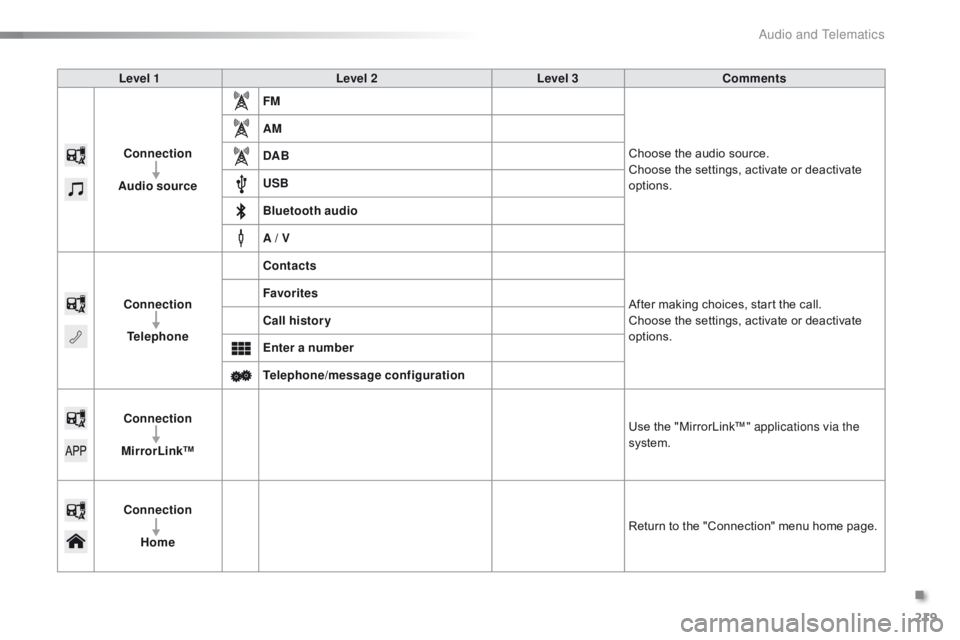
Level 1Level 2Level 3Comments
Connection
Audio source FM
Choose
the audio source.
Choose
the settings, activate or deactivate
op
tions.
AM
DAB
USB
Bluetooth audio
A / V
Connection Telephone Contacts
After
making choices, start the call.
Choose
the settings, activate or deactivate
op
tions.
Favorites
Call history
Enter a number
Telephone/message configuration
Connection
MirrorLink™ Use
the "MirrorLink™" applications via the
system.
Connection Home Return
to the "Connection" menu home page.
.
Audio and Telematics
Page 223 of 269
221
C1_en_Chap10a_ Autoradio-Toyota-tactile-1_ed01-2016
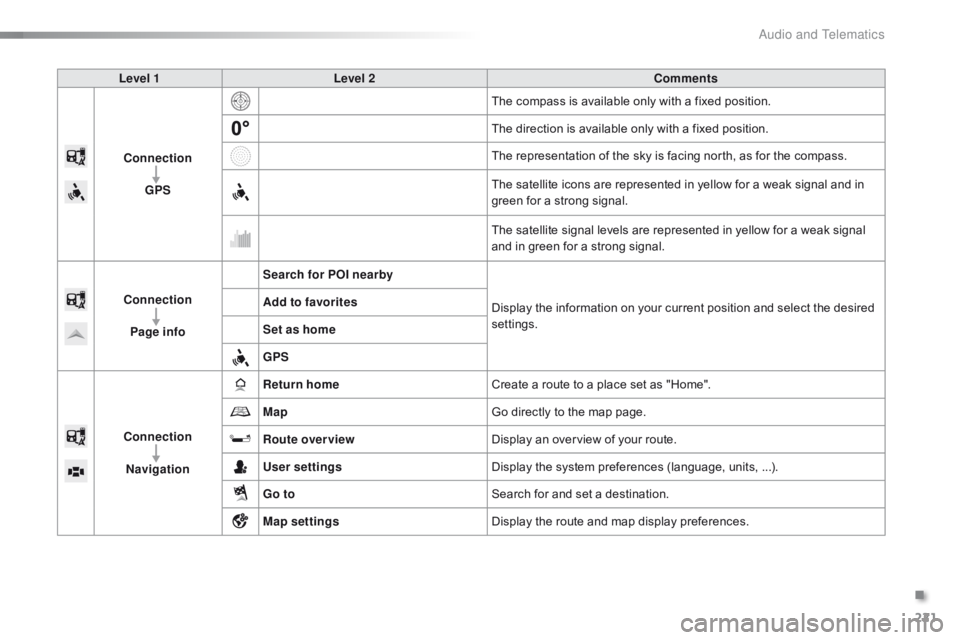
Level 1Level 2 Comments
Connection GPS The
compass is available only with a fixed position.
The
direction is available only with a fixed position.
The
representation of the sky is facing north, as for the compass.
The
satellite icons are represented in yellow for a weak signal and in
g
reen for a strong signal.
The
satellite signal levels are represented in yellow for a weak signal
a
nd in green for a strong signal.
Connection Page info Search for POI nearby
Display
the information on your current position and select the desired
se
ttings.
Add to favorites
Set as home
GPS
Connection Navigation Return home
Create
a route to a place set as "Home".
Map Go
directly to the map page.
Route overview Display
an overview of your route.
User settings Display
the system preferences (language, units, ...).
Go to Search
for and set a destination.
Map settings Display
the route and map display preferences.
.
Audio and Telematics
Page 225 of 269
223
C1_en_Chap10a_ Autoradio-Toyota-tactile-1_ed01-2016
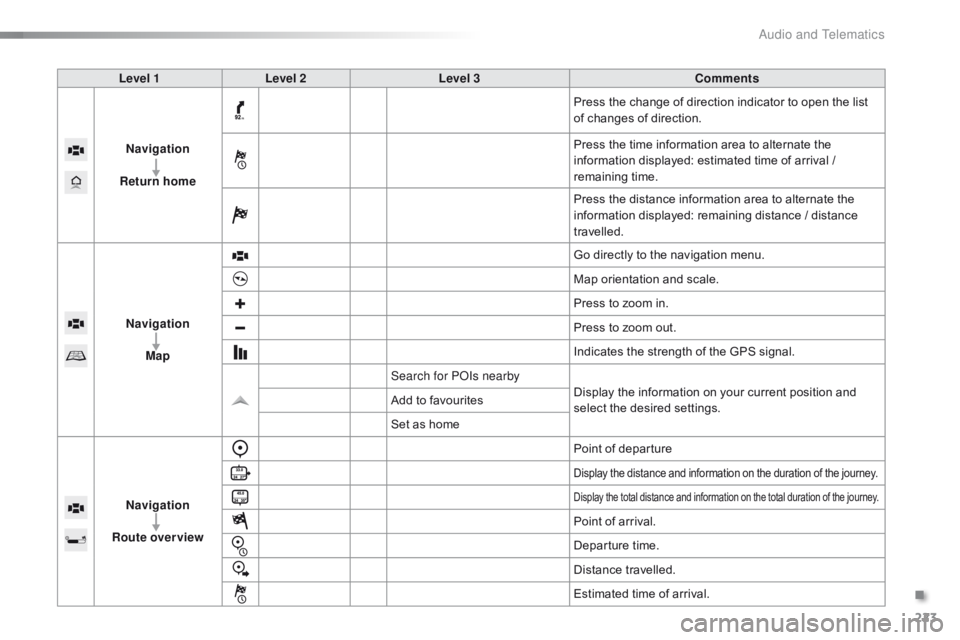
Level 1Level 2 Level 3 Comments
Navigation
Return home Press
the change of direction indicator to open the list
o
f changes of direction.
Press
the time information area to alternate the
i
nformation displayed: estimated time of arrival /
r
emaining
t
ime.
Press
the distance information area to alternate the
i
nformation displayed: remaining distance / distance
t
ravelled.
Navigation Map Go
directly to the navigation menu.
Map
orientation and scale.
Press
to zoom in.
Press
to zoom out.
Indicates
the strength of the GPS signal.
Search for POIs nearby Display
the information on your current position and
s
elect the desired settings.
Add
to favourites
Set
as home
Navigation
Route overview Point
of departure
Display the distance and information on the duration of the journey.
Display the total distance and information on the total duration of the journey.
Point of arrival.
D eparture
t
ime.
Distance
t
ravelled.
Estimated
time of arrival.
.
Audio and Telematics
Page 227 of 269
225
C1_en_Chap10a_ Autoradio-Toyota-tactile-1_ed01-2016
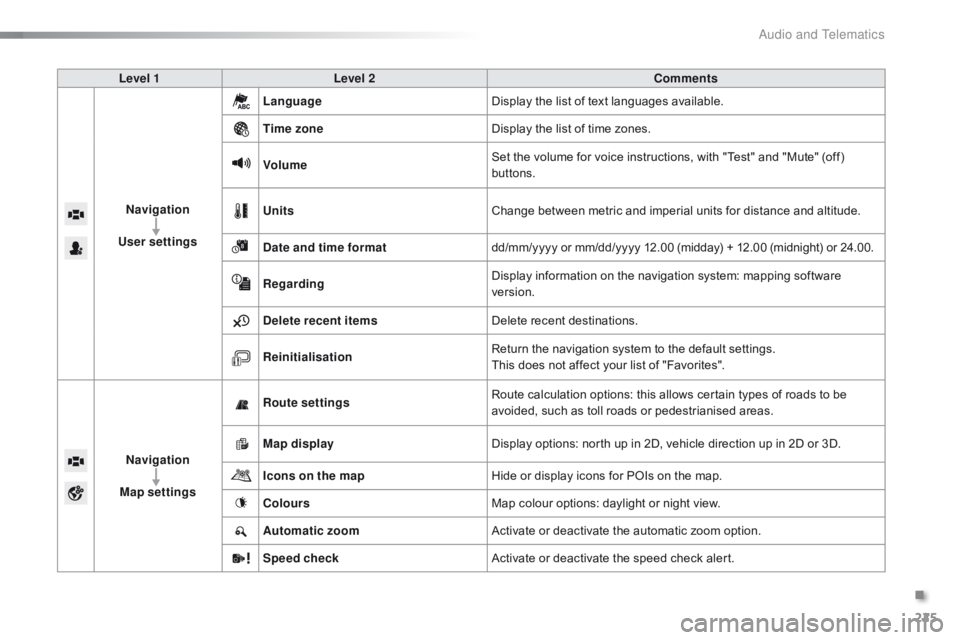
Level 1Level 2 Comments
Navigation
User settings Language
Display
the list of text languages available.
Time zone Display
the list of time zones.
Volume Set
the volume for voice instructions, with "Test" and "Mute" (off)
b
uttons.
Units Change
between metric and imperial units for distance and altitude.
Date and time format dd/mm/yyyy
or mm/dd/yyyy 12.00 (midday) + 12.00 (midnight) or 24.00.
Regarding Display
information on the navigation system: mapping software
ve
rsion.
Delete recent items Delete
recent destinations.
Reinitialisation Return
the navigation system to the default settings.
This
does not affect your list of "Favorites".
Navigation
Map settings Route settings
Route
calculation options: this allows certain types of roads to be
a
voided, such as toll roads or pedestrianised areas.
Map display Display
options: north up in 2D, vehicle direction up in 2D or 3D.
Icons on the map Hide
or display icons for POIs on the map.
Colours Map
colour options: daylight or night view.
Automatic zoom Activate
or deactivate the automatic zoom option.
Speed check Activate
or deactivate the speed check alert.
.
Audio and Telematics