bluetooth Citroen C1 RHD 2016 1.G Owner's Manual
[x] Cancel search | Manufacturer: CITROEN, Model Year: 2016, Model line: C1 RHD, Model: Citroen C1 RHD 2016 1.GPages: 268, PDF Size: 7.09 MB
Page 187 of 268
185
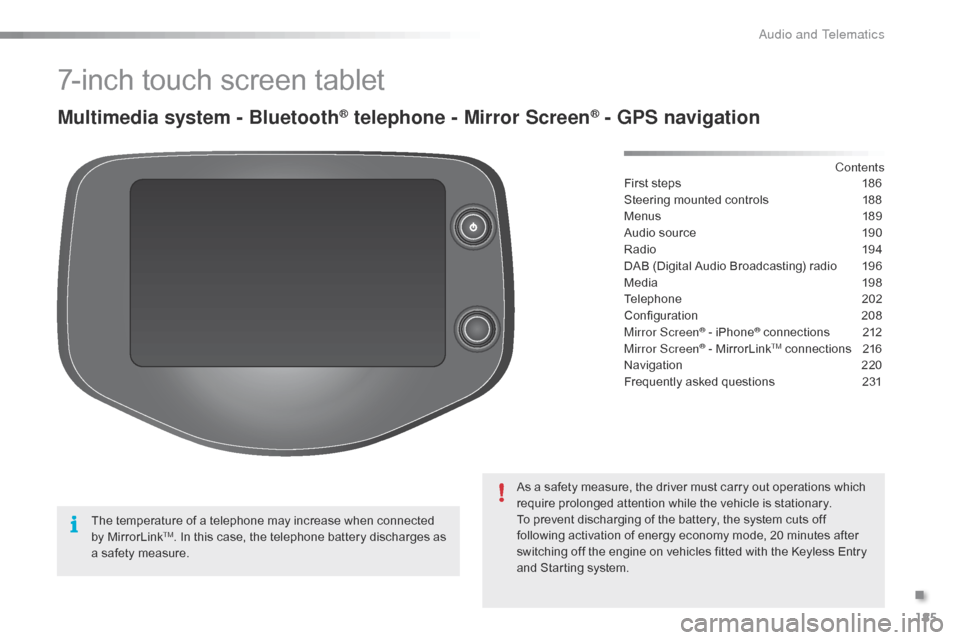
7-inch touch screen tablet
Multimedia system - Bluetooth® telephone - Mirror Screen® - GPS navigation
First steps 186
Steering mounted controls
1
88
Menus
18
9
Audio
source
1
90
Radio
19
4
DAB
(Digital Audio Broadcasting) radio
1
96
Media
19
8
Telephone
2
02
Configuration
20
8
Mirror Screen
® - iPhone® connections 2 12
Mirror Screen® - MirrorLinkTM connections 2 16
Navigation
2
20
Frequently
asked
questions
2
31
As
a
safety
measure,
the
driver
must
carry
out
operations which
r
equire
prolonged
attention
while
the
vehicle
is
stationary.
To
prevent
discharging
of
the
battery,
the
system cuts off
f
ollowing
activation
of
energy
economy
mode,
20 minutes after
s
witching
off
the
engine
on
vehicles
fitted
with
the Keyless Entry
a
nd
Starting
system. Contents
The
temperature
of
a
telephone
may
increase
when
connected
b
y
MirrorLink
TM. In this case, the telephone battery discharges as a
safety
measure.
.
Audio and Telematics
Page 189 of 268
187
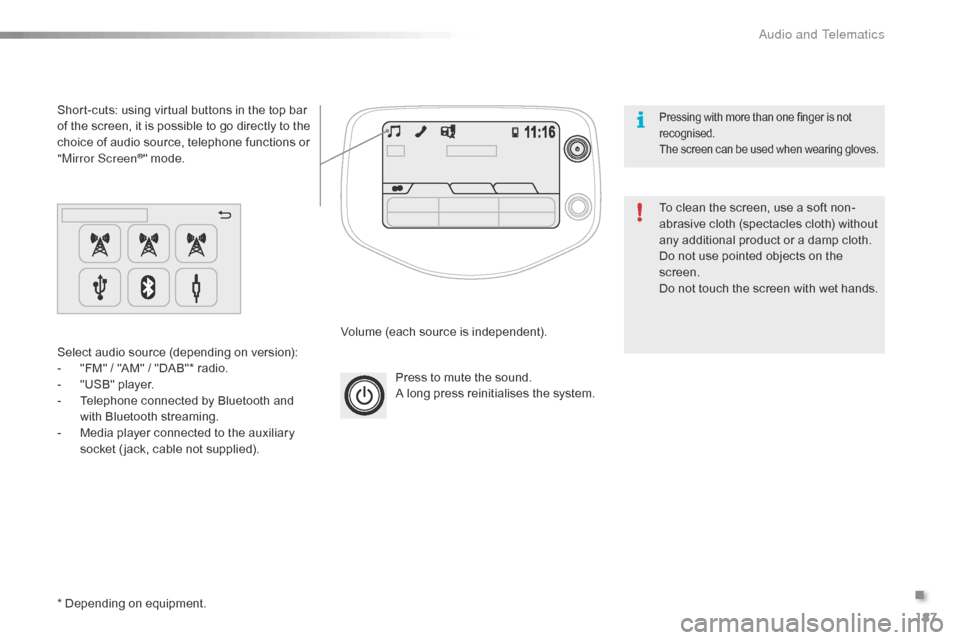
Press to mute the sound.
A long press reinitialises the system.
Volume
(each source is independent).
Select
audio
source
(depending
on
version):
-
"
FM"
/
"AM"
/
"DAB"*
radio.
-
"
USB"
player.
-
T
elephone
connected
by
Bluetooth
and
w
ith
Bluetooth
streaming.
-
M
edia
player
connected
to
the
auxiliary
s
ocket
( jack,
cable
not
supplied).
Short-cuts:
using
virtual
buttons
in
the
top
bar
o
f
the
screen,
it
is
possible
to
go
directly
to
the
c
hoice
of
audio
source,
telephone
functions
or
"
Mirror Screen
®" mode.
*
Depending
on
equipment. To
clean the screen, use a soft non-
abrasive
cloth (spectacles cloth) without
a
ny additional product or a damp cloth.
Do
not use pointed objects on the
sc
reen.
Do
not touch the screen with wet hands.
Pressing with more than one finger is not recognised.
The
s
creen
c
an
b
e
u
sed
w
hen
w
earing
g
loves.
.
Audio and Telematics
Page 191 of 268
189
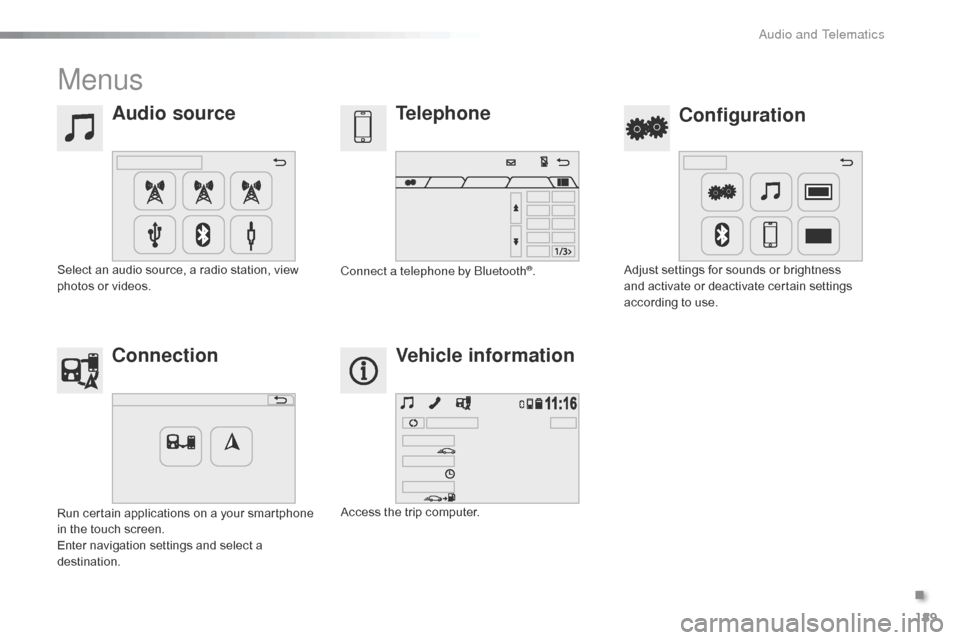
Menus
Audio sourceConfiguration
Telephone
Connection Vehicle information
Select an audio source, a radio station, view p
hotos or videos. Adjust
settings for sounds or brightness a
nd activate or deactivate certain settings
a
ccording to use.
Connect a telephone by Bluetooth®.
Run
certain
applications
on
a
your
smartphone
i
n
the
touch
screen.
Enter
navigation
settings
and
select
a
d
estination. Access
the
trip
computer.
.
Audio and Telematics
Page 195 of 268
193
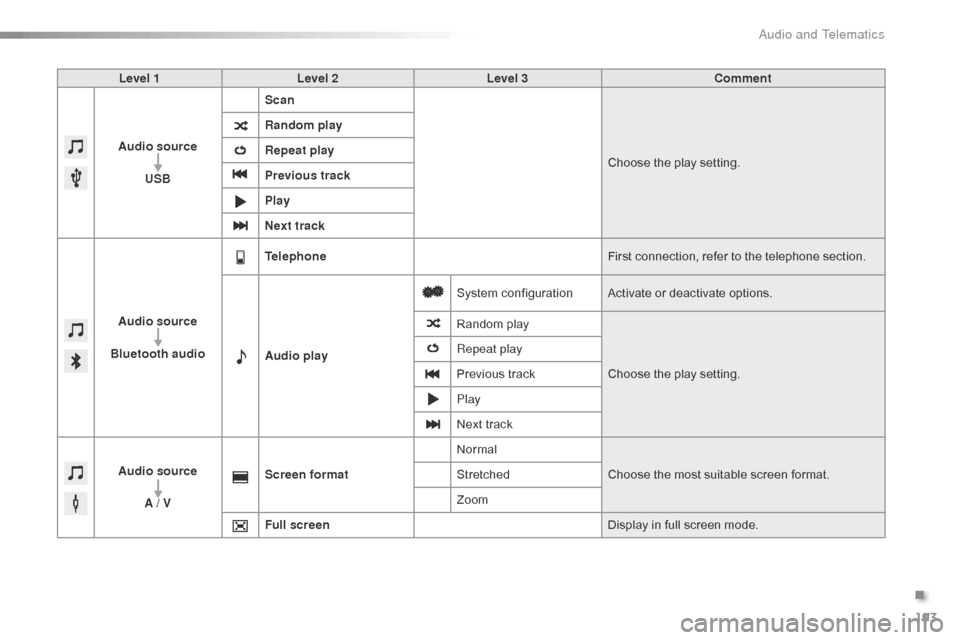
Level 1Level 2 Level 3 Comment
Audio source USB Scan
Choose
the play setting.
Random play
Repeat play
Previous track
Play
Next track
Audio source
Bluetooth audio Telephone
First
connection, refer to the telephone section.
Audio play System
c
onfigurationActivate
or deactivate options.
Random
p
layChoose
the play setting.
Repeat play
Previous
track
Play
Next
track
Audio source A / V Screen format
Normal
Choose
the most suitable screen format.
Stretched
Zoom
Full screen Display
in full screen mode.
.
Audio and Telematics
Page 202 of 268
200
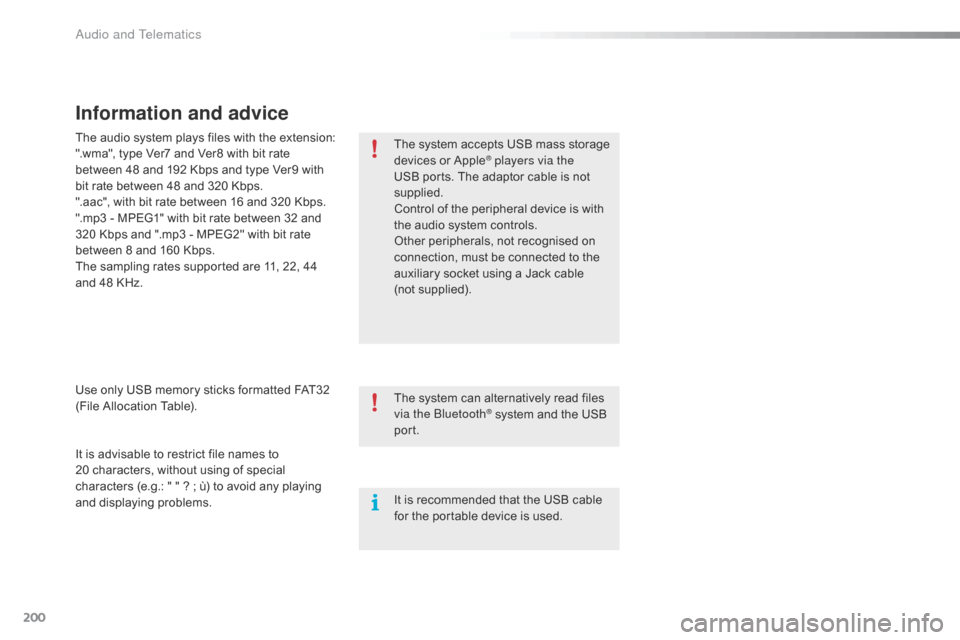
Information and advice
The system accepts USB mass storage devices o r A pple® players via the
USB
ports.
The
adaptor cable is not
sup
plied.
Control
of
the
peripheral device is with
t
he
audio
system
controls.
Other
peripherals, not recognised on
c
onnection,
must
be connected to the
a
uxiliary
socket
using a Jack cable
(
not supplied).
It
is
advisable
to
restrict
file
names
to
2
0 characters,
without
using
of
special
c
haracters
(e.g.:
"
"
?
;
ù)
to
avoid
any
playing
a
nd
d
isplaying
pro
blems.
Use
only
USB
memory
sticks
formatted
FAT32
(
File
Allocation
Table).
The
audio
system
plays
files
with
the
extension:
".wma",
type
Ver7
and
Ver8
with
bit
rate
b
etween
48
and
192
Kbps
and
type
Ver9
with
b
it
rate
between
48
and
320
Kbps.
".aac",
with
bit
rate
between
16
and
320
Kbps.
".mp3
-
MPEG1"
with
bit
rate
between
32
and
3
20
Kbps
and
".mp3
-
MPEG2"
with
bit
rate
b
etween
8
and
160
Kbps.
The
sampling
rates
supported
are
11,
22,
44
a
nd
48
KHz. The
system
can
alternatively read files
v
ia the Bluetooth
® system and the USB po
rt.
It
is
recommended that the USB cable
f
or
the
portable
device is used.
Audio and Telematics
Page 203 of 268
201
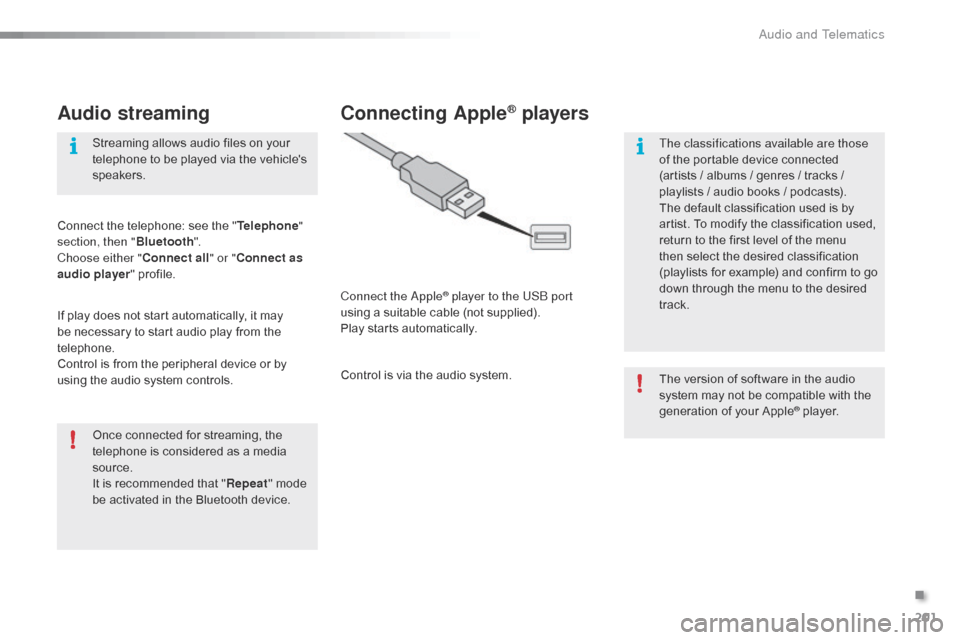
Audio streaming
Once connected for streaming, the telephone is considered as a media
s
ource.
It
is recommended that "Repeat "
mode
b
e activated in the Bluetooth device.
Streaming
allows audio files on your
t
elephone to be played via the vehicle's
s
peakers.
Connect the telephone: see the "
Telephone "
section, then " Bluetooth".
Choose either " Connect all" or " Connect as
audio player "
pro
file.
If
play
does not start automatically, it may
b
e
necessary to start audio play from the
t
elephone.
Control is from the peripheral device or by
u
sing
the audio system controls.
Connecting Apple® players
Connect the Apple® player to the USB port
using
a
suitable
cable (not supplied).
Play
starts
automatically.
Control
is
via
the
audio system. The
version of software in the audio
s
ystem may not be compatible with the
g
eneration of your Apple
® player.
T
he classifications available are those
of
the
portable
device
connected
(
artists
/
albums
/
genres
/ tracks /
p
laylists
/
a
udio
books /
podcasts).
The
default
classification
used is by
a
rtist.
To
modify
the
classification used,
r
eturn
to
the
first
level
of
the menu
t
hen
select
the
desired
classification
(
playlists
for
example)
and confirm to go
d
own
through
the
menu
to the desired
t
rack.
.
Audio and Telematics
Page 206 of 268
204
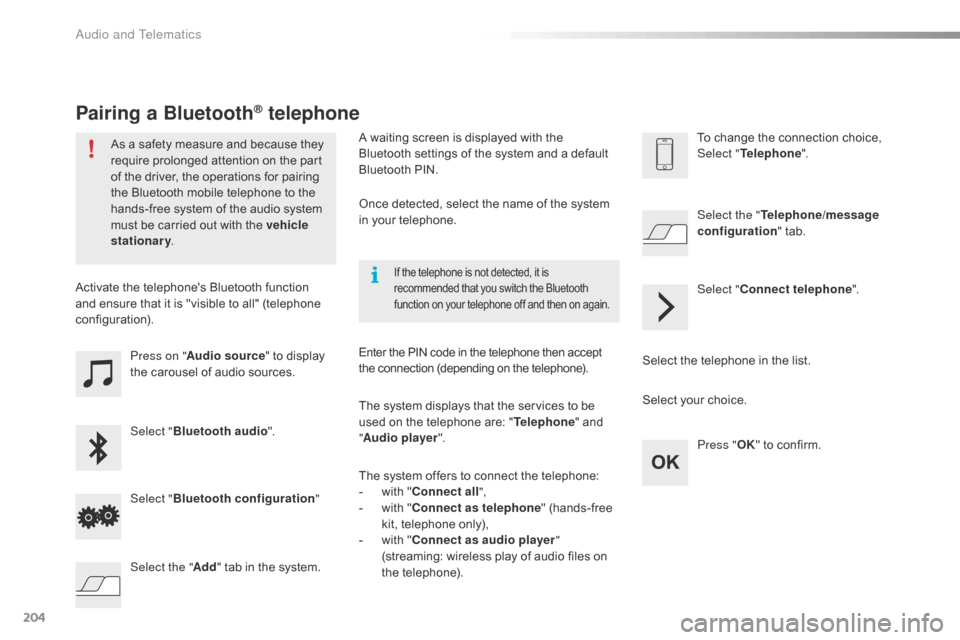
Press on "Audio source " to display t
he carousel of audio sources.
Select " Bluetooth audio ".
Select " Bluetooth configuration "
Activate
the telephone's Bluetooth function
a
nd
ensure that it is "visible to all" (telephone
c
onfiguration).
Select the telephone in the list.
Select "
Connect telephone ".
Select the "
Telephone/message
configuration " tab.
Select your choice.
Select the " Add"
tab in the system. Press "
OK"
to confirm.
If the telephone is not detected, it is recommended that you switch the Bluetooth f
unction on your telephone off and then on again.
As a safety measure and because they require prolonged attention on the part
o
f the driver, the operations for pairing
t
he Bluetooth mobile telephone to the
h
ands-free system of the audio system
m
ust be carried out with the vehicle
stationary .
Pairing a Bluetooth® telephone
A waiting screen is displayed with the B
luetooth settings of the system and a default
B
luetooth PIN.
Once
detected, select the name of the system
i
n your telephone.
The
system displays that the services to be
u
sed on the telephone are: "Telephone "
and
"A
udio player ".
The
system offers to connect the telephone:
-
w
ith "Connect all",
-
w
ith "Connect as telephone "
(hands-free
k
it, telephone only),
-
w
ith "Connect as audio player "
(streaming:
wireless play of audio files on
t
he
t
elephone).
Enter
the PIN code in the telephone then accept
t
he connection (depending on the telephone).To
change the connection choice, Sel
ect "Telephone ".
Audio and Telematics
Page 207 of 268
205
The services available depend on the network, the SIM card and the
c
ompatibility of the Bluetooth telephone
u
sed. Check the telephone manual and
w
ith your network provider for details of
t
he services available to you.
The
profiles compatible with the system
a
re: HFP, OPP, PBAP, A2DP, AVRCP,
M
A P. This function allows the connection or
disconnection
of a peripheral device as
w
ell as the deletion of a pairing.
Automatic reconnection
When the ignition is switched on, the last telephone connected when the ignition was
s
witched off reconnects automatically, if this
c
onnection made had been activated during the
p
airing procedure (see previous pages).
Connection
is confirmed by the display of a
m
essage and the name of the telephone.
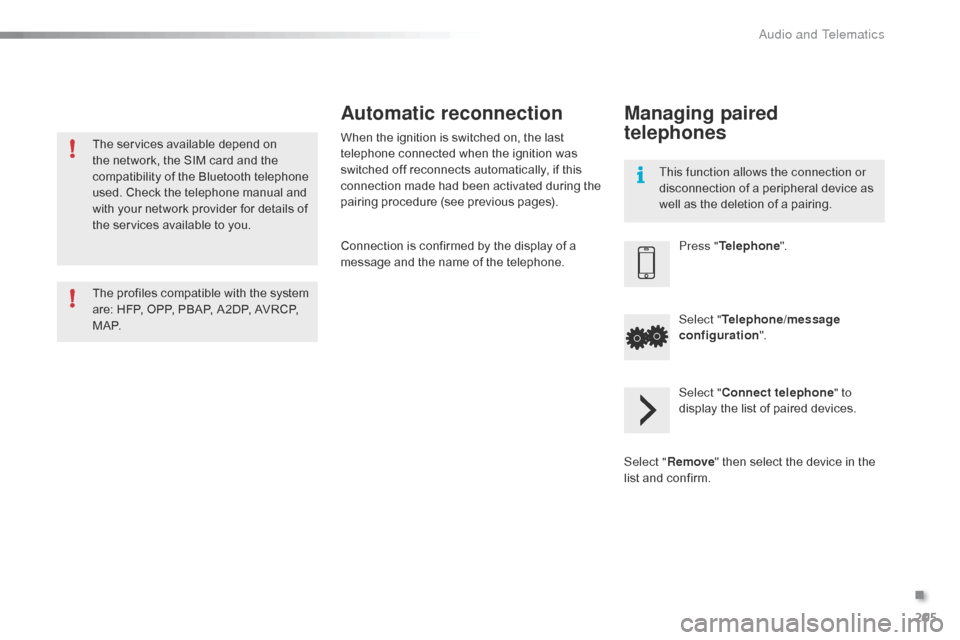
Managing paired
telephones
Press "Telephone ".
Select " Telephone/message
configuration ".
Select " Connect telephone " to
display
the list of paired devices.
Select " Remove "
then select the device in the
l
ist
and
confirm.
.
Audio and Telematics
Page 211 of 268
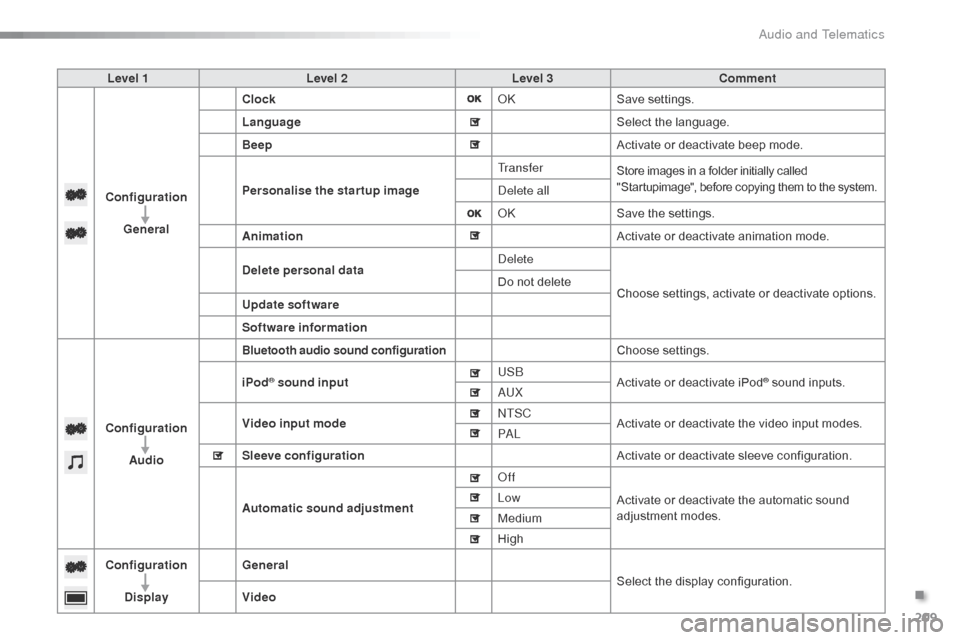
209
Level 1Level 2 Level 3 Comment
Configuration General Clock
OKSave
se
ttings.
Language Select
the language.
Beep Activate
or deactivate beep mode.
Personalise the star tup image Tr a n s f e r
Store images in a folder initially called "
Startupimage", before copying them to the system.
Delete all
OKSave
the settings.
Animation Activate
or deactivate animation mode.
Delete personal data Delete
Choose
settings, activate or deactivate options.
Do
not delete
Update software
Software information
Configuration Audio
Bluetooth audio sound configurationChoose settings.
iPod
® sound input USB
Activate or deactivate iPod® sound inputs.
AU
X
Video input mode NTSC
Activate
or
deactivate
the
video input modes.
PA L
Sleeve configuration Activate
or
deactivate
sleeve configuration.
Automatic sound adjustment Off
Activate
or
deactivate
the
automatic sound
a
djustment
modes.
Low
Medium
High
Configuration
Display General
Select
the
display
configuration.
Video
.
Audio and Telematics
Page 213 of 268
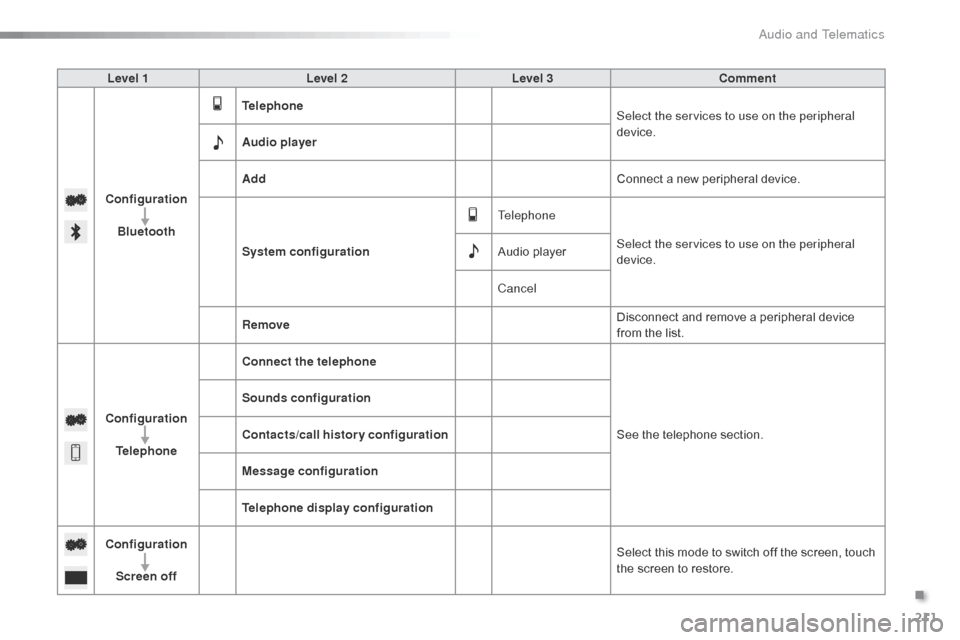
211
Level 1Level 2 Level 3 Comment
Configuration Bluetooth Telephone
Select the services to use on the peripheral
device.
Audio player
Add Connect
a new peripheral device.
System configuration Telephone
Select the services to use on the peripheral
device.
Audio
player
Cancel
Remove Disconnect
and remove a peripheral device
f
rom the list.
Configuration Telephone Connect the telephone
See
the telephone section.
Sounds configuration
Contacts/call history configuration
Message configuration
Telephone display configuration
Configuration Screen off Select
this mode to switch off the screen, touch
t
he screen to restore.
.
Audio and Telematics