touch Citroen C3 2015 2.G Owner's Guide
[x] Cancel search | Manufacturer: CITROEN, Model Year: 2015, Model line: C3, Model: Citroen C3 2015 2.GPages: 401, PDF Size: 13.04 MB
Page 306 of 401
304
C3_en_Chap14_Recherche-visuel-Index-Alpha_ed01-2015
Labels, identification .....................................2 13
Lamps, front .................................................. 178
Lamps, rear
................................................... 182
Lamps, warning and indicator
...................12-23
LE
d da
ytime running lamps
...........................76
Level,
a d
blu
e
® additive ................................. 15 6
Level, brake fluid ........................................... 14
8
Levels and checks
................................. 145 -149
Lighting bulbs (replacement)
.................17
8 -18 4
Lighting control stalk
....................................... 72
Lighting dimmer
..............................
................29
Lighting, guide-me home
.......................... 74, 75
Lighting, interior
................................ 80, 81, 184
Loading
............................................................. 8
Load reduction mode
.................................... 19 6
Localised
a
s
sistance Call
............................. 2
15
Locating your vehicle
...................................... 64
L
ocking from the inside
................................... 69
L
ow fuel level
................................................ 152
LPG
.......
........................................................ 206
Jack
........
....................................................... 171
Jack cable
............................................. 246, 285
JACK socket
.................................... 85, 246, 285
Jukebox
......................................................... 249
ke
eping children safe
...................... 8
9 -102, 114
Key in ignition warning
.................................. 120
Key with remote control
..................... 63 - 65, 118
LI
J
K
M
Main beam .............................................. 72, 180
Maintenance ....................................... 8, 147-151
Markings, identification
.................................213
Mat
.................................................................. 86
Menu
........................... 222, 224, 228, 236, 238,
240, 250, 252, 254, 264, 266
Menu, main
................................................... 282
Menus (audio)
............................... 236, 238, 240Menus (Touch screen tablet)
.................
217, 221
Mirrorlink connection
....................................
263
Mirror, rear view ..............................................
58
Mirrors, door .................................................... 57
Misfuel prevention
...............................
..........
15 4
Mountings for IS
oF
IX seats
...................
98, 100
MP3 CD .........................................................
286
N
O
navigation .............................................. 222-235nu
mber plate lamps ...................................... 18
2
oi
l change
..................................................... 147
oi
l consumption
............................................ 147
oil
filter
...............
........................................... 150
oi
l level ..................................................... 27, 147
op
ening the bonnet
...................................... 14
4
op
ening the boot
..............................
........63, 71
op
ening the doors
...............................
.....63, 68
op
ening the fuel filler flap
.............................15
2
op
eration indicator lamps
.........................12-23
Indicators, direction
......................................
103
Inflating accessories (using the kit)
..............
169
Inflating tyres
............................................
8, 212
Installing speakers
..........................................
59
Instrument panel lighting
................................ 29
In
strument panels
.....................................
10, 11
Instrument panel screen
.................... 1
0, 11, 131
Interior fittings
............................................
82- 86
Interior lamp
............................................
80, 184
Interior mood lighting
......................................
81
Internet
..................................................
258, 259
Internet browser
....................................
258, 259
ISoFI
X
.....................................................
9 8 -10 0
ISoF
IX mountings ................................... 98, 100
alphabetical index
Page 308 of 401
306
C3_en_Chap14_Recherche-visuel-Index-Alpha_ed01-2015
V
W
Vanity mirror ....................................................84
V ehicle configuration
.............34, 37, 42, 257, 290, 291
Ventilation
..............................
..............45 - 47, 51
Warning lamps
........................................... 12-23
Warning lamp, SCR emissions control system
........................................................... 23
Wash-wipe, rear
.............................................. 78
Weights
......................................... 204, 207, 210
Wi-Fi network connection
.............................26
0
Window controls
............................................. 66
Wiper control stalk
..................................... 7 7-79
Wiper, rear ....................................................... 78
Wipers
....................................................... 77, 79Zenith windscreen
...........................................
83
ZTU
Table of weights ............................2 04, 207, 210
Tables of engines ..........................202, 206, 208
Tables of fuses
.............................................. 185
Tank,
a d
blu
e
® additive ......................... 1 56, 163
Ta n k , f u e l
............................................... 152, 15 4
Technical data
........................................ 202-213
Telephone
............................................. 264, 288
Temperature adjustment
........................... 4
7, 50
Temperature control for heated seats
............55
Temporary tyre repair kit ...............................166
Third brake lamp
........................................... 183
Three flashes function (direction indicators)
................................... 103
Time
................................................................ 10
TMC (Traffic info)
.......................................... 23
4
To o l s
.............................................................. 171
Total distance recorder
................................... 28
Touch screen tablet
........................................ 40
T
ouch screen tablet (Menus) ....40, 42, 217, 221
To w b a r
........................................................... 200
Towed loads
.................................. 204, 207, 210
Towing another vehicle
................................. 19
9
Traction control (ASR)
...................... 16, 18, 110
Traffic information (TA)
......................... 235, 283
Traffic information (TMC)
.............................. 23
4
Tr a i l e r
............................................................ 200
Trajectory control systems
............................ 11 0
Trip computer
...................................... 30 -33, 38
Trip distance recorder
..................................... 28
Tyre pressures
...................................... 170, 213
Tyre under-inflation detection
....................................... 21, 105, 170Under-inflation (detection)
..............
2
1, 105, 170
Unlocking
..............................
..........................
63
Unlocking from the inside ...............................
69
U pdate risk areas ..........................................23
3
Updating the date
................................35, 39, 44
Updating the time
................................35, 39, 44
URE
a
....................................................15 6, 157
US
b
player ......................................85, 246, 284
alphabetical index
Page 322 of 401
.
Audio and Telematics 7
Additif-2_en_web_AC-AP_SMEGplus_Services_connectes_ed01-2015
As a safety measure and because it requires sustained attention by the driver, using a smartphone when driving is prohibited. All operations must be done with the vehicle stationary . vehicle stationary . vehicle stationary
The synchronisation of a smartphone allows applications on a smartphone that are adapted to the MirrorLink TM technology to be displayed in the vehicle's screen. The principles and standards are constantly evolving. For the communication process between the smartphone and the system to work correctly, the smartphone must be unlocked; update the operating system of your smartphone as well as the date and time in the smartphone and the system. For the list of eligible smartphones,
connect to the brand's internet website in your country.
Please note: - if your smartphone is supported, to make it "MirrorLink TM " compatible, some phone manufacturers nevertheless invite you to first download a dedicated application.
When connecting a smartphone to the system, it is recommended that Bluetooth ® be started on the smartphone .® be started on the smartphone .®
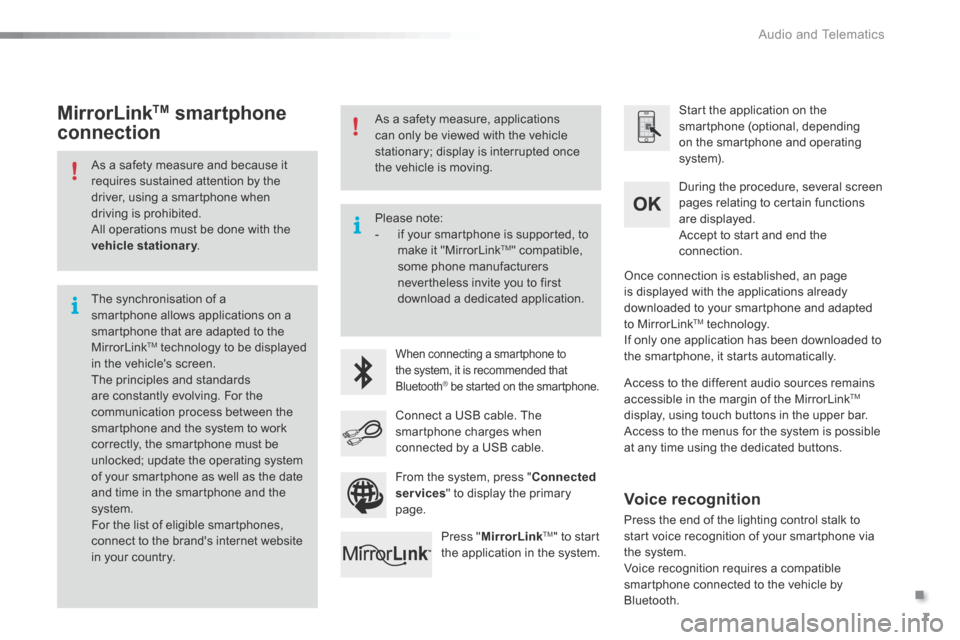
Start the application on the smartphone (optional, depending on the smartphone and operating system).
During the procedure, several screen pages relating to certain functions are displayed.
Accept to start and end the connection.
Connect a USB cable. The smartphone charges when connected by a USB cable.
Press " MirrorLinkTM " to start the application in the system.
Once connection is established, an page is displayed with the applications already downloaded to your smartphone and adapted to MirrorLink TM technology. If only one application has been downloaded to the smartphone, it starts automatically.
MirrorLink TM smartphone
connection
Access to the different audio sources remains accessible in the margin of the MirrorLink TM
display, using touch buttons in the upper bar. Access to the menus for the system is possible at any time using the dedicated buttons .
From the system, press " Connected services " to display the primary page.
As a safety measure, applications can only be viewed with the vehicle stationary; display is interrupted once the vehicle is moving.
Voice recognition
Press the end of the lighting control stalk to start voice recognition of your smartphone via the system. Voice recognition requires a compatible smartphone connected to the vehicle by Bluetooth.
Page 329 of 401
2
Multifunction screens1
C3-additif_en_Chap02_Ecrans-multifonction_ed01-2015
Touch screen tablet
This system gives access to: - menus for adjusting settings for vehicle functions and systems, - audio and display configuration menus, - audio system and telephone controls and the display of associated information, - the display of alert messages, - the display of ambient temperature (a blue snow flake appears when there is a risk of ice), - the display of the trip computer.
And, depending on equipment, it allows: - the display of visual parking sensors information, - access to the controls for the navigation system and Internet services, and the display of associated information.
Recommendations
It is necessary to press firmly, particularly for "flick" gestures (scrolling through lists, moving the map...). A light wipe is not enough.
The screen does not recognise pressing with more than one finger. This technology allows use at all temperatures and when wearing gloves. Do not use pointed objects on the touch screen tablet. Do not touch the touch screen tablet with wet hands. Uses a soft clean cloth to clean it.
General operation
As a safety measure, some functions can only be viewed with the vehicle stationary. When the vehicle moves off, their display is interrupted.
After a few moments with no action on the secondary page, the primary page is displayed automatically.
Principles
Press the " MENU " button for access to the different menus, then press the virtual buttons. Each menu is displayed over one or two pages (primary page and secondary page).
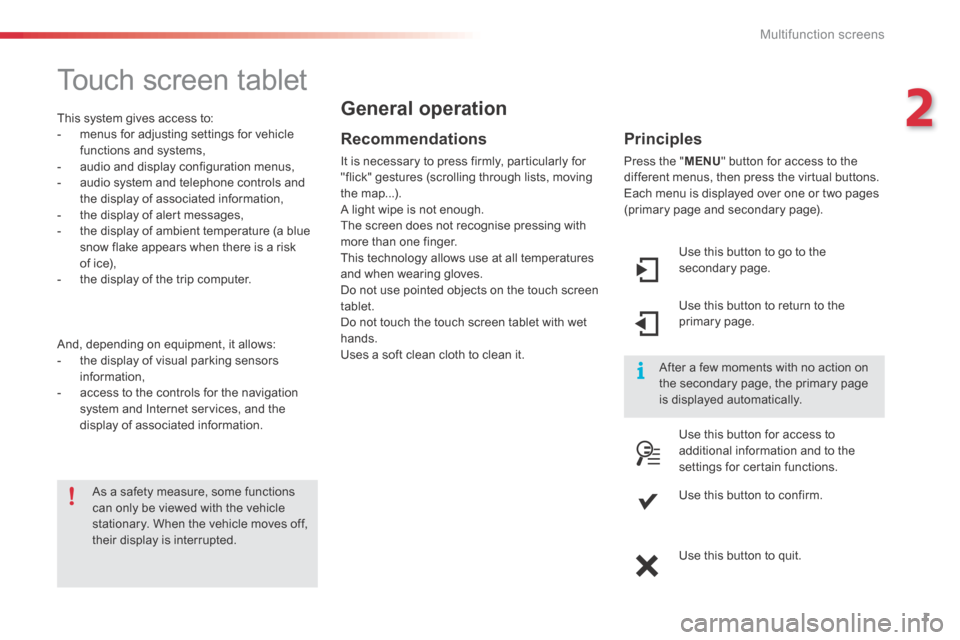
Use this button to go to the secondary page.
Use this button to return to the primary page.
Use this button for access to additional information and to the settings for certain functions.
Use this button to confirm.
Use this button to quit.
Page 337 of 401

9
C3-additif_en_Chap13b_SMEGplus_ed01-2015
7-inch touch screen tablet
GPS satellite navigation - Multimedia audio - Bluetooth® telephone
Contents
First steps
1 0
Steering mounted controls
1
2
M enus
13
N
avigation
1
4
Navigation - Guidance
2
2
Traffic
26
R
adio Media
2
8
Radio
34
DAB (Digital Audio Broadcasting) radio
3
6
Media
38
Settings
40
Connected services
4
8
MirrorLink
TM 48
C
arPlay® 52
T
elephone
54
Frequently asked questions
6
2
The system is protected in such a way that it will only operate in
your vehicle. As a safety measure, the driver should only carry out operations
which require prolonged attention while the vehicle is stationary.
The display of an energy economy mode message signals that
electrical systems operating are going into standby.
Refer to the energy economy mode section.
.
Audio and Telematics
Page 338 of 401
10
C3-additif_en_Chap13b_SMEGplus_ed01-2015
First steps
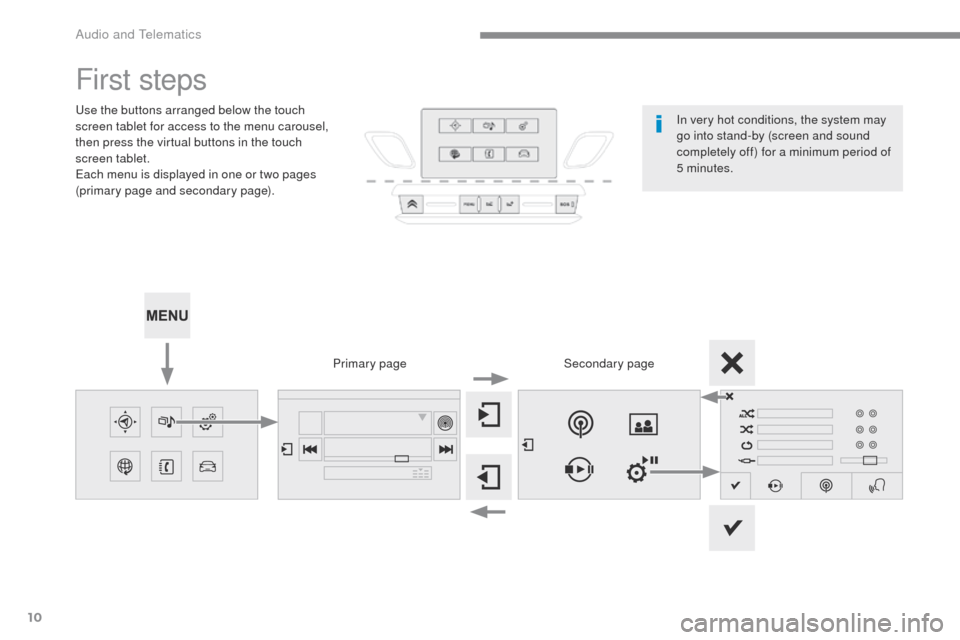
Use the buttons arranged below the touch
screen tablet for access to the menu carousel,
then press the virtual buttons in the touch
screen tablet.
Each menu is displayed in one or two pages
(primary page and secondary page).Secondary page
Primary page In very hot conditions, the system may
go into stand-by (screen and sound
completely off) for a minimum period of
5 minutes.
Audio and Telematics
Page 339 of 401
11
C3-additif_en_Chap13b_SMEGplus_ed01-2015
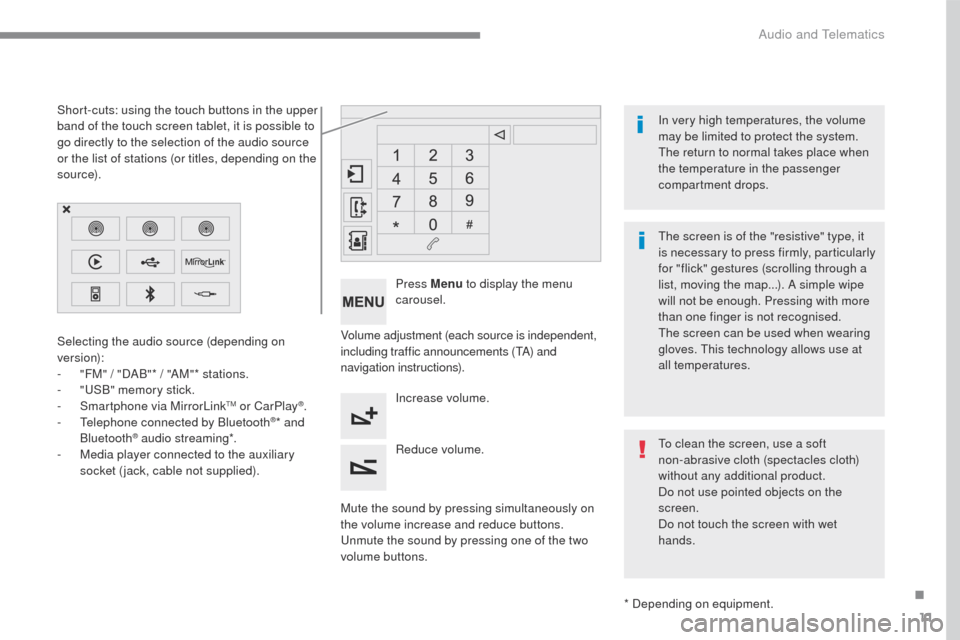
Volume adjustment (each source is independent,
including traffic announcements (TA) and
navigation instructions).
Mute the sound by pressing simultaneously on
the volume increase and reduce buttons.
Unmute the sound by pressing one of the two
volume buttons. Press Menu
to display the menu
carousel.
Increase volume.
Reduce volume.
Selecting the audio source (depending on
version):
-
"
FM" / "DAB"* / "AM"* stations.
-
"
USB" memory stick.
-
S
martphone via MirrorLink
TM or CarPlay®.
- T
elephone connected by Bluetooth®* and
Bluetooth® audio streaming*.
-
M
edia player connected to the auxiliary
socket (jack, cable not supplied).
* Depending on equipment.
Short-cuts: using the touch buttons in the upper
band of the touch screen tablet, it is possible to
go directly to the selection of the audio source
or the list of stations (or titles, depending on the
s o u r c e).
The screen is of the "resistive" type, it
is necessary to press firmly, particularly
for "flick" gestures (scrolling through a
list, moving the map...). A simple wipe
will not be enough. Pressing with more
than one finger is not recognised.
The screen can be used when wearing
gloves. This technology allows use at
all temperatures. In very high temperatures, the volume
may be limited to protect the system.
The return to normal takes place when
the temperature in the passenger
compartment drops.
To clean the screen, use a soft
non-abrasive cloth (spectacles cloth)
without any additional product.
Do not use pointed objects on the
screen.
Do not touch the screen with wet
hands.
.
Audio and Telematics
Page 374 of 401
46
C3-additif_en_Chap13b_SMEGplus_ed01-2015
Audio settings
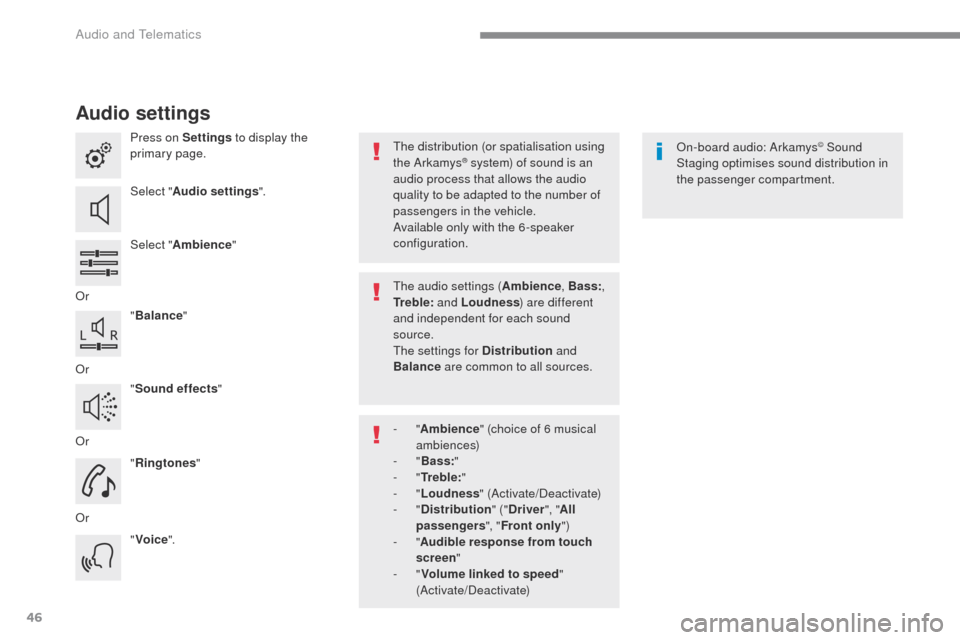
Press on Settings to display the
primary page.
Select " Audio settings ".
Select " Ambience "
Or "Balance "
Or "Sound effects "
Or "Ringtones "
Or "Voice ". On-board audio: Arkamys© Sound
Staging optimises sound distribution in
the passenger compartment.
The distribution (or spatialisation using
the Arkamys® system) of sound is an
audio process that allows the audio
quality to be adapted to the number of
passengers in the vehicle.
Available only with the 6 -speaker
configuration.
The audio settings ( Ambience, Bass:,
Tr e b l e: and Loudness ) are different
and independent for each sound
source.
The settings for Distribution and
Balance are common to all sources.
-
" Ambience " (choice of 6 musical
ambiences)
-
" Bass: "
-
" Tr e b l e: "
-
" Loudness " (Activate/Deactivate)
-
" Distribution " ("Driver ", "All
passengers ", "Front only ")
-
" Audible response from touch
screen "
-
" Volume linked to speed "
(Activate/Deactivate)
Audio and Telematics
Page 377 of 401
49
C3-additif_en_Chap13b_SMEGplus_ed01-2015
As a safety measure and because it
requires sustained attention by the
driver, using a smartphone when
driving is prohibited.
All operations must be done with the
vehicle stationary.
The synchronisation of a
smartphone allows applications on a
smartphone that are adapted to the
MirrorLink
TM technology to be displayed
i
n the vehicle's screen.
The principles and standards
are constantly evolving. For the
communication process between the
smartphone and the system to work
correctly, the smartphone must be
unlocked; update the operating system
of your smartphone as well as the date
and time in the smartphone and the
system.
For the list of eligible smartphones,
connect to the brand's internet website
in your country. As a safety measure, applications
can only be viewed with the vehicle
stationary; display is interrupted once
the vehicle is moving.When connecting a smartphone to
the system, it is recommended that
Bluetooth
® be started on the smartphone.
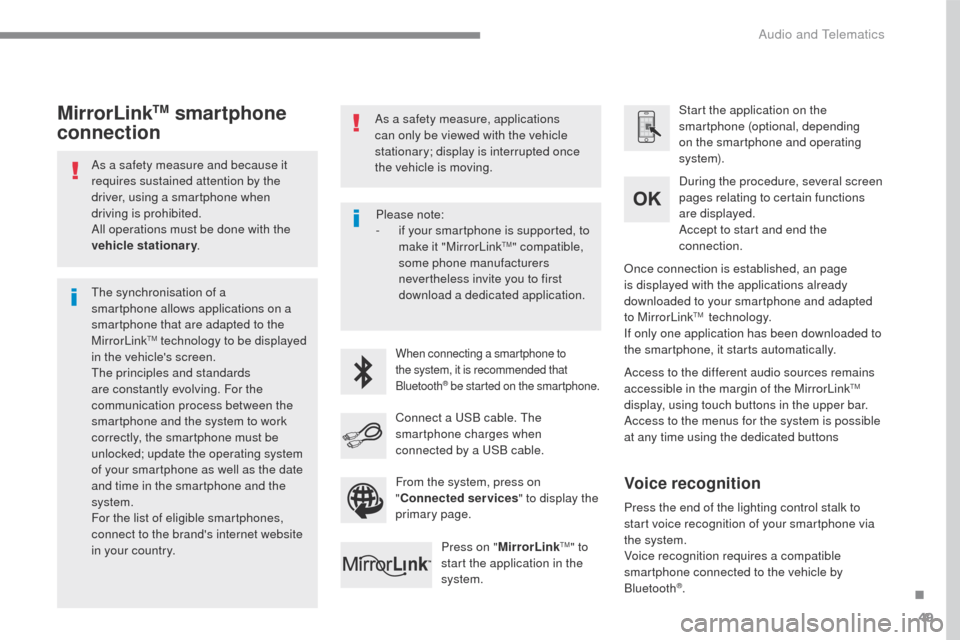
Start the application on the
smartphone (optional, depending
on the smartphone and operating
syste m).
Access to the different audio sources remains
accessible in the margin of the MirrorLink
TM
display, using touch buttons in the upper bar.
Access to the menus for the system is possible
at any time using the dedicated buttons During the procedure, several screen
pages relating to certain functions
are displayed.
Accept to start and end the
connection.
Connect a USB cable. The
smartphone charges when
connected by a USB cable. Press on " MirrorLink
TM" to
start the application in the
system. Once connection is established, an page
is displayed with the applications already
downloaded to your smartphone and adapted
to MirrorLink
TM technology.
If only one application has been downloaded to
the smartphone, it starts automatically.
MirrorLinkTM smartphone
connection
Press the end of the lighting control stalk to
start voice recognition of your smartphone via
the system.
Voice recognition requires a compatible
smartphone connected to the vehicle by
Bluetooth
®.
Voice recognition
Please note:
-
i f your smartphone is supported, to
make it "MirrorLink
TM" compatible,
some phone manufacturers
nevertheless invite you to first
download a dedicated application.
From the system, press on
" Connected services " to display the
primary page.
.
Audio and Telematics
Page 394 of 401

66
C3-additif_en_Chap13b_SMEGplus_ed01-2015
QUESTIONANSWER SOLUTION
In changing the setting
of treble and bass the
equalizer setting is
deselected. The selection of an equalizer setting imposes the balance settings.
Modifying one without the other is not possible.
Modify the balance or equalizer settings to obtain
the desired musical ambience.
In changing the equalizer
setting, treble and bass
return to zero.
When changing the
balance settings, the
distribution setting is
deselected. The selection of a distribution setting imposes the balance settings.
Modifying one without the other is not possible.
Modify the balance or distribution settings to
obtain the desired musical ambience.
When changing a sound
distribution setting,
the balance setting is
deselected.
When I select the "All
passengers" mode, the
distribution is not as I
would like. The choice of an "All passengers" distribution can be programmed. Modify the distribution setting using the slider on
the touch screen.
Settings
Audio and Telematics