ad blue Citroen C3 2015 2.G Service Manual
[x] Cancel search | Manufacturer: CITROEN, Model Year: 2015, Model line: C3, Model: Citroen C3 2015 2.GPages: 401, PDF Size: 13.04 MB
Page 295 of 401
293
C3_en_Chap13c_RD45_ed01-2015
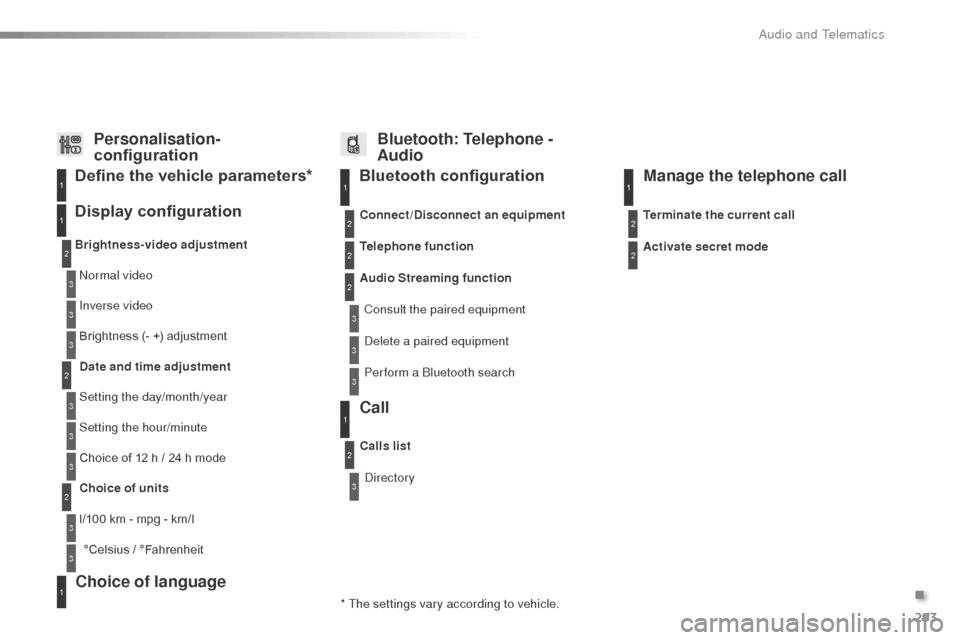
Bluetooth configuration11
1
22
22
2
3
3
3
2
3
normal video
Brightness-video adjustment
Display configuration Define the vehicle parameters*
Inverse video
Brightness (- +) adjustment
Date and time adjustment
Setting the day/month/year
Setting the hour/minute
Choice of 12 h / 24 h mode
Choice of units
l/100 km - mpg - km/l °Celsius / °Fahrenheit
1
1
3
3
2
3
2
3
3
2
3
3
3
Personalisation-
configuration Bluetooth: Telephone -
Audio
Telephone function
de
lete a paired equipment
Connect/Disconnect an equipment
Audio Streaming function
Consult the paired equipment
Per form a
b
l
uetooth search
Calls list
Call
directory Terminate the current call
Manage the telephone call
Activate secret mode
* The settings vary according to vehicle.
Choice of language1
.
audio and Telematics
Page 303 of 401
301
C3_en_Chap14_Recherche-visuel-Index-Alpha_ed01-2015
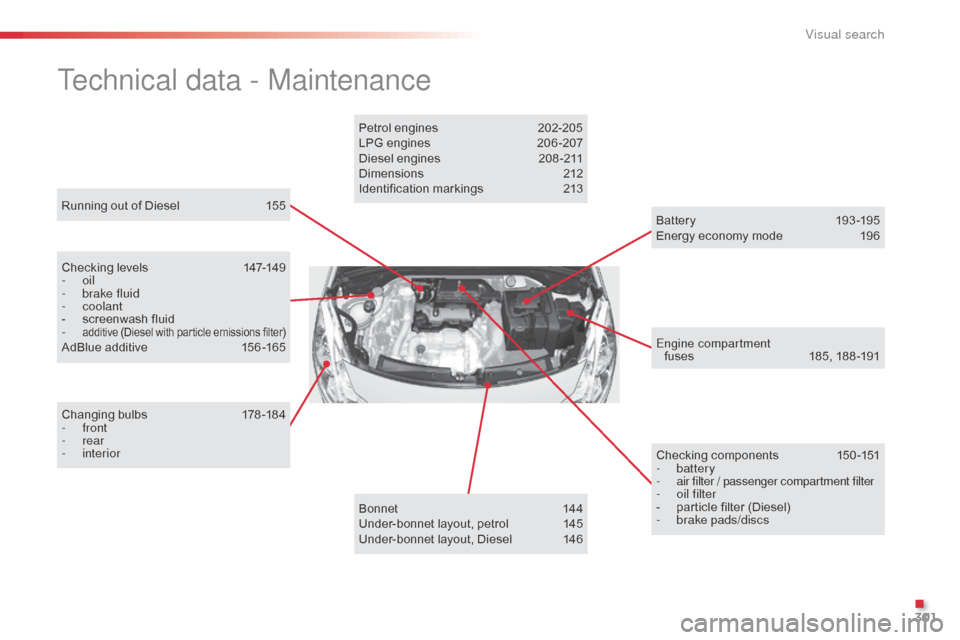
Running out of Diesel 155
Technical data - Maintenance
Checking levels 147-149
- oil
-
b
rake fluid
-
coolant
-
s
creenwash fluid
-
additive (Diesel with particle emissions filter)AdBlue additive 1 56 -165
Changing bulbs
1
78-184
-
front
-
rear
-
interior Checking components
1
50 -151
-
battery
-
a
ir filter / passenger compartment filter
-
o
il filter
-
p
article filter (Diesel)
-
b
rake pads/discs
Engine compartment
fuses 1 85, 188 -191
Bat ter y
19
3 -195
Energy economy mode
1
96
Bonnet
1
44
Under-bonnet layout, petrol
1
45
Under-bonnet layout, Diesel
1
46
Petrol engines
2
02-205
LPG engines
2
06 -207
Diesel engines
2
08 -211
Dimensions
2
12
Identification markings
2
13
.
Visual search
Page 304 of 401
302
C3_en_Chap14_Recherche-visuel-Index-Alpha_ed01-2015
abS and EbFd systems ...............................109ac
cessories .................................................... 61
Accessory socket, 12V
...................................85
a
dditive, a d
blu
e
.............................. 22, 156, 162
ad
justing headlamps
...................................... 76
a
djusting head restraints
................................55
Adjusting the steering wheel
..........................58
ad
vice on driving
.......................................... 117
air
bags
.................................................... 20, 113
ai
rbags, curtain
...................................... 11
5 , 11 6
air
bags, front .......................................... 113 , 11 6
air
bags, lateral
....................................... 115 , 11 6
air
conditioning
........................................... 8, 46
air
conditioning, digital
.............................46, 50
air
conditioning, manual
...........................46, 47
ai
r filter .......................................................... 150
Air flow
..............................
.........................47, 51
air
intake
................................................... 48, 51
air
recirculation
......................................... 48, 51
ai
r vents
.......................................................... 45
Ambient temperature (display) ........................10
an
ti-lock braking system
(A BS)
.......................................................... 109
an
ti-pinch
........................................................ 67
ant
i-theft
....................................................... 118
apple® player ........................................2 48, 287ar
mrest, front .................................................. 84
as
sistance call
...................................... 104, 215
Audible warning
............................................ 104
au
dio cable
................................... 246, 284, 285
Audio streaming (Bluetooth)
.................2
48, 287
au
dio system ................................................. 279
A
B
C
battery ................................................... 150, 193ba
ttery, charging ........................................... 193
bat
tery, remote control
............................. 6
4, 65
bla
ck panel ...................................................... 29
bli
nd
................................................................ 83
b
lueH
di
................................................... 24, 156
bl
uetooth connection
............................269, 287
Bluetooth (telephone)
............................264, 288
bo
nnet
........................................................... 14 4
b
oot
................................................................. 71
bo
ot lamp
................................................ 81, 184
br
ake discs
.................................................... 1
51
br
ake lamps
.................................................. 182
br
ake pads
.................................................... 151
br
aking assistance system
...........................10
9
au
tomatic illumination of headlamps
........
72, 75
Automatic operation of hazard warning lamps
..............................
............................
103
Automatic rain sensitive windscreen wipers
...............
......................................
77, 79
Auxiliary socket ...............................
85, 246, 285Capacity, fuel tank
..............................
..........
152
C d
.................................................................
285
CD MP3 .........................................................
286
Central locking
..........................................
63, 69
Changing a bulb
.....................................
178 -18 4
Changing a fuse
.....................................
18 5 -191
Changing a wheel ..................................
171-17 7
Changing a wiper blade ..........................
79, 192
Changing the date
...............................
35, 39, 44
Changing the remote control battery
..............
64
Changing the time
.........................
28, 35, 39, 44
Checking levels ...................................... 14 7-149
Checking the engine oil level ...................27, 147
Checking tyre pressures (using the kit)
..............................
................169
Checks
...............
....................................14 5 -151
Child lock
...............................
........................102
Child seats, IS
oF
IX
.................................9
9 -10 0
Children
...............................
.............89 -102, 114
Child seats
.....................8
9 -91, 95, 96, 99, 101
Child seats, conventional
................................95
C
ITR
oËn C
onnect Box ...............................215
C
ITR
oËn L
ocalised Emergency Call...........215
Clock
.............................................28, 35, 39, 44
Closing the boot
........................................63, 71
Closing the doors
......................................63, 68
Connectors, audio
........................... 8
5, 246, 285
Coolant level
.................................................149
Cruise control
................................................ 13
8
Cup holder
...............................
........................82
alphabetical index
Page 318 of 401
.
Audio and Telematics 3
Additif-2_en_web_AC-AP_SMEGplus_Services_connectes_ed01-2015
Internet browser
Authentication for Internet browsing via a smartphone is done using the Dial-Up Networking (DUN) standard.
Press on " Internet browser " to displays the browser's home page; first connect your smartphone by Bluetooth, option "Internet", see the " Telephone " section.
Some smartphones of the latest generation do not support this standard.
Press on Connected services to display the primary page.
Page 319 of 401
Audio and Telematics
4
Additif-2_en_web_AC-AP_SMEGplus_Services_connectes_ed01-2015
Level 1Level 2
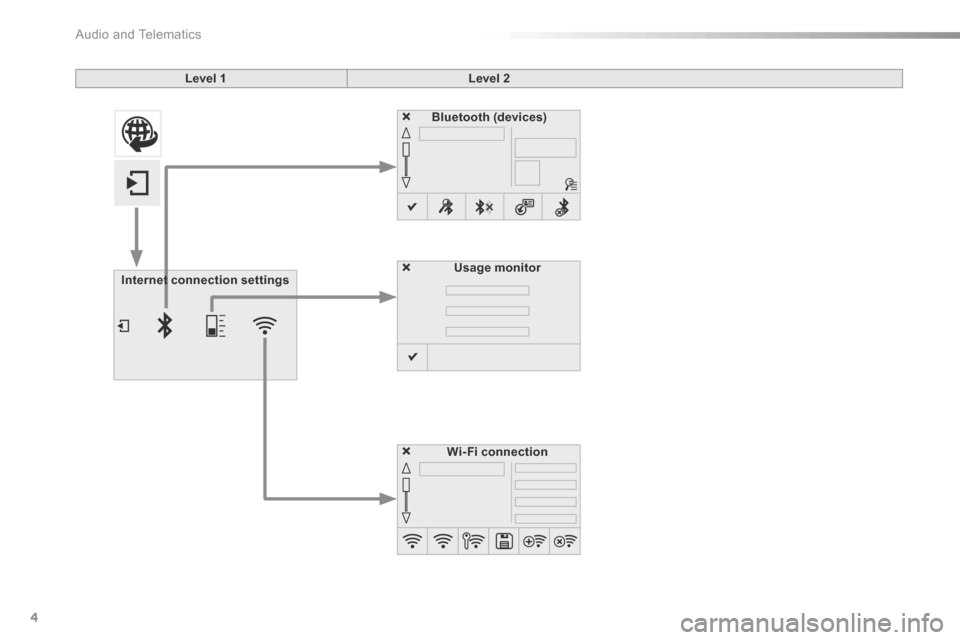
Internet connection settingsInternet connection settings
Wi-Fi connection
Bluetooth (devices)
Usage monitor
Page 320 of 401
.
Audio and Telematics 5
Additif-2_en_web_AC-AP_SMEGplus_Services_connectes_ed01-2015
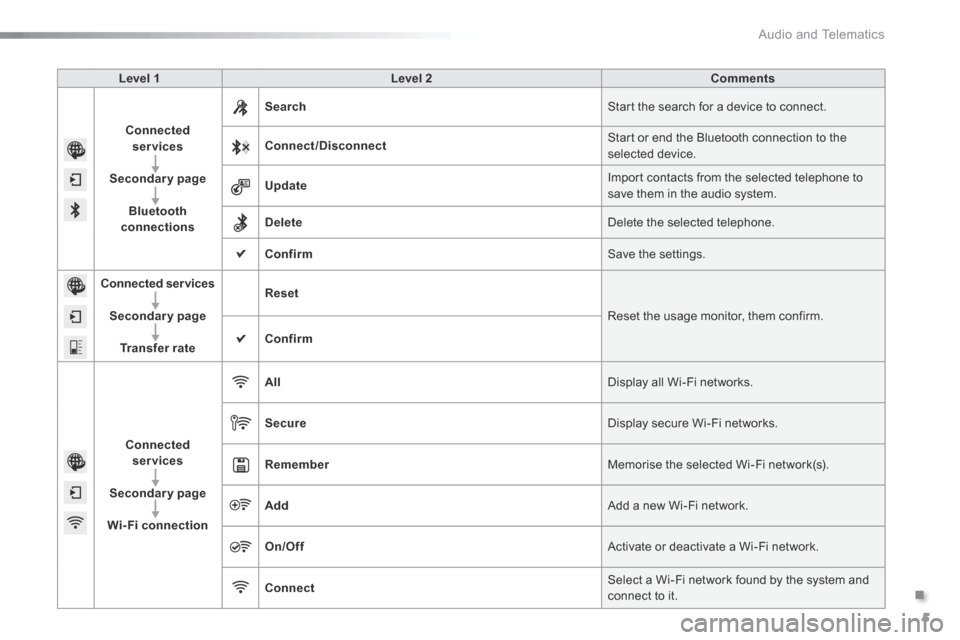
Level 1 Level 2 Comments
Connected services
Secondary page
Bluetooth connections
Search Start the search for a device to connect.
Connect/Disconnect Start or end the Bluetooth connection to the selected device.
Update Import contacts from the selected telephone to save them in the audio system.
Delete Delete the selected telephone.
Confirm Save the settings.
Connected services
Secondary page
Transfer rate
Reset
Reset the usage monitor, them confirm.
Confirm
Connected services
Secondary page
Wi-Fi connection
All Display all Wi-Fi networks.
Secure Display secure Wi-Fi networks.
Remember Memorise the selected Wi-Fi network(s).
Add Add a new Wi-Fi network.
On/Off Activate or deactivate a Wi-Fi network.
Connect Select a Wi-Fi network found by the system and connect to it.
Page 322 of 401
.
Audio and Telematics 7
Additif-2_en_web_AC-AP_SMEGplus_Services_connectes_ed01-2015
As a safety measure and because it requires sustained attention by the driver, using a smartphone when driving is prohibited. All operations must be done with the vehicle stationary . vehicle stationary . vehicle stationary
The synchronisation of a smartphone allows applications on a smartphone that are adapted to the MirrorLink TM technology to be displayed in the vehicle's screen. The principles and standards are constantly evolving. For the communication process between the smartphone and the system to work correctly, the smartphone must be unlocked; update the operating system of your smartphone as well as the date and time in the smartphone and the system. For the list of eligible smartphones,
connect to the brand's internet website in your country.
Please note: - if your smartphone is supported, to make it "MirrorLink TM " compatible, some phone manufacturers nevertheless invite you to first download a dedicated application.
When connecting a smartphone to the system, it is recommended that Bluetooth ® be started on the smartphone .® be started on the smartphone .®
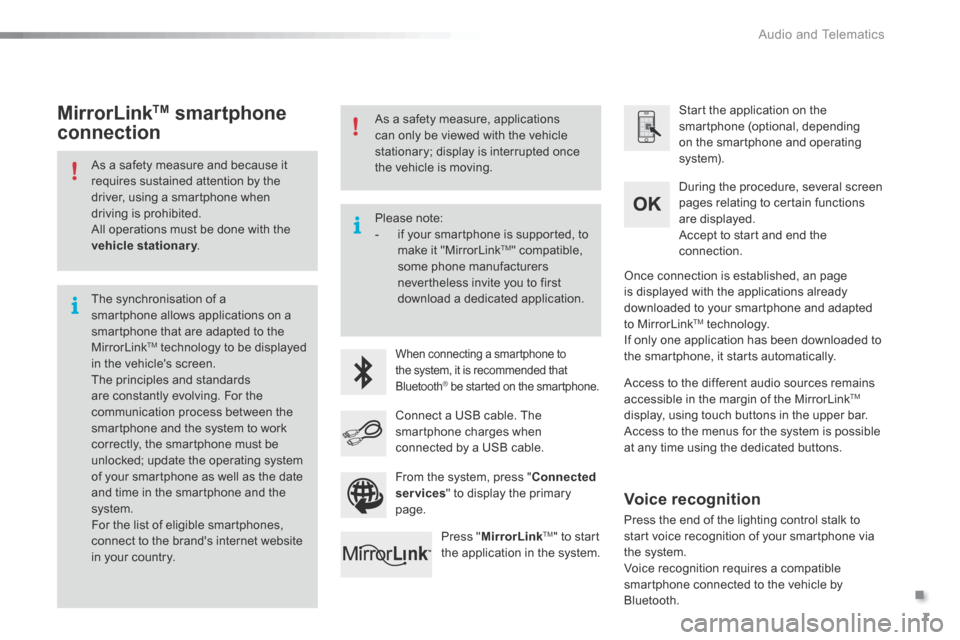
Start the application on the smartphone (optional, depending on the smartphone and operating system).
During the procedure, several screen pages relating to certain functions are displayed.
Accept to start and end the connection.
Connect a USB cable. The smartphone charges when connected by a USB cable.
Press " MirrorLinkTM " to start the application in the system.
Once connection is established, an page is displayed with the applications already downloaded to your smartphone and adapted to MirrorLink TM technology. If only one application has been downloaded to the smartphone, it starts automatically.
MirrorLink TM smartphone
connection
Access to the different audio sources remains accessible in the margin of the MirrorLink TM
display, using touch buttons in the upper bar. Access to the menus for the system is possible at any time using the dedicated buttons .
From the system, press " Connected services " to display the primary page.
As a safety measure, applications can only be viewed with the vehicle stationary; display is interrupted once the vehicle is moving.
Voice recognition
Press the end of the lighting control stalk to start voice recognition of your smartphone via the system. Voice recognition requires a compatible smartphone connected to the vehicle by Bluetooth.
Page 329 of 401
2
Multifunction screens1
C3-additif_en_Chap02_Ecrans-multifonction_ed01-2015
Touch screen tablet
This system gives access to: - menus for adjusting settings for vehicle functions and systems, - audio and display configuration menus, - audio system and telephone controls and the display of associated information, - the display of alert messages, - the display of ambient temperature (a blue snow flake appears when there is a risk of ice), - the display of the trip computer.
And, depending on equipment, it allows: - the display of visual parking sensors information, - access to the controls for the navigation system and Internet services, and the display of associated information.
Recommendations
It is necessary to press firmly, particularly for "flick" gestures (scrolling through lists, moving the map...). A light wipe is not enough.
The screen does not recognise pressing with more than one finger. This technology allows use at all temperatures and when wearing gloves. Do not use pointed objects on the touch screen tablet. Do not touch the touch screen tablet with wet hands. Uses a soft clean cloth to clean it.
General operation
As a safety measure, some functions can only be viewed with the vehicle stationary. When the vehicle moves off, their display is interrupted.
After a few moments with no action on the secondary page, the primary page is displayed automatically.
Principles
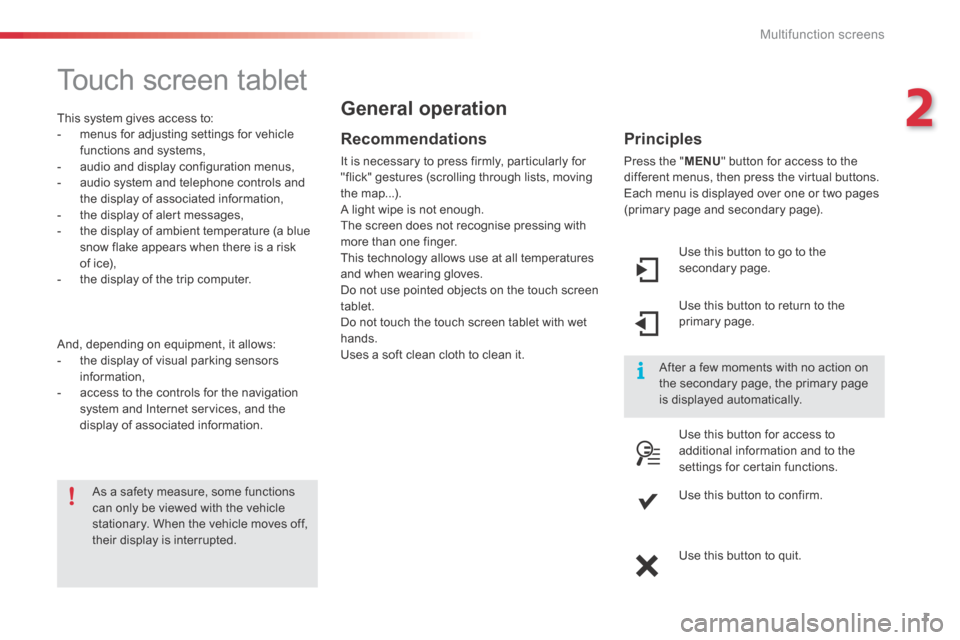
Press the " MENU " button for access to the different menus, then press the virtual buttons. Each menu is displayed over one or two pages (primary page and secondary page).
Use this button to go to the secondary page.
Use this button to return to the primary page.
Use this button for access to additional information and to the settings for certain functions.
Use this button to confirm.
Use this button to quit.
Page 337 of 401

9
C3-additif_en_Chap13b_SMEGplus_ed01-2015
7-inch touch screen tablet
GPS satellite navigation - Multimedia audio - Bluetooth® telephone
Contents
First steps
1 0
Steering mounted controls
1
2
M enus
13
N
avigation
1
4
Navigation - Guidance
2
2
Traffic
26
R
adio Media
2
8
Radio
34
DAB (Digital Audio Broadcasting) radio
3
6
Media
38
Settings
40
Connected services
4
8
MirrorLink
TM 48
C
arPlay® 52
T
elephone
54
Frequently asked questions
6
2
The system is protected in such a way that it will only operate in
your vehicle. As a safety measure, the driver should only carry out operations
which require prolonged attention while the vehicle is stationary.
The display of an energy economy mode message signals that
electrical systems operating are going into standby.
Refer to the energy economy mode section.
.
Audio and Telematics
Page 339 of 401
11
C3-additif_en_Chap13b_SMEGplus_ed01-2015
Volume adjustment (each source is independent,
including traffic announcements (TA) and
navigation instructions).
Mute the sound by pressing simultaneously on
the volume increase and reduce buttons.
Unmute the sound by pressing one of the two
volume buttons. Press Menu
to display the menu
carousel.
Increase volume.
Reduce volume.
Selecting the audio source (depending on
version):
-
"
FM" / "DAB"* / "AM"* stations.
-
"
USB" memory stick.
-
S
martphone via MirrorLink
TM or CarPlay®.
- T
elephone connected by Bluetooth®* and
Bluetooth® audio streaming*.
-
M
edia player connected to the auxiliary
socket (jack, cable not supplied).
* Depending on equipment.
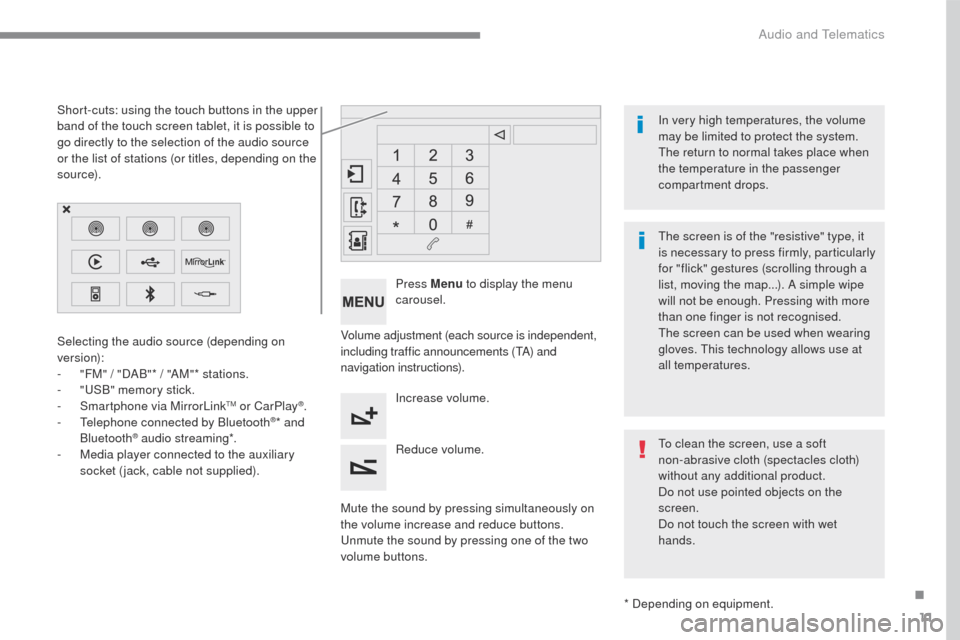
Short-cuts: using the touch buttons in the upper
band of the touch screen tablet, it is possible to
go directly to the selection of the audio source
or the list of stations (or titles, depending on the
s o u r c e).
The screen is of the "resistive" type, it
is necessary to press firmly, particularly
for "flick" gestures (scrolling through a
list, moving the map...). A simple wipe
will not be enough. Pressing with more
than one finger is not recognised.
The screen can be used when wearing
gloves. This technology allows use at
all temperatures. In very high temperatures, the volume
may be limited to protect the system.
The return to normal takes place when
the temperature in the passenger
compartment drops.
To clean the screen, use a soft
non-abrasive cloth (spectacles cloth)
without any additional product.
Do not use pointed objects on the
screen.
Do not touch the screen with wet
hands.
.
Audio and Telematics