CITROEN C3 2021 Repair Manual
C3 2021
CITROEN
CITROEN
https://www.carmanualsonline.info/img/9/56580/w960_56580-0.png
CITROEN C3 2021 Repair Manual
Page 316 of 450
42
12:13
18,5 21,5
23 °C
2
Audio and Telematics
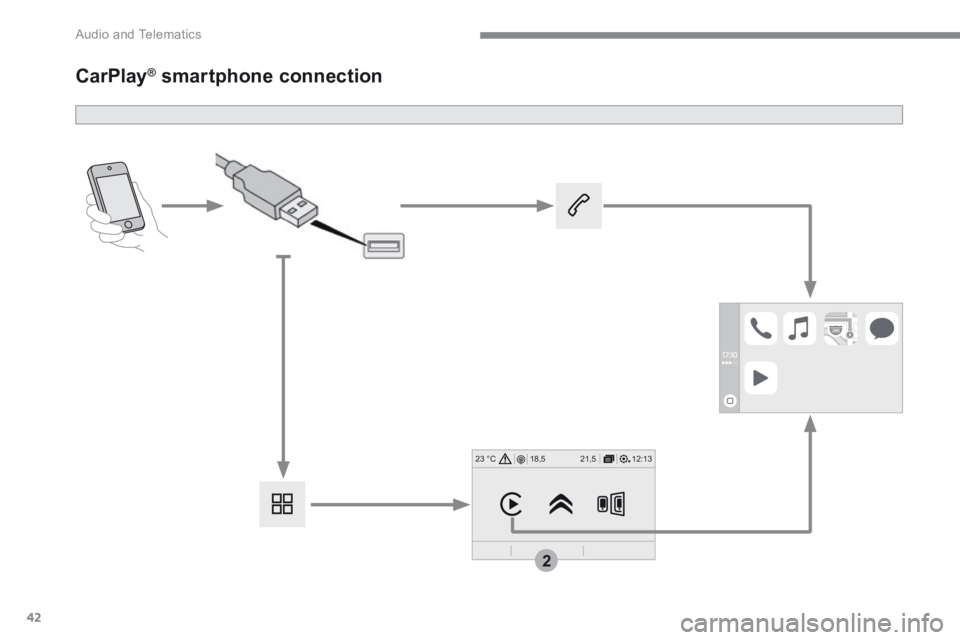
CarPlay ® CarPlay ® CarPlay smartphone connection ® smartphone connection ®
Page 317 of 450
43
.
2
Audio and Telematics
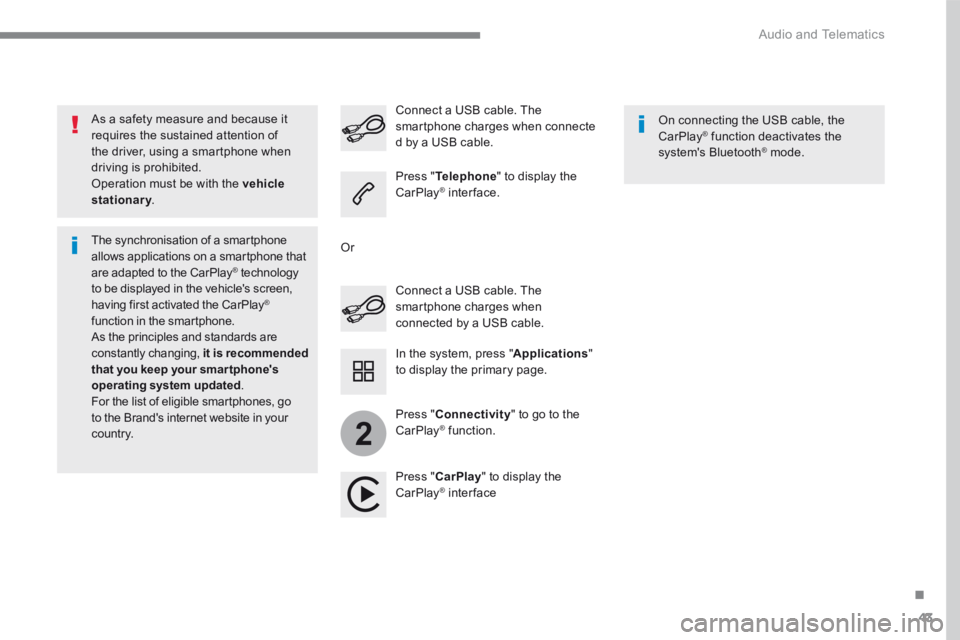
As a safety measure and because it requires the sustained attention of the driver, using a smartphone when driving is prohibited. Operation must be with the vehicle stationary . stationary . stationary
The synchronisation of a smartphone allows applications on a smartphone that are adapted to the CarPlay ® technology ® technology ®
to be displayed in the vehicle's screen, having first activated the CarPlay ® function in the smartphone. As the principles and standards are constantly changing, it is recommended that you keep your smar tphone's operating system updated . For the list of eligible smartphones, go to the Brand's internet website in your c o unt r y.
Connect a USB cable. The smartphone charges when connected by a USB cable.
Connect a USB cable. The smartphone charges when connecte d by a USB cable.
Press " Telephone " to display the CarPlay ® inter face. ® inter face. ®
Press " CarPlay " to display the CarPlay ® inter face ® inter face ®
On connecting the USB cable, the CarPlay ® function deactivates the ® function deactivates the ®
system's Bluetooth ® mode. ® mode. ®
In the system, press " Applications " to display the primary page.
Or
Press " Connectivity " to go to the CarPlay ® function. ® function. ®
Page 318 of 450
44
12:13
18,5 21,5
23 °C
2
Audio and Telematics
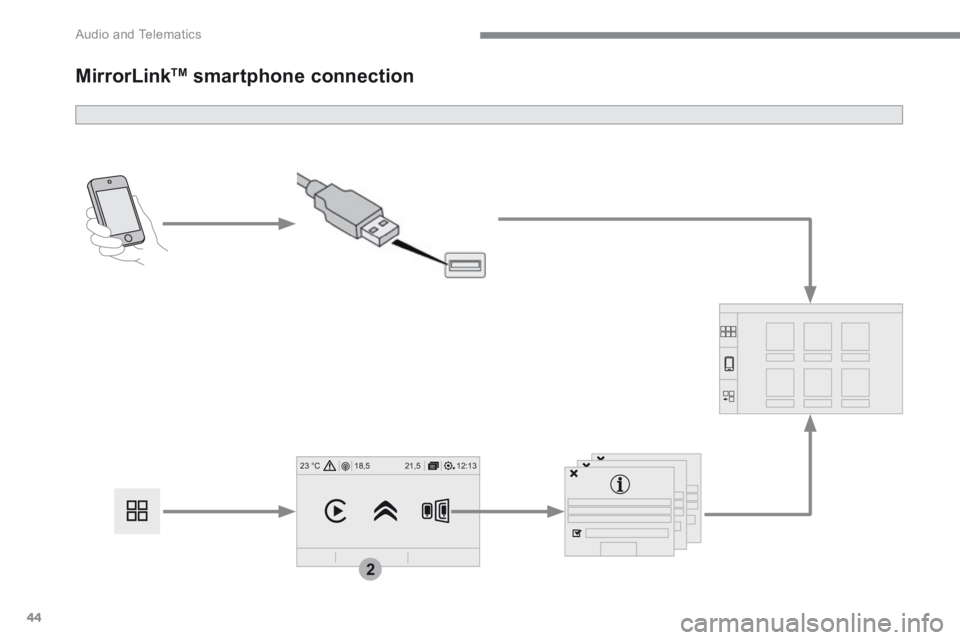
MirrorLink TM smartphone connection
Page 319 of 450
45
.
2
Audio and Telematics
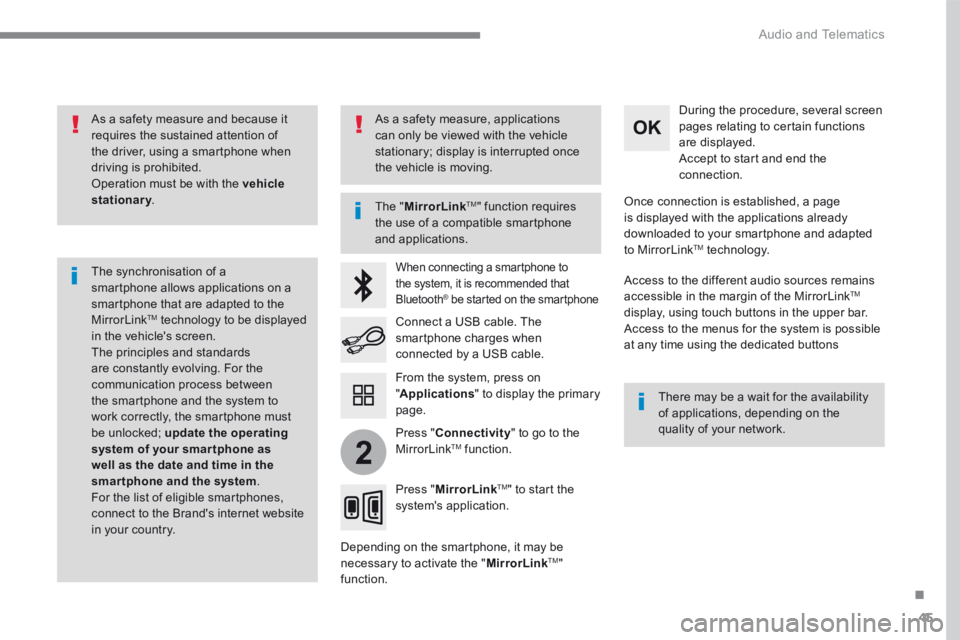
As a safety measure and because it requires the sustained attention of the driver, using a smartphone when driving is prohibited. Operation must be with the vehicle stationary . stationary . stationary
The synchronisation of a smartphone allows applications on a smartphone that are adapted to the MirrorLink TM technology to be displayed in the vehicle's screen. The principles and standards are constantly evolving. For the communication process between the smartphone and the system to work correctly, the smartphone must be unlocked; update the operating system of your smar tphone as well as the date and time in the smartphone and the system. For the list of eligible smartphones, connect to the Brand's internet website in your country.
The " MirrorLinkTM " function requires the use of a compatible smartphone
and applications.
There may be a wait for the availability of applications, depending on the quality of your network.
When connecting a smartphone to the system, it is recommended that Bluetooth ® be started on the smartphone ® be started on the smartphone ®
Depending on the smartphone, it may be necessary to activate the " MirrorLinkTM " function.
During the procedure, several screen pages relating to certain functions are displayed. Accept to start and end the connection.
Connect a USB cable. The smartphone charges when connected by a USB cable.
Press " MirrorLinkTM " to start the system's application.
Once connection is established, a page is displayed with the applications already downloaded to your smartphone and adapted to MirrorLink TM t e c h n o l o g y .
Access to the different audio sources remains accessible in the margin of the MirrorLink TM
display, using touch buttons in the upper bar. Access to the menus for the system is possible at any time using the dedicated buttons
From the system, press on " Applications " to display the primary page.
As a safety measure, applications can only be viewed with the vehicle stationary; display is interrupted once the vehicle is moving.
Press " Connectivity " to go to the MirrorLink TM function.
Page 320 of 450
46
12:13
18,52 1,5
23 °C
Audio and Telematics
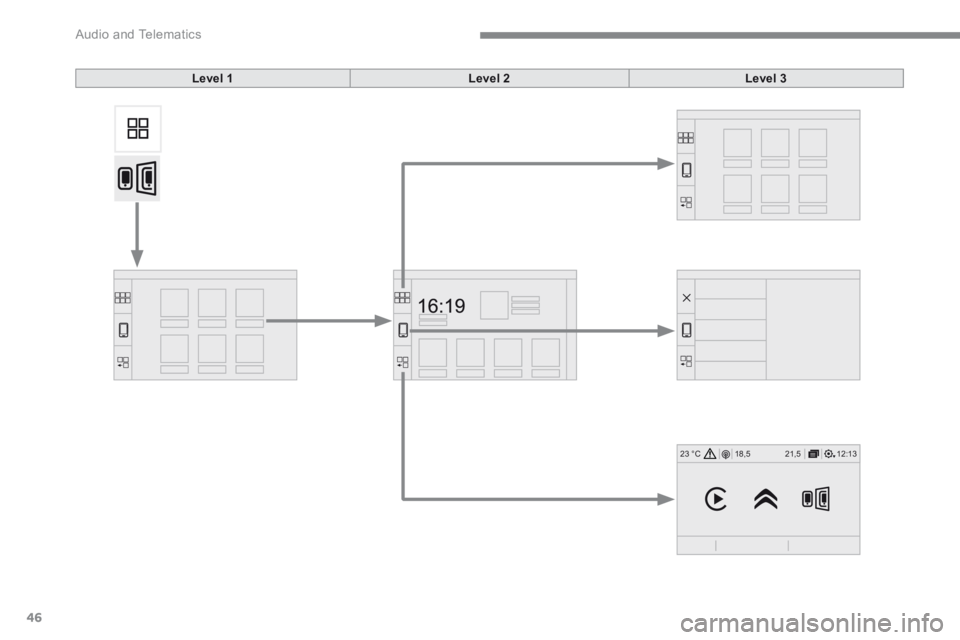
Level 1Level 2Level 3
Page 321 of 450
47
.
Audio and Telematics
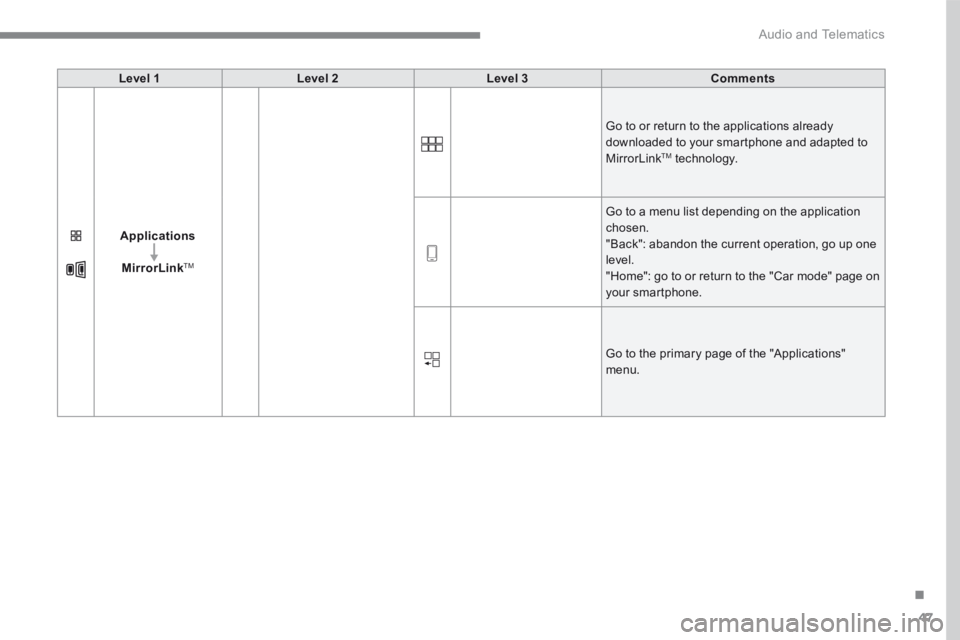
Level 1Level 2Level 3Comments
Applications
MirrorLinkTM
Go to or return to the applications already downloaded to your smartphone and adapted to MirrorLink TM technology.
Go to a menu list depending on the application chosen. "Back": abandon the current operation, go up one level. "Home": go to or return to the "Car mode" page on your smartphone.
Go to the primary page of the "Applications" menu.
Page 322 of 450
48
12:13
18,5 21,5
23 °C
3
321
465
Audio and Telematics
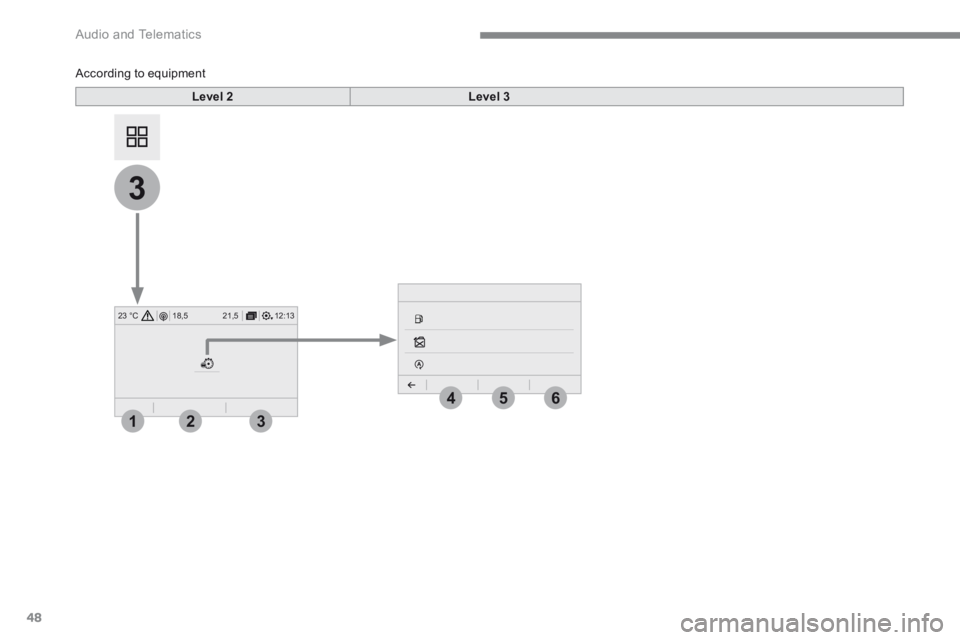
According to equipment
Level 2Level 3
Page 323 of 450
49
.
4
5
6
Audio and Telematics
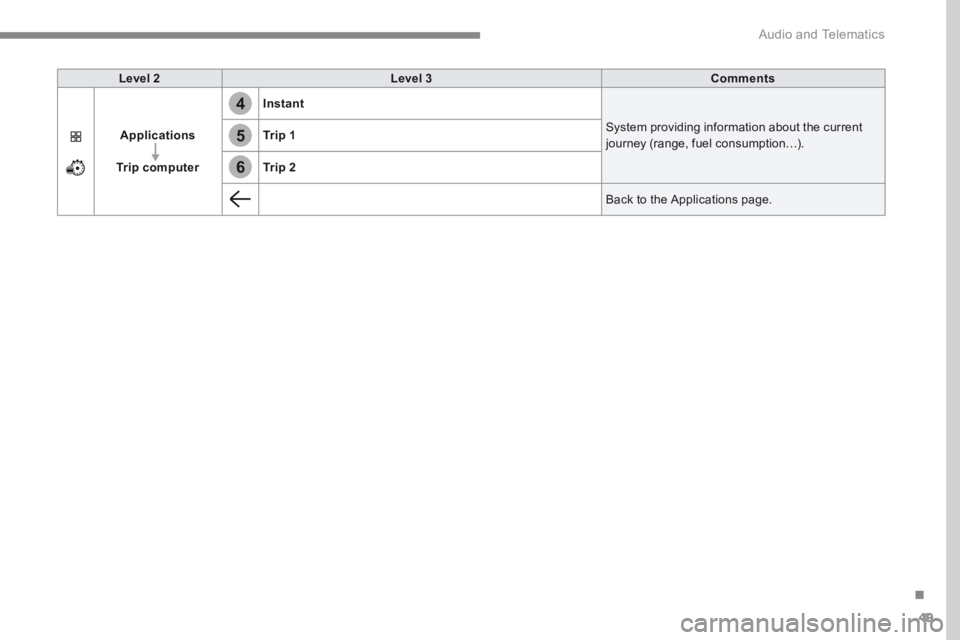
Level 2Level 3Comments
Applications
Trip computer
Instant
System providing information about the current journey (range, fuel consumption…). Tr i p 1
Tr i p 2
Back to the Applications page.
Page 324 of 450
50
12:13
18,5 21,5
23 °C7
12
8
13
91110132
Audio and Telematics
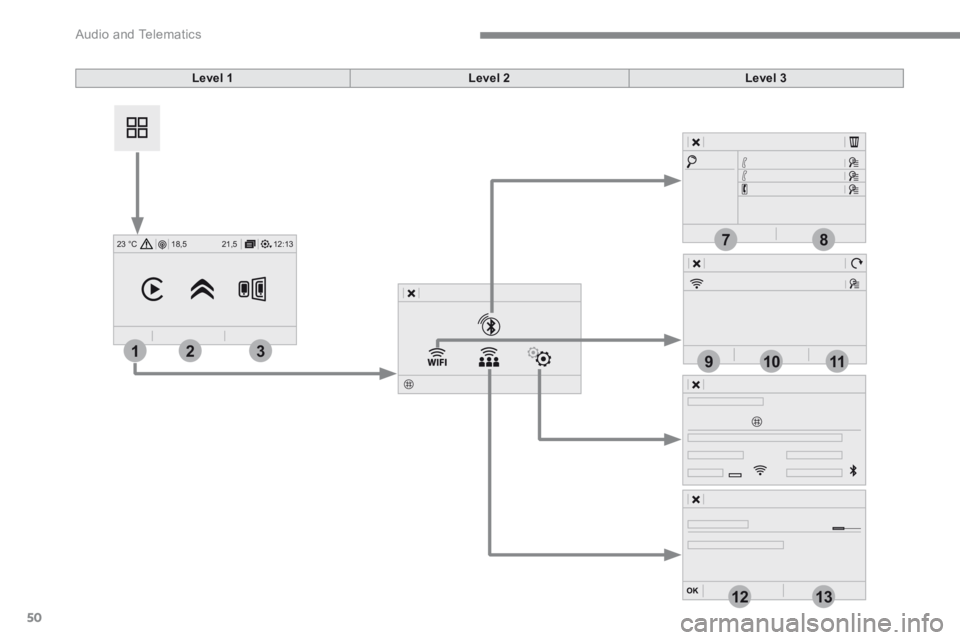
Level 1Level 2Level 3
Page 325 of 450
51
.
1
1
1
1
11
12
13
7
8
9
10
Audio and Telematics
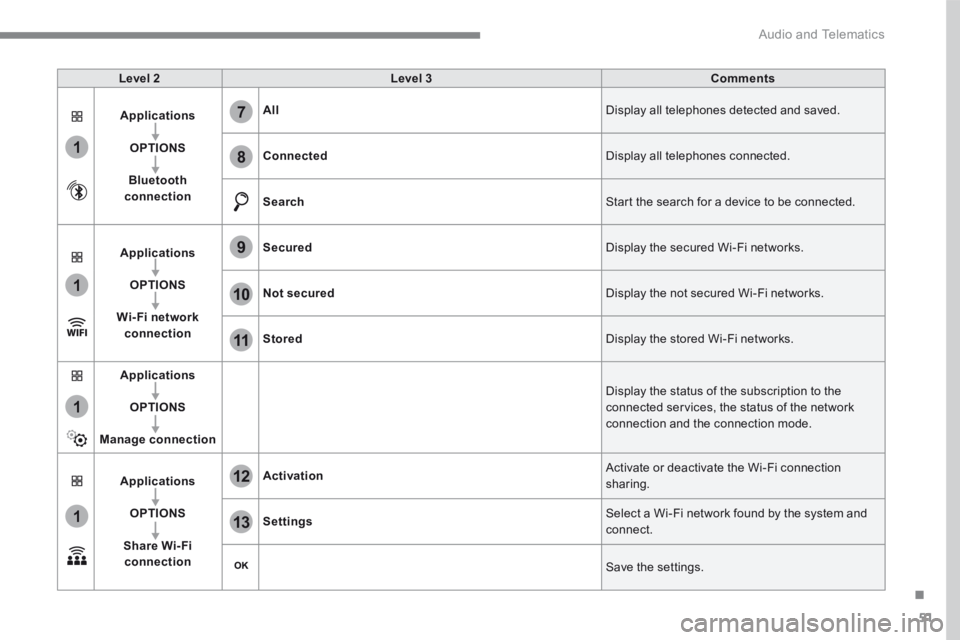
Level 2Level 3Comments
Applications
OPTIONS
Bluetooth connection
All Display all telephones detected and saved.
Connected Display all telephones connected.
Search Start the search for a device to be connected.
Applications
OPTIONS
Wi- Fi network connection
Secured Display the secured Wi-Fi networks.
Not secured Display the not secured Wi-Fi networks.
Stored Display the stored Wi-Fi networks.
Applications
OPTIONS
Manage connection
Display the status of the subscription to the connected services, the status of the network connection and the connection mode.
Applications
OPTIONS
Share Wi- Fi connection
Activation Activate or deactivate the Wi-Fi connection sharing.
Settings Select a Wi-Fi network found by the system and connect.
Save the settings.