audio CITROEN C3 PICASSO 2010 User Guide
[x] Cancel search | Manufacturer: CITROEN, Model Year: 2010, Model line: C3 PICASSO, Model: CITROEN C3 PICASSO 2010Pages: 244, PDF Size: 8.29 MB
Page 152 of 244

11
150
PRACTICAL INFORMATION
Fuse N°
Rating
Functions
F8
20 A
Multifunction screen, audio system, navigation
radio.
F9
30 A
Audio system (fi tted as an option), 12 V socket.
F10
15 A
Steering mounted controls.
F11
15 A
Ignition, diagnostic socket.
F12
15 A
Rain/sunshine sensor, trailer relay unit.
F13
5 A
Main stop switch, engine relay unit.
F14
15 A
Parking sensors control unit, seat belt unfastened
warning lamp, airbag control unit, instrument panel,
air conditioning, USB Box.
F15
30 A
Locking.
F16
-
Not used.
F17
40 A
Rear screen and door mirrors demist/defrost.
SH
-
PARC shunt.
Page 159 of 244

11
157
PRACTICAL INFORMATION
A fl at battery prevents the en-
gine from starting (refer to the
corresponding paragraph).
If the telephone is being used
at the same time on the MyWay
audio navigation system, it will
be interrupted after 10 minutes.
ENERGY ECONOMY MODE
System which manages the period of
use of certain functions to conserve a
suffi cient level of charge in the battery.
After the engine has stopped, you can
still use functions such as the audio
equipment, windscreen wipers, dipped
beam headlamps, courtesy lamps, etc.
for a maximum combined period of
thirty minutes.
This period may be greatly reduced if
the battery is not fully charged.
Exiting economy mode
These functions are reactivated auto-
matically the next time the vehicle is
driven.
)
In order to resume the use of these
functions immediately, start the en-
gine and let it run for a few minutes.
The time available to you will then be dou-
ble the period for which the engine is left
running. However, this period will always
be between fi ve and thirty minutes.
Switching to economy mode
Once this period has elapsed, a mes-
sage appears on the multifunction
screen indicating that the vehicle has
switched to economy mode and the
active functions are put on standby.
CHANGING A FRONT OR REARWIPER BLADE
Procedure for replacing a worn wiper
blade with a new one without the use
of tools.
Removal
)
Raise the corresponding wiper arm.
)
Unclip the wiper blade and remove it.
Fitting
)
At the front, check the size of the
wiper blade as the shorter blade is
fi tted to the passenger side of the
vehicle.
)
Put the corresponding new wiper
blade in place and clip it.
)
Fold down the wiper arm carefully.
Before removing a front wiper blade
)
Within one minute after switching off
the ignition, operate the wiper stalk
to position the wiper blades in the
vertical position.
This position must be used in order to
avoid damaging the wiper blade and the
bonnet.
After fitting a front wiper blade
)
Switch on the ignition.
)
Operate the wiper stalk again to
park the wiper blades.
Page 165 of 244

11
163
PRACTICAL INFORMATION
"Multimedia":
semi-integral navigation systems, Bluetooth ®
hands free kit, audio systems, speakers,
DVD player, USB box, portable navigation
systems, mapping update CD, Hi-Fi module, speed camera warning, Wi-Fi on board...
Depending on the legislation in
force in the country, it may be
compulsory to have a high visi-
bility safety vest, warning triangle
and spare bulbs and fuses avail-
able in the vehicle. The fi tting of electrical equipment
or accessories which are not rec-
ommended by CITROËN may
result in a failure of your vehicle's
electronic system and excessive
electrical consumption.
Please note this precaution. You
are advised to contact a CITROËN
representative to be shown the
range of recommended equipment
and accessories.
Installation of radio
communication transmitters
Before installing any after-market
radio communication transmitter,
you can contact a CITROËN deal-
er for the specifi cation of transmit-
ters which can be fi tted (frequency,
maximum power, aerial posi-
tion, specifi c installation require-
ments), in line with the Vehicle
Electromagnetic Compatibility
Directive (2004/104/EC).
By visiting a CITROËN dealer, you
can also obtain cleaning and main-
tenance products (interior and
exterior), including the ecological
products in the "TECHNATURE"
range, products for topping up
(screenwash fl uid...), touch-up
pens and paint aerosols the exact
colour of your vehicle, recharges
(cartridge for the temporary punc-
ture repair kit...), ....
Page 177 of 244

175
The MyWay is protected in such a way that it will onlyoperate in your vehicle. If it is to be installed in another vehicle, contact a CITROËN dealer for confi guration of py
the system.
Certain functions described in this handbook will
become available during the year.
MyWay
For safety reasons, the driver must carry out operations which require prolonged attention while the vehicle is stationary.
When the en
gine is switched off and to prevent
discharging of the battery, the MyWay switches off
following the activation of the Energy Economy mode.
MULTIMEDIA AUDIO SYSTEM/BLUETOOTH TELEPHONE
SATELLITE NAVIGATION SYSTEM FOR EUROPE BY SD CARD
01 First steps
CONTENTS
02 Steering mounted controls
03 General operation
04 Navigation - Guidance
05 Traffic information
06 Radio
07 Music media players
08 Bluetooth telephone
09 Configuration
10 Screen menu map p.
p.
p.
p.
p.
p.
p.
p.
p.
p.
Frequently asked questions p. 176
177
178
181
189
191
192
195
198
199
203
Page 178 of 244

176
01 FIRST STEPS
MyWay CONTROL PANEL
Engine not running:
-
Short press: on/off.
- Long press: pause with
CD play, mute for radio.
Engine running:
- Short
press: pause with CD play, mute for radio.
-
Long press: reinitialise thesystem.
Access to theRadio Menu.Display the list of stations.
Access to theMusic Menu. Display tracks. Lon
g press: audio settings: front/rear fader, left/right balance, bass/treble,
musical ambience, loudness, automatic
volume, reinitialise settings.
Selection dial for the
screen display and according to the menu.
Short press: contextual
menu or confi rm.
Long press: contextual
menu specifi c to the list
displayed.
A
ccess to the"SETUP" menu.
Lon
g press: GPS coverage anddemonstration
mode.
Access to the PhoneMenu. Display the list of calls.
E
ject CD.
Select previous/next radio station.
Select previous CD or MP3
track.
Select previous/next line in a list.
Select
previous/next radio station in the list.
Select previous/next MP3
folder.
Select previous/next page in a list.
E
SC: abandon current operation.
Access to theTraffi c Menu. Display the current
traffi c alerts. R
eader for navigation SDcard only.
A
ccess to theNavigation Menu. Displayrecent destinations.
A
ccess to the "MODE" menu.
Select successive display of:
Radio, Map, NAV (if navigation in progress),
Telephone (if conversation in progress), Tripcomputer.
Long press: Black screen (DARK). Buttons 1 to
6:
Select a pre-set radiostation.
Long press: pre-set the current station.
Ad
just volume (each source
is independent, including
navigation messages andalerts).
Page 179 of 244
177
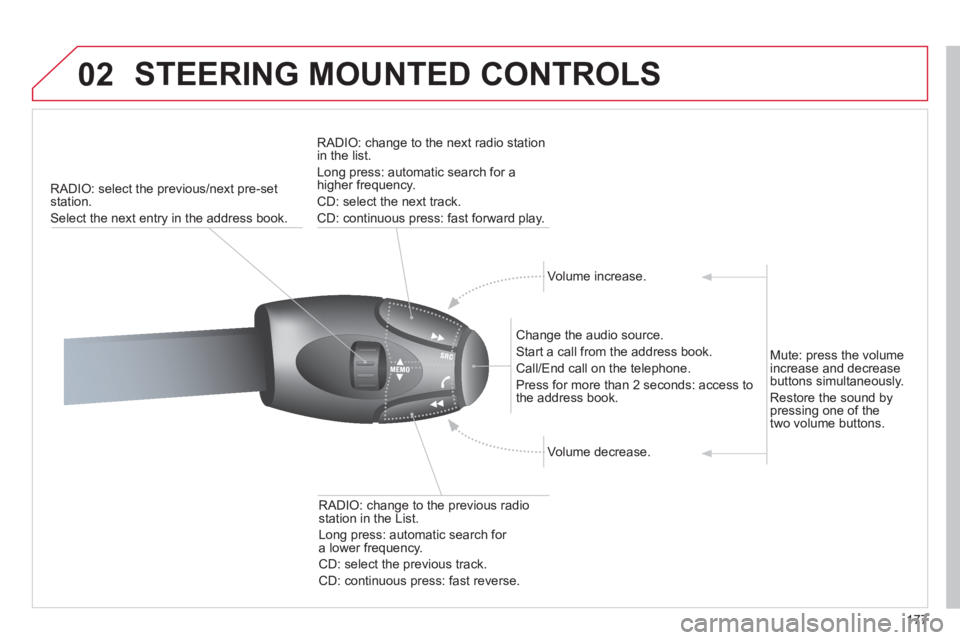
02 STEERING MOUNTED CONTROLS
RADIO: select the previous/next pre-set station.
Select the next entr
y in the address book.
RADI
O: change to the next radio station in the list.
Lon
g press: automatic search for ahigher frequency.
CD: select the next track.
CD: continuous press: fast forward pla
y.
Volume increase.
Change the audio source.
Start a call from the address book.
Call/End call on the tele
phone.
Pr
ess for more than 2 seconds: access tothe address book.
V
olume decrease.
RADI
O: change to the previous radio station in the List.
Lon
g press: automatic search for
a lower frequency.
CD: select the previous track.
CD: continuous press: fast reverse.
Mute:
press the volume
increase and decrease
buttons simultaneously.
Restore the sound bypressing one of the
two volume buttons.
Page 192 of 244
190
05
2 1
3
2 1
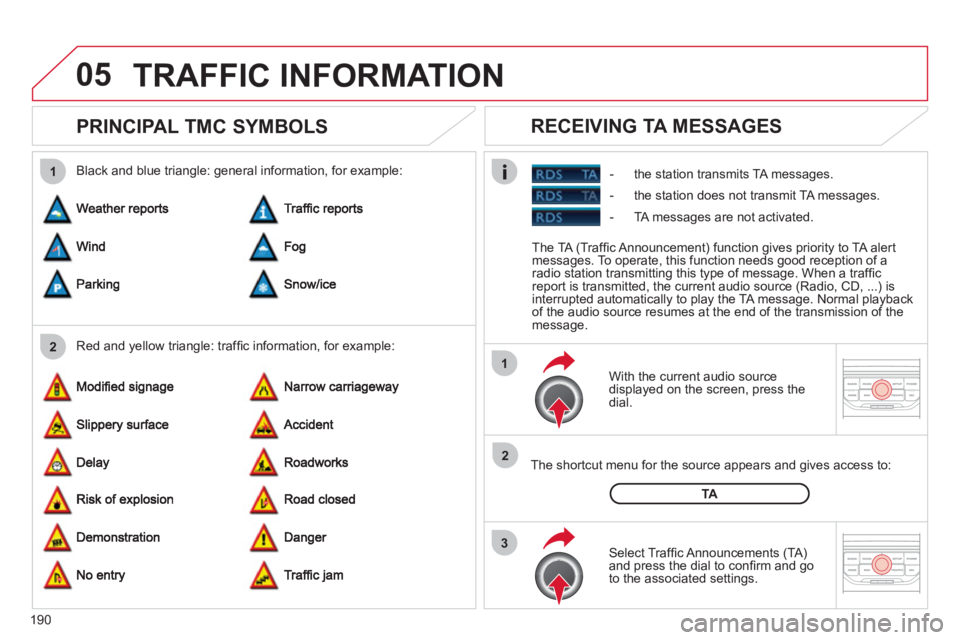
PRINCIPAL TMC SYMBOLS
With the current audio source
displayed on the screen, press the
dial.
The shortcut menu
for the source appears and gives access to:
Select Traffi c Announcements
(TA)and press the dial to confi rm and go
to the associated settings.
TA
- the station transmits TA messages.
RECEIVING TA MESSAGES
Red and yellow triangle: traffi c information, for example: Black and blue triangle: general in
formation, for example:
TRAFFIC INFORMATION
The TA (Traffi c Announcement) function gives priority to TA alert messages. To operate, this function needs good reception of a
radio station transmitting this type of message. When a traffi c
report is transmitted, the current audio source (Radio, CD, ...) is
interrupted automatically to play the TA message. Normal playbackof the audio source resumes at the end of the transmission of themessage.
- the station does not transmit TA messa
ges.
-
TA messages are not activated.
Page 193 of 244

191
06
3 2 1 1
SELECTING A STATION
When the current radio station isdisplayed on the screen, press thedial.
The radio source short-cuts menu appears and provides access to
the following short-cuts:
Select the function re
quired and press the dial to confi rm to gain
access to the corresponding settings.
TA
RDS, if displayed, allows you to continue listening to the same station by automatic retuning to alternative frequencies. However,
in certain conditions, coverage of an RDS station may not be
assured throughout the entire country as radio stations do notcover 100 % of the territory. This explains the loss of reception of
the station during a journey.
The external environment (hill, building, tunnel, underground car park...)may interfere with the reception, including in RDS following mode. Thisphenomenon is a normal result of the way in which radio waves are
transmitted and does not in any way indicate a failure of the audio equipment.
RDS - REGIONAL MODE
Press the RADIO button to display
the list of stations received locally sorted in alphabetical order.
Select the station required by turningthe dial and press to confi rm.
Re
gional prog.
Radiotext
RDSWhile listening to the radio, press one of the
buttons to select the previous or next station on
the list.
Press one o
f the buttons on the numeric keypad for more than
2 seconds to store the current station.
Press the button on the numeric keypad to recall the stored radio
station.
AM
A long press of one of the buttons starts theautomatic search for a station with a lower or
higher frequency.
RADIO
Page 194 of 244

192
07MUSIC MEDIA PLAYERS
CD, MP3/WMA CD
INFORMATION AND ADVICE
In order to be able to play a recorded CDR or CDRW, when recording it is preferable to select the ISO 9660 level 1, 2 or Jolietstandard.
I
f the disc is recorded in another format it may not be playedcorrectly.
It is recommended that the same recordin
g standard is alwaysused for an individual disc, with as low a speed as possible(4x maximum) for optimum sound quality.
In the particular case o
f a multi-session CD, the Joliet standard is recommended.
The M
yWay will only play audio fi les with the extension ".mp3"
with a speed of between 8 Kbps and 320 Kbps and the extension
".wma" with a speed of between 5 Kbps and 384 Kbps.
It also supports the VBR
(Variable Bit Rate) mode.
No other t
ype of fi le (.mp4, .m3u...) can be played. The MP3
format, an abbreviation of MPEG 1, 2 & 2.5 Audio Layer 3 and the WMA format, an abbreviation of Windows Media Audio and
the property of Microsoft, are audio compression standards which permit the recording of several tens of music fi les on a single disc.
It is advisable to restrict fi le names to 20 characters
, without
using special characters (e.g.: " ? ; ù) to avoid any play or display
problems.
Page 196 of 244

194
07
43 1
2
MUSIC MEDIA PLAYERS
Connect the portable device(MP3/WMA player…) to the RCA
audio sockets (white and red)using a JACK/RCA audio cable.
Press the M
USIC button then
press it again or select the Music Menu function and press the dial to confi rm.
Select the AUX music source and
press the dial to confi rm. Play beginsautomatically.
Select the "External device" functionand press the dial to activate it.
External device
USING THE EXTERNAL INPUT (AUX)
Music Menu
AUDIO JACK-RCA CABLE NOT SUPPLIED
The display and management of the controls is on the portable device.