radio Citroen C3 RHD 2015 2.G Owner's Guide
[x] Cancel search | Manufacturer: CITROEN, Model Year: 2015, Model line: C3 RHD, Model: Citroen C3 RHD 2015 2.GPages: 324, PDF Size: 9.86 MB
Page 283 of 324
281
audio system
Audio system / Bluetooth®
Contents
First steps
2 82
Steering mounted controls
2
83
Menus
28
4
Radio
2
84
Media
286
Telephone
290
Screen menu map(s)
2
92
Frequently asked questions
2
96
Your Audio system is coded in such a way that it will only operate
in your vehicle.
as a s
afety measure, the driver must only carry out operations
which require prolonged attention while the vehicle is stationary.
When the engine is switched off and to prevent discharging of the
battery, the audio equipment may switch off after a few minutes.
.
audio and Telematics
Page 284 of 324
282
First steps
* available according to version.
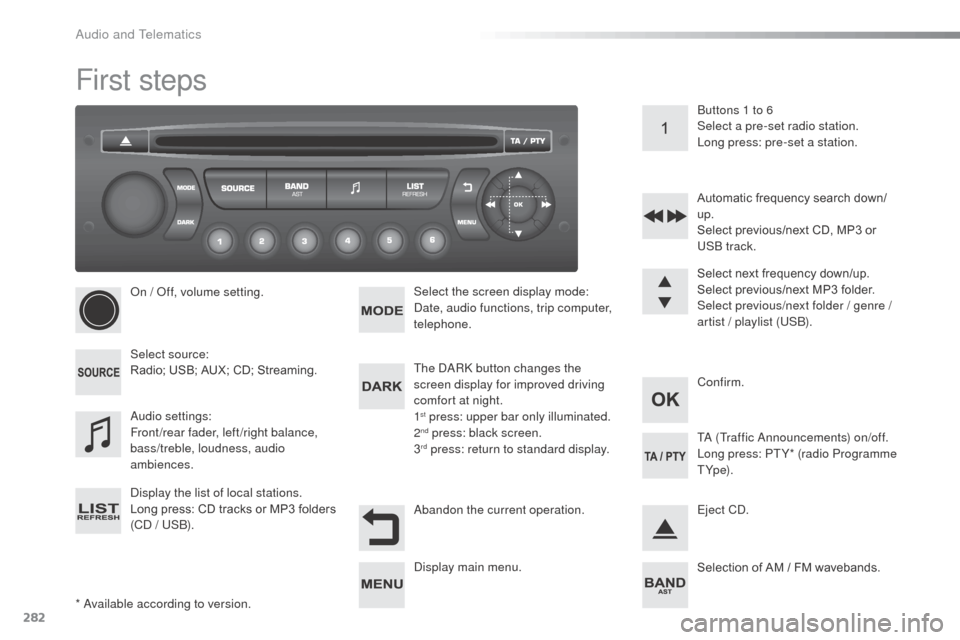
on /
o
f
f, volume setting.
Select source:
Radio; USB; AUX; CD; Streaming.
di
splay the list of local stations.
Long press: CD tracks or MP3 folders
(C
d
/ US
b)
. Select the screen display mode:
da
te, audio functions, trip computer,
telephone.
aud
io settings:
Front/rear fader, left/right balance,
bass/treble, loudness, audio
ambiences. The da
Rk
button changes the
screen display for improved driving
comfort at night.
1
st press: upper bar only illuminated.
2nd press: black screen.
3rd press: return to standard display. Select next frequency down/up.
Select previous/next MP3 folder.
Select previous/next folder / genre /
artist / playlist (US
b)
.
ab
andon the current operation. Confirm.
bu
ttons 1 to 6
Select a pre-set radio station.
Long press: pre-set a station.
Automatic frequency search down/
up.
Select previous/next CD, MP3 or
US
b
track.
Eject C
d
.
di
splay main menu. Ta
(Traffic an nouncements) on/off.
Long press: PT Y* (radio Programme
T Yp e).
Selection of AM / FM wavebands.
audio and Telematics
Page 285 of 324
283
Steering mounted controls
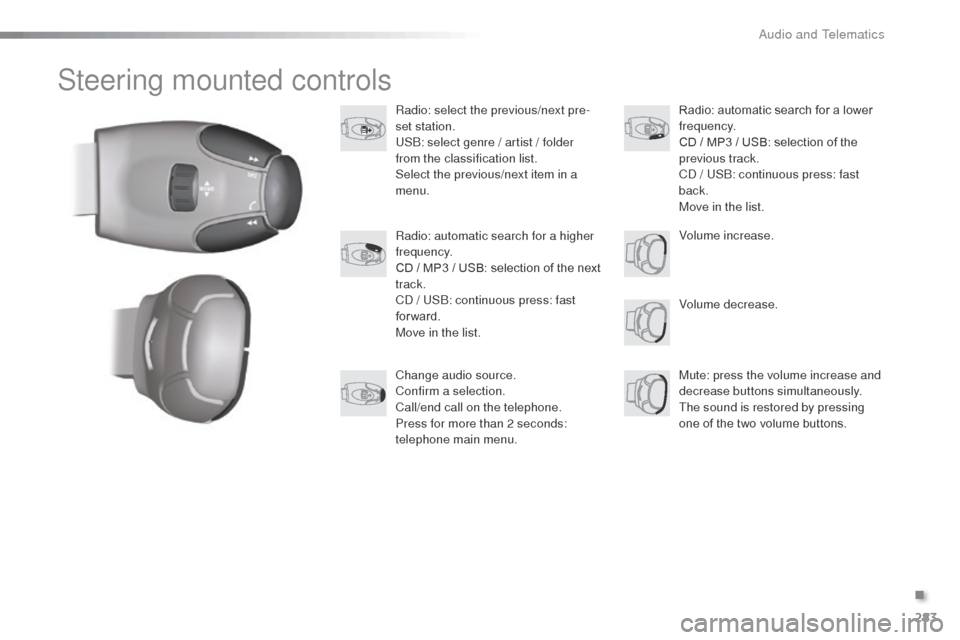
Radio: select the previous/next pre-
set station.
US
b: s
elect genre / artist / folder
from the classification list.
Select the previous/next item in a
menu.
Volume decrease.
Radio: automatic search for a higher
frequency.
CD / MP3 / USB: selection of the next
track.
C
d
/ US
b: c
ontinuous press: fast
forward.
Move in the list.
Mute: press the volume increase and
decrease buttons simultaneously.
The sound is restored by pressing
one of the two volume buttons. Radio: automatic search for a lower
frequency.
CD / MP3 / USB: selection of the
previous track.
C
d
/ US
b: c
ontinuous press: fast
back.
Move in the list.
Change audio source.
Confirm a selection.
Call/end call on the telephone.
Press for more than 2 seconds:
telephone main menu. Volume increase.
.
audio and Telematics
Page 286 of 324
284
Menus
Screen C
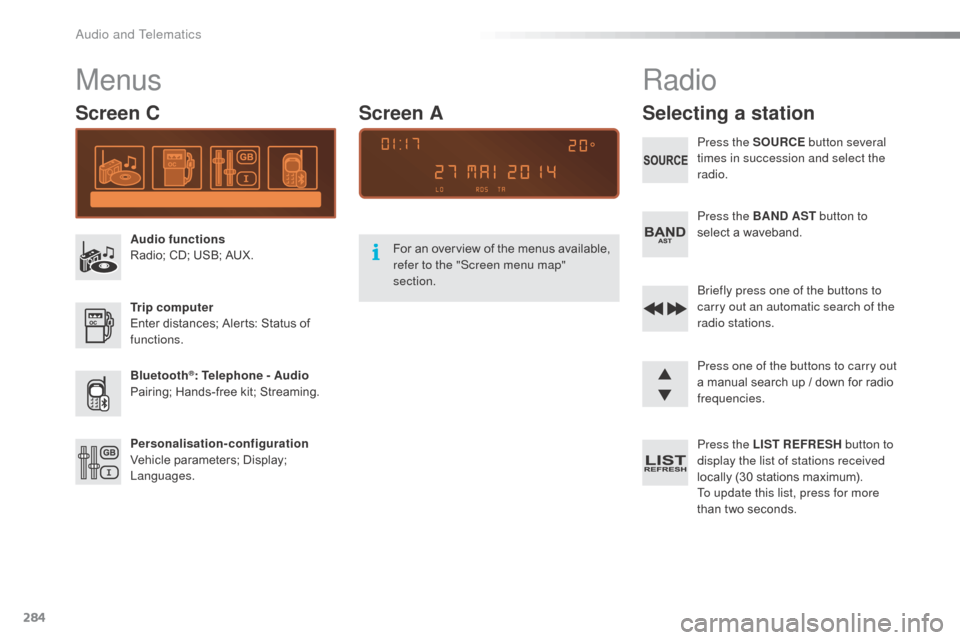
Audio functions
Radio; CD; USB; AUX.
Trip computer
Enter distances; Alerts: Status of
functions.
Bluetooth
®: Telephone - Audio
Pairing; Hands-free kit; Streaming.
Personalisation-configuration
Vehicle parameters; Display;
Languages. For an overview of the menus available,
refer to the "Screen menu map"
section.
Screen A
Radio
Selecting a station
Press the SOURCE
button several
times in succession and select the
radio.
Press the BAND AST button to
select a waveband.
br
iefly press one of the buttons to
carry out an automatic search of the
radio stations.
Press one of the buttons to carry out
a manual search up / down for radio
frequencies.
Press the LIST REFRESH button to
display the list of stations received
locally (30 stations maximum).
To update this list, press for more
than two seconds.
audio and Telematics
Page 287 of 324
285
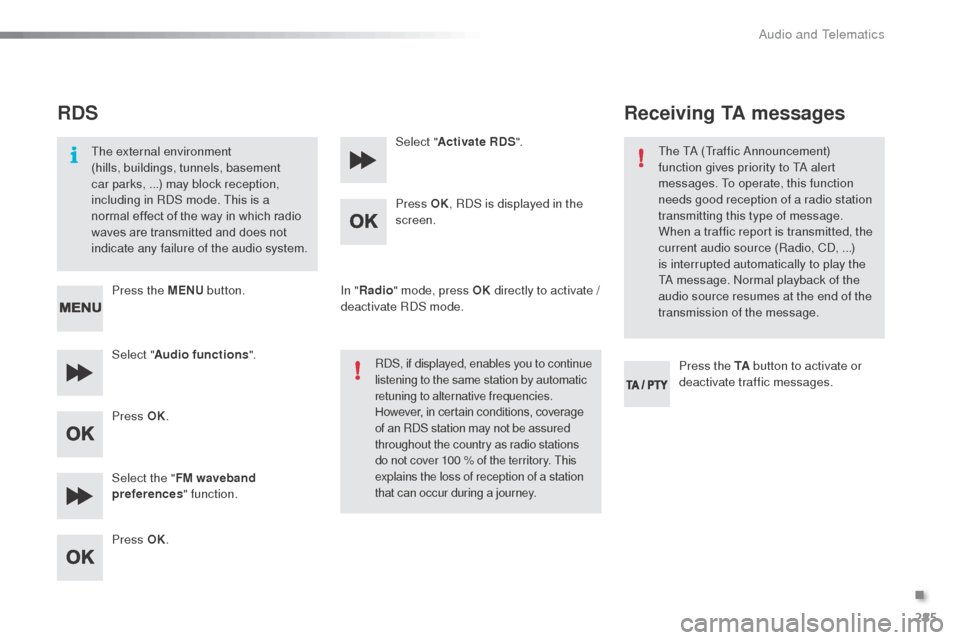
RDS
The external environment
(hills, buildings, tunnels, basement
car parks, ...) may block reception,
including in R
dS m
ode. This is a
normal effect of the way in which radio
waves are transmitted and does not
indicate any failure of the audio system.
Press the MENU button.
Select " Audio functions ".
Press OK.
Select the " FM waveband
preferences " function.
Press OK. Select "
Activate RDS ".
Press OK , R
dS i
s displayed in the
screen.
In " Radio " mode, press OK directly to activate /
deactivate R
dS
mode.
RdS, if displayed, enables you to continue
listening to the same station by automatic
retuning to alternative frequencies.
However, in certain conditions, coverage
of an R
dS s
tation may not be assured
throughout the country as radio stations
do not cover 100 % of the territory. This
explains the loss of reception of a station
that can occur during a journey.
Receiving TA messages
Press the TA button to activate or
deactivate traffic messages.
The T
a
(Traffic a
n
nouncement)
function gives priority to T
a
alert
messages. To operate, this function
needs good reception of a radio station
transmitting this type of message.
When a traffic report is transmitted, the
current audio source (Radio, C
d, .
..)
is interrupted automatically to play the
T
a
message. n
o
rmal playback of the
audio source resumes at the end of the
transmission of the message.
.
Audio and Telematics
Page 294 of 324

292
Screen menu map(s)
Radio- CD
REG mode
CD repeat
Shuffle play
Vehicle config*
R wiper in rev
Options
Diagnostic
RDS options
View
ab
andon
1
2
3
3
1
2
2
2
2
1
2
Screen A
* The settings vary according to the trim level of the vehicle.
Guide lighting
2
Units
Temperature: °Celsius / °Fahrenheit
Fuel consumption: KM/L - L/100 - MPG
1
2
2
Display adjust
Month
Day
Hour
Minutes Ye a r
12 H/24 H mode
Language
Italiano
Nederlands
Portuguès
Português do Brasil Français
Deutsch
Čeština English
Hr vatski Español
Magyar
1
2
2
2
2
2
2
2
1
2
2
2
2
2
2
2
2
2
2
audio and Telematics
Page 295 of 324
293
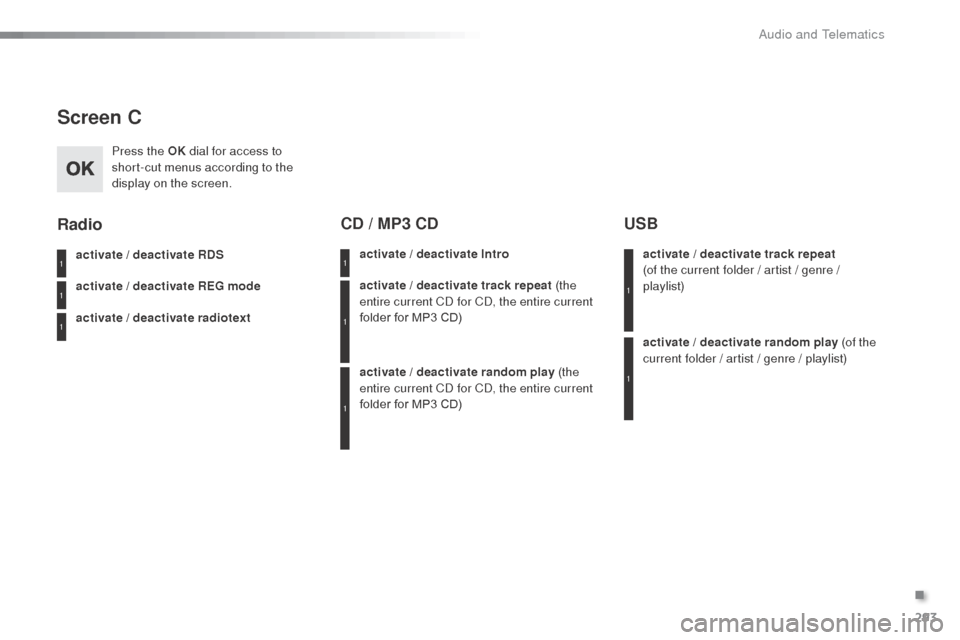
Screen C
Press the OK dial for access to
short-cut menus according to the
display on the screen.
activate / deactivate RDS
activate / deactivate REG mode
activate / deactivate radiotext
Radio
activate / deactivate Intro
CD / MP3 CD
activate / deactivate track repeat (the
entire current Cd for Cd, t he entire current
folder for MP3 CD)
activate / deactivate random play (the
entire current C
d
for C
d, t
he entire current
folder for MP3 CD) activate / deactivate track repeat
(of
the current folder / artist / genre /
playlist)
USB
activate / deactivate random play (of the
current folder / artist / genre / playlist)
1
1
1
1
1
1
1
1
.
Audio and Telematics
Page 296 of 324
294
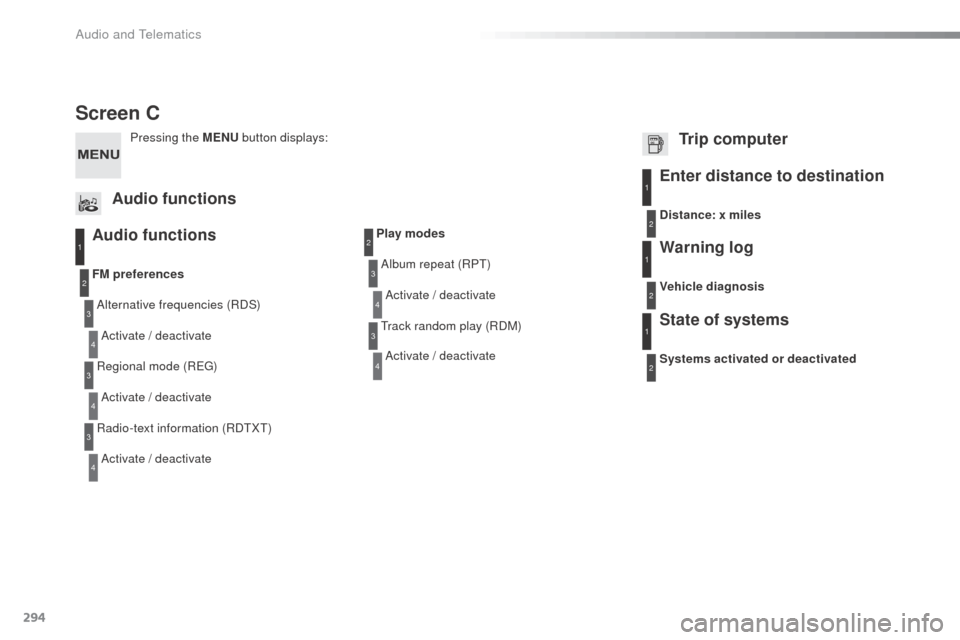
Screen C
Audio functions
alternative frequencies (RdS)
ac
tivate / deactivate
FM
preferences
Regional mode (REG)
ac
tivate / deactivate
Radio-text information (R
dT
XT)
ac
tivate / deactivate
1
2
3
4
3
4
3
4
Play modes
al
bum repeat (RPT)
ac
tivate / deactivate
Track random play (R
dM
)
ac
tivate / deactivate2
3
4
3
4
Enter distance to destination1
1
1
2
2
2
Pressing the MENU button displays:
Audio functions Trip computerDistance: x miles
Vehicle diagnosis
Warning log
Systems activated or deactivated
State of systems
Audio and Telematics
Page 298 of 324
296
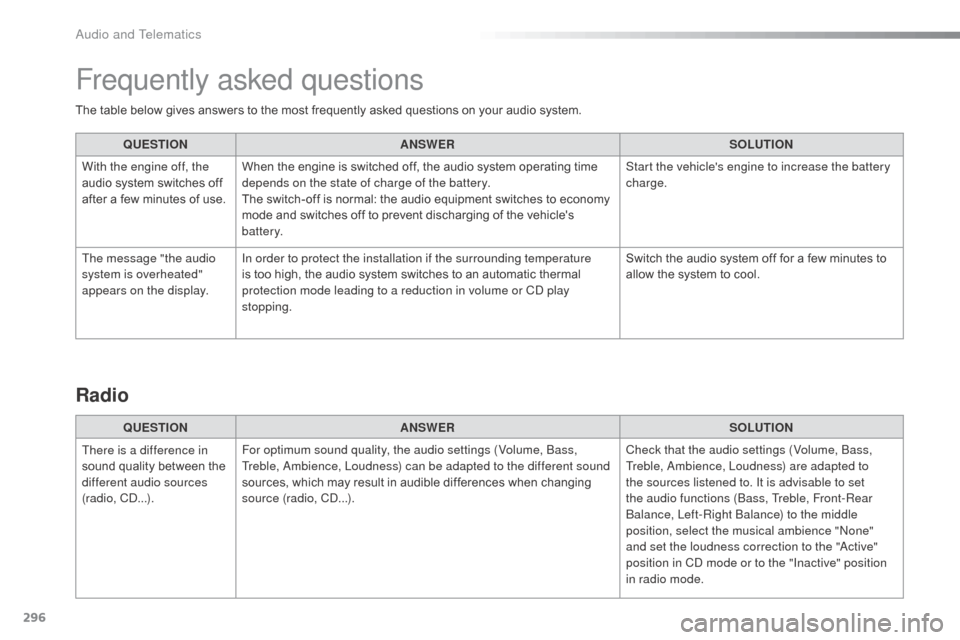
The table below gives answers to the most frequently asked questions on your audio system.QUESTION ANSWER SOLUTION
With the engine off, the
audio system switches off
after a few minutes of use. When the engine is switched off, the audio system operating time
depends on the state of charge of the battery.
The switch-off is normal: the audio equipment switches to economy
mode and switches off to prevent discharging of the vehicle's
battery. Start the vehicle's engine to increase the battery
charge.
The message "the audio
system is overheated"
appears on the display. In order to protect the installation if the surrounding temperature
is too high, the audio system switches to an automatic thermal
protection mode leading to a reduction in volume or C
d
play
stopping. Switch the audio system off for a few minutes to
allow the system to cool.
Frequently asked questions
QUESTION
ANSWER SOLUTION
There is a difference in
sound quality between the
different audio sources
(radio, C
d...
). For optimum sound quality, the audio settings (Volume,
b
a
ss,
Treble,
a
m
bience, Loudness) can be adapted to the different sound
sources, which may result in audible differences when changing
source (radio, C
d...
). Check that the audio settings (Volume,
b
a
ss,
Treble,
a
m
bience, Loudness) are adapted to
the sources listened to. It is advisable to set
the audio functions (
ba
ss, Treble, Front-Rear
balanc
e, Left-Right b
alanc
e) to the middle
position, select the musical ambience "
no
ne"
and set the loudness correction to the "
ac
tive"
position in C
d
mode or to the "Inactive" position
in radio mode.
Radio
Audio and Telematics
Page 299 of 324
297
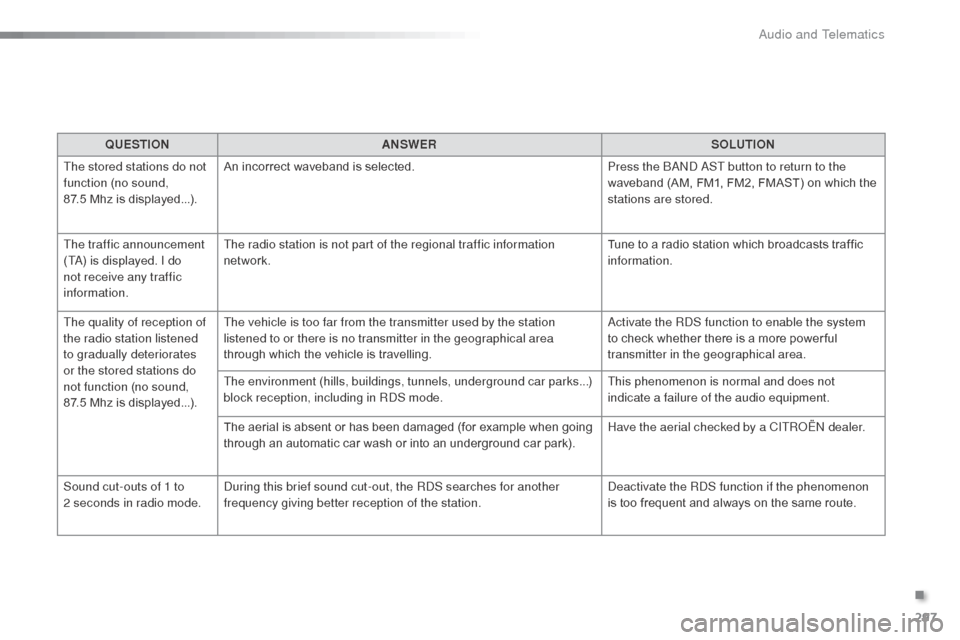
QUESTIONANSWER SOLUTION
The stored stations do not
function (no sound,
87.5 Mhz is displayed...). An incorrect waveband is selected.
Press the
band a
S
T button to return to the
waveband (AM, FM1, FM2, FMAST) on which the
stations are stored.
The traffic announcement
(T
a) i
s displayed. I do
not receive any traffic
information. The radio station is not part of the regional traffic information
network.
Tune to a radio station which broadcasts traffic
information.
The quality of reception of
the radio station listened
to gradually deteriorates
or the stored stations do
not function (no sound,
87.5
Mhz is displayed...). The vehicle is too far from the transmitter used by the station
listened to or there is no transmitter in the geographical area
through which the vehicle is travelling.
ac
tivate the R
dS f
unction to enable the system
to check whether there is a more power ful
transmitter in the geographical area.
The environment (hills, buildings, tunnels, underground car parks...)
block reception, including in R
dS m
ode.This phenomenon is normal and does not
indicate a failure of the audio equipment.
The aerial is absent or has been damaged (for example when going
through an automatic car wash or into an underground car park). Have the aerial checked by a CITR
oËn
dealer.
Sound cut-outs of 1 to
2
seconds in radio mode.
du
ring this brief sound cut-out, the R
d
S searches for another
frequency giving better reception of the station.
de
activate the R
dS f
unction if the phenomenon
is too frequent and always on the same route.
.
Audio and Telematics