radio Citroen C4 2014.5 2.G Owner's Manual
[x] Cancel search | Manufacturer: CITROEN, Model Year: 2014.5, Model line: C4, Model: Citroen C4 2014.5 2.GPages: 494, PDF Size: 21.47 MB
Page 39 of 494
37
Monochrome screen A
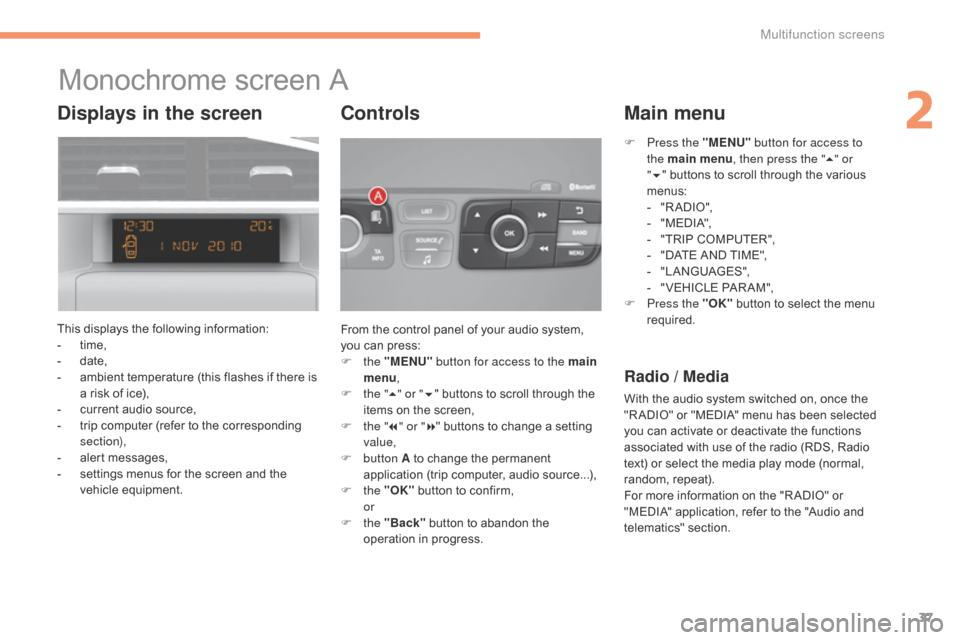
This displays the following information:
- t ime,
-
d
ate,
-
a
mbient temperature (this flashes if there is
a
risk of ice),
-
c
urrent audio source,
-
t
rip computer (refer to the corresponding
s
ection),
-
a
lert messages,
-
s
ettings menus for the screen and the
v
ehicle
e
quipment. From
the control panel of your audio system,
y
ou can press:
F
the "MENU" button for access to the main
menu ,
F
t
he "5" or " 6"
buttons to scroll through the
i
tems on the screen,
F
t
he "7" or " 8"
buttons to change a setting
va
lue,
F
button A
to change the permanent
a
pplication (trip computer, audio source...),
F
the "OK"
button to confirm,
or
F
the "Back"
button to abandon the
o
peration in progress.
Controls
F Press the "MENU" button for access to
the main menu , then press the " 5" or
" 6 "
buttons to scroll through the various
m
enus:
-
"
R A DIO ",
-
"
M EDI A",
-
"
TRIP COMPUTER",
-
"
DATE AND TIME",
-
"
LANGUAGES",
-
"
VEHICLE PAR AM",
F
P
ress the "OK"
button to select the menu
r
equired.
Main menu
Radio / Media
With the audio system switched on, once the "R ADIO" or "MEDIA" menu has been selected
y
ou can activate or deactivate the functions
a
ssociated with use of the radio (RDS, Radio
t
ext) or select the media play mode (normal,
r
andom,
r
epeat).
For
more information on the "R ADIO" or
"
MEDIA" application, refer to the "Audio and
t
elematics"
se
ction.
Displays in the screen
2
Multifunction screens
Page 42 of 494
40
"Telephone" menu
With the audio system switched on, this menu allows you to make a call or view the various
t
elephone
d
irectories.
For
more information on the "Telephone"
a
pplication, refer to the "Audio and telematics"
s
ection. This
menu allows you to view information on
t
he status of the vehicle.
Warning log
This summarises the status and warning m
essages for systems (active, not active or
f
aulty), displaying them in succession in the
m
ultifunction
s
creen.
F
P
ress the "MENU" button for access to the
main
menu.
F
P
ress the arrows, then the "OK" button to
select the "Trip computer"
menu.
F
I
n the "Trip computer"
menu, select the
"
Warning log" line and confirm.
"Trip computer" menu
"Multimedia" menu
With the audio system switched on, this m
enu allows you to activate or deactivate the
f
unctions associated with use of the radio
(
RDS, DAB / FM auto tracking, RadioText
(
TXT) display) or to choose the media play
m
ode (Normal, Random, Random all, Repeat).
For
more information on the "Multimedia"
a
pplication, refer to the "Audio and telematics"
s
ection.
"Bluetooth
connection" menu
Wit the audio system on, this menu allows a B luetooth device (telephone, media player)
t
o be connected or disconnected and the
c
onnection mode to be defined (hands-free,
p
laying audio files).
For
more information on the "Bluetooth
c
onnection" application, refer to the "Audio and
t
elematics"
se
ction.
Multifunction screens
Page 47 of 494
45
Menus
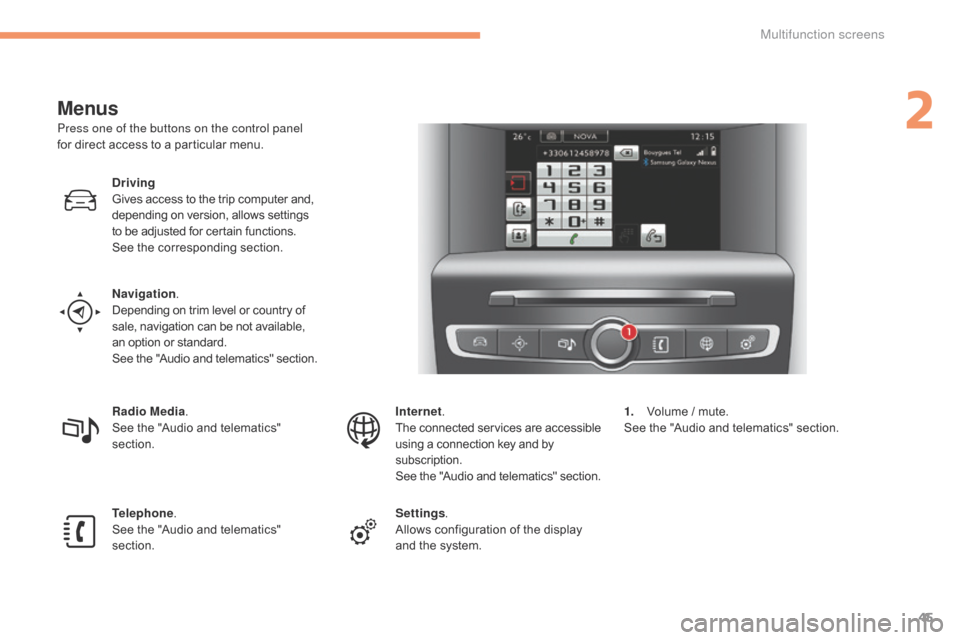
Press one of the buttons on the control panel
for direct access to a particular menu.
Driving
Gives
access to the trip computer and,
d
epending on version, allows settings
t
o be adjusted for certain functions.
See
the corresponding section.
Navigation .
Depending
on trim level or country of
s
ale, navigation can be not available,
a
n option or standard.
See
t
he
"
Audio
a
nd
t
elematics"
se
ction.
Radio Media .
See
the "Audio and telematics"
s
ection.
Telephone .
See
the "Audio and telematics"
s
ection. Internet.
The
connected services are accessible
u
sing a connection key and by
s
ubscription.
See
t
he
"
Audio
a
nd
t
elematics"
se
ction.
Settings .
Allows
configuration of the display
a
nd the system.1.
V
olume / mute.
See
the "Audio and telematics" section.
2
Multifunction screens
Page 251 of 494
249
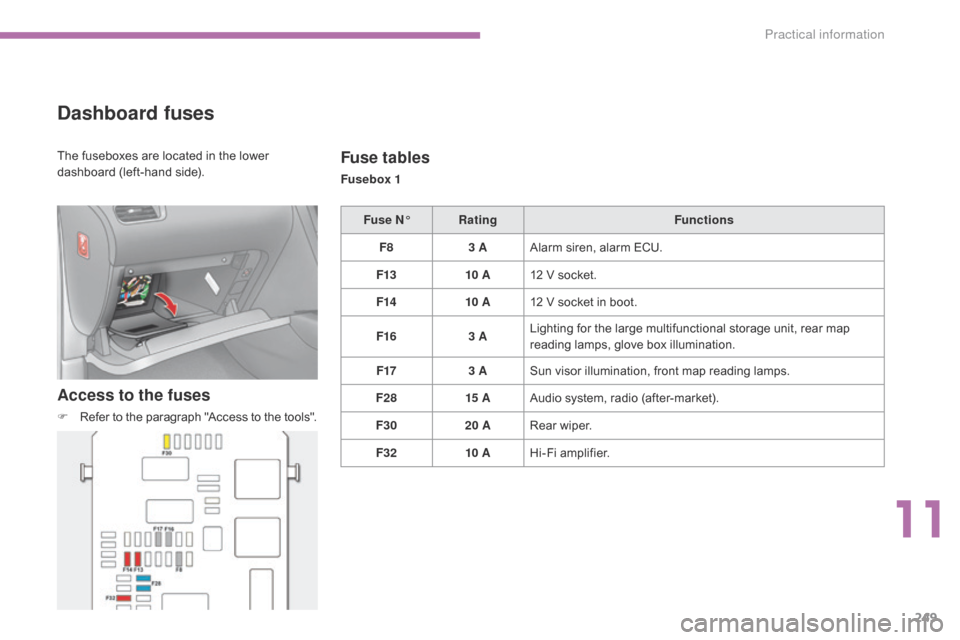
Dashboard fuses
Access to the fuses
F Refer to the paragraph "Access to the tools".
Fuse tables
Fusebox 1
Fuse N° Rating Functions
F8 3 AAlarm
s
iren,
alar
m
E
CU.
F13 10 A12
V socket.
F14 10 A12
V socket in boot.
F16 3 ALighting
for the large multifunctional storage unit, rear map
r
eading lamps, glove box illumination.
F17 3 ASun
visor illumination, front map reading lamps.
F28 15 AAudio
system, radio (after-market).
F30 20 ARear
wiper.
F32 10 AHi-Fi
amplifier.
The
fuseboxes
are
located
in
the
lower
d
ashboard
(left-hand
side).
11
Practical information
Page 270 of 494
268
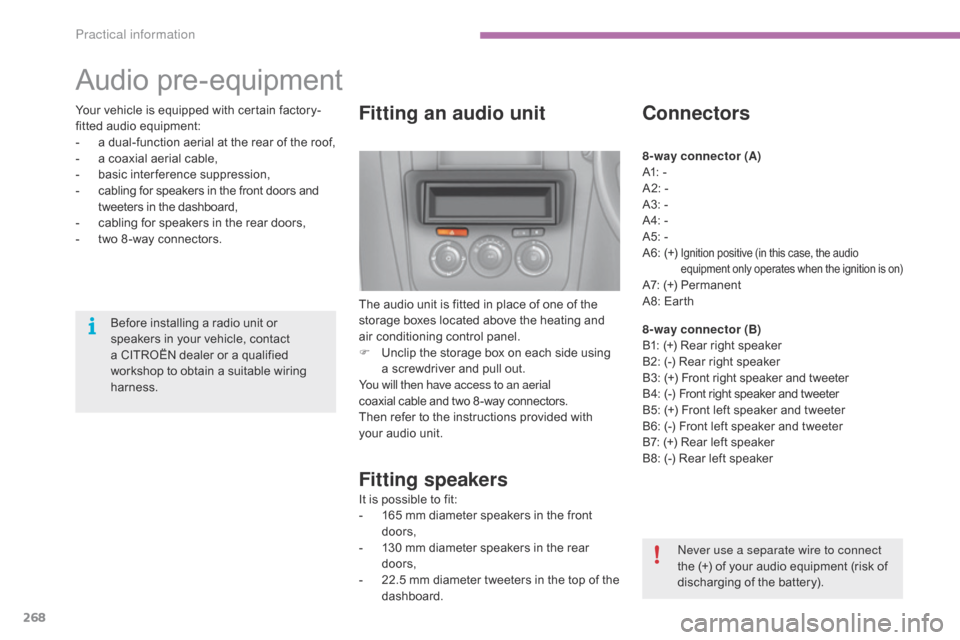
Audio pre-equipment
Fitting an audio unit
The audio unit is fitted in place of one of the storage boxes located above the heating and
a
ir conditioning control panel.
F
U
nclip the storage box on each side using
a
screwdriver and pull out.
You will then have access to an aerial
coaxial
cable and two 8 -way connectors.
Then
refer to the instructions provided with
y
our audio unit.
Fitting speakers
It is possible to fit:
- 1 65 mm diameter speakers in the front
d
oors,
-
1
30 mm diameter speakers in the rear
d
oors,
-
2
2.5 mm diameter tweeters in the top of the
das
hboard.
Connectors
8-way connector (A)
A1: -
A2:
-
A3:
-
A4:
-
A5:
-
A6:
(+)
Ignition positive (in this case, the audio equipment only operates when the ignition is on)
A7: (+) Permanent
A 8: Earth
8-way connector (B)
B1:
(+) Rear right speaker
B2:
(-) Rear right speaker
B3:
(
+)
F
ront right speaker and tweeter
B 4:
(
-)
F
ront right speaker and tweeter
B5:
(+) Front left speaker and tweeter
B6:
(-) Front left speaker and tweeter
B7:
(+) Rear left speaker
B8:
(-) Rear left speaker
ne
ver use a separate wire to connect
the
(+) of your audio equipment (risk of
d
ischarging of the battery).
Before
installing
a
radio
unit
or
s
peakers
in
your
vehicle,
contact
a
CITROËN
dealer
or
a
qualified
w
orkshop
to
obtain
a
suitable
wiring
har
ness.
Your
vehicle
is
equipped
with
certain
factory-
fitted
audio
equipment:
-
a
dual-function
aerial
at
the
rear
of
the
roof,
-
a
coaxial
aerial
cable,
-
b
asic
inter ference
suppression,
-
c
abling
for
speakers
in
the
front
doors
and
t
weeters
in
the
dashboard,
-
c
abling
for
speakers
in
the
rear
doors,
-
t
wo
8 -way
connectors.
Practical information
Page 272 of 494
270
"Multimedia":
audio systems, steering mounted audio controls, speakers, Hi-Fi module, Bluetooth
h
ands-free system, portable satellite navigation
s
ystem, semi-integral support bracket for
p
ortable navigation system, mapping update
C
D, driving assistant, portable video screen,
p
ortable video support bracket, 230 V/50 Hz
s
ocket, 230 V/50 Hz adaptor, iPhone
®
compatible
mobile
phone
charger,
mobile
p
hone/smartphone
bracket,
Wi-Fi
on
board...
By
going to a CITROËN dealer, you can also
o
btain cleaning and maintenance products
(
interior and exterior) - including ecological
p
roducts in the "TECHNATURE" range -,
p
roducts for topping up (screenwash...), touch-
up
pens and paint aerosols for the exact colour
o
f your vehicle, recharges (cartridge for the
t
emporary puncture repair kit...), ...
Installation of radio
communication
transmitters
Before installing any after-market radio communication transmitter, you can
c
ontact a CITROËN dealer for the
s
pecification of transmitters which can
b
e fitted (frequency, maximum power,
a
erial position, specific installation
requirements),
in line with the Vehicle
E
lectromagnetic
C
ompatibility
Directive (2004/104/EC). The
fitting of electrical equipment or
a
ccessories which are not recommended
b
y CITROËN may result in a failure of
y
our vehicle's electronic system and
e
xcessive electrical consumption.
Contact
a CITROËN dealer
f
or information on the range of
r
ecommended equipment and
a
ccessories.
Depending
on the legislation in force in
t
he country, certain safety equipment
m
ay be compulsory: high visibility s
afety vests, warning triangles, b
reathalyzers, spare bulbs, spare fuses,
fire
extinguisher, first aid kit, mud flaps
a
t the rear of the vehicle.
Practical information
Page 288 of 494
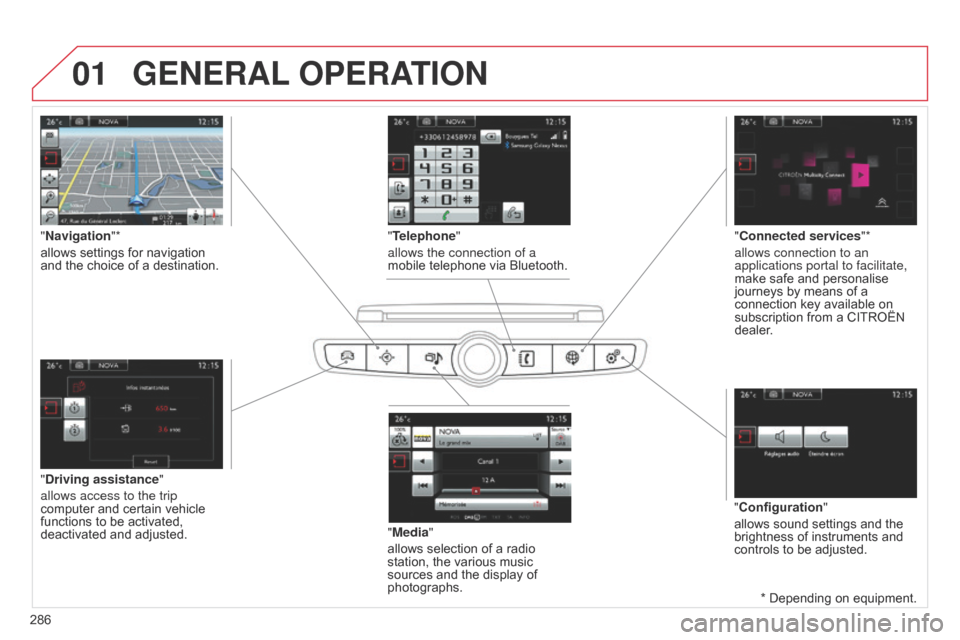
01GENERAL OPERATION
286 * Depending on equipment.
"Driving assistance"
allows access to the trip
computer
and certain vehicle
functions
to be activated,
deactivated
and adjusted.
"Media"
allows selection of a radio
station,
the various music
sources
and the display of
photographs.
"
Navigation"*
allows settings for navigation
and
the choice of a destination.
"Configuration"
allows sound settings and the
brightness
of instruments and
controls
to be adjusted.
"Connected services
"*
allows connection to an
applications portal to facilitate,
make safe and personalise
journeys
by means of a
connection
key available on
subscription
from a CITROËN
dealer
.
"Telephone"
allows the connection of a
mobile telephone via Bluetooth.
Page 291 of 494
03
289
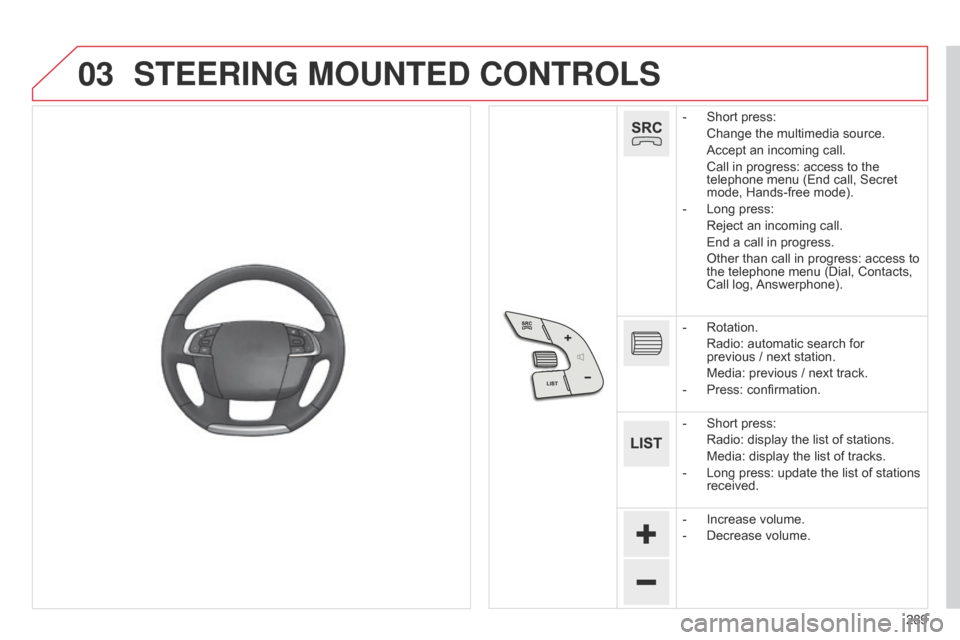
STEERING MOUNTED CONTROLS
- Short press:
Change
the multimedia source.
Accept
an incoming call.
Call
in progress: access to the
telephone
menu (End call, Secret
mode,
Hands-free mode).
-
Long
press:
Reject
an incoming call.
End
a call in progress.
Other
than call in progress: access to
the
telephone menu (Dial, Contacts,
Call
log,
Answerphone).
-
Rotation.
Radio:
automatic search for
previous /
next station.
Media:
previous / next track.
-
Press:
confirmation.
-
Short
press:
Radio:
display the list of stations.
Media:
display the list of tracks.
-
Long
press: update the list of stations
received.
-
Increase
volume.
-
Decrease
volume.
Page 293 of 494
291
Level 1
Level 2 Comments
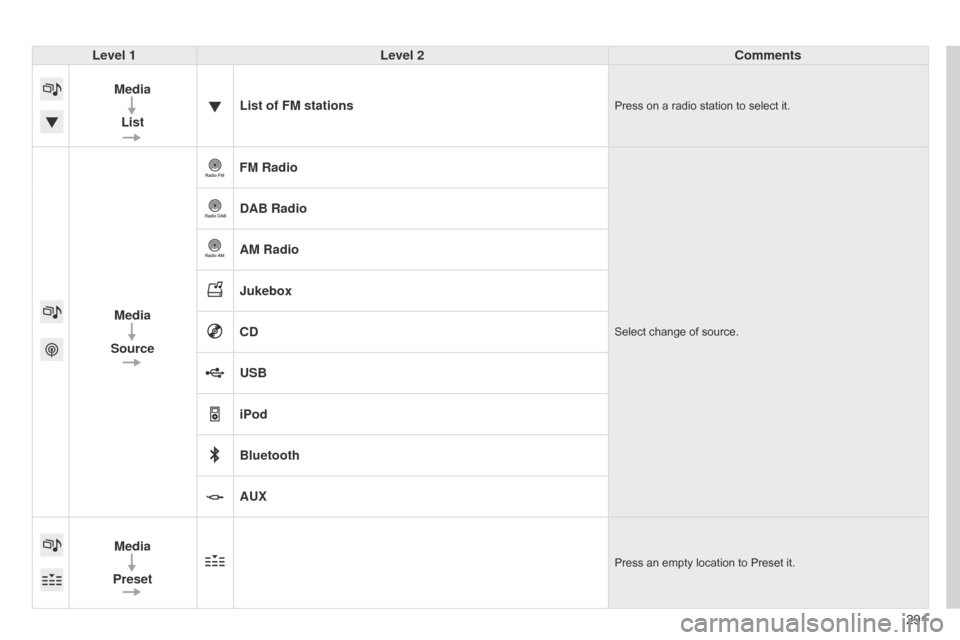
Media List List of FM stations
Press on a radio station to select it.
Media
Source FM RadioSelect change of source.
DAB Radio
AM Radio
Jukebox
CD
USB
iPod
Bluetooth
AUX
Media
Preset
Press an empty location to Preset it.
Page 295 of 494
293
Level 1
Level 2 Level 3 Comments
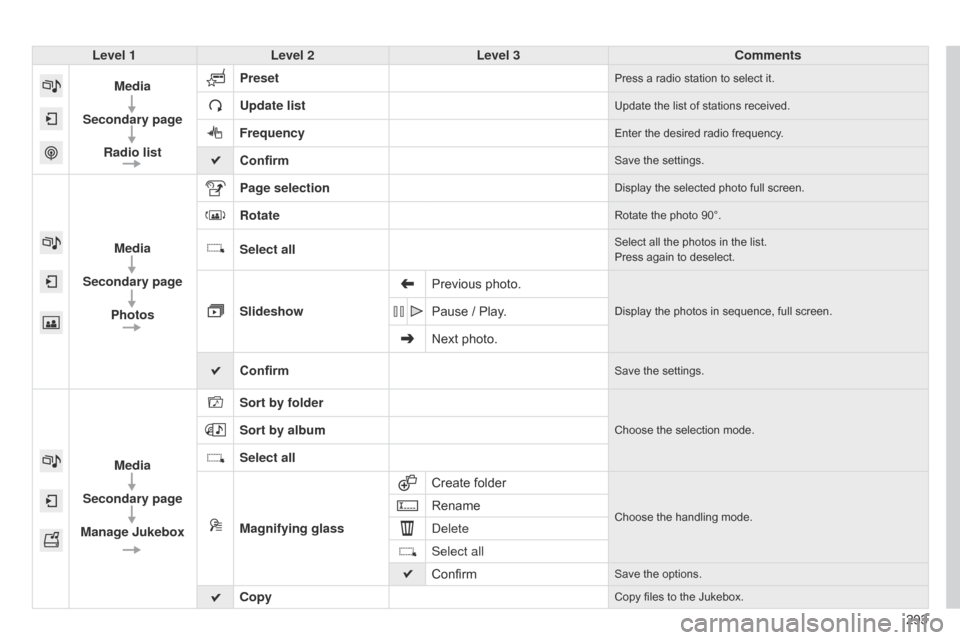
Media
Secondary page Radio list Preset
Press a radio station to select it.
Update listUpdate the list of stations received.
FrequencyEnter the desired radio frequency.
ConfirmSave the settings.
Media
Secondary page Photos Page selection
Display the selected photo full screen.
RotateRotate the photo 90°.
Select allSelect all the photos in the list.
Press again to deselect.
Slideshow Previous photo.Display the photos in sequence, full screen.Pause / Play.
Next photo.
Confirm
Save the settings.
Media
Secondary page
Manage Jukebox Sort by folder
Choose the selection mode.Sort by album
Select all
Magnifying glass
Create
folder
Choose the handling mode.Rename
d
elete
Select all
Confirm
Save the options.
CopyCopy files to the Jukebox.