phone Citroen C4 2015 2.G User Guide
[x] Cancel search | Manufacturer: CITROEN, Model Year: 2015, Model line: C4, Model: Citroen C4 2015 2.GPages: 494, PDF Size: 20.49 MB
Page 291 of 494
289
C4-2_en_Chap13b_SMEGplus_ed01-2015
C4-2_en_Chap13b_SMEGplus_ed01-2015
The system is protected in such a way that it will only operate in your vehicle.
7-inch touch screen tablet
01 General operation
For safety reasons, the driver must carry out operations which
require prolonged attention while the vehicle is
stationary
.
When
the engine is switched off and to prevent
discharging
of the battery, the system switches off
following
the activation of the energy economy mode.
CONTENTS
02
First steps - Control
panel
04
Media
05
Navigation
06
Configuration
07
Connected service
s
08
Telephone p.
p.
p.
p.
p.
p.
p.
Frequently asked questions p.
GPS satellite navigation system
Multimedia audio system
Bluetooth
® telephone
290
292
312 294
332
340
342
352
03
Steering mounted
controls p. 293
Page 292 of 494
01
C4-2_en_Chap13b_SMEGplus_ed01-2015
C4-2_en_Chap13b_SMEGplus_ed01-2015
GENERAL OPERATION
290 *
Depending on equipment.
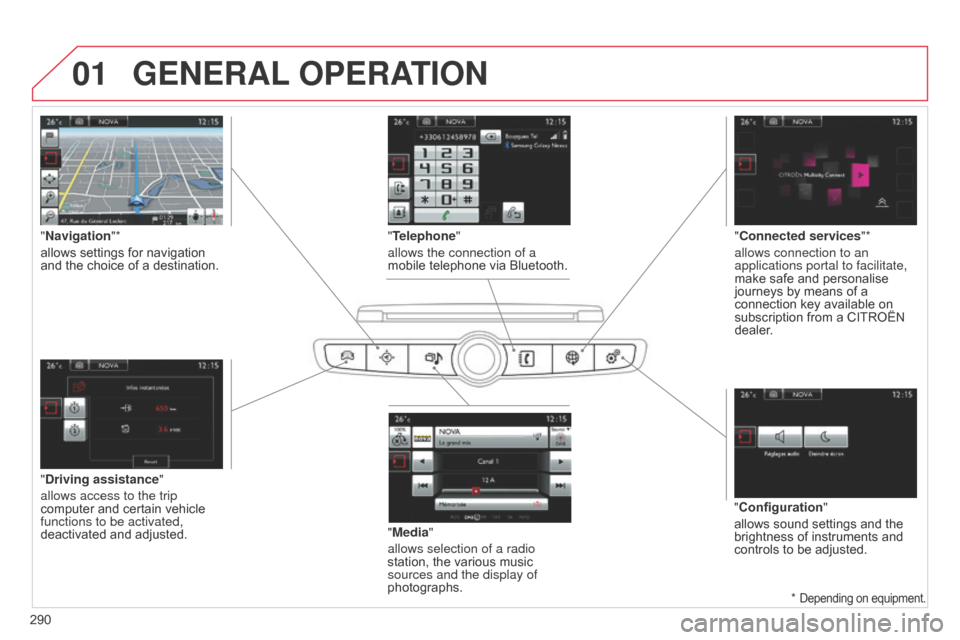
"Driving assistance"
allows access to the trip
computer
and certain vehicle
functions to be activated,
deactivated
and adjusted. "Media"
allows selection of a radio
station,
the various music
sources and the display of
photographs.
"
Navigation"*
allows settings for navigation
and
the choice of a destination.
"Configuration"
allows
sound settings and the
brightness
of instruments and
controls
to be adjusted.
"Connected services
"*
allows connection to an
applications portal to facilitate,
make safe and personalise
journeys
by means of a
connection
key available on
subscription
from a CITROËN
dealer
.
"Telephone"
allows the connection of a
mobile telephone via Bluetooth.
Page 294 of 494
02
292
C4-2_en_Chap13b_SMEGplus_ed01-2015
C4-2_en_Chap13b_SMEGplus_ed01-2015
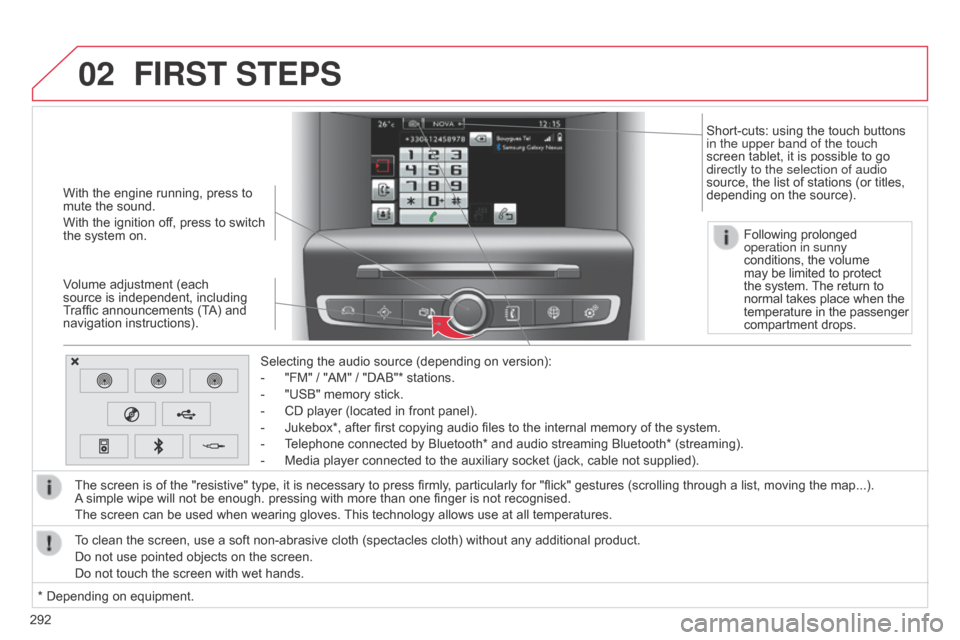
With the engine running, press to mute the sound.
With
the ignition off, press to switch
the
system on.
Volume
adjustment (each
source
is independent, including
T
raffic announcements (TA) and
navigation
instructions). Selecting
the audio source (depending on version):
-
"FM"
/ "AM" / "DAB"* stations.
-
"USB"
memory stick.
-
CD
player (located in front panel).
-
Jukebox*,
after first copying audio files to the internal memory of the system.
-
T
elephone connected by Bluetooth* and audio streaming Bluetooth* (streaming).
-
Media
player connected to the auxiliary socket (jack, cable not supplied).
The
screen is of the "resistive" type, it is necessary to press firmly, particularly for "flick" gestures (scrolling through a list, moving the map...).
A
simple wipe will not be enough. pressing with more than one finger is not recognised.
The
screen can be used when wearing gloves.
This
technology allows use at all temperatures.
FIRST STEPS
* Depending on equipment.
T o clean the screen, use a soft non-abrasive cloth (spectacles cloth) without any additional product.
Do not use pointed objects on the screen.
Do not touch the screen with wet hands. Following prolonged
operation in sunny
conditions, the volume
may
be limited to protect
the
system.
The
return to
normal
takes place when the
temperature
in the passenger
compartment
drops.
Short-cuts: using the touch buttons
in the upper band of the touch
screen
tablet, it is possible to go
directly to the selection of audio
source,
the list of stations (or titles,
depending
on the source).
Page 295 of 494
03
293
C4-2_en_Chap13b_SMEGplus_ed01-2015
C4-2_en_Chap13b_SMEGplus_ed01-2015
STEERING MOUNTED CONTROLS
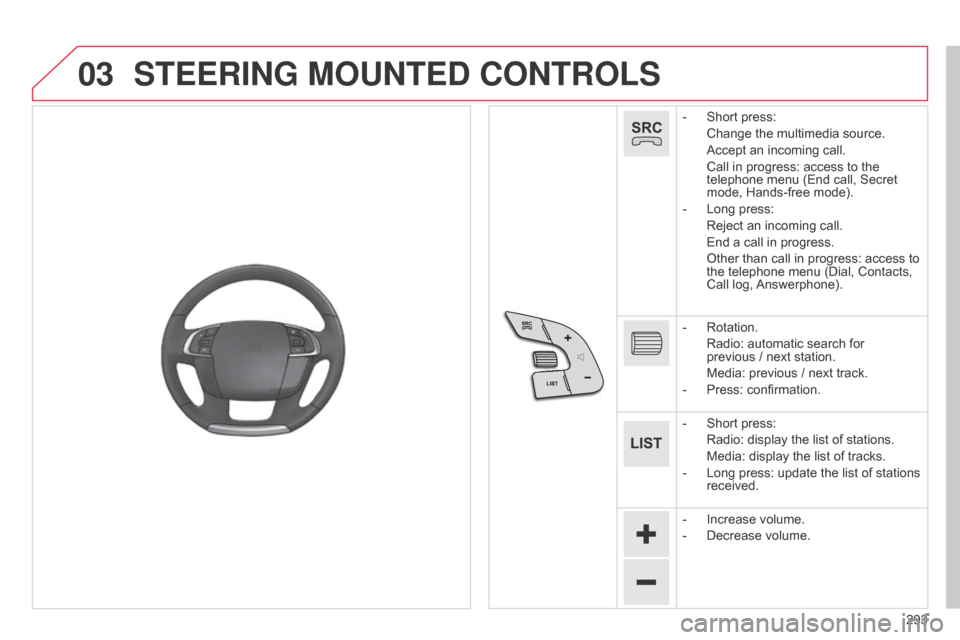
- Short press:
Change
the multimedia source.
Accept
an incoming call.
Call
in progress: access to the
telephone
menu (End call, Secret
mode,
Hands-free mode).
-
Long
press:
Reject
an incoming call.
End
a call in progress.
Other
than call in progress: access to
the
telephone menu (Dial, Contacts,
Call
log,
Answerphone).
-
Rotation.
Radio:
automatic search for
previous /
next station.
Media:
previous / next track.
-
Press:
confirmation.
-
Short
press:
Radio:
display the list of stations.
Media:
display the list of tracks.
-
Long
press: update the list of stations
received.
-
Increase
volume.
-
Decrease
volume.
Page 311 of 494
04
309
C4-2_en_Chap13b_SMEGplus_ed01-2015
C4-2_en_Chap13b_SMEGplus_ed01-2015
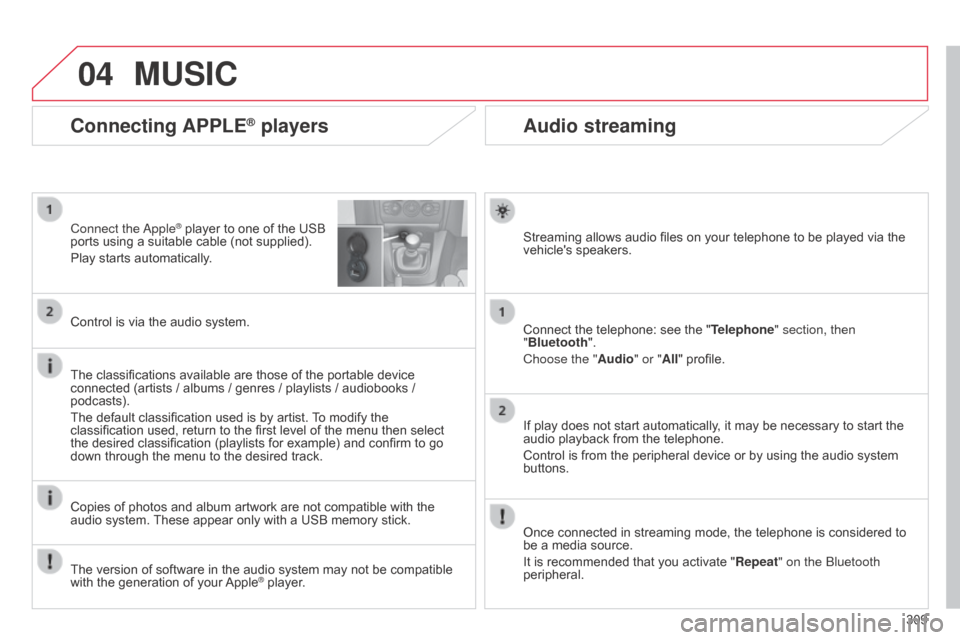
Audio streaming
Streaming allows audio files on your telephone to be played via the vehicle's speakers.
Connect
the telephone: see the "Telephone" section, then
"Bluetooth".
Choose the " Audio" or "All"
profile.
If
play does not start automatically, it may be necessary to start the
audio
playback from the telephone.
Control
is from the peripheral device or by using the audio system
buttons.
Once
connected in streaming mode, the telephone is considered to
be
a media source.
It
is recommended that you activate "Repeat" on the b luetooth
peripheral.
Connecting APPLE® players
Connect the apple® player to one of the USB ports
using
a
suitable cable (not supplied).
Play
starts
automatically.
Control
is
via
the
audio system.
The
classifications
available are those of the portable device
connected
(artists
/
albums / genres / playlists / audiobooks /
podcasts).
The
default
classification used is by artist.
T
o modify the
classification
used,
return to the first level of the menu then select
the
desired
classification (playlists for example) and confirm to go
down
through
the
menu to the desired track.
Copies
of
photos
and album artwork are not compatible with the
audio
system.
These
appear only with a USB memory stick.
MUSIC
The version of software in the audio system may not be compatible with the generation of your Apple® player.
Page 316 of 494
05
314
C4-2_en_Chap13b_SMEGplus_ed01-2015
C4-2_en_Chap13b_SMEGplus_ed01-2015
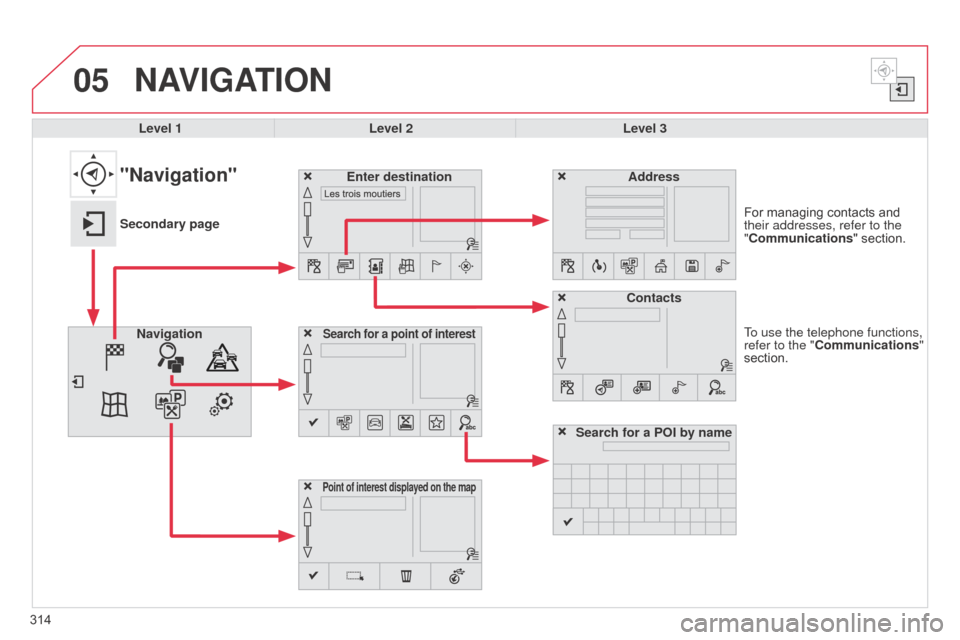
To use the telephone functions,
refer to the "Communications"
section. For managing contacts and
their addresses, refer to the
"
Communications" section.
NAVIGATION
Search for a point of interestNavigation Address
Enter destination
Contacts
Point of interest displayed on the map
Level 1Level 2 Level 3
"Navigation"
Secondary page
Search for a POI by name
Page 321 of 494
05
319
C4-2_en_Chap13b_SMEGplus_ed01-2015
C4-2_en_Chap13b_SMEGplus_ed01-2015
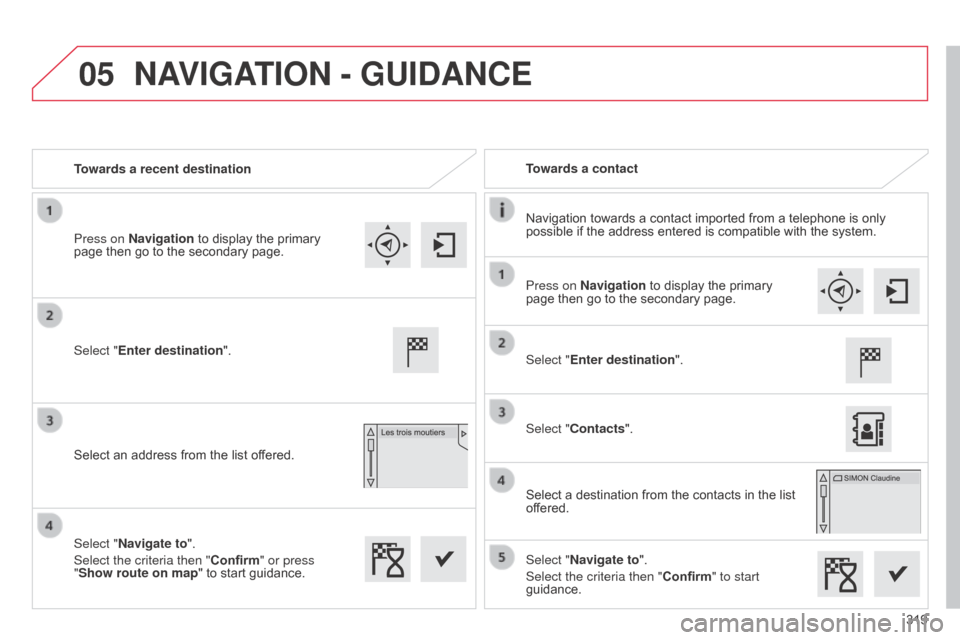
Towards a recent destinationTowards a contact
Navigation
towards a contact imported from a telephone is only
possible
if the address entered is compatible with the system.
Select "Enter destination".
Select
an address from the list offered. Select "Enter destination".
Select "Contacts".
Select
a destination from the contacts in the list
of
fered.
Select "Navigate to".
Select the criteria then "Confirm" to start
guidance.
Select "Navigate to".
Select the criteria then "Confirm" or press
"Show route on map
"
to start guidance.
Press on Navigation
to display the primary
page
then go to the secondary page. Press on Navigation
to display the primary
page
then go to the secondary page.
NAVIGATION - GUIDANCE
Page 335 of 494
333
C4-2_en_Chap13b_SMEGplus_ed01-2015
C4-2_en_Chap13b_SMEGplus_ed01-2015
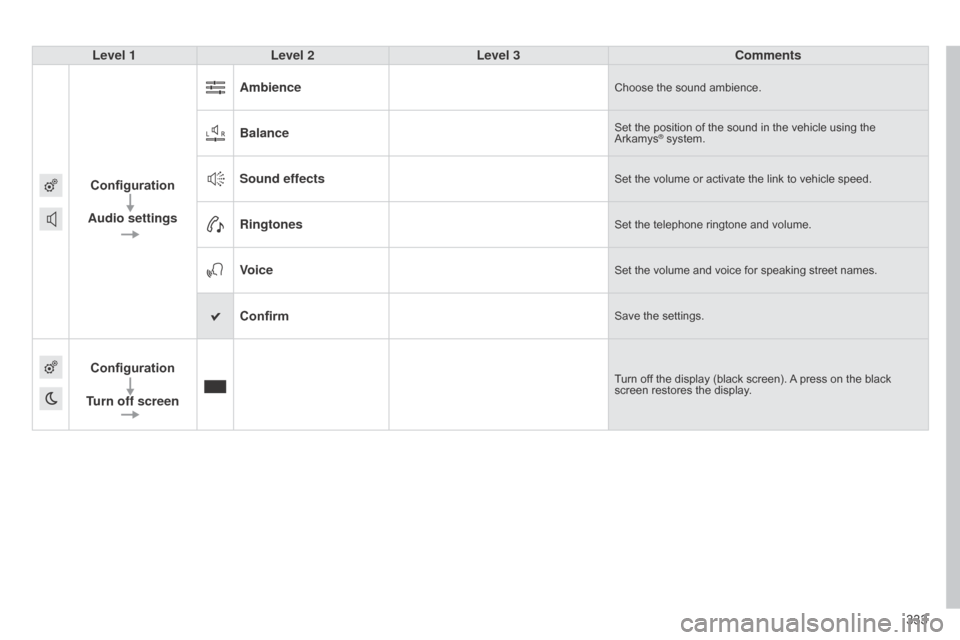
Level 1Level 2 Level 3 Comments
Configuration
Audio settings Ambience
Choose the sound ambience.
BalanceSet the position of the sound in the vehicle using the Arkamys® system.
Sound effectsSet the volume or activate the link to vehicle speed.
RingtonesSet the telephone ringtone and volume.
VoiceSet the volume and voice for speaking street names.
ConfirmSave the settings.
Configuration
Turn off screenTurn off the display (black screen). A press on the black screen
restores the display.
Page 342 of 494
07
340
C4-2_en_Chap13b_SMEGplus_ed01-2015
C4-2_en_Chap13b_SMEGplus_ed01-2015
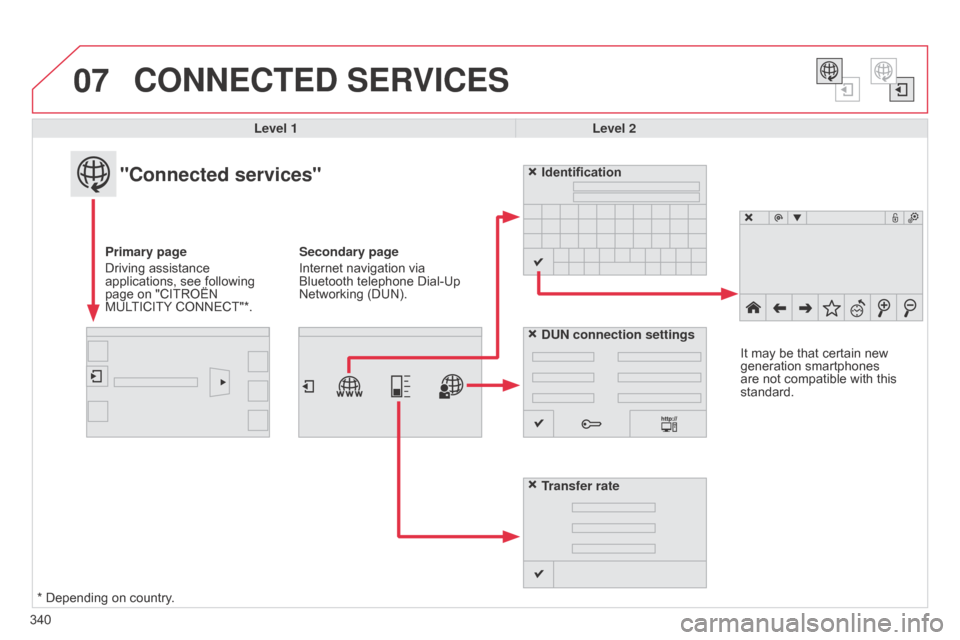
CONNECTED SERVICES
Level 1Level 2
"Connected services"
Primary page
Driving
assistance
applications,
see following
page
on "CITROËN
MUL
TICITY
CONNECT"*. Identification
DUN connection settings
Transfer rate
It
may be that certain new
generation
smartphones
are
not compatible with this
standard.
Secondary page
Internet navigation via
Bluetooth
telephone Dial-Up
Networking
(DUN).
*
Depending on country.
Page 344 of 494
08
C4-2_en_Chap13b_SMEGplus_ed01-2015
C4-2_en_Chap13b_SMEGplus_ed01-2015
342
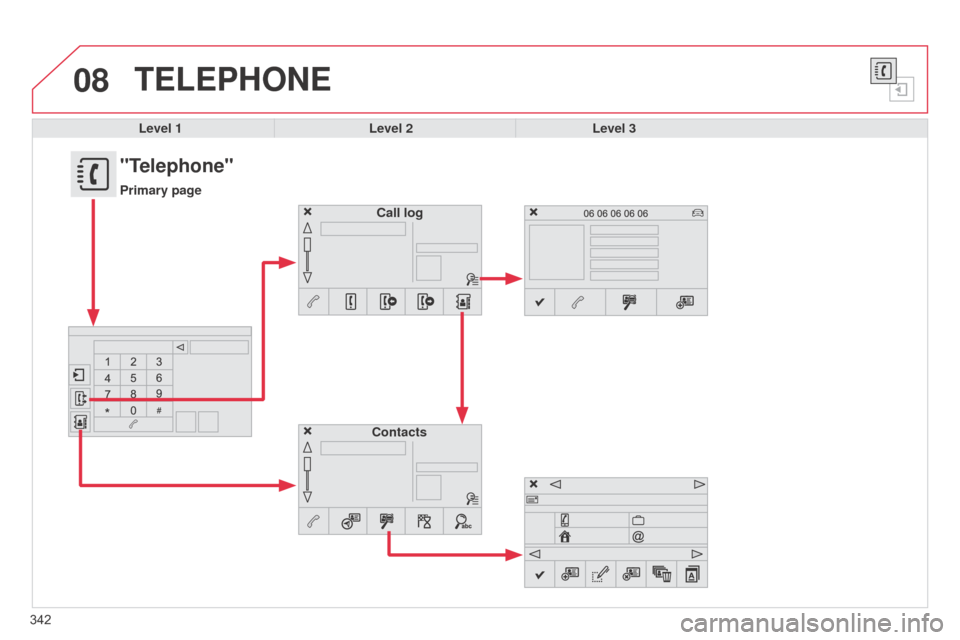
TELEPHONE
Level 1Level 2Level 3
Contacts Call log
"Telephone"
Primary page