navigation Citroen C4 2016 2.G Owner's Manual
[x] Cancel search | Manufacturer: CITROEN, Model Year: 2016, Model line: C4, Model: Citroen C4 2016 2.GPages: 396, PDF Size: 10.22 MB
Page 49 of 396
47
C4-2_en_Chap01_instruments-de-bord_ed02-2015
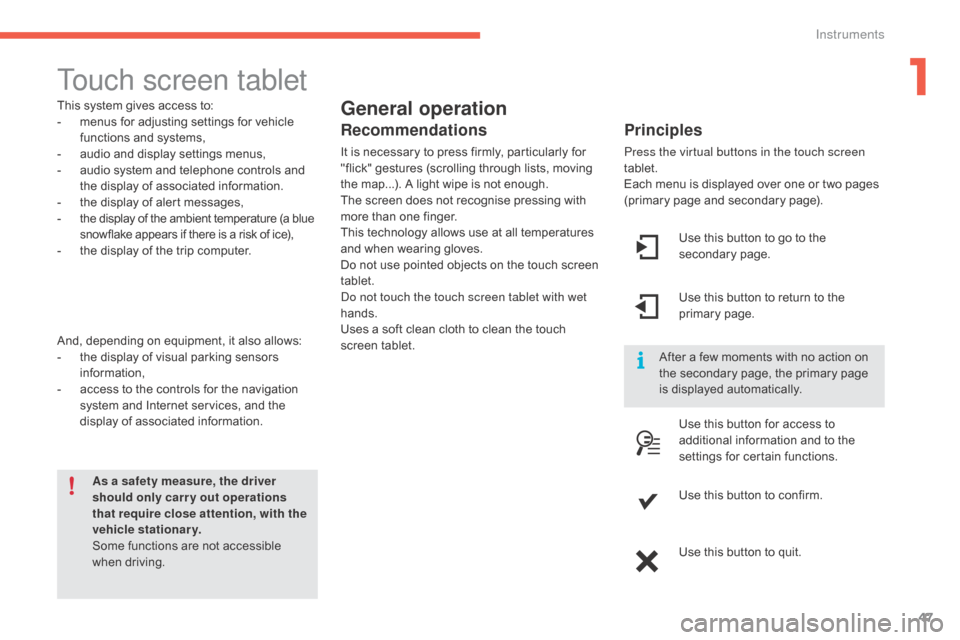
Touch screen tablet
General operation
Principles
Press the virtual buttons in the touch screen
tablet.
Each menu is displayed over one or two pages
(
primary page and secondary page).
As a safety measure, the driver
should only carr y out operations
that require close attention, with the
vehicle stationary.
Some
functions
are
not
accessible
w
hen
d
riving.
This
system
gives
access
to:
-
m
enus
for
adjusting
settings
for
vehicle
f
unctions
and
systems,
-
a
udio
and
display
settings
menus,
-
a
udio
system
and
telephone
controls
and
t
he
display
of
associated
information.
-
t
he
display
of
alert
messages,
-
t
he
display
of
the
ambient
temperature
(a
blue
s
nowflake
appears
if
there
is
a
risk
of
ice),
-
t
he
display
of
the
trip
computer.
And,
depending
on
equipment,
it
also
allows:
-
t
he
display
of
visual
parking
sensors
i
nformation,
-
a
ccess
to
the
controls
for
the
navigation
s
ystem
and
Internet
services,
and
the
d
isplay
of
associated
information.
Recommendations
It is necessary to press firmly, particularly for " flick" gestures (scrolling through lists, moving
t
he map...). A light wipe is not enough.
The
screen does not recognise pressing with
m
ore than one finger.
This
technology allows use at all temperatures
a
nd when wearing gloves.
Do
not use pointed objects on the touch screen
t
ablet.
Do not touch the touch screen tablet with wet
hands.
Uses
a soft clean cloth to clean the touch
s
creen
t
ablet. Use
this button to go to the
s
econdary
pag
e.
After
a few moments with no action on
t
he secondary page, the primary page
i
s displayed automatically.
Use
this button to return to the
p
rimary
pag
e.
Use
this button for access to
a
dditional information and to the
s
ettings for certain functions.
Use
this button to confirm.
Use
this button to quit.
1
Instruments
Page 50 of 396
48
C4-2_en_Chap01_instruments-de-bord_ed02-2015
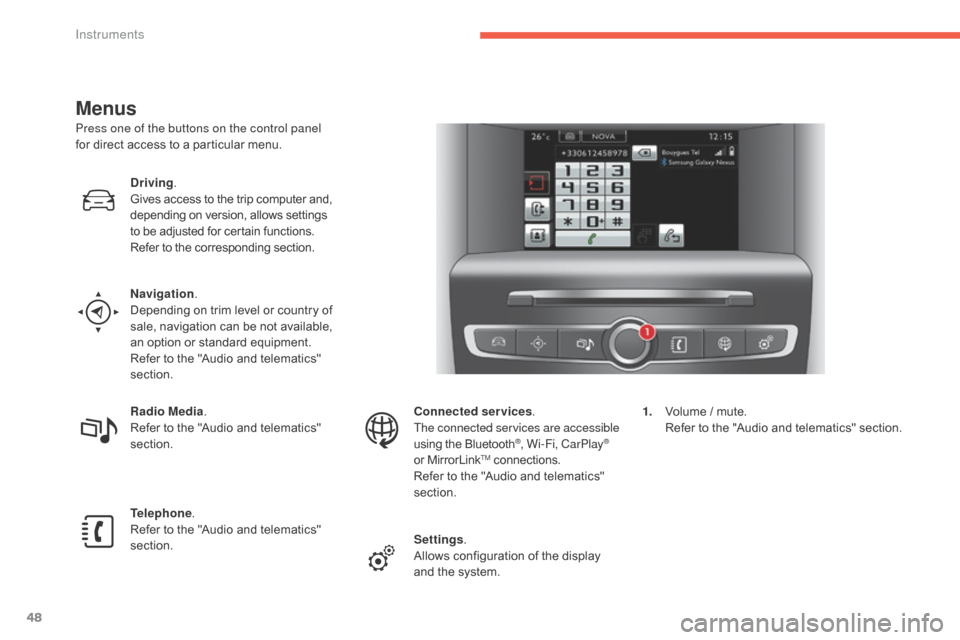
Menus
Press one of the buttons on the control panel
for direct access to a particular menu.
Driving .
Gives
access to the trip computer and,
d
epending on version, allows settings
t
o be adjusted for certain functions.
Refer
to the corresponding section.
Navigation .
Depending
on trim level or country of
s
ale, navigation can be not available,
a
n option or standard equipment.
Refer
to the "Audio and telematics"
s
ection.
Radio Media .
Refer
to the "Audio and telematics"
s
ection.
Telephone .
Refer
to the "Audio and telematics"
s
ection. Connected services
.
The connected services are accessible
using
the Bluetooth
®, Wi-Fi, CarPlay®
or
MirrorLinkTM connections.
Refer
to
the
"Audio and telematics"
s
ection.
Settings .
Allows
configuration of the display
a
nd
the
system. 1.
V
olume / mute.
R
efer to the "Audio and telematics" section.
Instruments
Page 239 of 396
237
C4-2_en_Chap07_infos-pratiques_ed02-2015
"Multimedia":
audio systems, steering mounted audio controls, speakers, Hi-Fi module, Bluetooth
h
ands-free system, portable satellite navigation
s
ystem, semi-integral support bracket for
p
ortable navigation system, mapping update
C
D, driving assistant, portable video screen,
p
ortable video support bracket, 230 V/50 Hz
s
ocket, 230 V/50 Hz adaptor, iPhone
®
compatible
mobile
phone
charger,
mobile
p
hone/smartphone
bracket,
Wi-Fi
on
board...
By
going to a CITROËN dealer, you can also
o
btain cleaning and maintenance products
(
interior and exterior) - including ecological
p
roducts in the "TECHNATURE" range -,
p
roducts for topping up (screenwash...), touch-
up
pens and paint aerosols for the exact colour
o
f your vehicle, recharges (cartridge for the
t
emporary puncture repair kit...), ...
Installation of radio
communication
transmitters
Before installing any after-market radio communication transmitter, you can
c
ontact a CITROËN dealer for the
specification
of transmitters which can
b
e fitted (frequency, maximum power,
a
erial position, specific installation
requirements),
in line with the Vehicle
E
lectromagnetic
C
ompatibility
D
irective (2004/104/EC). The
fitting of electrical equipment or
a
ccessories which are not recommended
b
y CITROËN may result in a failure of
y
our vehicle's electronic system and
e
xcessive electrical consumption.
Contact a CITROËN dealer
for
information on the range of
r
ecommended equipment and
a
ccessories.
Depending
on the legislation in force in
t
he country, certain safety equipment
m
ay be compulsory: high visibility s
afety vests, warning triangles, b
reathalyzers, spare bulbs, spare fuses,
fire
extinguisher, first aid kit, mud flaps
a
t the rear of the vehicle.
7
Practical information
Page 269 of 396
267
C4-2_en_Chap08_en-cas-de-panne_ed02-2015
Charging the battery using
a battery charger
F Disconnect the battery from the vehicle.
F F ollow the instructions for use provided by
the
manufacturer of the charger.
F
C
onnect the battery starting with the
n
egative terminal (-).
F
C
heck that the terminals and connectors
a
re clean. If they are covered
w
ith
s
ulphate
(
whitish or greenish deposit), remove them
a
nd clean them.
Reinitialisation after
reconnection
After any reconnection of the battery, switch on
the ignition and wait at least one minute before
s
tarting, to allow time for the initialisation of the
e
lectronic systems.
By
referring to the corresponding sections, you
s
hould set or initialise the following systems
y
ourself:
-
o
ne-touch electric windows,
-
t
ime and date,
-
a
udio and navigation system settings.
Check
that no alert message or warning lamp
c
omes on after switching on the ignition.
However,
if minor problems persist after
c
arrying out these operations, contact a
C
ITROËN dealer or a qualified workshop.
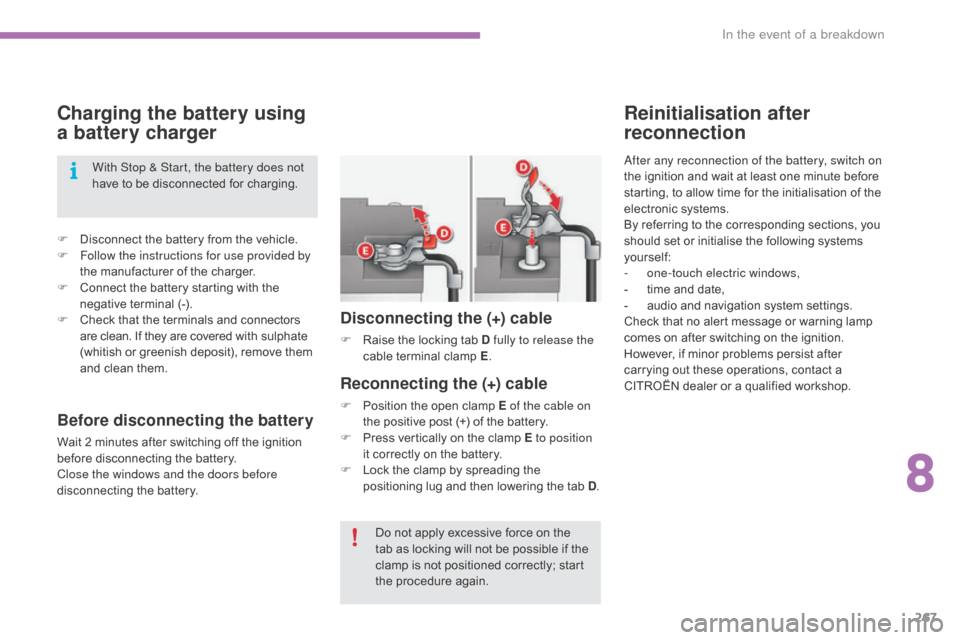
Reconnecting the (+) cable
F Position the open clamp E of the cable on
the positive post (+) of the battery.
F
P
ress vertically on the clamp E to position
it
correctly on the battery.
F
L
ock the clamp by spreading the
p
ositioning lug and then lowering the tab D.
Disconnecting the (+) cable
F Raise the locking tab D fully to release the
cable t erminal c lamp E.
D
o not apply excessive force on the
t
ab as locking will not be possible if the
c
lamp is not positioned correctly; start
t
he procedure again.
With Stop & Start, the battery does not
have
to
be
disconnected
for
charging.
Before disconnecting the battery
Wait 2 minutes after switching off the ignition b
efore disconnecting the battery.
Close the windows and the doors before
disconnecting
the battery.
8
In the event of a breakdown
Page 285 of 396
283
C4-2_en_Chap10b_SMEGplus_ed02-2015
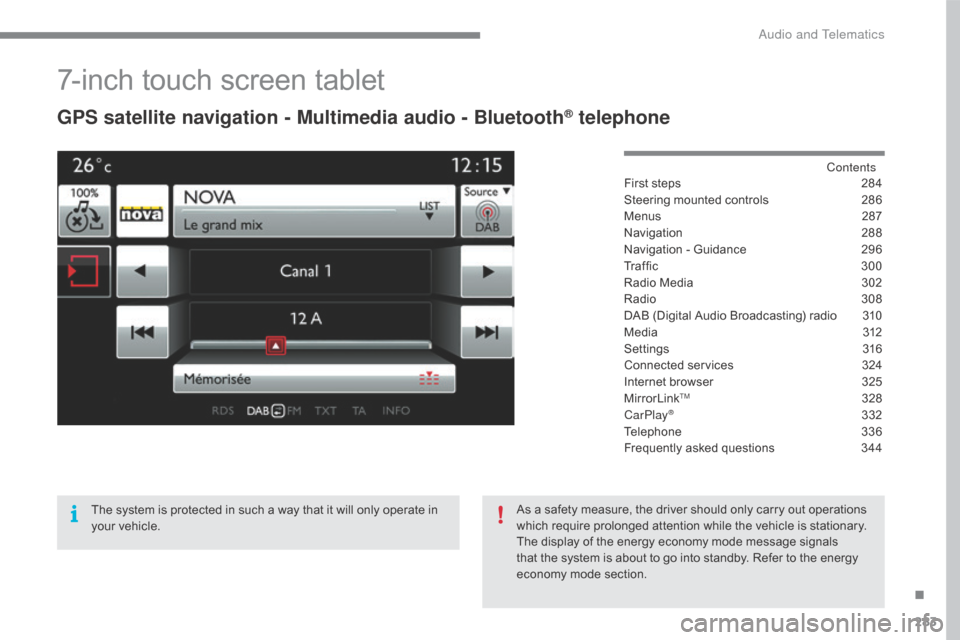
7-inch touch screen tablet
GPS satellite navigation - Multimedia audio - Bluetooth® telephone
Contents
First
steps
2 84
Steering
mounted
controls
2
86
Menus
2
87
Navigation
2
88
Navigation
-
Guidance
2
96
Tr a f fi c
3
0 0
Radio
Media
3
02
Radio
308
D
AB
(Digital
Audio
Broadcasting)
radio
3
10
M edia
3
12
Settings
3
16
Connected
services
3
24
Internet
browser
3
25
MirrorLink
TM 32 8
CarPlay® 3 32
Telephone
3
36
Frequently
asked questions
3
44
The
system
is
protected
in
such
a
way
that
it
will
only
operate
in
y
our
vehicle. As
a
safety
measure,
the
driver should only carry out operations
w
hich
require
prolonged
attention while the vehicle is stationary.
The
display
of
the
energy
economy mode message signals
t
hat
the
system
is
about
to
go into standby. Refer to the energy
ec
onomy
mo
de
s
ection.
.
Audio and Telematics
Page 287 of 396
285
C4-2_en_Chap10b_SMEGplus_ed02-2015
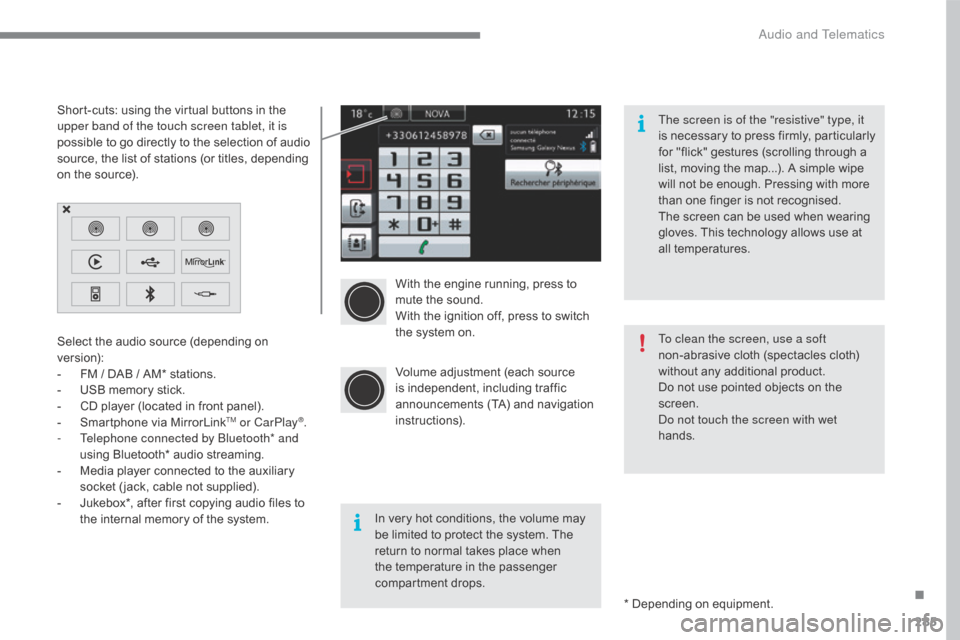
With the engine running, press to mute the sound.
With
the ignition off, press to switch
t
he system on.
Volume
adjustment (each source
i
s
i
ndependent,
i
ncluding
t
raffic
a
nnouncements (TA) and navigation
i
nstructions).
Select
the
audio
source
(depending
on
ve
rsion):
-
F
M
/
DAB
/
AM*
stations.
-
U
SB
memory
stick.
-
C
D
player
(located
in
front
panel).
-
S
martphone
via
MirrorLink
TM or CarPlay®.
-
T
elephone connected by Bluetooth* and
using
Bluetooth*
audio
streaming.
-
M
edia
player
connected
to
the
auxiliary
s
ocket
( jack,
cable
not
supplied).
-
J
ukebox*,
after
first
copying
audio
files
to
t
he
internal
memory
of
the
system. *
Depending on equipment.
Short-cuts:
using
the
virtual
buttons
in
the
u
pper band of the touch screen tablet, it is
possible
to
go
directly
to
the
selection
of
audio
s
ource,
the
list
of
stations
(or
titles,
depending
o
n
the
source).
The screen is of the "resistive" type, it
is
n
ecessary
t
o
p
ress
f
irmly,
p
articularly
f
or "flick" gestures (scrolling through a
l
ist, moving the map...). A simple wipe
w
ill not be enough. Pressing with more
t
han one finger is not recognised.
The screen can be used when wearing
g
loves. This technology allows use at
a
ll
t
emperatures.
In very hot conditions, the volume may
b
e limited to protect the system. The
r
eturn to normal takes place when
t
he temperature in the passenger
c
ompartment drops. To clean the screen, use a soft
non-abrasive
cloth (spectacles cloth)
w
ithout any additional product.
Do not use pointed objects on the
sc
reen.
Do not touch the screen with wet
hands.
.
Audio and Telematics
Page 289 of 396
287
C4-2_en_Chap10b_SMEGplus_ed02-2015
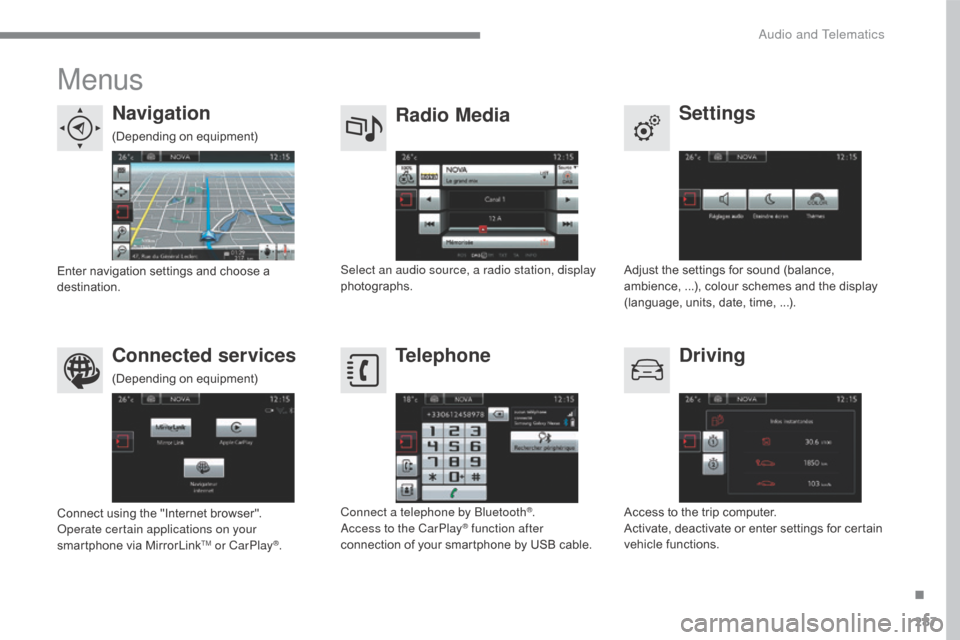
Menus
Settings
Radio Media
Navigation
Driving
Connected services Telephone
Adjust the settings for sound (balance, a
mbience, ...), colour schemes and the display
(
language, units, date, time, ...).
Select an audio source, a radio station, display
photographs.
Enter
navigation
settings
and
choose
a
d
estination.
Access
to the trip computer.
Activate,
deactivate or enter settings for certain
v
ehicle functions.
Connect
using
the
"Internet
browser".
Operate certain applications on your
smartphone
via
MirrorLink
TM or CarPlay®. Connect a telephone by Bluetooth
®.
Access to the CarPlay® function after
connection
of
your
smartphone by USB cable.
(Depending
o
n
e
quipment)
(Depending
o
n
e
quipment)
.
Audio and Telematics
Page 290 of 396
288
C4-2_en_Chap10b_SMEGplus_ed02-2015
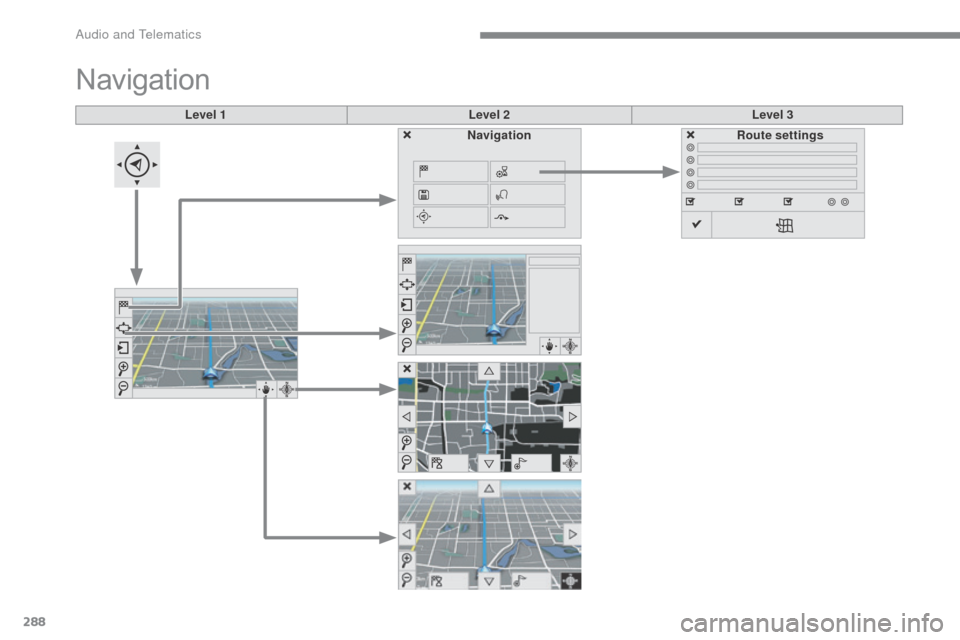
Level 1Level 2Level 3
Navigation
NavigationRoute settings
Audio and Telematics
Page 291 of 396
289
C4-2_en_Chap10b_SMEGplus_ed02-2015
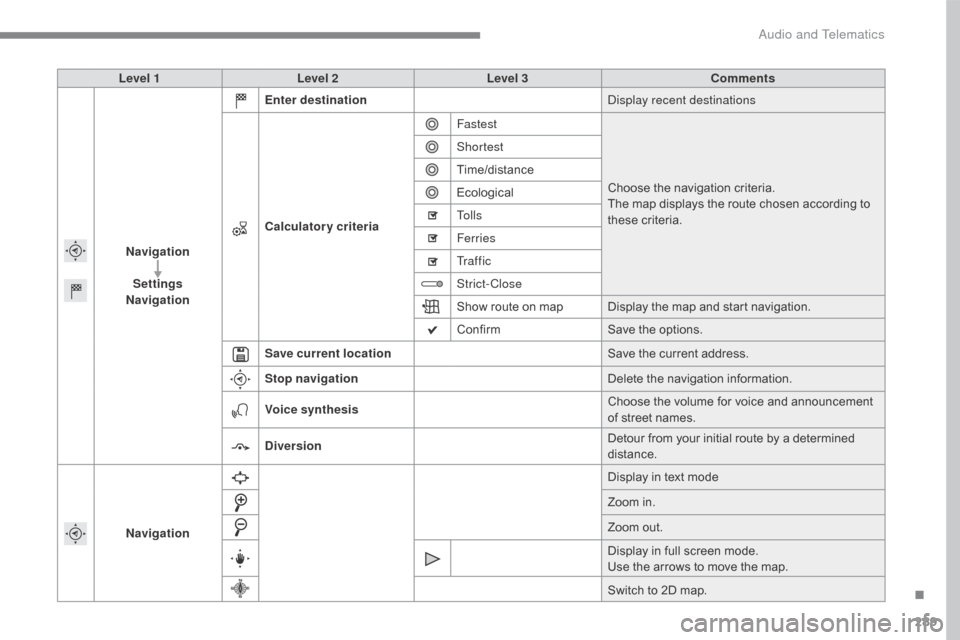
Level 1Level 2 Level 3 Comments
Navigation Settings
Navigation Enter destination
Display recent destinations
Calculatory criteria Fastest
Choose
the navigation criteria.
The
map displays the route chosen according to
t
hese
c
riteria.
Shortest
Time/distance
Ecological
To l l s
Ferries
Tr a f f i c
Strict-Close
Show
route on map Display the map and start navigation.
Confirm Save
the options.
Save current location Save
the current address.
Stop navigation Delete
the navigation information.
Voice synthesis Choose
the volume for voice and announcement
o
f street names.
Diversion Detour
from your initial route by a determined
di
stance.
Navigation Display
in text mode
Zoom
in.
Zoom
out.
Display
in full screen mode.
Use
the arrows to move the map.
Switch
to 2D map.
.
Audio and Telematics
Page 292 of 396
290
C4-2_en_Chap10b_SMEGplus_ed02-2015
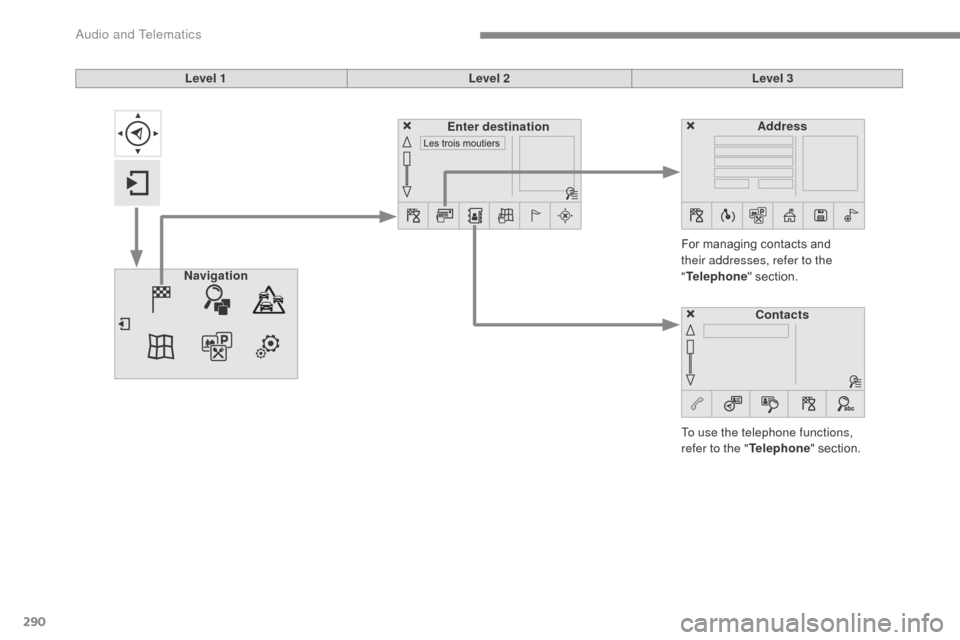
Level 1Level 2Level 3
To use the telephone functions,
refer to the " Telephone"
section.
For
managing contacts and
t
heir addresses, refer to the
" Telephone "
section.
Navigation Address
Enter destination
Contacts
Audio and Telematics