instrument panel CITROEN C4 2020 Manual PDF
[x] Cancel search | Manufacturer: CITROEN, Model Year: 2020, Model line: C4, Model: CITROEN C4 2020Pages: 260, PDF Size: 7.12 MB
Page 207 of 260
205
MyCitroën Play
11Applications
Viewing photos
Insert a USB memory stick in the USB port.
To protect the system, do not use a USB hub.
The system can read folders and image files in
the formats: .tiff; .gif; .jpg/jpeg; .bmp and .png.
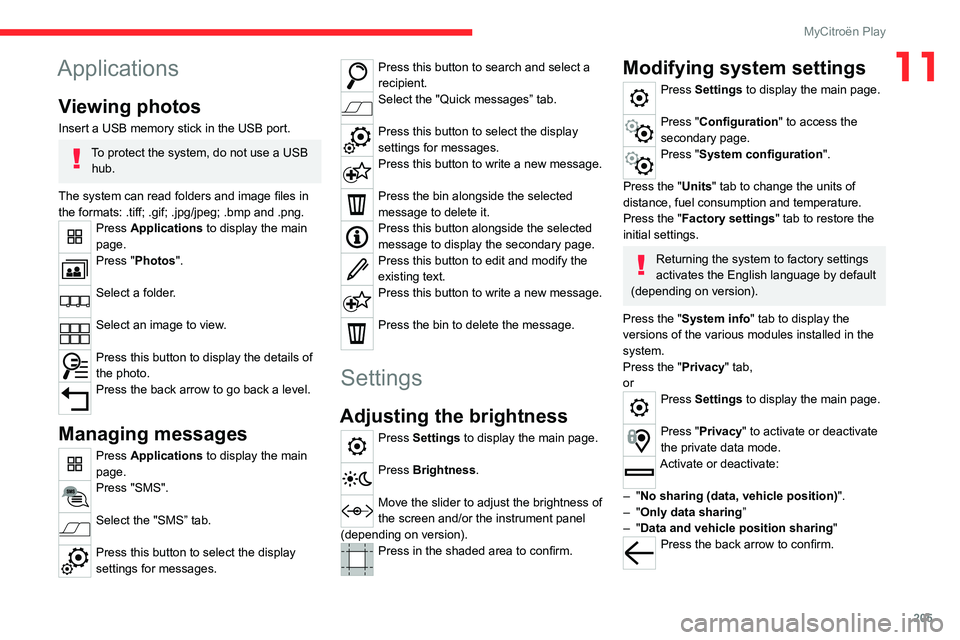
Press Applications to display the main
page.
Press "Photos".
Select a folder.
Select an image to view.
Press this button to display the details of
the photo.
Press the back arrow to go back a level.
Managing messages
Press Applications to display the main
page.
Press "SMS".
Select the "SMS” tab.
Press this button to select the display
settings for messages.
Press this button to search and select a
recipient.
Select the "Quick messages” tab.
Press this button to select the display
settings for messages.
Press this button to write a new message.
Press the bin alongside the selected
message to delete it.
Press this button alongside the selected
message to display the secondary page.
Press this button to edit and modify the
existing text.
Press this button to write a new message.
Press the bin to delete the message.
Settings
Adjusting the brightness
Press Settings to display the main page.
Press Brightness.
Move the slider to adjust the brightness of
the screen and/or the instrument panel
(depending on version).
Press in the shaded area to confirm.
Modifying system settings
Press Settings to display the main page.
Press "Configuration" to access the
secondary page.
Press "System configuration".
Press the "Units" tab to change the units of
distance, fuel consumption and temperature.
Press the "Factory settings" tab to restore the
initial settings.
Returning the system to factory settings
activates the English language by default
(depending on version).
Press the "System info" tab to display the
versions of the various modules installed in the
system.
Press the "Privacy " tab,
or
Press Settings to display the main page.
Press "Privacy" to activate or deactivate
the private data mode.
Activate or deactivate:
–
"No sharing (data, vehicle position) ".
–
"Only data sharing ”
–
"Data and vehicle position sharing "
Press the back arrow to confirm.
Page 208 of 260
206
MyCitroën Play
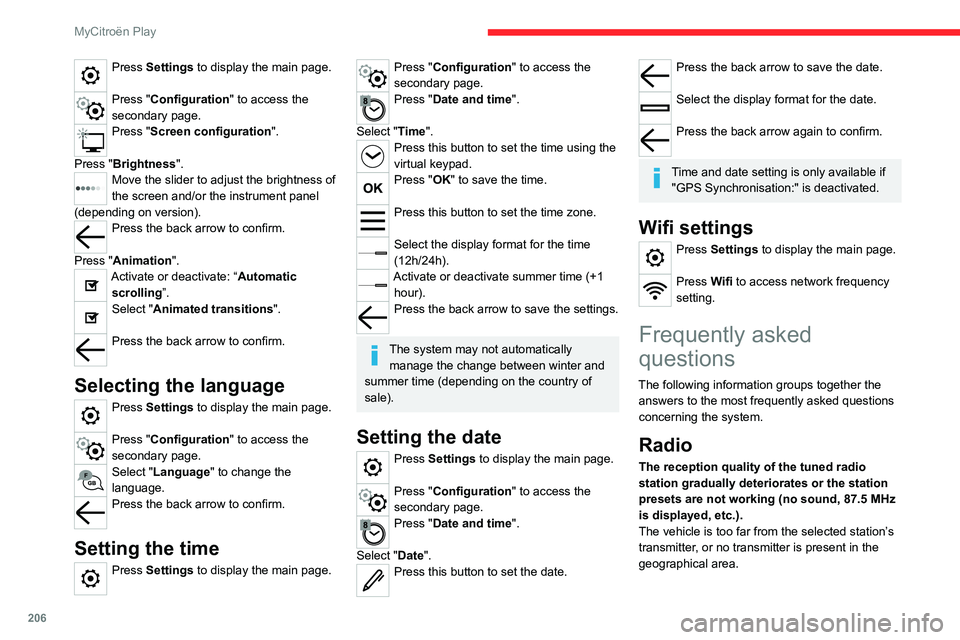
Press Settings to display the main page.
Press "Configuration" to access the
secondary page.
Press "Screen configuration".
Press "Brightness".
Move the slider to adjust the brightness of
the screen and/or the instrument panel
(depending on version).
Press the back arrow to confirm.
Press "Animation".
Activate or deactivate: “Automatic scrolling ”.
Select "Animated transitions".
Press the back arrow to confirm.
Selecting the language
Press Settings to display the main page.
Press "Configuration" to access the
secondary page.
Select "Language" to change the
language.
Press the back arrow to confirm.
Setting the time
Press Settings to display the main page.
Press "Configuration" to access the
secondary page.
Press "Date and time".
Select "Time".
Press this button to set the time using the
virtual keypad.
Press "OK" to save the time.
Press this button to set the time zone.
Select the display format for the time
(12h/24h).
Activate or deactivate summer time (+1 hour).
Press the back arrow to save the settings.
The system may not automatically manage the change between winter and
summer time (depending on the country of
sale).
Setting the date
Press Settings to display the main page.
Press "Configuration" to access the
secondary page.
Press "Date and time".
Select "Date".
Press this button to set the date.
Press the back arrow to save the date.
Select the display format for the date.
Press the back arrow again to confirm.
Time and date setting is only available if
"GPS Synchronisation:" is deactivated.
Wifi settings
Press Settings to display the main page.
Press Wifi to access network frequency
setting.
Frequently asked
questions
The following information groups together the answers to the most frequently asked questions
concerning the system.
Radio
The reception quality of the tuned radio
station gradually deteriorates or the station
presets are not working (no sound, 87.5 MHz
is displayed, etc.).
The vehicle is too far from the selected station’s
transmitter, or no transmitter is present in the
geographical area.
Page 211 of 260

209
CITROËN Connect Nav
12CITROËN Connect Nav
GPS navigation -
Applications - Multimedia
audio system - Bluetooth
®
telephone
The functions and settings described
vary according to the vehicle version and
configuration, as well as the country of sale.
For safety reasons and because they
require sustained attention by the driver,
the following operations must be carried out
with the vehicle stationary and the ignition
on:
–
Pairing the smartphone with the system via
Bluetooth.
–
Using the smartphone.
–
Connecting to the CarPlay® or Android
Auto applications (certain applications stop
displaying when the vehicle is moving).
–
W
atching a video (the video stops when the
vehicle starts to move again).
–
Changing the system settings and
configuration.
AM and DAB radio are not available on Hybrid vehicles.
The system is protected so that it only operates in the vehicle.
The message Energy economy mode is
displayed when the system is about to go into
standby.
System and map updates can be
downloaded from the Brand's website.
The update procedure is also available there.
The system’s Open Source Software (OSS) source codes are available at the
following addresses:
https://www.groupe-psa.com/fr/oss/
https://www.groupe-psa.com/en/oss/
First steps
With the engine running, a press mutes
the sound.
With the ignition off, a press turns the system on.
Increase or decrease the volume using
the wheel or the "plus" or "minus" buttons
(depending on the equipment).
Use the menu buttons on either side of or below
the touch screen for access to the menus, then
press the virtual buttons in the touch screen.
Depending on the model, use the "Source" or
"Menu" buttons to access the rolling menus, then
press the virtual buttons in the touch screen.
Display the rolling menus at any time by pressing
the screen briefly with three fingers.
All of the touch areas of the screen are white.
Press the back arrow to go back a level.
Press "OK" to confirm.
The touch screen is of the "capacitive" type.
To clean the screen, use a soft, non-abrasive
cloth (e.g. spectacles cloth) with no additional
product.
Do not use sharp objects on the screen.
Do not touch the screen with wet hands.
Certain information is displayed permanently
in the side bars or in the upper bar of the touch
screen (depending on equipment):
–
Air conditioning status information (depending
on version), and direct access to the
corresponding menu.
–
Go directly to the audio source selection
option, to view the list of radio stations (or list of
titles depending on the source).
–
Go to the "Notifications" of messages, emails,
map updates and, depending on the services,
the navigation notifications.
–
Go to the settings for the touch screen and the
digital instrument panel.
Audio source selection (depending on
equipment):
–
FM/DAB/AM radio stations (depending on
equipment).
–
T
elephone connected via Bluetooth and
Bluetooth multimedia broadcast (streaming).
–
USB memory stick.
Page 231 of 260
229
CITROËN Connect Nav
12The "Position” settings (All passengers,
Driver and Front only) are common to all
sources.
Activate or deactivate "Touch tones ",
"Volume linked to speed " and "Auxiliary
input ".
Onboard audio: Arkamys Sound Staging©
optimises the sound distribution inside
the passenger compartment.
Configuring profiles
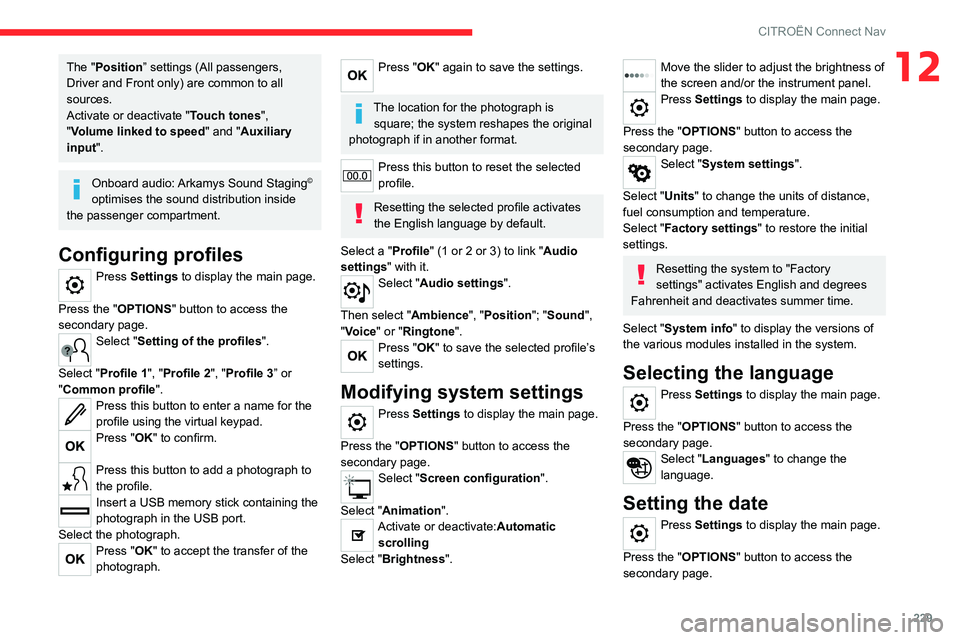
Press Settings to display the main page.
Press the "OPTIONS " button to access the
secondary page.
Select "Setting of the profiles".
Select "Profile 1", "Profile 2", "Profile 3” or
"Common profile ".
Press this button to enter a name for the
profile using the virtual keypad.
Press "OK" to confirm.
Press this button to add a photograph to
the profile.
Insert a USB memory stick containing the
photograph in the USB port.
Select the photograph.
Press "OK" to accept the transfer of the
photograph.
Press "OK" again to save the settings.
The location for the photograph is square; the system reshapes the original
photograph if in another format.
Press this button to reset the selected
profile.
Resetting the selected profile activates
the English language by default.
Select a "Profile" (1 or 2 or 3) to link "Audio
settings" with it.
Select "Audio settings".
Then select "Ambience", "Position"; "Sound ",
"Voice" or "Ringtone ".
Press "OK" to save the selected profile’s
settings.
Modifying system settings
Press Settings to display the main page.
Press the "OPTIONS " button to access the
secondary page.
Select "Screen configuration".
Select "Animation".
Activate or deactivate:Automatic scrolling
Select "Brightness".
Move the slider to adjust the brightness of
the screen and/or the instrument panel.
Press Settings to display the main page.
Press the "OPTIONS " button to access the
secondary page.
Select "System settings".
Select "Units" to change the units of distance,
fuel consumption and temperature.
Select "Factory settings" to restore the initial
settings.
Resetting the system to "Factory
settings" activates English and degrees
Fahrenheit and deactivates summer time.
Select "System info" to display the versions of
the various modules installed in the system.
Selecting the language
Press Settings to display the main page.
Press the "OPTIONS " button to access the
secondary page.
Select "Languages" to change the
language.
Setting the date
Press Settings to display the main page.
Press the "OPTIONS " button to access the
secondary page.
Page 240 of 260

238
Alphabetical index
Charging connector (Electric) 140, 145,
147–148
Charging flap (Electric)
140, 145, 147–148
Charging system (Electric)
5, 8, 26, 138, 156
Charging the traction battery
(Electric)
21, 138, 142, 145, 147–148
CHECK
22
Checking the engine oil level
19
Checking the levels
156–157
Checking tyre pressures
(using the kit)
166, 168
Checks
155, 158–160
Checks, routine
158–159
Child lock
83
Children
72, 78–80
Children (safety)
83
Child seats
72, 75–78
Child seats, conventional
78, 81–82
Child seats, i-Size
80–82
Child seats, ISOFIX
78–79, 81–82
Cleaning (advice)
139, 162–163
Closing the boot
31, 35
Closing the doors
31, 35
Collision Risk Alert
122–123
Configuration, vehicle
25–26
Connected applications
221
ConnectedCAM Citroën™
100
Connection, Bluetooth
201–202,
221–222, 226–227
Connection, Wi-Fi network
222
Connectivity
220
Consumption figures
26Container, AdBlue® 160–161
Control, emergency boot release
35
Control, emergency door
32–33
Control, heated seats
42, 45
Controls, steering mounted
93–94
Control stalk, lighting
57–58
Control stalk, wipers
62–63
Control unit
141–142
Courtesy lamps
55
Cruise control
104–105, 107–108
Cruise control, adaptive
104–105, 109
Cruise control by speed limit
recognition
104–105
D
DAB (Digital Audio Broadcasting) -
Digital radio
199–200, 224
Date (setting)
206, 229
Daytime running lamps
58, 173
Deactivating the passenger airbag
74, 77
Deadlocking
29, 31
Deferred charging
27
Deferred charging
(Electric)
26–27, 140, 145, 148
Defrosting
43, 50
Defrosting, front
50
Demisting
43, 50
Demisting, front
50
Demisting, rear
51
Demisting, rear screen
51
Dials and gauges 9–10
Digital instrument panel
10
Dimensions
185
Dipstick
19, 156
Direction indicators
58, 173–174
Display, head-up
11
Display screen, instrument panel
9
Domestic charging
(Electric)
142, 147–148, 184
Doors
35
Drive Assist Plus
109
Driver’s attention warning
125
Drive selector (Electric)
94
Driving
84–85
Driving aids camera (warnings)
101
Driving aids (recommendations)
101
Driving economically
7
Driving modes
95–96
Dynamic stability control (DSC)
70
E
EBFD 69
Eco-driving (advice)
7
ECO mode
96
Economy mode
153
Electric motor
5, 8, 22, 26, 138,
150, 156, 175, 178, 184
Electric windows
37
Electronic brake force distribution (EBFD)
69
Emergency braking assistance (EBA)
70
Page 241 of 260

239
Alphabetical index
Emergency call 67–68
Emergency switching off
88–89
Emergency warning lamps
66, 165
Emissions control system, SCR
21, 160
Energy economy mode
153
Energy flows
22, 26
Energy recovery
21, 95
Engine
160
Engine compartment
155
Engine, Diesel
137, 155, 165, 183
Engine, petrol
155, 182
Engines
181–183
Environment
7, 34, 85
ESC (electronic stability control)
69
Expanded traffic sign recognition
105
Exterior lighting
60
F
Fatigue detection 125
Filling the AdBlue® tank
158, 161
Filling the fuel tank
137–138
Filter, air
158
Filter, oil
158
Filter, particle
158
Filter, passenger compartment
46, 158
Fitting a wheel
169, 171
Fitting roof bars
152–153
Fittings, boot
55
Fittings, interior
52
Flap, fuel filler
137–138
Flashing indicators 58, 173
Floor, boot, adjustable
56
Fluid, brake
157
Fluid, engine coolant
157
Foglamp, rear
57, 174
Foglamps, front
57, 61
Folding the rear seats
44–45
Frequency (radio)
223
Fuel
7, 137
Fuel consumption
7
Fuel tank
137–138
Fuses
174
G
Gauge, fuel 137
Gearbox, automatic
92–94, 96, 159, 175
Gearbox, manual
92, 96, 159
Gear lever, manual gearbox
92
Gear shift indicator ~ Gear efficiency
indicator
97
Glove box
52
G.P.S.
217
H
Hazard warning lamps 66, 165
Headlamp adjustment
59
Headlamps, automatic dipping
60–61
Headlamps, automatic illumination
59
Headlamps, dipped beam 173
Headlamps, halogen
59, 173
Headlamps, main beam
60, 173
Head restraints, front
40
Head restraints, rear
44–45
Head-up display
10–11
Heated steering wheel
42
Heating
45, 47
Heating, programmable
27, 51
Hi-Fi system
54
High voltage
138
Hill start assist
96–97
Histogramme, fuel consumption
26–27
Horn
67
I
Ignition 88, 227
Ignition on
88
Ignition switch
86–87
Immobiliser, electronic
86
Indicator, AdBlue® range
20
Indicator, coolant temperature
19
Indicator, engine oil level
19
Indicators, direction
58, 173
Inflating tyres
159, 185
Inflating tyres and accessories
(using the kit)
166, 168
Information, vehicle
9, 234
Infrared camera
102
Instrument panel
9, 22, 24, 102
Page 242 of 260

240
Alphabetical index
Instrument panel, LCD 9
Internet browser
218, 221
ISOFIX mountings
78, 81–82
J
Jack 165–166, 169, 224
Jump starting
176
K
Key 28–29, 32–33
Key, electronic
30–31
Keyless Entry and Starting
28, 30–31, 87–88
Key not recognised
88–89
Key with remote control
28, 86
Kit, hands-free
201–202, 226
Kit, puncture repair
166
Kit, temporary puncture repair
165–168
L
Labels, identification 185
Lamp, boot
56
Lamps, parking
58
Lamps, rear
174
Lams with Full LED technology
61
Lane assist
109, 113–115
Lane departure warning active
11 8
Leather (care) 163
LEDs - Light-emitting diodes
58, 172, 174
Level, AdBlue®
158
Level, brake fluid
157
Level, Diesel additive
158
Level, engine coolant
19, 157
Level, engine oil
19, 156
Levels and checks
155–157
Level, screenwash fluid
63, 157
Light-emitting diodes - LEDs
58, 172, 174
Lighting, cornering
61
Lighting dimmer
23
Lighting, exterior
57, 60
Lighting, guide-me home
29, 59–60
Lighting, interior
55
Lighting, mood
55
Lighting, welcome
59
Loading
152–153
Load reduction mode
154
Locking
29, 31
Locking from the inside
32
Locking the doors
32
Low fuel level
137
Lumbar
41
M
Mains socket (domestic network) 141
Maintenance (advice)
139, 162
Maintenance, routine
102, 158–160
Manoeuvring aids (recommendations)
101
Map reading lamps 55
Markings, identification
185
Massage function
41
Mat
54, 102
Menu, main
26
Menus (audio)
197–198, 210–211
Menu short cuts
26
Messages
228
Messages, quick
228
Minimum traction battery charge
level (Electric)
21
Mirror, rear view
43
Mirrors, door
43, 51, 121
Mirror, vanity
52
Misfuel prevention
138
Mobile application
27, 51, 148
Motor, electric
89, 156, 184
Mountings, ISOFIX
78, 81–82
Multimedia support
52
N
Navigation 215–217
Navigation, connected
218–220
O
Obstacle detection 126
Oil change
156
Oil consumption
156