phone CITROEN C4 2022 User Guide
[x] Cancel search | Manufacturer: CITROEN, Model Year: 2022, Model line: C4, Model: CITROEN C4 2022Pages: 292, PDF Size: 7.79 MB
Page 61 of 292

59
Ease of use and comfort
3For more information on Remotely operable
additional functions , refer to the corresponding
section.
The fan noise that occurs during temperature pre-conditioning is perfectly
normal.
Operating conditions
– The function is only activated when the
ignition is switched off and the
vehicle
locked.
–
When the vehicle is not connected, the
function is only activated if the battery charge
level is greater than 30%.
–
When the vehicle is not connected and a
recurring programme is active (e.g. from Monday
to Friday), if two temperature pre-conditioning
sequences are run without the vehicle being
used, the programme will be deactivated.
Interior fittings
1. Sun visor
2. Smart Pad Support Citroën
3. Dashboard drawer
4. Glove box
5. Wireless smartphone charger
USB sockets (type A/type C)
6. Storage compartment
12
V socket
7. Storage compartment with cup holders
8. Centre armrest with storage compartment
9. Door pockets
10. USB sockets
Heated rear seats
Make sure you do not leave any item in
the passenger compartment which could
act like a magnifying glass under the effect of
the sun's rays and cause a fire - risk of fire or
damage to interior surfaces!
Sun visor
► With the ignition on, raise the concealing
flap; depending on the version, the mirror is
illuminated automatically.
This sun visor is also equipped with a ticket
holder.
Glove box
► To open the glove box, lift the handle.
With the ignition on, the glove box is lit when
open.
Never drive with the glove box open
when a passenger is at the front. It may
cause injury during sharp deceleration!
Dashboard drawer
► To open the drawer, press the handle and
pull.
Never drive with the drawer open and a
passenger in the front seat - risk of injury
during sharp deceleration!
Page 62 of 292
60
Ease of use and comfort
Smart Pad Support Citroën
This allows you to place a mobile device, such
as a smartphone or touch screen tablet, into a
dedicated holder (sold separately).
►
Press the bracket to make it pop out.
►
Open the clamp on the back of the holder to
insert the mobile device.
Remove the mobile device before
stowing the bracket.
USB sockets
These symbols determine the type of use of a USB socket:
Power supply and recharging.
Likewise, plus exchange of multimedia
data with the audio system.
USB sockets allow the connection of a portable
device.
The USB socket located at the front on the left-hand side also
allows a smartphone to be connected by Android
Auto® or CarPlay®, enabling certain smartphone
applications to be used on the touch screen.
For best results, use a cable made or approved
by the device manufacturer.
These applications can be managed using the
steering-mounted controls or the audio system
controls.
When the USB socket is used, the
portable device charges automatically.
While charging, a message is displayed if the
power drawn by the portable device exceeds
the current supplied by the vehicle.
For more information about how to use this
equipment, refer to the sections describing
the audio and telematics systems.
12 V accessory socket
► Plug in a 12 V accessory (with a maximum
rated power of 120 W) using a suitable adapter.
Observe the maximum power rating to
avoid damaging the accessory.
The connection of an electrical device not approved by CITROËN, such as a
USB charger, may adversely affect the
operation of vehicle electrical systems,
causing faults such as poor radio reception or
interference with displays in the screens.
Wireless smartphone
charger
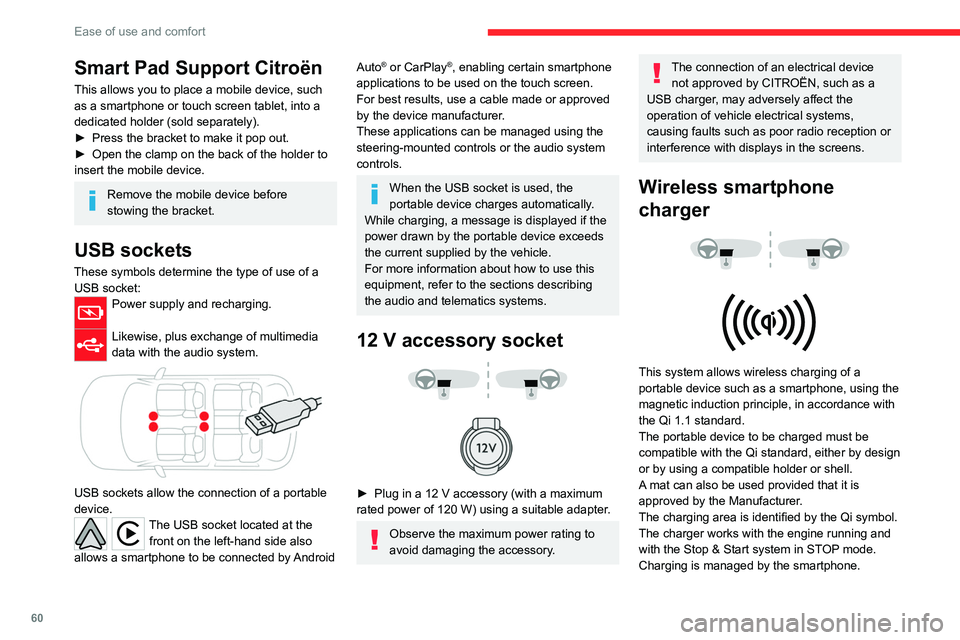
This system allows wireless charging of a
portable device such as a smartphone, using the
magnetic induction principle, in accordance with
the Qi 1.1 standard.
The portable device to be charged must be
compatible with the Qi standard, either by design
or by using a compatible holder or shell.
A mat can also be used provided that it is
approved by the Manufacturer.
The charging area is identified by the Qi symbol.
The charger works with the engine running and
with the Stop & Start system in STOP mode.
Charging is managed by the smartphone.
Page 63 of 292
61
Ease of use and comfort
3With the Keyless Entry and Start system, the
charger’s operation may be briefly disrupted
when a door is opened or the ignition is switched
off.
Charging
► With the charging area clear, place a device
in its centre.
When the portable device is detected, the
charger’s indicator lamp lights up green. It
remains lit for the whole time that the battery is
being charged.
The system is not designed to charge multiple devices simultaneously.
Do not leave metal objects (e.g. coins,
keys, vehicle remote control) in the
charging area while a device is being charged
- Risk of overheating or interrupting the
charging!
When using applications for a long time
in combination with wireless charging,
some smartphones may switch to thermal
safety and cause some functions to stop.
Checking operation
The state of the indicator lamp allows the
operation of the charger to be monitored.
State of the
indicator lamp Meaning
Off Engine switched off.
No compatible devices
detected.
Charging complete.
Fixed green Compatible portable device detected.
Charging.
Flashing orange Foreign object detected in the charging zone.
Portable device not well
centred in the charging
zone.
Fixed orange Malfunction of the portable device's battery
meter.
Device battery
temperature too high.
Charger malfunction.
If the indicator lamp is fixed orange:
– remove the device, then place it back in the
centre of the charging zone.
or –
remove the device and try again in a quarter
of an hour
.
If the problem persists, have the system checked
by a CITROËN dealer or a qualified workshop.
CITROËN Hi-Fi system
(Depending on version)
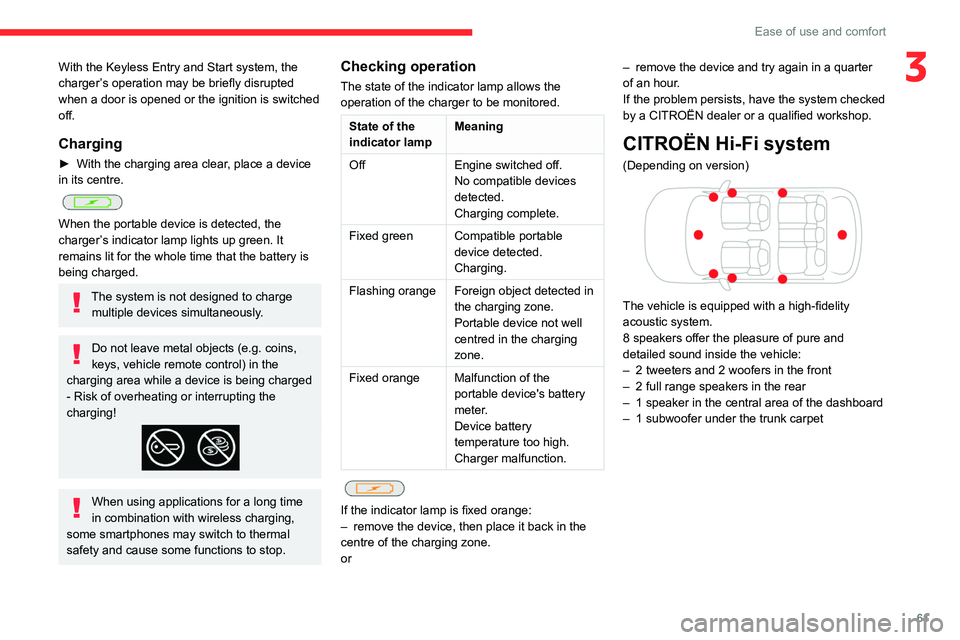
The vehicle is equipped with a high-fidelity
acoustic system.
8 speakers offer the pleasure of pure and
detailed sound inside the vehicle:
–
2 tweeters and 2 woofers in the front
–
2 full range speakers in the rear
–
1 speaker in the central area of the dashboard
–
1 subwoofer under the trunk carpet
Page 165 of 292
163
Practical information
7the driver's door will display the charge level
on the instrument panel for about 20 seconds.
Accelerated charging, mode 3
► Follow the accelerated charging unit
(W allbox) user instructions.
►
Remove the protective cover from the
charging nozzle.
►
Insert the nozzle into the charging connector
.
The start of charging is confirmed when the
charging indicator lamp in the flap flashes green.
If this is not the case, charging has not started;
restart the procedure, ensuring that the
connection has been properly established.
The red indicator lamp in the flap comes on to
indicate that the nozzle is locked.
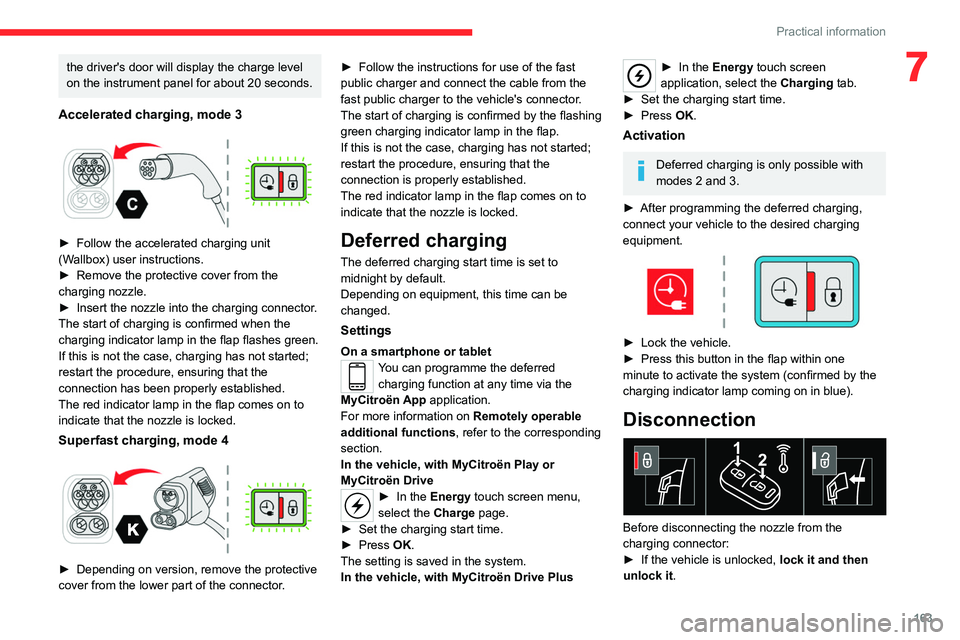
Superfast charging, mode 4
► Depending on version, remove the protective
cover from the lower part of the connector .►
Follow the instructions for use of the fast
public charger and connect the cable from the
fast public charger
to the vehicle's connector.
The start of charging is confirmed by the flashing
green charging indicator lamp in the flap.
If this is not the case, charging has not started;
restart the procedure, ensuring that the
connection is properly established.
The red indicator lamp in the flap comes on to
indicate that the nozzle is locked.
Deferred charging
The deferred charging start time is set to
midnight by default.
Depending on equipment, this time can be
changed.
Settings
On a smartphone or tabletYou can programme the deferred charging function at any time via the
MyCitroën App application.
For more information on Remotely operable
additional functions , refer to the corresponding
section.
In the vehicle, with MyCitroën Play or
MyCitroën Drive
► In the Energy touch screen menu,
select the Charge page.
►
Set the charging start time.
►
Press
OK.
The setting is saved in the system.
In the vehicle, with MyCitroën Drive Plus
► In the Energy touch screen
application, select the Charging tab.
►
Set the charging start time.
►
Press
OK.
Activation
Deferred charging is only possible with
modes 2 and 3.
►
After programming the deferred charging,
connect your vehicle to the desired charging
equipment.
► Lock the vehicle.
► Press this button in the flap within one
minute to activate the system (confirmed by the
charging indicator lamp coming on in blue).
Disconnection
Before disconnecting the nozzle from the
charging connector:
►
If the vehicle is unlocked, lock it and then
unlock it .
Page 171 of 292

169
Practical information
7continue to use functions such as the audio and
telematics system, dipped beam headlamps or
courtesy lamps.
Selecting the mode
A confirmation message is displayed when
energy economy mode is entered, and the active
functions are placed on standby.
If a telephone call is in progress at the
time, it will be maintained for around 10
minutes via the audio system’s hands-free
system.
Exiting the mode
These functions are automatically reactivated the
next time the vehicle is used.
To restore the use of these functions
immediately, start the engine and let it run:
–
For less than 10 minutes, to use the
equipment for approximately 5 minutes.
–
For more than 10 minutes, to use the
equipment for approximately 30 minutes.
Let the engine run for the specified duration to
ensure that the battery charge is sufficient.
T
o recharge the battery, avoid repeatedly or
continuously restarting the engine.
A flat battery prevents the engine from starting.
For more information on the 12
V battery/
Accessories battery /, refer to the
corresponding section.
Load reduction mode
This system manages the use of certain
functions according to the level of charge
remaining in the battery.
When the vehicle is being driven, the load
reduction function temporarily deactivates certain
functions, such as the air conditioning and the
heated rear screen.
The deactivated functions are reactivated
automatically as soon as conditions permit.
Bonnet
Stop & Start
Before doing anything under the bonnet,
you must switch off the ignition to avoid any
risk of the engine restarting automatically.
Take care with objects or clothing that could
be caught in the blades of the cooling fan
or in certain moving components - risk of
strangulation and serious injury!
Electric motor
Take care with objects or clothing that
could be caught in the blades of the cooling
fan or in certain moving components - risk of
strangulation and serious injury!
Before carrying out any work under the
bonnet, you must switch off the ignition, check
that the READY indicator lamp is off on the
instrument panel and disconnect the nozzle
from the charging connector if it is connected.
The location of the interior bonnet release lever prevents the bonnet being
opened when the left-hand front door is
closed.
When the engine is hot, handle the
exterior safety catch and the bonnet stay
with care (risk of burns), using the protected
area.
When the bonnet is open, take care not to
damage the safety catch.
Do not open the bonnet under very windy
conditions.
Cooling of the engine when stopped
The engine cooling fan may start after
the engine has been switched off.
Take care with objects or clothing that
could be caught in the blades of the fan!
Page 206 of 292
204
Touch screen BLUETOOTH audio system
Touch screen BLUETOOTH audio
system
Multimedia audio system -
Bluetooth
® telephone
The functions and settings described
vary according to the vehicle version and
configuration.
For safety reasons and because they
require sustained attention by the driver,
the following operations must be carried out
with the vehicle stationary and the ignition
on:
–
Pairing the smartphone with the system in
Bluetooth mode.
–
Using the smartphone.
–
Changing the system settings and
configuration.
The system is protected in such a way that it will only operate in the vehicle.
The Energy Economy Mode message is
displayed when the system is about to enter
the corresponding mode.
First steps
With the engine running, a press mutes
the sound.
With the ignition off, a press turns the system on.
Increase or decrease the volume using
the thumbwheel on the left-hand side.
To access the menus, press this button on the touch screen.
Press the back arrow to go back a level.
To clean the screen, use a soft, non-abrasive cloth (e.g. spectacles cloth)
with no additional product.
Do not use sharp objects on the screen.
Do not touch the screen with wet hands.
Certain information is displayed permanently in
the upper bar of the touch screen:
–
Air conditioning information (depending on
version).
–
Bluetooth connection.
–
Indication of location data sharing.
Selection of the audio source:
–
FM/AM/DAB radio stations (depending on
equipment).
–
T
elephone connected via Bluetooth and
Bluetooth multimedia broadcast (streaming).
–
USB memory stick.
–
Media player connected via the auxiliary
socket (depending on equipment).
In very hot conditions, the volume may
be limited to protect the system. It may
go into standby (screen and sound off) for at
least 5 minutes.
The return to normal takes place when the
temperature in the passenger compartment
has dropped.
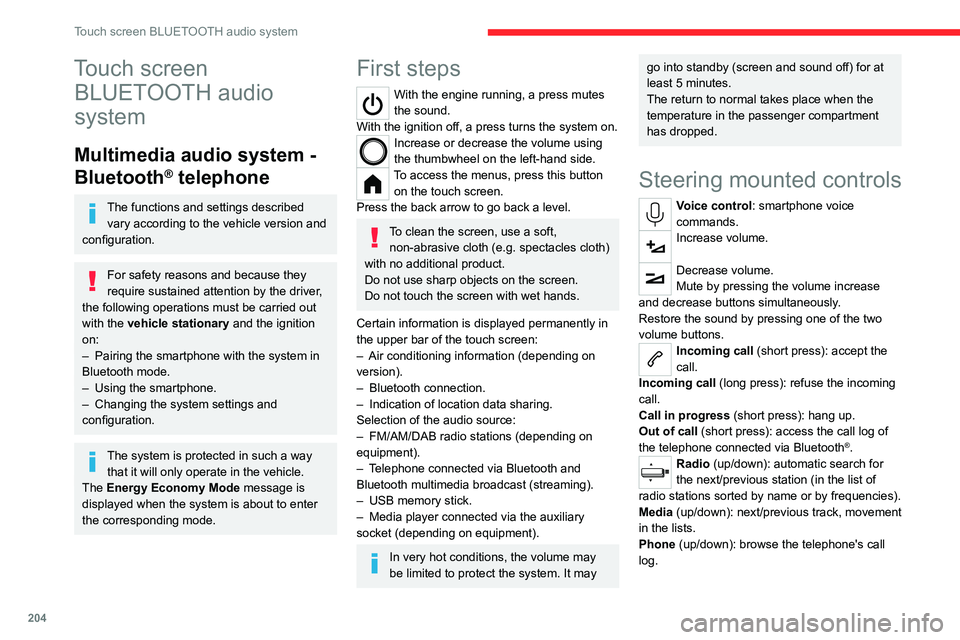
Steering mounted controls
Voice control: smartphone voice
commands.
Increase volume.
Decrease volume.
Mute by pressing the volume increase
and decrease buttons simultaneously.
Restore the sound by pressing one of the two
volume buttons.
Incoming call (short press): accept the
call.
Incoming call (long press): refuse the incoming
call.
Call in progress (short press): hang up.
Out of call (short press): access the call log of
the telephone connected via
Bluetooth
®.Radio (up/down): automatic search for
the next/previous station (in the list of
radio stations sorted by name or by frequencies).
Media (up/down): next/previous track, movement
in the lists.
Phone (up/down): browse the telephone's call
log.
Page 207 of 292
205
Touch screen BLUETOOTH audio system
10Short press: validate a selection. Out of
selection, display the lists.
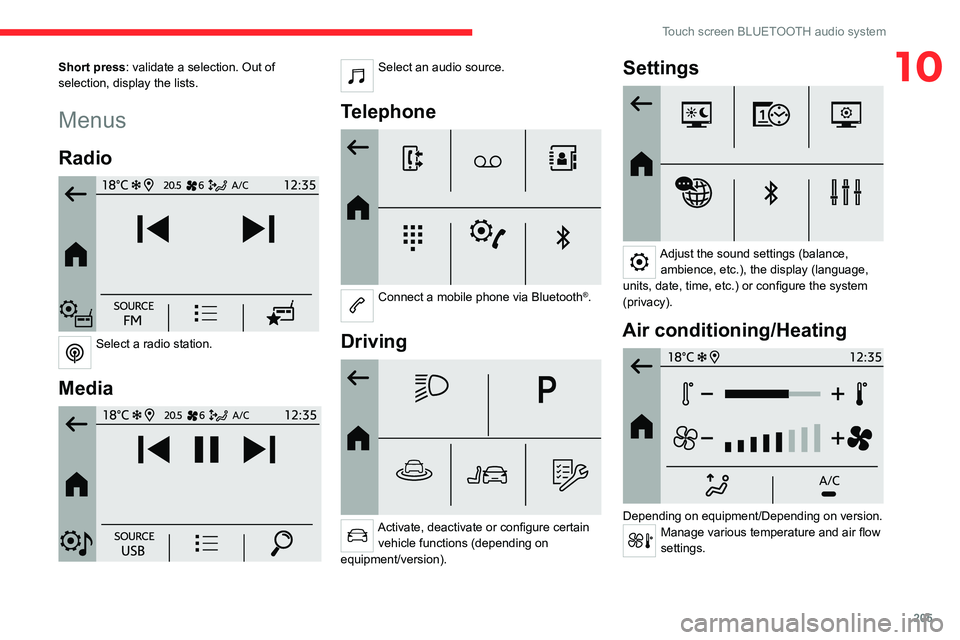
Menus
Radio
Select a radio station.
Media
Select an audio source.
Telephone
Connect a mobile phone via Bluetooth®.
Driving
Activate, deactivate or configure certain vehicle functions (depending on
equipment/version).
Settings
Adjust the sound settings (balance, ambience, etc.), the display (language,
units, date, time, etc.) or configure the system
(privacy).
Air conditioning/Heating
Depending on equipment/Depending on version.Manage various temperature and air flow
settings.
Page 209 of 292
207
Touch screen BLUETOOTH audio system
10DAB (Digital Audio
Broadcasting) radio
Terrestrial Digital Radio
Choosing the DAB radio
Terrestrial digital radio (DAB) provides higher
quality reception.
The different "multiplexes/ensembles" offer a
choice of radio stations arranged in alphabetical
order.
Press the "Radio" menu.
Press the "SOURCE" button.
In the list of available sources, choose " DAB
Radio".
Activating FM-DAB Tracking
"DAB" does not cover 100% of the territory.
When the digital radio signal is poor, the
"FM-DAB tracking" allows you to continue
listening to the same station, by automatically
switching to the corresponding "FM" analogue
station (if there is one).
Press the "Radio Settings " button.
Activate "DAB-FM".
If "FM-DAB tracking" is activated, there
may be a difference of a few seconds
when the system switches to "FM" analogue
radio with sometimes a variation in volume.
Once the digital signal quality is restored, the
system automatically changes back to "DAB".
If the "DAB" station being listened to is
not available on "FM", or if the "FM-DAB
tracking" is not activated, the sound will cut
out while the digital signal is too weak.
Media
Selecting the source
Press the "Media" menu.
Press the "SOURCE" button.
Select the source (USB, Bluetooth or AUX,
depending on equipment).
USB port
Insert the USB memory stick into the USB
port or connect the USB device to the
USB port using a suitable cable (not supplied).
To protect the system, do not use a USB hub.
The system builds playlists (in temporary
memory); this operation can take from a
few seconds to several minutes at the first
connection. Playlists are updated whenever a USB memory
stick is connected or the contents of a particular
USB memory stick are changed. The lists
are memorised: if they are not modified, the
subsequent loading time will be shorter.
Auxiliary (AUX) jack socket
Depending on equipmentConnect a portable device (MP3 player,
etc.) to the auxiliary jack socket using an
audio cable (not supplied).
This source is only available if " Aux
Amplification " has been selected in the audio
settings.
First adjust the volume on the portable device
(to a high level). Then adjust the volume of the
audio system.
Controls are managed via the portable device.
Bluetooth®streaming
Streaming allows you to listen to music from your
smartphone.
The Bluetooth profile must be activated, first
adjust the volume on the portable device (to a
high level).
Then adjust the volume of the system.
If play does not start automatically, it may be
necessary to start the audio playback from the
smartphone.
Control is from the portable device or by using
the system's touch buttons.
Page 210 of 292
208
Touch screen BLUETOOTH audio system
Once connected in Streaming mode, the
smartphone is considered to be a media
source.
Connecting Apple® players
Connect the Apple® player to the USB socket
using a suitable cable (not supplied).
Play starts automatically.
Control is via the audio system.
The classifications available are those of the portable device connected (artists/
albums/genres/playlists/audio books/
podcasts). It is also possible to use a
classification structured in the form of a
library.
The default classification used is by artist. To
modify the classification used, return to the
first level of the menu then select the desired
classification (playlists for example) and
confirm to go down through the menu to the
desired track.
The version of software in the audio system may
not be compatible with the generation of the
Apple
® player.
Media settings
Press the "Media Settings" button.
Activate/deactivate track playback options and
access the audio settings.
The audio settings are the same as the audio settings for the radio. For more
information on the " Audio settings", refer to
the corresponding section.
Information and advice
The system supports USB mass storage
devices, BlackBerry® devices or Apple® players
via the USB ports. The adapter cable is not
supplied.
Devices are managed using the audio system
controls.
Other devices, not recognised on connection,
must be connected to the auxiliary socket using
a jack cable (not supplied) or via Bluetooth
streaming, if compatible.
To protect the system, do not use a USB hub.
The audio system will only play audio files with
".wav", ".wma", ".aac", ".mp3", ".mp4", ".m4a",
".flac", ".ogg" file extensions and with a bit rate
of between 32 Kbps and 320 Kbps (300 Kbps
maximum for ".flac" files).
It also supports VBR (Variable Bit Rate) mode.
All ".wma" files must be standard WMA 9 files.
The supported sampling rates are 11, 22, 44 and
48 KHz.
To avoid reading and display problems, we
recommend choosing file names less than 20
characters long that do not contain any special
characters (e.g. “ ? .
; ù).
Use only USB memory sticks in FAT or FAT32
format (File Allocation Table).
We recommend using the original USB
cable for the portable device.
Telephone
Pairing a Bluetooth®
telephone
Up to 10 phones can be paired to the system.
Activate the Bluetooth function on the telephone
beforehand and ensure that it is "visible to all"
(telephone configuration).
To complete the pairing, whichever procedure is
used (from the telephone or from the system),
ensure that the code is the same in the system
and in the telephone.
The services available depend on the
network, the SIM card and the
compatibility of the Bluetooth devices used.
Check for services availability in the phone's
manual and with the operator.
The profiles compatible with the system are: HFP, OPP, PBAP, DID, A2DP,
AVRCP, SPP and PAN.
Go to the Brand's website for more information
(compatibility, additional help, etc.).
Page 211 of 292
209
Touch screen BLUETOOTH audio system
10Procedure from the telephone
Select the name of the system in the list
of devices detected.
In the system, accept the connection request
from the telephone.
Procedure from the system
Press the Home button to access the
menus.
Select the "Telephone" menu.
Press "Manage connections".
The list of telephones detected is displayed.
Select the name of the telephone in the list.
The system offers to connect the telephone with
two profiles:
–
as "
Telephone": hands-free kit, telephone
only.
–
as "
Streaming": wireless playing of audio files
on the telephone.
The system cannot be connected to multiple telephones with the same profile.
No more than 2 phones can be connected
simultaneously ( 1 per profile).
The Bluetooth profiles chosen on the
phone have priority over the profiles
selected on the system.
If the pairing procedure fails, it is recommended
that you deactivate and then reactivate the
Bluetooth function on the telephone.
Depending on the type of telephone, the
option is given to accept or not accept
the transfer of contacts and the call log.
Automatic reconnection
On return to the vehicle, if the last telephone
connected is present again, it is automatically
recognised and within about 30 seconds
of switching on the ignition, the pairing is
established automatically (Bluetooth activated).
Managing paired telephones
To connect or disconnect a paired telephone:Select the "Telephone" menu.
Press "Bluetooth " to display the list of
paired devices.
Press on the name of the telephone chosen in
the list to disconnect it.
Press again to connect it.
Deleting a telephone
Press the "Bluetooth " button.
Press "Manage connections".
In the displayed window select " Delete".
The list of paired devices is displayed.
Press on the name of the telephone to delete.
Receiving a call
An incoming call is announced by a ring and a
superimposed display in the screen.
To accept the call:Make a short press on the steering
mounted TEL button.
To reject the call:
Make a long press
on the steering mounted TEL button.
Or
Press "End call" on the touch screen.
Making a call
Using the telephone is not recommended
while driving.
Parking the vehicle.
Make the call using the steering mounted
controls.
Calling a new number
Press "Telephone".
Press the "Keypad" button.
Enter the phone number using the digital
keypad.
Press "OK" to start the call.