radio controls CITROEN C4 2022 User Guide
[x] Cancel search | Manufacturer: CITROEN, Model Year: 2022, Model line: C4, Model: CITROEN C4 2022Pages: 292, PDF Size: 7.79 MB
Page 244 of 292
242
MyCitroën Drive
TA message can be heard. Normal play of the
previously playing media resumes at the end of
the message.
Select "Announcements".
Activate/deactivate "Traffic announcement".
Press "OK" to confirm.
DAB (Digital Audio
Broadcasting) radio
Terrestrial Digital Radio
Digital radio provides higher quality sound.
The various "multiplexes/ensembles" offer a
choice of radio stations organised in alphabetical
order.
Press Radio Media to display the main
page.
Press “Band …" at the top right of the screen to
display the " DAB" waveband.
FM-DAB tracking
"DAB" does not cover 100% of the territory.
When the digital radio signal is poor,
“FM-DAB
auto tracking" enables you to continue
listening to the same station by automatically
switching to the corresponding FM analogue
station (if there is one).
Press Radio Media to display the main
page.
Press the "OPTIONS " button to go to the
secondary page.
Select "Radio settings".
Select "General".
Activate/deactivate "FM-DAB Follow-up ".
Activate/deactivate "Station follow".
Press "OK".
If "FM-DAB auto tracking" is activated,
there may be a time lag of a few seconds
when the system switches to "FM" analogue
radio, and in some cases a change in volume.
When the digital signal quality is restored, the
system automatically changes back to "DAB".
To minimise this time lag, storing radio
stations in the "DAB" band is recommended.
If the "DAB" station being listened to is
not available on "FM" (" FM-DAB" greyed
out), or "FM-DAB auto tracking" is not
activated, the sound will cut out when the
digital signal becomes too weak.
Media
USB port
Insert the USB memory stick into the USB
port or connect the USB device to the
USB port using a suitable cable (not supplied).
To protect the system, do not use a USB hub.
The system builds playlists (in temporary
memory); this operation can take from a
few seconds to several minutes at the first
connection.
Reduce the number of non-music files and the
number of folders to reduce the waiting time.
Playlists are updated whenever the ignition
is switched off or a USB memory stick is
connected. The audio system memorises these
lists, which will subsequently load faster if they
have not been changed.
Auxiliary socket (AUX)
Depending on equipmentConnect a portable device (MP3 player,
etc.) to the auxiliary jack socket using an
audio cable (not supplied).
This source is only available if "Auxiliary input"
has been selected in the audio settings.
First adjust the volume on the portable device
(to a high level). Then adjust the volume of the
audio system.
Controls are managed via the portable device.
Page 245 of 292
243
MyCitroën Drive
12Selecting the source
Press Radio Media to display the main
page.
Select "SOURCES".
Select the source.
Watching a video
Depending on equipment/Depending on version/
Depending on country.
Insert a USB memory stick in the USB port.
Video control commands are accessible
only through the touch screen.
Press Radio Media to display the main
page.
Select "SOURCES".
Select Video to start the video.
To remove the USB memory stick, press the pause button to stop the video, then
remove the memory stick.
The system can play video files in the MPEG-4
Part 2, MPEG-2, MPEG-1, H.264, H.263, VP8,
WMV and RealVideo formats.
Streaming Bluetooth®
Streaming allows you to listen to the audio feed
from your smartphone.
The Bluetooth profile must be activated.
First adjust the volume on the portable device (to
a high level).
Then adjust the volume of the audio system.
If play does not start automatically, it may be
necessary to start the audio playback from the
smartphone.
Control is from the portable device or by using
the system's touch buttons.
Once connected in streaming mode, the
smartphone is considered to be a media
source.
Connecting Apple® players
Connect the Apple® player to the USB port using
a suitable cable (not supplied).
Play starts automatically.
Control is via the audio system.
The classifications available are those of the portable device connected (artists/
albums/genres/playlists/audio books/
podcasts).
The default classification used is by artist. To
modify the classification used, return to the
first level of the menu then select the desired
classification (playlists for example) and
confirm to go down through the menu to the
desired track.
The version of software in the audio system may
not be compatible with the generation of the
Apple
® player.
Information and advice
The system supports USB mass storage
devices, BlackBerry® devices and Apple® players
via the USB ports. The adapter cable is not
supplied.
Devices are managed using the audio system
controls.
Other devices, not recognised on connection,
must be connected to the auxiliary socket using
a jack cable (not supplied) or via Bluetooth
streaming, if compatible.
The audio system will only play audio files with
".wma", ".aac", ".flac", ".ogg" and ".mp3" file
extensions, at bit rates between 32 Kbps and
320 Kbps.
It also supports VBR (Variable Bit Rate) mode.
No other file types (".mp4", etc.) can be read.
All ".wma" files must be standard WMA 9 files.
The supported sampling rates are 32, 44 and
48 KHz.
To avoid reading and display problems, we
recommend choosing file names less than 20
characters long that do not contain any special
characters (e.g. “ ? .
; ù).
Use only USB memory sticks in FAT32 format
(File Allocation Table).
We recommend using the original USB
cable for the portable device.
Page 254 of 292
252
MyCitroën Drive Plus
MyCitroën Drive Plus
GPS navigation -
Applications - Multimedia
audio system - Bluetooth
®
telephone
The functions and settings described
vary according to the version and
configuration of the vehicle, and according to
the country of sale.
For safety reasons and because they
require continued attention on the part of
the driver, the following operations must be
carried out with the vehicle stationary and
the ignition on:
–
Pairing the smartphone with the system via
Bluetooth®.
–
Using the smartphone.
–
Connecting to Mirror Screen
(Apple®CarPlay® or Android Auto).
–
Changing the system settings and
configuration.
The message Energy economy mode is displayed when the system is about to go
into standby.
For more information on Energy economy
mode, refer to the "Practical information"
section.
The AM radio selection mode is not available on electric vehicles.
Warning
Navigation is a driving aid. It cannot
replace the driver. All guidance instructions
should be carefully checked by the user.
By using the navigation, you accept the
following terms and conditions:
https://www.tomtom.com/en_gb/legal/
eula-automotive/?388448
First steps
The system starts when the ignition is switched on.
Short press, ignition off: system on/off.
Short press, ignition on: mute/restore sound.
Long press, ignition on: start standby mode
(mute sound, screens and clock display off).
Rotation: volume adjustment.
Information
This system gives access to the following
elements:
–
Audio equipment and telephone controls with
display of associated information.
–
Connected services and display of associated
information.
–
Navigation system controls and display
of associated information (depending on
equipment). –
V
oice recognition (depending on equipment).
–
T
ime and outside temperature.
–
Heating/air conditioning system controls and
reminders of settings.
–
Settings for driving aid functions, comfort
and safety functions, extended head-up display
(depending on equipment and version), audio
equipment and digital instrument panel.
–
Settings for functions specific to electric
vehicles.
–
Display of visual manoeuvring aid functions.
–
Interactive handbook.
–
V
ideo tutorials (e.g. screen management,
driving aids, voice recognition).
Upper banner
Certain information is displayed permanently in
the upper banner of the touch screen:
–
Outside temperature from the vehicle's
sensors (associated with a blue symbol if there is
a risk of ice).
–
T
emperature setting reminder for the air
conditioning on the driver's and passenger sides.
–
Charge level of the connected smartphone.
–
System connection status (Bluetooth®, Wi-Fi,
mobile telephone network).
–
Time.
–
Quick access to the Mirror Screen® functions
(associated with a connected smartphone).
Swipe down from the upper edge of the touch
screen to access the notifications centre and
display a list of quick settings :Guest, Privacy
Page 258 of 292
256
MyCitroën Drive Plus
Adding a page
To add a page, press "Page" on the left of the screen.
Press the back arrow to return to the
previous page.
Deleting a Widget
To move a Widget to the bin, press and hold it, then drag it to the bin.
Personalising the
instrument panel
Press the pencil in the "Customize
Driver Information" part.
The modification of the organisation of the
different Widget is displayed on the instrument
panel in real time.
A Widget is a reduced window of an application or service.
Adding a Widget
To add a Widget, press "Widget" on the left of the screen.
Or
Press one of these buttons on the screen.
Select the desired Widget.
Press the back arrow to return to the
previous page.
Deleting a Widget
To move a Widget to the bin, press and hold it, then drag it to the bin.
Personalising My shortcuts
(depending on equipment)
From the left or right edge of the screen, swipe
right or left to display the shortcuts.
A representation of six shortcuts appears.
These shortcuts can be used to access an application (e.g. Media, Climate) or to
launch an action (e.g.
set the temperature to
21°, call a contact selected in their directory).
Briefly press a shortcut to be replaced, a panel is
displayed with all eligible shortcuts. A notification
also informs you of the next step to be applied.
Select the desired new shortcut. It will be
duplicated in the My shortcuts page and will
replace the originally selected one. A notification
also informs you of this.
To exit this function at any time, press this button or press the HOME main button.
Steering-mounted
controls
Voice control:
Short press, system voice commands
(depending on equipment).
Long press, voice commands of
the
smartphone connected using Bluetooth
® or
Mirror Screen® (Apple®CarPlay®/Android Auto)
via the system.
Increase volume.
Decrease volume.
Mute the sound: long press on the
decrease volume button.
Restore the sound by pressing one of the two
volume buttons.
Incoming call (short press): accept the
call.
Call in progress (short press): hang up.
Incoming call (long press): refuse the incoming
call.
Out of call (short press): access the call log of
the telephone connected via
Bluetooth
®.
Mirror Screen® connected (short press): access
the projected view of the telephone application of
your Mirror Screen
® equipment.Radio: automatic search for the
previous/next station (in the list of
radio stations sorted by name or by frequencies).
Media: previous/next track, movement in the
lists.
Phone: browse the telephone's call log.
Page 265 of 292
263
MyCitroën Drive Plus
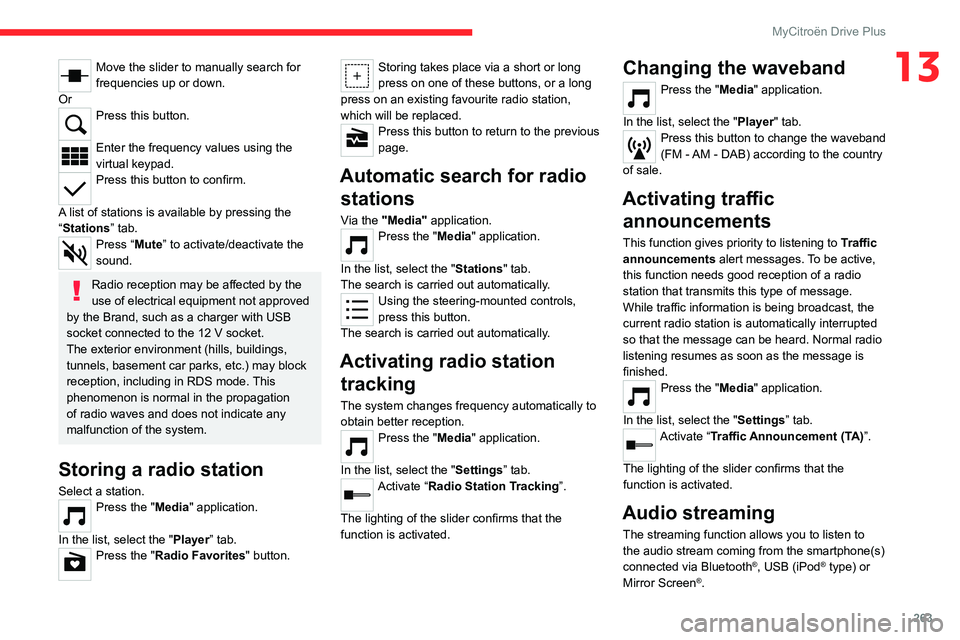
13Move the slider to manually search for
frequencies up or down.
Or
Press this button.
Enter the frequency values using the
virtual keypad.
Press this button to confirm.
A list of stations is available by pressing the
“Stations” tab.
Press “Mute” to activate/deactivate the
sound.
Radio reception may be affected by the
use of electrical equipment not approved
by the Brand, such as a charger with USB
socket connected to the 12
V socket.
The exterior environment (hills, buildings,
tunnels, basement car parks, etc.) may block
reception, including in RDS mode. This
phenomenon is normal in the propagation
of radio waves and does not indicate any
malfunction of the system.
Storing a radio station
Select a station.Press the "Media" application.
In the list, select the "Player” tab.
Press the "Radio Favorites" button.
Storing takes place via a short or long
press on one of these buttons, or a long
press on an existing favourite radio station,
which will be replaced.
Press this button to return to the previous
page.
Automatic search for radio stations
Via the "Media" application.Press the "Media" application.
In the list, select the "Stations" tab.
The search is carried out automatically.
Using the steering-mounted controls,
press this button.
The search is carried out automatically.
Activating radio station tracking
The system changes frequency automatically to
obtain better reception.
Press the "Media" application.
In the list, select the "Settings” tab.
Activate “Radio Station Tracking”.
The lighting of the slider confirms that the
function is activated.
Changing the waveband
Press the "Media" application.
In the list, select the "Player" tab.
Press this button to change the waveband
(FM - AM - DAB) according to the country
of sale.
Activating traffic announcements
This function gives priority to listening to Traffic
announcements alert messages. To be active,
this function needs good reception of a radio
station that transmits this type of message.
While traffic information is being broadcast, the
current radio station is automatically interrupted
so that the message can be heard. Normal radio
listening resumes as soon as the message is
finished.
Press the "Media" application.
In the list, select the "Settings” tab.
Activate “Traffic Announcement (TA)”.
The lighting of the slider confirms that the
function is activated.
Audio streaming
The streaming function allows you to listen to
the audio stream coming from the smartphone(s)
connected via Bluetooth
®, USB (iPod® type) or
Mirror Screen®.
Page 266 of 292
264
MyCitroën Drive Plus
First adjust the volume on the portable device (to
a high level).
Then adjust the volume of the system.
If playback does not start, it may be necessary to
start the audio playback from the smartphone.
Control is from the portable device or by using
the system's touch buttons.
Once connected in streaming mode, the
smartphone is considered to be a media
source.
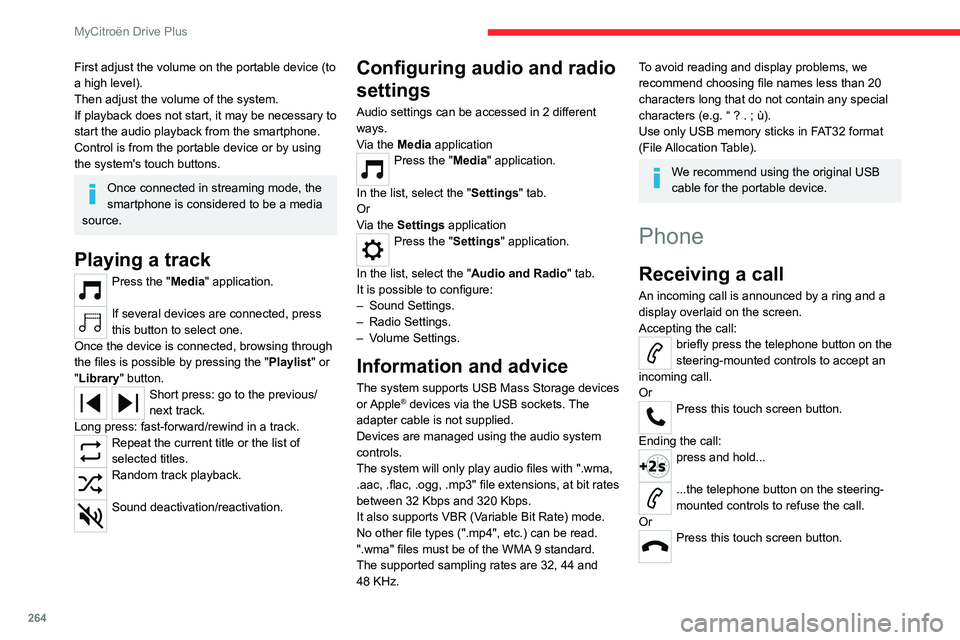
Playing a track
Press the "Media" application.
If several devices are connected, press
this button to select one.
Once the device is connected, browsing through
the files is possible by pressing the
"Playlist" or
"Library"
button.
Short press: go to the previous/
next track.
Long press: fast-forward/rewind in a track.
Repeat the current title or the list of
selected titles.
Random track playback.
Sound deactivation/reactivation.
Configuring audio and radio
settings
Audio settings can be accessed in 2 different
ways.
Via the Media application
Press the "Media" application.
In the list, select the "Settings" tab.
Or
Via the Settings application
Press the "Settings" application.
In the list, select the "Audio and Radio " tab.
It is possible to configure:
–
Sound Settings.
–
Radio Settings.
–
V
olume Settings.
Information and advice
The system supports USB Mass Storage devices
or Apple® devices via the USB sockets. The
adapter cable is not supplied.
Devices are managed using the audio system
controls.
The system will only play audio files with ".wma,
.aac,
.flac, .ogg, .mp3" file extensions, at bit rates
between 32 Kbps and 320 Kbps.
It also supports VBR (Variable Bit Rate) mode.
No other file types (".mp4", etc.) can be read.
".wma" files must be of the WMA 9 standard.
The supported sampling rates are 32, 44 and
48 KHz.
To avoid reading and display problems, we
recommend choosing file names less than 20
characters long that do not contain any special
characters (e.g. “ ? .
; ù).
Use only USB memory sticks in FAT32 format
(File Allocation Table).
We recommend using the original USB
cable for the portable device.
Phone
Receiving a call
An incoming call is announced by a ring and a
display overlaid on the screen.
Accepting the call:
briefly press the telephone button on the
steering-mounted controls to accept an
incoming call.
Or
Press this touch screen button.
Ending the call:
press and hold...
...the telephone button on the steering-
mounted controls to refuse the call.
Or
Press this touch screen button.
Page 274 of 292
272
Alphabetical index
Charger, wireless 60
Charging cable
157
Charging cable (Electric)
156
Charging connector (Electric)
155, 160,
162–163
Charging flap (Electric)
155, 160, 162–163
Charging system (Electric)
5, 9, 28, 153, 171
Charging the traction battery
(Electric)
23, 153, 157, 160, 162–163
CHECK
24
Checking the engine oil level
20
Checking the levels
171–172
Checking tyre pressures
(using the kit)
181, 183
Checks
170, 173–175
Checks, routine
173–174
Child lock
92
Children
81, 87–89
Children (safety)
92
Child seats
81, 84–87
Child seats, conventional
87, 90–91
Child seats, i-Size
89–91
Child seats, ISOFIX
87–91
Cleaning (advice)
154, 177–179
Closing the boot
36, 40
Closing the doors
35–36, 39
Collision Risk Alert
132–134
Configuration, vehicle
11, 28–29
Connected applications
239
Connection, Android Auto
221, 239
Connection, Apple CarPlay
221, 238Connection, Bluetooth 208–209, 218–219,
239–240, 244–245, 260–261
Connection, Wi-Fi network
240
Connectivity
238, 265
Consumptions
29–30
Container, AdBlue®
176
Control, emergency boot release
40
Control, emergency door
37
Control, heated seats
47, 50–51
Controls, steering mounted
102–103
Control stalk, lighting
65–66
Control stalk, wipers
70–72
Control unit
156–157
Courtesy lamps
62–63
Cruise control
113–114, 116–118
Cruise control, adaptive
113–114, 118–119
Cruise control by speed limit
recognition
113–114
D
DAB (Digital Audio Broadcasting) -
Digital radio
207, 217, 242
Date (setting)
224, 247, 266
Daytime running lamps
66, 188
Deactivating the passenger airbag
83, 86
Deadlocking
33, 36
Deferred charging
30
Deferred charging (Electric)
28, 30,
155, 160, 163
Deferred charging (Rechargeable hybrid)
30
Defrosting 48, 57
Defrosting, front
57
Defrosting, rear screen
58
Demisting
48, 57
Demisting, front
57
Demisting, rear
58
Diagnosis, vehicle
24
Dials and gauges
10
Digital instrument panel
11
Dimensions
202
Dipstick
20, 171
Direction indicators (turn signals)
66, 188–189
Display, head-up
12
Display screen, instrument panel
10
Domestic charging
(Electric)
157, 162–163, 201
Doors
39
Drive, electric
5, 9, 23, 28, 30,
153, 164, 171, 192, 195, 201
Driver’s attention warning
136–137
Drive selector (Electric)
103, 174
Driving
93–94
Driving aids camera (warnings)
11 0
Driving aid shortcuts
111
Driving aids (recommendations)
109
Driving economically
8
Driving modes
104–105
Dynamic stability control (DSC)
78
Page 278 of 292

276
Alphabetical index
Reversing lamps 189, 191
Roof bars
167–168
Roof, opening
43–44
Running out of fuel (Diesel)
180
S
Safety, children 83–89
Saturation of the particle filter (Diesel)
173
Screenwash
71
Screenwash, front
71
SCR (Selective Catalytic Reduction)
22, 175
Seat angle
46
Seat belts
79–81, 87
Seat belts, rear
80
Seats, electric
46
Seats, front
45–46
Seats, heated
47, 50–51
Seats, rear
49–50, 85
Selector, gear
101, 103
Sensors (warnings)
11 0
Serial number, vehicle
202
Servicing
19, 173, 175
Settings, equipment
11, 28–29
Settings, system
210, 223, 247
Sidelamps
66, 188–189
Silent vehicle warning sound (Electric)
75, 94
Smartphone
31, 60
Snow chains
108, 168
Socket, 12 V accessory
60
Socket, auxiliary
207, 242
Socket, Jack
242
Speakers 61
Speed limiter
113–116
Speed limit recognition
111 , 11 3
Speedometer
10, 111
Sport mode
105
Spotlamps, side
68
Stability control (ESC)
77
Starting a Diesel engine
152
Starting the engine
95, 98
Starting the vehicle
95–96, 103
Starting using another battery
97, 192
Station, radio
206, 215–216, 241, 262–263
Stay, engine bonnet
170
Steering mounted controls,
audio
204, 214, 228
Steering wheel (adjustment)
47
Stickers, customising
178
Stopping the vehicle
95–97, 103
Stop & Start
26, 52, 57, 106–107, 152, 169, 173, 194
Storage
59
Storage box
64
Storage wells
64
Sunshine sensor
51
Sun visor
59
Super-fast charging (Electric)
162–163, 201
Suspension
175
Switch, ignition
95–96
Switching off the engine
95, 98
Synchronising the remote control
39T
Tables of engines 201
Tank, fuel
152–153
Technical data
198, 200–201
Telephone
208–210, 218–220, 244–246, 260–261, 264–265
Temperature, coolant
21
Thermal comfort consumption indicator
(Electric)
24
Thermal comfort equipment
24
Time (setting)
210, 223, 248, 266
TMC (Traffic info)
235
Tool box
64
Tools
180–181
Topping-up AdBlue®
176
Top Rear Vision
140, 143
Top Tether (fixing)
87, 90–91
Total distance recorder
25
Touch screen
27–30, 58
Touch screen tablet
27, 60
Towball, quickly detachable
165–167
Towbar
164
Towbar with quickly detachable
towball
165–167
Towed loads
197–198, 200
Towing
194, 196
Towing another vehicle
194, 196
Towing the vehicle
194, 196
Traction battery (Electric)
23, 28, 30,
153, 155, 201
Traction control (ASR)
78
Traffic information (TMC)
235
Trailer
164