steering CITROEN C4 2022 Workshop Manual
[x] Cancel search | Manufacturer: CITROEN, Model Year: 2022, Model line: C4, Model: CITROEN C4 2022Pages: 292, PDF Size: 7.79 MB
Page 211 of 292
209
Touch screen BLUETOOTH audio system
10Procedure from the telephone
Select the name of the system in the list
of devices detected.
In the system, accept the connection request
from the telephone.
Procedure from the system
Press the Home button to access the
menus.
Select the "Telephone" menu.
Press "Manage connections".
The list of telephones detected is displayed.
Select the name of the telephone in the list.
The system offers to connect the telephone with
two profiles:
–
as "
Telephone": hands-free kit, telephone
only.
–
as "
Streaming": wireless playing of audio files
on the telephone.
The system cannot be connected to multiple telephones with the same profile.
No more than 2 phones can be connected
simultaneously ( 1 per profile).
The Bluetooth profiles chosen on the
phone have priority over the profiles
selected on the system.
If the pairing procedure fails, it is recommended
that you deactivate and then reactivate the
Bluetooth function on the telephone.
Depending on the type of telephone, the
option is given to accept or not accept
the transfer of contacts and the call log.
Automatic reconnection
On return to the vehicle, if the last telephone
connected is present again, it is automatically
recognised and within about 30 seconds
of switching on the ignition, the pairing is
established automatically (Bluetooth activated).
Managing paired telephones
To connect or disconnect a paired telephone:Select the "Telephone" menu.
Press "Bluetooth " to display the list of
paired devices.
Press on the name of the telephone chosen in
the list to disconnect it.
Press again to connect it.
Deleting a telephone
Press the "Bluetooth " button.
Press "Manage connections".
In the displayed window select " Delete".
The list of paired devices is displayed.
Press on the name of the telephone to delete.
Receiving a call
An incoming call is announced by a ring and a
superimposed display in the screen.
To accept the call:Make a short press on the steering
mounted TEL button.
To reject the call:
Make a long press
on the steering mounted TEL button.
Or
Press "End call" on the touch screen.
Making a call
Using the telephone is not recommended
while driving.
Parking the vehicle.
Make the call using the steering mounted
controls.
Calling a new number
Press "Telephone".
Press the "Keypad" button.
Enter the phone number using the digital
keypad.
Press "OK" to start the call.
Page 212 of 292
210
Touch screen BLUETOOTH audio system
Calling a contact
Press the "Telephone" menu.
Or make a long press
on the steering mounted TEL button.
Press "Contacts".
Select the desired contact from the list offered.
Calling a recently used number
Press "Telephone".
Press "Calls".
Or
Make a long press
on the steering mounted TEL button.
Select the desired contact from the list offered.
A call in progress remains active in the vehicle for 10 minutes after switching off
the ignition. After that, the system switches off
and the call automatically redirects to the
telephone.
It is always possible to make a call
directly from the telephone; as a safety
measure, first park the vehicle.
Settings
Adjusting the brightness
Press "Settings".
Select "Display".
Press the buttons to adjust the
brightness of the screen and/or of
the instrument panel (depending on version).
Modifying system settings
Press "Settings".
Press "System ".
Press "Privacy" to access the privacy
settings.
Select "Units" to change the units of
distance, fuel consumption and
temperature.
Press "Factory settings" to return to the
initial settings.
Press "System Info" to check the system
version.
Privacy settings
Three data privacy options are available:"No data sharing (data, vehicle
position) "
"Only data sharing"
“Data and vehicle position sharing "
When data and vehicle position sharing
are enabled, this symbol is displayed in
the upper bar of the touch screen.
Selecting the language
Press "Settings".
Select "Languages" to change the
language.
Setting the date and time
Press "Settings".
Press "Date/Time".
Setting the date:
Press the arrows to set the day, month
and year.
First set the day, then the month.
Setting the time:
Press these buttons to set hours and
minutes.
Select or deselect the 24h format.
In 12h format, choose "AM" or "PM".
The system does not automatically manage the change between winter and
summer time.
Page 216 of 292
214
MyCitroën Play
– Access to the touch screen and digital
instrument panel settings.
Audio source selection (depending on
equipment):
–
FM/DAB/AM radio stations (depending on
equipment).
–
T
elephone connected via Bluetooth and
Bluetooth multimedia broadcast (streaming).
–
USB Memory stick.
In very hot conditions, the volume may
be limited to protect the system. It may
enter standby mode (with the screen and
sound off) for 5 minutes or more.
The system will resume normal operation
when the temperature in the passenger
compartment has dropped.
The system is operational in temperatures
between -40°C and +70°C.
Steering mounted controls
Voice control: smartphone voice
commands.
Increase volume.
Decrease volume.
Mute by pressing the volume increase
and decrease buttons simultaneously
(depending on equipment).
Restore the sound by pressing one of the two
volume buttons.
Telephone (short press): start telephone
call.
Call in progress (short press): access
telephone menu.
Telephone (long press): reject an incoming call,
end call; when no call is in progress, access
telephone menu.
Radio (rotate): automatic search for the
previous/next station.
Media (rotate): previous/next track, move
through a list.
Short press: confirm a selection; if nothing
selected, access presets.
Menus
Radio Media
Select an audio source or radio station.
Telephone
Connect a mobile phone via Bluetooth®.
Run certain applications from a
smartphone connected via CarPlay
® or Android
Auto.
Applications
Access configurable equipment.
Page 221 of 292
219
MyCitroën Play
11Procedure from the system
Press Telephone to display the main
page.
Press "Connected Devices".
The list of detected telephones is
displayed.
Press this button to start searching for
new devices.
Select the name of the chosen telephone
in the list.
Complete the pairing with the displayed code.
Connection sharing
The system offers to connect the telephone with
3 profiles:
–
"Telephone" (hands-free kit, telephone only),
–
“Streaming" (streaming: wireless playing of
audio files on the telephone),
–
"Mobile internet data ".
Select one or more profiles.
Press "OK" to confirm.
Depending on the type of telephone, you may by
prompted to accept the transfer of contacts and
messages.
The ability of the system to connect just one profile depends on the telephone.
All three profiles may connect by default.
The profiles compatible with the system are: HFP, OPP, PBAP, A2DP, AVRCP,
MAP and PAN.
Visit the Brand's website for more information
(compatibility, additional help, etc.).
Automatic reconnection
On returning to the vehicle, if the last telephone
connected is present again, it is automatically
recognised and within about 30 seconds
after switching on the ignition, the pairing is
established automatically (Bluetooth activated).
To modify the connection profile:
Press Telephone to display the main
page.
Press the "PHONE" button to access the
secondary page.
Press "Bluetooth connection" to
display the list of paired devices.
Press the "Details" button for a paired
device.
Select one or more profiles.
Press "OK" to confirm.
Managing paired telephones
This function lets you connect or disconnect a
device or delete a pairing.
Press Telephone to display the main
page. Press the "PHONE" button to access the
secondary page.
Press "Bluetooth connection" to
display the list of paired devices.
Press on the name of the telephone
selected in the list to disconnect it.
Press again to connect it.
Deleting a telephone
Press the basket at the top right of the
screen to display a basket alongside the
telephone chosen.
Press the basket alongside the telephone
chosen to delete it.
Receiving a call
An incoming call is announced by a ring and a
superimposed display in the screen.
Make a short press on the steering
mounted PHONE button to accept an
incoming call.
And
Make a long press
on the steering mounted PHONE button
to reject the call.
Or
Press "End call".
Page 222 of 292
220
MyCitroën Play
Making a call
Using the telephone is not recommended
while driving.
Parking the vehicle.
Make the call using the steering mounted
controls.
Calling a new number
Press Telephone to display the main
page.
Enter the phone number using the digital
keypad.
Press "Call" to start the call.
Calling a contact
Press Telephone to display the main
page.
Or press and hold
the steering mounted PHONE button.
Press "Contacts".
Select the desired contact from the displayed list.
Press "Call".
Calling a recently used
number
Press Telephone to display the main
page.
OrPress and hold
the steering mounted button.
Press "Recent calls".
Select the desired contact from the displayed list.
It is always possible to make a call
directly from the telephone; as a safety
measure, first park the vehicle.
Setting the ringtone
Press Telephone to display the main
page.
Press the "OPTIONS " button to access the
secondary page.
Press "Ring volume" to display the
volume bar.
Press the arrows or move the slider to set
the ring volume.
Using CarPlay® or Android
Auto
Synchronising a smartphone enables users
to display applications that support the
smartphone’s CarPlay
® or Android Auto
technology on the vehicle’s screen. For CarPlay®
technology, the CarPlay® function must first be
activated on the smartphone.
The smartphone can be connected via USB
cable or via a wireless connection.
Unlock the smartphone for the
communication process between the
smartphone and the system to work.
As principles and standards are constantly
changing, we recommend keeping the
smartphone's operating system up-to-
date, together with the date and time on
the smartphone and the system.
For the list of compatible smartphones,
visit the Manufacturer's website in your
country.
USB sockets
Depending on equipment, for more information
on the USB sockets compatible with CarPlay® or
Android Auto applications, refer to the "Ease of
use and comfort" section.
Wireless connection
Before using CarPlay® or Android Auto
wirelessly, ensure the Wi-Fi regulatory
restrictions of your geographic location are
met, as indicated by a message on the touch
screen.
If the 5 GHz Wi-Fi network frequency is not
allowed in your location, select 2.4 GHz at the
first connection.
Check the Wi-Fi restrictions again when you
travel to different locations and set the Wi-Fi
frequency accordingly.
Page 223 of 292
221
MyCitroën Play
11The regulations of the 5 GHz frequency
are specific to each country. Refer to the
regulation in force in your country.
When using CarPlay® with 5 GHz
frequency activated, there may be
interference with certain devices (tolls,
parking...) resulting in a disconnection. To
prevent this from happening, it is
recommended to disable the 5 GHz function.
Difficulties in connecting wirelessly your
smartphone may happen, due to:
–
Interference with other Wi-Fi networks.
–
Interference with certain devices (tolls,
parking)
when using Android Auto.
–
An unsuitable configuration of the
smartphone.
In these cases, it is recommended to connect
the smartphone with its original cable.
CarPlay® smartphone connection
The availability of the application depends on the
country.
USB connection
On connecting the USB cable, the
CarPlay® function deactivates the
system's Bluetooth® mode.
The "CarPlay " function requires the use of
a compatible smartphone and compatible
applications.
Connect the USB cable.
The smartphone charges when connected by the
USB cable.
From the system, press "Telephone" to
display the main page.
Press "CarPlay" to display the CarPlay®
interface.
CarPlay® interface may appear
automatically.
When the USB cable is disconnected
and the ignition is switched off then back
on, the system will not automatically switch to
Radio Media mode; the source must be
changed manually.
The CarPlay® navigation can be accessed
at any time by pressing the system's
Navigation button.
Wireless connection
First activate the smartphone’s Bluetooth®
function.
From the system, press "Telephone" to
display the main page.
If the device has already been connected to the
system via Bluetooth
®, select the device settings
from the list of known devices and choose
CarPlay
® as the wireless connection mode.
If the device has never been connected to the
system before, it will have to be paired (refer to
the corresponding section).
The system detects if the smartphone is
compatible with CarPlay® and offers to connect
to it following the pairing process.
Subsequent automatic connection of the
smartphone requires activation of the Bluetooth
®
on your device.
As soon as the connection is established, press "CarPlay " to display the CarPlay®
interface.
Press and hold this steering-mounted
control button and say "Siri" to initiate the
smartphone voice commands.
Android Auto smartphone connection
The availability of the application depends on the
country.
On the smartphone, download the
Android Auto application.
The "Android Auto" function requires the use of a compatible smartphone and
applications.
The first connection of Android Auto to the system should be made by USB
cable.
USB connection
Connect a USB cable.
The smartphone charges when connected by a
USB cable.
Page 224 of 292
222
MyCitroën Play
From the system, press "Telephone" to
display the main page.
Press "Android Auto" to start the
application in the system.
Depending on the smartphone, it may be
necessary to activate the "Android Auto"
function.
During the procedure, several screen
pages relating to certain features are
displayed.
Accept to start and complete the connection.
When connecting a smartphone to the
system, we recommend enabling
Bluetooth
® on the smartphone.
Wireless connection
First activate the smartphone’s Bluetooth®
function.
Connect a USB cable.
From the system, press "Telephone" to
display the main page.
If the device has already been connected to the
system via Bluetooth
®, select the device settings
from the list of known devices and choose
Android Auto
® as the wireless connection mode.
If the device has never been connected to the
system before, it will have to be paired (refer to
the corresponding section).
The system detects if the smartphone is
compatible with Android Auto and offers to
connect to it following the pairing process.
Subsequent automatic connection of the
smartphone requires activation of the Bluetooth®
on your device.
As soon as the connection is established, press "Android Auto" to display the
Android Auto interface.
Press and hold this steering-mounted
control button and say "OK Google" to
initiate the smartphone voice commands.
Access to the different audio sources remains
available in the margin of the Android Auto
display, using the touch buttons located in the
upper bar.
Access to the menus for the system is possible
at any time using the dedicated buttons.
There may be a pause before applications become available,
depending on the quality of the network.
Applications
Viewing photos
Insert a USB memory stick in the USB port.
To protect the system, do not use a USB hub.
The system can read folders and image files in
the formats: .tiff; .gif; .jpg/jpeg; .bmp and .png.
Press Applications to display the main
page.
Press "Photos".
Select a folder.
Select an image to view.
Press this button to display the details of
the photo.
Press the back arrow to go back a level.
Managing messages
Press Applications to display the main
page.
Press "SMS".
Select the "SMS” tab.
Press this button to select the display
settings for messages.
Press this button to search and select a
recipient.
Select the "Quick messages” tab.
Press this button to select the display
settings for messages.
Press this button to write a new message.
Press the bin alongside the selected
message to delete it.
Press this button alongside the selected
message to display the secondary page.
Page 230 of 292
228
MyCitroën Drive
– Media player connected via the auxiliary
socket (depending on equipment).
–
V
ideo (depending on equipment).
In the "Settings" menu, it is possible to
create a profile for an individual or for a
group of people with shared interests, and
configure a wide range of settings (radio
presets, audio settings, navigation history,
favourite contacts, etc.). Settings are applied
automatically.
In very hot conditions, the volume may
be limited to protect the system. It may
enter standby mode (with the screen and
sound off) for 5 minutes or more.
The system will resume normal operation
when the temperature in the passenger
compartment has dropped.
Steering mounted controls
Voice control:
Short press, system voice control.
Long press, voice commands from smartphone
or CarPlay
®, Android Auto via the system.Increase volume.
Decrease volume.
Mute by pressing the volume increase
and decrease buttons simultaneously
(depending on equipment).
Restore the sound by pressing one of the two
volume buttons.
Telephone (short press): start telephone
call.
Call in progress (short press): access
telephone menu.
Telephone (long press): reject an incoming call,
end call; when no call is in progress, access
telephone menu.
Radio (up/down): automatic search for
the next/previous station (in the list of
radio stations sorted by name or by frequencies).
Media (up/down): next/previous track, movement
in the lists.
Phone (up/down): browse the telephone's call
log.
Short press: validate a selection. Out of
selection, display the lists.
Menus
Connected navigation
Enter navigation settings and choose a
destination.
Use real-time services, depending on equipment.
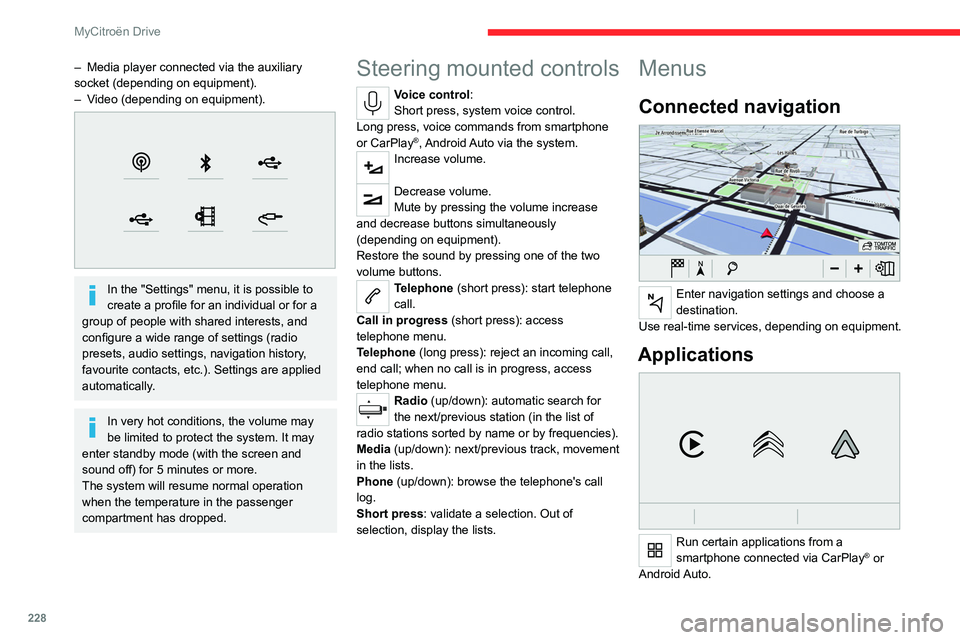
Applications
Run certain applications from a
smartphone connected via CarPlay® or
Android Auto.
Page 231 of 292
229
MyCitroën Drive
12Check the status of the Bluetooth® and Wi-Fi
connections.
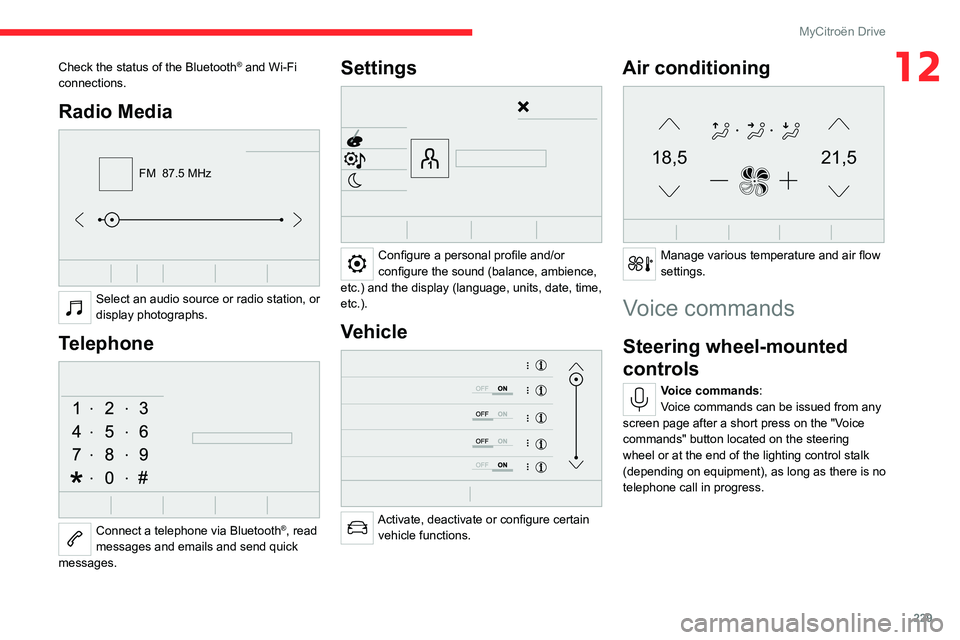
Radio Media
FM 87.5 MHz
Select an audio source or radio station, or
display photographs.
Telephone
Connect a telephone via Bluetooth®, read
messages and emails and send quick
messages.
Settings
Configure a personal profile and/or
configure the sound (balance, ambience,
etc.) and the display (language, units, date, time,
etc.).
Vehicle
Activate, deactivate or configure certain vehicle functions.
Air conditioning
21,518,5
Manage various temperature and air flow
settings.
Voice commands
Steering wheel-mounted
controls
Voice commands:
Voice commands can be issued from any
screen page after a short press on the "Voice
commands" button located on the steering
wheel or at the end of the lighting control stalk
(depending on equipment), as long as there is no
telephone call in progress.
Page 247 of 292
245
MyCitroën Drive
12Managing paired telephones
This function lets you connect or disconnect a
device or delete a pairing.
Press Telephone to display the main
page.
Press the "OPTIONS " button to access the
secondary page.
Select "Bluetooth connection" to display
the list of paired devices.
Press on the name of the telephone
selected in the list to disconnect it.
Press again to connect it.
Deleting a telephone
Select the basket at top right of the
screen to display a basket alongside the
telephone chosen.
Press the basket alongside the telephone
chosen to delete it.
Receiving a call
An incoming call is announced by a ring and a
superimposed display in the screen.
Make a short press on the steering
mounted telephone button to accept an
incoming call.
And
Make a long press
on the steering mounted telephone button
to reject the call.
Or
Select "End call" on the touch screen.
Making a call
Using the telephone is not recommended
while driving.
Park the vehicle.
Make the call using the steering mounted
controls.
Calling a new number
Press Telephone to display the main
page.
Enter the phone number using the digital
keypad.
Press "Call" to start the call.
Calling a contact
Press Telephone to display the main
page.
Or press and hold
the steering mounted telephone button.
Select "Contact".
Select the desired contact from the displayed list.
Select "Call".
Calling a recently used
number
Press Telephone to display the main
page.
Or
Press and hold
the steering mounted telephone button.
Select "Calls".
Select the desired contact from the displayed list.
It is always possible to make a call
directly from the telephone; as a safety
measure, first park the vehicle.
Managing contacts/entries
Press Telephone to display the main
page.
Select "Contact".
Select "Create" to add a new contact.
Press the "Telephone " tab to enter the
contact’s telephone number(s).
Press the "Address" tab to enter the
contact’s address(es).
Press the "Email" tab to enter the
contact’s email address(es).
Press "OK" to save.