turn signal CITROEN C4 2023 User Guide
[x] Cancel search | Manufacturer: CITROEN, Model Year: 2023, Model line: C4, Model: CITROEN C4 2023Pages: 292, PDF Size: 7.79 MB
Page 104 of 292
102
Driving
M.Driving in manual mode
Press this button to switch to manual mode.
The driver changes gear using the steering-
mounted controls.
►
In mode
N, with your foot on the brake pedal,
push without passing the point of resistance: •
Forwards, mode
R is selected.
•
Backwards, mode D
is selected.
Release the selector fully after each push; it
will then return to its initial position.
Special cases
To avoid mode N (quick change from D to R and
back again):
►
In mode
R, push backwards past the point of
resistance, mode D is selected.
►
In mode
D, push forwards past the point of
resistance,
mode R is selected.
►
T
o return to mode N, push without passing
the point of resistance.
Steering-mounted controls
(Depending on equipment)
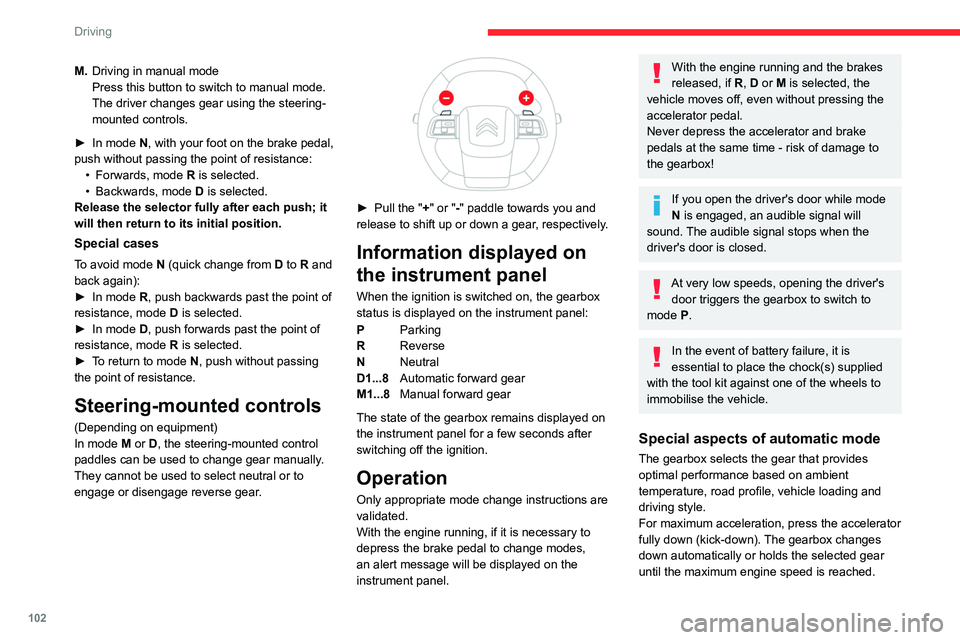
In mode M or D, the steering-mounted control
paddles can be used to change gear manually.
They cannot be used to select neutral or to
engage or disengage reverse gear.
► Pull the " +" or "-" paddle towards you and
release to shift up or down a gear, respectively.
Information displayed on
the instrument panel
When the ignition is switched on, the gearbox
status is displayed on the instrument panel:
P Parking
R Reverse
N Neutral
D1...8 Automatic forward gear
M1...8 Manual forward gear
The state of the gearbox remains displayed on
the instrument panel for a few seconds after
switching off the ignition.
Operation
Only appropriate mode change instructions are
validated.
With the engine running, if it is necessary to
depress the brake pedal to change modes,
an alert message will be displayed on the
instrument panel.
With the engine running and the brakes
released, if R, D or M is selected, the
vehicle moves off, even without pressing the
accelerator pedal.
Never depress the accelerator and brake
pedals at the same time - risk of damage to
the gearbox!
If you open the driver's door while mode
N is engaged, an audible signal will
sound. The audible signal stops when the
driver's door is closed.
At very low speeds, opening the driver's door triggers the gearbox to switch to
mode P.
In the event of battery failure, it is
essential to place the chock(s) supplied
with the tool kit against one of the wheels to
immobilise the vehicle.
Special aspects of automatic mode
The gearbox selects the gear that provides
optimal performance based on ambient
temperature, road profile, vehicle loading and
driving style.
For maximum acceleration, press the accelerator
fully down (kick-down). The gearbox changes
down automatically or holds the selected gear
until the maximum engine speed is reached.
Page 113 of 292
111
Driving
6Units of speed
Ensure that the units of speed displayed
on the instrument panel (mph or km/h) are
those for the country you are driving in.
If this is not the case, when the vehicle is
stationary, set the display to the required
units of speed so that it complies with what is
authorised locally.
In case of doubt, contact a CITROËN dealer
or a qualified workshop.
Shortcuts for driving aids
With MyCitroën Drive Plus
The full list of available driving aids can be found
in the Functions tab.
Driving aids can be accessed directly to quickly
activate/deactivate them.
By default, driving aids are already stored in the
Shortcuts tab (e.g.
Stop & Start, Lane keeping
assist).
Other driving aids can be added or deleted from
this tab.
It is configured in the ADAS>Functions
touch screen application.
► Press the button corresponding to the
driving assistance concerned:
•
Full symbol: the function is added to the
Shortcuts
tab.
•
Empty symbol: the function is deleted from
the
Shortcuts tab.
►
Check the modification in the Shortcuts
tab.
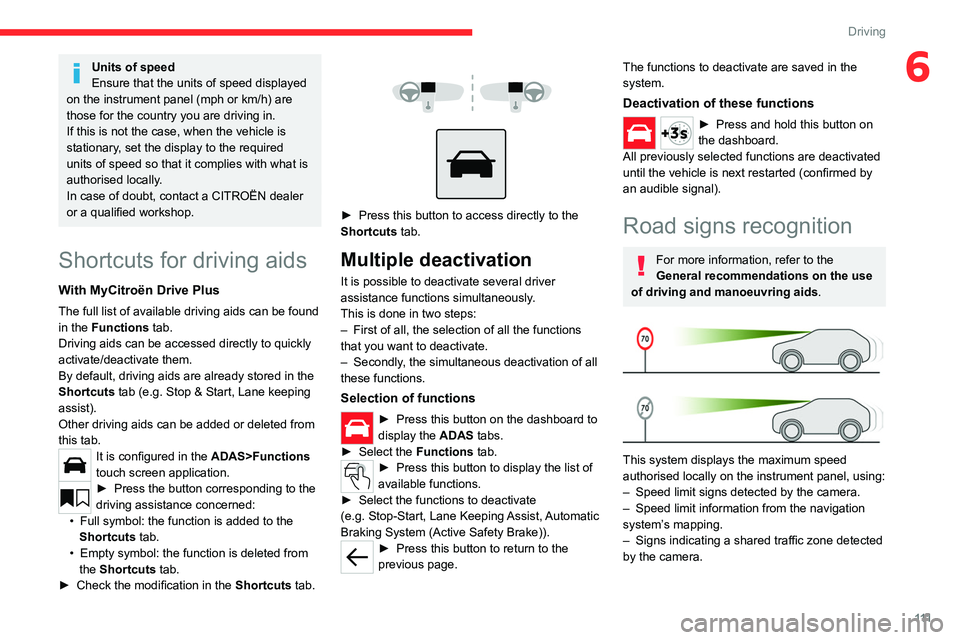
► Press this button to access directly to the
Shortcuts tab.
Multiple deactivation
It is possible to deactivate several driver
assistance functions simultaneously.
This is done in two steps:
–
First of all, the selection of all the functions
that you want to deactivate.
–
Secondly
, the simultaneous deactivation of all
these functions.
Selection of functions
► Press this button on the dashboard to
display the ADAS
tabs.
►
Select the
Functions tab.
► Press this button to display the list of
available functions.
►
Select the functions to deactivate
(e.g.
Stop - Start, Lane Keeping Assist, Automatic
Braking System (Active Safety Brake)).
► Press this button to return to the
previous page.
The functions to deactivate are saved in the
system.
Deactivation of these functions
► Press and hold this bu tton on
the dashboard.
All previously selected functions are deactivated
until the vehicle is next restarted (confirmed by
an audible signal).
Road signs recognition
For more information, refer to the
General recommendations on the use
of driving and manoeuvring aids .
This system displays the maximum speed
authorised locally on the instrument panel, using:
–
Speed limit signs detected by the camera.
–
Speed limit information from the navigation
system’
s mapping.
–
Signs indicating a shared traffic zone detected
by the camera.
Page 118 of 292
11 6
Driving
– When passing the sign:
► Press 4-OK to save the suggested speed.
This value is then immediately shown as the new
speed setting on the instrument panel.
–
After passing the sign:
►
Press
4-OK. The message “OK?" is
displayed to confirm the request to save.
►
Press
4-OK again to save the suggested
speed. The new speed setting value is displayed
on the instrument panel.
Temporarily exceeding the
speed setting
► Fully depress the accelerator pedal.
The speed limiter is temporarily deactivated and
the displayed speed setting flashes.
►
Release the accelerator pedal to return to
below the speed setting.
When exceeding the speed is not due to the
driver's action (e.g.
in case of a steep slope), an
audible signal is triggered immediately.
On a steep descent or in the event of
sharp acceleration, the speed limiter will
not be able to prevent the vehicle from
exceeding the speed setting.
If necessary, apply the brakes to control your
vehicle’s speed.
When the vehicle speed returns to the speed
setting level, the speed limiter operates again:
the speed setting display becomes fixed again.
Off
► Press 1-LIMIT: the speed limiter information
display disappears.
Malfunction
In the event of a malfunction, dashes are
displayed flashing and then fixed instead of the
speed setting.
Have it checked by a CITROËN dealer or a
qualified workshop.
Cruise control - Specific
recommendations
The cruise control function does not
guarantee compliance with the maximum
authorised speed and the safety distance
between vehicles, the driver remains
responsible for their driving.
In the interest of public safety, only use cruise
control if the traffic conditions enable vehicles
to drive at a steady speed and maintain an
adequate safety distance.
Remain vigilant while cruise control is
activated. If you press and hold one of the
speed setting modification buttons, your
vehicle may change speed very abruptly.
When descending a steep hill , the cruise
control system cannot prevent the vehicle
from exceeding the set speed. Brake if
necessary to control the vehicle speed.
On steep climbs or when towing, the set
speed may not be reached or maintained.
Exceeding the programmed speed
setting
You can temporarily exceed the speed
setting by pressing the accelerator pedal (the
programmed speed flashes).
To return to the speed setting, release the
accelerator pedal (when the set speed is
reached again, the displayed speed stops
flashing).
Operating limits
Never use the system in the following
situations:
–
In an urban area with the risk of
pedestrians crossing the road.
–
In heavy traffic (except versions with the
Stop & Go function).
–
On winding or steep roads.
–
On slippery or flooded roads.
–
In poor weather conditions.
–
In the event of restricted visibility for the
driver
.
–
Driving on a speed circuit.
–
Driving on a rolling road.
–
When using a ‘space-saver
’ type spare
wheel.
–
When using snow chains, non-slip covers
or studded tyres.
Page 141 of 292
139
Driving
6The parking sensors are deactivated while the
Park Assist function is measuring a space.
For more information on the Park Assist
function, refer to the corresponding section.
When starting the vehicle, the graphic
and audible aids are only available after
the touch screen has started up.
Operating limits
If the boot is heavily loaded, the vehicle may tilt,
affecting distance measurements.
Malfunction
In the event of a malfunction when
changing into reverse gear, these
warning lamps light up on the instrument panel,
accompanied by the display of a message and
an audible signal (short beep).
Have it checked by a CITROËN dealer or a
qualified workshop.
Reversing camera
For more information, refer to the
General recommendations on the use
of driving and manoeuvring aids .
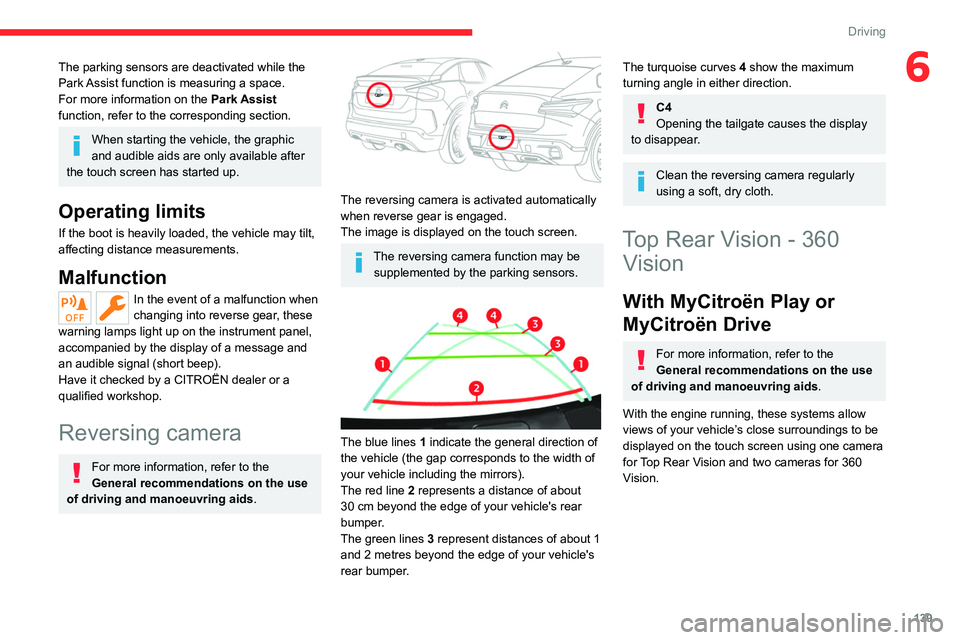
The reversing camera is activated automatically
when reverse gear is engaged.
The image is displayed on the touch screen.
The reversing camera function may be
supplemented by the parking sensors.
The blue lines 1 indicate the general direction of
the vehicle (the gap corresponds to the width of
your vehicle including the mirrors).
The red line 2 represents a distance of about
30
cm beyond the edge of your vehicle's rear
bumper.
The green lines 3 represent distances of about 1
and 2 metres beyond the edge of your vehicle's
rear bumper.
The turquoise curves 4 show the maximum
turning angle in either direction.
C4
Opening the tailgate causes the display
to disappear.
Clean the reversing camera regularly
using a soft, dry cloth.
Top Rear Vision - 360 Vision
With MyCitroën Play or
MyCitroën Drive
For more information, refer to the
General recommendations on the use
of driving and manoeuvring aids .
With the engine running, these systems allow
views of your vehicle’s close surroundings to be
displayed on the touch screen using one camera
for Top Rear Vision and two cameras for 360
Vision.
Page 150 of 292
148
Driving
For ''parallel'' parking, the space must at
a minimum be equal to the length of your
vehicle plus 0.60 m.
For ''bay'' parking, the width of the space
must be equal to the width of your vehicle
plus 0.70 m.
If the parking sensors function has been
deactivated in the touch screen, it will be
automatically reactivated when the system is
activated.
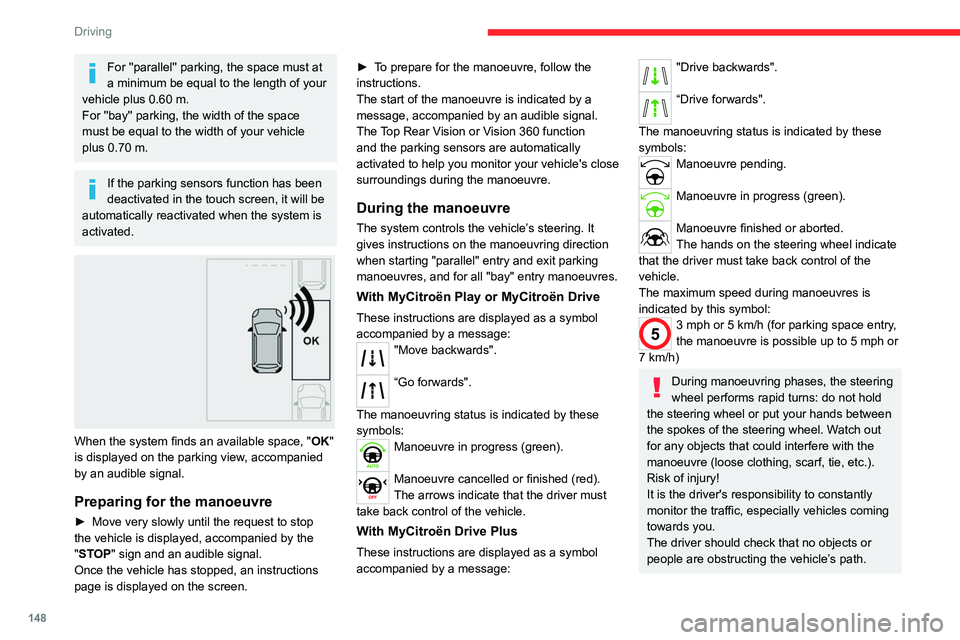
When the system finds an available space, " OK"
is displayed on the parking view, accompanied
by an audible signal.
Preparing for the manoeuvre
► Move very slowly until the request to stop
the vehicle is displayed, accompanied by the
"
STOP" sign and an audible signal.
Once the vehicle has stopped, an instructions
page is displayed on the screen. ►
T
o prepare for the manoeuvre, follow the
instructions.
The start of the manoeuvre is indicated by a
message, accompanied by an audible signal.
The Top Rear Vision or Vision 360 function
and the parking sensors are automatically
activated to help you monitor your vehicle's close
surroundings during the manoeuvre.
During the manoeuvre
The system controls the vehicle’s steering. It
gives instructions on the manoeuvring direction
when starting "parallel" entry and exit parking
manoeuvres, and for all "bay" entry manoeuvres.
With MyCitroën Play or MyCitroën Drive
These instructions are displayed as a symbol
accompanied by a message:
"Move backwards".
“Go forwards".
The manoeuvring status is indicated by these
symbols:
Manoeuvre in progress (green).
Manoeuvre cancelled or finished (red).
The arrows indicate that the driver must
take back control of the vehicle.
With MyCitroën Drive Plus
These instructions are displayed as a symbol
accompanied by a message:
"Drive backwards".
“Drive forwards".
The manoeuvring status is indicated by these
symbols:
Manoeuvre pending.
Manoeuvre in progress (green).
Manoeuvre finished or aborted.
The hands on the steering wheel indicate
that the driver must take back control of the
vehicle.
The maximum speed during manoeuvres is
indicated by this symbol:
53 mph or 5 km/h (for parking space entry,
the manoeuvre is possible up to 5 mph or
7
km/h)
During manoeuvring phases, the steering
wheel performs rapid turns: do not hold
the steering wheel or put your hands between
the spokes of the steering wheel. Watch out
for any objects that could interfere with the
manoeuvre (loose clothing, scarf, tie, etc.).
Risk of injury!
It is the driver's responsibility to constantly
monitor the traffic, especially vehicles coming
towards you.
The driver should check that no objects or
people are obstructing the vehicle’s path.
Page 151 of 292
149
Driving
6The images from the camera(s) displayed on the touch screen may be
distorted by the terrain.
In shady areas, or in inadequate sunlight
or lighting conditions, the image may be
darkened and with lower contrast.
The manoeuvre can be permanently interrupted
at any time, either by the driver or automatically
by the system.
Interruption by the driver can be done by:
–
taking over control of the steering.
–
activating the direction indicator lamps on the
opposite side to that of the manoeuvre.
–
unfastening the seat belt.
–
switching off the ignition.
The manoeuvre is automatically interrupted by
the system in the following cases:
–
vehicle exceeding the speed limit of
5
mph (7 km/h) during parking space entry
manoeuvres, or 3
mph (5 km/h) during parking
space exit manoeuvres.
–
activation of anti-slip regulation on a slippery
road.
–
opening of a door or the boot.
–
engine stall.
–
system malfunction.
–
after 10 manoeuvres to enter or exit a parallel
parking space and after 7 manoeuvres to enter a
parking bay
.
Interrupting the manoeuvre automatically
deactivates the function. Depending on audio equipment, the manoeuvre
symbol is displayed in red, accompanied by the
"Manoeuvre cancelled" message on the touch
screen.
A message prompts the driver to take back
control of the vehicle.
The function is deactivated after a few seconds
and returns to the initial display.
Depending on audio equipment, this
indicator lamp goes off.
End of the parking space entry or exit
manoeuvre
The vehicle stops as soon as the manoeuvre is
completed.
Depending on audio equipment, the manoeuvre
symbol is displayed in red, accompanied by the
message "Manoeuvre completed" on the touch
screen.
Depending on audio equipment, when the
function is deactivated, this indicator lamp
goes off, accompanied by an audible signal.
When entering a parking space, the driver may
be required to complete the manoeuvre.
Operating limits
– The system may suggest an inappropriate
parking space (parking prohibited, work in
progress with damaged road surface, location
alongside a ditch, etc.).
–
The system may indicate that a space has
been found but will not offer it because of a fixed
obstacle on the opposite side of the manoeuvre,
which would not allow the vehicle to follow a
trajectory required for parking.
–
The system may indicate that a space has
been found but the manoeuvre will not be
triggered, because the width of the lane is
insufficient.
–
The system is not designed for performing the
parking manoeuvre on a sharp bend.
–
The system does not detect spaces that
are much larger than the vehicle itself or that
are delimited by obstacles that are too low
(pavements, studs, etc.) or too thin (trees, posts,
wire fences, etc.).
–
If the boot is heavily loaded, the tilt of the
vehicle towards the rear may interfere with the
distance measurements.
Do not use the function under the
following exterior conditions:
–
Alongside a soft shoulder (e.g. ditch) or
quay or on the edge of a drop.
–
When the road surface is slippery (e.g. ice).
If any of the following malfunctions
occurs, do not use the system:
–
If a tyre is under-inflated.
–
If one of the bumpers is damaged.
–
If one of the cameras is faulty
.
Page 260 of 292
258
MyCitroën Drive Plus
► Press the button located on the steering
wheel.
or
►
Press the touch screen button.
To ensure that voice commands are always recognised by the system, please
follow these recommendations:
–
Use natural language in a normal tone
without breaking up words or raising your
voice.
–
After opening voice recognition with the
steering wheel-mounted button or the button
on the touch screen, always wait for the
"beep" (audible signal) before talking. No
"beep" sounds when voice recognition is
opened using "Hello Citroën".
–
For optimal operation, it is recommended
that you close the windows and the sunroof
(depending on equipment) to avoid any
external interference, and switch the
ventilation off.
–
Before speaking the voice commands, ask
the other passengers not to speak.
Voice command example for air
conditioning:
"raise the fan speed"
"Turn on air conditioning"
"i'm too hot"
Voice command example for radio and
media:
"I want to listen to michael jackson"
"switch to radio"
"tune to 88.5"
Media voice commands are only
available with a USB connection.
Voice command example for navigation:
"navigate home"
"Navigate me to gabrielle's house"
"search for public parking nearby"
Depending on the country, give
destination (address) instructions in the
language configured for the system.
Voice command example for telephone:
"Call Matthew's mobile"
"call 0113 345 9869"
"Call jonathan"
If there is no telephone connected by
Bluetooth®, a voice message announces:
"Connect a telephone by Bluetooth®", and the
voice session will be closed.
Voice command example for the weather:
"do i need a raincoat"
"how is the weather tonight"
"what is today's humidity level"
Navigation
Navigation home screen
(depending on equipment)
Access to additional videos
https://www.tomtom.com/
PSAGroup-Connected-Nav
Press the "Navigation" application to
display the navigation home screen.
Press "Search" to enter an address or a
name.
Press this button to display the main
menu for the various options.
Press this button to display the 3D/2D
mode.
Select "Sound activated", "Alerts only"
and "Silent" with successive presses on
this button.
Press the "plus"/"minus" buttons to zoom
in/out, or use two fingers on the screen.
Main menu
Press the "Navigation" application to
display the navigation home screen.
Press this button to display the main
menu for the various options.
Page 274 of 292
272
Alphabetical index
Charger, wireless 60
Charging cable
157
Charging cable (Electric)
156
Charging connector (Electric)
155, 160,
162–163
Charging flap (Electric)
155, 160, 162–163
Charging system (Electric)
5, 9, 28, 153, 171
Charging the traction battery
(Electric)
23, 153, 157, 160, 162–163
CHECK
24
Checking the engine oil level
20
Checking the levels
171–172
Checking tyre pressures
(using the kit)
181, 183
Checks
170, 173–175
Checks, routine
173–174
Child lock
92
Children
81, 87–89
Children (safety)
92
Child seats
81, 84–87
Child seats, conventional
87, 90–91
Child seats, i-Size
89–91
Child seats, ISOFIX
87–91
Cleaning (advice)
154, 177–179
Closing the boot
36, 40
Closing the doors
35–36, 39
Collision Risk Alert
132–134
Configuration, vehicle
11, 28–29
Connected applications
239
Connection, Android Auto
221, 239
Connection, Apple CarPlay
221, 238Connection, Bluetooth 208–209, 218–219,
239–240, 244–245, 260–261
Connection, Wi-Fi network
240
Connectivity
238, 265
Consumptions
29–30
Container, AdBlue®
176
Control, emergency boot release
40
Control, emergency door
37
Control, heated seats
47, 50–51
Controls, steering mounted
102–103
Control stalk, lighting
65–66
Control stalk, wipers
70–72
Control unit
156–157
Courtesy lamps
62–63
Cruise control
113–114, 116–118
Cruise control, adaptive
113–114, 118–119
Cruise control by speed limit
recognition
113–114
D
DAB (Digital Audio Broadcasting) -
Digital radio
207, 217, 242
Date (setting)
224, 247, 266
Daytime running lamps
66, 188
Deactivating the passenger airbag
83, 86
Deadlocking
33, 36
Deferred charging
30
Deferred charging (Electric)
28, 30,
155, 160, 163
Deferred charging (Rechargeable hybrid)
30
Defrosting 48, 57
Defrosting, front
57
Defrosting, rear screen
58
Demisting
48, 57
Demisting, front
57
Demisting, rear
58
Diagnosis, vehicle
24
Dials and gauges
10
Digital instrument panel
11
Dimensions
202
Dipstick
20, 171
Direction indicators (turn signals)
66, 188–189
Display, head-up
12
Display screen, instrument panel
10
Domestic charging
(Electric)
157, 162–163, 201
Doors
39
Drive, electric
5, 9, 23, 28, 30,
153, 164, 171, 192, 195, 201
Driver’s attention warning
136–137
Drive selector (Electric)
103, 174
Driving
93–94
Driving aids camera (warnings)
11 0
Driving aid shortcuts
111
Driving aids (recommendations)
109
Driving economically
8
Driving modes
104–105
Dynamic stability control (DSC)
78