volume Citroen C4 CACTUS 2016 1.G Owner's Manual
[x] Cancel search | Manufacturer: CITROEN, Model Year: 2016, Model line: C4 CACTUS, Model: Citroen C4 CACTUS 2016 1.GPages: 308, PDF Size: 7.96 MB
Page 35 of 308
33
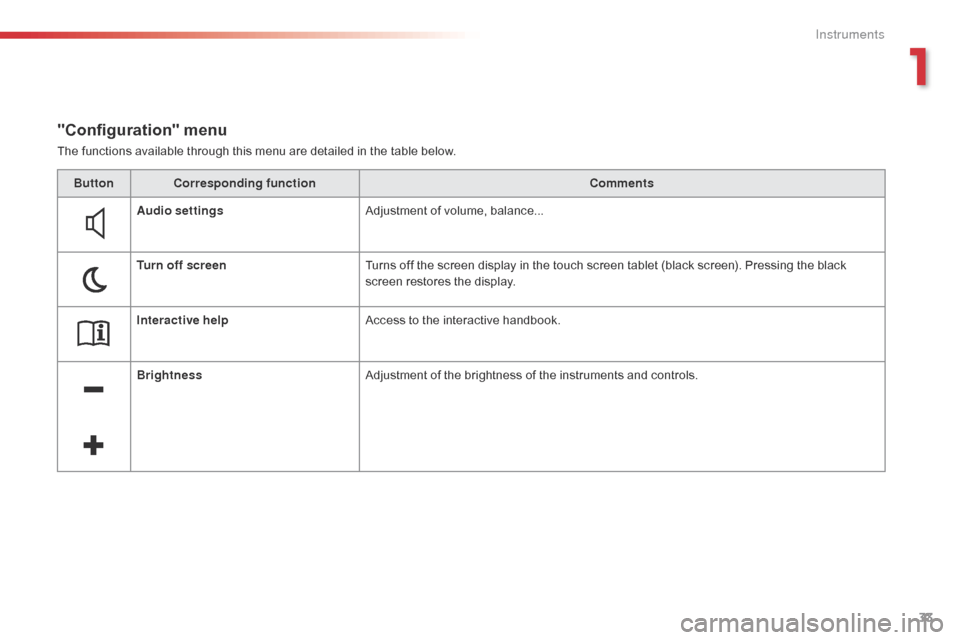
The functions available through this menu are detailed in the table below.
"Configuration" menu
ButtonCorresponding function Comments
Audio settings Adjustment
of volume, balance...
Turn off screen Turns
off the screen display in the touch screen tablet (black screen). Pressing the black
s
creen restores the display.
Interactive help Access
to the interactive handbook.
Brightness Adjustment
of the brightness of the instruments and controls.
1
Instruments
Page 54 of 308
52
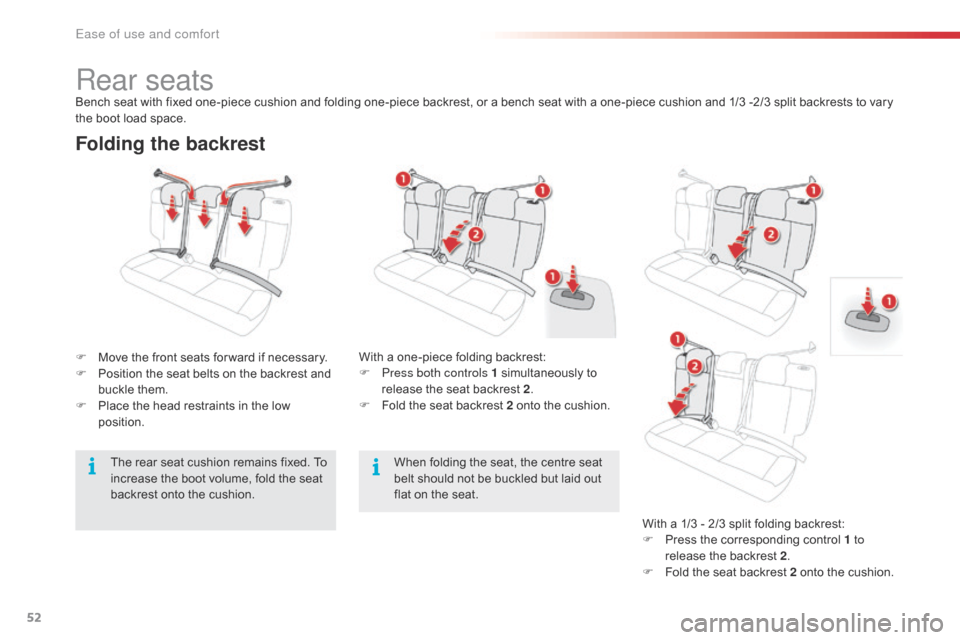
Folding the backrest
F Move the front seats for ward if necessary.
F P osition the seat belts on the backrest and
b
uckle them.
F
P
lace the head restraints in the low
p
osition. With
a one-piece folding backrest:
F P ress both controls 1 simultaneously to
r
elease the seat backrest 2.
F
F
old the seat backrest 2 onto the cushion.
Rear seatsBench seat with fixed one-piece cushion and folding one-piece backrest, or a bench seat with a one-piece cushion and 1/3 -2/3 split backrests to vary the boot load space.
When
folding the seat, the centre seat
b
elt should not be buckled but laid out
f
lat on the seat.With
a 1/3 - 2/3 split folding backrest:
F
P
ress the corresponding control 1 to
release
the backrest 2.
F
F
old the seat backrest 2 onto the cushion.
The
rear seat cushion remains fixed. To
i
ncrease the boot volume, fold the seat
b
ackrest onto the cushion.
Ease of use and comfort
Page 233 of 308
231
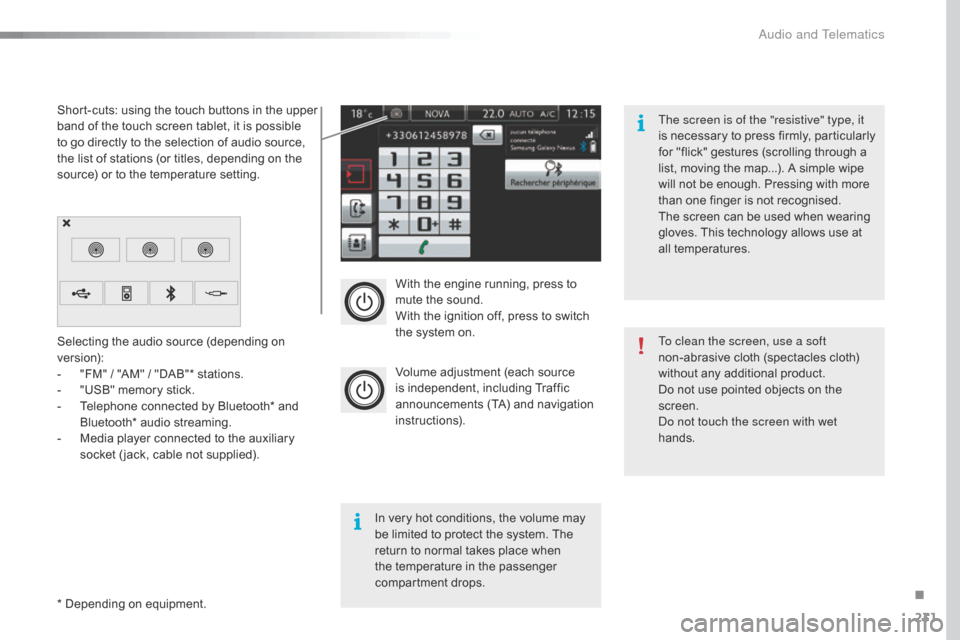
With the engine running, press to mute the sound.
With
the ignition off, press to switch
t
he system on.
Volume
adjustment (each source
i
s
i
ndependent,
i
ncluding
T
raffic
a
nnouncements (TA) and navigation
i
nstructions).
Selecting
the
audio
source
(depending
on
ve
rsion):
-
"
FM"
/
"AM"
/
"DAB"*
stations.
-
"
USB"
memory
stick.
-
T
elephone
connected
by
Bluetooth*
and
B
luetooth*
audio
streaming.
-
M
edia
player
connected
to
the
auxiliary
s
ocket
( jack,
cable
not
supplied).
*
Depending
on
equipment.
Short-cuts:
using
the
touch
buttons
in
the
upper
b
and
of
the
touch
screen
tablet,
it
is
possible
t
o
go
directly
to
the
selection
of
audio
source,
t
he
list
of
stations
(or
titles,
depending
on
the
s
ource)
or
to
the
temperature
setting.
The screen is of the "resistive" type, it
is
n
ecessary
t
o
p
ress
f
irmly,
p
articularly
f
or "flick" gestures (scrolling through a
l
ist, moving the map...). A simple wipe
w
ill not be enough. Pressing with more
t
han one finger is not recognised.
The screen can be used when wearing
g
loves. This technology allows use at
a
ll
t
emperatures.
In
very hot conditions, the volume may
b
e
limited to protect the system. The
r
eturn to normal takes place when
t
he
temperature in the passenger
c
ompartment drops. To clean the screen, use a soft
non-abrasive
cloth (spectacles cloth)
w
ithout any additional product.
Do
not use pointed objects on the
sc
reen.
Do not touch the screen with wet
hands.
.
Audio and Telematics
Page 235 of 308
233
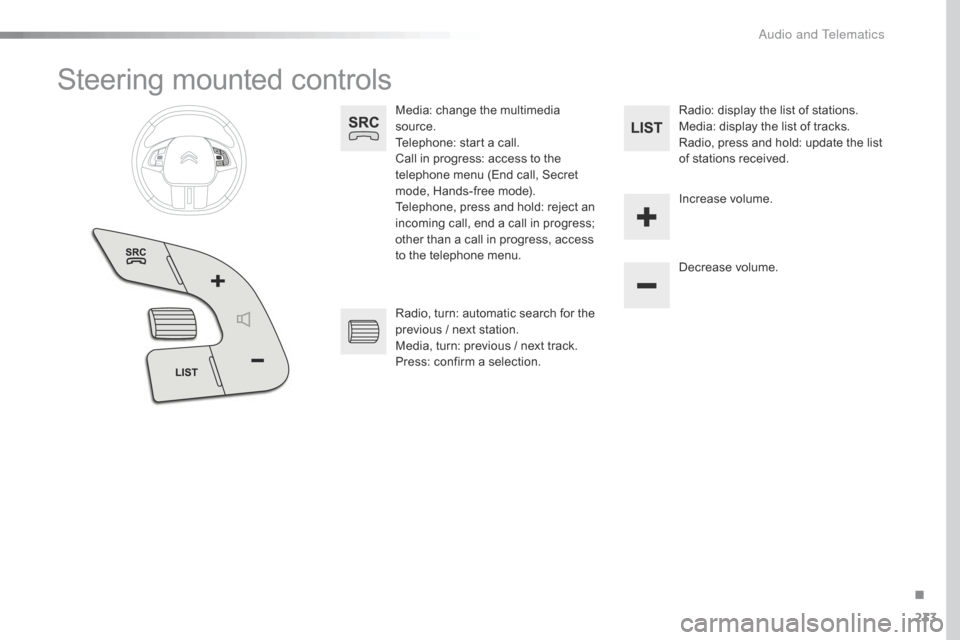
Steering mounted controls
Media: change the multimedia source.
Telephone:
start a call.
Call
in progress: access to the
t
elephone menu (End call, Secret
m
ode, Hands-free mode).
Telephone,
press and hold: reject an
i
ncoming call, end a call in progress;
o
ther than a call in progress, access
t
o the telephone menu. Decrease
volume.
Radio,
turn: automatic search for the
p
revious / next station.
Media,
turn: previous / next track.
Press:
confirm a selection. Radio:
display the list of stations.
Media: display the list of tracks.
Radio,
press and hold: update the list
o
f stations received.
Increase
volume.
.
A
Page 247 of 308
245
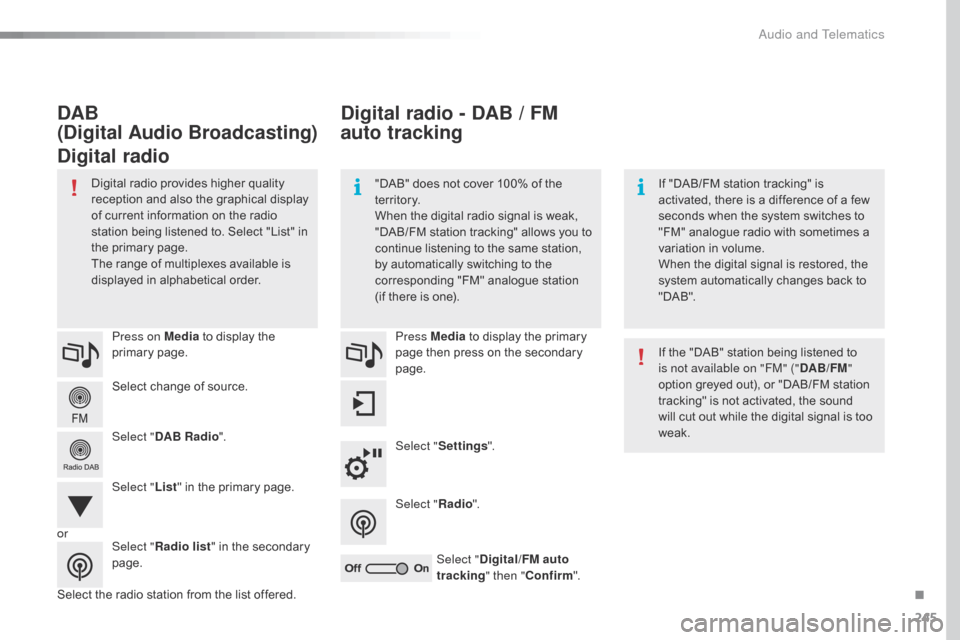
Select change of source.
P ress on Media
to display the
p
rimary
pag
e.
Select " DAB Radio ".
Select " List"
in the primary page.
Select
the radio station from the list offered.Press Media
to display the primary
p
age then press on the secondary
pag
e.
Select " Settings ".
Select " Radio".
Select " Digital/FM auto
tracking " then "Confirm ".
Digital radio - DAB / FM
auto tracking
DAB
(Digital Audio Broadcasting)
Digital radio
"DAB" does not cover 100% of the t
e r r i to r y.
When
the digital radio signal is weak,
"
DAB/FM
s
tation
t
racking"
a
llows
y
ou
t
o
c
ontinue listening to the same station,
b
y automatically switching to the
c
orresponding "FM" analogue station
(
if there is one). If
"DAB/FM station tracking" is a
ctivated, there is a difference of a few
s
econds when the system switches to
"
FM" analogue radio with sometimes a
v
ariation in volume.
When
the digital signal is restored, the
s
ystem automatically changes back to
"
DA B ".
Digital
radio
provides
higher
quality
r
eception
and
also
the
graphical
display o
f
current
information
on
the
radio
s
tation
being
listened
to.
Select
"List"
in
t
he
primary
page.
The
range
of
multiplexes
available
is
d
isplayed
in
alphabetical
order. If
the "DAB" station being listened to
i
s not available on "FM" ("DAB/FM"
option
greyed out), or "DAB/FM station
t
racking" is not activated, the sound
w
ill cut out while the digital signal is too
w
eak.
or Select "Radio list "
in
the
secondary
pag
e.
.
Audio and Telematics
Page 248 of 308
246
Music
USB playerSelecting the source
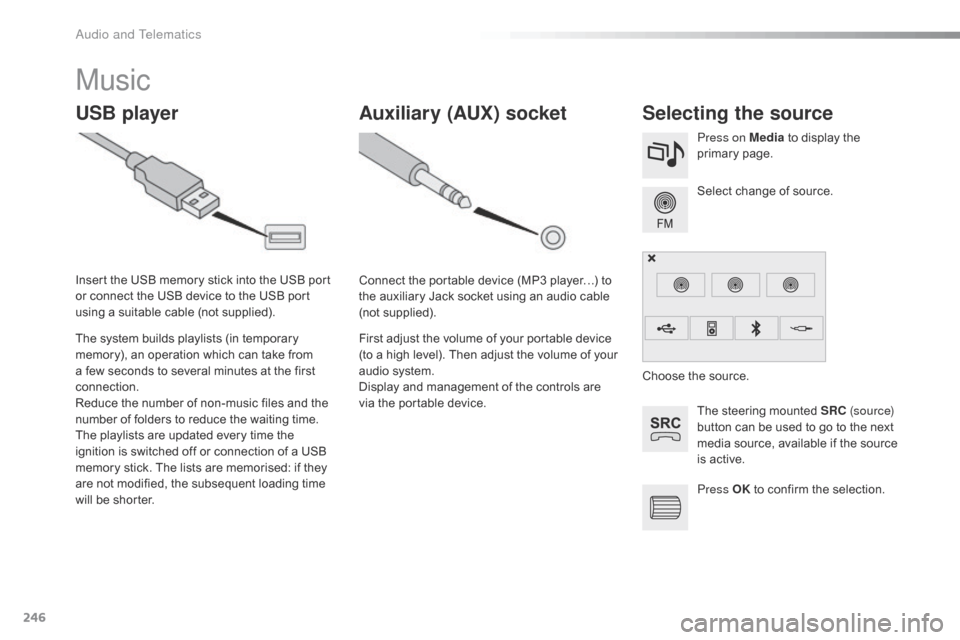
The steering mounted SRC ( s o u r c e)
button can be used to go to the next
m
edia source, available if the source
i
s active.
Select
change of source.
Press on Media
to display the
p
rimary
pag
e.
The
system
builds
playlists
(in
temporary
m
emory),
an
operation
which
can
take
from
a
few
seconds
to
several
minutes
at
the
first
c
onnection.
Reduce
the
number
of
non-music
files
and
the
n
umber
of
folders
to
reduce
the
waiting
time.
The
playlists
are
updated
every
time
the
i
gnition
is
switched
off
or
connection
of
a
USB
m
emory
stick.
The
lists
are
memorised:
if
they
a
re
not
modified,
the
subsequent
loading
time
w
ill
be
shorter.
Insert
the
USB
memory
stick
into
the
USB
port
o
r
connect
the
USB
device
to
the
USB
port
u
sing
a
suitable
cable
(not
supplied).
Auxiliary (AUX) socket
Connect the portable device (MP3 player…) to t
he auxiliary Jack socket using an audio cable
(
not
sup
plied).
First
adjust the volume of your portable device
(
to a high level). Then adjust the volume of your
a
udio system.
Display
and management of the controls are
v
ia the portable device. Choose
the source.
Press OK
to confirm the selection.
Audio and Telematics
Page 253 of 308
251
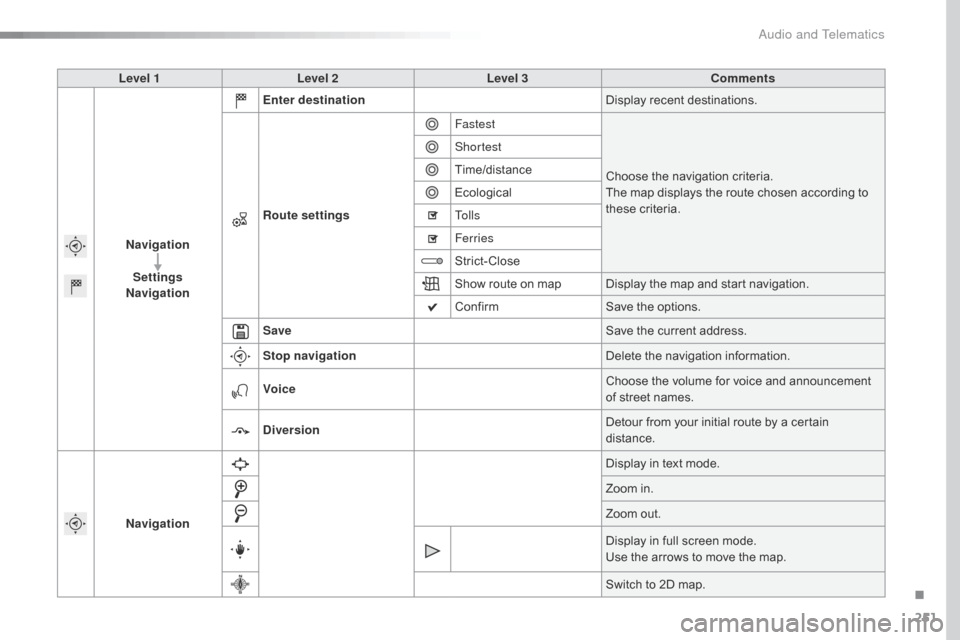
Level 1Level 2 Level 3 Comments
Navigation Settings
Navigation Enter destination
Display
recent destinations.
Route settings Fastest
Choose
the navigation criteria.
The
map displays the route chosen according to
t
hese
c
riteria.
Shortest
Time/distance
Ecological
To l l s
Ferries
Strict-Close
Show
route on map Display the map and start navigation.
Confirm Save
the options.
Save Save
the current address.
Stop navigation Delete
the navigation information.
Voice Choose
the volume for voice and announcement
o
f street names.
Diversion Detour
from your initial route by a certain
di
stance.
Navigation Display
in text mode.
Zoom
in.
Zoom
out.
Display
in full screen mode.
Use
the arrows to move the map.
Switch
to 2D map.
.
Audio and Telematics
Page 259 of 308
257
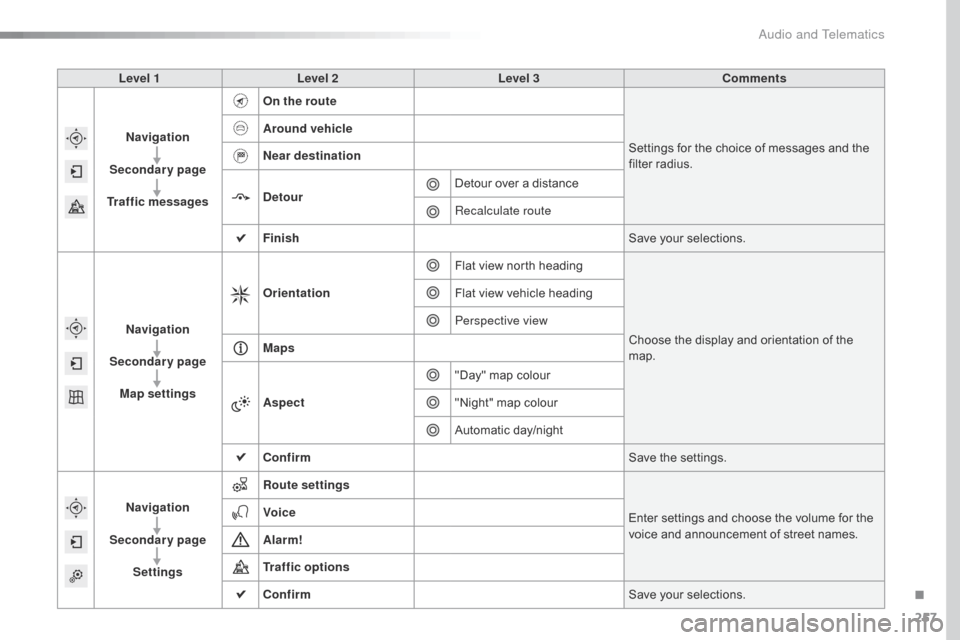
Level 1Level 2 Level 3 Comments
Navigation
Secondary page
Traffic messages On the route
Settings
for the choice of messages and the
f
ilter radius.
Around vehicle
Near destination
Detour
Detour
over a distance
Recalculate route
Finish Save
your selections.
Navigation
Secondary page Map settings Orientation
Flat
view north headingChoose
the display and orientation of the
m
ap.
Flat
view vehicle heading
Perspective view
Maps
Aspect "Day"
map colour
"Night"
map colour
Automatic
day/night
Confirm Save
the settings.
Navigation
Secondary page Settings Route settings
Enter
settings and choose the volume for the
v
oice and announcement of street names.
Voice
Alarm!
Traffic options
Confirm
Save
your selections.
.
Audio and Telematics
Page 267 of 308

265
Level 1Level 2 Level 3 Comments
Configuration
Audio settings Ambience
Choose
the sound ambience.
Balance Set
the position of the sound in the vehicle using
t
he Arkamys
® system.
S
ound effects Set
the
volume or activate the link to vehicle
s
peed.
Ringtones Set
the
telephone ringtone and volume.
Voice Set
the
volume and voice for speaking street
nam
es
Confirm Save
the
settings.
Configuration
Turn off screen Turn
off
the
display (black screen). A press on the
b
lack
screen
restores the display.
Configuration
Interactive help Back
Consult
the
Interactive help.
Driving assistance
-
Equipment
Warning lamps
Audio communication
GPS Navigation
Previous page
Next page
.
Audio and Telematics
Page 272 of 308
270
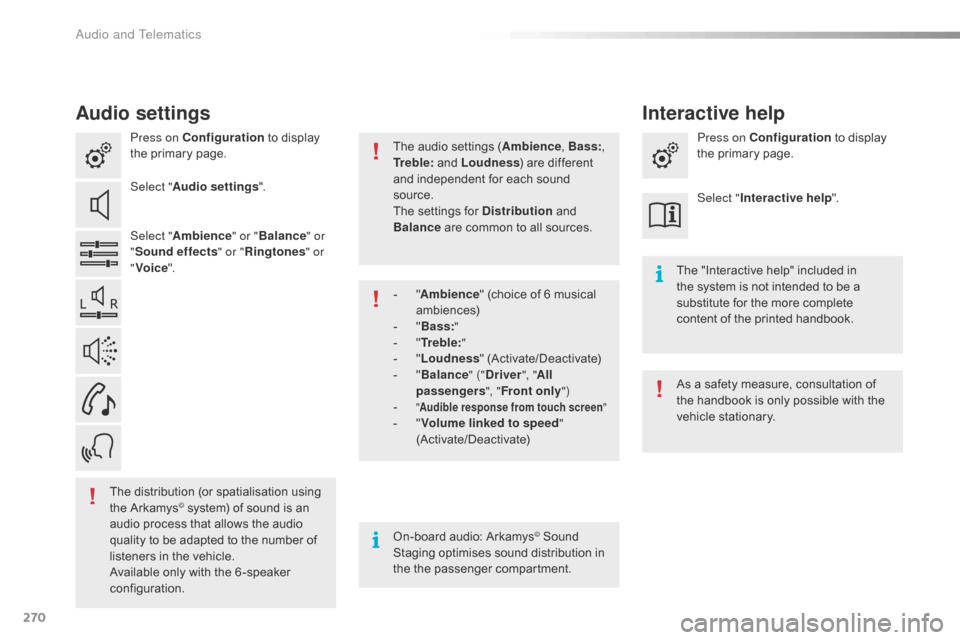
Audio settings
Press on Configuration to display t
he primary page.
Select " Audio settings ".
Select " Ambience " or "Balance " or
" Sound effects " or "Ringtones " or
" Voice ".
On-board
audio: Arkamys
© Sound S
taging
optimises
sound
distribution in
t
he
t
he
p
assenger
c
ompartment. The
"Interactive help" included in
t
he system is not intended to be a
s
ubstitute for the more complete
c
ontent of the printed handbook.
The
distribution
(or
spatialisation
using
t
he
Arkamys
© system) of sound is an a
udio
process that allows the audio
q
uality
to
be
adapted to the number of
l
isteners
in
the vehicle.
Available
only with the 6 -speaker
c
onfiguration. The
audio settings (Ambience
, Bass:,
Tr e b l e:
and Loudness
) are different
a
nd independent for each sound
s
ource.
The settings for Distribution
and
B
alance
are common to all sources.
As a safety measure, consultation of
t
he handbook is only possible with the
v
ehicle stationary.
-
"
A
mbience
" (choice of 6 musical
am
biences)
-
"
B
ass:
"
-
"
T
r e b l e:
"
-
"
L
oudness
"
(
Activate/Deactivate)
-
"
B
alance
" ("Driver ", "All
passengers ", "Front only ")
-
"
Audible response from touch screen "- "Volume linked to speed "
(Activate/Deactivate) Press on Configuration
to display
t
he primary page.
Select " Interactive help ".
Interactive help
Audio and Telematics