Egr CITROEN C4 CACTUS 2017 User Guide
[x] Cancel search | Manufacturer: CITROEN, Model Year: 2017, Model line: C4 CACTUS, Model: CITROEN C4 CACTUS 2017Pages: 256, PDF Size: 7.62 MB
Page 196 of 256
14
Select "My destinations ".
Select the " Contact" tab.
Select a contact in the list to start navigation.
To points of interest (POI)
Points of Interest (POI) are listed in different
categories.
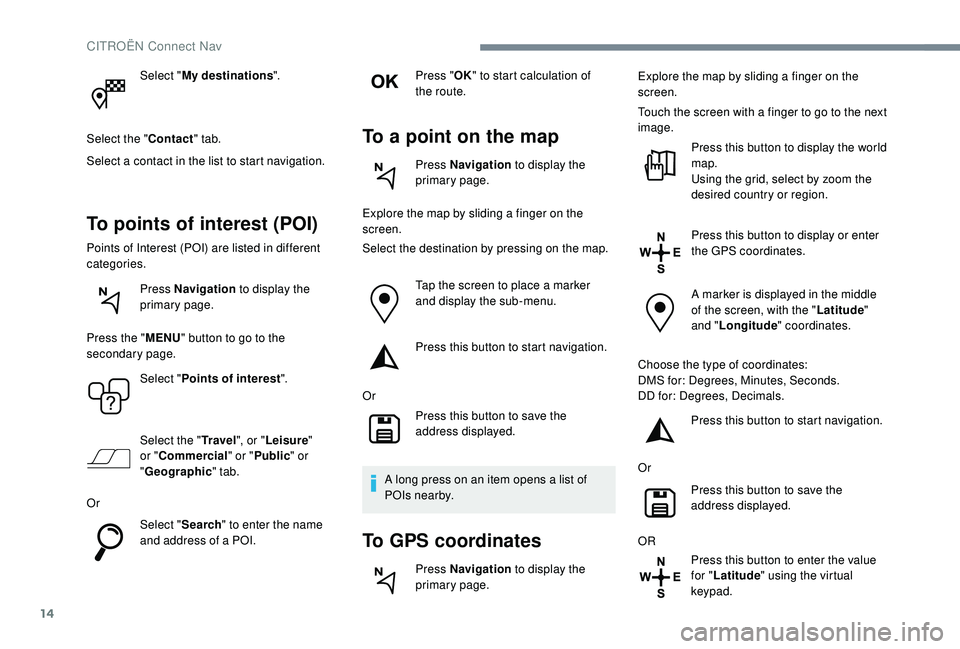
Press Navigation to display the
primary page.
Press the " MENU" button to go to the
secondary page.
Select "Points of interest ".
Select the " Tr a v e l", or "Leisure "
or " Commercial" or " Public" or
" Geographic " tab.
Or Select "Search" to enter the name
and address of a POI. Press "
OK" to start calculation of
the route.
To a point on the map
Press Navigation to display the
primary page.
Explore the map by sliding a finger on the
screen.
Select the destination by pressing on the map.
Tap the screen to place a marker
and display the sub-menu.
Press this button to start navigation.
Or Press this button to save the
address displayed.
A long press on an item opens a list of
POIs nearby.
To GPS coordinates
Press Navigation to display the
primary page. Explore the map by sliding a finger on the
screen.
Touch the screen with a finger to go to the next
image.
Press this button to display the world
map.
Using the grid, select by zoom the
desired country or region.
Press this button to display or enter
the GPS coordinates.
A marker is displayed in the middle
of the screen, with the " Latitude"
and " Longitude " coordinates.
Choose the type of coordinates:
DMS for: Degrees, Minutes, Seconds.
DD for: Degrees, Decimals. Press this button to start navigation.
Or Press this button to save the
address displayed.
OR Press this button to enter the value
for "Latitude " using the virtual
keypad.
CITROËN Connect Nav
Page 212 of 256
30
In the "Telephone " tab, enter the telephone
numbers for the contact.
In the " Address " tab, enter the addresses for
the contact.
In the " Email" tab, enter the email addresses
for the contact.
The " Email " function allows email
addresses to be entered for a contact, but
the system is not able to send emails.
Managing messages
Press Telephone to display the
primary page.
Press the " OPTIONS" button to go to the
secondary page.
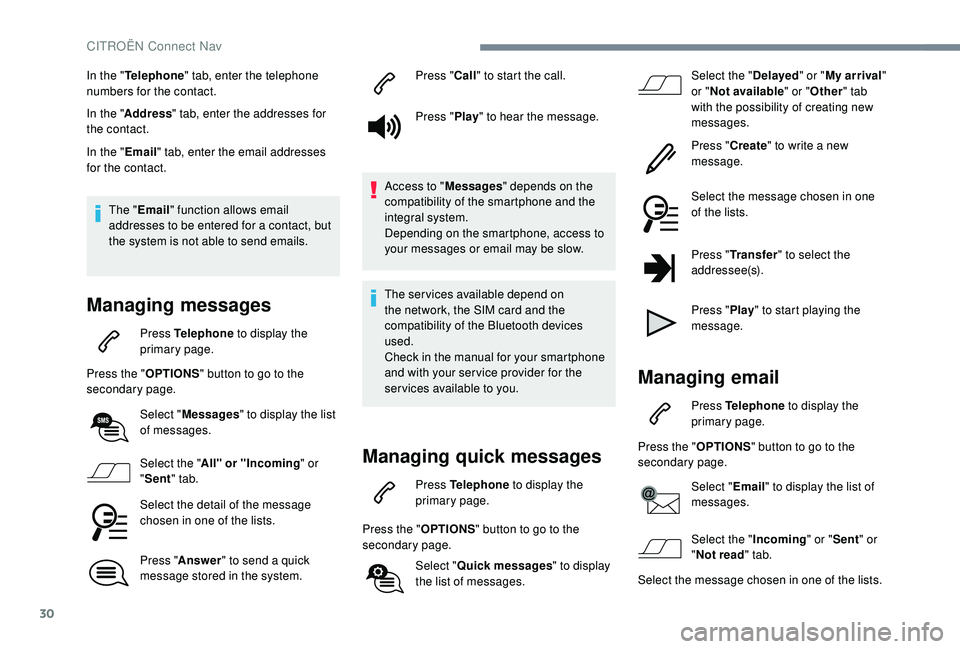
Select "Messages " to display the list
of messages.
Select the " All" or "Incoming " or
" Sent " tab.
Select the detail of the message
chosen in one of the lists.
Press " Answer " to send a quick
message stored in the system. Press "
Call" to start the call.
Press " Play" to hear the message.
Access to " Messages" depends on the
compatibility of the smartphone and the
integral system.
Depending on the smartphone, access to
your messages or email may be slow.
The services available depend on
the network, the SIM card and the
compatibility of the Bluetooth devices
used.
Check in the manual for your smartphone
and with your ser vice provider for the
services available to you.
Managing quick messages
Press Telephone to display the
primary page.
Press the " OPTIONS" button to go to the
secondary page.
Select "Quick messages " to display
the list of messages. Select the "
Delayed" or "My arrival "
or " Not available " or "Other " tab
with the possibility of creating new
messages.
Press " Create" to write a new
message.
Select the message chosen in one
of the lists.
Press " Transfer " to select the
addressee(s).
Press " Play" to start playing the
message.
Managing email
Press Telephone to display the
primary page.
Press the " OPTIONS" button to go to the
secondary page.
Select "Email" to display the list of
messages.
Select the " Incoming" or "Sent " or
" Not read " tab.
Select the message chosen in one of the lists.
CITROËN Connect Nav
Page 213 of 256

31
Settings
Audio settings
Press Settings to display the
primary page.
Select " Audio settings ".
Select " Ambience ".
Or
" Balance "
Or
" Sound ".
Or
" Voice ".
Or
" Ringtone ".
Press " OK" to save the settings. The sound balance (or spatialisation with
the Arkamys
© system) is audio processing
that allows the quality of the sound to
be adapted according to the number of
passengers in the vehicle.
Available only with the front and rear
speakers configuration.
The audio settings Ambience (6 optional
ambiences) and Bass , Medium and
Tr e b l e are different and independent for
each audio source.
Activate or Deactivate " Loudness".
The settings for " Balance" (All
passengers, Driver and Front only) are
common to all sources.
Activate or Deactivate " Touch tones",
" Volume linked to speed " and
" Auxiliary input ".
Onboard audio: the Sound Staging of
Arkamys
© optimises the distribution of
sound in the passenger compartment.
Profile settings
As a safety measure and because it
requires the sustained attention of the
driver, changes to settings must only be
done with the vehicle stationary .
Press "
Play" to start playing the
message.
Access to " Email" depends on the
compatibility of the smartphone and the
integral system. Press Settings
to display the
primary page.
Press the " OPTIONS" button to go to the
secondary page.
Select "Setting of the profiles ".
Select " Profile 1 " or "Profile 2 " or "Profile 3 "
or " Common profile ".
Press this button to enter a name for
the profile using the virtual keypad.
Press " OK" to confirm.
Press this button to add a
photograph to the profile.
Insert a USB memory stick
containing the photograph in the
USB port.
Select the photograph.
Press " OK" to accept the transfer of
the photograph.
Press " OK" again to save the
settings.
.
CITROËN Connect Nav
Page 214 of 256

32
The framing for the photograph is
square; the system reshapes the original
photograph if in another format.Press this button to initialise the
profile selected.
Initialisation of the profile selected
activates the English language by default.
Select a " Profile" (1 or 2 or 3) to associate the
" Audio settings " with it.
Select " Audio settings ".
Select " Ambience ".
Or
" Balance "
Or
" Sound ".
Or
" Voice ".
Or
" Ringtone ".
Press " OK" to save the settings.Modifying system settings
Press Settings to display the
primary page.
Press the " OPTIONS" button to go to the
secondary page.
Select "Screen configuration ".
Select " Animation ".
Activate or deactivate: " Automatic
scrolling ".
Select " Brightness ".
Move the cursor to adjust the
brightness of the screen and/or of
the instrument panel.
Press Settings to display the
primary page.
Press the " OPTIONS" button to go to the
secondary page.
Select "System settings ".
Select " Units" to change the units of distance,
fuel consumption and temperature.
Select " Factory settings " to return to the initial
settings. Resetting the system to "Factory Settings"
activates English by default, as well as
Fahrenheit degrees, and turns off daylight
saving (summer) time.
Select " System info " to display the versions of
the different modules installed in the system.
Select the language
Press Settings to display the
primary page.
Press the " OPTIONS" button to go to the
secondary page.
Select "Languages " to change the
language.
Setting the date
Press Settings to display the
primary page.
Press the " OPTIONS" button to go to the
secondary page.
Select "Set time-date ".
CITROËN Connect Nav