mirror CITROEN C4 CACTUS 2017 Owner's Manual
[x] Cancel search | Manufacturer: CITROEN, Model Year: 2017, Model line: C4 CACTUS, Model: CITROEN C4 CACTUS 2017Pages: 256, PDF Size: 7.62 MB
Page 171 of 256
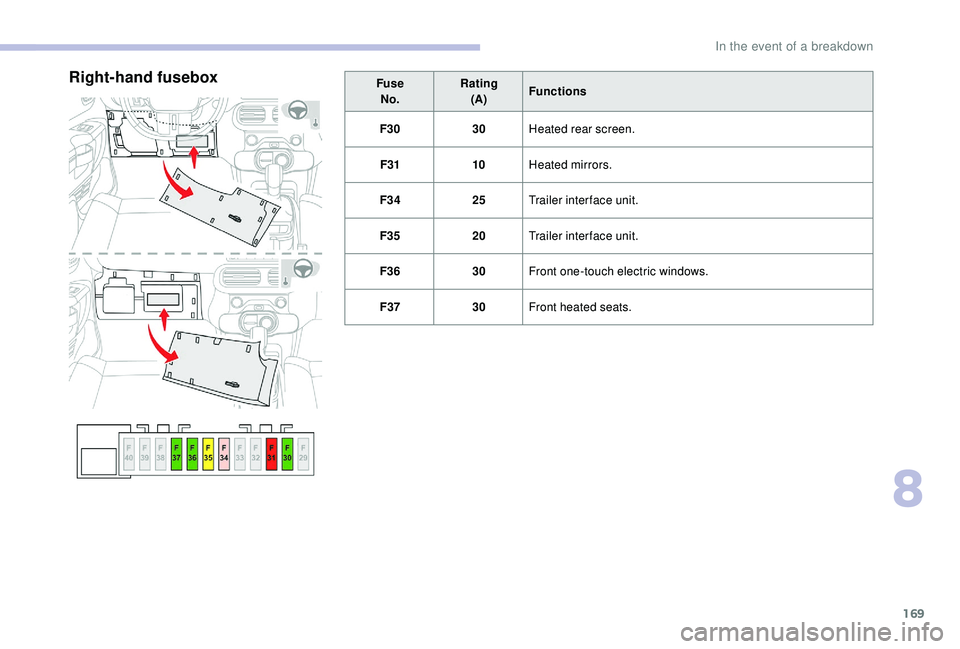
169
FuseNo. Rating
(A) Functions
F30 30Heated rear screen.
F31 10Heated mirrors.
F34 25Trailer inter face unit.
F35 20Trailer inter face unit.
F36 30Front one-touch electric windows.
F37 30Front heated seats.Right-hand fusebox
8
In the event of a breakdown
Page 186 of 256

4
FM 87.5 MHz
Radio Media
Depending on equipment/Depending on
version.Select an audio source, a radio
station, display photographs.
Telephone
Depending on equipment/Depending on version.
Connect a telephone via Bluetooth
®,
read messages and emails and send
quick messages.
Settings
Depending on equipment/Depending on version.
Configure a personal profile and/
or configure the sound (balance,
ambience, etc.) and the display
(language, units, date, time, etc.).Applications
Depending on equipment/Depending on version.
Operate certain applications on
a smartphone connected via
CarPlay
®, MirrorLinkTM (available
depending on the country) or
Android Auto.
Check the state of the Bluetooth
®
and Wi-Fi connections.
Menus
Connected navigation
Depending on equipment/Depending on version.
Enter navigation settings and
choose a destination.
Use ser vices available in real time,
depending on equipment.
CITROËN Connect Nav
Page 198 of 256
16
Select a Wi-Fi network found by the
system and connect.
Wi-Fi connection
This function is only available if it has been
activated either via the "Notifications" or
via the "Applications" menu. Press " Notifications ".
Select Wi-Fi to activate it.
OR Press Applications to display the
primary page.
Press the " OPTIONS" button to go to the
secondary page.
Select "Wi- Fi network
connection ".
Select the " Secured" or "Not
secured " or "Stored " tab.
Select a network. Using the virtual keypad, enter the
"
Key " for the Wi-Fi network and the
" Password ".
Press " OK" to start the connection.
Restrictions of use:
-
W
ith CarPlay
®, connection sharing is
only with a Wi-Fi connection.
-
W
ith MirrorLink
TM, connection sharing
is only with a USB connection.
The quality of ser vices depends on the
quality of the network connection.
With the arrival of "TOMTOM
TR AFFIC", the ser vices are
available.
The ser vices offered with connected
navigation are as follows.
A Connected Services pack:
-
Weather,
-
F
illing stations,
-
C
ar park,
-
Tr a f f i c ,
-
P
OI local search.
A Danger zone pack (option). The principles and standards
are constantly changing; for the
communication process between the
smartphone and the system to work
correctly, we recommend that you
update the operating system of the
smar tphone as well as the date and
time of the smar tphone and the
system.Settings specific to
connected navigation
In the "Settings" menu you can create
a profile for just one person or a group
of people with shared interests, with
the possibility of entering multiple
settings (radio presets, audio settings,
navigation history, contact favourites,
etc.); these settings are taken into account
automatically.
Press Navigation to display the
primary page.
Press the " MENU" button to go to the
secondary page.
Select "Settings ".
CITROËN Connect Nav
Page 200 of 256

18
"Danger zones" pack
updates
Press Settings to display the
primary page.
Press the " OPTIONS" button to go to the
secondary page.
Select "System settings ".
Select the " System info " tab.
Select " View" to display the versions
of the different modules installed in
the system.
Select " Update(s) due ".
You can download the system and map
updates from the Brand's website.
The update procedure can also be found
on the website.
Once you have downloaded the updates,
the installation on the vehicle must be
done with the engine running and vehicle
stationary.
Display the weather
Press Navigation to display the
primary page.
Press this button to display the list of
services.
Select " View map ".
Select " Weather ".
Press this button to display primary
information.
Press this button to display the
detailed weather information.
The temperature displayed at 6 a.m. will
be the maximum temperature for the day.
The temperature displayed at 6 p.m. will
be the minimum temperature for the night.
Applications
Connectivity
Press Applications to display the
primary page.
Press " Connectivity " to go to the CarPlay
®,
MirrorLinkTM or Android Auto functions.
CarPlay® smartphone
connection
As a safety measure and because it
requires sustained attention by the driver,
using a smartphone when driving is
prohibited.
All operations must be done with the
vehicle stationary .
CITROËN Connect Nav
Page 201 of 256

19
The synchronisation of a personal
smartphone allows users to display
applications compatible with the
smartphone's CarPlay
® technology on the
v
ehicle screen when the smartphone's
CarPlay
® function has been previously
activated.
As the principles and standards are
constantly changing, it is recommended
that you keep your smar tphone's
operating system updated .
For the list of eligible smartphones, go
to the brand's internet website in your
c o u nt r y.
Connect a USB cable. The
smartphone charges when
connected by a USB cable.
Press on " Telephone " to display the
CarPlay
® inter face.
Or Connect a USB cable. The
smartphone charges when
connected by a USB cable.
From the system, press
"Applications " to display the
primary page.
Press " Connectivity " to go to the CarPlay
®
function. Press "
CarPlay " to display the
CarPlay
® inter face.
On connecting the USB cable, the
CarPlay
® function deactivates the
system's Bluetooth ® mode.
MirrorLinkTM smartphone
connection
Available depending on the country of sale.
As a safety measure and because it
requires sustained attention by the driver,
using a smartphone when driving is
prohibited.
All operations must be done with the
vehicle stationary . The synchronisation of a personal
smartphone allows users to display
applications adapted for the smartphone's
MirrorLink
TM technology on the vehicle
sc
reen.
The principles and standards
are constantly changing, for the
communication process between the
smartphone and the system to operate,
it is essential that the smartphone be
unlocked; update the operating system
of the smar tphone as well as the date
and time of the smar tphone and the
system .
For the list of eligible smartphones, go
to the brand's internet website in your
c o u nt r y.
As a safety measure, applications can
only be viewed with the vehicle stationary;
display is interrupted once the vehicle is
moving.
The MirrorLink
TM function requires the
use of a compatible smartphone and
applications.
When connecting a smartphone
to the system, it is recommended
that Bluetooth
® be started on the
smartphone
.
CITROËN Connect Nav
Page 202 of 256

20
Connect a USB cable. The
smartphone charges when
connected by a USB cable.
From the system, press
"Applications " to display the
primary page.
Press " Connectivity " to go to the MirrorLink
TM
function.
Press "MirrorLink
TM" to start the
application in the system.
Depending on the smartphone, it may be
necessary to activate the " MirrorLink
TM"
function.
During the procedure, several
screen pages relating to certain
functions are displayed.
Accept to start and complete the
connection.
Once the connection is established, a page
is displayed with the applications already
downloaded to your smartphone and adapted
to MirrorLink
TM technology.
Access to the different audio sources remains
accessible in the margin of the MirrorLink
TM
display, using touch buttons in the upper bar.
Access to the menus for the system is possible
at any time using the dedicated buttons. There may be a wait for the availability of
applications, depending on the quality of
your network.
Android Auto smartphone
connection
As a safety measure and because it
requires sustained attention by the driver,
using a smartphone when driving is
prohibited.
All operations must be done with the
vehicle stationary
.
The synchronisation of a personal
smartphone allows users to display
applications adapted for the smartphone's
Android Auto technology on the vehicle
screen.
The principles and standards
are constantly changing, for the
communication process between the
smartphone and the system to operate,
it is essential that the smartphone be
unlocked; update the operating system
of the smar tphone as well as the date
and time of the smar tphone and the
system .
For the list of eligible smartphones, go
to the brand's internet website in your
c o u nt r y. As a safety measure, applications can
only be viewed with the vehicle stationary;
display is interrupted once the vehicle is
moving.
The "
Android Auto " function requires
the use of a compatible smartphone and
applications.
Connect a USB cable. The
smartphone charges when
connected by a USB cable.
From the system, press
"Applications " to display the
primary page.
Press " Connectivity " to go to the Android Auto
function.
Press "Android Auto " to start the
application in the system.
During the procedure, several
screen pages relating to certain
functions are displayed.
Accept to start and complete the
connection.
Different audio sources remain accessible in
the margin of the Android Auto display, using
touch buttons in the upper bar.
CITROËN Connect Nav
Page 226 of 256

4
Telephone (short press): start
telephone call.
Call in progress (short press):
access telephone menu.
Telephone (long press): reject an
incoming call, end call; when no call
is in progress, access telephone
menu.
Radio (rotate): automatic search for
the previous/next station.
Media (rotate): previous/next track,
move through a list.
Short press : confirm a selection; if
nothing selected, access to presets.
Radio : display the list of stations.
Media : display the list of tracks.
Radio (press and hold): update the
list of stations received.Menus
Applications
Depending on equipment/Depending on version.
Access configurable equipment.
Radio Media
Depending on equipment/Depending on version.
Select an audio source or radio
station.
Telephone
Depending on equipment/Depending on version.Connect a telephone by Bluetooth
®.
Operate certain applications on
a smartphone connected via
MirrorLink
TM, CarPlay® or Android
Auto.
CITROËN Connect Radio
Page 227 of 256

5
21,518,5
Settings
Depending on equipment/Depending on version.Configure a personal profile and/
or configure the sound (balance,
ambience, etc.) and the display
(language, units, date, time, etc.).
Driving
Depending on equipment/Depending on version.
Activate, deactivate or configure
certain vehicle functions.
Navigation
Depending on equipment/Depending on version.Configure the navigation and select
your destination via MirrorLink
TM,
CarPlay® or Android Auto.
Air conditioning
Depending on equipment/Depending on version.
Manage the different temperature
and air flow settings.
Applications
Viewing photos
Insert a USB memory stick in the USB port.
To protect the system, do not use a USB
hub.
The system can read folders and image files in
the formats: .tiff; .gif; .jpg/jpeg; .bmp; .png. Press Applications to display the
primary page.
Press " Photos ".
Select a folder.
Select an image to view.
Press this button to display the
details of the photo.
Press the back arrow to go back a
level.
.
CITROËN Connect Radio
Page 233 of 256
11
Telephone
MirrorLinkTM smartphone
connection
As a safety measure and because it
requires sustained attention by the driver,
using a smartphone when driving is
prohibited.
All operations must be done with the
vehicle stationary .
The synchronisation of a personal
smartphone allows users to display
applications adapted for the smartphone's
MirrorLink
TM technology on the vehicle
sc
reen.
The processes and standards
are constantly changing. For the
communication process between the
smartphone and the system to operate,
it is essential that the smartphone be
unlocked; update the operating system
of the smar tphone as well as the date
and time of the smar tphone and the
system .
For the list of eligible smartphones, go
to the Brand's internet website in your
c o u nt r y. As a safety measure, applications can
only be viewed with the vehicle stationary;
display is interrupted once the vehicle is
moving.
The "MirrorLink
TM" function requires a
compatible smartphone and applications.
Telephone not connected by
Bluetooth®
Connect a USB cable. The
smartphone charges when
connected by a USB cable.
From the system, press
" Telephone " to display the primary
page.
Press " MirrorLink
TM" to start the
application in the system.
Depending on the smartphone, it may be
necessary to activate the " MirrorLink
TM"
function. During the procedure, several
screen pages relating to certain
functions are displayed.
Accept to start and complete the
connection. When connecting a smartphone
to the system, it is recommended
that Bluetooth
® be started on the
smartphone
Telephone connected by
Bluetooth®
From the system, press
" Telephone " to display the primary
page.
Press the " PHONE" button to display the
secondary page.
Press "MirrorLink
TM" to start the
application in the system.
Once the connection is established, a page
is displayed with the applications already
downloaded to your smartphone and adapted
to MirrorLink
TM technology.
Access to the different audio sources remains
accessible in the margin of the MirrorLink
TM
display, using touch buttons in the upper bar.
Access to the menus for the system is possible
at any time using the dedicated buttons.
There may be a wait for the availability of
applications, depending on the quality of
your network.
.
CITROËN Connect Radio
Page 245 of 256

181
Accessories ..............................................69 , 99
Active Safety Brake........................... 15, 117-11 9
AdBlue
® ................................ 14, 21-22, 14 9 -15 0
Additive, Diesel ............................................... 12
Adjusting headlamps
...................................... 64
Adjusting head restraints
................................ 44
Adjusting seats
................................................ 43
Adjusting the air distribution
.....................50-53
Adjusting the air flow
................................. 50
-53
Adjusting the date
............................... 29, 32 , 17
Adjusting the height of the steering wheel
.....46
Adjusting the lumbar support
.......................... 44
A
djusting the temperature
........................50-53
Adjusting the time
............................... 29, 33 , 17
Advice on care and maintenance
...........55, 152
Advice on driving
...................................... 94-95
Airbags
...............................
.................16, 78 , 82
Airbags, curtain
......................................... 79-80
Airbags, front ....................................... 78- 80, 83
Airbags, lateral
.......................................... 79-80
Air conditioning
........................................... 6, 50
Air conditioning, automatic
.......................49-53
Air conditioning, manual
........................... 49,
51
Air intake
................................................... 50-53
Air vents
.......................................................... 48
Alarm
......................................................... 4 0 - 41
Anti-lock braking system (ABS)
......................72
Anti-slip regulation (ASR)
............................... 72
Apple CarPlay connection
........................18, 12
Armrest, front
............................................ 56, 58
Assistance call
...............................
............70 -71
Assistance, emergency braking
.............72, 11 8
Audio streaming (Bluetooth)
.................25 -26, 9 Cable, audio
....................................................25
Cable, Jack
.....................................................25
Capacity, fuel tank
.................................137-13 8
Cap, fuel filler
...............................
..........137-13 8
CD
...............................................................25, 9
CD, MP3
......................................................25, 9
Central locking
.......................................... 3
2, 34
Changing a bulb
..................... 16
1-162, 16 4 -165
Changing a fuse
...................... 16
6 -167, 16 9 -170
Changing a wheel
.......................... 15
4, 157-15 8
Changing a wiper blade
................... 67,
141-142
Changing the remote control battery
..............37
Checking the engine oil level
..........................21
Checking the levels
...............................14 4, 14 6
AB
C
Battery .................................... 140, 147 , 171 , 173
Battery, charging .................................... 172-173
Battery, remote control
.............................35-38
Blanking screen (snow shield)
......................13 9
Blind spot monitoring system
.................123 -124
Blind spot sensors
................................. 123 -124
BlueHDi
.............................................. 21-22, 149
Bluetooth (hands-free)
.................... 2
7-2 8, 13 -14
Bluetooth (telephone)
...................... 2
7-2 8, 13 -15
Bonnet
........................................................... 143
Boot
............................................... 39-40, 55, 59
Brake discs
.................................................... 148
Brake lamps
...............................
...................16 4
Brakes
....................................................... 9, 148
Braking, automatic emergency
.........15, 117-11 9
Brightness
....................................................... 16
Bulbs (changing)
............................ 161-162, 16 4 Checking tyre pressures
(using the kit) ..............................15 3 -15 4, 15 6
Checks
...........................................14 4, 147-148
Checks, routine
......................................147-148
Child lock
.........................................................93
Children
......................................................87- 91
Children (safety)
..............................................93
Child seats
........................77,
81- 82, 86 - 87 , 92
Child seats, conventional
................................86
Child seats, i-Size
...........................................91
Child seats, ISOFIX
..................................88 -91
Checking tyre pressures (using the kit)
..............................15 3 -15 4, 15 6
Checks
...........................................14 4, 147-148
Checks, routine
......................................147-148
Child lock
.........................................................93
Children
......................................................87- 91
Children (safety)
..............................................93
Child seats
........................77,
81- 82, 86 - 87 , 92
Child seats, conventional
................................86
Child seats, i-Size
...........................................91
Child seats, ISOFIX
..................................88 -91
CITROËN Connect Nav
....................................1
CITROËN Connect Radio
................................. 1
C
leaning (advice)
..........................................152
Closing the boot
........................................39-40
Closing the doors
......................................34, 39
Coat hanger
....................................................58
Collision risk alert
.........................................11 9
Configuration, vehicle
............................... 24
-27
Connection, Bluetooth
........ 21
-22, 27-2 8 , 13 -15
Connection, MirrorLink
........................19, 11 -12
Connection, Wi-Fi network
.............................22
Control, electric windows
................................41
.
Alphabetical index