radio CITROEN C4 CACTUS 2020 User Guide
[x] Cancel search | Manufacturer: CITROEN, Model Year: 2020, Model line: C4 CACTUS, Model: CITROEN C4 CACTUS 2020Pages: 256, PDF Size: 7.62 MB
Page 184 of 256

2
First steps
With the engine running, a press
mutes the sound.
With the ignition off, a press turns
the system on.
Increase or decrease the volume using
the wheel or the "plus" or "minus" buttons
(depending on the equipment).
Use the menu buttons on either side of or
below the touch screen for access to the
menus, then press the virtual buttons in the
touch screen.
Depending on the model, use the "Source"
or "Menu" buttons to access the menus, then
press the virtual buttons in the touch screen.
You can display the menus at any time by
pressing the screen briefly with three fingers.
All of the touch areas of the screen are white.
Press the back arrow to go back a level.
Press "OK" to confirm. The touch screen is of the "capacitive"
type.
To clean the screen, use a soft, non-
abrasive cloth (e.g. spectacles cloth) with
no additional cleaning product.
Do not use sharp objects on the screen.
Do not touch the screen with wet hands.
Certain information is displayed permanently
in the side bars or in the upper bar of the touch
screen (depending on equipment):
-
R
eminder of the air conditioning information
(depending on version), and direct access to
the corresponding menu.
-
G
o directly to the selection of the audio
source, to the list of radio stations (or list of
titles depending on the source).
-
G
o to the "Notifications" of messages,
emails, map updates and, depending on the
services, the navigation notifications.
-
G
o to the settings for the touch screen and
the digital instrument panel. Selecting the sound source (depending on
equipment):
-
F
M/DAB/AM radio stations (depending on
equipment).
-
T
elephone connected via Bluetooth and
Bluetooth multimedia broadcast (streaming).
-
U
SB memory stick.
-
M
edia player connected via the auxiliary
socket (depending on equipment).
-
C
D Player (depending on equipment).
-
V
ideo (depending on equipment).
CITROËN Connect Nav
Page 185 of 256

3
In the "Settings" menu you can create
a profile for just one person or a group
of people with shared interests, with
the possibility of entering multiple
settings (radio presets, audio settings,
navigation history, contact favourites,
etc.); these settings are taken into account
automatically.
In very hot conditions, the volume may
be limited to protect the system. It may go
into standby (screen and sound off) for at
least 5 minutes
The return to normal takes place when
the temperature in the passenger
compartment has dropped.
Steering mounted controls
Voice commands:
This control is located on the
steering wheel or at the end of the
lighting control stalk (depending on
equipment).
Short press, system voice
commands.
Long press, smartphone voice
commands via the system.
Increase volume.
Mute/Restore the sound (depending
on equipment).
Or
Mute by pressing the volume
increase and decrease buttons
simultaneously (depending on
equipment).
Restore the sound by pressing one
of the two volume buttons.
Decrease volume.
Media (short press): change the
multimedia source. Telephone
(short press): start
telephone call.
Call in progress (short press):
access telephone menu.
Telephone (long press): reject an
incoming call, end call; when no call
is in progress, access telephone
menu.
Radio (rotate): automatic search for
the previous/next station.
Media (rotate): previous/next track,
move through a list.
Short press : confirm a selection; if
nothing selected, access to presets.
Radio : display the list of stations.
Media : display the list of tracks.
Radio (press and hold): update the
list of stations received.
.
CITROËN Connect Nav
Page 186 of 256

4
FM 87.5 MHz
Radio Media
Depending on equipment/Depending on
version.Select an audio source, a radio
station, display photographs.
Telephone
Depending on equipment/Depending on version.
Connect a telephone via Bluetooth
®,
read messages and emails and send
quick messages.
Settings
Depending on equipment/Depending on version.
Configure a personal profile and/
or configure the sound (balance,
ambience, etc.) and the display
(language, units, date, time, etc.).Applications
Depending on equipment/Depending on version.
Operate certain applications on
a smartphone connected via
CarPlay
®, MirrorLinkTM (available
depending on the country) or
Android Auto.
Check the state of the Bluetooth
®
and Wi-Fi connections.
Menus
Connected navigation
Depending on equipment/Depending on version.
Enter navigation settings and
choose a destination.
Use ser vices available in real time,
depending on equipment.
CITROËN Connect Nav
Page 187 of 256

5
21,518,5Vehicle
Depending on equipment/Depending on
version.Activate, deactivate or configure
certain vehicle functions.
Air conditioning
Depending on equipment/Depending on version.
Manage the different temperature
and air flow settings.
Voice commands
Steering mounted controls
Pressing this button activates the
voice commands function. To ensure that voice commands are
always recognised by the system, please
observe the following recommendations:
-
s
peak natural language in a normal
tone without breaking up words or
raising your voice.
-
a
lways wait for the "beep" (audible
signal) before speaking.
-
f
or optimum operation, it is
recommended that the windows and
sunroof be closed to avoid exterior
interference (depending on version),
-
b
efore making a voice command, ask
other passengers not to speak.
First steps
Example of a "voice command" for
navigation:
"Navigate to address 11 Regent
Street, London"
Example of a "voice command" for
the radio and media:
"Play ar tist Madonna"
Example of a "voice command" for
the telephone:
"Call David"
.
CITROËN Connect Nav
Page 189 of 256
7
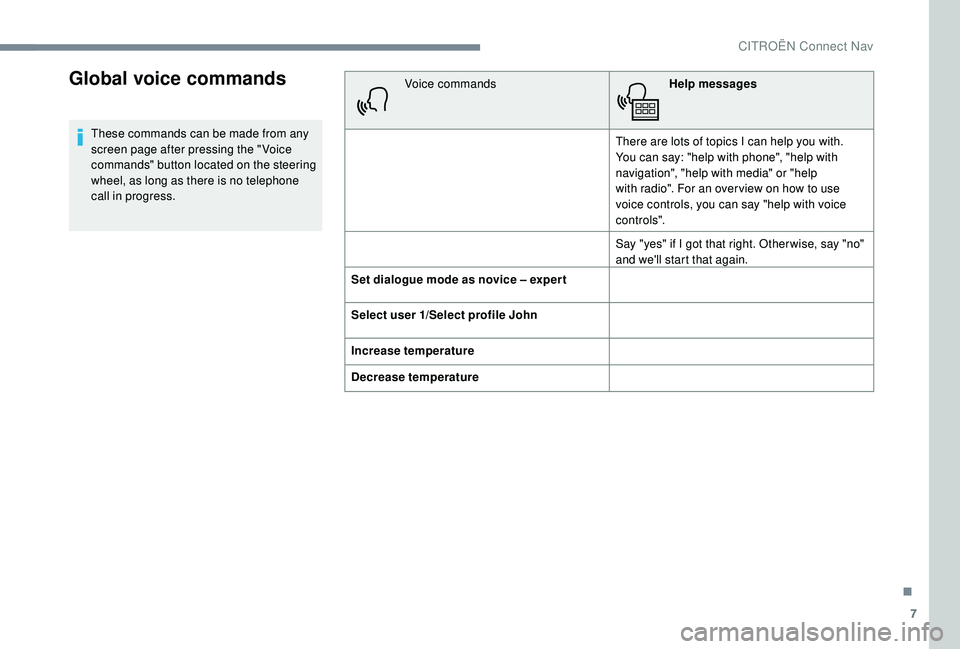
Global voice commands
These commands can be made from any
screen page after pressing the " Voice
commands" button located on the steering
wheel, as long as there is no telephone
call in progress.Voice commands
Help messages
There are lots of topics I can help you with.
You can say: "help with phone", "help with
navigation", "help with media" or "help
with radio". For an over view on how to use
voice controls, you can say "help with voice
c o nt ro ls".
Say "yes" if I got that right. Other wise, say "no"
and we'll start that again.
Set dialogue mode as novice – exper t
Select user 1/Select profile John
Increase temperature
Decrease temperature
.
CITROËN Connect Nav
Page 192 of 256

10
Voice commandsHelp messages
Turn on source radio - Streaming
Bluetooth – … You can select an audio source by saying "turn on source" followed by the device name. For
example, "turn on source, Streaming Bluetooth", or "turn on source, radio". Use the command
"play" to specify the type of music you’d like to hear. You can choose between "song", "artist", or
"album". Just say something like "play artist, Madonna", "play song, Hey Jude", or "play album,
Thriller".
Tune to channel BBC Radio 2 You can pick a radio station by saying "tune to" and the station name or frequency. For example
"tune to channel Talksport" or "tune to 98.5 FM". To listen to a preset radio station, say for example
"tune to preset number five".
Tune to 98.5 FM
Tune to preset number five
What's playing?
To choose what you’d like to play, start by saying "play" and then the item. For example, say "play
song Hey Jude", "play line 3" or "select line 2". You can undo your last action and start over by
saying "undo", or say "cancel" to cancel the current action.
Play song Hey Jude I’m not sure what you’d like to play. Please say "play" and then a song title, an album title, or an
artist name. For example, say "play song Hey Jude", "play artist Madonna" or "play album Thriller".
To select a line number from the display, say "select line two". To move around a displayed list,
you can say "next page" or "previous page". You can undo your last action and start over by saying
"undo", or say "cancel" to cancel the current action.
Play ar tist Madonna
Play album Thriller
"Radio Media" voice
commands
These commands can be made from any screen page after pressing the " Voice commands" button located on the steering wheel, as long as there
is no telephone call in progress.
Media voice commands are available only for a USB connection.
CITROËN Connect Nav
Page 197 of 256

15
AndPress this button to enter the value
for "Longitude " using the virtual
keypad.
TMC (Traffic Message
Channel)
TMC (Traffic Message Channel)
messages are linked to a European
standard on the broadcasting of traffic
information via the RDS system on FM
radio, transmitting traffic information in
real time.
The TMC information is then displayed
on a GPS Navigation system map and
taken into account straight away during
navigation, so as to avoid accidents, traffic
jams and closed roads.
The display of danger zones depends on
the legislation in force and subscription to
the service.
Connected navigation
Depending on version
Depending on the equipment level of the
vehicle
Network connection provided by
the vehicle
OR
Network connection provided by
the user
For the list of eligible smartphones, go
to the brand's internet website in your
c o u nt r y.
Connected navigation
connection
As a safety measure and because it
requires sustained attention by the driver,
using a smartphone when driving is
prohibited.
All operations must be done with the
vehicle stationary . For access to connected navigation, you
can use the connection provided by the
vehicle via the "Emergency or assistance
call" ser vices or use your smartphone as
a modem.
Activate and enter settings for sharing
the smartphone connection.
Network connection provided by
the vehicle
The system is automatically
connected to the modem included
for the "Emergency or assistance
calls" ser vices and does not require
a connection provided by the user
via their smartphone.
Network connection provided by
the user
Connect a USB cable.
The smartphone charges when
connected by a USB cable.
USB connection
Activate the Bluetooth function on
the telephone and ensure that it is
visible to all (see the "Applications"
section).
Bluetooth connection
.
CITROËN Connect Nav
Page 198 of 256

16
Select a Wi-Fi network found by the
system and connect.
Wi-Fi connection
This function is only available if it has been
activated either via the "Notifications" or
via the "Applications" menu. Press " Notifications ".
Select Wi-Fi to activate it.
OR Press Applications to display the
primary page.
Press the " OPTIONS" button to go to the
secondary page.
Select "Wi- Fi network
connection ".
Select the " Secured" or "Not
secured " or "Stored " tab.
Select a network. Using the virtual keypad, enter the
"
Key " for the Wi-Fi network and the
" Password ".
Press " OK" to start the connection.
Restrictions of use:
-
W
ith CarPlay
®, connection sharing is
only with a Wi-Fi connection.
-
W
ith MirrorLink
TM, connection sharing
is only with a USB connection.
The quality of ser vices depends on the
quality of the network connection.
With the arrival of "TOMTOM
TR AFFIC", the ser vices are
available.
The ser vices offered with connected
navigation are as follows.
A Connected Services pack:
-
Weather,
-
F
illing stations,
-
C
ar park,
-
Tr a f f i c ,
-
P
OI local search.
A Danger zone pack (option). The principles and standards
are constantly changing; for the
communication process between the
smartphone and the system to work
correctly, we recommend that you
update the operating system of the
smar tphone as well as the date and
time of the smar tphone and the
system.Settings specific to
connected navigation
In the "Settings" menu you can create
a profile for just one person or a group
of people with shared interests, with
the possibility of entering multiple
settings (radio presets, audio settings,
navigation history, contact favourites,
etc.); these settings are taken into account
automatically.
Press Navigation to display the
primary page.
Press the " MENU" button to go to the
secondary page.
Select "Settings ".
CITROËN Connect Nav
Page 205 of 256

23
Radio
Selecting a station
Press Radio Media to display the
primary page.
Press " Frequency ".
Press one of the buttons for an
automatic search for radio stations.
Or Move the cursor for a manual search
for frequencies up or down.
Or Press Radio Media to display the
primary page.
Press the " OPTIONS" button to go to the
secondary page.
Select "Radio stations " in the
secondary page.
Press " Frequency ".
Enter the values using the virtual
keypad.
First enter the units then click on the
decimals zone to enter the figures
after the decimal point. Press "
OK" to confirm.
Radio reception may be affected by the
use of electrical equipment not approved
by the Brand, such as a USB charger
connected to the 12 V socket.
The exterior environment (hills, buildings,
tunnels, basement car parks, etc.) may
block reception, including in RDS mode.
This is a normal effect of the way in
which radio waves are transmitted and
does not indicate any failure of the audio
equipment.
Presetting a station
Select a radio station or frequency.
(refer to the corresponding section)
Press " Presets ".
Make a long press on one of the
buttons to preset the station.
Changing waveband
Press Radio Media to display the
primary page.
To change the waveband, press "Band…"
displayed at the top right of the screen.
Activate/Deactivate the RDS
Press Radio Media to display the
primary page.
Press the " OPTIONS" button to go to the
secondary page.
Select "Radio settings ".
Select " General ".
Activate/Deactivate " Station
tracking ".
Press " OK" to confirm.
RDS, if activated, enables you to
continue listening to the same station
by automatically retuning to alternative
frequencies. However, in certain
conditions, coverage of this RDS station
may not be assured throughout the entire
country as radio stations do not cover
100% of the territory. This explains the
loss of reception of a station during a
j o u r n ey.
.
CITROËN Connect Nav
Page 206 of 256

24
Display text information
The "Radio Text" function allows
information transmitted by the radio
station and related to the station or the
song playing to be displayed.Press Radio Media to display the
primary page.
Press the " OPTIONS" button to go to the
secondary page.
Select "Radio settings ".
Select " General ".
Activate/Deactivate " Display radio
text ".
Press " OK" to confirm.
Play TA messages
The TA (Traffic Announcement) function
gives priority to TA alert messages.
To operate, this function needs good
reception of a radio station that carries
this type of message. While traffic
information is being broadcast, the
current media is automatically interrupted
so that the TA message can be heard.
Normal play of the media previously
playing is resumed at the end of the
message.
Select " Announcements ".
Activate/Deactivate " Traffic
announcement ".
Press " OK" to confirm.
DAB (Digital Audio
Broadcasting) radio
Terrestrial Digital Radio
Digital radio provides higher quality
reception.
The various "multiplexes/ensembles" offer
a choice of radio stations arranged in
alphabetical order. Press Radio Media
to display the
primary page.
Press "Band…" at the top right of the screen to
display the DAB waveband.
DAB-FM tracking
DAB does not cover 100% of the territory.
When the digital radio signal is poor,
"DAB-FM tracking" allows you to
continue listening to the same station,
by automatically switching to the
corresponding FM analogue station (if
there is one).
Press Radio Media to display the
primary page.
Press the " OPTIONS" button to go to the
secondary page.
Select "Radio settings ".
Select " General ".
Activate/Deactivate " FM- DAB
Tracking ".
Activate/Deactivate " Station
tracking ".
CITROËN Connect Nav