radio Citroen C4 DAG 2014.5 2.G Owner's Guide
[x] Cancel search | Manufacturer: CITROEN, Model Year: 2014.5, Model line: C4 DAG, Model: Citroen C4 DAG 2014.5 2.GPages: 340, PDF Size: 12.89 MB
Page 285 of 340
11
283
C4-2_en_Chap13b_RT6_ed01-2014
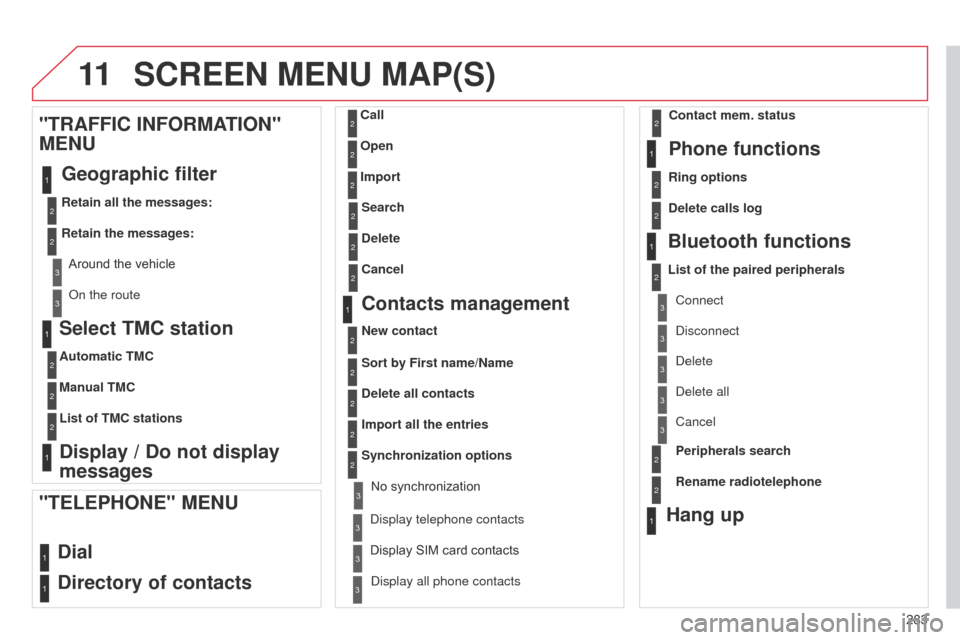
SCREEN MENU MAP(S)
Select TMC station
Automatic TMC
Manual TMC
List of TMC stations
Display / Do not display
messages
"TRAFFIC INFORMATION"
MENU
Geographic filter
Retain all the messages:
Retain the messages:
Around
the vehicle
o
n the route
1
2
2
2
1
2
2
3
3
1
Dial
Directory of contacts
Call
Open
Import
"TELEPHONE" MENU
1
2
2
2
1
2
2
2
2
1
2
3
3
3
2
2
2
1
1
1
3
3
3
2
3
2
2
3
List of the paired peripheralsConnect
d
isconnect
d
elete
d
elete all
Contact mem. status
Phone functions
Ring options
Delete calls log
Bluetooth functions
Peripherals search
Rename radiotelephone
Hang up
display all phone contacts
Search
Contacts management
New contact
Delete all contacts
Import all the entries
Synchronization options
d
isplay telephone contacts
No
synchronization
Display
SIM card contacts
2
2
Delete
Cancel
2Sort by First name/Name
3Cancel
Page 286 of 340
11
284
C4-2_en_Chap13b_RT6_ed01-2014
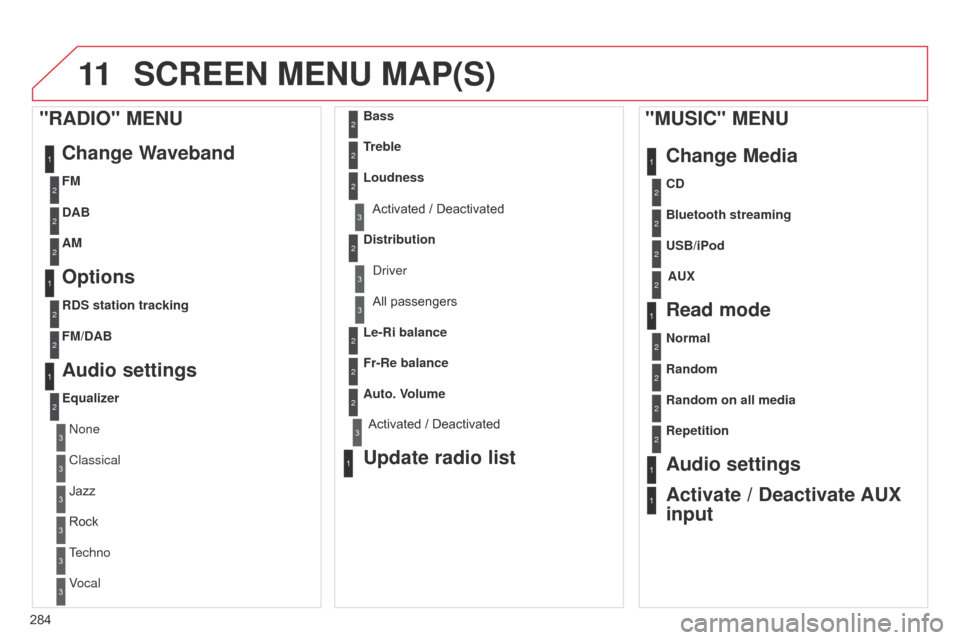
SCREEN MENU MAP(S)
1
1
1
1
2
2
2
2
3
3
2
2
2
1
"MUSIC" MENUChange Media
Read mode
Audio settings
Activate / Deactivate AUX
input
All passengers
Le-Ri balance
Fr-Re balance
Auto. V
olume
Update radio list
Bass
Treble
Loudness
Distribution
d
river
1
2
2
1
1
3
3
3
3
3
3
2Equalizer
"RADIO" MENUChange Waveband
Options
DAB
AM
Audio settings
none
Classical
Jazz
Rock
T
echno
Vocal
2
2
2
2
2
2
2
2
USB/iPod
Random on all media AUX
Repetition CD
Normal Bluetooth streaming
Random
2FM
3Activated / Deactivated
3Activated / Deactivated
2
2
RDS station tracking
FM/DAB
Page 291 of 340
289
C4-2_en_Chap13b_RT6_ed01-2014
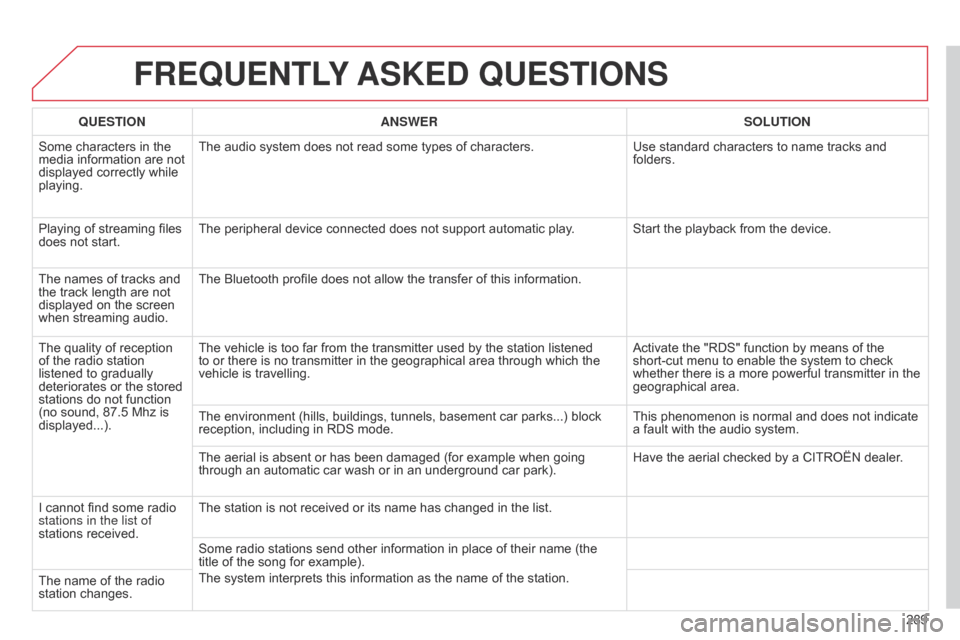
FREqUENTLY ASKED q UESTIONS
qUESTION ANSWER SOLUTION
Some
characters in the
media
information are not
displayed
correctly while
playing. The
audio system does not read some types of characters.Use
standard characters to name tracks and
folders.
Playing
of streaming files
does
not start. The
peripheral device connected does not support automatic play. Start the playback from the device.
The
names of tracks and
the
track length are not
displayed
on the screen
when
streaming audio. The
Bluetooth profile does not allow the transfer of this information.
The
quality of reception
of
the
radio station
listened
to gradually
deteriorates
or the stored
stations
do not function
(no
sound, 87.5 Mhz is
displayed...). The
vehicle is too far from the transmitter used by the station listened
to
or there is no transmitter in the geographical area through which the
vehicle
is travelling. Activate
the "RDS" function by means of the
short-cut
menu to enable the system to check
whether
there is a more powerful transmitter in the
geographical
area.
The
environment (hills, buildings, tunnels, basement car parks...) block
reception,
including in RDS mode.This
phenomenon is normal and does not indicate
a
fault with the audio system.
The
aerial is absent or has been damaged (for example when going
through
an automatic car wash or in an underground car park).Have
the aerial checked by a CITROËN dealer.
I
cannot find some radio
stations in the list of
stations
received. The
station is not received or its name has changed in the list.
Some
radio stations send other information in place of their name (the
title
of the song for example).
The
system interprets this information as the name of the station.
The
name of the radio
station
changes.
Page 292 of 340
290
C4-2_en_Chap13b_RT6_ed01-2014
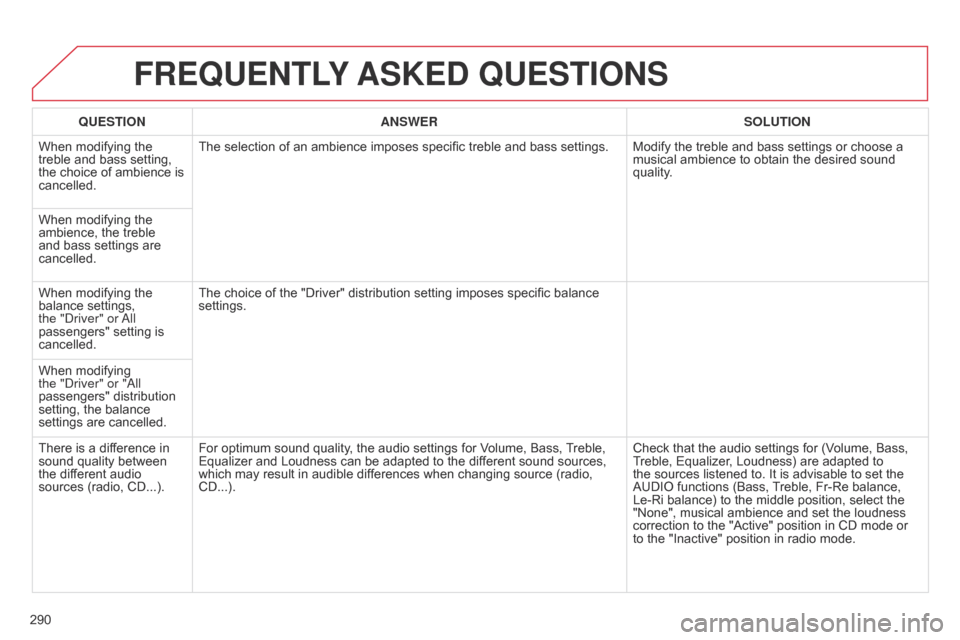
FREqUENTLY ASKED q UESTIONS
qUESTION ANSWER SOLUTION
When
modifying the
treble
and bass setting,
the
choice of ambience is
cancelled. The
selection of an ambience imposes specific treble and bass settings. Modify the treble and bass settings or choose a
musical
ambience to obtain the desired sound
quality
.
When
modifying the
ambience,
the treble
and
bass settings are
cancelled.
When
modifying the
balance
settings,
the "
d
river" or
a
ll
passengers"
setting is
cancelled. The
choice of the "Driver" distribution setting imposes specific balance
settings.
When
modifying
the "
d
river" or " a ll
passengers"
distribution
setting,
the balance
settings
are cancelled.
There
is a difference in
sound
quality between
the
different audio
sources
(radio, CD...). For
optimum sound quality, the audio settings for Volume, Bass,
T
reble,
Equalizer
and Loudness can be adapted to the different sound sources,
which
may result in audible differences when changing source (radio,
CD...).Check
that the audio settings for (Volume, Bass,
T
reble, Equalizer, Loudness) are adapted to
the
sources listened to. It is advisable to set the
AUDIO
functions (Bass,
T
reble, Fr-Re balance,
Le-Ri
balance) to the middle position, select the
"None",
musical ambience and set the loudness
correction
to the "Active" position in CD mode or
to
the "Inactive" position in radio mode.
Page 296 of 340
01
294
C4-2_en_Chap13c_RD5_ed01-2014
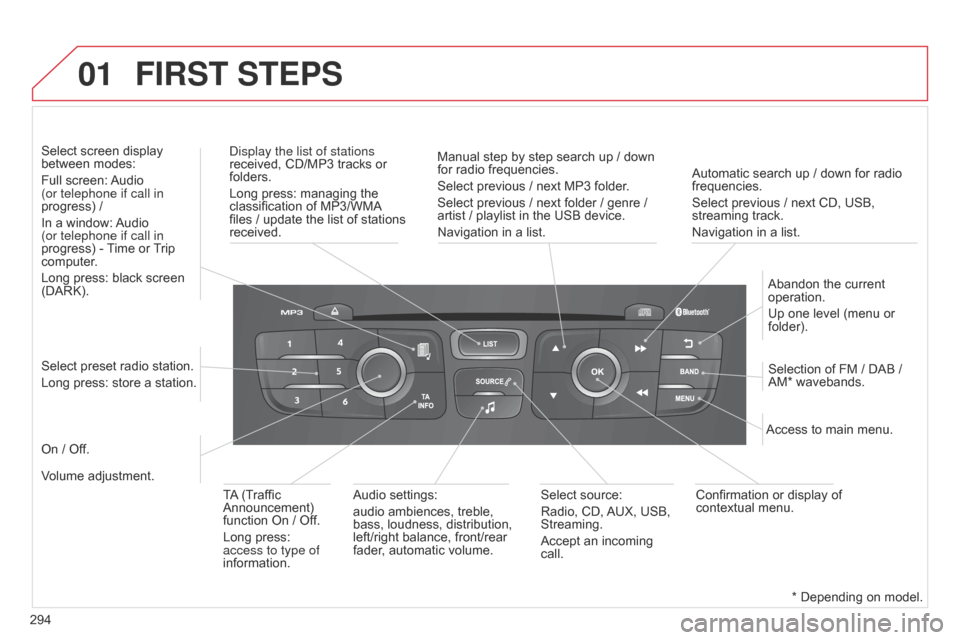
Automatic search up / down for radio frequencies.
Select previous / next CD, USB,
streaming
track.
Navigation
in a list.
d
isplay the list of stations
received,
CD/MP3
tracks
or
folders.
Long
press:
managing
the
classification
of
MP3/WMA
files
/
update
the
list
of
stations
received.
Abandon
the current
operation.
Up
one level (menu or
folder).
On
/
Off. Selection
of FM / DAB /
AM*
wavebands.
Select
preset
radio
station.
Long
press:
store
a
station.
Select
screen
display
between
modes:
Full
screen:
Audio
(or telephone if call in
progress)
/
In
a
window:
Audio
(or telephone if call in
progress)
-
T
ime
or
T
rip
computer
.
Long
press:
black
screen
(DARK).
Audio
settings:
audio
ambiences,
treble,
bass,
loudness,
distribution,
left/right
balance,
front/rear
fader
,
automatic
volume. Access
to main menu.
TA
(Traffic
Announcement)
function
On
/
Off.
Long
press:
access to type of
information. Select
source:
Radio,
CD,
AUX,
USB,
Streaming.
Accept
an
incoming
call. Confirmation
or display of
contextual
menu.
Manual
step
by
step
search
up
/
down
for
radio
frequencies.
Select
previous
/
next
MP3
folder.
Select
previous
/
next
folder
/
genre
/
artist
/
playlist
in
the
USB
device.
Navigation
in
a
list.
Volume
adjustment.
FIRST STEPS
* Depending on model.
Page 297 of 340
295
C4-2_en_Chap13c_RD5_ed01-2014
STEERING MOUNTED CONTROLS
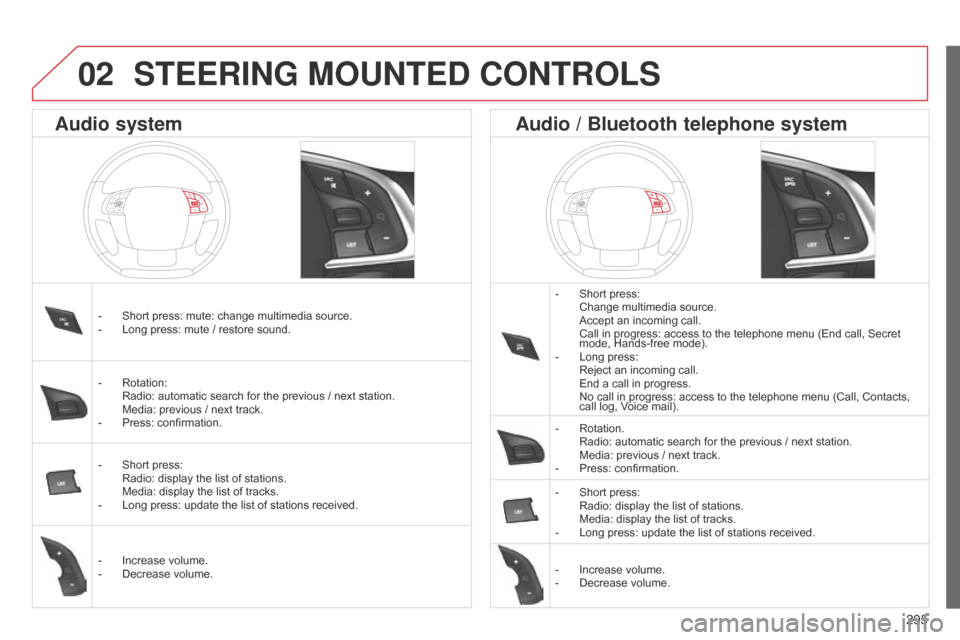
- Short press: Change
multimedia source.
Accept
an incoming call.
Call
in progress: access to the telephone menu (End call, Secret
mode,
Hands-free mode).
-
Long
press:
Reject
an incoming call.
End
a call in progress.
No
call in progress: access to the telephone menu (Call, Contacts,
call
log, Voice mail).
-
Rotation. Radio:
automatic search for the previous / next station.
Media:
previous / next track.
-
Press:
confirmation.
-
Short
press:
Radio:
display the list of stations.
Media:
display the list of tracks.
-
Long
press: update the list of stations received.
-
Increase
volume.
-
Decrease
volume.
-
Short
press:
mute:
change
multimedia
source.
-
Long
press:
mute
/
restore
sound.
-
Rotation: Radio:
automatic
search
for
the
previous
/
next
station.
Media:
previous
/
next
track.
-
Press:
confirmation.
-
Short
press:
Radio:
display
the
list
of
stations.
Media:
display
the
list
of
tracks.
-
Long
press:
update
the
list
of
stations
received.
-
Increase
volume.
-
Decrease
volume.
Audio system Audio / Bluetooth telephone system
02
Page 298 of 340
03
296
C4-2_en_Chap13c_RD5_ed01-2014
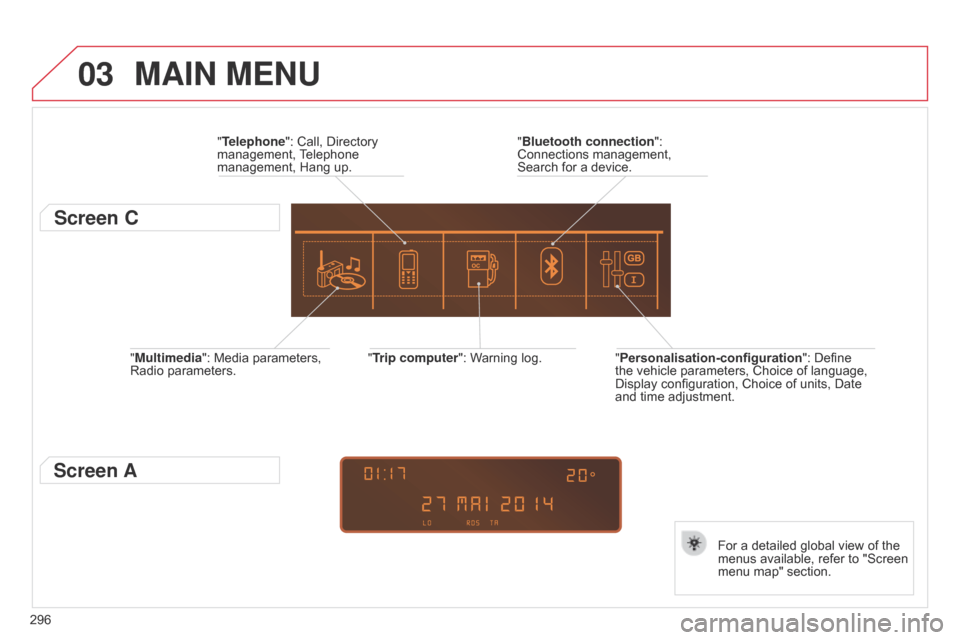
"Multimedia": Media parameters, Radio parameters. "Trip computer":
Warning log.
For a detailed global view of the
menus
available, refer to "Screen
menu
map" section.
"Bluetooth connection
":
Connections
management,
Search
for a device.
"Telephone": Call, Directory
management,
T
elephone
management,
Hang up.
MAIN MENU
"Personalisation-configuration
": Define the
vehicle parameters, Choice of language,
Display
configuration, Choice of units, Date
and
time adjustment.
Screen C
Screen A
Page 299 of 340
04
297
C4-2_en_Chap13c_RD5_ed01-2014
AUDIO
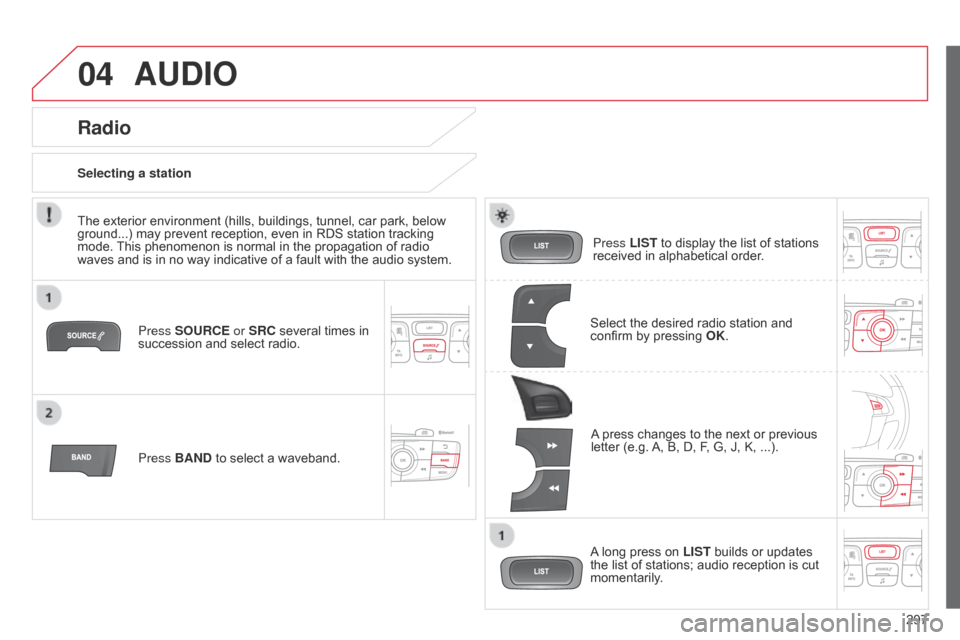
Press SOURCE or SRC several times in succession and select radio.
Press BAND
to select a waveband. Press LIST
to display the list of stations
received
in alphabetical order.
A
press changes to the next or previous
letter
(e.g.
A,
B, D, F, G, J, K, ...).
Radio
Select the desired radio station and confirm by pressing OK .
Selecting a station
A
long press on
LIST
builds or updates
the
list of stations; audio reception is cut
momentarily
.
The
exterior
environment
(hills,
buildings,
tunnel,
car
park,
below
ground...)
may
prevent
reception,
even
in
RDS
station
tracking
mode.
This
phenomenon
is
normal
in
the
propagation
of
radio
waves
and
is
in
no
way
indicative
of
a
fault
with
the
audio
system.
Page 300 of 340
04
298
C4-2_en_Chap13c_RD5_ed01-2014
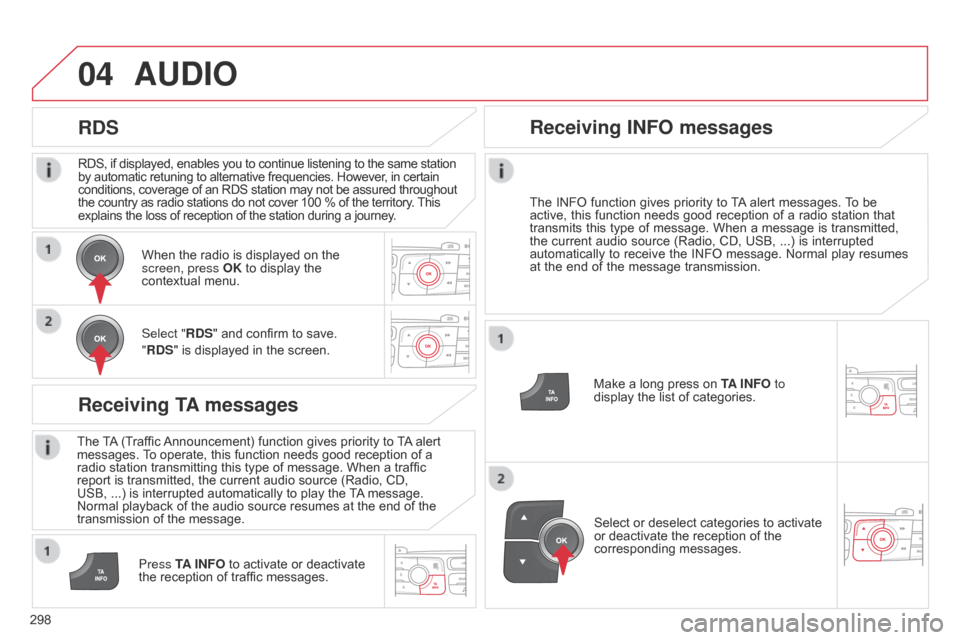
RDS, if displayed, enables you to continue listening to the same station by automatic retuning to alternative frequencies. However, in certain conditions,
coverage of an RDS station may not be assured throughout
the
country as radio stations do not cover 100 % of the territory.
This explains
the loss of reception of the station during a journey.
AUDIO
RDS
Receiving TA messages
The TA (Traffic Announcement) function gives priority to T A alert messages.
T o operate, this function needs good reception of a
radio
station transmitting this type of message. When a traffic
report
is transmitted, the current audio source (Radio, CD,
USB,
...) is interrupted automatically to play the
T
A
message.
Normal
playback of the audio source resumes at the end of the
transmission
of the message.
Press TA INFO
to activate or deactivate
the
reception of traffic messages.
When
the radio is displayed on the
screen, press
OK to display the
contextual
menu.
Select "RDS" and confirm to save.
"RDS" is displayed in the screen.
Make a long press on
T
A INFO
to
display the list of categories.
Receiving INFO messages
The INFO
function gives priority to T A alert messages. T o be active,
this function needs good reception of a radio station that
transmits
this
type
of
message.
When
a
message
is
transmitted,
the
current
audio
source
(Radio,
CD,
USB,
...)
is
interrupted
automatically
to
receive
the
INFO
message.
Normal
play
resumes
at
the
end
of
the
message
transmission.
Select
or deselect categories to activate
or
deactivate the reception of the
corresponding
messages.
Page 301 of 340
04
299
C4-2_en_Chap13c_RD5_ed01-2014
AUDIO
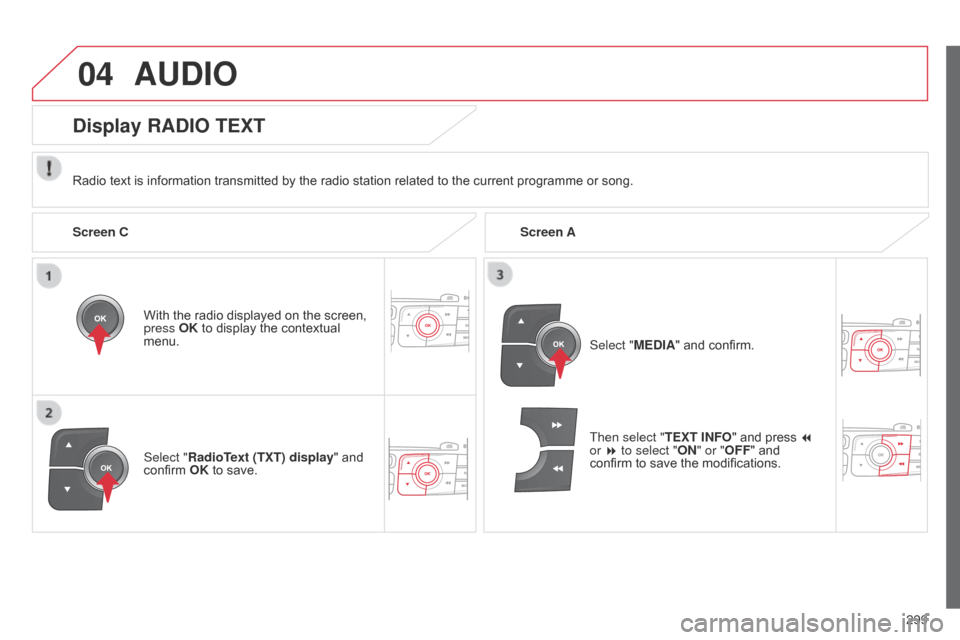
Radio text is information transmitted by the radio station related to the current programme or song.
With the radio displayed on the screen,
press
OK to display the contextual
menu.
Select "
RadioText (TXT) display" and
confirm
OK to save.
Display RADIO TEXT
Screen C Screen A
Select "MEDIA" and confirm.
Then select "TEXT INFO "
and press 7
or 8 to select "ON" or "OFF "
and
confirm
to save the modifications.