USB Citroen C4 RHD 2016 2.G User Guide
[x] Cancel search | Manufacturer: CITROEN, Model Year: 2016, Model line: C4 RHD, Model: Citroen C4 RHD 2016 2.GPages: 472, PDF Size: 13.96 MB
Page 378 of 472
376
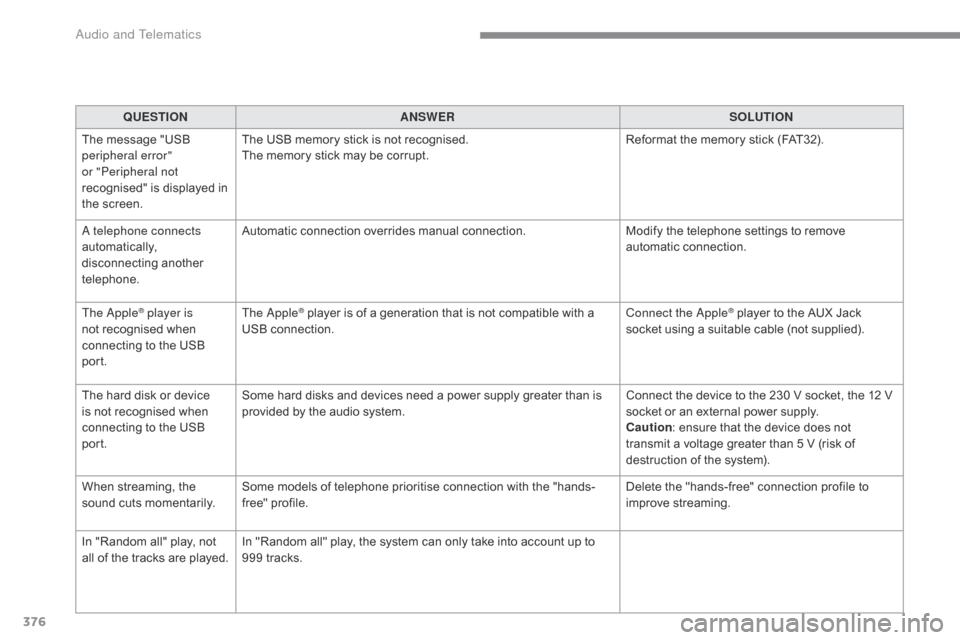
QUESTIONANSWER SOLUTION
The
m
essage
"
USB
per
ipheral error"
or "Peripheral not
recognised"
i
s
d
isplayed
i
n
th
e
s
creen. The
U
SB
m
emory
s
tick
i
s
n
ot
r
ecognised.
The
m
emory
s
tick
m
ay
b
e
c
orrupt.Reformat
t
he
m
emory
s
tick
(
FAT32).
A telephone connects
automatically,
di
sconnecting
an
other
te
lephone. Automatic
c
onnection
ov
errides
m
anual
c
onnection.Modify
t
he
t
elephone
s
ettings
t
o
r
emove
au
tomatic
con
nection.
The Apple
® player is
not r
ecognised w hen co
nnecting
t
o
t
he
U
SB
por
t. The Apple® player is of a generation that is not compatible with a US
B con
nection. Connect the Apple® player to the AUX Jack so
cket u
sing a s
uitable c able ( not s upplied).
The
h
ard
d
isk
o
r
d
evice
is n
ot
r
ecognised
w
hen
co
nnecting
t
o
t
he
U
SB
por
t. Some
h
ard
d
isks
a
nd
d
evices
n
eed
a p
ower
s
upply
g
reater
t
han
i
s
pr
ovided
b
y
t
he
a
udio
s
ystem. Connect
t
he
d
evice
t
o
t
he
2
30
V s
ocket,
t
he
1
2
V so
cket
o
r
a
n
e
xternal
p
ower
s
upply.
Caution :
e
nsure
t
hat
t
he
d
evice
d
oes
n
ot
tr
ansmit
a v
oltage
g
reater
t
han
5 V (
risk
o
f
de
struction
o
f
t
he
s
ystem).
When
s
treaming,
t
he
so
und
c
uts
m
omentarily. Some
m
odels
o
f
t
elephone
p
rioritise
c
onnection
w
ith
t
he
"
hands-
free"
prof
ile. Delete
t
he
"
hands-free"
c
onnection
p
rofile
t
o
im
prove
s
treaming.
In
"
Random
a
ll"
p
lay,
n
ot
al
l
o
f
t
he
t
racks
a
re
p
layed. In
"
Random
a
ll"
p
lay,
t
he
s
ystem
c
an
o
nly
t
ake
i
nto
a
ccount
u
p
t
o
99
9
t
racks.
Audio and Telematics
Page 385 of 472
383
Under floor storage .......................................11 9
U nder-inflation
(d
etection)
.................................................. 18
9
Unlocking
.................................................
56,
6
2
Unlocking
f
rom
t
he
i
nside
..................................................... 69
U
nlocking
t
he
b
oot
......................................... 56
Unl
ocking
th
e
d
oors
................................................
56,
6
2
Updating
r
isk
a
reas
...................................... 295
U
pdating
t
he
d
ate
............................... 41
,
4
6,
5
0
Updating
t
he
t
ime
............................... 41
,
4
6,
5
0
UREA
.....................................................
33,
2
28
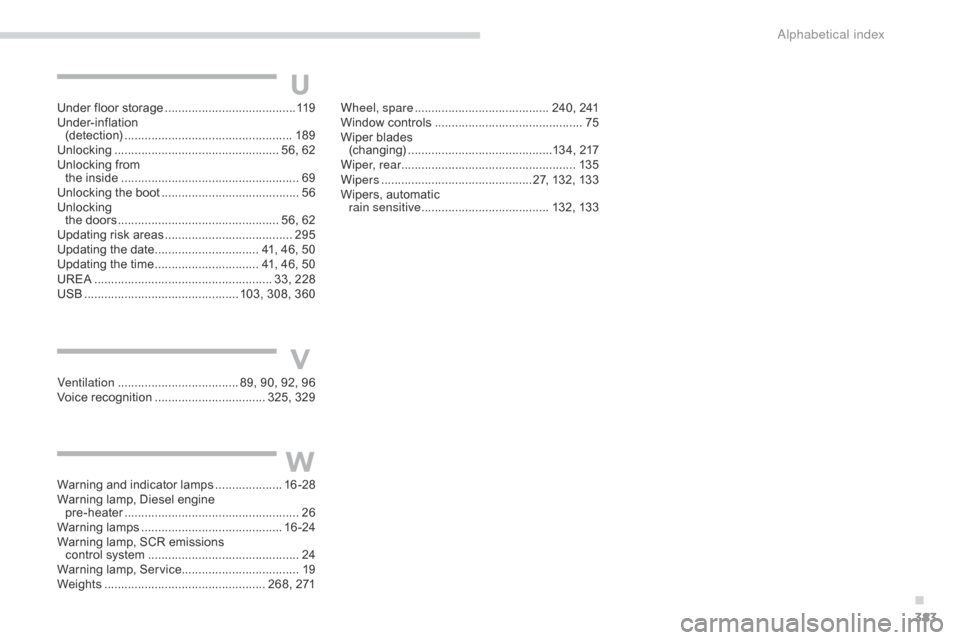
USB
..............................................
103,
3
08,
3
60
U
Ventilation ....................................89, 9 0, 9 2, 9 6
Voice r ecognition ................................. 325
, 329W
heel, spare
........................................ 24
0,
24
1
Window
c
ontrols
............................................
75
Wi
per
b
lades
(
changing)
...........................................13
4,
2
17
Wiper, rear .................................................... 13 5
Wipers
.............................................27
,
1
32,
1
33
Wipers,
a
utomatic
r
ain sensitive
......................................
132
,
13 3
V
Warning and indicator lamps ....................
16 - 28
Warning l amp, D iesel e ngine
p
re-heater
.................................................... 26
W
arning
lamp
s
.......................................... 16 -
24
Warning
l
amp,
S
CR
e
missions
c
ontrol
s
ystem
............................................. 24
Wa
rning
l
amp,
S
ervice................................... 19
Weights
................................................
268,
2
71
W
.
Alphabetical index
Page 413 of 472
5
ADD_C42_EVO_EN
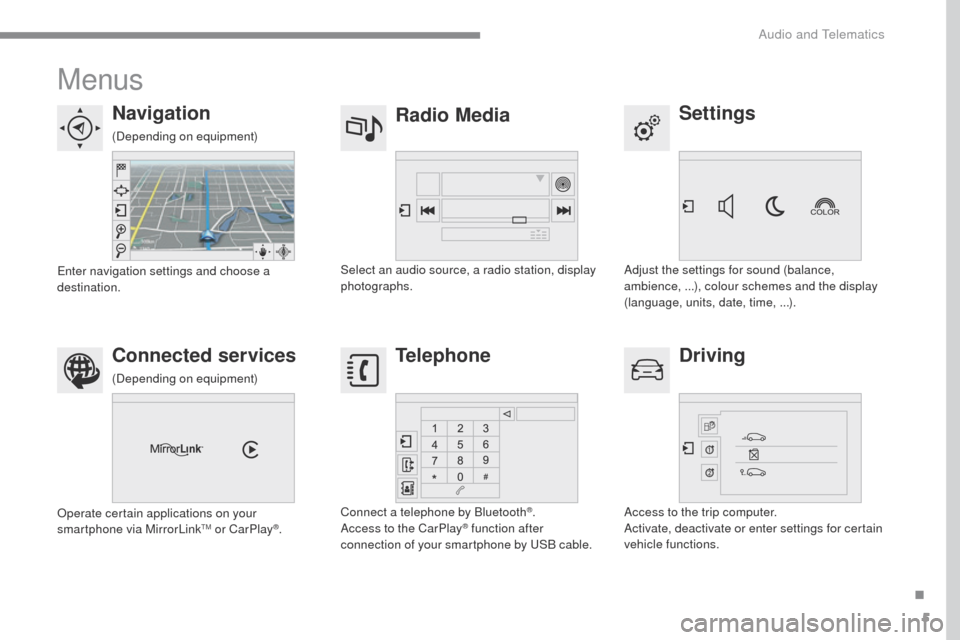
Menus
Settings
Radio Media
Navigation
Driving
Connected services Telephone
Adjust the settings for sound (balance,
ambience, ...), colour schemes and the display
(language, units, date, time, ...).
Select an audio source, a radio station, display
photographs.
Enter navigation settings and choose a
destination.
Access to the trip computer.
Activate, deactivate or enter settings for certain
vehicle functions.
Operate certain applications on your
smartphone via MirrorLink
TM or CarPlay®.
Connect a telephone by Bluetooth
®.
Access to the CarPlay® function after
connection of your smartphone by USB cable.
(Depending on equipment)
(Depending on equipment)
.
Audio and Telematics
Page 429 of 472
21
ADD_C42_EVO_EN
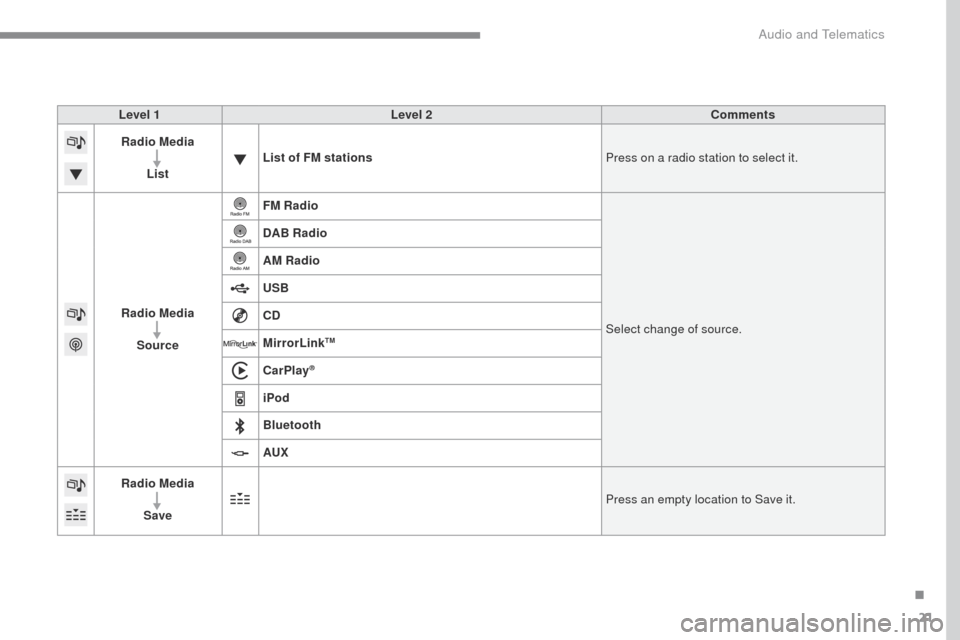
Level 1Level 2 Comments
Radio Media
List List of FM stations
Press on a radio station to select it.
Radio Media Source FM Radio
Select change of source.
DAB Radio
AM Radio
USB
CD
MirrorLink
TM
CarPlay®
iPod
Bluetooth
AUX
Radio Media
Save Press an empty location to Save it.
.
Audio and Telematics
Page 434 of 472

26
ADD_C42_EVO_EN
Press on Radio Media to display the
primary page.
Press on Radio Media to display the
primary page. Select "
Save".
If necessary, select change of
source. Press on Radio Media
to display the
primary page.
Select change source.
"
AM Radio ". By automatic frequency search
Select "FM Radio ".
" AM Radio ".
Press on the secondary page. Or
Select a preset radio station
in the list.
Select " FM Radio ".
Select a radio station from
the list offered.
Select " Update list " to refresh the
list. Select " List" in the primary page.
Press on Radio Media to display the
primary page.
Radio
Changing a radio frequency
Selecting a station
THEN
Radio reception may be affected by
the use of electrical equipment not
approved by CITROËN, such as a USB
charger connected to the 12 V socket.
The exterior environment (hills,
buildings, tunnel, car park, below
ground...) may prevent reception,
even in RDS station tracking mode.
This phenomenon is normal in the
propagation of radio waves and is in no
way indicative of a fault with the audio
system.
Select "
Radio list " in the secondary
page. Or
Press 3 or 4 to move the cursor for an
automatic search down or up for a radio
frequency.
Or
To select a preset radio station.
Audio and Telematics
Page 438 of 472
30
ADD_C42_EVO_EN
Media
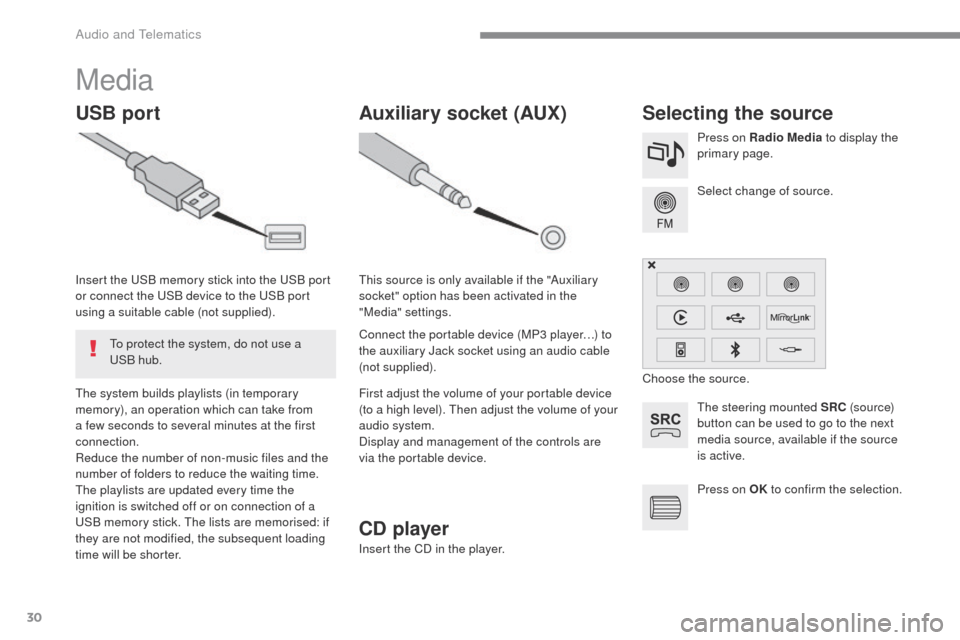
USB portSelecting the source
The steering mounted SRC (s o u r c e)
button can be used to go to the next
media source, available if the source
is active. Select change of source. Press on Radio Media to display the
primary page.
The system builds playlists (in temporary
memory), an operation which can take from
a few seconds to several minutes at the first
connection.
Reduce the number of non-music files and the
number of folders to reduce the waiting time.
The playlists are updated every time the
ignition is switched off or on connection of a
USB memory stick. The lists are memorised: if
they are not modified, the subsequent loading
time will be shorter. Insert the USB memory stick into the USB port
or connect the USB device to the USB port
using a suitable cable (not supplied).
Auxiliary socket (AUX)
Connect the portable device (MP3 player…) to
the auxiliary Jack socket using an audio cable
(not supplied). This source is only available if the "Auxiliary
socket" option has been activated in the
"Media" settings.
First adjust the volume of your portable device
(to a high level). Then adjust the volume of your
audio system.
Display and management of the controls are
via the portable device. Choose the source.
To protect the system, do not use a
USB hub.
CD player
Insert the CD in the player. Press on OK
to confirm the selection.
Audio and Telematics
Page 439 of 472
31
ADD_C42_EVO_EN
The audio system will only play audio files
with ".wma, .aac, .flac, .ogg and .mp3" file
extensions and with a bit rate of between
32 Kbps and 320 Kbps.
It also supports VBR (Variable Bit Rate) mode.
No other type of file (.mp4, etc.) can be played.
".wma" files must be of the standard wma 9 type.
The sampling rates supported are 32, 44 and
48
KHz.
It is advisable to restrict file names to
20
characters, without using of special
characters (e.g. " " ? ; ù) to avoid any playing
and displaying problems.
Information and advice
Use only USB memory sticks formatted FAT 32
(file allocation table).
The system supports USB mass
storage devices, BlackBerry
® devices
or Apple® players via USB ports. The
adaptor cable is not supplied.
Control of the peripheral device is with
the audio system controls.
Other peripherals, not recognised on
connection, must be connected to the
auxiliary socket using a Jack cable (not
supplied). It is recommended that the USB cable
for the portable device is used. To protect the system, do not use a
USB hub.
In order to be able to play a recorded CDR or
CDRW, when recording it is preferable to select
the ISO 9660 level 1, 2 or Joliet standard.
If the disc is recorded in another format it may
not be played correctly.
It is recommended that the same recording
standard is always used for an individual disc,
with as low a speed as possible (4x maximum)
for optimum sound quality.
In the particular case of a multi-session CD, the
Joliet standard is recommended.
.
Audio and Telematics
Page 441 of 472
33
ADD_C42_EVO_EN
Bluetooth® audio streaming
Streaming allows audio files on your telephone
to be played through the vehicle's speakers.
Connect the telephone: see the "Telephone"
section, then " Bluetooth".
Choose the " Audio" or "All" profile.
If play does not start automatically, it may be
necessary to start the audio playback from the
telephone.
Control is from the peripheral device or by
using the audio system buttons.
Once connected in streaming mode,
the telephone is considered to be a
media source.
It is recommended that you activate
"Repeat " on the Bluetooth
® peripheral.
Connecting Apple® players
Connect the Apple® player to the USB port
using a suitable cable (not supplied).
Play starts automatically.
Control is via the audio system. The classifications available are those
of the portable device connected
(artists / albums / genres / playlists /
audiobooks / podcasts).
The default classification used is by
artist. To modify the classification used,
return to the first level of the menu
then select the desired classification
(playlists for example) and confirm
to go down through the menu to the
desired track.
The version of software in the audio system
may not be compatible with the generation of
your Apple
® p l aye r.
.
Audio and Telematics
Page 451 of 472
43
ADD_C42_EVO_EN
As a safety measure and because it
requires sustained attention by the
driver, using a smartphone when
driving is prohibited.
All operations must be done with the
vehicle stationary.
The synchronisation of a
smartphone allows applications on a
smartphone that are adapted to the
MirrorLink
TM technology to be displayed
i
n the vehicle's screen.
The principles and standards
are constantly evolving. For the
communication process between the
smartphone and the system to work
correctly, the smartphone must be
unlocked; update the operating system
of your smartphone as well as the date
and time in the smartphone and the
system.
For the list of eligible smartphones,
connect to the brand's internet website
in your country. As a safety measure, applications
can only be viewed with the vehicle
stationary; display is interrupted once
the vehicle is moving.When connecting a smartphone to
the system, it is recommended that
Bluetooth
® be started on the smartphone
Start the application on the
smartphone (optional, depending
on the smartphone and operating
syste m).
Access to the different audio sources remains
accessible in the margin of the MirrorLink
TM
display, using touch buttons in the upper bar.
Access to the menus for the system is possible
at any time using the dedicated buttons During the procedure, several screen
pages relating to certain functions
are displayed.
Accept to start and end the
connection.
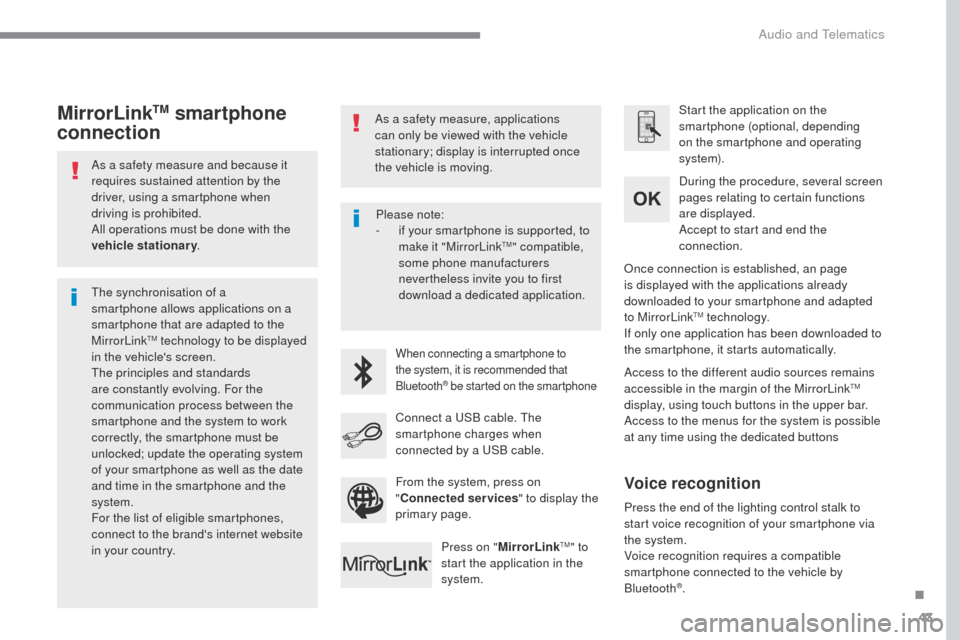
Connect a USB cable. The
smartphone charges when
connected by a USB cable. Press on " MirrorLink
TM" to
start the application in the
system. Once connection is established, an page
is displayed with the applications already
downloaded to your smartphone and adapted
to MirrorLink
TM technology.
If only one application has been downloaded to
the smartphone, it starts automatically.
MirrorLinkTM smartphone
connection
Press the end of the lighting control stalk to
start voice recognition of your smartphone via
the system.
Voice recognition requires a compatible
smartphone connected to the vehicle by
Bluetooth
®.
Voice recognition
Please note:
-
i f your smartphone is supported, to
make it "MirrorLink
TM" compatible,
some phone manufacturers
nevertheless invite you to first
download a dedicated application.
From the system, press on
" Connected services " to display the
primary page.
.
Audio and Telematics
Page 455 of 472
47
ADD_C42_EVO_EN
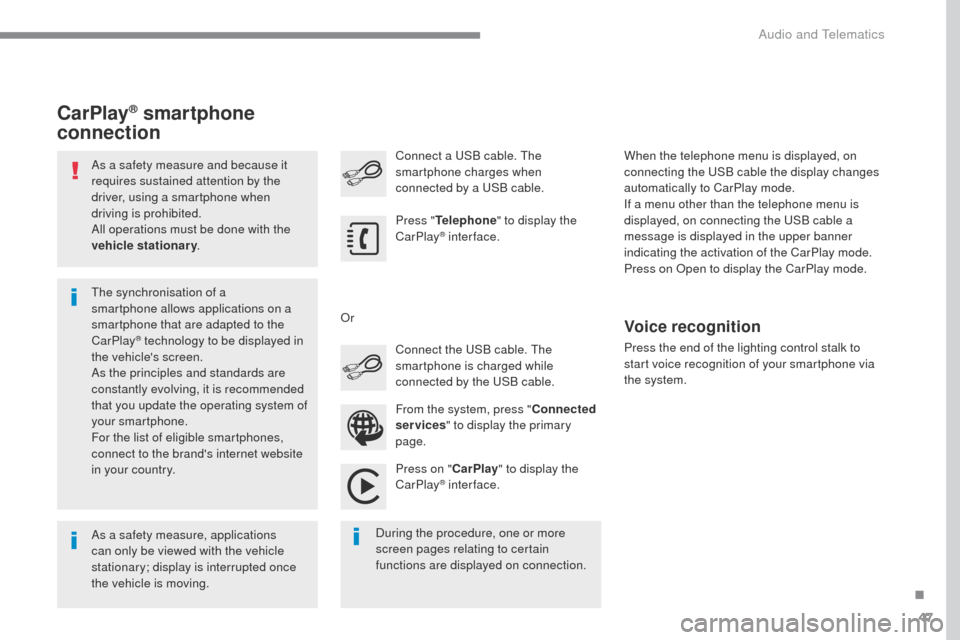
As a safety measure and because it
requires sustained attention by the
driver, using a smartphone when
driving is prohibited.
All operations must be done with the
vehicle stationary.
As a safety measure, applications
can only be viewed with the vehicle
stationary; display is interrupted once
the vehicle is moving. The synchronisation of a
smartphone allows applications on a
smartphone that are adapted to the
CarPlay
® technology to be displayed in
t
he vehicle's screen.
As the principles and standards are
constantly evolving, it is recommended
that you update the operating system of
your smartphone.
For the list of eligible smartphones,
connect to the brand's internet website
in your country. Press "
Telephone " to display the
CarPlay
® inter face.
Press on " CarPlay" to display the
CarPlay
® inter face.
Connect a USB cable. The
smartphone charges when
connected by a USB cable.
Press the end of the lighting control stalk to
start voice recognition of your smartphone via
the system.
CarPlay® smartphone
connection
During the procedure, one or more
screen pages relating to certain
functions are displayed on connection. From the system, press "
Connected
services " to display the primary
page. Connect the USB cable. The
smartphone is charged while
connected by the USB cable.
Or
Voice recognition
When the telephone menu is displayed, on
connecting the USB cable the display changes
automatically to CarPlay mode.
If a menu other than the telephone menu is
displayed, on connecting the USB cable a
message is displayed in the upper banner
indicating the activation of the CarPlay mode.
Press on Open to display the CarPlay mode.
.
Audio and Telematics