audio CITROEN C5 2021 User Guide
[x] Cancel search | Manufacturer: CITROEN, Model Year: 2021, Model line: C5, Model: CITROEN C5 2021Pages: 228, PDF Size: 6.78 MB
Page 177 of 228
175
In the event of a breakdown
8Contact a CITROËN dealer or a qualified
workshop.
To charge the vehicle's battery yourself, use only a charger compatible with
lead-acid batteries with a nominal voltage of
12
V.
Follow the instructions provided by the
manufacturer of the charger.
Never reverse polarities.
It is not necessary to disconnect the
battery.
►
Switch the ignition off.
►
Switch off all electrical consumers (audio
system, lighting, wipers, etc.).
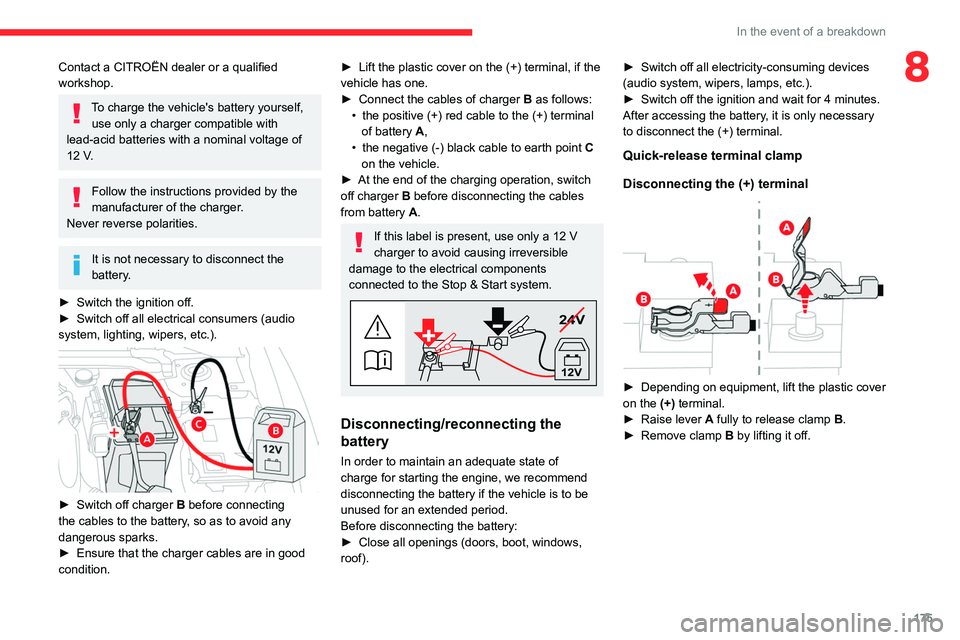
► Switch off charger B before connecting
the cables to the battery, so as to avoid any
dangerous sparks.
►
Ensure that the charger cables are in good
condition.
► Lift the plastic cover on the (+) terminal, if the
vehicle has one.
►
Connect the cables of charger B
as follows:
•
the positive (+) red cable to the (+) terminal
of battery
A,
•
the negative (-) black cable to earth point C
on the vehicle.
►
At the end of the charging operation, switch
off charger B
before disconnecting the cables
from battery A.
If this label is present, use only a 12 V
charger to avoid causing irreversible
damage to the electrical components
connected to the Stop & Start system.
24V
12V
Disconnecting/reconnecting the
battery
In order to maintain an adequate state of
charge for starting the engine, we recommend
disconnecting the battery if the vehicle is to be
unused for an extended period.
Before disconnecting the battery:
►
Close all openings (doors, boot, windows,
roof). ►
Switch off all electricity-consuming devices
(audio system, wipers, lamps, etc.).
►
Switch off the ignition and wait for 4
minutes.
After accessing the battery, it is only necessary
to disconnect the (+) terminal.
Quick-release terminal clamp
Disconnecting the (+) terminal
► Depending on equipment, lift the plastic cover
on the (+) terminal.
►
Raise lever
A
fully to release clamp
B
.
►
Remove clamp
B
by lifting it off.
Page 179 of 228
177
In the event of a breakdown
8In some circumstances, it may be necessary to
charge the front battery:
–
When using the vehicle mainly for short
journeys.
–
If the vehicle is to be taken off the road for
several weeks.
Contact a CITROËN dealer or a qualified
workshop.
To charge the vehicle's front battery yourself, use only a charger compatible
with lead-acid batteries with a nominal voltage
of 12
V.
Follow the instructions provided by the
manufacturer of the charger.
Never reverse polarities.
It is not necessary to disconnect the
battery.
►
Switch the ignition off.
►
Switch off all electrical consumers (audio
system, lighting, wipers, etc.).
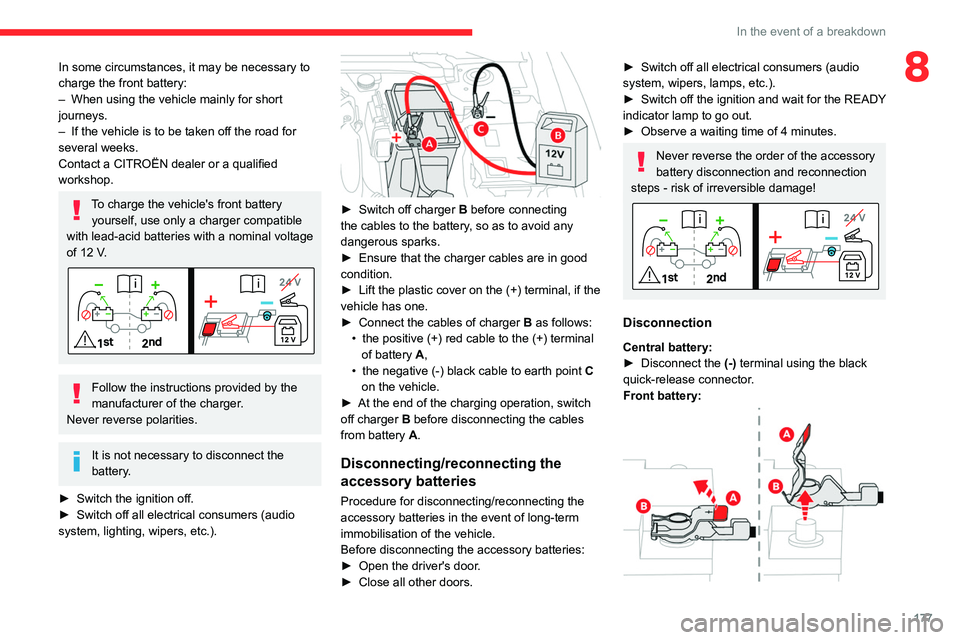
► Switch off charger B before connecting
the cables to the battery, so as to avoid any
dangerous sparks.
►
Ensure that the charger cables are in good
condition.
►
Lift the plastic cover on the (+) terminal, if the
vehicle has one.
►
Connect the cables of charger B
as follows:
•
the positive (+) red cable to the (+) terminal
of battery
A,
•
the negative (-) black cable to earth point C
on the vehicle.
►
At the end of the charging operation, switch
off charger B
before disconnecting the cables
from battery A.
Disconnecting/reconnecting the
accessory batteries
Procedure for disconnecting/reconnecting the
accessory batteries in the event of long-term
immobilisation of the vehicle.
Before disconnecting the accessory batteries:
►
Open the driver's door
.
►
Close all other doors.
► Switch off all electrical consumers (audio
system, wipers, lamps, etc.).
►
Switch
off the ignition and wait for the READY
indicator lamp to go out.
►
Observe a waiting time of 4 minutes.
Never reverse the order of the accessory
battery disconnection and reconnection
steps - risk of irreversible damage!
Disconnection
Central battery:
► Disconnect the (-)
terminal using the black
quick-release connector.
Front battery:
Page 187 of 228
185
MYCITROËN DRIVE PLUS - MYCITROËN PLAY PLUS
10MYCITROËN DRIVE
PLUS - MYCITROËN
PLAY PLUS
GPS navigation -
Applications - Multimedia
audio system - Bluetooth
®
telephone
The functions and settings described
vary according to the version and
configuration of the vehicle, and according to
the country of sale.
For safety reasons and because they
require sustained attention by the driver,
the following operations must be carried out
with the vehicle stationary and the ignition
on:
–
Pairing the smartphone with the system via
Bluetooth®.
–
Using the smartphone.
–
Connecting to Mirror Screen
(Apple®CarPlay® or Android Auto).
–
Changing the system settings and
configuration.
The message Energy economy mode is displayed when the system is about to go
into standby.
For more information on
Energy economy
mode
, refer to the “Practical information”
section.
The AM radio selection mode is not available on electric and rechargeable
hybrid vehicles.
Warning
Navigation is a driving aid. It cannot
replace the driver. All guidance instructions
should be carefully checked by the user.
By using the navigation, you accept the
following terms and conditions:
https://www.tomtom.com/en_gb/legal/
eula-automotive/?388448
First steps
The system starts when the ignition is switched on.
With the ignition off, a press turns the system on.
With the engine running, a press mutes the
sound.
A long press launches standby mode: the sound
cuts off, the screens go off and the clock is
displayed on the central screen.
Rotation: volume control.
Information
This system gives access to the following
elements:
–
Audio equipment and telephone controls with
display of associated information.
–
Connected services and display of associated
information.
–
Navigation system controls and display
of associated information (depending on
equipment).
–
V
oice recognition (depending on equipment).
–
T
ime and exterior temperature.
–
Heating/air conditioning system controls and
reminders of settings.
–
Settings for driving aid functions, comfort
and safety functions, extended head-up display
(depending on equipment and version), audio
equipment and digital instrument panel.
–
Settings for functions specific to rechargeable
hybrid vehicles.
–
Display of visual manoeuvring aid functions.
–
Interactive handbook.
–
V
ideo tutorials (e.g. screen management,
driving aids, voice recognition).
Upper bar
Certain information is displayed permanently in
the upper bar of the touch screen:
–
Exterior temperature from vehicle sensors
(associated with a blue symbol in case of risk
of ice).
–
T
emperature setting reminder for driver and
passenger side air conditionning.
Page 188 of 228
186
MYCITROËN DRIVE PLUS - MYCITROËN PLAY PLUS
– Charge level of the connected smartphone.
– System connection status (Bluetooth®, Wi-Fi,
cellular network).
–
Time.
–
Quick access to the Mirror Screen® functions
(associated with a connected smartphone).
Swipe down from the upper edge of the touch
screen, to access the notifications centre and
display a list of quick settings:Guest, Privacy
Settings, Brightness, My Devices, night mode,
etc.
Principles
► Use the HOME button to display the
last used home page, a second press
displays the first home page, then press the
virtual buttons on the touch screen.
Scroll through the home pages, by sliding
your finger on the screen to the right or to
the left.
Principle of movement in the system
Depending on the pages displayed on the
screen, scroll through the text or the menu (on
the left side of the screen) by sliding your finger,
as with a smartphone.
Touch buttons
Display/hide the context menu.
Return to the previous page.
►
T
o change the status of a function, press the
description for the corresponding line (change confirmed by the slider moving to the right/left:
function activated/deactivated).
Access additional information on the
function.
Access to a function’s settings.
Add/delete shortcuts.
Configuring profiles
Press the "Settings" application.
In the list, select the "Profile” tab.
The screen display presents a “Guest” profile
built into the system and allows for the creation
and personalisation of several new profiles
associated or not with mobile devices.
The “Guest” profile has a default display with the possibility of adding to it and/or
returning it to its initial configuration. This profile
is built into the system and cannot be deleted.
Each profile created can be associated
with a mobile device of your choice
connected via
Bluetooth
®; the Bluetooth® function
of the mobile device must first be activated. This
association allows the system to detect your
presence in the vehicle when it starts and to
propose the activation of your personalised
profile.
The connected mobile device serves as an
access key to the profile and restores the last
value of the associated Private Mode. If a profile is not connected to the mobile device,
the last profile used will be highlighted.
Select “Create Profile” to follow the
procedure.
Creating a new profile allows you to personalise:
–
the language, the units, the
Privacy Settings.
–
the screen configuration, the appearance,
the
My shortcuts (depending on equipment).
–
the audio settings, the favourite radio stations.
–
the lighting, the interior ambiance (refer to the
"Ease of use and comfort" section).
–
some driving aids, the list of favourites.
To delete a profile, select it from the list of profiles then press the bin.
Privacy Settings
"Privacy Settings" management is associated
with each profile. This function is used with:
a "Guest"
profile configured by default in "Private
Mode",
or
a profile to be created in the system, with or
without connection with a mobile device.
If there is no connection with a mobile device,
the mode value will be set to "Private Mode".
The connected mobile device serves as an
access key to personal information. First
activate the Bluetooth
® function of the portable
device. The last value of the saved mode will be
restored.
"Share Data and Location"
This mode allows the vehicle to transmit
outside the vehicle all the personal data
Page 192 of 228

190
MYCITROËN DRIVE PLUS - MYCITROËN PLAY PLUS
Mirror Screen® connected (short press): access
the projected view of the telephone application of
your Mirror Screen
® equipment.Radio: automatic search for the
previous/next station (in the list of
radio stations sorted by name or by frequencies).
Media: previous/next track, movement in the
lists.
Phone: browse the telephone's call log.
Short press: validation of a selection. Out of
selection, display the lists.
Applications
From the home page, press this button to
access the applications wall.
From any page, press the touch screen
with three or more fingers to display the
applications wall.
Help
Access the handbook and watch tutorials.
Media
Select an audio source or radio station.
Mirror Screen®
Smartphone connected with Mirror
Screen®: access the projected view of
Apple® CarPlay® or Android Auto.
Smartphone not connected: access the menu
allowing you to connect a smartphone.
Navigation
(depending on equipment) Enter navigation settings and choose a
destination.
Use services available in real time, depending on
equipment.
Voice commands
(depending on equipment)
Use the system or smartphone voice recognition
via the system.
Phone
Telephone not connected: access the
menu allowing you to connect a telephone.
Telephone connected: access the call log,
contacts and telephone settings.
Two connected telephones: access the contents
of the priority telephone with the possibility of
changing the priority of the telephone.
Settings
Main settings for the audio system, touch
screen and digital instrument panel.
Voice commands
First steps
(depending on equipment)
The voice recognition service offers a choice
of 17 languages minimum (French, German,
English (UK), English (US),
Arabic, Brazilian,
Chinese, Spanish, Hebrew, Italian, Japanese,
Dutch, Polish, Portuguese, Russian, Swedish,
Turkish) available with the cellular network and in line with the language chosen and previously
configured in the system.
The system supports two languages
for cases
where the area in which the vehicle is travelling
is not covered by the cellular network.
These languages, referred to as on-board
languages,
are downloaded into the system.
If the chosen language has not been
downloaded, a message on the screen appears
as soon as the cellular network is not connected
for the first time and offers to download it.
T
o use this new language in all areas, download
it beforehand (ignition on without starting the
engine) via the Wi-Fi network.
Apply the download procedure displayed on the
screen.
Downloading this new language removes the
least used on-board language.
Information - Using the
system
When voice commands are activated, say
your command after the audible signal.
For
commands in several stages, interaction
takes place with the system to complete the
initial request.
Some commands self-validate after 7 seconds.
If the system has not taken your command into
account, it will indicate this by a voice message
and an on-screen display.
Page 197 of 228
195
MYCITROËN DRIVE PLUS - MYCITROËN PLAY PLUS
10If the problem persists, delete all traces of
connections on the smartphone and on the
system before making a new connection.
Connect the smartphone to the system
using the USB socket compatible with
Mirror Screen
®.
Android Auto is automatically launched a few
seconds after the USB connection has been
established. A validation procedure on the
smartphone has to be followed for the first
connection, with the vehicle stationary.
The smartphone charges when connected by the
USB cable.
There is only one USB socket allowing the Mirror Screen® connection (Android
Auto); refer to the "Ease of use and
comfort
- Fittings” section.
It is recommended that you use devices’
official USB cables, preferably with a minimal
cable length to ensure optimum performance.
The wireless connection of a Android Auto
device can be initiated from the “ My Devices”
menu.
First activate the smartphone’s Bluetooth
®
function.
Press the "Settings" application.
In the list, select the "Connectivity” tab.
Select “My Devices ” to display the device
to be connected to Android Auto. If the device has already been connected to the
system via
Bluetooth
®, select the device settings
from the list of known devices and choose
Android Auto as the wireless connection mode.
If the device has never been connected to the
system before, it will have to be paired; refer to
the “Bluetooth
® connection” section.
The system detects if the smartphone is
compatible with Android Auto and offers to
connect to it following the pairing process.
Subsequent automatic connection of the
smartphone requires activation of the Bluetooth
®
on your device.
As soon as the connection is established, press this button to display the " Android
Auto” interface.
Press and hold the steering-mounted
control button, say "OK Google" to initiate
the smartphone voice commands.
Media
Changing source
Press the "Media" application.
Press this button to change source (radio,
audio streaming via a USB socket,
Bluetooth
® or Mirror Screen®).
Selecting a radio station
Press the "Media" application.
In the list, select the "Player" tab.Press one of the buttons to
perform an automatic search for
radio stations.
Or
Move the slider to manually search for
frequencies up or down.
Or
Press this button.
Enter the frequency values using the
virtual keypad.
Press this button to confirm.
A list of stations is available by pressing the
“Stations” tab.
Press “Mute” to activate/deactivate the
sound.
Radio reception may be affected by the
use of electrical equipment not approved
by the Brand, such as a charger with USB
socket connected to the 12
V socket.
The exterior environment (hills, buildings,
tunnels, basement car parks, etc.) may block
reception, including in RDS mode. This
phenomenon is normal in the propagation
of radio waves and does not indicate any
malfunction of the system.
Page 198 of 228
196
MYCITROËN DRIVE PLUS - MYCITROËN PLAY PLUS
Storing a radio station
preset
Select a station.Press the "Media" application.
In the list, select the "Player" tab.
Press the "Radio Favourites" button.
Storing takes place via a short or long
press on one of these buttons, or a long
press on an existing favourite radio station,
which will be replaced.
Press this button to return to the previous
page.
Automatic search for radio stations
Using the “Media” application.Press the "Media" application.
In the list, select the "Stations” tab.
The search is carried out automatically.
Using the steering-mounted controls,
press this button.
The search is carried out automatically.
Activating radio station tracking
The system changes frequency automatically to
obtain better reception.
Press the "Media" application.
In the list, select the "Settings” tab.
Activate “Radio Station Tracking”.
The lighting of the slider confirms that the
function is activated.
Changing the radio
waveband
Press the "Media" application.
In the list, select the "Player" tab.
Press this button to change the waveband
(FM - AM - DAB) according to the country
of sale.
Activating traffic announcements
This function gives priority to listening to Traffic
announcements alert messages. To be active,
this function needs good reception of a radio
station that transmits this type of message.
While traffic information is being broadcast, the
current radio station is automatically interrupted
so that the message can be heard. Normal radio
listening resumes as soon as the message is
finished.
Press the "Media" application.
In the list, select the "Settings” tab.
Activate “Traffic Announcement (TA)”.
The lighting of the slider confirms that the
function is activated.
Audio streaming
The streaming function allows you to listen to
the audio stream coming from the smartphone(s)
connected via Bluetooth
®, USB (iPod® type) or
Mirror Screen®.
First adjust the volume on the portable device (to
a high level).
Then adjust the volume of the system.
If playback does not start, it may be necessary to
start the audio playback from the smartphone.
Control is from the portable device or by using
the system's touch buttons.
Once connected in streaming mode, the
smartphone is considered to be a media
source.
Playing a track
Press the "Media" application.
If several devices are connected, press
this button to select one.
Once the device is connected, browsing through
the files is possible by pressing the " Playlist" or
"Library" button.
Short press: go to the previous/
next track.
Page 199 of 228
197
MYCITROËN DRIVE PLUS - MYCITROËN PLAY PLUS
10Long press: fast-forward/rewind in a track.Repeat the current title or the list of
selected titles.
Random track playback.
Sound deactivation/reactivation.
Configuring audio and radio
settings
Audio settings can be accessed in 2 different
ways.
Using the Media application
Press the "Media" application.
In the list, select the Settings tab.
Or
Using the Settings application
Press the "Settings" application.
In the list, select the "Audio and Radio "
tab.
It is possible to configure:
–
Sound Settings.
–
Radio Settings.
–
V
olume Settings.
Information and advice
The system supports USB Mass Storage devices
or Apple® devices via the USB sockets. The
adapter cable is not supplied.
Devices are managed using the audio system
controls.
The system will only play audio files with ".wma,
.aac, .flac, .ogg, .mp3" file extensions, at bit rates
between 32 Kbps and 320 Kbps.
It also supports VBR (Variable Bit Rate) mode.
No other file types (".mp4", etc.) can be read.
".wma" files must be of the WMA 9 standard.
The supported sampling rates are 32, 44 and
48 KHz.
To avoid reading and display problems, we
recommend choosing file names less than 20
characters long that do not contain any special
characters (e.g. “ ? .
; ù).
Use only USB memory sticks in FAT32 format
(File Allocation Table).
We recommend using the original USB
cable for the portable device.
Phone
Receiving a call
An incoming call is announced by a ring and a
display overlaid on the screen.
Accepting the call:
briefly press the telephone button on the
steering-mounted controls to accept an
incoming call.
Or
Press this touch screen button.
Ending the call:
press and hold...
...the telephone button on the steering-
mounted controls to refuse the call.
Or
Press this touch screen button.
Press this button on the touch screen to
send an automatic message indicating
that you are driving.
Making a call
Using the telephone is strongly
discouraged while driving.
Park the vehicle.
Making a call using the numeric
keypad
Press the "Phone" application.
In the list, select the "Keypad" tab then dial the
number.
Press this button to make the call.
Making a call using the list of recent
calls
Press the "Phone" application.
In the list, select the "Calls" tab.
Or
Page 201 of 228
199
MYCITROËN DRIVE PLUS - MYCITROËN PLAY PLUS
10“Automatic Date and Time” is activated
by default, so that the setting is made
automatically according to your geolocation.
To adjust manually, deactivate “Automatic Date
and Time”.
Press the “Select Time Zone” field then define
a time zone.
Press the back arrow to return to the
previous page.
Press the “Time Settings” line then set the time.
Press "OK" to confirm.
Press the “Date” line then set the date.
Press "OK" to confirm.
Select the Time Format (12h/24h).
Select the Date Format.
The system does not automatically change between winter and summer time
(depending on the country of sale).
Help
Press the "Help" application.
In the list, select the “User Manual” tab to
consult the vehicle’s handbook.
or
In the list, select the “Tutorials” tab to watch
explanatory videos for a quick start on screen management, certain driving aids and voice
recognition.
User Manual
Select the display language.
The handbook home page is displayed.
It presents the different possibilities for accessing
the information sought:
Visual search
Access to subjects via pictures
representing the exterior and interior of the
vehicle.
Indicator lamps
Access to the descriptions/operation of
the instrument panel warning/indicator lamps.
System
Access to sections dedicated to the
various audio equipment and telematics
systems.
Contents
Access to subjects via the main sections
of the handbook.
Visual search
Press Visual search.
Press one of the pictures located at the bottom
of the screen.
Press one of the bullet points in the
enlarged view.
There are two cases: –
Direct display of the subject, if only one
subject is associated with the bullet point.
–
Display of a list of subjects, if several subjects
are associated with the bullet point.
Indicator lamps
Press Indicator lamps.
The mosaic of warning/indicator lamps is
displayed.
The warning/indicator lamps are sorted by
colour.
Press the warning/indicator lamp concerned; the
corresponding content is displayed.
Back to the mosaic of warning/indicator
lamps.
System
Press System.
The list of audio and telematics systems is
displayed.
Press on the section concerned; the list of
subjects is displayed.
Press on the subject concerned;
the
corresponding content is displayed.
If the subject has more than one page,
drag horizontally.
Back to the list of subjects.
Page 204 of 228

202
Event data recorders
Comfort and infotainment
functions
Comfort settings and personalised settings
may be saved in the vehicle and modified or
reinitialised at any time.
Depending on the vehicle's equipment level, this
may include:
–
Seat and steering wheel position settings.
–
Chassis and air conditioning settings.
–
Personalised settings such as the interior
lighting.
Y
ou can enter your own data into the functions
of your vehicle's audio and telematic system, as
part of the selected functionalities.
Depending on the vehicle's equipment level, this
may include:
–
Multimedia data such as music, videos or
photos to be read by an integrated multimedia
system.
–
Address book data to be used with an
integrated hands-free system or with an
integrated navigation system.
–
Entered destinations.
–
Data regarding the use of online services.
This data for the comfort and infotainment
functions may be stored locally in the vehicle
or saved to a device that you have connected
to the vehicle (e.g. smartphone, USB memory
stick or MP3 player). Data that you have entered
yourself may be deleted at any time.
This data may also be transmitted outside the
vehicle at your request, particularly when using online services in line with the settings that you
have selected.
Smartphone integration
(e.g. Android Auto® or
Apple® CarPlay®)
If your vehicle is equipped accordingly, you can
connect your smartphone or another mobile
device to the vehicle in order to operate it using
the vehicle's integrated controls. Images and
sounds from the smartphone can be transmitted
through the audio and telematics system.
Specific information is simultaneously sent to
your smartphone. Depending on the type of
integration, this includes data such as location,
day/night mode and other general information
about the vehicle. For more information, please
refer to the user instructions for the vehicle or the
audio and telematics system.
Integrating a smartphone allows you to use
its applications, such as a navigation app or
music player. No other integration between
the smartphone and the vehicle is possible, in
particular active access to vehicle data. How the
data is processed subsequently is determined
by the supplier of the application being used.
The ability the change settings depends on the
application in question and on the operating
system installed on your smartphone.
Online services
If your vehicle is connected to a wireless
network, data can be exchanged between
your vehicle and other systems. Connection
to a wireless network is made possible via a
transmitter located in your vehicle or a mobile
device that you have provided (e.g. smartphone).
The online services can be used via this wireless
connection. These include online services and
applications (apps) provided to you by the
Manufacturer or other suppliers.
Exclusive services
As regards the Manufacturer's online services,
the corresponding functions are described by
the Manufacturer in an appropriate medium
(e.g. handbook, Manufacturer's website) and the
information about data protection is provided.
Personal data may be used for online services.
The exchange of data for this purpose takes
place over a secure connection, using for
example the Manufacturer's dedicated computer
systems. The collection, processing and use of
personal data for the development of services
are carried out solely on the basis of a legal
authorisation, for example in the case of a
legal emergency call system or a contractual
agreement or else under a consent agreement.
You can activate or deactivate the services and
functions (some may be chargeable) and, in
some cases, the vehicle's entire connection to
the wireless network. This does not include the